2012 SUBARU IMPREZA WRX ECO mode
[x] Cancel search: ECO modePage 214 of 416
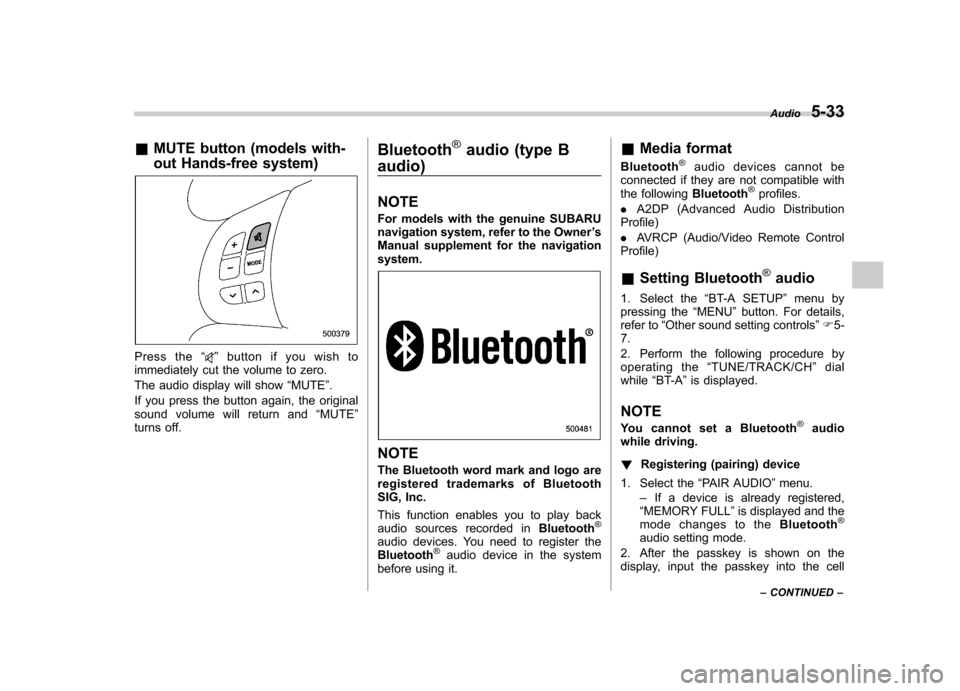
&MUTE button (models with-
out Hands-free system)
Press the “”button if you wish to
immediately cut the volume to zero.
The audio display will show “MUTE ”.
If you press the button again, the original
sound volume will return and “MUTE ”
turns off. Bluetooth
®audio (type B
audio) NOTE
For models with the genuine SUBARU
navigation system, refer to the Owner ’s
Manual supplement for the navigationsystem.
NOTE
The Bluetooth word mark and logo are
registered tradem arks of Bluetooth
SIG, Inc.
This function enables you to play back
audio sources recorded in Bluetooth
®
audio devices. You need to register theBluetooth®audio device in the system
before using it. &
Media format
Bluetooth
®audio devices cannot be
connected if they are not compatible with
the following Bluetooth
®profiles.
. A2DP (Advanced Audio Distribution
Profile) . AVRCP (Audio/Video Remote Control
Profile) & Setting Bluetooth
®audio
1. Select the “BT-A SETUP ”menu by
pressing the “MENU ”button. For details,
refer to “Other sound setting controls ”F 5-
7.
2. Perform the following procedure by
operating the “TUNE/TRACK/CH ”dial
while “BT-A ”is displayed.
NOTE
You cannot set a Bluetooth
®audio
while driving. ! Registering (pairing) device
1. Select the “PAIR AUDIO ”menu.
– If a device is already registered,
“ MEMORY FULL ”is displayed and the
mode changes to the Bluetooth
®
audio setting mode.
2. After the passkey is shown on the
display, input the passkey into the cell Audio
5-33
– CONTINUED –
Page 219 of 416
5-38Audio
used by a movable body identifi-
cation device.
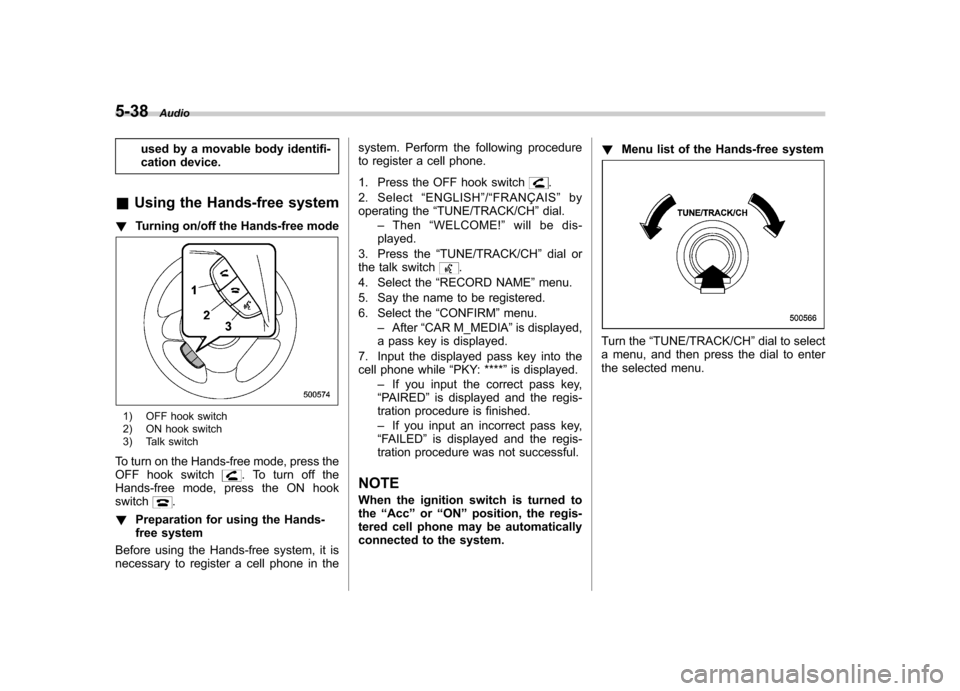
& Using the Hands-free system
! Turning on/off the Hands-free mode
1) OFF hook switch
2) ON hook switch
3) Talk switch
To turn on the Hands-free mode, press the
OFF hook switch
. To turn off the
Hands-free mode, press the ON hook switch
.
! Preparation for using the Hands-
free system
Before using the Hands-free system, it is
necessary to register a cell phone in the system. Perform the following procedure
to register a cell phone.
1. Press the OFF hook switch
.
2. Select “ENGLISH ”/“ FRANÇAIS ”by
operating the “TUNE/TRACK/CH ”dial.
– Then “WELCOME! ”will be dis-
played.
3. Press the “TUNE/TRACK/CH ”dial or
the talk switch
.
4. Select the “RECORD NAME ”menu.
5. Say the name to be registered.
6. Select the “CONFIRM ”menu.
– After “CAR M_MEDIA ”is displayed,
a pass key is displayed.
7. Input the displayed pass key into the
cell phone while “PKY: **** ”is displayed.
– If you input the correct pass key,
“ PAIRED ”is displayed and the regis-
tration procedure is finished. – If you input an incorrect pass key,
“ FAILED ”is displayed and the regis-
tration procedure was not successful.
NOTE
When the ignition switch is turned to the “Acc ”or “ON ”position, the regis-
tered cell phone may be automatically
connected to the system. !
Menu list of the Hands-free system
Turn the “TUNE/TRACK/CH ”dial to select
a menu, and then press the dial to enter
the selected menu.
Page 223 of 416

5-42Audio
38 security sécurité
39 pair phone jumeler le télé- phone
40 change name modifier le nom
41 select phone sélectionner le tél- éphone
42 list phones lister les télé-phones
43 set pass key configurer le
passe-partout
44 add entry ajouter l ’entrée
45 delete entry supprimer l ’entrée
46 delete speed dial supprimer compo-
sition abrégée
47 by voice vocalement
48 by phone par téléphone
49 call history historique d ’appels
50 set speed dial configurer compo-
sition abrégée
51 incoming entrant
52 outgoing sortant
53 list names lister les noms
54 set PIN configurer NIP
55 phone book lock verrouiller le regis- tre!
Updating phonebook data
! Registering by voice
1. Select the “BY VOICE ”menu.
2. Press the talk switch
.
3. Say the phone number to be regis- tered.
4. Select the “CONFIRM ”menu.
5. Perform either of the following proce- dures. –Select the “RECORD NAME ”menu
by operating the “TUNE/TRACK/CH ”
dial. – Press the talk switch
.
6. Say the name (voice tag) to be registered.
7. Select the “CONFIRM ”menu.
– Then “STORED ”is displayed and
the mode changes to the registering
speed dial mode. Refer to “Registering
speed dial ”F 5-43.
! Registering by phone
1. Select the “BY PHONE ”menu.
2. Select the “CONFIRM ”menu.
– Then “TRANSFER ”is displayed.
3. Transfer the data from the cell phone.
For details about transferring the data,
refer to the instruction manual of the cellphone. 4. Perform either of the following proce-dures.
–Select the “RECORD NAME ”menu
by operating the “TUNE/TRACK/CH ”
dial. – Press the talk switch
.
5. Say the name (voice tag) to be registered.
6. Select the “CONFIRM ”menu.
– Then “STORED ”is displayed and
the mode changes to the registering
speed dial mode. Refer to “Registering
speed dial ”F 5-43.
! Registering by inputting manually
1. Select the “MANUAL INPUT ”menu by
operating the “TUNE/TRACK/CH ”dial.
2. Input the phone number to be regis-tered.
3. Perform either of the following proce- dures. –Select the “RECORD NAME ”menu
by operating the “TUNE/TRACK/CH ”
dial. – Press the talk switch
.
4. Say the name (voice tag) to be registered.
5. Select the “CONFIRM ”menu.
– Then “STORED ”is displayed and
the mode changes to the registering
speed dial mode. Refer to “Registering
Page 224 of 416

speed dial”F 5-43.
NOTE
While inputting the phone numbers, if “ GO BACK ”is chosen using the
“ TUNE/TRACK/CH ”dial, the character
that was input last is deleted. ! Registering from call history
1. Select the “CALL HISTORY ”menu.
2. Select “OUTGOING ”or “INCOMING ”
by operating the “TUNE/TRACK/CH ”dial.
3. Select the phone number by operating the “TUNE/TRACK/CH ”dial.
4. Perform either of the following proce-dures. –Select the “RECORD NAME ”menu
by operating the “TUNE/TRACK/CH ”
dial. – Press the talk switch
.
5. Say the name (voice tag) to be registered.
6. Select the “CONFIRM ”menu.
– Then “STORED ”is displayed and
the mode changes to the registering
speed dial mode. Refer to “Registering
speed dial ”F 5-43.
! Registering from redial
1. Select the “REDIAL ”menu. 2. Select the phone number by operatingthe
“TUNE/TRACK/CH ”dial.
3. Select the “STORE ”menu.
4. Select the “CONFIRM ”menu.
5. Perform either of the following proce-dures. –Select the “RECORD NAME ”menu
by operating the “TUNE/TRACK/CH ”
dial. – Press the talk switch
.
6. Say the name (voice tag) to be registered.
7. Select the “CONFIRM ”menu.
– Then “STORED ”is displayed and
the mode changes to the registering
speed dial mode. Refer to “Registering
speed dial ”F 5-43.
! Registering from call back
1. Select the “CALL BACK ”menu.
2. Select the phone number by operatingthe “TUNE/TRACK/CH ”dial.
3. Select the “STORE ”menu.
4. Select the “CONFIRM ”menu.
5. Perform either of the following proce-dures. –Select the “RECORD NAME ”menu
by operating the “TUNE/TRACK/CH ”
dial. – Press the talk switch
. 6. Say the name (voice tag) to be registered.
7. Select the
“CONFIRM ”menu.
– Then “STORED ”is displayed and
the mode changes to the registering
speed dial mode. Refer to “Registering
speed dial ”F 5-43.
! Registering speed dial
1. After registering phonebook data, se-
lect the “SPEED DIAL ”menu.
2. Press the preset button (from
to) to which you want to register the
phone number. NOTE
If the number to be used is already
registered in speed dial, “OVER-
WRITE? ”will be displayed.
! List names function
The voice tags registered in the phone-
book are spoken by using the list names
function. To use the list names function,
perform the following procedure.
1. Select the “LIST NAMES ”menu.
2. Select the registered data by perform-
ing either of the following procedures. –Press the talk switch
.
– Operate the “TUNE/TRACK/CH ”
Audio
5-43
– CONTINUED –
Page 228 of 416

2. After“CURRENT PIN? ”is displayed,
input the PIN code by performing either of
the following procedures.
–Operate the “TUNE/TRACK/CH ”
dial. – Press the talk switch
and say
the number.
3. Select the “CONFIRM ”menu.
– If the inputted PIN code is correct,
“ UNLOCKED ”is displayed and the
phonebook is unlocked.
! Phone setup
After selecting the “PHONE SETUP ”
menu, perform the following procedures. ! Setting pair phone
Refer to “Preparation for using the Hands-
free system ”F 5-38.
! Selecting phone
To select the registered cell phone for
connecting to the in-vehicle equipment,
perform the following procedure.
1. Select the “SELECT PHONE ”menu.
– If no cell phones are registered,
“ EMPTY ”is displayed and the mode
changes to the “PHONE SETUP ”
mode.
2. Select the cell phone by performing
either of the following procedures. –
Operate the “TUNE/TRACK/CH ”
dial. – Press the talk switch
and say
the voice tag.
3. Select the “CONFIRM ”menu.
–“ SELECTED ”is displayed, the se-
lected cell phone is connected to the
in-vehicle equipment and the mode
changes to the “PHONE SETUP ”
mode.
! Changing the voice tag of the cellphone
1. Select the “CHANGE NAME ”menu.
– If no cell phones are registered,
“ EMPTY ”is displayed and the mode
changes to the “PHONE SETUP ”
mode.
2. Select the cell phone by performing
either of the following procedures. –Operate the “TUNE/TRACK/CH ”
dial. – Press the talk switch
and say
the voice tag.
3. Select the “RECORD NAME ”menu.
4. Register the voice tag. For details,
refer to “Preparation for using the Hands-
free system ”F 5-38. !
List phones function
The cell phone voice tags saved in the cell
phone list are spoken by using the list
phones function.
1. Select the “LIST PHONES ”menu.
– If no cell phones are registered,
“ EMPTY ”is displayed and the mode
changes to the “PHONE SETUP ”
mode.
2. Registered cell phones are displayed
in the saved order. While displayed, if the“ TUNE/TRACK/CH ”dial is turned, the
next registered cell phone is displayed.
Press the ON hook button
to close the
Hands-free menu.
3. Select the cell phone by performing
either of the following procedures.
–Operate the “TUNE/TRACK/CH ”
dial. – Press the talk switch
.
4. After “SELECTED ”is displayed, you
can select the following menus. . “SELECT PHONE ”to connect the
selected cell phone . “CHANGE NAME ”to change the voice
tag. “DELETE ”to delete the selected cell
phone from the list. “GO BACK ”to go back to the “PHONE
SETUP ”mode Audio
5-47
– CONTINUED –
Page 231 of 416
6-2Interior equipment
Interior lights
When leaving your vehicle, make sure the
lights are turned off to avoid batterydischarge. &Dome light
1) ON
2) DOOR
3) OFF
The dome light switch has the following
three positions. ON: The light remains on continuously.
OFF: The light remains off.
DOOR: The dome light illuminates auto-
matically in the following cases. . Any of the doors or the rear gate (5-
door) is opened. .
The doors or the rear gate (5-door) are
unlocked using the remote keyless entry
transmitter. . The ignition switch is turned from the
“ Acc ”position to the “LOCK ”position.
The automatically illuminated dome light
remains on for several seconds and then
gradually turns off after all doors and the
rear gate (5-door) are closed.
While the light is illuminated, if any of the
following operations are performed, the
dome light turns off immediately. . The ignition switch is turned from the
“ LOCK ”position to “Acc ”or “ON ”position.
. All doors and the rear gate (5-door) are
locked using the remote keyless entry
transmitter.
The setting of the period for which the light
remains on (OFF delay timer) can be
changed as follows. . Models with genuine SUBARU navi-
gation system:
The setting can be changed using the
navigation monitor. For details, please
refer to the Owner ’s Manual supplement
for the navigation system. Also, the setting
can be changed by a SUBARU dealer.
Contact your SUBARU dealer for details. .
Models without genuine SUBARU
navigation system:
The setting can be changed by a
SUBARU dealer. Contact your SUBARU
dealer for details.
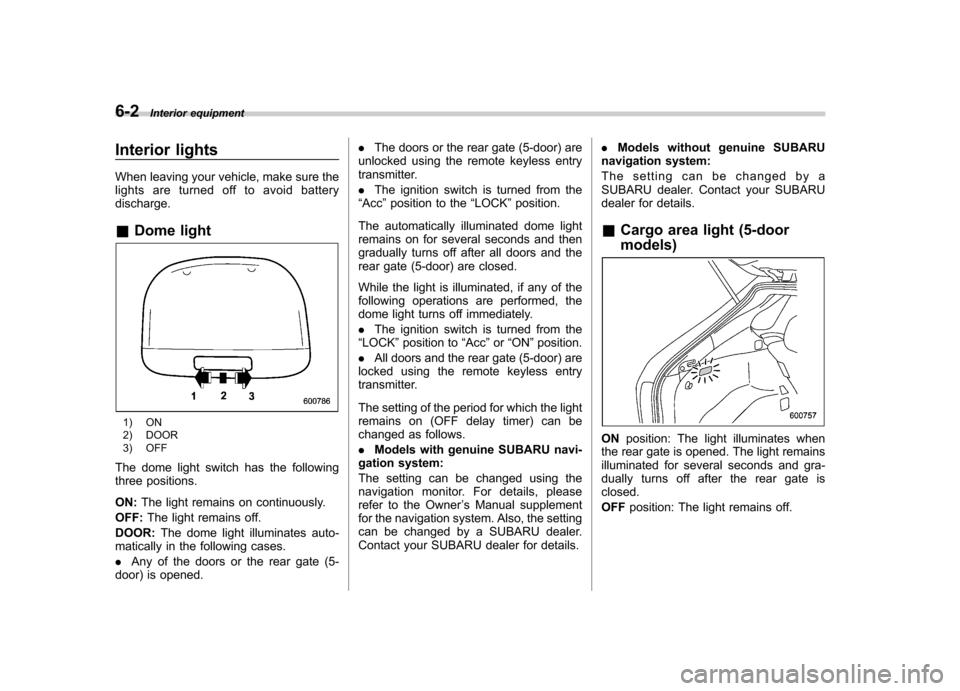
& Cargo area light (5-door models)
ON position: The light illuminates when
the rear gate is opened. The light remains
illuminated for several seconds and gra-
dually turns off after the rear gate isclosed. OFF position: The light remains off.
Page 232 of 416
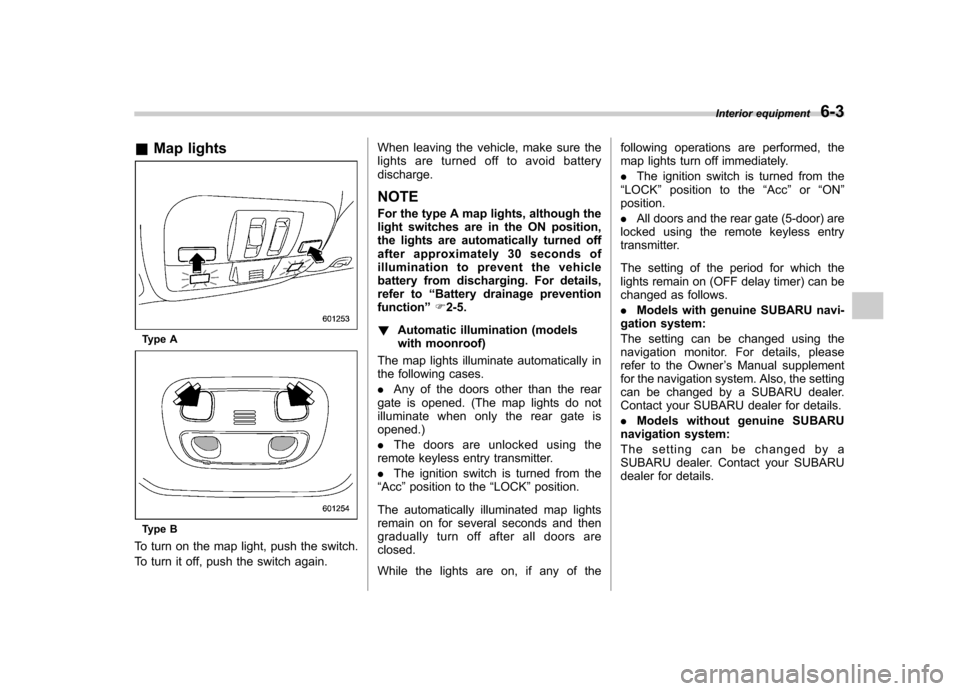
&Map lights
Type A
Type B
To turn on the map light, push the switch.
To turn it off, push the switch again. When leaving the vehicle, make sure the
lights are turned off to avoid batterydischarge.
NOTE
For the type A map lights, although the
light switches are in the ON position,
the lights are automatically turned off
after approximately 30 seconds of
illumination to prevent the vehicle
battery from discharging. For details,
refer to “Battery drainage prevention
function ”F 2-5.
! Automatic illumination (models
with moonroof)
The map lights illuminate automatically in
the following cases. . Any of the doors other than the rear
gate is opened. (The map lights do not
illuminate when only the rear gate isopened.) . The doors are unlocked using the
remote keyless entry transmitter.. The ignition switch is turned from the
“ Acc ”position to the “LOCK ”position.
The automatically illuminated map lights
remain on for several seconds and then
gradually turn off after all doors areclosed.
While the lights are on, if any of the following operations are performed, the
map lights turn off immediately. .
The ignition switch is turned from the
“ LOCK ”position to the “Acc ”or “ON ”
position.. All doors and the rear gate (5-door) are
locked using the remote keyless entry
transmitter.
The setting of the period for which the
lights remain on (OFF delay timer) can be
changed as follows. . Models with genuine SUBARU navi-
gation system:
The setting can be changed using the
navigation monitor. For details, please
refer to the Owner ’s Manual supplement
for the navigation system. Also, the setting
can be changed by a SUBARU dealer.
Contact your SUBARU dealer for details. . Models without genuine SUBARU
navigation system:
The setting can be changed by a
SUBARU dealer. Contact your SUBARU
dealer for details. Interior equipment
6-3
Page 253 of 416
7-10Starting and operating
Stopping the engine
The ignition switch should be turned off
only when the vehicle is stopped and the
engine is idling.
WARNING
Do not stop the engine when the
vehicle is moving. This will cause
loss of power to the power steering
and the brake booster, making steer-
ing and braking more difficult. It
could also result in accidental acti-
vation of the “LOCK ”position on the
ignition switch, causing the steering
wheel to lock. Remote engine start system
(dealer option)
WARNING
. Do not start the engine using the
remote start system in an en-
closed environment (e.g., in a
closed garage). Prolonged opera-
tion of a motor vehicle in an
enclosed environment can cause
a harmful build-up of Carbon
Monoxide. Carbon Monoxide is
harmful to your health. Exposure
to high levels of Carbon Monox-
ide can cause headaches, dizzi-
ness or in extreme cases uncon-
sciousness and/or death.
. Before performing any servicing
of the vehicle, temporarily place
the remote engine start system in
service mode to prevent the
system from unexpectedly start-
ing the engine.
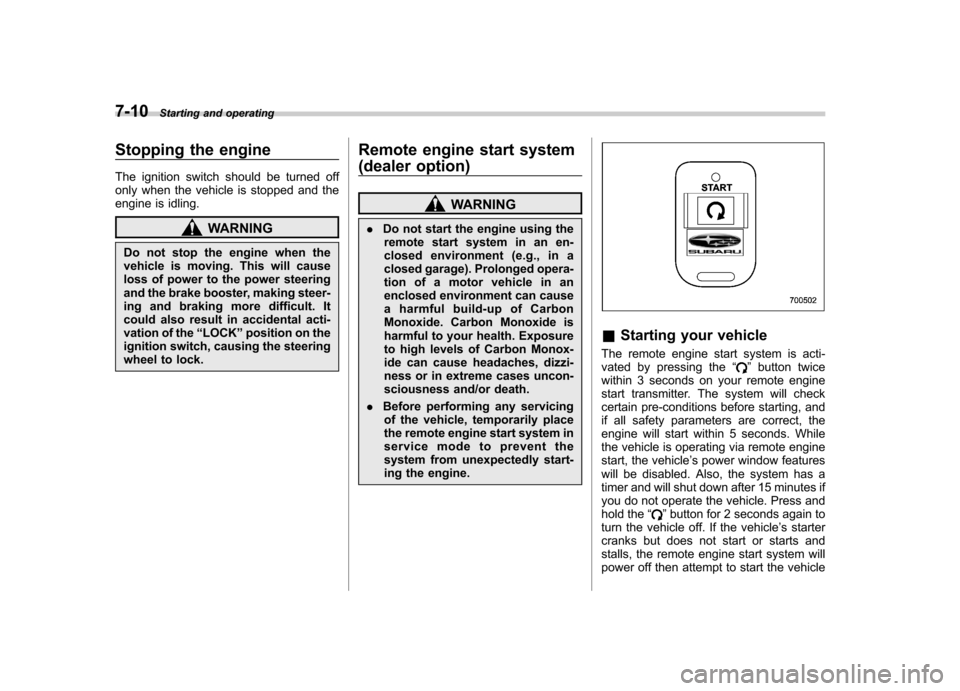
& Starting your vehicle
The remote engine start system is acti-
vated by pressing the “
”button twice
within 3 seconds on your remote engine
start transmitter. The system will check
certain pre-conditions before starting, and
if all safety parameters are correct, the
engine will start within 5 seconds. While
the vehicle is operating via remote engine
start, the vehicle ’s power window features
will be disabled. Also, the system has a
timer and will shut down after 15 minutes if
you do not operate the vehicle. Press and
hold the “
”button for 2 seconds again to
turn the vehicle off. If the vehicle ’s starter
cranks but does not start or starts and
stalls, the remote engine start system will
power off then attempt to start the vehicle