2012 SUBARU IMPREZA WRX ECO mode
[x] Cancel search: ECO modePage 198 of 416

&Play file
NOTE . Copyright protected MP3/WMA/AAC
files will not be played by the system.
The player will automatically skip to the
next file (track).. WMA9 Lossless, WMA9 Profes-
sional and WMA9 voice cannot beplayed. MP3: . Based on MPEG1, 2 and 2.5 Layer3
. Sampling rate (kHz): 48, 44.1, 32, 24,
22.05, 16, 12, 11.025, 8. Bit rate (kbps): 8 to 320
. Supports variable bit rates
WMA:. Based on Windows Media Audio 9
. Bit rate (kbps): 32 to 192
AAC (type B audio):. Based on MPEG4 AAC (ISO/IEC
14496-12: 2003+iTune Meta-data Specifi- cation) . Sampling rate (kHz): 48, 44.1, 32, 24,
22.05, 16, 12, 11.025, 8. Bit rate (kbps): 8 to 320
. Number of channels: 1 to 2ch &
How to insert a CD(s) (type A)
1. Briefly press the
button. If the
magazine in the player has a spare slot
where you can insert a disc, the disc
number indicator associated with the
spare slot will blink.
If no indicator blinks, it means that there
are no spare slots in the magazine.
2. When the “LOAD ”indicator illumi-
nates, insert the disc. Once you have
inserted the disc, the “LOAD ”indicator will
turn off. The disc will then be automatically
drawn in, and the player will begin to play
back the first track of the disc. . To insert more discs in succession,
repeat steps 1 and 2. The magazine will
be loaded with discs in the ascending
order of slot number.
If you do not insert any disc within 15
seconds after you have pressed the
button, the player will begin to play back
the first track of the last disc you haveinserted. . The disc indicator lights up continu-
ously if a disc is already inserted in the
corresponding position of the magazine. . While the player is in the loading mode,
if you press
orbutton, the
player will enter the standby mode. Press the
button to start playback. !
Inserting a disc in a desired posi- tion
1. Briefly press the
button. If the
magazine in the player has a spare slot
where you can insert a disc, the disc
number indicator associated with the
spare slot will blink.
The slots in the magazine the indicator of
which steadily lights up are already loaded
with discs.
2. Press the disc select button (from
to) at the slot where you want
to insert a disc.
3. When the “LOAD ”indicator illumi-
nates, insert the disc. Once you have
inserted the disc, the “LOAD ”indicator will
turn off. The disc will then be automatically
drawn in, and the player will begin to play
the first track on the disc. . If you wish to insert another disc,
repeat the procedure beginning with step 1.
If you do not insert any disc within 15
seconds after you have pressed the
button, the player will begin to play back
the first track of the last disc you haveinserted. . While the player is in the loading mode,
if you press
orbutton, the
player will enter the standby mode. Press the
button to start playback. Audio
5-17
– CONTINUED –
Page 199 of 416

5-18Audio
!Loading all the magazine (full disc
loading mode)
1. If you press and hold the
button,
the player will produce beep sound and
will enter the full disc loading mode.
2. When the disc number indicator
flashes and “ALL LOAD ”indicator illumi-
nates, insert a disc within 15 seconds. If a
disc is successfully loaded during this
period, the disc number indicator will stop
blinking and will steadily light.
3. When the loading of a disc is com-
plete, the next disc number indicator will
blink. Then repeat step 2.
4. When the magazine is filled with discs
by repeating steps 2 and 3, the player will
start playback of the discs, beginning with
the one inserted first.
If you fail to insert any disc during each 15
seconds interval, the full disc loading
mode will be canceled, and the player will
start playback of the disc inserted first.
& How to insert a CD (type B)
Hold the disc with a finger in the center
hole while gripping the edge of the disc,
then insert it into the slot (with the label
side up) and the player will automatically
pull the disc into position. NOTE
DO NOT INSERT TWO DISCS INTO THE
DISC INSERTION SLOT AT THE SAMETIME. &
How to play back a CD
! When there is no CD inserted
Properly insert a CD. Refer to “How to
insert a CD(s) (type A) ”F 5-17/ “How to
insert a CD (type B) ”F 5-18.
When a CD is loaded, the player will start
playback of the CD, beginning with the
first track. ! When there are CDs loaded (type A)
Press the preferred disc select button (from
to). If a disc is loaded
in any slot, the corresponding disc number
indicator will be constantly illuminated.
The player will then start playback of the
selected CD, beginning with the first track.
If a disc that the player cannot read has
been loaded, the player will display themessage “CHECK DISC ”.
! When CD is in the player (type B)
Each brief press of the
button
changes the modes in the following sequence.
When the CD mode is selected, the player
will start playback. & To select a track from the beginning
Type A audio
Type B audio
Turn the “TUNE/TRACK/CH ”dial clock-
wise to skip to the beginning of the next
track/file. Each time the dial is turned, the
indicated track/file number will increase.
Turn the “TUNE/TRACK/CH ”dial counter-
clockwise to skip to the beginning of the
current track/file. Each time the dial is
turned, the indicated track/file number will decrease.
Page 201 of 416

5-20Audio
will be resumed. NOTE
The repeat-play mode will be cancelled
if you perform any of the followingsteps. .Press the “
”button
. Press the disc select button (type A
audio) . Press the “SCAN ”button
. Press the “LOAD ”button when
there is free space in the CD magazine
(type A audio)
& Random playback
Type A audio
Type B audio
To playback tracks at random, press and
hold the “RPT/RDM ”button while a track
is playing.
Each time you press and hold the button,
the mode changes in the following se-quences. Type A audio:
Type B audio:
NOTE .
The “RDM ”indication refers to the
random playback of the tracks. It
randomly repeats the tracks on the
CD. It is possible to select the function
when formats other than the MP3/WMA/
AAC format CD is playing. . The “F-RDM ”indication refers to the
random playback in the folder. It ran-
domly repeats the tracks in the folder. It
is possible to select the function when
an MP3/WMA/AAC format track is play-ing.. The “D-RDM ”indication refers to the
random playback of a disc. It randomly
repeats the tracks on the CD. It is
possible to select the function when
an MP3/WMA format track is playing.
To cancel the random playback mode, press and hold the
“RPT/RDM ”button
again and select CANCEL. The “RDM ”indication will turn off, and the
normal playback mode will be resumed. NOTE
Random playback will be cancelled if
you perform any of the following steps. . Press the “
”button
. Press the disc select button (type A
audio) . Press the “SCAN ”button
. Press the “LOAD ”button when
there is free space in the CD magazine
(type A audio)
& Scan
Type A audio
Type B audio
The scan mode lets you listen to the first
10 seconds of each track/file in succes-
sion. Press the “SCAN ”button to start
scanning upward beginning with the track/
file(s) following the currently selected one.
After all track/file(s) in the disk/folder have
been scanned, normal playback will be
Page 202 of 416
resumed. To cancel the scan mode, press the“SCAN ”button again.
NOTE
The scan mode will be cancelled if you
perform any of the following steps. . Press the “RPT/RDM ”button
. Turn the “TUNE/TRACK/CH ”dial
. Press the “
”or “”side of the
“ FOLDER/PTY/CAT ”button
. Press the “
”button
. Press the disc select button (type A
audio) . Select the radio or AUX mode
. Press the “LOAD ”button when
there is free space in the CD magazine
(type A audio). Press the “PTY/CAT ”button
. Turn off the power of the audio
equipment. Turn the ignition switch to the
“ LOCK ”position
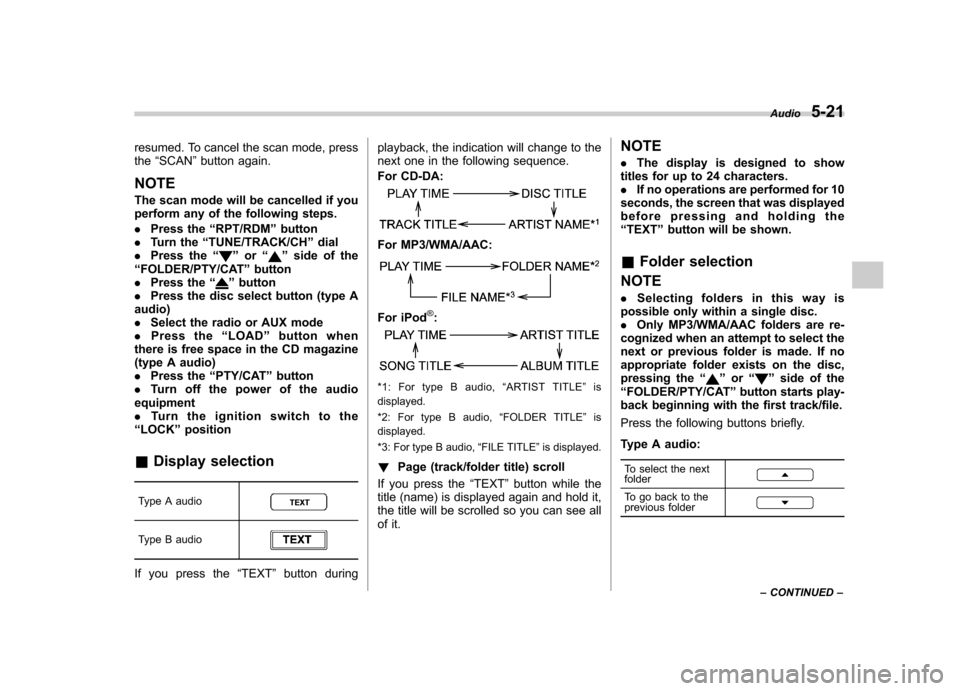
& Display selection
Type A audio
Type B audio
If you press the “TEXT ”button during playback, the indication will change to the
next one in the following sequence.
For CD-DA:
For MP3/WMA/AAC:
For iPod®:
*1: For type B audio,
“ARTIST TITLE ”is
displayed.
*2: For type B audio, “FOLDER TITLE ”is
displayed.
*3: For type B audio, “FILE TITLE ”is displayed.
! Page (track/folder title) scroll
If you press the “TEXT ”button while the
title (name) is displayed again and hold it,
the title will be scrolled so you can see all
of it. NOTE .
The display is designed to show
titles for up to 24 characters. . If no operations are performed for 10
seconds, the screen that was displayed
before pressing and holding the“ TEXT ”button will be shown.
& Folder selection
NOTE . Selecting folders in this way is
possible only within a single disc. . Only MP3/WMA/AAC folders are re-
cognized when an attempt to select the
next or previous folder is made. If no
appropriate folder exists on the disc,
pressing the “”or “”side of the
“ FOLDER/PTY/CAT ”button starts play-
back beginning with the first track/file.
Press the following buttons briefly.
Type A audio:
To select the next folder
To go back to the
previous folder
Audio 5-21
– CONTINUED –
Page 203 of 416

5-22Audio
Type B audio:
To select the next folder
To go back to the
previous folder
& How to eject CDs from the
player (type A)
! Ejecting a CD from the player
Of the discs loaded, you can select and
remove only one disc.
1. Press the disc select button (from
to) to select the disc to be
ejected.
2. Briefly press the
button. The
selected disc will be ejected. The disc
number indicator will flash at this time.
When you remove the ejected disc, the
disc number indicator will turn off.
To remove more discs in succession,
repeat steps 1 and 2. ! Ejecting all discs from the player
(all disc ejection mode)
1. If you press and hold the
button,
the player will produce beep sound and
will enter the all disc ejection mode. At this
time, the disc number indicator and “ALL
EJECT ”indicator will flash.
2. Remove the disc that has been ejected. The other discs loaded will then
be ejected one after another. If you do not
remove the disc that has been ejected, the“
All disc ejection mode ”will be canceled.
NOTE . Avoid driving the vehicle with a CD
sticking out. The CD may fall out due to vibration.. If you press the
button while
the player is in all disc ejection mode,
the mode will be cancelled following
ejection of the disc that is currently
being ejected.. If you press the
button orbutton while the player is in all disc
ejection mode, the player will draw in
the discs that have been ejected and
play them. & How to eject a CD from the
player (type B)
When a disc is being played back or when
a disc is in the player, press the
button. The disc will be ejected. NOTE . Avoid driving the vehicle with a CD
sticking out. The CD may fall out due to vibration.. If the disc is left ejected for more
than approximately 15 seconds, a disc protection function will operate, auto-
matically reloading the disc. In this
case, the disc is not played. &
When the following mes-
sages are displayed
If one of the following messages is
displayed while operating the CD player,
determine the cause based on the follow-
ing information. If you cannot clear those
messages, please contact your SUBARU
dealer. ! When “PUSH EJECT ”is displayed
Press the
button to eject the disc.
Check the disc for damage or deforma-
tion, and also check that the correct disc is
inserted. Do not try to eject the disc
forcibly. Single CDs (i.e., 8 cm/3 inch
CDs) are not supported, and if inserted,
they will be immediately ejected and this
message will be displayed. If the disc
cannot be ejected or this message re-
mains displayed, please contact your
SUBARU dealer. ! When “CHECK DISC ”is displayed
Press the
button to eject the discs.
Check that the disc is not damaged or
scratched, and also check that the disc is
inserted correctly. This message may
appear when using some CD-RW discs.
Page 205 of 416

5-24Audio
in the center console. A stereo mini pin
plug (3.5ø) can be inserted in this jack.
The connection cable is available at
electrical appliance or similar stores.
To use the AUX input jack :
1. Connect a portable audio player to the
AUX input jack.
Type A audio
Type B audio
2. Press the AUX input selection button “ CD/AUX ”on the audio control panel to
turn on the auxiliary audio input.
3. Play back the portable audio player.
Refer to the Owner ’s Manual of the
portable audio player. NOTE . The AUX jacks of the models with
the genuine SUBARU navigation sys-
tem are the RCA type. For detailed
information, refer to the Owner ’s Man-
ual supplement for the navigation sys-tem.. The output sound of the portable
audio player is not loud, and the sound
via the vehicle ’s speakers that are connected to the vehicle audio set
may be very low. If you turn up the
volume of the audio set, the volume
becomes louder. However, when you
change from one portable audio player
to another one, the volume levels via
the vehicle
’s speakers may be signifi-
cantly louder compared to the prior
device. To avoid a large volume differ-
ence, turn down the volume when you
change between portable audioplayers.. In some cases, when the sound
volume of the portable audio player is
low, sound quality may become im-
paired when you turn up the volume of
the vehicle audio system. In this case,
adjust the sound volume of the porta-
ble audio player.. In some cases, noise occurs be-
cause of a bad connection between the
portable player and the audio system.
Try cleaning the stereo jack and audioplug.. If the noise is not reduced, check for
disconnection of the cord or a malfunc-
tion of the portable player. Precautions to observe when
handling a compact disc
Use only compact discs (CDs, CD-Rs and
CD-RWs) that have the mark shown in the
following. Also, some compact discs
cannot be played.
Page 208 of 416
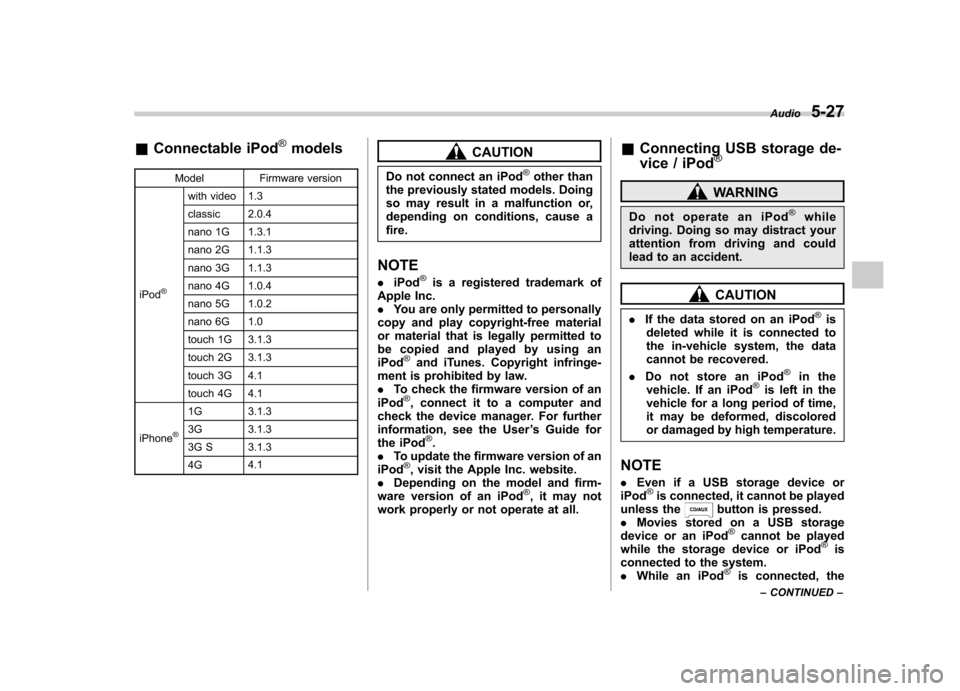
&Connectable iPod®models
Model Firmware version
iPod
®
with video 1.3
classic 2.0.4
nano 1G 1.3.1
nano 2G 1.1.3
nano 3G 1.1.3
nano 4G 1.0.4
nano 5G 1.0.2
nano 6G 1.0
touch 1G 3.1.3
touch 2G 3.1.3
touch 3G 4.1
touch 4G 4.1
iPhone
®
1G 3.1.3
3G 3.1.3
3G S 3.1.3 4G 4.1
CAUTION
Do not connect an iPod
®other than
the previously stated models. Doing
so may result in a malfunction or,
depending on conditions, cause afire.
NOTE . iPod
®is a registered trademark of
Apple Inc. . You are only permitted to personally
copy and play copyright-free material
or material that is legally permitted to
be copied and played by using aniPod
®and iTunes. Copyright infringe-
ment is prohibited by law.. To check the firmware version of an
iPod
®, connect it to a computer and
check the device manager. For further
information, see the User ’s Guide for
the iPod
®.
. To update the firmware version of an
iPod
®, visit the Apple Inc. website.
. Depending on the model and firm-
ware version of an iPod
®, it may not
work properly or not operate at all. &
Connecting USB storage de-
vice / iPod
®
WARNING
Do not operate an iPod
®while
driving. Doing so may distract your
attention from driving and could
lead to an accident.
CAUTION
. If the data stored on an iPod
®is
deleted while it is connected to
the in-vehicle system, the data
cannot be recovered.
. Do not store an iPod
®in the
vehicle. If an iPod®is left in the
vehicle for a long period of time,
it may be deformed, discolored
or damaged by high temperature.
NOTE . Even if a USB storage device or
iPod
®is connected, it cannot be played
unless thebutton is pressed.
. Movies stored on a USB storage
device or an iPod
®cannot be played
while the storage device or iPod®is
connected to the system. . While an iPod
®is connected, the Audio
5-27
– CONTINUED –
Page 209 of 416
5-28Audio
iPod
®cannot be operated using the
click wheel on the iPod®(except some
models). . When using an iPod
®by connecting
it to in-vehicle equipment, the order of
the list items displayed on the in-
vehicle equipment may be different
from that on the iPod
®. However, this
does not indicate a malfunction.. An iPod
®battery that is connected
to in-vehicle equipment will be charged
when the ignition switch is in the “ON ”
or “Acc ”position. However, activation
of the iPod
®may be delayed if the
battery charge of the iPod®is low.
. If an iPod®does not activate after
operation, disconnect the connection
cable from the iPod
®and reset it. For
the resetting procedure, see the User ’s
Guide of the iPod
®.
. If an iPod®and the connection cable
are connected improperly, the iPod®
cannot be powered on or will not be
recognized by in-vehicle equipment. In
this case, disconnect the connection
cable from the iPod
®, and then connect
it again.
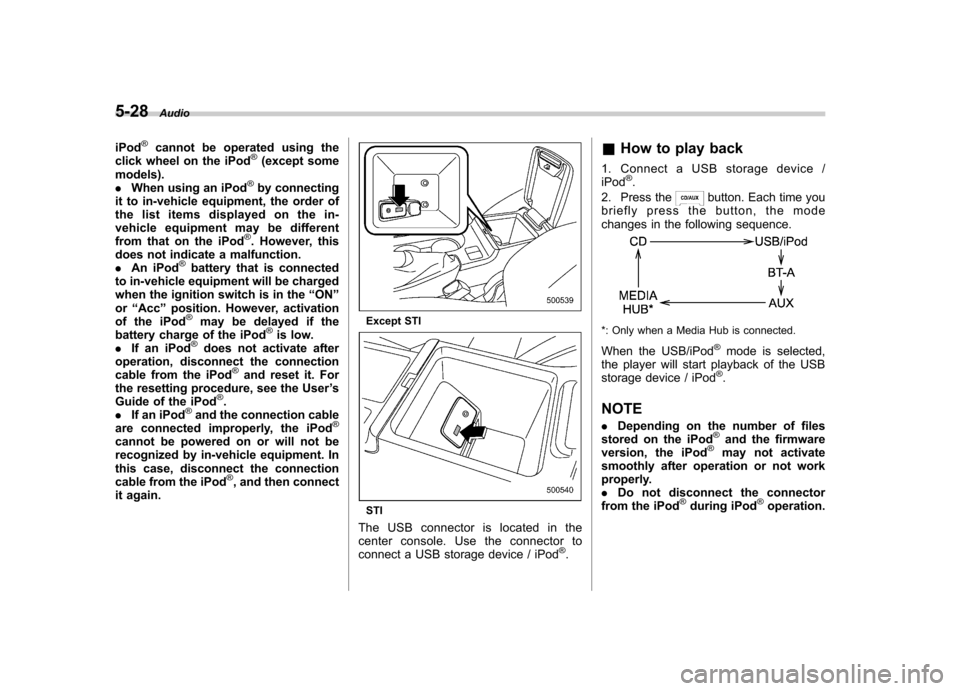
Except STI
STI
The USB connector is located in the
center console. Use the connector to
connect a USB storage device / iPod
®. &
How to play back
1. Connect a USB storage device /iPod
®.
2. Press the
button. Each time you
briefly press the button, the mode
changes in the following sequence.
*: Only when a Media Hub is connected.
When the USB/iPod
®mode is selected,
the player will start playback of the USB
storage device / iPod
®.
NOTE . Depending on the number of files
stored on the iPod
®and the firmware
version, the iPod®may not activate
smoothly after operation or not work
properly.. Do not disconnect the connector
from the iPod
®during iPod®operation.