2012 SKODA SUPERB Time
[x] Cancel search: TimePage 32 of 44
Using a new navigation DVD/Updating the navigation data in the system
›
Insert the navigation DVD into the CD/DVD slot with the printed side facing up
until it is automatically drawn in. The unit will compare the data on the naviga-
tion DVD with the data in the navigation system memory. No message will ap-
pear if the data in the navigation system memory of the unit is identical to the
data on the navigation DVD.
› If the data of the navigation DVD is not identical
to that stored in the naviga-
tion memory of the unit, a corresponding message will be displayed. Press the
function key Continue to used the data on the navigation DVD.
› Press the function key
Save to overwrite the data in the navigation memory
with the data of the navigation DVD. During the copy or update process, the
old navigation data will be irretrievably deleted and cannot be restored.
› Press the button
→
Notify to get a notification when the storage process
has finished..
Use data of a navigation DVD for a short period of time
› If you leave the stored area map in the navigation memory of the unit for only a
short period of time, insert the navigation DVD for the area you will be driving
in.
› Press the function key
Continue →
Temporarily . The unit uses only the data from
the navigation DVD for the navigation.
› If you are again in the area of the map material stored in the navigation memo-
ry, press the key to take out the navigation DVD.
Up to date navigation data and new navigation DVD
Road guidance is subject to constant changes (e.g. new streets, changes of street
names and house numbers). A navigation DVD is a huge data store, which un-
fortunately will not be up to date after a certain time. This could cause problems
during route guidance.
It is for this reason that you must regularly update the navigation data on your
unit with a current navigation DVD.
Version of the navigation data
Keep pressing the button SETUP →
Version info →
Map version DVD until you see a
4-digit code number which is the version of the navigation data. More detailed in-
formation is available from your authorised ŠKODA Service Partner. Ð Input screen for route guidance
Selecting a destination from the list › Press the function key
after opening the input screen, to open a list of all
the destinations matching the relevant parameters that can also be selected
from the navigation memory (e.g. Country and
City ).
› If necessary, move the slider at the right edge of the touch-screen for all en-
tries in the list to be displayed.
› Press the desired entry in the list to take it over for the address.
Limit destination and select from the list
› You can open a list of the selectable destinations any time by pressing the
function key ** while entering a destination in the entry line. The list only dis-
plays destinations which meet the requirements, which match the character se-
quence in the entry line and which are saved in the navigation memory of the
radio navigation system.
› The number of selectable destinations will be displayed in the function key
** if fewer than one hundred destinations can be selected.
› If fewer than six destinations are selectable, the input screen will close auto-
matically and a list of possible destinations will be displayed. Ð Main menu Navigation
Introductory information
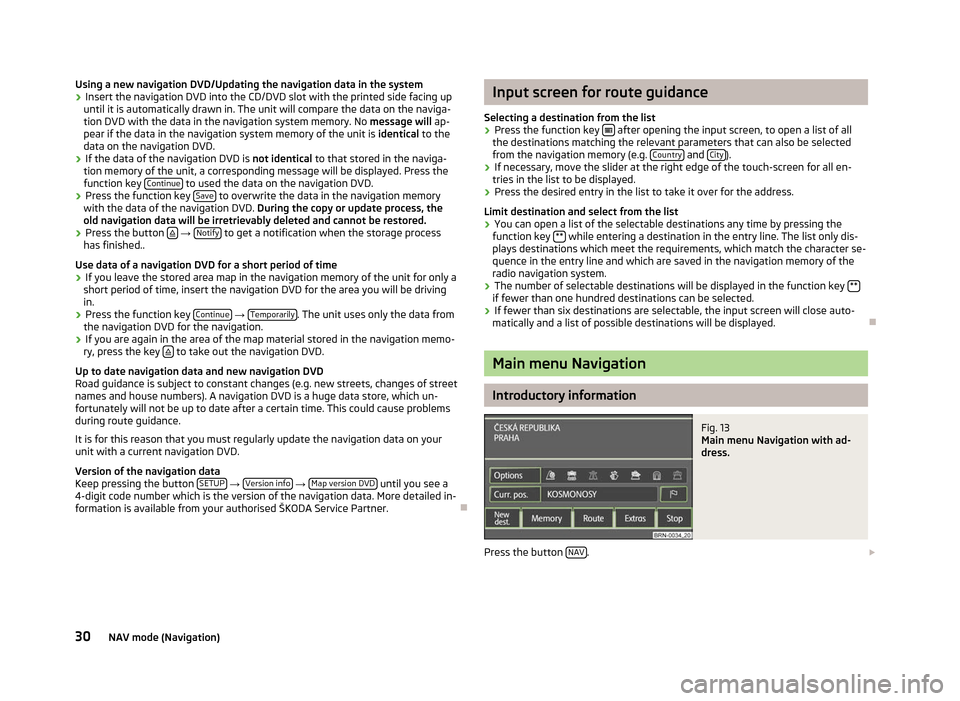
Fig. 13
Main menu Navigation with ad-
dress.
Press the button NAV .
30 NAV mode (Navigation)
Page 33 of 44

■
Options - opens the menu for defining the route options
» page 31, Function
key “Options ”
■ Curr. pos. - split-screen with the coordinates of the position where you are cur-
rently located
■ - stores the current position as “Flagdest.” in the destination memory.
■ New dest. - used for the entry of a new destination.
■
Address - enter an address in the input screen to specify the destination ad-
dress » page 32 , Function key
“ Address”
■ POI - open the search screen for searching for a point of interest from a
specific category or by entering a name or a telephone number
» page 32,
Function key “ POI”
■ Map/GPS - Specify a point on the map as a destination » page 32,
Function
key “ Map/GPS”
■ Home - Start route guidance from the address saved as the “Home ad-
dress
” » page 32, Function key “ Home address”
■ Last destinations - open the list of the last automatically saved destinations,
start route guidance by pressing one of the displayed destina-
tions
» page 32, Function key “ Last destinations”
■ Fav. destinations - open the list of favourite destinations, start route guidance
by pressing one of the displayed destinations
» page 33, Function key “
Favourites”
■ Fav. destinations - open the list of favourite destinations, start route guidance
by pressing one of the displayed destinations
■ SD destinations - view destinations that are stored on the SD card as visiting
cards or pictures, including GPS coordinates » page 33, Function key “ SD
destinations
”
■ Presets - open menu for saving the current position as a destination, for saving
and displaying saved destinations and for waypoint navigation » page 34,
Function key
“Memory”, » page 35, Select and edit the saved waypoint tour
■ Route - open information and congestion menu for the route during route guid-
ance » page 35, Permanent block
■ Extras - open menu for entering a stopover and create a new route in tour
mode » page 34, Function keys “Extras”
■ Start /
Stop - starts/stops route guidance
Special destinations
The navigation data in your system or on your DVD contain a database of special
destinations (points of interest) that can be used to find a destination more easi-
ly »
page 32, Function key “ POI”. SD destinations
By using a web application that can be found on
ŠKODA's web site, it is possible
to create destinations as visiting cards or pictures. These destinations can then
easily be imported via the SD card into the radio navigation system » page 33,
Save destination in the destination memory .Ð Selecting the route guidance mode
Press the button NAV →
Extras .
■ Tour mode - mode with stopovers
» page 34, Tour mode
■ Waypoint navigation - waypoint navigation
» page 35, Waypoint mode Ð Function key “Options”
Press the button NAV →
Options .
■ Route - Route
■ Fast - calculates the fastest route to the destination, even if a detour is nec-
essary - appears in orange
■ Shortest - shortest route to the destination even if a longer driving time is
required - appears in red
■ Most economical - calculates the quickest route possible over the shortest
route – displayed in blue
■ Dynamic route - dynamic route
» page 36, Dynamic route guidance with TMC
use
■ Off - switches off
■ Manual - manual
■ Automatic - automatic
■ Motorways - this type of road is “excluded” from the route calculation
■ Toll roads - this type of road is “excluded” from the route calculation
■ Excluded rds. - manually blocked sections of road are included in the route cal-
culation » page 35, Manually excluding stretches of the journey
■ Ferries - this type of transportation is “excluded” from the route calculation
■
Tunnels - Tunnels are “blocked” in the route calculation
Ð
31
NAV mode (Navigation)
Page 38 of 44

Dynamic route guidance with TMC use
Requirements for a dynamic route guidance
TMC (Traffic Message Channel) is a digital radio data service for continuous trans-
mission of traffic information.
If a TMC traffic radio station is available for current location, the TMC traffic re-
ports are updated continuously in the background.
The quality of the transmitted traffic reports depends on the traffic editing car-
ried out by the radio station. The reception of the TMC traffic reports cannot be
switched on or off.
The station you are listening to does not have to be a TMC station.
TMC traffic reports can only be evaluated and displayed by the unit if the naviga-
tion data for the currently driven area is stored in the unit's memory or can be re-
trieved from an inserted navigation DVD.
The current TMC traffic reports can be displayed by pressing the range selector
key TMC .
Switching the dynamic navigation on or off › In the main menu
Navigation press the function key Options .
› In the map display, press the button
Navigation or on
.../ ... during a route
guidance and on Route options in the pop-up window.
› In the menu
Route options, press the function key
Dynamic route and press the
desired setting in the pop-up window.
› Confirm the settings with the function key
OK .
Traffic problems received via TMC which affect the route are displayed in the map
by means of a coloured symbol. Traffic problems, which do not affect the route,
are displayed in the map by means of a grey symbol. The direction in which a traf-
fic problem is found, is displayed by means of an arrow in the symbol. The dura-
tion of a traffic problem on the route is displayed in the map by means of continu-
ous PKW (motor car) symbols .
Off You are not alerted to received traffic disruptions along your route and are guided
through the traffic disruption by the radio navigation system. TMC traffic reports
are however still updated automatically in the unit. They can be displayed by
pressing the range selector key TMC .
If one of the announced traffic disruptions lies along your route, you can also
switch on the dynamic route guidance during the current route guidance or block
the route manually . Manual During route guidance you can choose whether you want to divert around the re-
ported traffic problems along your route.
If the radio navigation system is alerted of a traffic disruption on the calculated
route, the driver will be notified of this by means of an audible message and infor-
mation in a pop-up window.
The expected delay incurred in avoiding this traffic problem and the length of the
alternative route will be displayed. The expected time lost when driving through
this traffic problem will also be displayed.
› Press the function key
Current tour to remain on the calculated route and to pass
through the traffic disruption.
› Press the function key
Bypass for an alternative route to be calculated taking in-
to account the announced traffic disruption.
Automatic You will be automatically diverted around the received traffic problems along your
route during route guidance.
After input of relevant traffic information for your route you will be advised of the
change in the current route guidance by means of an acoustic message. You will
automatically be guided around announced traffic jams or blocked roads, if this
saves time.
Such announcements will also take place if there was a traffic disruption on the
original route, which no longer exists and the radio navigation system recognises
the opportunity to drive the actually more advantageous route. Note
■ There may not be any advantage in avoiding the traffic jam if, as a result of the
TMC traffic reports, the diversion is also heavily congested. ■ If a traffic disruption was not yet entered via the TMC traffic reports, route
blocks can also be entered manually . Ð36
NAV mode (Navigation)
Page 39 of 44

TMC mode
Displaying TMC traffic reports
TMC traffic reports are used to optimise the route during route guidance when
there are traffic disruptions » page 36, Dynamic route guidance with TMC use
■ TMC - displays a list of current traffic reports Press one of the traffic reports to
view details of the traffic message selected from the list.
Traffic disruptions are indicated by a corresponding symbol on the map: The di-
rection, in which the traffic disruption is found on the map, is displayed in colour.
A traffic disruption that is located on the calculated route is marked by a coloured
traffic event button. If there is no traffic disruption on the route, the button is
grey. Note
■ If a TMC traffic radio station is available for current location, the TMC traffic re-
ports are updated continuously in the background. The station you are listening
to does not have to be a TMC station. ■ TMC traffic reports can only be evaluated and saved by the radio navigation sys-
tem when navigation data are available for the driven area.
■ The accuracy of the dynamic route guidance depends on the transmitted traffic
reports. The radio stations broadcasting this information are responsible for the
content. ■ TMC traffic reports are necessary for the dynamic route guidance.
■ Making a diversion from a traffic jam based on TMC traffic reports may not al-
ways offer a time advantage, e.g. if the diversion route is also congested. Ð
37
TMC mode
Page 40 of 44

Index
A
Acoustic feedback 10
Address 31, 32
Edit 11
Adjustment Volume 5
Alternative route 11
AM 13
Arrival time Display 11
Audio 14
AUX 14
, 17 B
Block Permanent 35
Blocked road Temporary 35
Blocked route section 35
Bluetooth 14
Brightness 10
C
Calculate 11
CD 14
CD/DVD insert 15
remove 15
CD/DVD mode CD/DVD not legible 15
Centering the map 26
Choose saved destinations 33
Code 3Control
Audio/Video 14
D
Delete destination memory 34
Delete saved destination 33
Demo mode 11
Destination 32
Choose saved destinations 33
Delete saved destination 33
Destination memory 33
Display information 10
Edit saved destination 33
Enter a stopover 34
Favourites 33
Home address 32
Last destinations 32
Memory card 33
New stopover 34
Save 33
SD card 33
via coordinates 32
Destination display 10
Destination guidance symbols 10
Display Destination guidance symbols 10
Remaining driving time 11
switch off 10, 14
Switch off 26
Display off 13
DTMF key tones 23
Dynamic route guidance 36
Dynamische Route 31 E
Edit Destinations memory 34
Saved destination 33
Saved tour 34
Enter Address 31
Entry Address 32
Destination via coordinates 32
Point as destination 31, 32
Point of interest 31
Point of Interest 32
Tour 34
EPG - Program guide 21
External input AUX 14, 17
MDI 17
External sources 17
F
Factory settings 10
Favourites 31, 33
Destinations 31
FM 13
Frequency band 13
G
General information 3
H
hard disk 14
Hard drive 18
HDD 14, 18
HDD capacity 14
Help display 8
38 Index
Page 42 of 44

SD-card
Destinations 31
SD-destinations 31
SD card 14, 16
Destination 33
Insert 16
Remove 16
Select points of interests 10
Settings Tone 25
Setup 9
Date 10
Factory settings 10
Language 10
Main menu 9
Map 10
Media 9
Navigation 10
Phone 9
Radio 9
System 10
Time 10
Traffic information 11
TV 11
Video 11
Voice control 11
split-screen 10
Split-screen 26, 28
Start route guidance 31
Destination memory 33
Favourites 31, 33
Home 32
Home address 31
last destinations 31
Last destinations 32
SD destinations 33
Station list 13
Stop route guidance 31
Switching off the display 10, 14, 26
Switching the unit off 4
Switching the unit on 4Switch off display 13
System Setup 10
T
Telephone Call number from the telephone book 22
Entry from the telephone book 22
Main menu 22
Telephone book 22
Toggling between two calls 23
Television 20
Temporarily blocked road 35
Text messages (SMS) 23
TMC 37
Dynamic route guidance 36
TMC traffic reports 37
TONE mode Tone settings 25
Tour Edit 34
Entry 34
Load 34
New tour in tour mode with stopovers 34
Save 34
Tour memory edit 34
Tour mode Leave 35
Tour mode with stopovers New tour 34
TP 9
Display 13
Traffic Programme 13
Traffic information 11
Traffic Programme 13
Traffic radio 9
TV 20
Main menu 20
Setup 11 V
Video 14, 18
Setup 11
Video text 20
Voice command - help 7
Voice commands 7
Voice control 7
Setup 11
Volume 5
W
Warranty 3
Waypoint navigation Waypoint navigation 27
Waypoint tour create new toure 35
Edit saved waypoint tours 35
End route guidance 35
List of saved waypoint tours 35
40 Index
Page 43 of 44

ŠKODA pursues a policy of constant product and model development. We trust
that you will understand that changes to models in terms of shape, equipment
and engineering, may be introduced at any time. The information about scope of
delivery, appearance, performances, dimensions, weight, fuel consumption,
standards and functions of the vehicle is only correct at the time of publication.
Certain items of equipment might only be installed later on (information provided
by your local authorised
ŠKODA Service Partner) and only envisaged for particular
markets. It is therefore not possible for legal claims to be made based on the da-
ta, illustrations and descriptions contained in this Owner's Manual. Reprinting, reproduction or translation, either in whole or in part, is not permitted
without the written consent of ŠKODA.
ŠKODA expressly reserves all rights relating to copyright laws.
We reserve the right to make changes to this document.
Issued by: ŠKODA AUTO a.s.
© ŠKODA AUTO a.s. 2012