2012 Seat Toledo phone
[x] Cancel search: phonePage 78 of 249
77
Communication
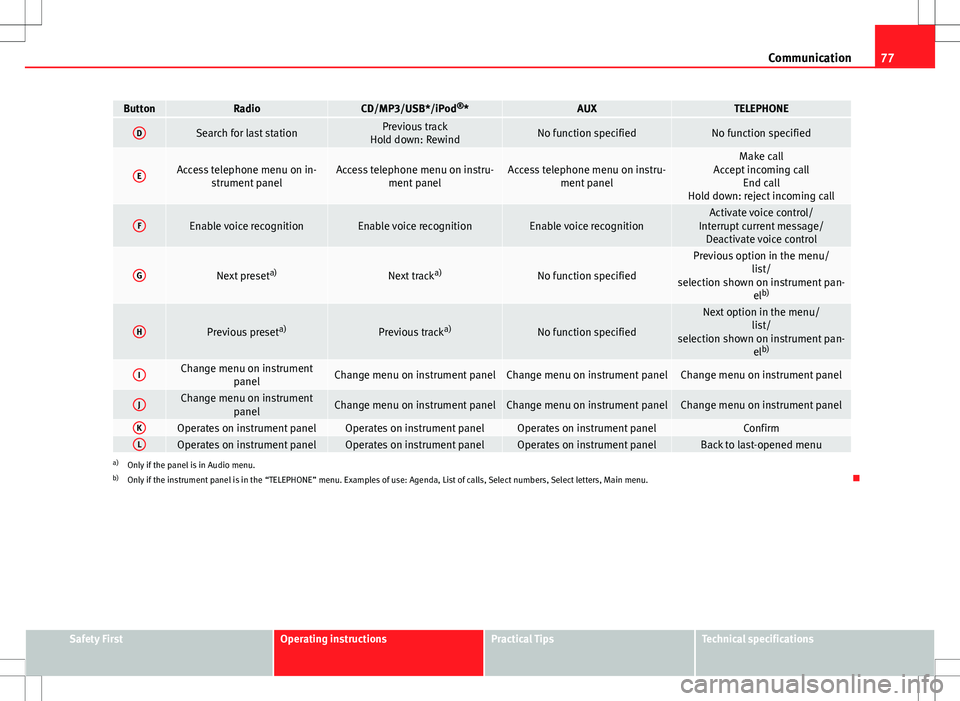
ButtonRadioCD/MP3/USB*/iPod ®
*AUXTELEPHONE
DSearch for last stationPrevious track
Hold down: RewindNo function specifiedNo function specified
EAccess telephone menu on in- strument panelAccess telephone menu on instru- ment panelAccess telephone menu on instru-ment panelMake call
Accept incoming call End call
Hold down: reject incoming call
FEnable voice recognitionEnable voice recognitionEnable voice recognitionActivate voice control/
Interrupt current message/ Deactivate voice control
GNext preset a)Next tracka)No function specified
Previous option in the menu/
list/
selection shown on instrument pan- elb)
HPrevious preset a)Previous tracka)No function specified
Next option in the menu/
list/
selection shown on instrument pan- elb)
IChange menu on instrument
panelChange menu on instrument panelChange menu on instrument panelChange menu on instrument panel
JChange menu on instrumentpanelChange menu on instrument panelChange menu on instrument panelChange menu on instrument panel
KOperates on instrument panelOperates on instrument panelOperates on instrument panelConfirmLOperates on instrument panelOperates on instrument panelOperates on instrument panelBack to last-opened menua)Only if the panel is in Audio menu.
b) Only if the instrument panel is in the “TELEPHONE” menu. Examples of use: Agenda, List of calls, Select numbers, Select letters, Main menu.
Safety FirstOperating instructionsPractical TipsTechnical specifications
Page 79 of 249

78Communication
Radio-Navigation + Telephone Systems operation
Fig. 40 Controls on the
steering wheelFig. 41 Steering wheel
controls (depending on
version of model)
ButtonRadioCD/MP3/USB*/iPod ®
*AUXNAVIGATORTELEPHONEAVolume upVolume upVolume upVolume upVolume upBVolume downVolume downVolume downVolume downVolume down
CSearch for next stationNext track
Hold down: Fast forwardNo function specifiedNo function specifiedNo function specified
DSearch for last stationPrevious track
Hold down: RewindNo function specifiedNo function specifiedNo function specified
Page 80 of 249

79
Communication
ButtonRadioCD/MP3/USB*/iPod ®
*AUXNAVIGATORTELEPHONE
EAccess telephone menu
in the instrument panelAccess telephone menu in the instrument panelAccess telephone menuin the instrument panelAccess telephone menu in the instrument panel
Accept incoming call (press brief- ly)
Access telephone menu in the in- strument panel
Reject incoming call (press and hold down)
End ongoing call/establish call (press briefly)
Switch to private mode (press and hold down)
Redial last number (press and hold down) a)
F
Activation of voice recog-
nition for mobile tele-
phone connected to the
system (if the telephone has this function)*Activation of voice recogni-tion for mobile telephone
connected to the system (if the telephone has this function)*Activation of voice recog-nition for mobile tele-
phone connected to the
system (if the telephone has this function)*Activation of voice recogni-tion for mobile telephone
connected to the system (if the telephone has this function)*Activation of voice recognition
for mobile telephone connected to the system (if the telephone has this function)*
GNext preset b)Next trackb)No function specifiedOperates on instrument
panelOperates on instrument panel/No function specified
HPrevious preset b)Previous trackb)No function specifiedOperates on instrument
panelOperates on instrument panel/No function specified
IChange menu on instru- ment panelChange menu on instru- ment panelChange menu on instru-ment panelChange menu on instru- ment panelChange menu on instrument panel
JChange menu on instru-ment panelChange menu on instru- ment panelChange menu on instru-ment panelChange menu on instru- ment panelChange menu on instrument panel
KOperates on instrumentpanelOperates on instrumentpanelOperates on instrument panelOperates on instrumentpanelOperates on instrument panel/No function specified
LOperates on instrument panelOperates on instrumentpanelOperates on instrument panelOperates on instrumentpanelOperates on instrument panel/No function specified
a)For a more detailed description of how to use this button, please refer to the Radio navigation System User Handbook (SEAT Media System 2.2)
b) Only if the panel is in Audio menu.
Safety FirstOperating instructionsPractical TipsTechnical specifications
Page 81 of 249

80Communication
Note
iPod ®
is a registered trademark of Apple Computer, Inc.
Multimedia AUX-IN and MDI Inputs
Fig. 42 AUX-IN input/MDI input
The operating description is located in the respective Instruction Manuals of
the audio system or the navigation system.
AUX-IN Input
The AUX-IN input is located in one of the following places:
● in the centre console between the front seats
⇒ Fig. 42 - ;
● above the storage compartment in the front centre console
⇒ Fig. 42 -
;
● in the front panel of the SEAT Media System 2.2 navigation system. The purpose of the AUX-IN input is to connect external devices in order to
play music (i.e. iPod
®
or an mp3 player) using the factory-fitted audio sys-
tem or the navigation system.
MDI Input
The MDI input is located above the storage compartment in the front centre
console ⇒ Fig. 42 - ;
The MDI input is composed of the USB and AUX-IN inputs.
The purpose of the MDI input is to connect external devices (i.e. iPod ®
, mp3
players or USB memories) in order to play music using the audio system or
the navigation system.
In order to connect Apple multimedia devices (such as an iPod ®
/iPhone ®
…)
the corresponding adaptor from the SEAT Original Accessories catalogue is
required.
Page 87 of 249

86Opening and closing
Manual locking
Fig. 48 Rear door: man-
ual locking
On the front of a door with no lock cylinder there is an emergency
locking device that is only visible when the door is open.
Locking
– Remove the cap A
⇒ Fig. 48.
– Insert the key in the slot B
and turn it in the direction of the
arrow until horizontal (on the other direction on the right-hand
door).
– Replace the cap.
Once the door has been locked, it can no longer be opened from the out-
side. The door can be opened from the inside by pulling the door handle. Remote control
General notes
The remote control key can
● Lock and unlock the vehicle
● Unlock or open the rear lid
The remote control transmitter and the batteries are integrated in the key.
The receiver is inside the vehicle. The remote control key has a maximum
range of 30 metres. The range is reduced as the batteries start to lose pow-
er.
The key includes a foldaway part that can be used to manually lock or un-
lock the vehicle and to start the engine.
If a lost key is replaced or the receiver is repaired or changed, the remove
control key must be adapted by an authorised SEAT dealer. Only then can
the remote control key be used again.
Note
● The remote control is automatically deactivated when the ignition is
switched on.
● The remote control function may be temporarily limited by interference
from other transmitters near the vehicle that operate on the same frequency
(e.g. mobile phone, television transmitter).
● If the central locking system or the anti-theft alarm only responds to the
remote control at a distance of less than 3 m, then the battery much be re-
placed ⇒ page 81.
● If the driver door is open, the vehicle can not be locked using the remote
control.
Page 123 of 249

122Seats and storage
WARNING
Do not place heavy objects in the pockets. Risk of injury!
CAUTION
Do not place overly large objects in the pockets (e.g. bottles) or objects with
sharp edges. Risk of damage to the pockets and the upholstery.
Net pockets on back of front backrests
Fig. 91 Front seats
backrests: net pockets
There are net pockets on the inside part of the front seats backrests
⇒ Fig. 91.
These pockets are designed to hold lightweight objects such as a mobile
phone or an mp3 player.
WARNING
● Do not exceed the maximum load that the net pockets can support.
Heavy objects cannot be safely secured. Risk of injuries!
CAUTION
● The net pockets support a maximum load of 150 g.
● Do not place overly large objects in the pockets (e.g. bottles) or objects
with sharp edges. Risk of damage to the pockets.
Storage compartment for (sun)glasses
Fig. 92 Close-up of roof
panel: storage compart-
ment for (sun)glasses
– Press the compartment lid and it will drop down ⇒ Fig. 92.
WARNING
This compartment must only remain open when removing or replacing
(sun)glasses.
CAUTION
● Do not place heat-sensitive objects in the compartment as they could be
damaged.
● The side compartment supports a maximum load of 0.25 kg.
Page 124 of 249

123
Seats and storage
Storage compartments in centre console
Fig. 93 Centre console:
storage
Open storage compartment in centre console ⇒ Fig. 93.
Multimedia compartment
Fig. 94 Front centre con-
sole: multimedia com-
partment
The multimedia compartment is in the storage compartment of the front
centre console ⇒ Fig. 94.
The compartment can be used to hold mobile phones, mp3 players or simi-
lar devices.
WARNING
Never use the multimedia compartment as an ashtray or to store flamma-
ble materials. Risk of fire!
Storage compartment in front door
Fig. 95 Storage com-
partment in door trim
There is a bottle carrier in part B
⇒ Fig. 95 of the storage compartment in
the front door.
WARNING
Only use part A
⇒ Fig. 95 of the compartment in the front door to store
objects that do not protrude from it so as not the limit the deployment
area of the side airbags.
Safety FirstOperating instructionsPractical TipsTechnical specifications
Page 212 of 249

211
Fuses and bulbs
Fuses in the dash panel
Fig. 140 Bottom of the
dash panel. Fuse cover
Fig. 141 Diagram of the
fuse box to the left/right
of the steering wheel
The fuses are located behind a cover below the steering wheel.
● Carefully tilt the cover in the direction indicated by the arrow and remove
it ⇒ Fig. 140.
● After changing the fuse, replace the cover on the dash panel in the di-
rection opposite that is indicated by the arrow so that the cover tabs fit into
the slots on the dash panel. Subsequently, press down on the cover to
close. List of fuses in the dash panel
NumberElectrical equipment1S - ignition2START-STOP
3Instrument panel, headlight range control, telephone, oil level
sensor
4ABS/ESC control unit5Petrol engine: cruise control6Reverse light (manual gearbox)7Switch, engine control unit, automatic gearbox8Brake switch, clutch switch, cooling fan
9Heating control panel, air conditioning control unit, parking
aid, electric window riser, radiator fan, windscreen wiper jets
10DC-DC converter11Exterior mirror control12Towing bracket control unit13Automatic gearbox control unit, automatic gear selector14Headlight range control15Vacant16Power steering, speed sensor, engine control unit17Radio (START-STOP ) daytime driving light18Heated mirrors19Ignition inlet20Engine control unit, fuel pump control unit, fuel pump
21Reverse light (automatic gearbox), fog lights with CORNER func-
tion
22Heating control panel, control unit of the climate control, tele-
phone, general instrument panel, steering wheel angle sensor,
multifunction steering wheel, automatic gearbox key lock
23Interior lighting, glove compartment and luggage compartment
lighting, side lights
Safety FirstOperating instructionsPractical TipsTechnical specifications