2012 NISSAN QASHQAI switch
[x] Cancel search: switchPage 99 of 297
Downloaded from www.Manualslib.com manuals search engine BACK DOOR LOCK
WARNING
Always check that the back door has been
properly closed to prevent it from opening
while driving.
Do not drive with the back door opened. This
could allow dangerous exhaust gases to be
drawn into the vehicle.
Closely supervise children when they are
around the vehicle to prevent them from play-
ing and being locked in the luggage compart-
ment where they could be seriously injured.
Keep the vehicle locked, with the back door
closed, when not in use, and prevent chil-
dren’s access to the vehicle’s keys.
The power door lock system allows you to lock or
unlock all doors including the back door.
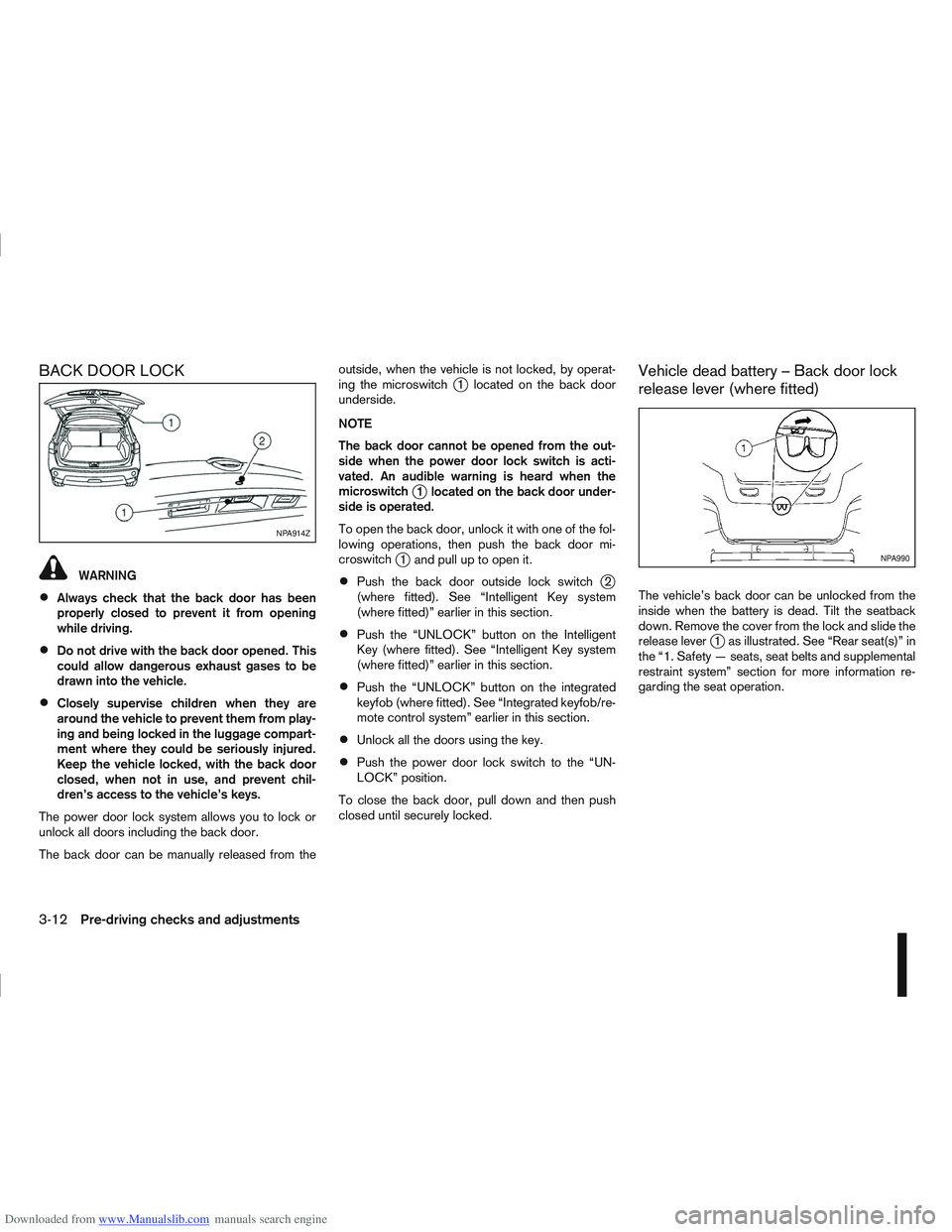
The back door can be manually released from the outside, when the vehicle is not locked, by operat-
ing the microswitch
j1 located on the back door
underside.
NOTE
The back door cannot be opened from the out-
side when the power door lock switch is acti-
vated. An audible warning is heard when the
microswitch
j1 located on the back door under-
side is operated.
To open the back door, unlock it with one of the fol-
lowing operations, then push the back door mi-
croswitch
j1 and pull up to open it.
Push the back door outside lock switchj2
(where fitted). See “Intelligent Key system
(where fitted)” earlier in this section.
Push the “UNLOCK” button on the Intelligent
Key (where fitted). See “Intelligent Key system
(where fitted)” earlier in this section.
Push the “UNLOCK” button on the integrated
keyfob (where fitted). See “Integrated keyfob/re-
mote control system” earlier in this section.
Unlock all the doors using the key.
Push the power door lock switch to the “UN-
LOCK” position.
To close the back door, pull down and then push
closed until securely locked.
Vehicle dead battery – Back door lock
release lever (where fitted)
The vehicle’s back door can be unlocked from the
inside when the battery is dead. Tilt the seatback
down. Remove the cover from the lock and slide the
release lever
j1 as illustrated. See “Rear seat(s)” in
the “1. Safety — seats, seat belts and supplemental
restraint system” section for more information re-
garding the seat operation.
NPA914Z
NPA990
3-12Pre-driving checks and adjustments
Page 100 of 297

Downloaded from www.Manualslib.com manuals search engine ALARM SYSTEM (where fitted)
The alarm system provides visual and audible alarm
signals if parts of the vehicle are disturbed.
How to arm the alarm system
1. Close all doors, windows, back door and bon-net.
2. Lock the vehicle using the keyfob (lock button), for additional information, see “Integrated key-
fob/remote control system” in the “3. Pre-driving
checks and adjustments” section.
NOTE
If the vehicle is not fully locked, a door/bonnet/
back door is open, or the ignition switch is in the
ON position (after arming the system), the buzzer
will sound. After correctly closing, the buzzer will
stop.
Alarm system operation
The system will give the following alarm:
The siren sounds intermittently and all direction
indicators will flash.
The alarm automatically turns off after 28 sec-
onds.
The alarm is activated when:
The volumetric sensing system (ultrasonic sen-
sors) is triggered.
Any door/the back door is opened.
The bonnet is opened.
The ignition circuit is turned on without the own-
er’s key being used.
The alarm system will stop when:
The vehicle is unlocked using the keyfob unlock
button.
The ignition switch or ignition knob is turned to
the ON position with a registered NATS key.
If the system does not operate as described
above, have it checked by your NISSAN dealer or
qualified workshop.
Ultrasonic sensors (where fitted)
The ultrasonic sensors (volumetric sensing) detect
movements in the passenger’s compartment. When
the alarm system is set to the armed position, it will
automatically switch on the ultrasonic sensors.
It is possible to exclude the ultrasonic sensors (e.g.
when leaving pets inside the car).
To exclude the ultrasonic sensors:
1. Turn the ignition switch 3 times within 7 seconds from the “OFF” to the ON position.
2. Close the door(s)/bonnet/back door and press the lock button
on the keyfob to lock all doors/
back door.
The ultrasonic sensors are now excluded from the
alarm system. All other functions of the system re-
main activated until the alarm system is disarmed
again.
NISSAN ANTI-THEFT SYSTEM (NATS)
The NISSAN Anti-Theft System (NATS)* will not
allow the engine to start without the use of the reg-
istered NATS key.
* Immobilizer
If the engine fails to start using the registered NATS
key, it may be due to interference from another
NATS key, an automated toll road device or an auto-
mated payment device on the key ring. Restart the
engine using the following procedure:
1. Leave the ignition switch in the ON position for approximately 5 seconds.
2. Turn the ignition switch to the “OFF” or LOCK position and wait approximately 5 seconds.
3. Repeat steps 1 and 2.
4. Restart the engine while holding the device (which may have caused the interference) sepa-
rated from the registered NATS key or NATS
Intelligent Key (where fitted).
If this procedure allows the engine to start,
NISSAN recommends placing the registered
NATS key or NATS Intelligent Key (where fitted)
on a separate key-ring to avoid interference from
other devices.
SECURITY SYSTEM
Pre-driving checks and adjustments3-13
Page 101 of 297

Downloaded from www.Manualslib.com manuals search engine NATS security warning/indicator light
(where fitted)
One of the following functions (depending on the
vehicle specifications) indicates that the vehicle is
equipped with NATS:
The NATS security warning light (Type A) is lo-
cated in the meter panel and blinks whenever
the ignition switch is in the LOCK, “OFF” or Acc
position.
The NATS security indicator light (TypejB) is
located on the Driver’s side of the dashboard
and blinks whenever the ignition switch is in the
LOCK, “OFF” or Acc position.
If the NISSAN Anti-Theft System (NATS) is mal-
functioning, this light will remain on while the ignition
switch is in the ON position.
If the light remains on and/or the engine will not
start, see your NISSAN dealer for NATS service
as soon as possible. Please bring all NATS keys
or NATS Intelligent Keys when visiting your
NISSAN dealer for service.
Additional information for RHD models
If the NATS is malfunctioning, this light will turn on
after flashing six times while the ignition switch is in
the ON position.
However, if the NATS security warning light turns
off after the light has remained on for 15 minutes,
there is a 10 second time slot to start the engine
after the ignition is turned off. See your NISSAN
dealer for NATS service as soon as possible.
SIC2045Z
Meters and gauges (Type A)
NIC1402Z
Driver’s side (Type B)
NPA1002
BONNET RELEASE
3-14Pre-driving checks and adjustments
Page 105 of 297

Downloaded from www.Manualslib.com manuals search engine Adjusting — Remote control
j
ALHD models
jB RHD models
The outside rear-view mirror control will only oper-
ate when the ignition switch is in the Acc or ON
position.
Turn the control to the right
j1 ortotheleftj2to
select the right or left outside rear-view mirror, then
adjust the mirror to the desired position by tilting the
control as illustrated
j3.
Folding — Manual control
Fold the outside rear-view mirror by pushing it to-
wards the rear of the vehicle.
Folding — Remote control (where fitted)
Fold the outside rear-view mirror by pushing the
CLOSE sidej1 of the switch.
To return the mirror to its original position, push the
OPEN side
j2 of the switch. NOTE
If the mirror becomes displaced from its adjusted
position, use the following procedure to return it
to the correct geared position:
1. Fold (or CLOSE
j1 ) the mirror electronically us-
ing the remote control switch.
2. Wait until the mirror emits a strong noise, this confirms that the mirror has correctly engaged.
3. Fold out (or OPEN
j2 ) the mirror electronically
using the remote control switch.
4. Adjust the mirror to the correct driving angle us- ing the remote control
j3.
NPA863ZMPA0008Z
NPA864Z
3-18Pre-driving checks and adjustments
Page 108 of 297

Downloaded from www.Manualslib.com manuals search engine 4Display screen, heater and air conditioner,
and audio system
Display screen, heater and air conditioner,
and
audio system
Rear-view monitor (where fitted)............................... 4-2
How to read the displayed lines .......................... 4-2
Rear-view monitor setting.................................... 4-3
Operating tips..................................................... 4-3
Around view monitor (where fitted)........................... 4-4 Operation ........................................................... 4-6
Guide lines ......................................................... 4-7
Difference between predictive and actual
distances ............................................................ 4-9
How to adjust the screen view ............................ 4-11
Operating tips..................................................... 4-11
Vents ....................................................................... 4-12 Side and centre vents ......................................... 4-12
High level vent (where fitted) ............................... 4-12
Heater and air conditioner operation ........................ 4-12 Manual air conditioner......................................... 4-13
Automatic air conditioner (where fitted) ............... 4-18
Audio system ........................................................... 4-21 Audio operation precautions ............................... 4-21
Antenna .............................................................. 4-22
LW-MW-FM radio with CD player or 6 CD
changer ................................................................... 4-23 Anti-theft system ................................................. 4-24
Audio main operation .......................................... 4-24
Radio operation .................................................. 4-24
MENU button...................................................... 4-27 Compact Disc (CD) operation ............................ 4-27
AUX socket ........................................................ 4-29
Bluetooth® mobile phone feature ........................ 4-29
FM AM radio with CD player.................................... 4-30 Anti-theft system ................................................. 4-31
Audio main operation .......................................... 4-31
Radio operation .................................................. 4-32
SETUP button .................................................... 4-33
Compact Disc (CD) operation ............................ 4-35
AUX socket ........................................................ 4-36
USB Memory operation (where fitted) ................. 4-37
iPod® player operation (where fitted) .................. 4-37
Bluetooth® operation.......................................... 4-39
NISSAN Connect (where fitted) ............................... 4-43
Steering wheel switch for audio control (where
fitted) ....................................................................... 4-43 Main operation .................................................... 4-43
Car phone or CB radio ............................................ 4-44
Mobile phone integration for LW-MW-FM radio
with CD player or 6 CD changer (Type A) ................ 4-44 Bluetooth® mobile phone feature ........................ 4-44
Mobile phone integration for FM AM radio with
CD player ................................................................ 4-52 Bluetooth® mobile phone feature ........................ 4-52
Hands-free telephone control .............................. 4-53
Steering wheel switches (where fitted) ................ 4-55
Page 111 of 297
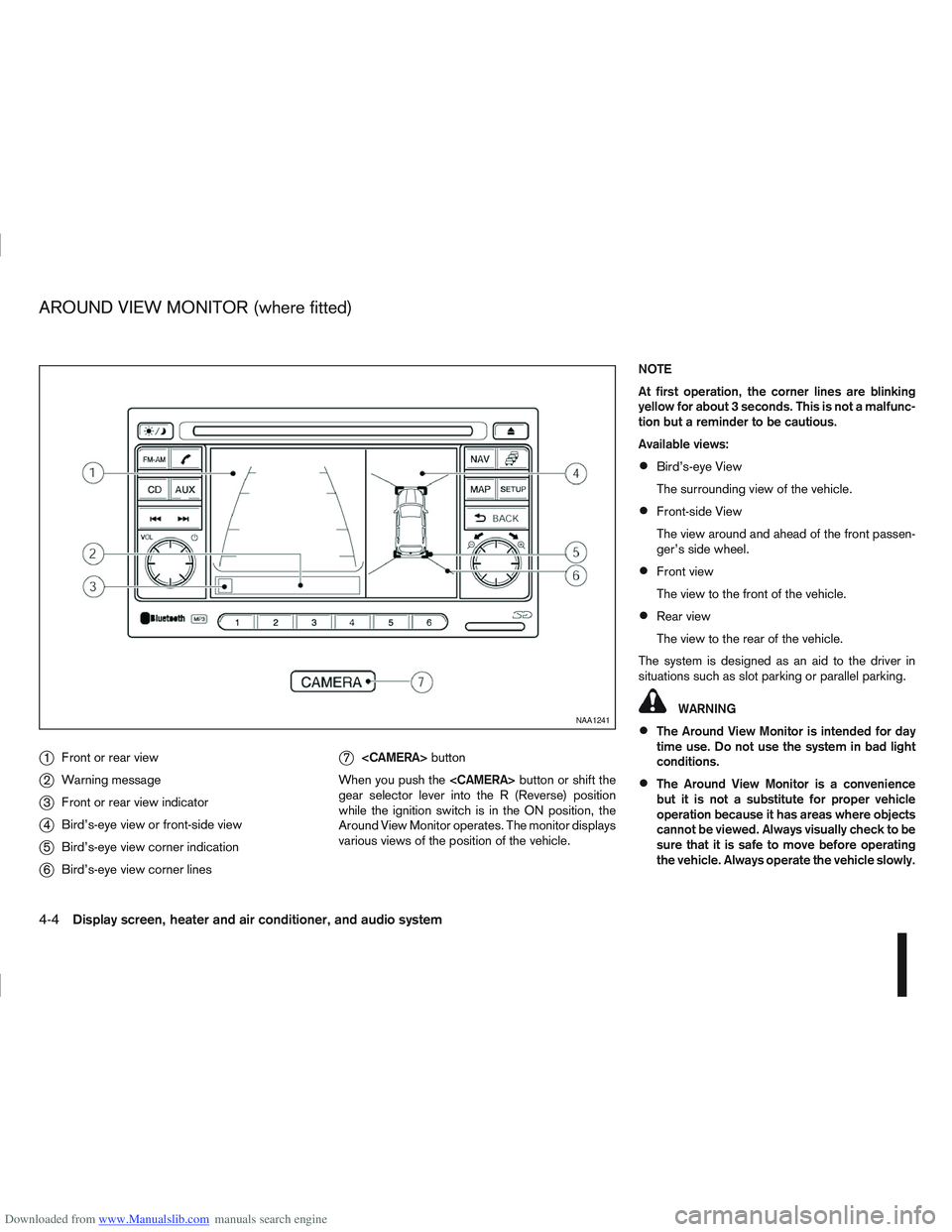
Downloaded from www.Manualslib.com manuals search engine j1Front or rear view
j2Warning message
j3Front or rear view indicator
j4Bird’s-eye view or front-side view
j5Bird’s-eye view corner indication
j6Bird’s-eye view corner lines
j7
button
When you push the
gear selector lever into the R (Reverse) position
while the ignition switch is in the ON position, the
Around View Monitor operates. The monitor displays
various views of the position of the vehicle. NOTE
At first operation, the corner lines are blinking
yellow for about 3 seconds. This is not a malfunc-
tion but a reminder to be cautious.
Available views:
Bird’s-eye View
The surrounding view of the vehicle.
Front-side View
The view around and ahead of the front passen-
ger’s side wheel.
Front view
The view to the front of the vehicle.
Rear view
The view to the rear of the vehicle.
The system is designed as an aid to the driver in
situations such as slot parking or parallel parking.
WARNING
The Around View Monitor is intended for day
time use. Do not use the system in bad light
conditions.
The Around View Monitor is a convenience
but it is not a substitute for proper vehicle
operation because it has areas where objects
cannot be viewed. Always visually check to be
sure that it is safe to move before operating
the vehicle. Always operate the vehicle slowly.
NAA1241
AROUND VIEW MONITOR (where fitted)
4-4Display screen, heater and air conditioner, and audio system
Page 114 of 297

Downloaded from www.Manualslib.com manuals search engine In R (Reverse) gear rear view and bird’s-eye viewj2 are shown. The view on the screen on the
passenger’s side switches to the front side view
j4 when the
Push the
back to rear view and bird’s-eye view
j2.
Pushing the CAMERA button
When the
View Monitor operates and the front view and
bird’s-eye view are displayed
j1.
The front view and bird’s-eye view are displayedj1 . The view on the screen on the passenger’s
side switches to the front-side view when the
j3 . Pushing the
Monitor off.
To switch the driver’s side screen between front
view and rear view use the gear selector lever.
GUIDE LINES
WARNING
The distance guide line and the vehicle width
line should be used as a reference only when
the vehicle is on a paved, level surface. The
distance viewed on the monitor is for refer-
ence only and may be different than the ac-
tual distance between the vehicle and dis-
played objects.
Use the displayed lines and the bird’s-eye
view as a reference. The lines and the bird’s- eye view are greatly affected by the number
of occupants, fuel level, vehicle position, road
condition and road grade.
If the tyres are replaced with different sized
tyres, the predictive course line and the bird’s-
eye view may be displayed incorrectly.
When driving the vehicle up a hill, objects
viewed in the monitor are further than they
appear. When driving the vehicle down a hill,
objects viewed in the monitor are closer than
they appear. Use the mirrors or actually look
to properly judge distances to other objects.
The vehicle width and predictive course lines
are wider than the actual width and course.
Front and rear view
Guiding lines, which indicate the vehicle width and
distances to objects with reference to the vehicle
body line
jA , are displayed on the monitor.
Distance guide lines:
Indicate distances from the vehicle body.
Red linej1 : approx. 0.5 m (1.5 ft)
SAA1840Z
Front view
SAA1896Z
Rear view
Display screen, heater and air conditioner, and audio system4-7
Page 118 of 297
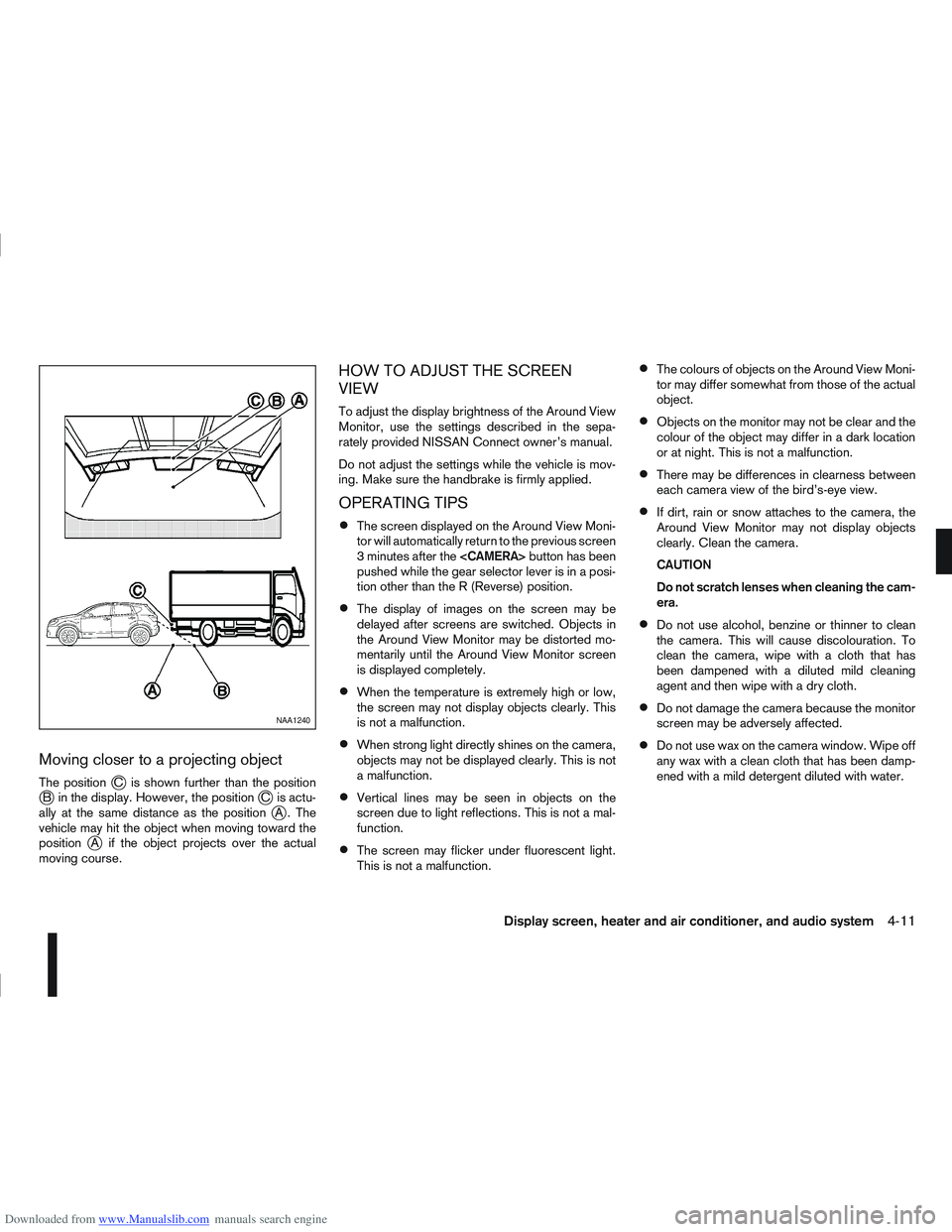
Downloaded from www.Manualslib.com manuals search engine Moving closer to a projecting object
The positionjC is shown further than the positionjB in the display. However, the positionjC is actu-
ally at the same distance as the positionjA . The
vehicle may hit the object when moving toward the
position
jA if the object projects over the actual
moving course.
HOW TO ADJUST THE SCREEN
VIEW
To adjust the display brightness of the Around View
Monitor, use the settings described in the sepa-
rately provided NISSAN Connect owner’s manual.
Do not adjust the settings while the vehicle is mov-
ing. Make sure the handbrake is firmly applied.
OPERATING TIPS
The screen displayed on the Around View Moni-
tor will automatically return to the previous screen
3 minutes after the
pushed while the gear selector lever is in a posi-
tion other than the R (Reverse) position.
The display of images on the screen may be
delayed after screens are switched. Objects in
the Around View Monitor may be distorted mo-
mentarily until the Around View Monitor screen
is displayed completely.
When the temperature is extremely high or low,
the screen may not display objects clearly. This
is not a malfunction.
When strong light directly shines on the camera,
objects may not be displayed clearly. This is not
a malfunction.
Vertical lines may be seen in objects on the
screen due to light reflections. This is not a mal-
function.
The screen may flicker under fluorescent light.
This is not a malfunction.
The colours of objects on the Around View Moni-
tor may differ somewhat from those of the actual
object.
Objects on the monitor may not be clear and the
colour of the object may differ in a dark location
or at night. This is not a malfunction.
There may be differences in clearness between
each camera view of the bird’s-eye view.
If dirt, rain or snow attaches to the camera, the
Around View Monitor may not display objects
clearly. Clean the camera.
CAUTION
Do not scratch lenses when cleaning the cam-
era.
Do not use alcohol, benzine or thinner to clean
the camera. This will cause discolouration. To
clean the camera, wipe with a cloth that has
been dampened with a diluted mild cleaning
agent and then wipe with a dry cloth.
Do not damage the camera because the monitor
screen may be adversely affected.
Do not use wax on the camera window. Wipe off
any wax with a clean cloth that has been damp-
ened with a mild detergent diluted with water.
NAA1240
Display screen, heater and air conditioner, and audio system4-11