2012 NISSAN NOTE automatic
[x] Cancel search: automaticPage 101 of 235

The only way to unlock the audio unit is by entering
the radio code number. This code number is shown
on an identification card.
NOTE
•The 4 digit radio code is listed on a card that
you received with your vehicle documenta-
tion.
•Record the radio code shown on the card on
the “Security information” page at the end of
this manual and keep the radio code informa-
tion in a safe, not in the vehicle.
•Contact a NISSAN dealer if you lose the fixed
number card of your audio unit.
Unlocking the unit
If the battery supply to the vehicle is interrupted, the
unit will lock.
When the power is restored and the unit switched
on, the display will show CODE for 3 seconds then
afterwards
.To unlock the unit, enter your 4 digit radio code.
This code is entered by using the preset station but-
tons.
1. Press preset station button
j1 the number of
times corresponding to the first digit of the radio
code.
Example radio code: 5169
The first digit of the radio code is a “5” then
press the preset station button
j1 , five times.
2. The second, third and fourth digit of the radio
code can be entered in the same way, only now
use preset station button
j2 (one time),j3 (six
times) andj4 (nine times) respectively.
3. Press the TA button
j5 to confirm the code. If
you entered the code correctly the unit will switch
on.
If the wrong code is entered three times, the display
indicates “ERROR” for 3 seconds and then it shows
“WAIT 1 HR”. At this time the audio unit will belocked for 1 hour. After waiting for 1 hour with the
audio unit switched on, enter the correct code num-
ber.
AUDIO MAIN OPERATION
Power ON/OFF button
Turn the ignition switch to the Acc or ON position
then press the power () button. However it can
also be turned on with the ignition switch, if the
audio unit was turned off by the ignition switch. The
radio or CD mode that was playing immediately be-
fore the system was turned off resumes playing and
the volume is set to the preset volume level. If there
is no CD inserted in the player, inserting the CD will
automatically switch on the audio unit and CD play-
back will start.
The audio unit can be turned off either by pressing
the power (
) button or turning the ignition switch
to the “OFF” or LOCK position.
Volume level
Press + or - side of the volume control button to
adjust the volume level.
CAUTION
Turning the ignition on or turning the power on
with the volume set at the maximum position can
damage your ears.
Language set-up mode
In order to enter the language set-up mode proceed
as follows:
1) Make sure the audio unit is switched off.
NAA823Z
NAA899Z
Heater and air conditioner, and audio system4-17
Page 103 of 235
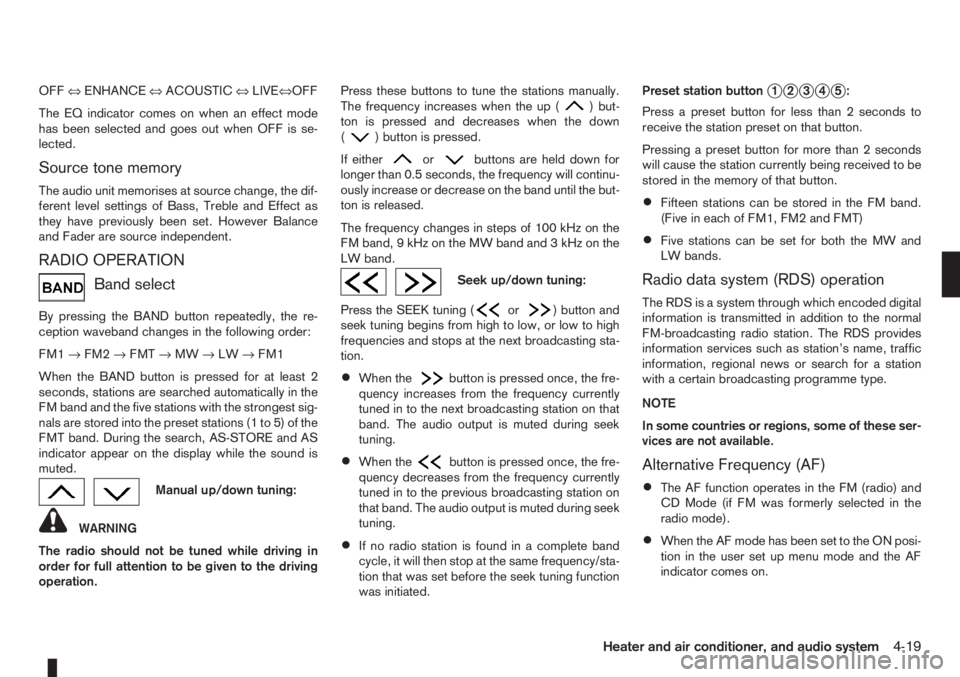
OFF⇔ENHANCE⇔ACOUSTIC⇔LIVE⇔OFF
The EQ indicator comes on when an effect mode
has been selected and goes out when OFF is se-
lected.
Source tone memory
The audio unit memorises at source change, the dif-
ferent level settings of Bass, Treble and Effect as
they have previously been set. However Balance
and Fader are source independent.
RADIO OPERATION
Band select
By pressing the BAND button repeatedly, the re-
ception waveband changes in the following order:
FM1→FM2→FMT→MW→LW→FM1
When the BAND button is pressed for at least 2
seconds, stations are searched automatically in the
FM band and the five stations with the strongest sig-
nals are stored into the preset stations (1 to 5) of the
FMT band. During the search, AS-STORE and AS
indicator appear on the display while the sound is
muted.
Manual up/down tuning:
WARNING
The radio should not be tuned while driving in
order for full attention to be given to the driving
operation.Press these buttons to tune the stations manually.
The frequency increases when the up (
) but-
ton is pressed and decreases when the down
(
) button is pressed.
If either
orbuttons are held down for
longer than 0.5 seconds, the frequency will continu-
ously increase or decrease on the band until the but-
ton is released.
The frequency changes in steps of 100 kHz on the
FMband,9kHzontheMWbandand3kHzonthe
LW band.
Seek up/down tuning:
Press the SEEK tuning (
or) button and
seek tuning begins from high to low, or low to high
frequencies and stops at the next broadcasting sta-
tion.
•When thebutton is pressed once, the fre-
quency increases from the frequency currently
tuned in to the next broadcasting station on that
band. The audio output is muted during seek
tuning.
•When thebutton is pressed once, the fre-
quency decreases from the frequency currently
tuned in to the previous broadcasting station on
that band. The audio output is muted during seek
tuning.
•If no radio station is found in a complete band
cycle, it will then stop at the same frequency/sta-
tion that was set before the seek tuning function
was initiated.Preset station button
j1j2j3j4j5:
Press a preset button for less than 2 seconds to
receive the station preset on that button.
Pressing a preset button for more than 2 seconds
will cause the station currently being received to be
stored in the memory of that button.
•Fifteen stations can be stored in the FM band.
(Five in each of FM1, FM2 and FMT)
•Five stations can be set for both the MW and
LW bands.
Radio data system (RDS) operation
The RDS is a system through which encoded digital
information is transmitted in addition to the normal
FM-broadcasting radio station. The RDS provides
information services such as station’s name, traffic
information, regional news or search for a station
with a certain broadcasting programme type.
NOTE
In some countries or regions, some of these ser-
vices are not available.
Alternative Frequency (AF)
•The AF function operates in the FM (radio) and
CD Mode (if FM was formerly selected in the
radio mode).
•When the AF mode has been set to the ON posi-
tion in the user set up menu mode and the AF
indicator comes on.
Heater and air conditioner, and audio system4-19
Page 104 of 235
For additional information, see “User set up menu”
later in this section for how to switch this mode on
or off.
The following functions operate when the AF mode
is on:
Automatic switching function
This function compares the strengths of the signals
and selects the station with the optimum reception
conditions.
Enhanced Other Network (EON) data
update (this function also operates when
the AF mode is off.)
When EON data is being received, this enables au-
tomatic retuning of other preset stations on the same
network. Also, network linked services can be used
such as traffic announcement. EON indicator lights
up when receiving RDS EON stations in the FM
waveband.
Programme Service (PS) function
(station name display function)
When an RDS station is tuned in with seek or manual
tuning, the programme station name will be dis-
played immediately after receiving the RDS data.
Emergency broadcast interrupt function
[ALARM INTERRUPTION – EBU
(European Broadcasting Union) SPEC
FOR INFO]
When the radio receives PTY code 31 (an emer-
gency broadcast code), the sound is interrupted,
the emergency broadcast is heard, and ALARM is
displayed. Once the emergency broadcast is fin-
ished, the unit immediately returns to the previous
source.
REG (Regional) mode
When the REG mode is activated in the FM wave-
band and the radio receiver is tuned to a regional
radio station which is transmitting local (regional)
programmes, then it will keep receiving this radio
station without switching to another regional station.
For additional information, see “User set up menu”
later in this section for how to de/activate this mode.
Traffic announcement (TA)
This function operates in both the FM (radio) and
the CD modes.
•The TA mode is selected when the TA button is
pressed. The TA indicator is displayed in the TA
ON mode.
•When the TA mode button is pressed again, the
mode will be switched off and TA indicator dis-
appears from the display.
•When the TA mode is not activated, a T-indica-
tor appears on the display, indicating that the
current radio station broadcasts trafficannouncements. Pressing the TA button will ac-
tivate the TA mode and the indicator changes
fromTtoTA.
NOTE
The TA mode operates regardless of whether the
AF mode is on or off.
Traffic announcement interrupt function
When a traffic announcement is received, the an-
nouncement is tuned in and the volume increases to
the set level. TRAFFIC is displayed and the TA indi-
cator blinks.
Once the traffic announcement is finished, the unit
returns to the source which was set before the traf-
fic announcement started, and the volume returns to
the previous level. For EON stations, the radio is
interrupted by another EON station with traffic an-
nouncements.
The traffic announcement interrupt mode is can-
celled if the TA, BAND or SRC button is pressed
during a traffic announcement. The TA mode re-
turns to the standby mode.
Volume level for traffic announcements
The volume for traffic announcements can be set as
described in the “User set up menu” later in this
section.
NEWS mode
To enable or disable the news mode in the FM band,
press thebutton. When the news mode is
enabled, the NEWS icon will be displayed.
4-20Heater and air conditioner, and audio system
Page 105 of 235
When the news mode is activated and the radio
receives a news code from a FM broadcasting sta-
tion, the actual playing mode will be interrupted.
Once the news broadcast has finished, the audio
unit will return to the previous source. During the
interruption, the display alternates between NEWS
and the broadcasting station name.
1. NEWS standby mode
•The news standby mode can be activated while
in FM (radio) or CD mode (if FM was previously
selected in the radio mode).
•Pressing thebutton, the news standby
mode will switch off and the NEWS icon will dis-
appear from the display.
2. NEWS interruption mode
•A news interruption will be announced and
NEWS will be displayed when the radio detects
the news code from the tuned station or EON
stations. The audio system will change to the
interrupting station and the name of the interrupt-
ing station will be displayed.
•Pressing thebutton during a news inter-
ruption will cause the audio unit to return to the
previous source. However, news standby mode
remains active.
•When the CD button is pressed during a news
interruption mode, the radio will change to CD
mode and news stand-by mode is not cancelled.
If the radio wave band changes to the MW or LW,
then the news standby mode will be switched off.
USER SET UP MENU
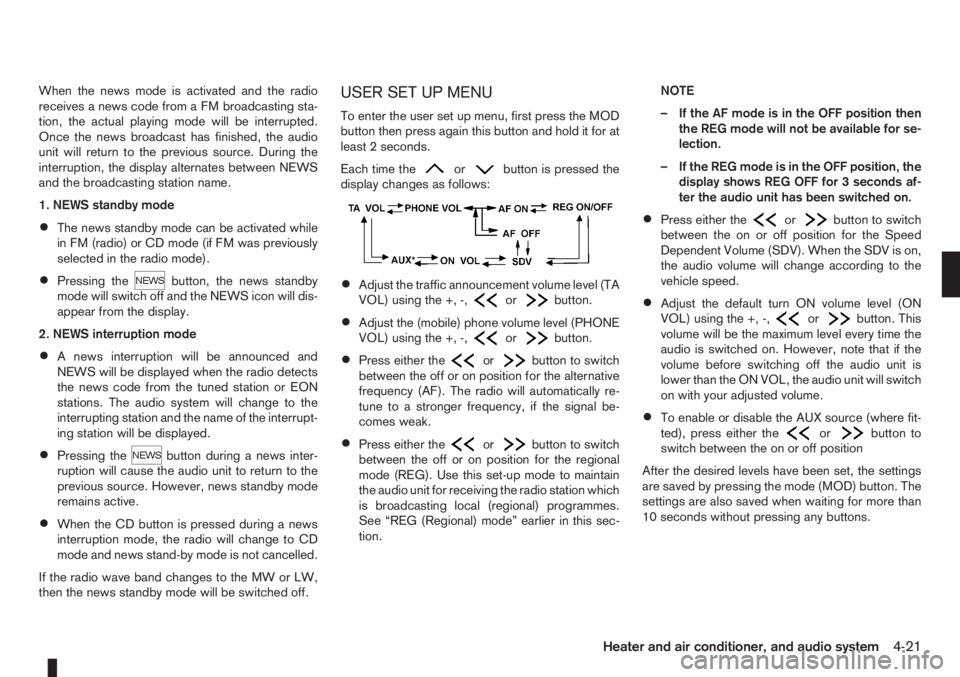
To enter the user set up menu, first press the MOD
button then press again this button and hold it for at
least 2 seconds.
Each time the
orbutton is pressed the
display changes as follows:
•Adjust the traffic announcement volume level (TA
VOL) using the +, -,orbutton.
•Adjust the (mobile) phone volume level (PHONE
VOL) using the +, -,orbutton.
•Press either theorbutton to switch
between the off or on position for the alternative
frequency (AF). The radio will automatically re-
tune to a stronger frequency, if the signal be-
comes weak.
•Press either theorbutton to switch
between the off or on position for the regional
mode (REG). Use this set-up mode to maintain
the audio unit for receiving the radio station which
is broadcasting local (regional) programmes.
See “REG (Regional) mode” earlier in this sec-
tion.NOTE
– If the AF mode is in the OFF position then
the REG mode will not be available for se-
lection.
– If the REG mode is in the OFF position, the
display shows REG OFF for 3 seconds af-
ter the audio unit has been switched on.
•Press either theorbutton to switch
between the on or off position for the Speed
Dependent Volume (SDV). When the SDV is on,
the audio volume will change according to the
vehicle speed.
•Adjust the default turn ON volume level (ON
VOL) using the +, -,orbutton. This
volume will be the maximum level every time the
audio is switched on. However, note that if the
volume before switching off the audio unit is
lower than the ON VOL, the audio unit will switch
on with your adjusted volume.
•To enable or disable the AUX source (where fit-
ted), press either theorbutton to
switch between the on or off position
After the desired levels have been set, the settings
are saved by pressing the mode (MOD) button. The
settings are also saved when waiting for more than
10 seconds without pressing any buttons.
Heater and air conditioner, and audio system4-21
Page 106 of 235
COMPACT DISC (CD) PLAYER
OPERATION
Turn the ignition switch to the Acc or ON position,
and insert the CD into the slot with the label side
facing up. The CD will be guided automatically into
the slot and will start playing.
After loading the CD and the track number will ap-
pear on the display.
If the radio is already operating, it will automatically
turn off and the CD player will start playing.
CAUTION
•Do not force the compact disc into the slot.
This could damage the player.
•Do not use 8 cm (3.1 in) discs.
REW (Rewind), FF
(Fast Forward)
When the(rewind) or(fast forward)
button is pressed for more than 0.5 seconds, while
the CD is being played, the CD will play while fast
forwarding or rewinding. When the button is re-
leased, the CD will return to normal playing speed.
Track up/down
When thebutton is pressed, the track being
played returns to its beginning. Press several times
to skip back through tracks. The CD will go back
the number of times the button is pressed.
When the
button is pressed while the CD is
being played, the track next to the present one willstart to play from its beginning. Press several times
to skip through tracks. The CD will advance the
number of times the button is pressed. (When the
last track on the CD is skipped through, the first
track will be played.)
RPT (Repeat track) ON/OFF
To repeat the currently playing track, press the RPT
button and RPT TRCK is displayed for 3 seconds
while the RPT indicator remains on. To cancel this
mode, press again the RPT button.
mMIX ON/OFF
To play all the tracks in a random order, press the
MIX button and MIX DISC is displayed for 3 sec-
onds while the MIX indicator remains on. To cancel
this mode, press the MIX button again.
CD eject button
Press the eject button () to eject the compact
disc.
If the CD comes out and is not removed within 10
seconds it will be pulled back into the slot to protect
it from damage.
When the ignition switch is in either the “OFF” or
LOCK position or the audio unit is off, it is possible
to eject the CD. However the audio unit will not be
activated.
If the following message appears on the display,
press the EJECT button:“CD ERROR” and “EJECT CD” appear alternately
– Eject the disc, and insert another CD or check
whether the CD is inserted upside-down.
4-22Heater and air conditioner, and audio system
Page 111 of 235
![NISSAN NOTE 2012 Owners Manual SPD VOL (Speed volume) control:
This mode controls the volume output from the
speakers automatically in relation to vehicle speed.
When [SPD VOL] is displayed, turn the<TUNE/
MENU>dial clockwise or an](/manual-img/5/56792/w960_56792-110.png "NISSAN NOTE 2012 Owners Manual SPD VOL (Speed volume) control:
This mode controls the volume output from the
speakers automatically in relation to vehicle speed.
When [SPD VOL] is displayed, turn the<TUNE/
MENU>dial clockwise or an")
SPD VOL (Speed volume) control:
This mode controls the volume output from the
speakers automatically in relation to vehicle speed.
When [SPD VOL] is displayed, turn the
the volume level.
Adjusting the setting to 0 (zero) turns off the speed
volume feature. Increasing the speed volume setting
results in the audio volume increasing more rapidly
with vehicle speed. Once chosen, press
to save the setting.
Clock setting
The [Clock] set up screen will appear when select-
ing the [Clock] item from the set up menu.
[Set Time]:
Select [Set Time] then adjust the clock as follows:
1. The hour display will start flashing. Turn the
2. Press the
will start flashing.
3. Turn the
minute.
4. Press
[On/Off]:
Set the clock display between on or off when the
audio unit is turned off.
If set in the [ON] position, the clock will be dis-
played when the audio unit is turned off either bypressing the<
>button or when the ignition
switch is placed in the “OFF” position.
[Clock Format):
Set the clock display between 24-hour mode and
12-hour clock mode.
Bluetooth®
For activation or deactivation details, see “BLUE-
TOOTH® settings” later in this section
Language
Select the appropriate language and press the
automatically adapt the language setting.
•[French]
•[English]
•[German]
•[Spanish]
•[Portuguese]
•[Italian]
•[Dutch]
•[Turkish]
•[Russian]
Scroll direction
Sets the scroll direction of the
For example, to change the way in which you turn
the dial (anticlockwise or clockwise) in order to scroll
up or down a list.
COMPACT DISC (CD) OPERATION
The CD player can play a music CD or an encoded
MP3/WMA CD and while listening to those CD’s
certain text might be able to be displayed (when CD
encoded with text is being used).
Press the
start to play.
When
mode is already operating, it will automatically turn
off the playing source and the CD play mode will
start.
However, if the CD disc is not loaded, then a notifi-
cation message will be displayed and the audio unit
remains in radio or AUX source mode.
CAUTION
•Do not force the CD into the slot. This could
damage the player.
•Do not use 8 cm (3.1 in) discs.
CD insert (CD player)
Insert the CD disc into the slot with the label side
facing up. The disc will be guided automatically into
the slot and will start playing. After loading the disc,
track information will be displayed.
NOTE
•The CD player accepts normal audio CD or
CD recorded with MP3/WMA files.
Heater and air conditioner, and audio system4-27
Page 112 of 235
![NISSAN NOTE 2012 Owners Manual •Inserting a CD recorded with MP3/WMA files,
the audio unit will automatically detect and
[MP3CD] will be indicated.
•An error notification message will be
displayed when inserting a wrong disc ty](/manual-img/5/56792/w960_56792-111.png "NISSAN NOTE 2012 Owners Manual •Inserting a CD recorded with MP3/WMA files,
the audio unit will automatically detect and
[MP3CD] will be indicated.
•An error notification message will be
displayed when inserting a wrong disc ty")
•Inserting a CD recorded with MP3/WMA files,
the audio unit will automatically detect and
[MP3CD] will be indicated.
•An error notification message will be
displayed when inserting a wrong disc type
(e.g. DVD), or the player cannot read the CD
disc. Eject the disc and insert another disc.
CD button
Press the
CD. Playing starts from the track that was being
played when the CD play mode was switched off.
Audio main operation
List view:
While the track is being played, press either the
>button to display the available
tracks in a listed view mode. To select a track from
the list, or a track to start listening from, turn the
Quick search:
In the list view mode, quick search can be per-
formed to find a track from the list.
Push the
of the track title then press
a list of the available tracks will be displayed. Select,
and press
Fast Forward (Cue), Fast
Reverse (Review) buttons:
When the<
>(Cue) or<>(Review) button
is pressed continuously, the track will be played at
high speed. When the button is released, the track
will be played at normal playing speed.
Track up/down buttons:
Pressing the <
>or<> button once, the
track will be skipped forward to the next track or
backward to the beginning of the current played
track. Press the<
>or<>button more than
once to skip through the tracks.
Folder browsing:
If the recorded media contains folders with music
files, pressing the<
>or<>button will play
in sequence the tracks of each folder.
To select a preferred folder:
1. Press the
>button and a list
of tracks in the current folder is displayed.
2. Press the<
>button.
3. Turn the
folder.
4. Press
turn the
If the current selected folder contains sub folders,
press
folders will be displayed. Turn the
lect. Select the [Root] folder item when songs are
recorded additionally in the root folder.
To return to the previous folder screen, press
<
>.
Repeat button:
Push the<
/j1>button and the current track
will be played continuously.
button:
Push the<
/j2>button and all the tracks will
be played in a random order.
<
/j5 > button:
While a CD with recorded music information tags
(CD-text/ID3–text tags) is being played, the title of
the played track is displayed. If the title information
is not provided then [Track] is displayed.
When the<
/j5>button is pressed repeat-
edly, further information about the track can be dis-
played along with the track title as follows:
CD:
Track time→Artist name→Track title→Album
title→Track time
CD with MP3/WMA:
Track time→Artist name→Album title→Folder
name→Track time
4-28Heater and air conditioner, and audio system
Page 113 of 235
Track details:
A long press on the<
/j5>button will turn the
display into a detailed overview and after a few sec-
onds it returns to the main display, or press
<
/j5>briefly.
CD eject button
CD player:
Press the <
> (eject) button and the CD will be
ejected.
Ejecting CD (with ignition switch in “OFF” or
LOCK):
When the ignition switch is in the “OFF” or LOCK
position it is possible to eject the currently played
CD. However the audio unit will not be activated.
Press the <
> button and the CD will be ejected.
NOTE
•When the CD is ejected and not removed
within 8 seconds, it will automatically retract
into the slot to protect it from damage.
•If an error message appears in the display,
press <> to eject the faulty CD and insert
another CD or check if the ejected CD is in-
serted upside down.
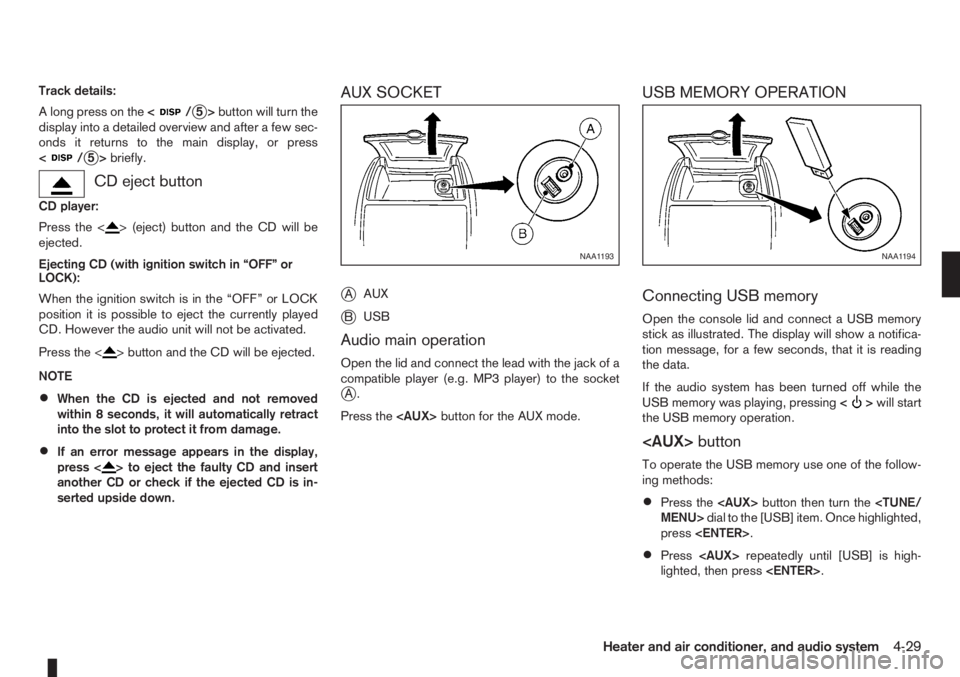
AUX SOCKET
j
AAUX
jBUSB
Audio main operation
Open the lid and connect the lead with the jack of a
compatible player (e.g. MP3 player) to the socket
jA.
Press the
USB MEMORY OPERATION
Connecting USB memory
Open the console lid and connect a USB memory
stick as illustrated. The display will show a notifica-
tion message, for a few seconds, that it is reading
the data.
If the audio system has been turned off while the
USB memory was playing, pressing<
>will start
the USB memory operation.
To operate the USB memory use one of the follow-
ing methods:
•Press the
press
•Press
lighted, then press
NAA1193NAA1194
Heater and air conditioner, and audio system4-29