Page 101 of 453
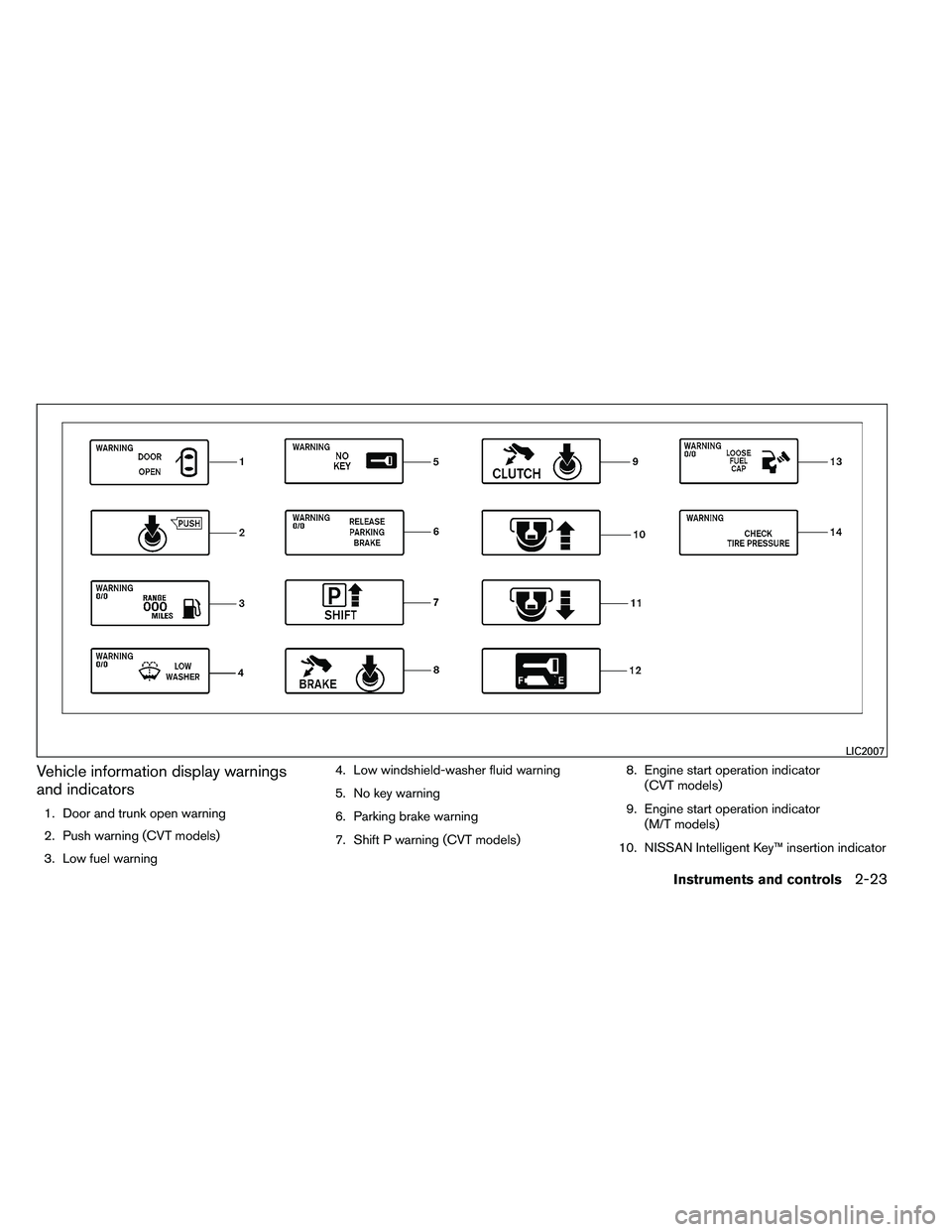
Vehicle information display warnings
and indicators
1. Door and trunk open warning
2. Push warning (CVT models)
3. Low fuel warning4. Low windshield-washer fluid warning
5. No key warning
6. Parking brake warning
7. Shift P warning (CVT models)
8. Engine start operation indicator
(CVT models)
9. Engine start operation indicator (M/T models)
10. NISSAN Intelligent Key™ insertion indicator
Page 159 of 453
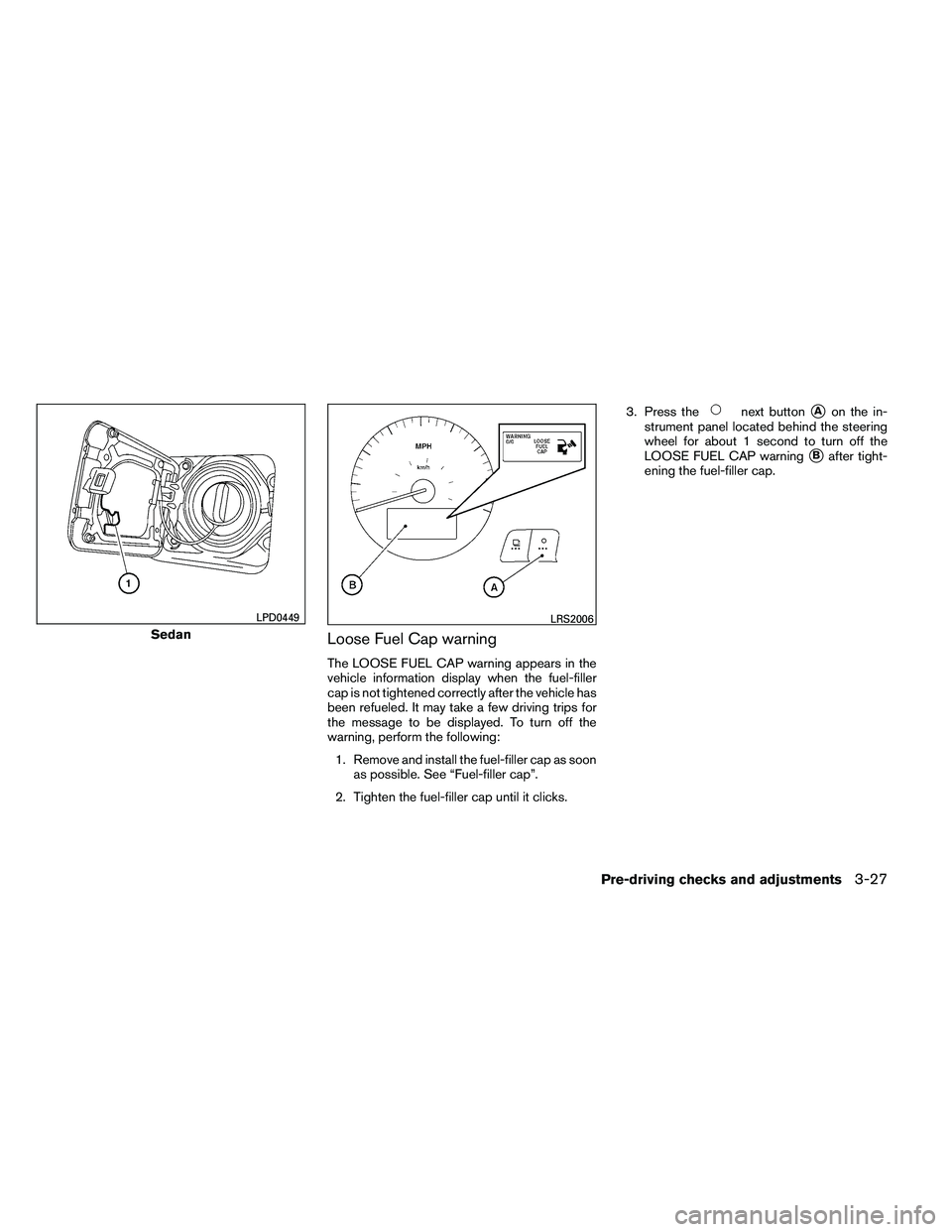
Loose Fuel Cap warning
The LOOSE FUEL CAP warning appears in the
vehicle information display when the fuel-filler
cap is not tightened correctly after the vehicle has
been refueled. It may take a few driving trips for
the message to be displayed. To turn off the
warning, perform the following:1. Remove and install the fuel-filler cap as soon as possible. See “Fuel-filler cap”.
2. Tighten the fuel-filler cap until it clicks. 3. Press the
Page 166 of 453
WARNING
●Positioning of the heating or air condi-
tioning controls and display controls
should not be done while driving in or-
der that full attention may be given to
the driving operation.
● Do not disassemble or modify this sys-
tem. If you do, it may result in accidents,
fire, or electrical shock.
● Do not use this system if you notice any
abnormality, such as a frozen screen or
lack of sound. Continued use of the
system may result in accident, fire or
electric shock.
● In case you notice any foreign object in
the system hardware, spill liquid on it,
or notice smoke or smell coming from
it, stop using the system immediately
and contact your nearest NISSAN
dealer. Ignoring such conditions may
lead to accidents, fire or electrical
shock.
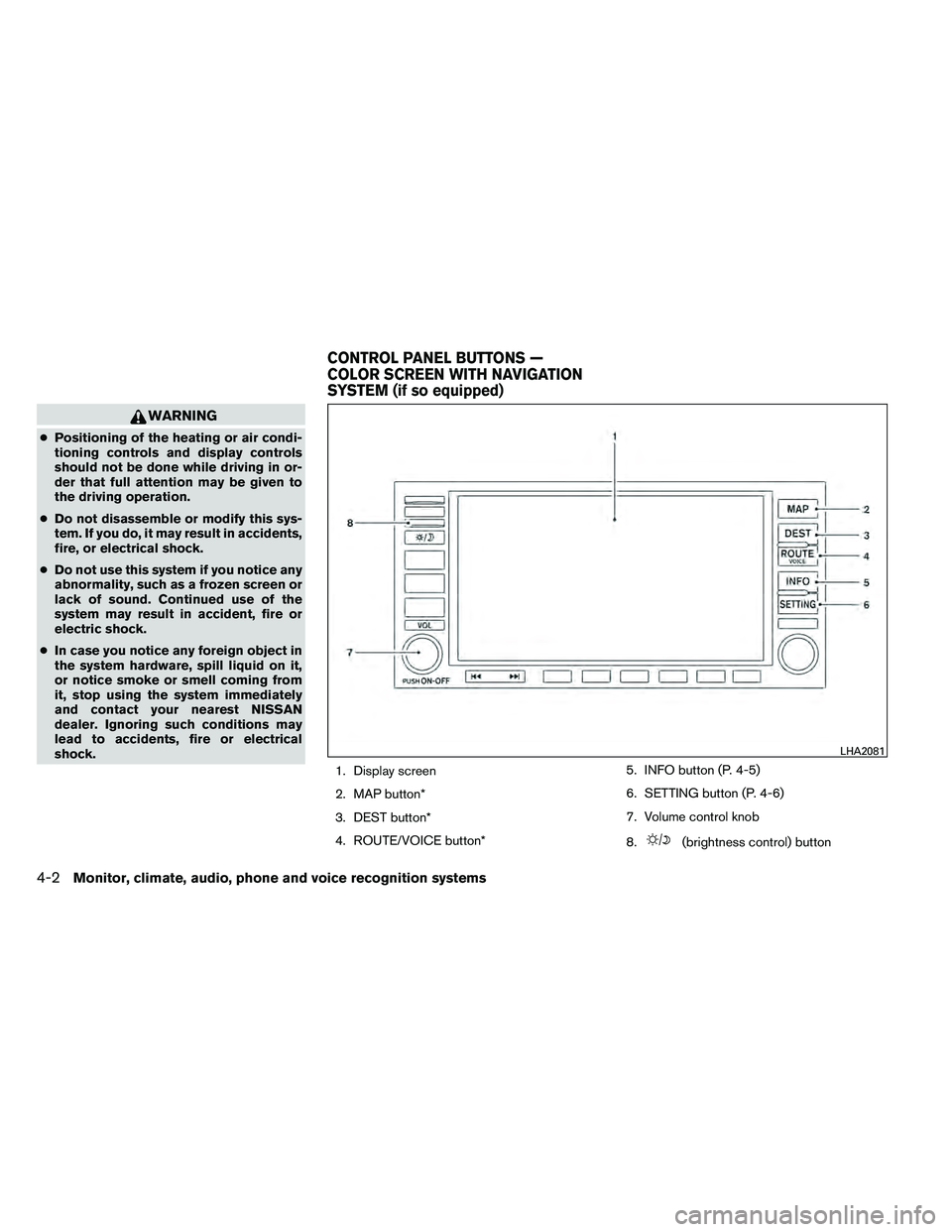
1. Display screen
2. MAP button*
3. DEST button*
4. ROUTE/VOICE button* 5. INFO button (P. 4-5)
6. SETTING button (P. 4-6)
7. Volume control knob
8.
Page 167 of 453
*For Navigation system control buttons, refer to
the separate Navigation System Owner’s
Manual.
When you use this system, make sure the engine
is running.
If you use the system with the engine not
running (ignition ON or ACC) for a long
time, it will discharge the battery, and the
engine will not start.
Reference symbols:
“Example” — Words marked in quotes refer to a
key shown only on the display. These keys can be
selected by touching the screen.
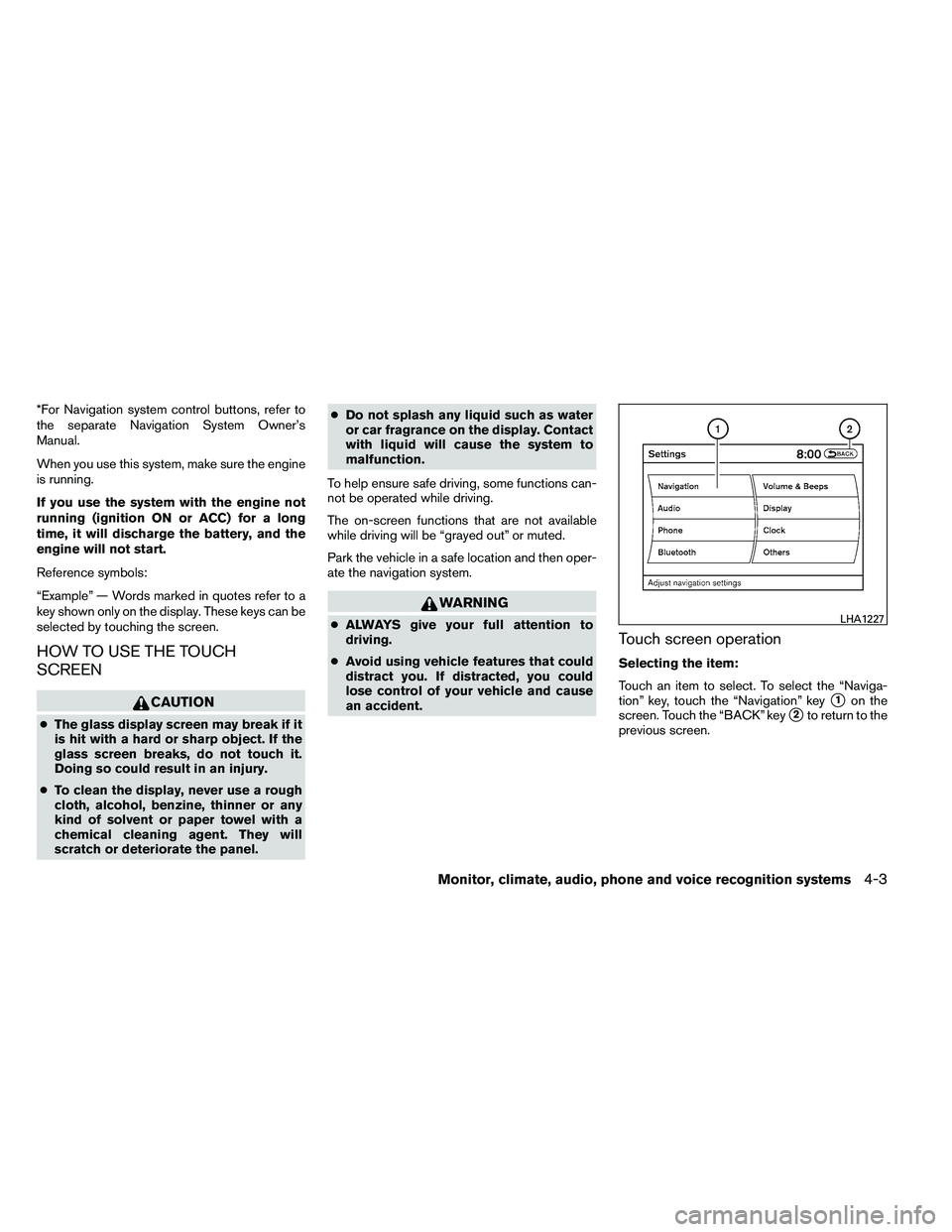
HOW TO USE THE TOUCH
SCREEN
Page 168 of 453
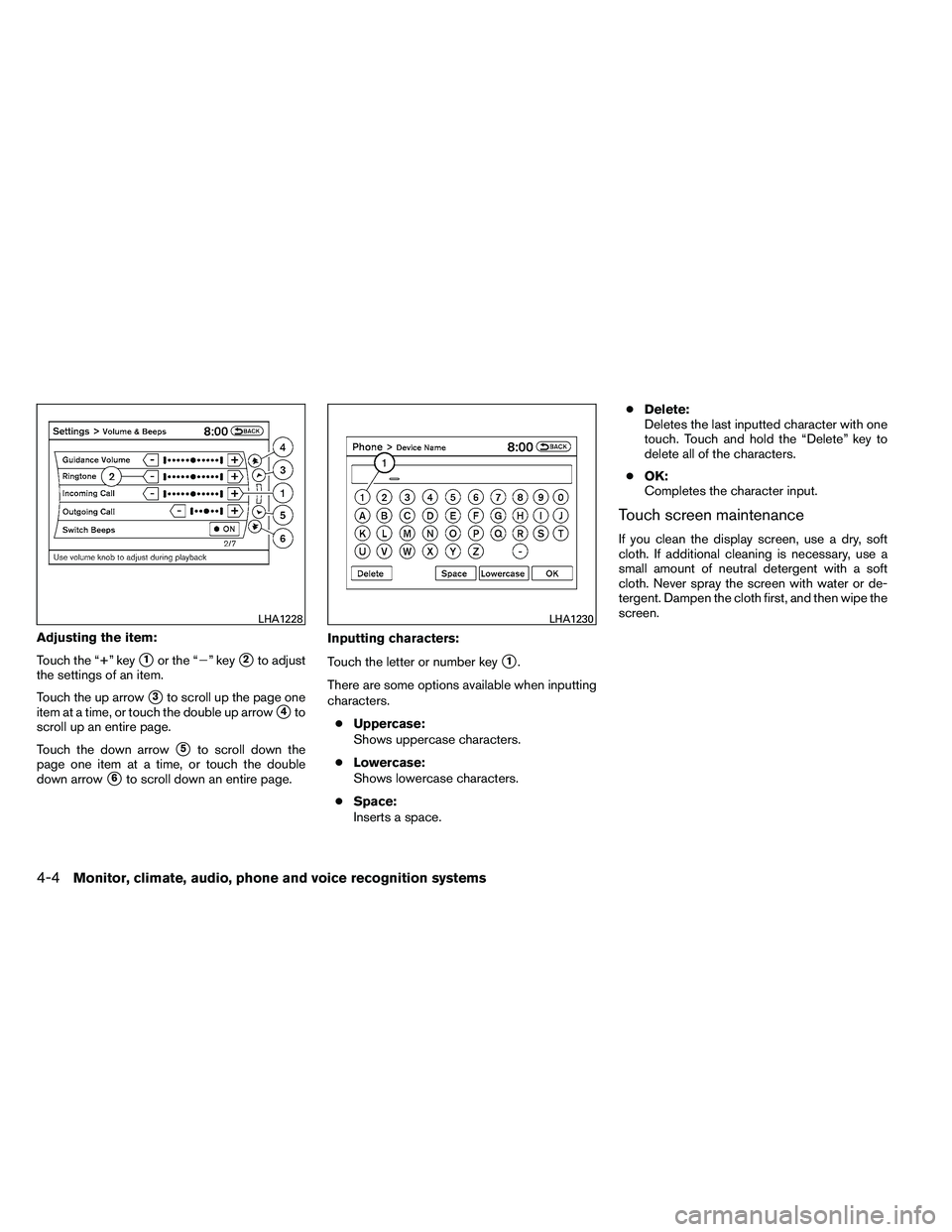
Adjusting the item:
Touch the “+” key
�1or the “�” key�2to adjust
the settings of an item.
Touch the up arrow
�3to scroll up the page one
item at a time, or touch the double up arrow
�4to
scroll up an entire page.
Touch the down arrow
�5to scroll down the
page one item at a time, or touch the double
down arrow
�6to scroll down an entire page. Inputting characters:
Touch the letter or number key
�1.
There are some options available when inputting
characters. ● Uppercase:
Shows uppercase characters.
● Lowercase:
Shows lowercase characters.
● Space:
Inserts a space. ●
Delete:
Deletes the last inputted character with one
touch. Touch and hold the “Delete” key to
delete all of the characters.
● OK:
Completes the character input.
Touch screen maintenance
If you clean the display screen, use a dry, soft
cloth. If additional cleaning is necessary, use a
small amount of neutral detergent with a soft
cloth. Never spray the screen with water or de-
tergent. Dampen the cloth first, and then wipe the
screen.
Page 169 of 453
HOW TO SELECT MENUS ON THE
SCREEN
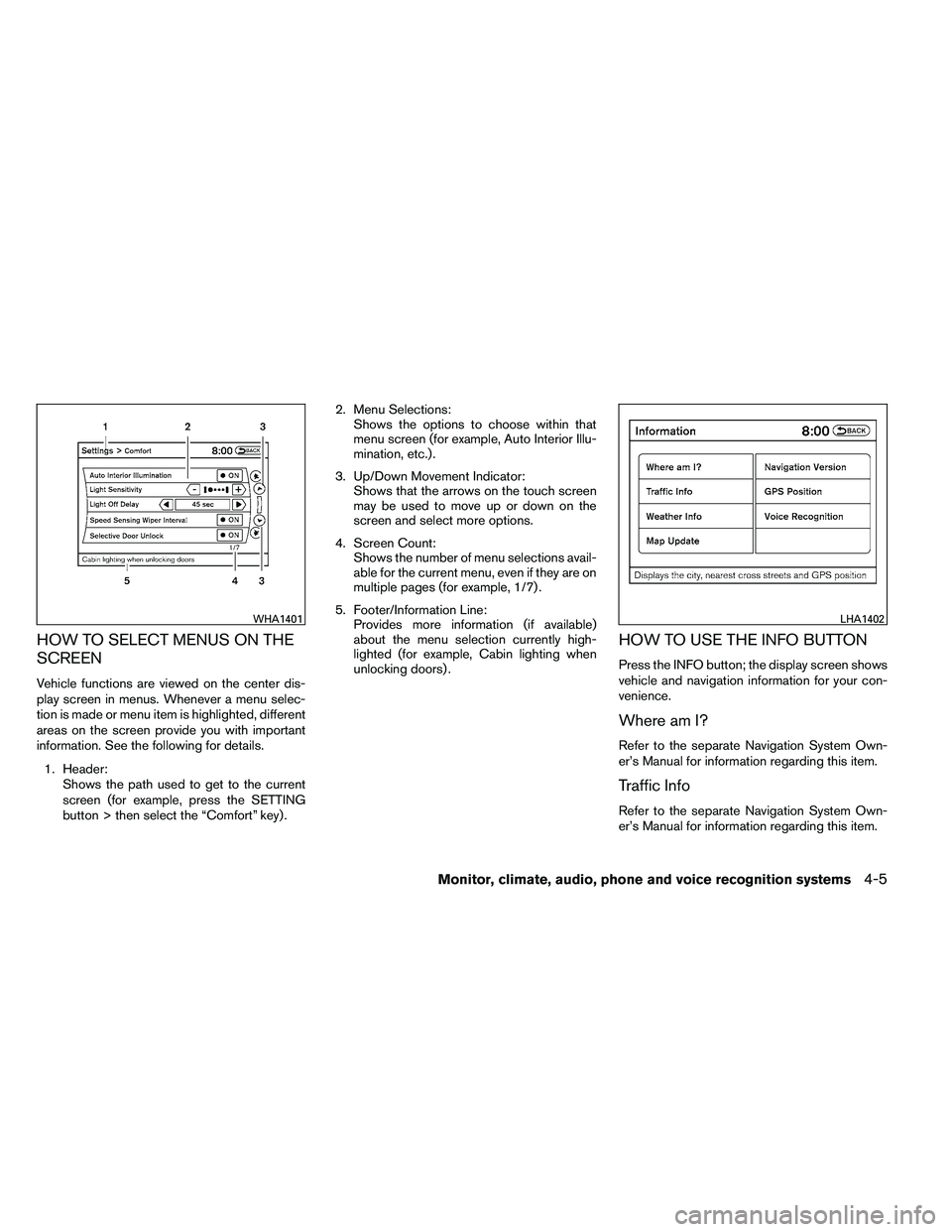
Vehicle functions are viewed on the center dis-
play screen in menus. Whenever a menu selec-
tion is made or menu item is highlighted, different
areas on the screen provide you with important
information. See the following for details.1. Header: Shows the path used to get to the current
screen (for example, press the SETTING
button > then select the “Comfort” key) . 2. Menu Selections:
Shows the options to choose within that
menu screen (for example, Auto Interior Illu-
mination, etc.) .
3. Up/Down Movement Indicator: Shows that the arrows on the touch screen
may be used to move up or down on the
screen and select more options.
4. Screen Count: Shows the number of menu selections avail-
able for the current menu, even if they are on
multiple pages (for example, 1/7) .
5. Footer/Information Line: Provides more information (if available)
about the menu selection currently high-
lighted (for example, Cabin lighting when
unlocking doors) .
HOW TO USE THE INFO BUTTON
Press the INFO button; the display screen shows
vehicle and navigation information for your con-
venience.
Where am I?
Refer to the separate Navigation System Own-
er’s Manual for information regarding this item.
Traffic Info
Refer to the separate Navigation System Own-
er’s Manual for information regarding this item.
Page 170 of 453
Weather Info
Refer to the separate Navigation System Own-
er’s Manual for information regarding this item.
Map Update
Refer to the separate Navigation System Own-
er’s Manual for information regarding this item.
Navigation Version
Refer to the separate Navigation System Own-
er’s Manual for information regarding this item.
GPS Position
For GPS Position, refer to the separate Naviga-
tion System Owner’s Manual.
Voice Recognition settings
For Voice Recognition settings, refer to “NISSAN
Voice Recognition system” in this section.
HOW TO USE THE SETTING
BUTTON
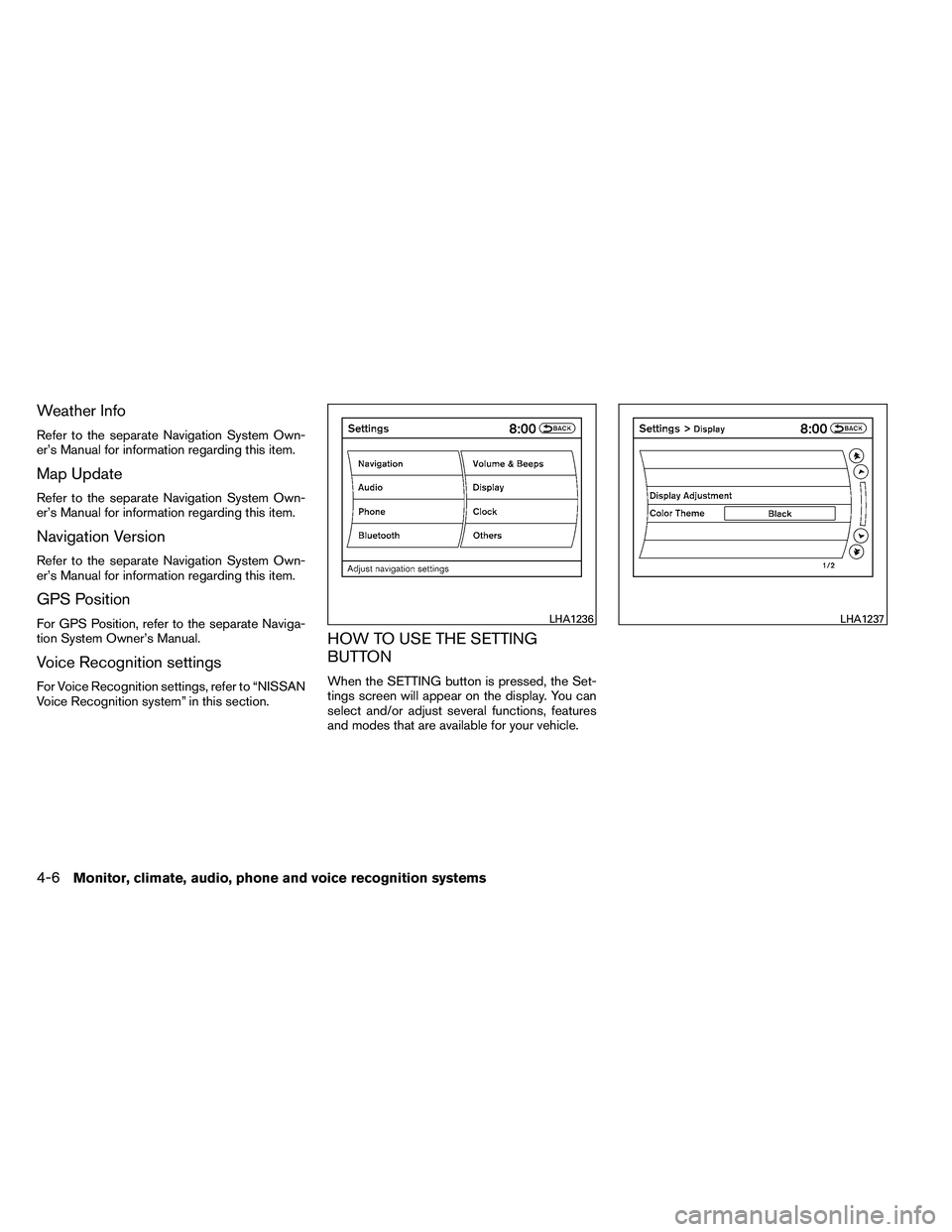
When the SETTING button is pressed, the Set-
tings screen will appear on the display. You can
select and/or adjust several functions, features
and modes that are available for your vehicle.
Page 171 of 453
Display settings
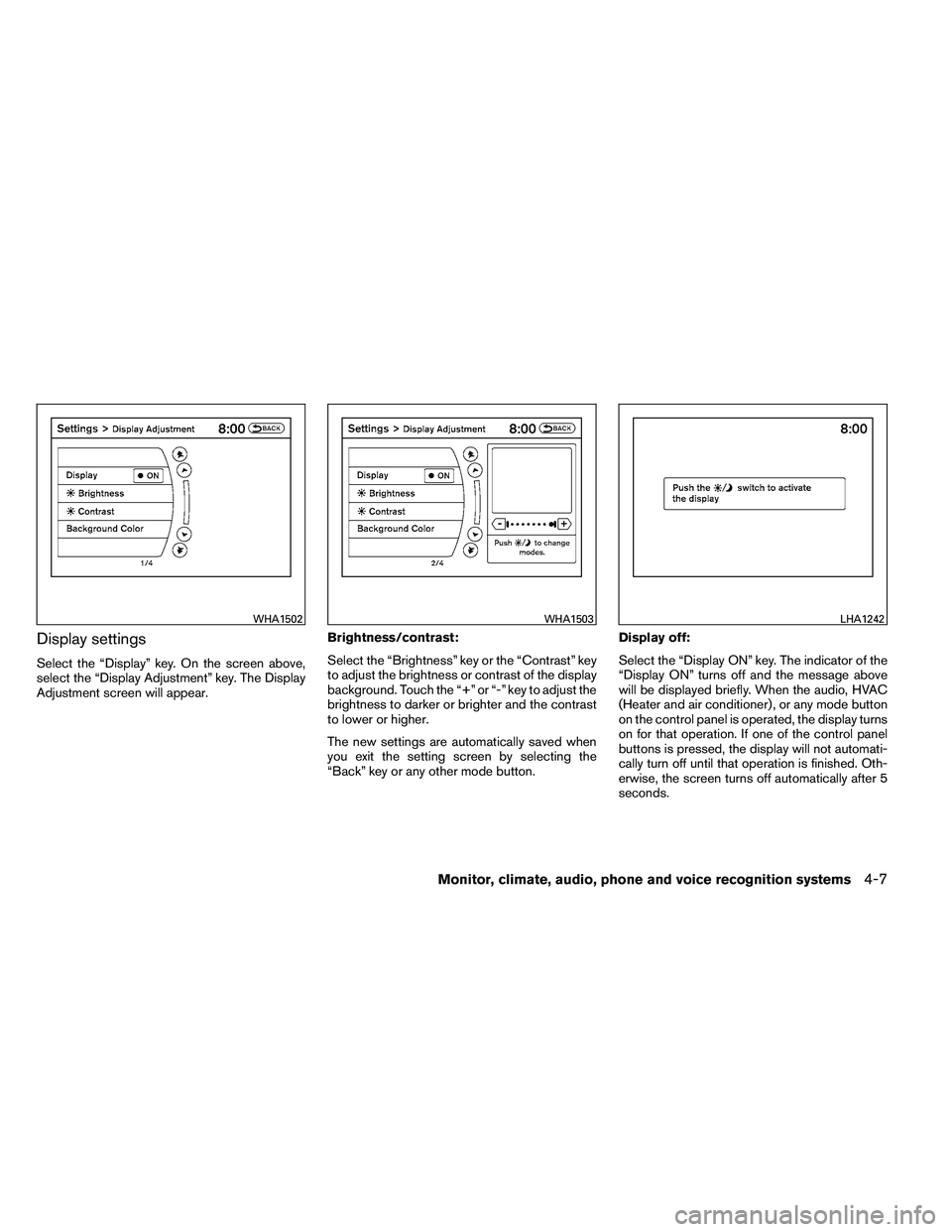
Select the “Display” key. On the screen above,
select the “Display Adjustment” key. The Display
Adjustment screen will appear.Brightness/contrast:
Select the “Brightness” key or the “Contrast” key
to adjust the brightness or contrast of the display
background. Touch the “+” or “-” key to adjust the
brightness to darker or brighter and the contrast
to lower or higher.
The new settings are automatically saved when
you exit the setting screen by selecting the
“Back” key or any other mode button.Display off:
Select the “Display ON” key. The indicator of the
“Display ON” turns off and the message above
will be displayed briefly. When the audio, HVAC
(Heater and air conditioner) , or any mode button
on the control panel is operated, the display turns
on for that operation. If one of the control panel
buttons is pressed, the display will not automati-
cally turn off until that operation is finished. Oth-
erwise, the screen turns off automatically after 5
seconds.