Page 158 of 454
●Closely supervise children when they
are around cars to prevent them from
playing and becoming locked in the
trunk where they could be seriously in-
jured. Keep the car locked, with the rear
seatback and trunk lid securely latched
when not in use, and prevent children’s
access to car keys.
To open the trunk lid, push the opener switch
down.
To close the trunk lid, lower and push the trunk lid
down securely.
NOTE:
You can open the trunk lid with the Intelli-
gent Key. Refer to “NISSAN Intelligent
Key™” in this section.
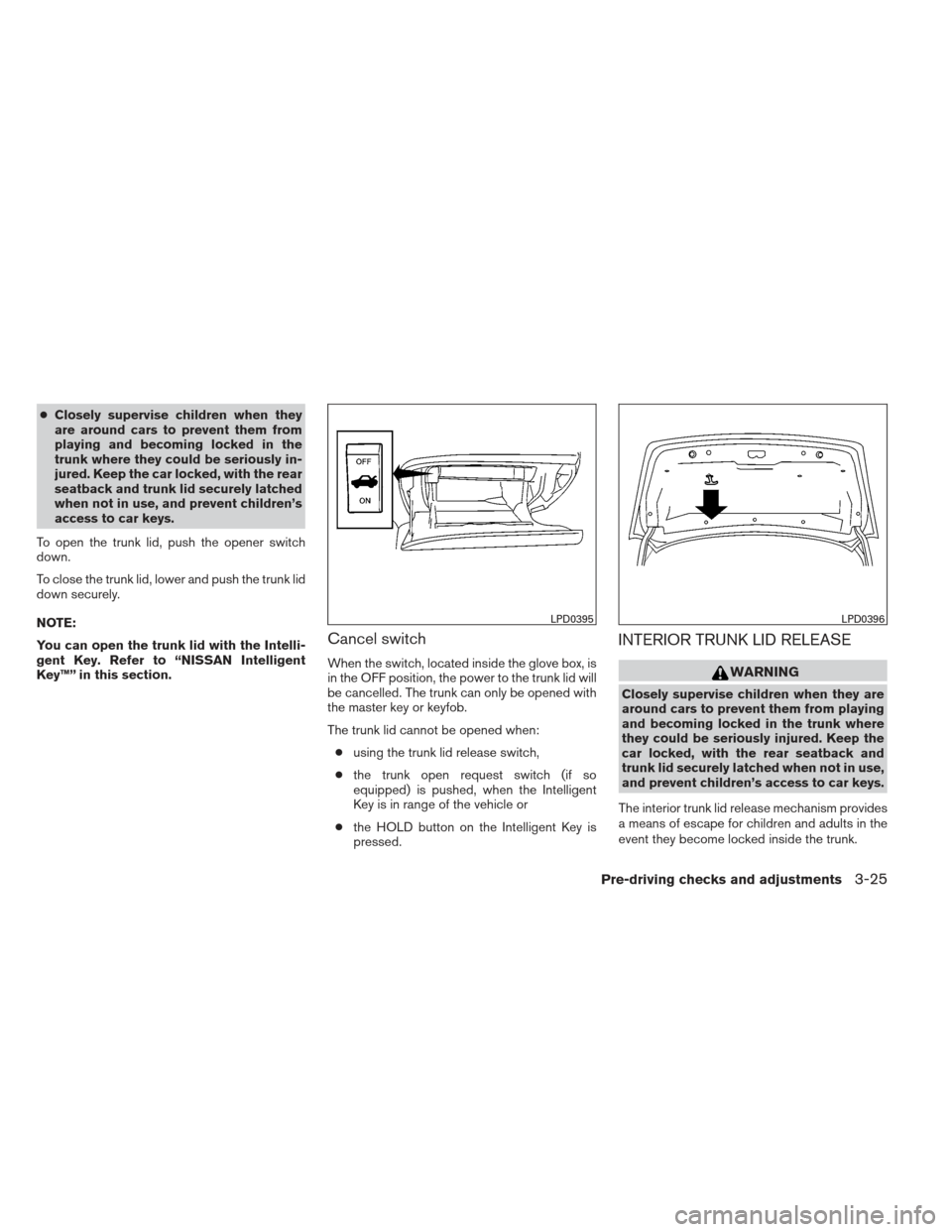
Cancel switch
When the switch, located inside the glove box, is
in the OFF position, the power to the trunk lid will
be cancelled. The trunk can only be opened with
the master key or keyfob.
The trunk lid cannot be opened when: ● using the trunk lid release switch,
● the trunk open request switch (if so
equipped) is pushed, when the Intelligent
Key is in range of the vehicle or
● the HOLD button on the Intelligent Key is
pressed.
INTERIOR TRUNK LID RELEASE
WARNING
Closely supervise children when they are
around cars to prevent them from playing
and becoming locked in the trunk where
they could be seriously injured. Keep the
car locked, with the rear seatback and
trunk lid securely latched when not in use,
and prevent children’s access to car keys.
The interior trunk lid release mechanism provides
a means of escape for children and adults in the
event they become locked inside the trunk.
LPD0395LPD0396
Pre-driving checks and adjustments3-25
Page 170 of 454
*For Navigation system control buttons, refer to
the separate Navigation System Owner’s
Manual.
When you use this system, make sure the engine
is running.
If you use the system with the engine not
running (ignition ON or ACC) for a long
time, it will discharge the battery, and the
engine will not start.
Reference symbols:
“Example” — Words marked in quotes refer to a
key shown only on the display. These keys can be
selected by touching the screen.
HOW TO USE THE TOUCH
SCREEN
CAUTION
●The glass display screen may break if it
is hit with a hard or sharp object. If the
glass screen breaks, do not touch it.
Doing so could result in an injury.
● To clean the display, never use a rough
cloth, alcohol, benzine, thinner or any
kind of solvent or paper towel with a
chemical cleaning agent. They will
scratch or deteriorate the panel. ●
Do not splash any liquid such as water
or car fragrance on the display. Contact
with liquid will cause the system to
malfunction.
To help ensure safe driving, some functions can-
not be operated while driving.
The on-screen functions that are not available
while driving will be “grayed out” or muted.
Park the vehicle in a safe location and then oper-
ate the navigation system.
WARNING
● ALWAYS give your full attention to
driving.
● Avoid using vehicle features that could
distract you. If distracted, you could
lose control of your vehicle and cause
an accident.Touch screen operation
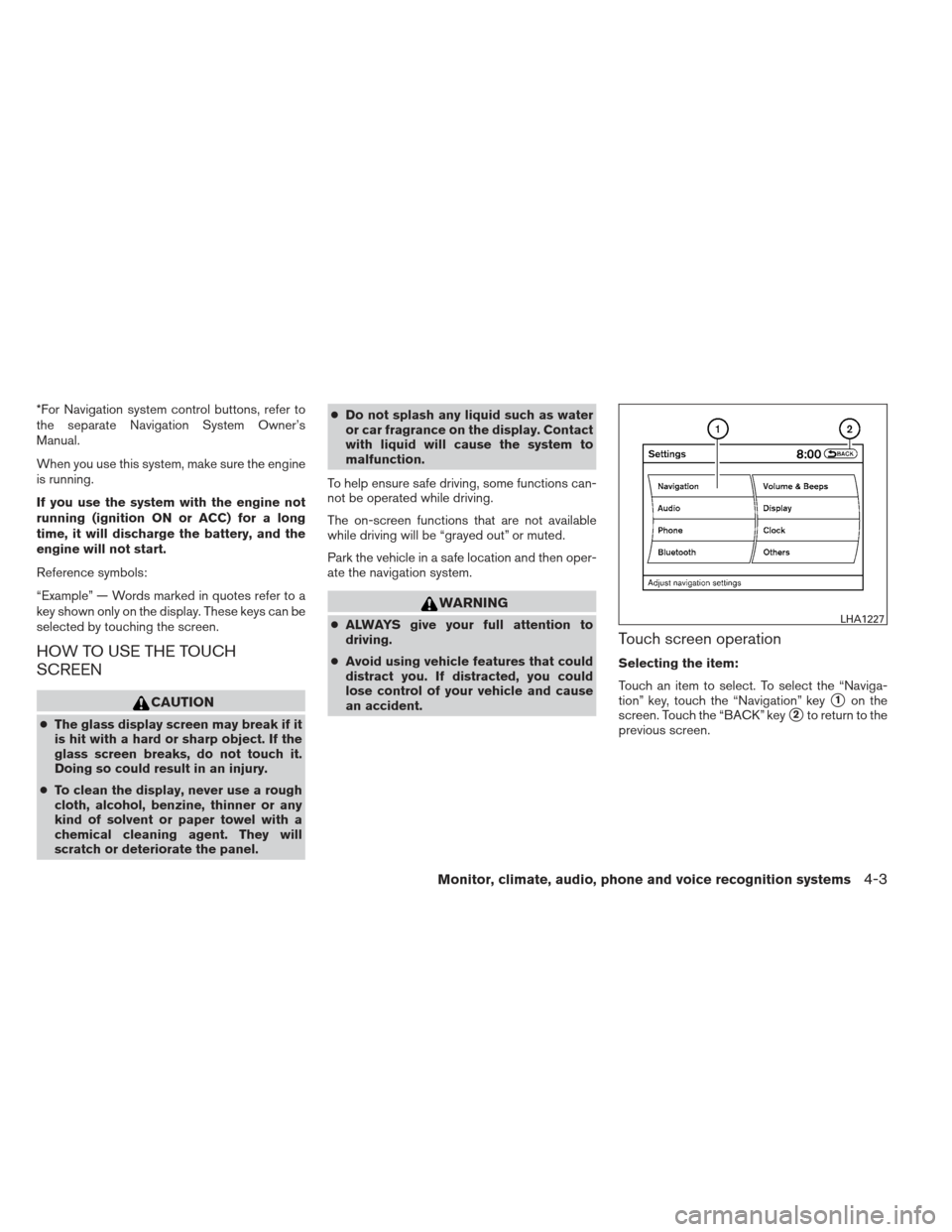
Selecting the item:
Touch an item to select. To select the “Naviga-
tion” key, touch the “Navigation” key
�1on the
screen. Touch the “BACK” key
�2to return to the
previous screen.
LHA1227
Monitor, climate, audio, phone and voice recognition systems4-3
Page 171 of 454
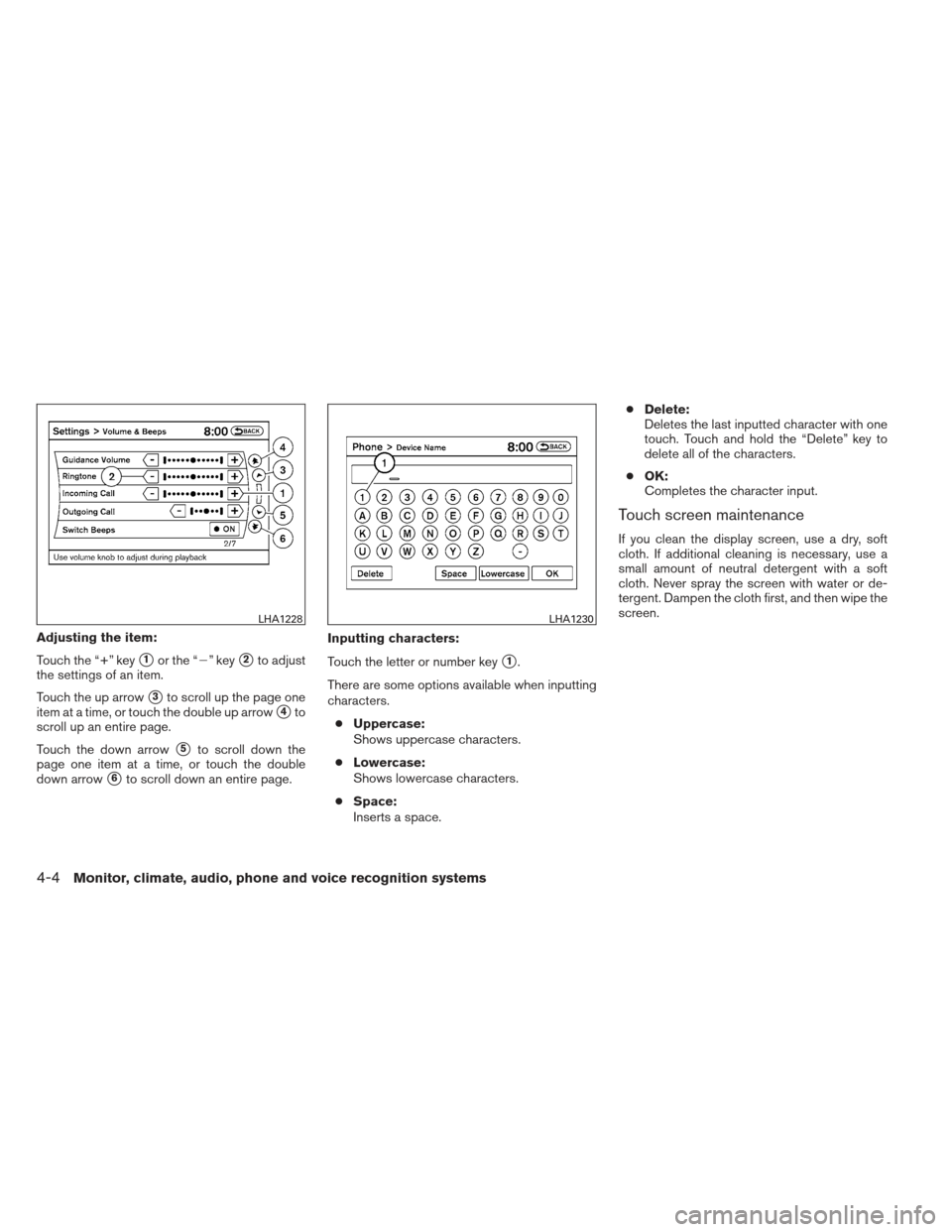
Adjusting the item:
Touch the “+” key
�1or the “�” key�2to adjust
the settings of an item.
Touch the up arrow
�3to scroll up the page one
item at a time, or touch the double up arrow
�4to
scroll up an entire page.
Touch the down arrow
�5to scroll down the
page one item at a time, or touch the double
down arrow
�6to scroll down an entire page. Inputting characters:
Touch the letter or number key
�1.
There are some options available when inputting
characters. ● Uppercase:
Shows uppercase characters.
● Lowercase:
Shows lowercase characters.
● Space:
Inserts a space. ●
Delete:
Deletes the last inputted character with one
touch. Touch and hold the “Delete” key to
delete all of the characters.
● OK:
Completes the character input.
Touch screen maintenance
If you clean the display screen, use a dry, soft
cloth. If additional cleaning is necessary, use a
small amount of neutral detergent with a soft
cloth. Never spray the screen with water or de-
tergent. Dampen the cloth first, and then wipe the
screen.
LHA1228LHA1230
4-4Monitor, climate, audio, phone and voice recognition systems
Page 172 of 454
HOW TO SELECT MENUS ON THE
SCREEN
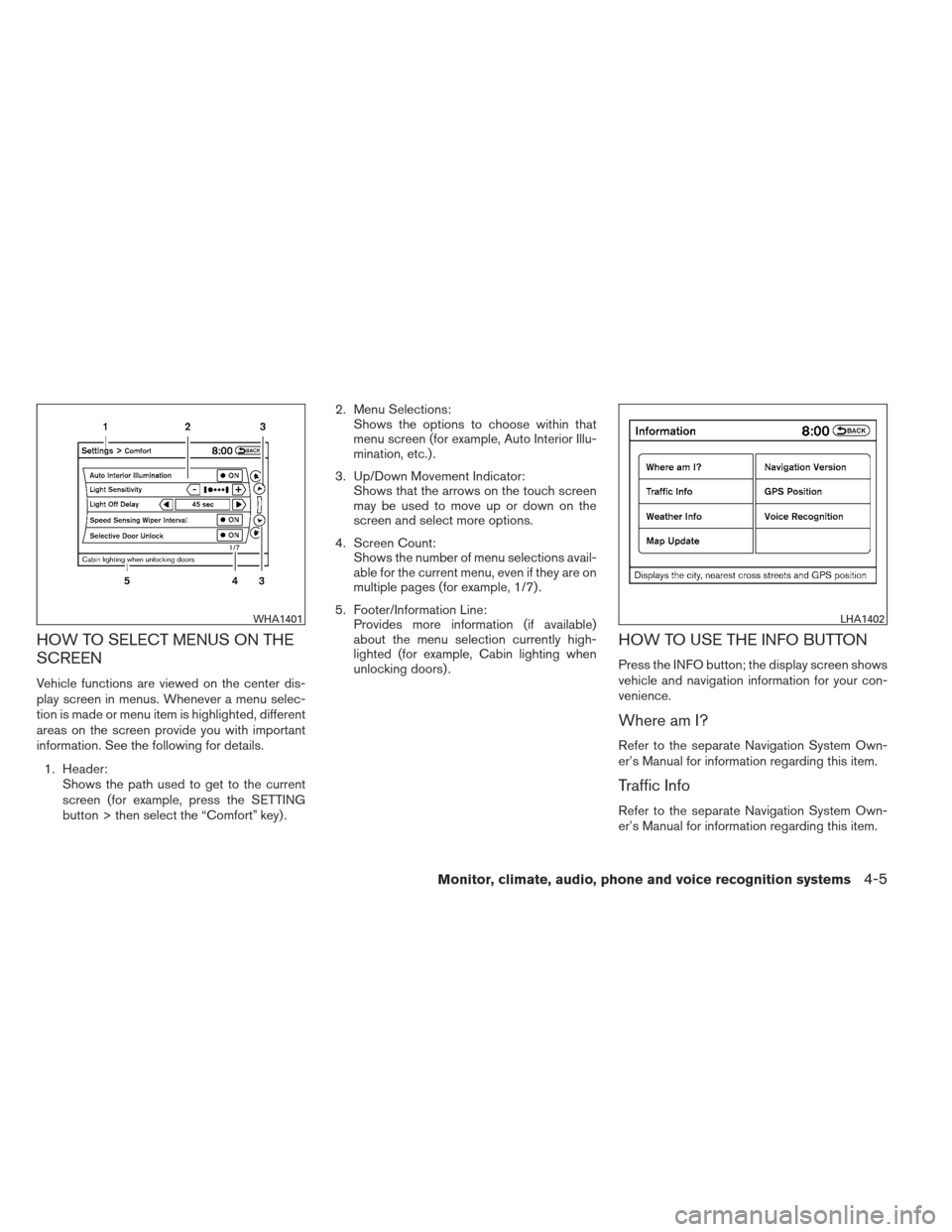
Vehicle functions are viewed on the center dis-
play screen in menus. Whenever a menu selec-
tion is made or menu item is highlighted, different
areas on the screen provide you with important
information. See the following for details.1. Header: Shows the path used to get to the current
screen (for example, press the SETTING
button > then select the “Comfort” key) . 2. Menu Selections:
Shows the options to choose within that
menu screen (for example, Auto Interior Illu-
mination, etc.) .
3. Up/Down Movement Indicator: Shows that the arrows on the touch screen
may be used to move up or down on the
screen and select more options.
4. Screen Count: Shows the number of menu selections avail-
able for the current menu, even if they are on
multiple pages (for example, 1/7) .
5. Footer/Information Line: Provides more information (if available)
about the menu selection currently high-
lighted (for example, Cabin lighting when
unlocking doors) .
HOW TO USE THE INFO BUTTON
Press the INFO button; the display screen shows
vehicle and navigation information for your con-
venience.
Where am I?
Refer to the separate Navigation System Own-
er’s Manual for information regarding this item.
Traffic Info
Refer to the separate Navigation System Own-
er’s Manual for information regarding this item.
WHA1401LHA1402
Monitor, climate, audio, phone and voice recognition systems4-5
Page 174 of 454
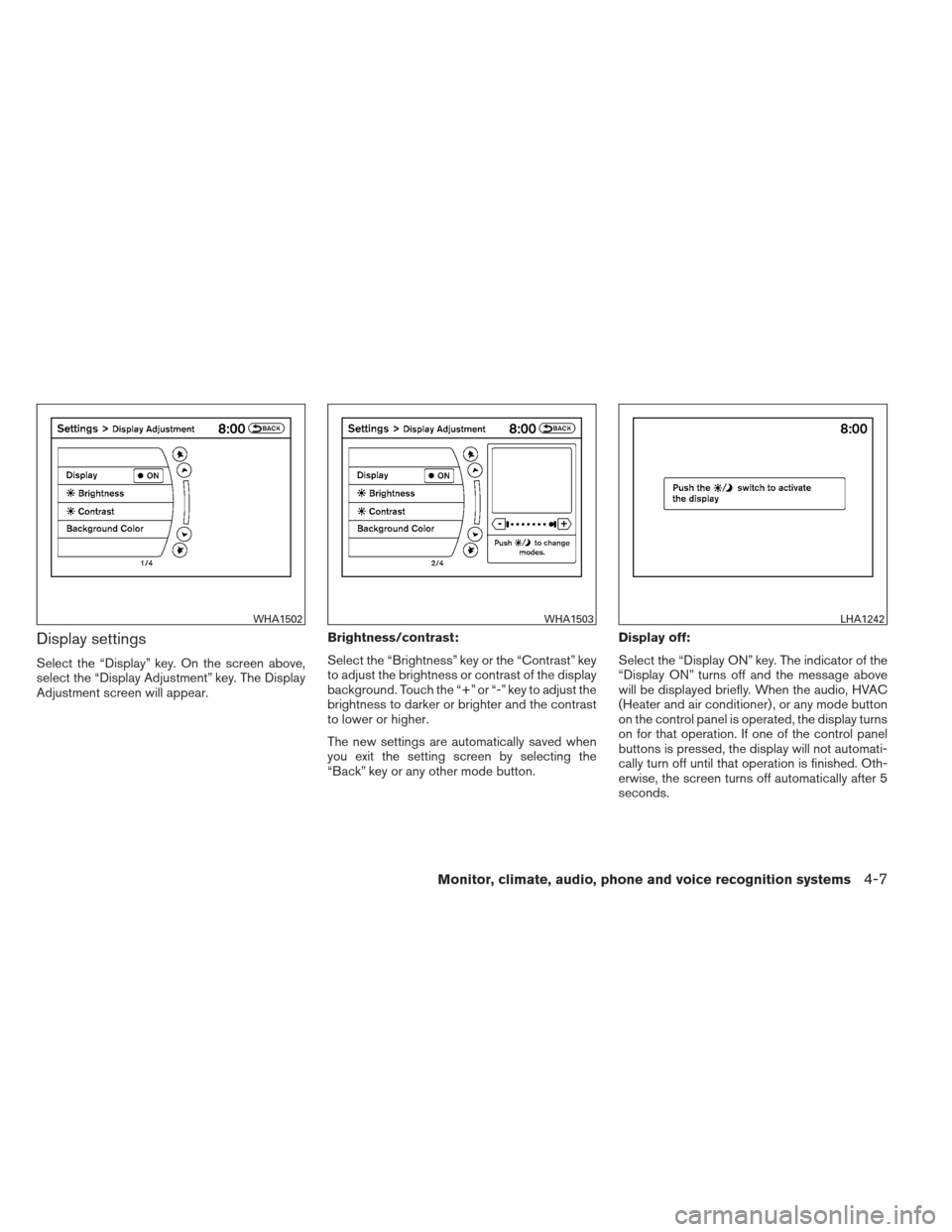
Display settings
Select the “Display” key. On the screen above,
select the “Display Adjustment” key. The Display
Adjustment screen will appear.Brightness/contrast:
Select the “Brightness” key or the “Contrast” key
to adjust the brightness or contrast of the display
background. Touch the “+” or “-” key to adjust the
brightness to darker or brighter and the contrast
to lower or higher.
The new settings are automatically saved when
you exit the setting screen by selecting the
“Back” key or any other mode button.Display off:
Select the “Display ON” key. The indicator of the
“Display ON” turns off and the message above
will be displayed briefly. When the audio, HVAC
(Heater and air conditioner) , or any mode button
on the control panel is operated, the display turns
on for that operation. If one of the control panel
buttons is pressed, the display will not automati-
cally turn off until that operation is finished. Oth-
erwise, the screen turns off automatically after 5
seconds.
WHA1502WHA1503LHA1242
Monitor, climate, audio, phone and voice recognition systems4-7
Page 175 of 454
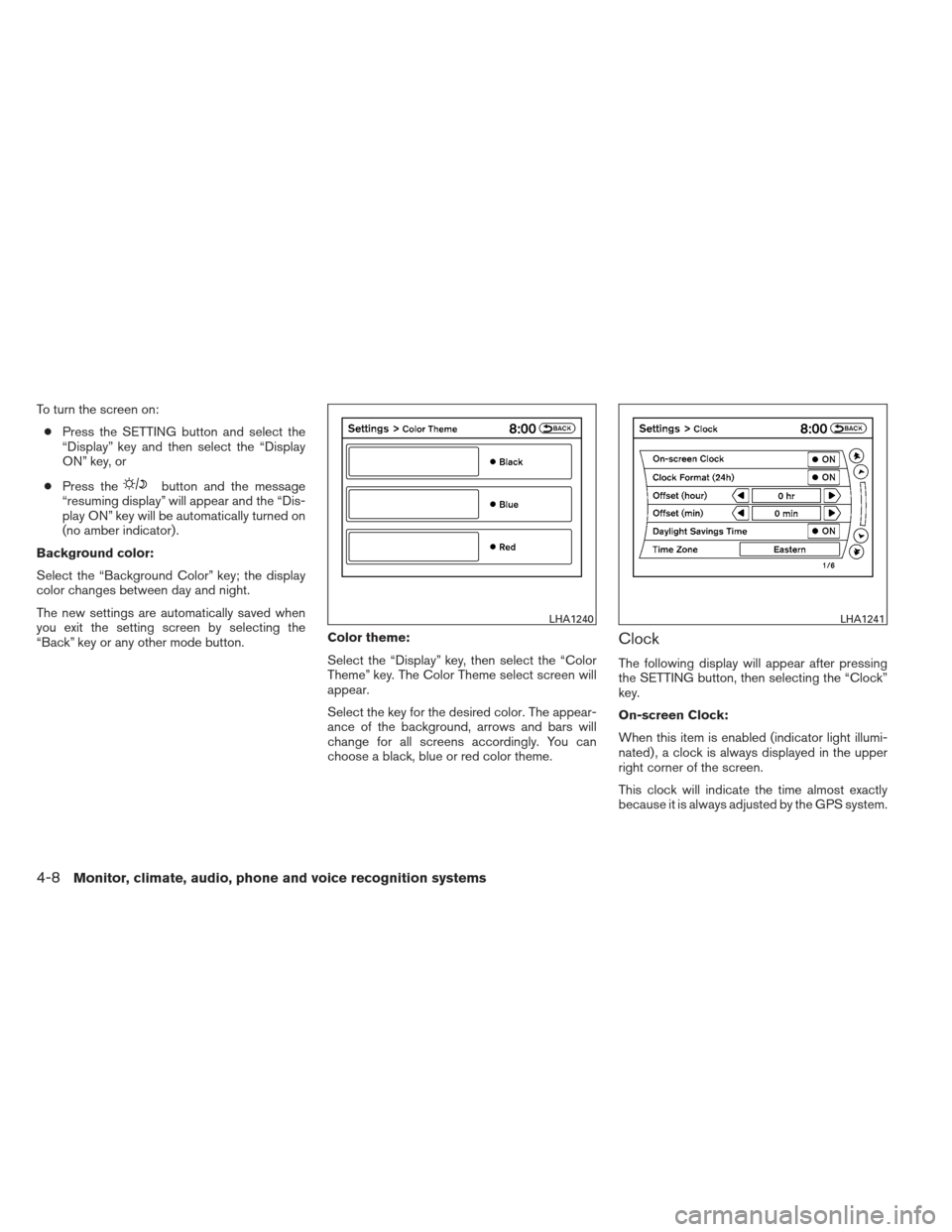
To turn the screen on:● Press the SETTING button and select the
“Display” key and then select the “Display
ON” key, or
● Press the
button and the message
“resuming display” will appear and the “Dis-
play ON” key will be automatically turned on
(no amber indicator) .
Background color:
Select the “Background Color” key; the display
color changes between day and night.
The new settings are automatically saved when
you exit the setting screen by selecting the
“Back” key or any other mode button. Color theme:
Select the “Display” key, then select the “Color
Theme” key. The Color Theme select screen will
appear.
Select the key for the desired color. The appear-
ance of the background, arrows and bars will
change for all screens accordingly. You can
choose a black, blue or red color theme.
Clock
The following display will appear after pressing
the SETTING button, then selecting the “Clock”
key.
On-screen Clock:
When this item is enabled (indicator light illumi-
nated) , a clock is always displayed in the upper
right corner of the screen.
This clock will indicate the time almost exactly
because it is always adjusted by the GPS system.
LHA1240LHA1241
4-8Monitor, climate, audio, phone and voice recognition systems
Page 176 of 454
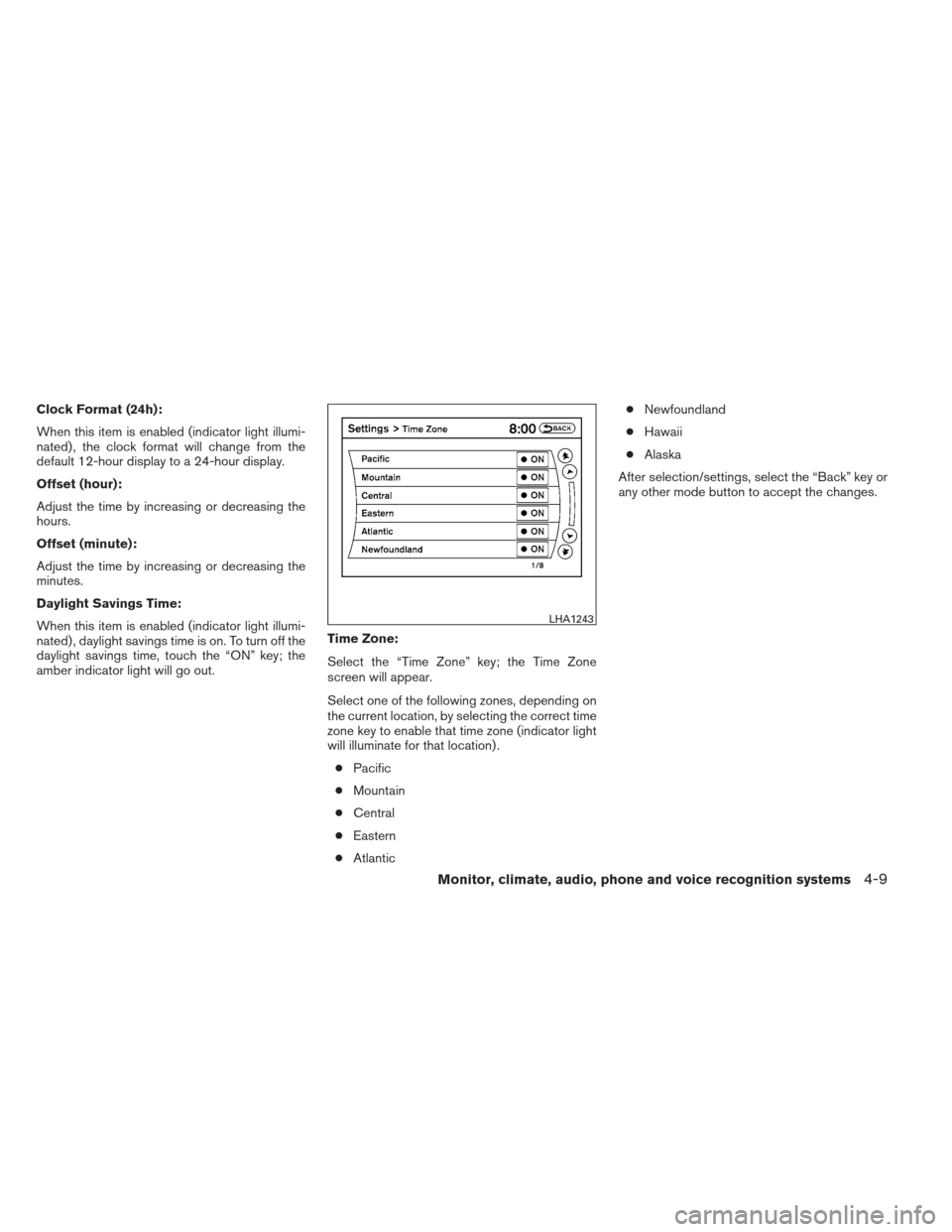
Clock Format (24h):
When this item is enabled (indicator light illumi-
nated) , the clock format will change from the
default 12-hour display to a 24-hour display.
Offset (hour):
Adjust the time by increasing or decreasing the
hours.
Offset (minute):
Adjust the time by increasing or decreasing the
minutes.
Daylight Savings Time:
When this item is enabled (indicator light illumi-
nated) , daylight savings time is on. To turn off the
daylight savings time, touch the “ON” key; the
amber indicator light will go out.Time Zone:
Select the “Time Zone” key; the Time Zone
screen will appear.
Select one of the following zones, depending on
the current location, by selecting the correct time
zone key to enable that time zone (indicator light
will illuminate for that location) .
● Pacific
● Mountain
● Central
● Eastern
● Atlantic ●
Newfoundland
● Hawaii
● Alaska
After selection/settings, select the “Back” key or
any other mode button to accept the changes.
LHA1243
Monitor, climate, audio, phone and voice recognition systems4-9
Page 177 of 454
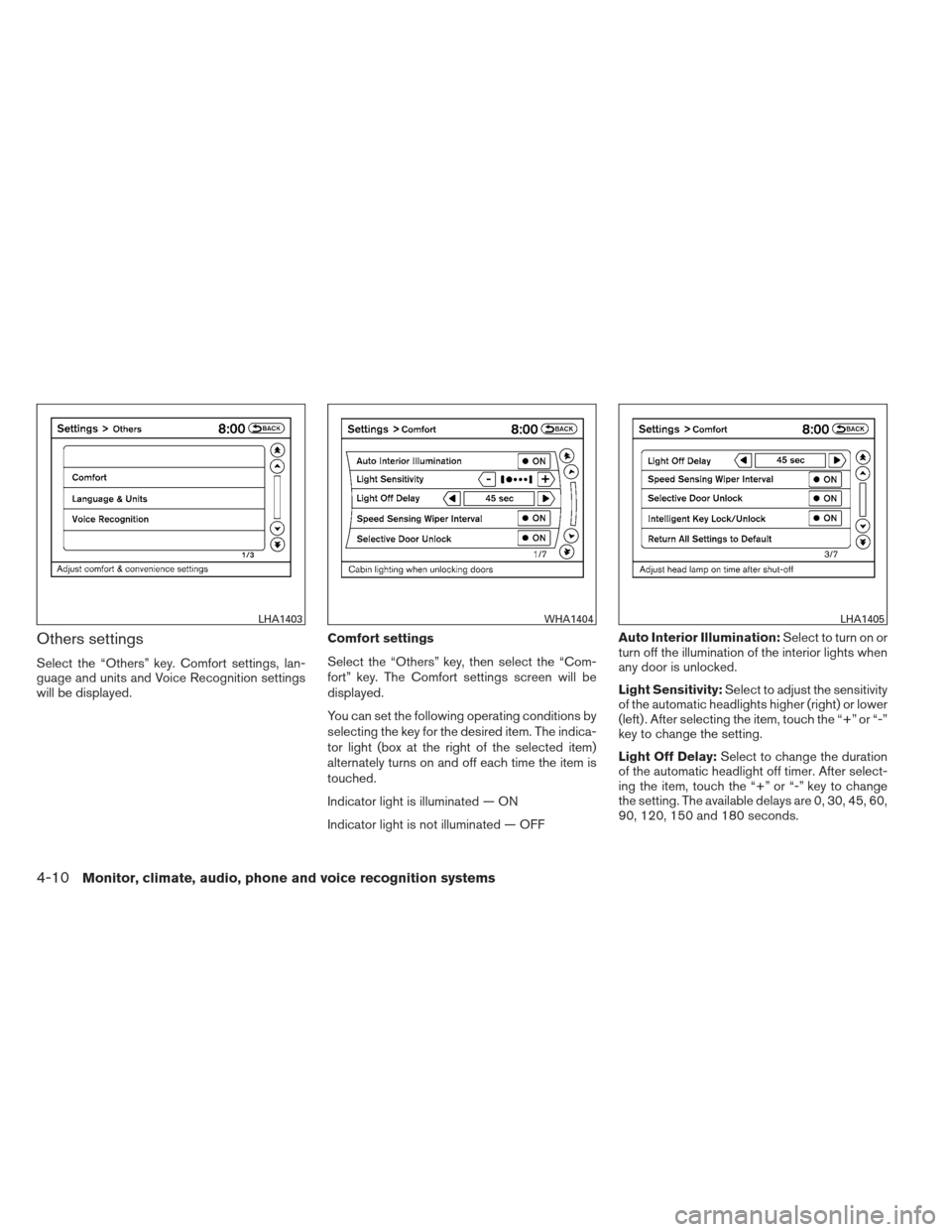
Others settings
Select the “Others” key. Comfort settings, lan-
guage and units and Voice Recognition settings
will be displayed.Comfort settings
Select the “Others” key, then select the “Com-
fort” key. The Comfort settings screen will be
displayed.
You can set the following operating conditions by
selecting the key for the desired item. The indica-
tor light (box at the right of the selected item)
alternately turns on and off each time the item is
touched.
Indicator light is illuminated — ON
Indicator light is not illuminated — OFFAuto Interior Illumination:
Select to turn on or
turn off the illumination of the interior lights when
any door is unlocked.
Light Sensitivity: Select to adjust the sensitivity
of the automatic headlights higher (right) or lower
(left) . After selecting the item, touch the “+” or “-”
key to change the setting.
Light Off Delay: Select to change the duration
of the automatic headlight off timer. After select-
ing the item, touch the “+” or “-” key to change
the setting. The available delays are 0, 30, 45, 60,
90, 120, 150 and 180 seconds.
LHA1403WHA1404LHA1405
4-10Monitor, climate, audio, phone and voice recognition systems