2012 MERCEDES-BENZ S-Class Speed
[x] Cancel search: SpeedPage 89 of 536

vehicle are turning at a speed of more than
9 mph (15 km/h).
You could therefore be locked out when:
R the vehicle is being pushed.
R the vehicle is being towed.
R the vehicle is being tested on a
dynamometer.
You can switch off the automatic locking
function via COMAND ( Y page 264).
Power closing feature
The power closing feature pulls the doors and
trunk lid into their locks automatically even if
they are only partly closed.
GWARNING
To prevent possible personal injury, always
keep hands and fingers away from the door or
trunk opening when closing a door or the
trunk lid. Be especially careful when small
children are around.
If danger threatens, pull the inside or outside
door handle, or pull the trunk lid handle.
To prevent personal injury, never activate the
closing assist mechanism by tampering with
the door or trunk lid latch.
GWARNING
Only drive with the doors closed. Otherwise,
one or more of the doors could open while the
vehicle is in motion, putting you and/or
others at risk.
GWARNING
Make sure the trunk lid is closed when the
engine is running and while driving. Among
other dangers, deadly carbon monoxide (CO)
gases may enter the vehicle interior resulting
in unconsciousness and death.
XPower closing feature (doors): push the
door past the first detent position of the
lock.
The power closing feature will pull the door
fully closed.XPower closing feature (trunk lid): lightly
push the trunk lid closed.
The power closing feature will pull the trunk
lid fully closed.
Unlocking the driver's door
(mechanical key)
If the vehicle can no longer be unlocked with
the SmartKey, use the mechanical key.
If you use the mechanical key to unlock and
open the driver's door, the anti-theft alarm
system will be triggered ( Y page 75).
XTake the mechanical key out of the
SmartKey ( Y page 81).XInsert the mechanical key into the lock of
the driver's door as far as it will go.XFirmly turn the mechanical key
counterclockwise as far as it will go to
position 1 and hold it in this position.XPull the door handle quickly.
The locking knob pops up.
The door is unlocked.XTurn the mechanical key back and remove
it.XPull the door handle again.XInsert the mechanical key into the
SmartKey.Doors87Opening/closingZ
Page 115 of 536
Parking position for the exterior
mirror on the front-passenger side
Setting and storing the parking position
You can position the front-passenger side
exterior mirror in such a way that you can see
the rear wheel on that side as soon as you
engage reverse gear. You can store this
position.
XMake sure that the vehicle is stationary and
that the SmartKey is in position 2 in the
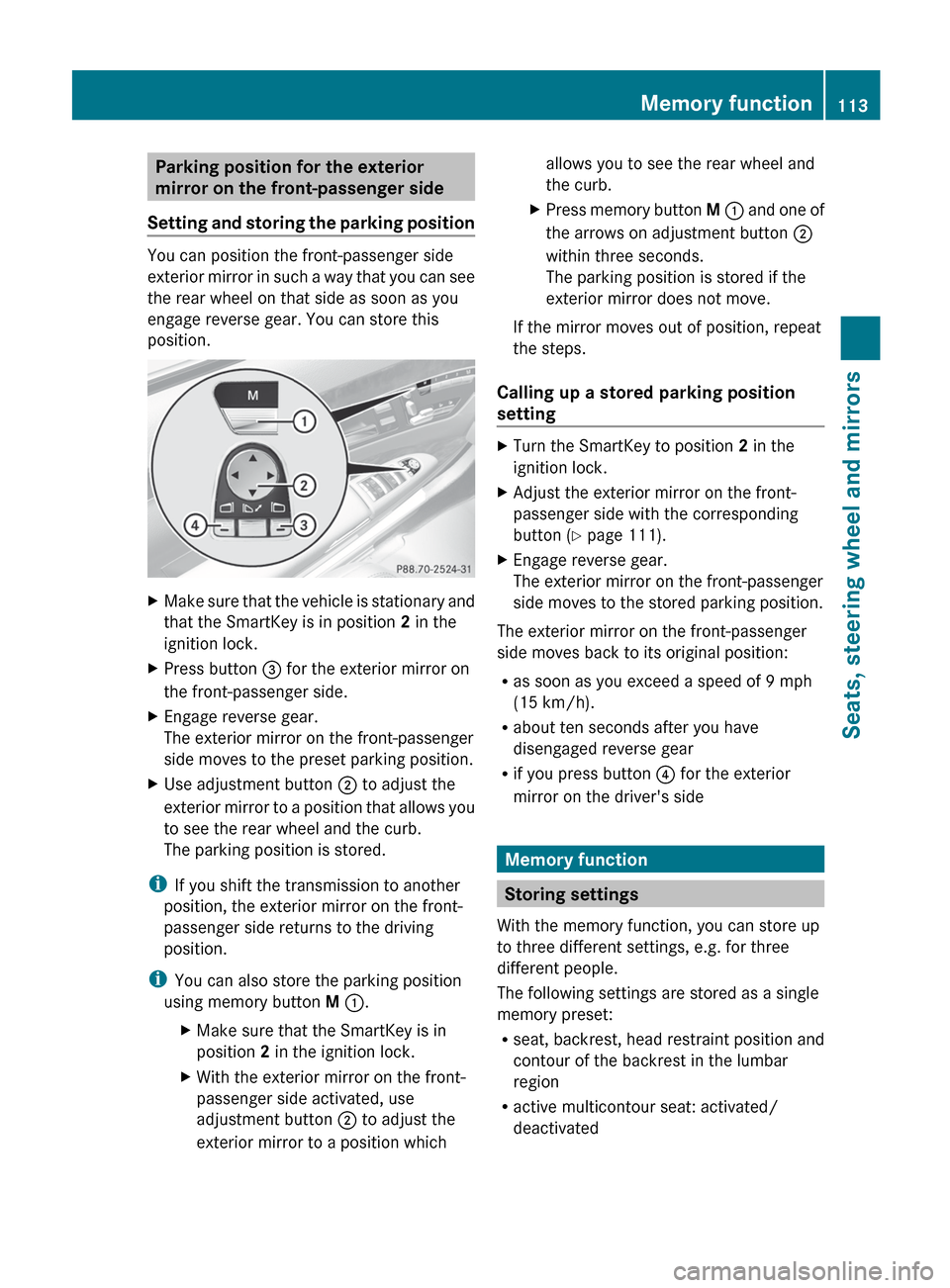
ignition lock.XPress button = for the exterior mirror on
the front-passenger side.XEngage reverse gear.
The exterior mirror on the front-passenger
side moves to the preset parking position.XUse adjustment button ; to adjust the
exterior mirror to a position that allows you
to see the rear wheel and the curb.
The parking position is stored.
i If you shift the transmission to another
position, the exterior mirror on the front-
passenger side returns to the driving
position.
i You can also store the parking position
using memory button M : .
XMake sure that the SmartKey is in
position 2 in the ignition lock.XWith the exterior mirror on the front-
passenger side activated, use
adjustment button ; to adjust the
exterior mirror to a position whichallows you to see the rear wheel and
the curb.XPress memory button M : and one of
the arrows on adjustment button ;
within three seconds.
The parking position is stored if the
exterior mirror does not move.
If the mirror moves out of position, repeat
the steps.
Calling up a stored parking position
setting
XTurn the SmartKey to position 2 in the
ignition lock.XAdjust the exterior mirror on the front-
passenger side with the corresponding
button ( Y page 111).XEngage reverse gear.
The exterior mirror on the front-passenger
side moves to the stored parking position.
The exterior mirror on the front-passenger
side moves back to its original position:
R as soon as you exceed a speed of 9 mph
(15 km/h).
R about ten seconds after you have
disengaged reverse gear
R if you press button ? for the exterior
mirror on the driver's side
Memory function
Storing settings
With the memory function, you can store up
to three different settings, e.g. for three
different people.
The following settings are stored as a single
memory preset:
R seat, backrest, head restraint position and
contour of the backrest in the lumbar
region
R active multicontour seat: activated/
deactivated
Memory function113Seats, steering wheel and mirrorsZ
Page 118 of 536

Useful information
i This Operator's Manual describes all
models and all standard and optional
equipment of your vehicle available at the
time of publication of the Operator's
Manual. Country-specific differences are
possible. Please note that your vehicle may
not be equipped with all features
described. This also applies to safety-
related systems and functions.
i Please read the information on qualified
specialist workshops ( Y page 31).
Introduction
Operating safety
General notes
GWARNING
Vehicles with HYBRID: ensure that you read
the "HYBRID" supplement. You may otherwise
fail to recognize dangers.
GWARNING
Making alterations to electronic components
can cause malfunctions.
Radio, satellite radio, amplifier, DVD changer,
navigation module, phone and voice control
are networked together. If one component is
not functional or if it has been incorrectly
removed/replaced, this could impair the
operation of other components.
This could seriously jeopardize the
operational safety of your vehicle.
We recommend that you always have
maintenance work on electronic components
carried out at an authorized Mercedes-Benz
Center.
GWARNING
In order to avoid distraction which could lead
to an accident, the driver should enter system
settings while the vehicle is at a standstill, and
operate the system only when permitted by
road, weather and traffic conditions.
Bear in mind that at a speed of just 30 mph
(approximately 50 km/h), your car covers a
distance of 44 feet (approximately 14 m) every
second.
COMAND supplies you with information to
help you select your route more easily and
guide you conveniently and safely to your
destination. For safety reasons, we
encourage the driver to stop the vehicle in a
safe place before answering or placing a call,
or consulting the COMAND screen to read
navigational maps, instructions, or
downloaded information.GWARNING
While the navigation system provides
directional assistance, the driver must remain
focused on safe driving behavior, especially
attention to traffic and street signs, and
should utilize the system's audio cues while
driving.
The navigation system does not supply any
information on stop signs, yield signs, traffic
regulations or traffic safety rules. Their
observance always remains in the driver's
personal responsibility. DVD maps do not
cover all areas nor all routes within an area.
i Canada only: This device complies with
RSS-210 of Industry Canada. Operation is
subject to the following two conditions:
1. This device may not cause interference,
and
2. this device must accept any interference
received, including interference that may
cause undesired operation of the device.
Any unauthorized modification to this
device could void the user's authority to
operate the equipment.
i USA only: This device complies with Part
15 of the FCC Rules. Operation is subject
to the following two conditions:
1. This device may not cause harmful
interference, and
116IntroductionCOMAND
Page 147 of 536

XSelect Time Zone and press W to confirm.
You will see a list of time zones. The # dot
indicates the current setting.XSelect the time zone and press W to
confirm.XTo switch automatic changeover on/
off: select Automatic Daylight
Savings Time or Automatic Daylight
Savings Time by turning cVd the
COMAND controller and press W to
confirm.
The # dot indicates the current setting.
Text reader settings
Setting the text reader speed
XSelect Vehicle by turning cVd the
COMAND controller and press W to
confirm.XSelect System and press W to confirm.XSelect Text Reader and press W to
confirm.XSelect Set text reader speed and press
W to confirm.
A list appears. The # dot indicates the
current setting.XSelect a setting by turning cVd the
COMAND controller and press W to
confirm.
Voice Control System settings
Opening/closing the help window
In addition to the audible instructions, the
help window will show you other information
during voice control operation and the
individualization process.
XSelect Vehicle in the main function bar by
turning cVd the COMAND controller and
press W to confirm.XSelect System by turning cVd the
COMAND controller and press W to
confirm.XSelect Voice Control by turning cVd the
COMAND controller and press W to
confirm.XSelect Help Window and press W to
confirm.
You have switched the help window on
O or off ª.
Individualization
Introduction
You can use the individualization function to
fine tune the Voice Control System to your
voice and therefore improve voice
recognition. This means that other users'
voices will not be recognized as easily. For
this reason this function can be switched off.
Individualization comprises two parts and
takes approximately 5 minutes. It consists of
training the system to recognize a certain
number of digit sequences and voice
commands.
Starting new individualization
Individualization can only be started when the
vehicle is stationary. Before starting, switch
off all devices or functions which could
interfere, such as the radio or the navigation
system. After starting the session, the system
System settings145COMANDZ
Page 152 of 536

change accordingly. If the selected language
is not supported by the Voice Control System,
"English" will be selected.XSelect Vehicle by turning cVd the
COMAND controller and press W to
confirm.XSelect System and press W to confirm.XSelect Language and press W to confirm.
The list of languages appears. The # dot
indicates the current setting.XSelect the language by turning cVd the
COMAND controller and press W to
confirm.
COMAND loads the selected language and
sets it.
Reset function
You can reset COMAND to the factory
settings. Amongst other things, this will
delete all personal data (e.g. station presets,
address book entries, entries in the
destination memory and in the list of previous
destinations in the navigation system).
Resetting is recommended before selling or
transferring ownership of your vehicle, for
example.
XSelect Vehicle in the main function bar by
turning cVd the COMAND controller and
press W to confirm.XSelect System by turning cVd the
COMAND controller and press W to
confirm.XSelect Reset and press W to confirm.
A prompt appears asking whether you wish
to reset.XSelect Yes or No and press W to confirm.
If you select No, the process will be aborted.
If you select Yes, another prompt appears
asking whether you really wish to reset.XSelect Yes or No and press W to confirm.
If you select Yes, a message will be shown.
COMAND is reset and restarted.If you select No, the process will be aborted.
Navigation
Introduction
Safety notes
GWARNING
For safety reasons, only enter a destination
when the vehicle is stationary. When the
vehicle is in motion, a passenger should enter
the destination. Study manual and select
route before driving.
Bear in mind that at a speed of just 30 mph
(approximately 50 km/h), your vehicle is
covering a distance of 44 feet (approximately
14 m) every second.
COMAND calculates the route to the
destination without taking account of the
following:
R Traffic lights
R Stop and right-of-way-signs
R Lane merging
R Parking or stopping prohibited areas
R Other road and traffic rules and regulations
R Narrow bridges
GWARNING
COMAND may give incorrect navigation
commands if the data in the digital map does
not correspond with the actual road/traffic
situation. Digital maps do not cover all areas
nor all routes within an area. For example, if
the traffic routing has been changed or the
direction of a one-way road has been
reversed.
For this reason, you must always observe
applicable road and traffic rules and
regulations during your journey. Road and
traffic rules and regulations always have
priority over the navigation commands
generated by the system.
150NavigationCOMAND
Page 153 of 536

GWARNING
Navigation announcements are intended to
direct you while driving without diverting your
attention from the road and driving.
Please always use this feature instead of
consulting the map display for directions.
Looking at the icons or map display can
distract you from traffic conditions and
driving, and increase the risk of an accident.
General information
Operational readiness of the navigation
system
The navigation system must determine the
position of the vehicle before first use or
whenever operational status is restored.
Therefore, you may have to drive for a while
before precise route guidance is possible.
GPS reception
Correct functioning of the navigation system
depends, amongst other things, on GPS
reception. In certain situations, GPS
reception may be impaired, there may be
interference or there may be no reception at
all, e.g. in tunnels or parking garages.
Entry restriction
On vehicles for certain countries, there is a
restriction on entering data.
The restriction is active from a vehicle speed
of over approximately 3 mph (5 km/h). As
soon as speed falls below approximately
2 mph (3 km/h), the restriction becomes
inactive.
When the restriction is active, certain entries
cannot be made. This will be indicated by the
fact that certain menu items are grayed out
and cannot be selected.
The following functions, for example, may
therefore not be available while the vehicle is
in motion:
R entering the destination city and street
R entering a destination via the map
Rentering points of interest in the vicinity of
a city or via a name search
R editing entries
R using the number keypad for direct entry
Switching to navigation modeXPress the S function button once or
twice.
or
XSelect Navi in the main function bar by
sliding ZV and turning cVd the COMAND
controller and press W to confirm.
In both cases, you will see the map either
with or without the menu shown.
Map showing the menu; route guidance inactive
:Current vehicle position
Map without the menu; route guidance inactive
:Current vehicle position;Map orientation selected=Map scale selected
" Route guidance active" means that you have
entered a destination and that COMAND has
calculated the route. The display then shows
Navigation151COMANDZ
Page 169 of 536
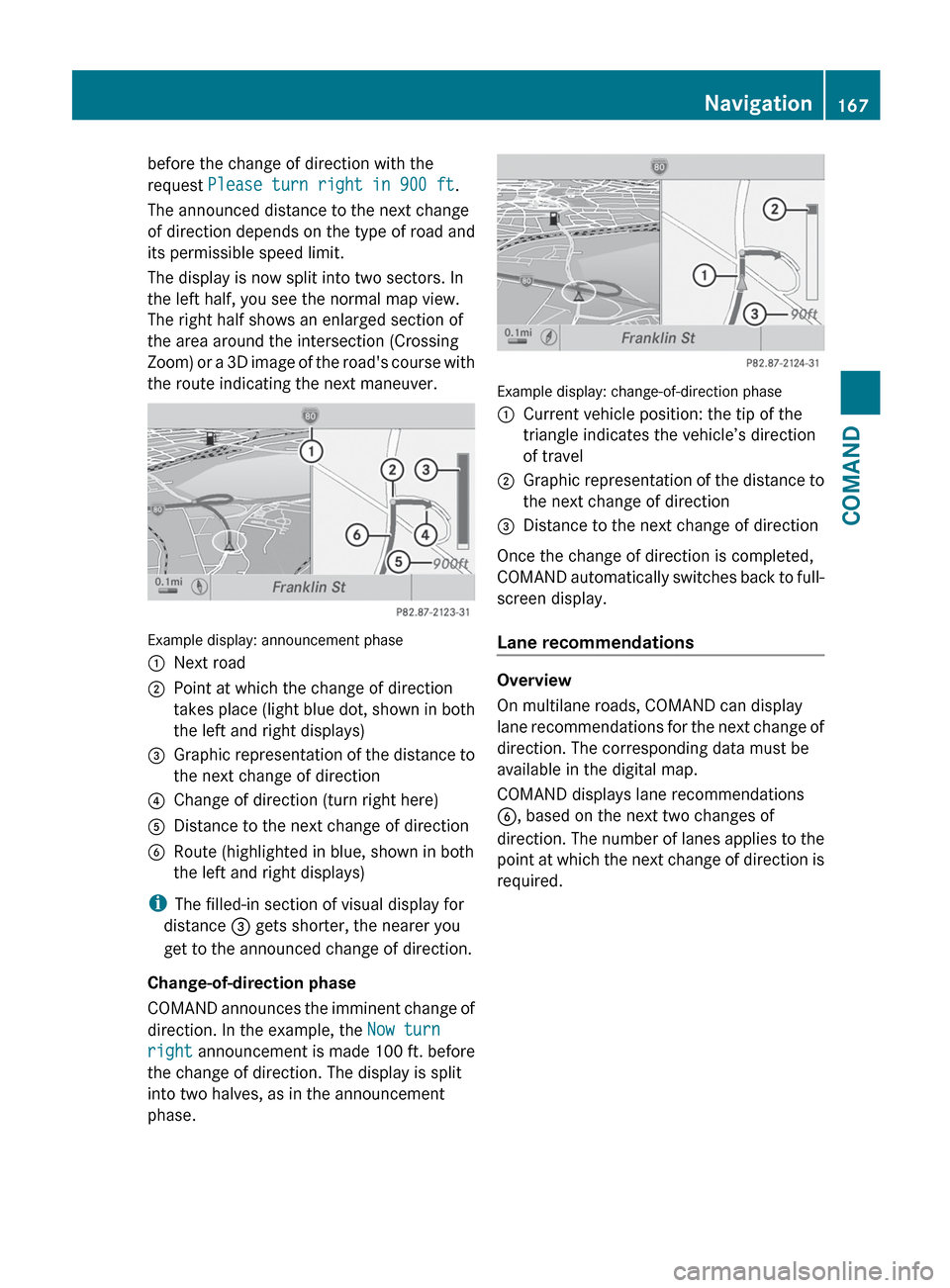
before the change of direction with the
request Please turn right in 900 ft .
The announced distance to the next change
of direction depends on the type of road and
its permissible speed limit.
The display is now split into two sectors. In
the left half, you see the normal map view.
The right half shows an enlarged section of
the area around the intersection (Crossing
Zoom) or a 3D image of the road's course with
the route indicating the next maneuver.
Example display: announcement phase
:Next road;Point at which the change of direction
takes place (light blue dot, shown in both
the left and right displays)=Graphic representation of the distance to
the next change of direction?Change of direction (turn right here)ADistance to the next change of directionBRoute (highlighted in blue, shown in both
the left and right displays)
i The filled-in section of visual display for
distance = gets shorter, the nearer you
get to the announced change of direction.
Change-of-direction phase
COMAND announces the imminent change of
direction. In the example, the Now turn
right announcement is made 100 ft. before
the change of direction. The display is split
into two halves, as in the announcement
phase.
Example display: change-of-direction phase
:Current vehicle position: the tip of the
triangle indicates the vehicle’s direction
of travel;Graphic representation of the distance to
the next change of direction=Distance to the next change of direction
Once the change of direction is completed,
COMAND automatically switches back to full-
screen display.
Lane recommendations
Overview
On multilane roads, COMAND can display
lane recommendations for the next change of
direction. The corresponding data must be
available in the digital map.
COMAND displays lane recommendations
B , based on the next two changes of
direction. The number of lanes applies to the
point at which the next change of direction is
required.
Navigation167COMANDZ
Page 178 of 536

Icon for real-time traffic reportsIconDescriptionTraffic reports in the map displayWarning (red)A warning appears, for example, relating to lost
cargo.Caution (yellow)A warning appears, for example, relating to
roadwork that does not affect the flow of traffic.Slow-moving trafficThis appears at the beginning of a traffic jam
(average speed 25 - 45 mph) if route guidance is
active and the route leads through an area of
congested traffic.
Yellow car icons may appear in conjunction with
this icon.Traffic jam on the
routeThis appears at the beginning of a traffic jam
(average speed 5 - 20 mph) if route guidance is
active and the route leads through an area of
congested traffic.
Red car icons may appear in conjunction with this
icon.Blocked route section
on the routeAppears at the beginning of a blocked route
section if route guidance is active and the route
leads through the blocked section.
The XXXX icons may appear in conjunction with
this icon.Yellow line
with arrowsIncidentsPossible traffic blocks (e.g. roadwork)
Appears on the side of the road affected (direction
of travel)Green line
with arrowsUnimpeded traffic
flowNo delays
Only appears on the side of the road (direction of
travel) on which traffic flow is unimpededSlow-moving traffic
(stop/start traffic)
(yellow vehicle)High volume of traffic, average speed
40 – 72 km/h (25 – 45 mph). In order to indicate
the volume of traffic, more than one symbol may
appear.Traffic jam on the
route (stop/start
traffic) (red vehicle)Very high volume of traffic, average speed
8 – 32 km/h (5 – 20 mph).XXXXBlocked route sectionUnusable section of road. In order to indicate the
length of the blocked section, more than one
symbol may appear.176NavigationCOMAND