2012 MERCEDES-BENZ S-Class ami
[x] Cancel search: amiPage 173 of 536

Avoiding a section of the route blocked
by a traffic jam
This function blocks a section of the route
ahead of you. You can set the length of the
blocked route section. If possible, COMAND
calculates a detour around the blocked
section of the route.
XTo activate navigation mode: press the
S function button once or twice.XTo show the menu: press W the COMAND
controller.XSelect Route in the navigation system
menu bar by turning cVd the COMAND
controller and press W to confirm.XSelect Detour and press W to confirm.XTo block a section of the route: select
More or Less repeatedly and confirm using
W until the desired section has been
selected.
i The total length of the section that can be
blocked is defined by the digital map. The
menu items are available accordingly.
XTo start route calculation: select Start
and press W to confirm.XTo delete the blocked section: select
Delete while the message is shown and
press W to confirm.
COMAND calculates the route without the
block.
Selecting an alternative route
With the "Alternative route" function, routes
other than the original one can be calculated.
XTo activate navigation mode: press the
S function button once or twice.XTo show the menu: press W the COMAND
controller.XSelect Route in the navigation system
menu bar by turning cVd the COMAND
controller and press W to confirm.XSelect Alternative Route and press W
to confirm.
You see the selected route. The display now
shows a split-screen view. On the left-hand
side, one or more alternative routes are
shown from start to destination. The
current route is highlighted dark blue; other
alternative routes appear light blue.:Distance, expected arrival time and
expected journey duration;Displays incidents which are on the route=Displays the selected route settingsXTo select the next or previous
alternative route: select Next or
Previous and press W to confirm.
Possible alternative routes are shown in the
following order: Current Route, Fast
Route , Eco Route , Short Route and
Alternative Route .XTo select the original route: select Back
a corresponding number of times and press
W to confirm.XTo start route guidance using the
selected alternative route: select Start
and press W to confirm.
COMAND accepts the alternative route.
i The change of route mode in the
alternative route menu only applies to the
current route guidance. For example, if the
original route was a short route, the next
route will also be calculated as a short
route. This is also the case if a dynamic
route is selected in the alternative route
menu.
Navigation171COMANDZ
Page 176 of 536

Off-road during route guidance
Due to roadworks, for example, there may be
differences between the data on the digital
map and the actual course of the road.
In such cases, the system will temporarily be
unable to locate the vehicle position on the
digital map and thus considers the vehicle to
be in an off-road position.
In the display, you will see the Street
unknown message, an arrow and the distance
to the destination. The arrow shows the
compass heading to the last road you were
driving on.
As soon as the system can assign the vehicle
position to the map again, route guidance
continues in the usual way.
Route guidance on roads that are not
completely digitalized
COMAND attempts to avoid roads that have
not been completely digitalized. If the
vehicle's position or the destination is located
in an area that has not been completely
digitalized, then no active route guidance is
performed. Instead, the map shows a dashed
route along the roads and the target direction
is shown with an arrow. You hear the
announcement: "You will enter an area,
where turn-by-turn guidance can not be
provided. Please follow the arrow on the
display". Once these roads have been left,
regular route guidance is resumed.
Traffic reports
Prerequisite
i The SatRadio mode described below
requires optional satellite radio equipment
and a subscription to SIRIUS XM Satellite
Radio Traffic Message Service. Further
details on SatRadio are available in the
"SatRadio" section ( Y page 216).
COMAND can receive traffic reports via
SatRadio and incorporate them in the
navigation system. Traffic messages and map
symbols can then be shown in the COMAND
display.
COMAND uses high quality traffic data.
Nevertheless, there may be differences
between the traffic reports received and the
actual road and traffic conditions.
Switching traffic reports on/offXTo switch on: set the route type to
Dynamic Route 7
(Y page 152).XTo switch off: select the Fast Route or
Short Route route type (Y page 152).
i
COMAND calculates a new route if you
change the route type setting with route
guidance active. If you change the route
type setting when route guidance is
inactive, COMAND uses the new setting for
the next route guidance.
Real-time traffic reports on the map
COMAND can show certain traffic incidents
on the map. The incidents are shown on the
map at a scale from 1/16 mi to 20 mi.
XSet the map scale ( Y page 182).12Icon display for the section of route
affected3Icon for incident on the route4Current position and direction of travel5Map scale7 Traffic reports are not available in all countries.174NavigationCOMAND
Page 228 of 536

XSelect a track by turning cVd and press
W to confirm.
The track is played and the corresponding
folder is now the active folder.
Copying music files from audio CDs to
the hard disk
Audio files can be copied from CD to
COMAND's hard disk.
XSelect Audio by sliding VÆ and turning
cVd the COMAND controller and press
W to confirm.XSwitch on CD/audio DVD or MP3 mode
( Y page 221).XSelect a medium ( Y page 224).
The audio CD is played.XTo copy all music tracks: select REC by
sliding VÆ and turning cVd and confirm
with W.:Audio source;Destination=Total length of all tracks from the audio
source?Title selectionATo start the copying processBName of the copied dataCCancel procedure without copying filesDMedia position in the media listXSelect START by sliding VÆ and turning
cVd and confirm with W.
All music tracks from the audio CD are
copied to COMAND's MUSIC REGISTER as
MP3 files.XTo copy individual music tracks: select
Track Select. by sliding VÆ and turning
cVd and confirm with W.
The track list appears.XSelect individual tracks by turning cVd
and confirm with W.XSelect START by turning cVd and confirm
with W.
The selected music tracks from the audio
CD are copied to COMAND's MUSIC
REGISTER as MP3 files.
If the audio CD contains CD text or
Gracenote ®
data, this will be used for naming
when the tracks are copied. The data is then
copied to the MUSIC REGISTER in the
following structure: artist/album/track. The
copied titles can then be selected and played
using the music search in the MUSIC
REGISTER.
XTo delete music files: (Y page 233).
Gracenote Media Database
Introduction
This function is only available in audio CD
mode.
There is a version of the music recognition
software from Gracenote ®
, Emeryville,
California, USA on the hard disk. You will
recognize this by the logo which can be seen
in the bottom right-hand corner of certain
audio displays.
226AudioCOMAND
Page 274 of 536
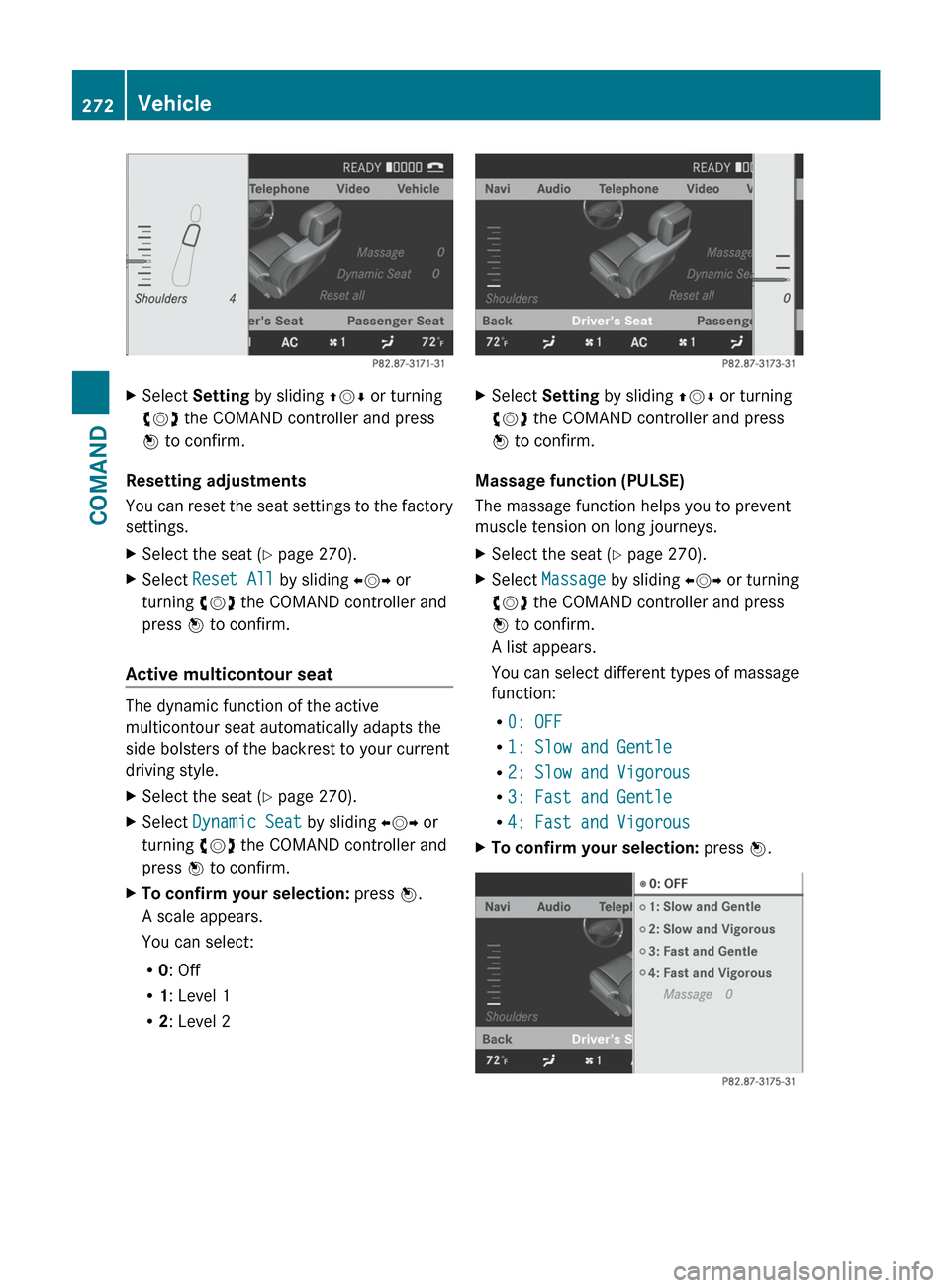
XSelect Setting by sliding ZVÆ or turning
cVd the COMAND controller and press
W to confirm.
Resetting adjustments
You can reset the seat settings to the factory
settings.
XSelect the seat ( Y page 270).XSelect Reset All by sliding XVY or
turning cVd the COMAND controller and
press W to confirm.
Active multicontour seat
The dynamic function of the active
multicontour seat automatically adapts the
side bolsters of the backrest to your current
driving style.
XSelect the seat ( Y page 270).XSelect Dynamic Seat by sliding XVY or
turning cVd the COMAND controller and
press W to confirm.XTo confirm your selection: press W.
A scale appears.
You can select:
R 0: Off
R 1: Level 1
R 2: Level 2XSelect Setting by sliding ZVÆ or turning
cVd the COMAND controller and press
W to confirm.
Massage function (PULSE)
The massage function helps you to prevent
muscle tension on long journeys.
XSelect the seat ( Y page 270).XSelect Massage by sliding XVY or turning
cVd the COMAND controller and press
W to confirm.
A list appears.
You can select different types of massage
function:
R 0: OFF
R 1: Slow and Gentle
R 2: Slow and Vigorous
R 3: Fast and Gentle
R 4: Fast and VigorousXTo confirm your selection: press W.272VehicleCOMAND
Page 285 of 536

Other bulbs
There are bulbs other than the Xenon bulbs
that you cannot replace. Replace only the
bulbs listed (Y page 283). Have the bulbs that
you cannot replace yourself changed at a
qualified specialist workshop.
Mercedes-Benz recommends that you use an
authorized Mercedes-Benz Center for this
purpose. In particular, work relevant to safety
or on safety-related systems must be carried
out at a qualified specialist workshop.
If you require assistance changing bulbs,
consult a qualified specialist workshop.
Do not touch the glass tube of new bulbs with
your bare hands. Even minor contamination
can burn into the glass surface and reduce
the service life of the bulbs. Always use a lint-
free cloth or only touch the base of the bulb
when installing.
Only use bulbs of the correct type.
If the new bulb still does not light up, consult
a qualified specialist workshop.
Bulbs and lamps are an important aspect of
vehicle safety. You must therefore make sure
that these function correctly at all times.
Have the headlamp setting checked regularly.
GWARNING
Bulbs and lamps can be very hot. You should
therefore allow them to cool down before you
change them. Otherwise, you could be burned
if you touch them.
Keep bulbs out of the reach of children.
Otherwise, they could damage the bulbs, for
example, and injure themselves.
Never use a bulb which has been dropped.
Such a bulb may break or even explode and
injure you.
Halogen bulbs are pressurized and can
explode when you change them, particularly
if they are very hot. You should therefore wear
eye protection and gloves when you are
changing them.
Overview: changing bulbs/bulb types
You can change the following bulbs. The bulb
type can be found in the legend.
Bi-Xenon headlamps (vehicles with halogen
daytime running lamps)
:High-beam spot lamp: H7 55 W
Bi-Xenon headlamps (vehicles with LED daytime
running lamps)
:High-beam spot lamp 13
: H11 55 W;Infrared light (Night View Assist Plus):
H11 55 W13 Due to their location, have the bulbs in the left-hand headlamp changed at a qualified specialist workshop,
e.g. an authorized Mercedes-Benz Center.Replacing bulbs283Lights and windshield wipersZ
Page 324 of 536

use a sponge and cold water to clean it. DEF
residues crystallize after time and
contaminate the affected surfaces.
! DEF is not a fuel additive and must not be
added to the fuel tank. If DEF is added to
the fuel tank, this can lead to engine
damage.
i If you are adding between maintenance
intervals, add approximately 1 gallon (3.8 l)
of DEF to the DEF tank. One gallon (3.8 l)
of DEF is approximately 2 DEF refill bottles.
Then, have the DEF supply checked and
filled completely if necessary. For this
purpose, Mercedes-Benz recommends a
qualified specialist workshop.
Further information on DEF ( Y page 527).
The filler neck for DEF is located under the
"Minispare" emergency spare wheel in the
trunk floor.XSwitch off the ignition.XOpen the trunk.XLift up the trunk floor ( Y page 436).XTurn the "Minispare" emergency spare
wheel fastening in the direction of the
arrow and remove it.XRemove the "Minispare" emergency spare
wheel.XTurn DEF cap : counter-clockwise and
remove it.XTurn DEF filler cap ; counter-clockwise
and open it.
Filler cap ; is secured with a plastic strap.XUnscrew the covering cap from DEF refill
bottle =.XPlace DEF refill bottle = on the filler neck
as shown and screw on clockwise hand-
tight.
! Only screw on the DEF refill bottle hand-
tight. It could otherwise be damaged.
322RefuelingDriving and parking
Page 335 of 536

Instructions included in your vehicle literature
portfolio. You may otherwise not receive all
necessary safety information and warning for
the operation of your vehicle.GWARNING
The DISTRONIC PLUS requires familiarity with
its operational characteristics. We strongly
recommend that you review the following
information carefully before operating the
system.
GWARNING
When DISTRONIC brakes, the brake pedal is
pulled back (i.e. operated automatically). The
area around the pedal must not be blocked by
obstacles:
R do not place any objects in the footwell.
R ensure that floormats and carpets are fixed
securely. In particular, do not place several
floormats on top of one another.
R do not place your foot under the brake
pedal, as it could become trapped.
Non-compliance could lead you to cause an
accident in which you and/or others could be
seriously injured.
GWARNING
The DISTRONIC PLUS is a convenience
system. Its speed adjustment reduction
capability is intended to make cruise control
more effective and usable when traffic speeds
vary. It is not however, intended to, nor does
it, replace the need for extreme care.
The responsibility for the vehicle's speed,
distance to the preceding vehicle and, most
importantly, brake operation to ensure a safe
stopping distance, always remains with the
driver.
The DISTRONIC PLUS cannot take street and
traffic conditions into account.
Complex driving situations are not always
fully recognized by the DISTRONIC PLUS. This
could result in wrong or missing distance
warnings.
If you want DISTRONIC PLUS to assist you,
the radar sensor system must be activated
( Y page 387) and operational.
If there is no vehicle driving in front of you,
DISTRONIC PLUS functions like cruise
control at a speed range between 20 mph
(Canada: 30 km/h) and 120 mph
(Canada: 200 km/h). If a vehicle is driving in
front of you, it functions at a speed range
between 0 mph (0 km/h) and 120 mph
(Canada: 200 km/h).
Do not use DISTRONIC PLUS while driving on
roads with steep gradients.
As DISTRONIC PLUS transmits radar waves,
it can resemble the radar detectors of the
responsible authorities. You can refer to the
applicable section in the Operator's Manual if
there are any questions concerning this.
i USA only:
This device has been approved by the FCC
as a “Vehicular Radar System”. The radar
sensor is intended for use in an automotive
radar system only. Removal, tampering, or
altering of the device will void any
warranties, and is not permitted by the
FCC. Do not tamper with, alter, or use in
any non-approved way.
Any unauthorized modification to this
device could void the user’s authority to
operate the equipment.GWARNING
The DISTRONIC PLUS adaptive cruise control
is not a substitute for active driving
involvement. It does not react to pedestrians
or on stationary objects, nor does it recognize
or predict the curvature and lane layout or the
movement of preceding vehicles. The
DISTRONIC PLUS can only apply a maximum
of 40% of the vehicle's braking power.
The DISTRONIC PLUS may not detect narrow
vehicles possibly driving in front of you, such
as motorcycles and vehicles driving in an
offset formation.
It is the driver's responsibility at all times to
be attentive to the road, weather and traffic
Driving systems333Driving and parkingZ
Page 360 of 536
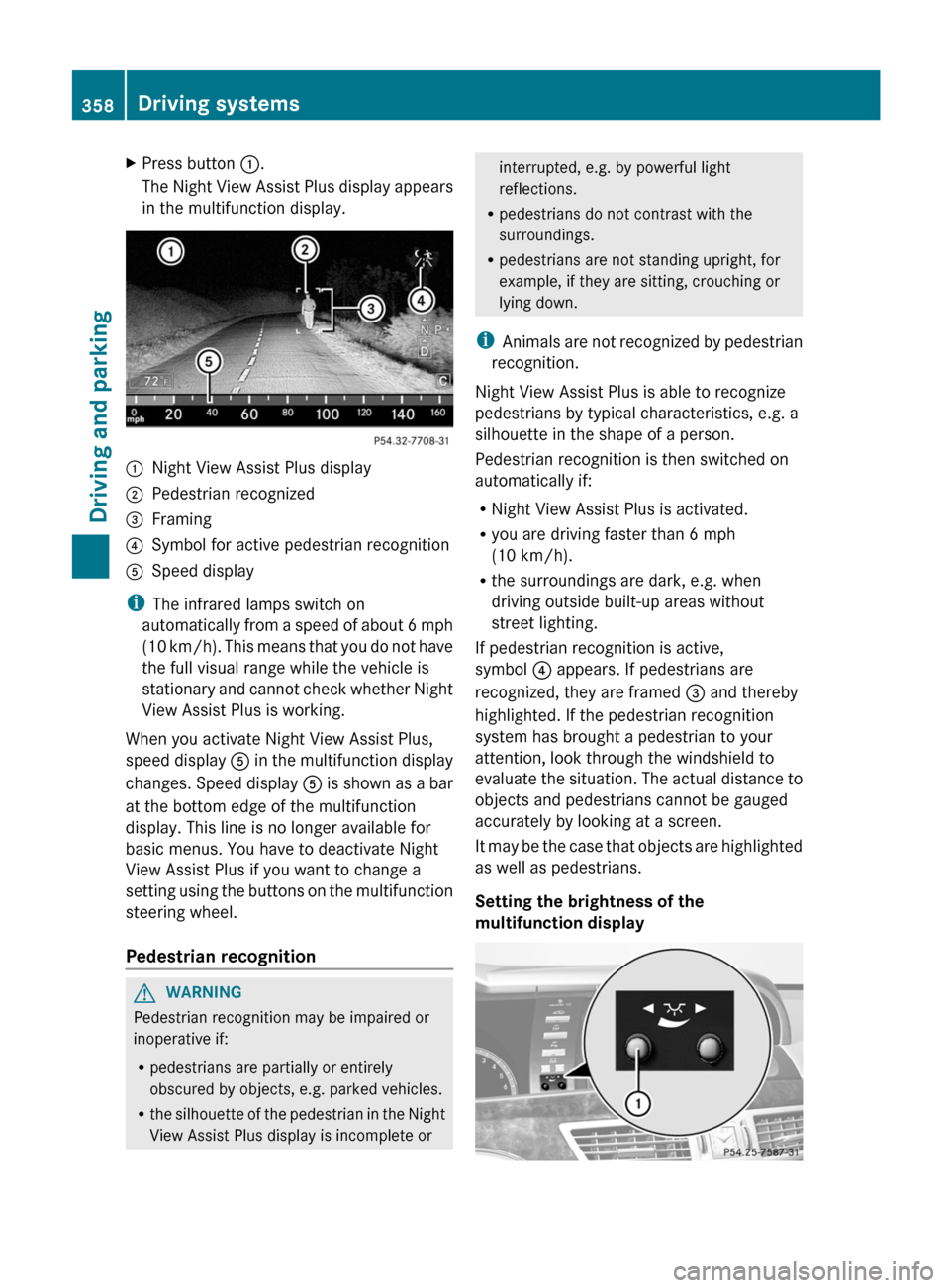
XPress button :.
The Night View Assist Plus display appears
in the multifunction display.:Night View Assist Plus display;Pedestrian recognized=Framing?Symbol for active pedestrian recognitionASpeed display
i The infrared lamps switch on
automatically from a speed of about 6 mph
( 10 km/h). This means that you do not have
the full visual range while the vehicle is
stationary and cannot check whether Night
View Assist Plus is working.
When you activate Night View Assist Plus,
speed display A in the multifunction display
changes. Speed display A is shown as a bar
at the bottom edge of the multifunction
display. This line is no longer available for
basic menus. You have to deactivate Night
View Assist Plus if you want to change a
setting using the buttons on the multifunction
steering wheel.
Pedestrian recognition
GWARNING
Pedestrian recognition may be impaired or
inoperative if:
R pedestrians are partially or entirely
obscured by objects, e.g. parked vehicles.
R the silhouette of the pedestrian in the Night
View Assist Plus display is incomplete or
interrupted, e.g. by powerful light
reflections.
R pedestrians do not contrast with the
surroundings.
R pedestrians are not standing upright, for
example, if they are sitting, crouching or
lying down.
i Animals are not recognized by pedestrian
recognition.
Night View Assist Plus is able to recognize
pedestrians by typical characteristics, e.g. a
silhouette in the shape of a person.
Pedestrian recognition is then switched on
automatically if:
R Night View Assist Plus is activated.
R you are driving faster than 6 mph
(10 km/h).
R the surroundings are dark, e.g. when
driving outside built-up areas without
street lighting.
If pedestrian recognition is active,
symbol ? appears. If pedestrians are
recognized, they are framed = and thereby
highlighted. If the pedestrian recognition
system has brought a pedestrian to your
attention, look through the windshield to
evaluate the situation. The actual distance to
objects and pedestrians cannot be gauged
accurately by looking at a screen.
It may be the case that objects are highlighted
as well as pedestrians.
Setting the brightness of the
multifunction display358Driving systemsDriving and parking