2012 MERCEDES-BENZ S-Class light
[x] Cancel search: lightPage 258 of 536

Stop functionXTo show the menu: press the 9 button
on the remote control.
or
XSelect Menu while the navigation menu is
shown and press the 9 button to confirm.XTo interrupt playback: select É and
press the 9 button to confirm.
The Ë display changes to Ì. The
video image is hidden.XTo continue playback: select Ì and
press the 9 button to confirm.
Playback continues from the point where it
was interrupted. The menu is hidden.XTo stop playback: while playback is
interrupted, select É again and press
the 9 button to confirm.
Playback stops and returns to the
beginning of the DVD. Ì is highlighted.XTo restart playback: select Ì and
press the 9 button to confirm.
Playback starts from the beginning of the
DVD.
Selecting a scene/chapter
Note
Further information on this function is
available in the "Video" section
( Y page 243).
Skipping forwards/backwards
XPress the = or ; button on the
remote control.
or
XPress the E or F button.
The control menu appears for
approximately eight seconds.
Selecting a scene/chapter directly
The examples illustrate how to select scene/
chapter 5.
XOption 1: while the film is playing, press
the h button on the remote control.XPress a corresponding number key, e.g.
¿ .XOption 2: while the film is playing, press
the 9 button on the remote control and
show the menu.XSelect Video DVD and press the 9 button
to confirm.XSelect DVD Functions and press the 9
button to confirm.XSelect Scene Selection and press 9 to
confirm.XPress 9 or : to select number 5 and
press the 9 button to confirm.
In both cases, playback will begin from the
fifth scene/chapter after a brief pause.
Selecting a film/title
Note
Further information on this function is
available in the "Video" section
( Y page 243).
Option 1
XPress the 9 button on the remote control
and show the menu.XSelect Video DVD and press the 9 button
on the remote control to confirm.256Rear Seat Entertainment SystemCOMAND
Page 260 of 536
XOption 2: select any menu item in the DVD
menu.XSelect the Go up menu item in the menu
and press the 9 button to confirm.
Back to the film
XOption 1: press the % back button on
the remote control repeatedly until you see
the film or select the corresponding menu
item in the DVD menu.XOption 2: select any menu item in the DVD
menu and press the 9 button to confirm.XSelect the Back (to the movie) menu
item in the menu and press the 9 button
to confirm.
Setting the audio format
This function is not available on all DVDs. If it
is available, you can set the audio language
or the audio format. The number of settings
is determined by the DVD content. It is
possible that the settings may also be
accessed from the DVD menu.
XPress the 9 button on the remote control
and show the menu.XSelect Video DVD and press the 9 button
on the remote control to confirm.XSelect DVD Functions and press the 9
button to confirm.XSelect Audio Language and press the 9
button to confirm.
A menu appears after a short while. The
# dot in front of an entry indicates the
currently selected language.XSelect a language using the 9 or :
button and press the 9 button to confirm.XTo exit the menu: press the =
or ; button.
Subtitles and camera angle
These functions are not available on all DVDs.
The number of subtitle languages and camera
angles available depends on the content of
the DVD. It is possible that the settings may
also be accessed from the DVD menu.XPress the 9 button on the remote control
and show the menu.XSelect Video DVD and press the 9 button
on the remote control to confirm.XSelect DVD Functions and press the 9
button to confirm.XSelect Subtitles or Camera Angle and
press the 9 button to confirm.
In both cases, a menu appears after a few
seconds. The # dot in front of an entry
indicates the current setting.XSelect the setting using the 9 or :
button and press the 9 button to confirm.XTo exit the menu: press the =
or ; button.
Interactive content
DVDs can also contain interactive content
(e.g. a video game). In a video game, you may
be able to influence events by selecting and
triggering actions. The type and number of
actions depend on the DVD.
XSelect an action using the
9;:= buttons on the
remote control and press the 9 button to
execute it.
A menu appears and the first entry,
Select , is highlighted.XPress the 9 button.
AUX mode
Introduction
You can connect one external video source to
each of the displays of the Rear Seat
Entertainment System (AUX display) and also
one external video source to the rear-seat
CD/DVD drive (AUX drive) with a sound and
video signal.
258Rear Seat Entertainment SystemCOMAND
Page 262 of 536

and turning cVd the COMAND controller
and press W to confirm.XSelect Active Source for Rear and
press W to confirm.
In the status bar at the top, you will see the
headphones icon and the _ icon for the
source that has been switched on.XTo switch off the function in COMAND:
switch on the desired audio mode in
COMAND or show the menu in video DVD
mode.XSelect the menu item at the bottom left,
e.g. CD in audio CD mode, by sliding VÆ
and turning cVd the COMAND controller
and press W to confirm.XSelect Rear OFF _ and press W the
COMAND controller to confirm.
Adjusting the brightness, contrast or
color
XSelect Source in the rear-compartment
screen and press the 9 button on the
remote control to confirm.XSelect Display Aux or Disk Drive Aux
and press the 9 button to confirm.XSelect Brightness , Contrast or Color
and press the 9 button to confirm.
An adjustment scale appears.XSelect a setting using the 9 or :
button and press the 9 button to confirm.
Changing the picture format
XSelect Source in the AUX menu and press
the 9 button on the remote control to
confirm.XSelect Display Aux or Disk Drive Aux
and press the 9 button to confirm.XSelect Auto16:9 optimized , 4:3 or
Widescreen using the 9: buttons
and press the 9 button to confirm.
The ä icon in front of a menu item
indicates the current setting.Vehicle
Vehicle functions
General notes
In this menu, you can set the following vehicle
functions:
R ECO
R multicontour seat settings
R rear window blind
R EASY-ENTRY/EXIT feature
R exterior lighting delayed switch-off
R interior lighting delayed switch-off
R ambient lighting
R automatic folding mirror
R locator lighting
R automatic locking feature
R trunk lid opening height restriction
You can open the "Vehicle" menu in one of
two ways.
Opening the "Vehicle" menu from the
main area in the center of the display
:"Vehicle" menu item;Main areaXSelect Vehicle in the main function bar by
sliding XVY and turning cVd the
COMAND controller and press W to
confirm.
Main area ; is active.XSelect the individual vehicle functions by
sliding XVY or turning cVd the COMAND
controller and press W to confirm.260VehicleCOMAND
Page 265 of 536
COMAND controller and press W to
confirm.
The main area is active.XSelect the Easy-Entry/Exit Feature
menu by sliding XVY or turning cVd the
COMAND controller.
The EASY-ENTRY/EXIT feature menu
appears. The current setting is indicated by
a # dot.XSelect Setting by sliding ZVÆ or turning
cVd the COMAND controller.
The selected setting is indicated by a #
dot.
Setting the interior/exterior lighting
delayed switch-off time
Interior lighting: you can set whether and for
how long you wish the interior lighting to
remain on in the dark after you have removed
the SmartKey from the ignition lock.
Exterior light: you can set whether and for
how long you want the exterior lighting to
remain on in the dark after the doors have
been closed. The exterior lighting
automatically switches off after the switch-off
delay has elapsed.
You may select from the following settings:
R 0 seconds: delayed switch-off is
deactivated.
R 15, 30, 45, 60 seconds: delayed switch-off
is activated.
i You can reactivate this function by
opening a door within one minute. If none
of the doors are opened after the SmartKey
is removed from the ignition lock or if a door
is not closed after it has been opened, the
exterior lights switch off after 60 seconds.
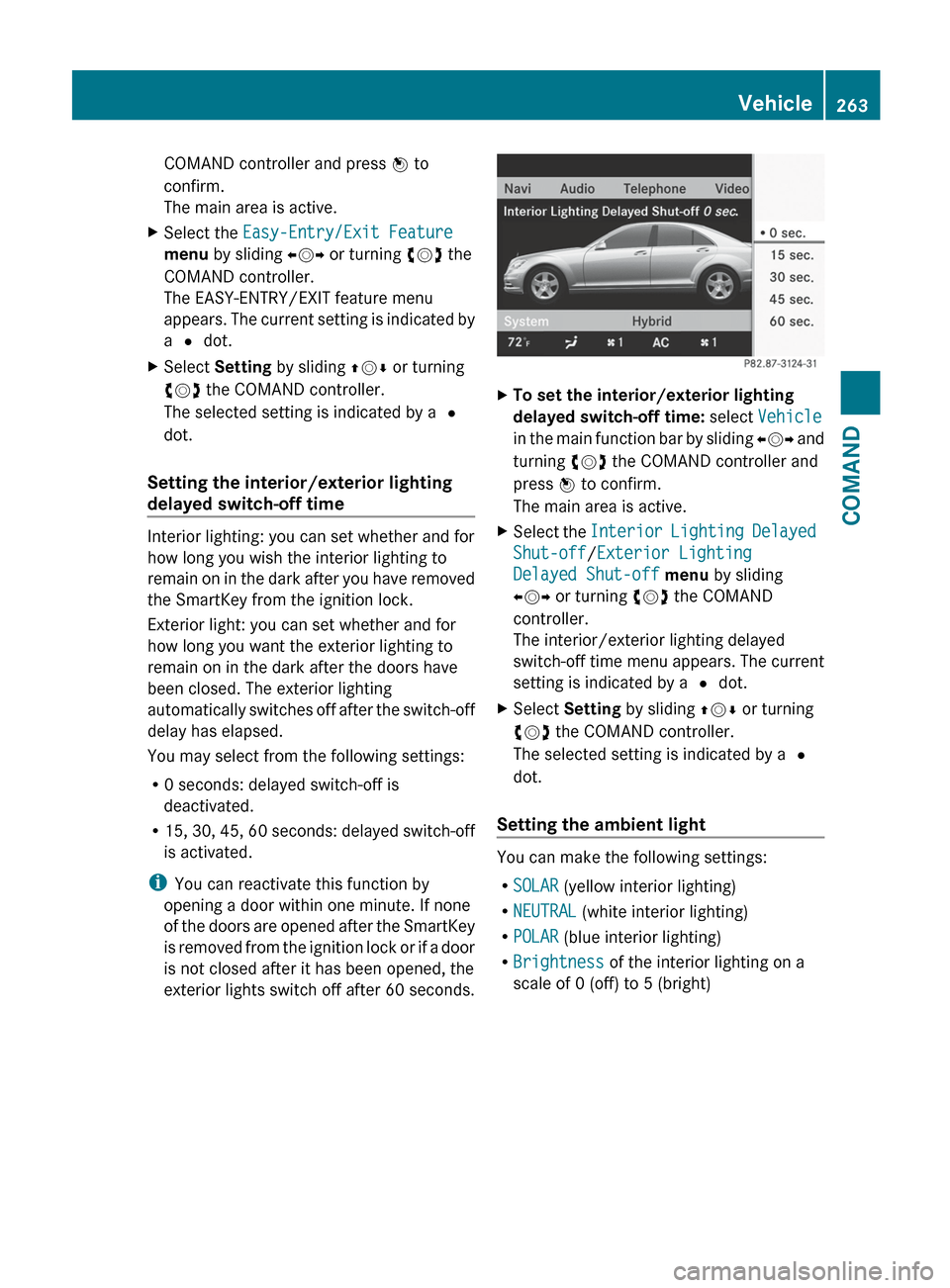
XTo set the interior/exterior lighting
delayed switch-off time: select Vehicle
in the main function bar by sliding XVY and
turning cVd the COMAND controller and
press W to confirm.
The main area is active.XSelect the Interior Lighting Delayed
Shut-off /Exterior Lighting
Delayed Shut-off menu by sliding
XVY or turning cVd the COMAND
controller.
The interior/exterior lighting delayed
switch-off time menu appears. The current
setting is indicated by a # dot.XSelect Setting by sliding ZVÆ or turning
cVd the COMAND controller.
The selected setting is indicated by a #
dot.
Setting the ambient light
You can make the following settings:
R SOLAR (yellow interior lighting)
R NEUTRAL (white interior lighting)
R POLAR (blue interior lighting)
R Brightness of the interior lighting on a
scale of 0 (off) to 5 (bright)
Vehicle263COMANDZ
Page 266 of 536

XTo set the ambient lighting: select
Vehicle in the main function bar by sliding
XVY and turning cVd the COMAND
controller and press W to confirm.
The main area is active.XSelect the Ambient Lighting menu by
sliding XVY or turning cVd the COMAND
controller.
The ambient lighting menu appears. The
current setting is indicated by a # dot.XSelect Setting by sliding ZVÆ or turning
cVd the COMAND controller.
The selected setting is indicated by a #
dot.
Switching locator lighting on/off
If you switch on the locator lighting, the
following come on in the dark after you have
unlocked the vehicle using the remote
control:
R the parking lamps
R the tail lamps
R the license plate lamp
R the front fog lamps
R the entry lamps in the exterior mirror
The locator lighting switches off again when
you open the driver’s door. If you do not open
the driver’s door, the locator lighting switches
off automatically after 40 seconds.
XTo switch locator lighting on/off: select
Vehicle in the main function bar by sliding
XVY and turning cVd the COMAND
controller and press W to confirm.
The main area is active.XSelect the Locator Lighting function by
sliding XVY or turning cVd the COMAND
controller and press W to confirm.
Switching the automatic locking
feature on/off
You can use this function to activate or
deactivate the automatic central locking
feature. If the automatic locking feature is
activated, your vehicle will lock centrally from
a speed of approximately 15 km/h.
You will find further information about the
automatic locking feature in the "Automatic
locking feature" section ( Y page 86).
XTo switch the automatic locking
feature on/off: select Vehicle in the
main function bar by sliding XVY and264VehicleCOMAND
Page 277 of 536

Useful information ............................276
Exterior lighting ................................ 276
Interior lighting ................................. 281
Replacing bulbs ................................. 282
Windshield wipers ............................285275Lights and windshield wipers
Page 278 of 536

Useful information
i This Operator's Manual describes all
models and all standard and optional
equipment of your vehicle available at the
time of publication of the Operator's
Manual. Country-specific differences are
possible. Please note that your vehicle may
not be equipped with all features
described. This also applies to safety-
related systems and functions.
i Please read the information on qualified
specialist workshops ( Y page 31).
Exterior lighting
Important safety notes
For reasons of safety, Mercedes-Benz
recommends that you drive with the lights
switched on even during the daytime. In some
countries, operation of the headlamps varies
due to legal requirements and self-imposed
obligations.
Information about driving abroad
Converting to symmetrical low beam
when driving abroad: switch the headlamps
to symmetrical low beam in countries in
which traffic drives on the opposite side of the
road to the country where the vehicle is
registered. This prevents glare to oncoming
traffic. Symmetrical lights do not illuminate
as large an area of the edge of the road.
Have the headlamps converted at a qualified
specialist workshop, e.g. an authorized
Mercedes-Benz Center, as close to the border
as possible before driving in these countries.
Converting to asymmetrical low beam
after returning: have the headlamps
converted back to asymmetrical low beam at
a qualified specialist workshop, e.g. an
authorized Mercedes-Benz Center, as soon as
possible after crossing the border again.
Light switch
Operation
Depending on the date of manufacture of your
vehicle, the c or à symbol for the
automatic headlamp mode/daytime running
lamps is located on the light switch.
1 WLeft-hand standing lamps2XRight-hand standing lamps3$Lights off/daytime running lamps4cAutomatic headlamp mode/daytime
running lamps5 TParking lamps, license plate and
instrument cluster lighting6 LLow-beam/high-beam headlamps7NFront fog lamps 118
RRear fog lamp
The turn signals, high-beam headlamps and
the high-beam flasher are operated using the
combination switch ( Y page 279).
! Switch off the parking lamps and standing
lamps when you leave the vehicle. This
prevents the battery from discharging.
The exterior lighting (except the parking/
standing lamps) switches off automatically if
you:
R remove the SmartKey from the ignition lock
R open the driver's door with the SmartKey
in position 0
If you hear a warning tone when you leave the
vehicle, the lights may still be switched on.
11 Only vehicles with Bi-Xenon headlamps without the Intelligent Light System are equipped with front fog lamps.276Exterior lightingLights and windshield wipers
Page 279 of 536
XTurn the light switch to $ or c .
or
XIf the rear fog lamp is switched on: press
the light switch in to the stop.
Low-beam headlamps
XTo switch on the low-beam headlamps:
turn the SmartKey in the ignition lock to
position 2 or start the engine.XTurn the light switch to L.
The T indicator lamp on the light switch
lights up.XTo switch off the low-beam
headlamps: turn the light switch to $.
Daytime running lamps
Daytime running lamps in Canada
The daytime running lamps function is
required by law in Canada. It cannot therefore
be deactivated.
XTurn the light switch to $ or c .
With the engine running: depending on the
ambient light, the daytime running lamps or
the low-beam headlamps are switched on.
When the low-beam headlamps are
activated, the T indicator lamp on the
light switch lights up.
When the engine is running and the vehicle is
stationary or if the electronic parking brake is
applied: if you move the selector lever from a
drive position to P, the daytime running
lamps/low-beam headlamps go out after
three minutes.
When the engine is running, the vehicle is
stationary and in high ambient light
brightness: if you turn the light switch
to T , the daytime running lamps and the
parking lamps are switched on.
If the engine is running and you turn the light
switch to L, the manual settings take
precedence over the daytime running lamps.
Daytime running lamps in the USA
In the USA, the daytime running lamps are
deactivated upon delivery from the factory.XTo activate the daytime running
lamps: activate the daytime running lamps
function in the on-board computer
( Y page 385).XTurn the light switch to $ or c .
With the engine running: depending on the
ambient light, the daytime running lamps or
the low-beam headlamps are switched on.
When the low-beam headlamps are
activated, the T indicator lamp on the
light switch lights up.
If the engine is running and you turn the light
switch to T or L , the manual settings
take precedence over the daytime running
lamps.
Automatic headlamp mode
XTo switch on automatic headlamp
mode: turn the light switch to c.
SmartKey in position 1 in the ignition lock:
the parking lamps are switched on or off
automatically depending on the brightness
of the ambient light.
With the engine running: depending on the
brightness of the ambient light, the daytime
running lamps 12
or the parking lamps and
low-beam headlamps are switched on or off
automatically.
When the low-beam headlamps are
switched on, the T indicator lamp on
the light switch lights up.GWARNING
If the light switch is set to c, the low-beam
headlamps will not come on automatically if
it is foggy. This could endanger you and
others. Therefore, turn the light switch to
L in fog.
12
Only if daytime running lamps have been activated via the on-board computer.Exterior lighting277Lights and windshield wipersZ