Page 116 of 182

?
Calls upopt ions
A · Icon for busin essdetails
X Se lec tada tafield byturn ingcVd the
COMAND controller.
To close thedeta iledview: select Back and
press Wtocon firm.
Displaying anadd ress book entryinfull X
Select Options by
sliding VYthe
COMAND controller andpress Wto
con firm.
X Select Details and
press Wtocon firm.
The display isshown infull.
X To close thecomplete entryview:press
the k button . Changing
anadd ress book entry
Changing anentry X
Opt ion1:search foranaddress bookentry
and turn cVd theCOMAND controller to
select itin the select ionlist(Ypage 112).
X Select Options by
sliding VYthe
COMAND controller andpress Wto
con firm.
X Select Change content and
press Wto
con firm. X
Opt ion 2:call upthe detailed viewforan
address bookentry(Y page 113).
X Select Options by
sliding VYthe
COMAND controller andpress Wto
con firm.
X Select Change content and
press Wto
con firm.
Irrespec tiveofthe option ,the input menu
con tainin gdata fields appears.
X Proceed asdescribed under"Entering
charact ers"inthe "Ent ering charact ersin
the address andphone books" section
(Y page 29).
Changing thecategory ofatelephone
number datafield X
Display thedetailed viewforanaddress
book entry(Y page 113)and highlight the
telephon enumber datafield.
X Select Options by
sliding VYthe
COMAND controller andpress Wto
con firm.
X Select Change category and
press Wto
con firm.
X Select anumber category,e.g. Home .
X Select atelephon ecategor y,e.g. Mobile .
X Ifdesired, selectPreferr ed and
press W
to con firm.
Depen dingonthe previous status,you
switch theoption onO oroff ª.T he
phone number isdispla yedasthe first
number inthe phone bookandcanbe
diale dimmediately.
X Select Save and
press Wtoconfirm .
The new category isstored. Calling
anumber storedinan entry
Co nditio ns The
mobi lephone mustbeconnected viathe
Blue tooth ®
interface . 114
Usi
ngthe address bookTele phone
Page 118 of 182

Delet
ingavoice tag X
Sear chfor anaddre ssbook entrywith a
voic etag (Ypage 112).
X Sele ctOpt ions by
slidin gVY the
COMA NDcontroller andpres sW to
con firm.
X Sele ctVoi ce tag and
pres sW tocon firm.
X Sele ctDel ete and
pres sW tocon firm.
Ad eletion prompt appears.
X Select Yes or
No and
press Wtocon firm.
If you select Yes ,
COMAND deletesthe
voice tag.
If you select No ,
the process willbe
canc eled.
Listening toav oice tag X
Sear chfor anaddre ssbook entrywith a
voic etag (Ypage 112).
X Sele ctOpt ions by
slidin gVY the
COMA NDcontroller andpres sW to
con firm.
X Sele ctVoi ce tag and
pres sW tocon firm.
X Sele ctLis ten and
pres sW tocon firm.
You hear thevoic etag . Imp
orting conta cts
Infor mation andrequiremen ts You
canimpo rtcon tactsfrom themobi le
phon eand themem orycardint oth eaddre ss
book .
i The addre ssbook canstore 1,000
ent ries .When themax imum numberhas
been reached, youcan delet eexi sting
ent ries (Ypage 113),and then impo rtnew
on es. Please
bearthefollo wing inmin d:
R Bluet ooth®
must beact ivat ed.
R theext ern aldevic emust beable tosen d
con tactsand/ orvCard sviaBluet ooth®
.
R the extern aldevic ein the vehic lemust be
switc hedonand connected toCOMA ND
(Y page 42).
Imp orting data X
Start the data transf eron the devic e(see
the operat inginst ruct ions ofthe respe ctive
devic e)or inse rtthe memo rycard.
X Selec tAddr essBook in
the address book
by slidin gVÆ andturnin gcVd the
COMA NDcontroller andpress Wto
con firm .
X Selec tDown load Contacts and
press W
to con firm .
Am enu appears. X
Select anent ryby turn ingcVd the
COMAND controller andpress Wto
con firm.
Data import starts.
Deleting data X
Select Address Book in
the address book
by sliding VÆandturningcVd the
COMAND controller andpress Wto
con firm.
X Select Delete Contacts and
press Wto
con firm. 116
Using
theadd ress bookTelephone
Page 143 of 182
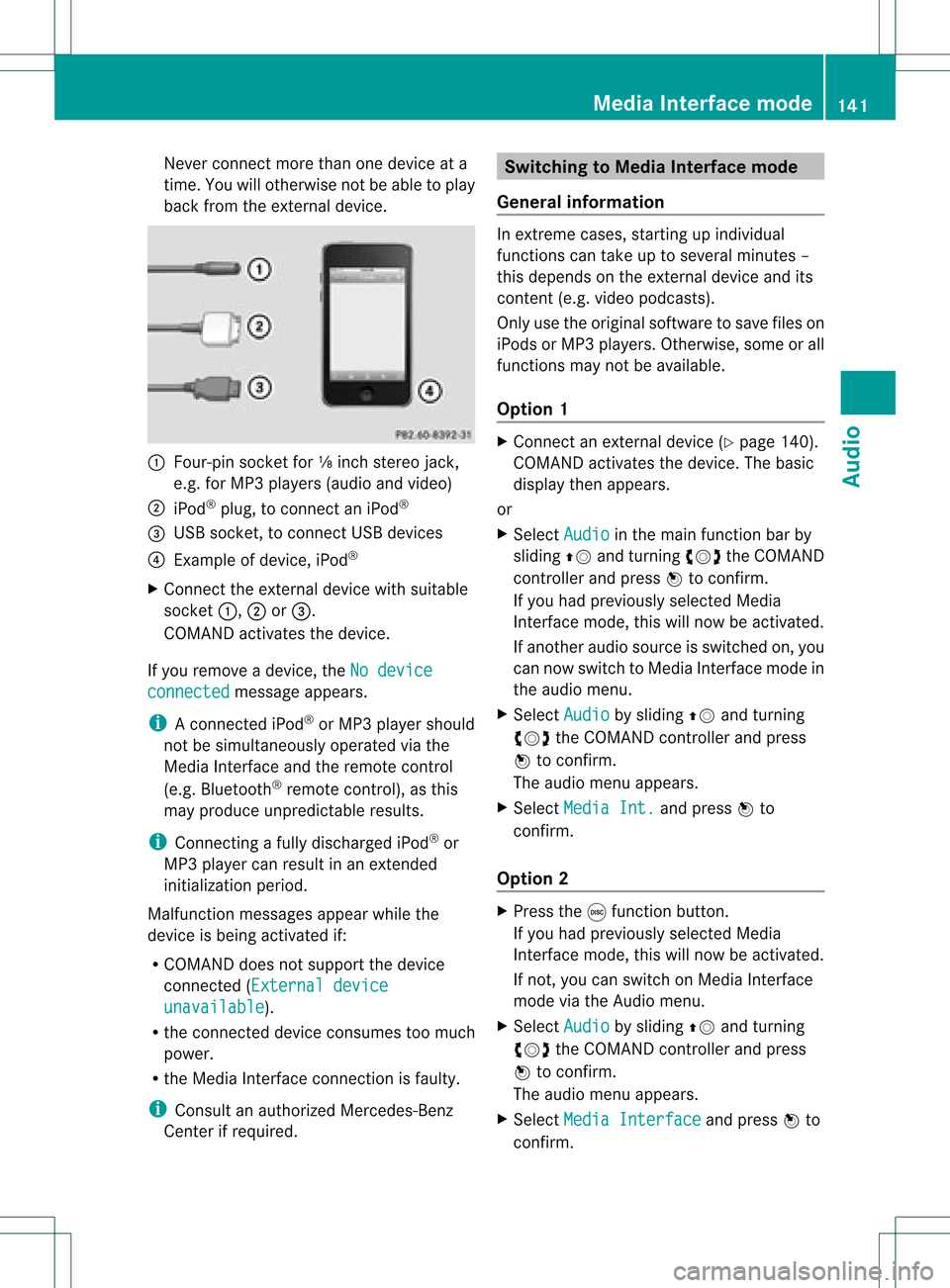
Never
connect morethanonedevice ata
time. Youwillotherwise notbeableto pla y
back fromtheexternal device. :
Four-pin socketfor⅛inch stereo jack,
e.g. forMP3 players (audio and video)
; iPod ®
plu g,to connect aniPod ®
= USB socket, toconnect USBdevices
? Example ofdevice, iPod®
X Connect theexternal devicewithsuitab le
socket :,;or=.
COMAND activatesthedevice.
If you remove adevice, theNodevice connected message
appears.
i Aconnect ediPod ®
or MP3 player shoul d
not besimul taneously operatedviathe
Media Interface andtheremote control
(e.g. Bluetooth ®
remote control), asthis
may produ ceunpredi ctableresults.
i Connecting afull ydischarg ediPod ®
or
MP3 player can resul tina ne xtend ed
ini tia lizati onperio d.
Ma lfunctio nmessages appearwhilethe
device isbeing activat edif:
R COMAND doesnotsupport thedevice
con nected (Externa ldevice unavail
able ).
R the connected device consumes toomuch
power.
R the Media Interface connection isfaulty.
i Consult anauthoriz edMercedes- Benz
Center ifrequired. Switching
toMedia Interfacemode
General information In
ext reme cases, startingupindividual
func tionscan take uptoseveral minutes–
this depends onthe external device andits
con tent(e.g. video podcasts ).
Only usetheoriginal software tosave fileson
iPods orMP3 players. Otherwise, some orall
func tionsmay notbeavailable.
Opt ion 1 X
Connec tan ext ernal device (Ypage 140).
COMAND activates thedevice. Thebasic
display thenappears.
or
X Select Audio in
the main function barby
sliding ZVandturningcVd theCOMAND
con troller andpress Wtocon firm.
If you had previously selectedMedia
Int erface mode,thiswillnow beactiv ated.
If anoth eraudio source isswitch edon, you
can now switch toMedia Interface modein
the audio menu.
X Select Audio by
sliding ZVandturning
cVd theCOMAND controller andpress
W tocon firm.
The audio menu appears.
X Select Media Int. and
press Wto
con firm.
Opt ion 2 X
Press theefunc tion button .
If you had previously selectedMedia
Int erface mode,thiswillnow beactiv ated.
If not ,you can switch onMedia Interface
mode viathe Audio menu.
X Select Audio by
sliding ZVandturning
cVd theCOMAND controller andpress
W tocon firm.
The audio menu appears.
X Select Media Interfa ce and
press Wto
con firm. Media
Interfacemod e
141Audio Z