2012 MAZDA MODEL 5 i stop
[x] Cancel search: i stopPage 186 of 440

Black plate (186,1)
Horn
To sound the horn, press themark on
the steering wheel.
Hazard Warning Flasher
The hazard warning lights should always
be used when you stop on or near a
roadway in an emergency.
The hazard warning lights warn other
drivers that your vehicle is a traffic hazard
and that they must take extreme caution
when near it.
Hazard warning flasher
Depress the hazard warning flasher and all
the turn signals will flash.
NOTE
lThe turn signals do not work when the
hazard warning lights are on.
lCheck local regulations about the use of
hazard warning lights while the vehicle is
being towed to verify that it is not in
violation of the law.
5-62
Driving Your Mazda
Switches and Controls
Mazda5_8BR9-EA-10J_Edition3 Page186
Monday, February 21 2011 1:44 PM
Form No.8BR9-EA-10J
Page 198 of 440

Black plate (198,1)
Operating Tips for Audio
System
WARNING
Do not adjust the audio control
switches while driving the vehicle:Adjusting the audio while driving the
vehicle is dangerous as it could
distract your attention from the
vehicle operation which could lead to
a serious accident. Always adjust the
audio while the vehicle is stopped.
Even if the audio control switches are
equipped on the steering wheel, learn
to use the switches without looking
down at them so that you can keep
your maximum attention on the road
while driving the vehicle.
CAUTION
For the purposes of safe driving,
adjust the audio volume to a level
that allows you to hear sounds
outside of the vehicle including car
horns and particularly emergency
vehicle sirens.
NOTE
lTo prevent the battery from being
discharged, do not leave the audio system
on for a long period of time when the
engine is not running.
lIf a cellular phone or CB radio is used in
or near the vehicle, it could cause noise to
occur from the audio system, however, this
does not indicate that the system has been
damaged.
q Radio Reception
AM characteristics
AM signals bend around such things as
buildings or mountains and bounce off the
ionosphere. Therefore, they can reach
longer distances than FM signals. Because
of this, two stations may sometimes be
picked up on the same frequency at the
same time.
Station 2
Station 1 Ionosphere
FM characteristics
An FM broadcast range is usually about
40
―50 km (25 ―30 miles) from the
source. Because of extra coding needed to
break the sound into two channels, stereo
FM has even less range than monaural
(non-stereo) FM.
FM Station
40—50km
(25—30 miles)
6-12
Interior Comfort
Audio System
Mazda5_8BR9-EA-10J_Edition3 Page198
Monday, February 21 2011 1:44 PM
Form No.8BR9-EA-10J
Page 212 of 440
Black plate (212,1)
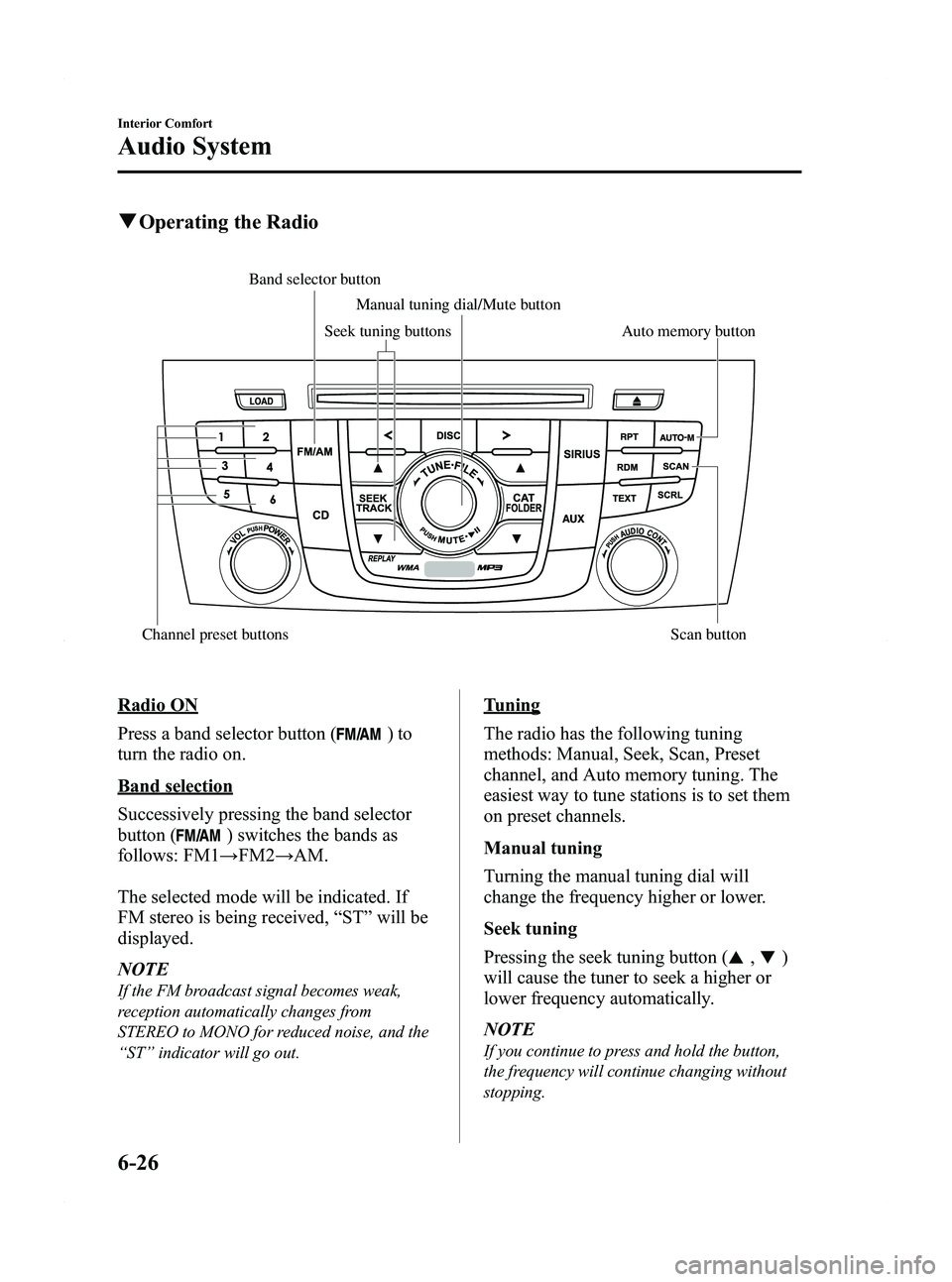
qOperating the Radio
Auto memory button
Channel preset buttons Scan button Manual tuning dial/Mute button
Band selector buttonSeek tuning buttons
Radio ON
Press a band selector button (
)to
turn the radio on.
Band selection
Successively pressing the band selector
button (
) switches the bands as
follows: FM1 →FM2 →AM.
The selected mode will be indicated. If
FM stereo is being received, “ST ”will be
displayed.
NOTE
If the FM broadcast signal becomes weak,
reception automatically changes from
STEREO to MONO for reduced noise, and the
“ ST ”indicator will go out.
Tuning
The radio has the following tuning
methods: Manual, Seek, Scan, Preset
channel, and Auto memory tuning. The
easiest way to tune stations is to set them
on preset channels.
Manual tuning
Turning the manual tuning dial will
change the frequency higher or lower.
Seek tuning
Pressing the seek tuning button (
,)
will cause the tuner to seek a higher or
lower frequency automatically.
NOTE
If you continue to press and hold the button,
the frequency will continue changing without
stopping.
6-26
Interior Comfort
Audio System
Mazda5_8BR9-EA-10J_Edition3 Page212
Monday, February 21 2011 1:44 PM
Form No.8BR9-EA-10J
Page 213 of 440
Black plate (213,1)
Scan tuning
Press the scan button (
)to
automatically sample strong stations.
Scanning stops at each station for about 5
seconds. To hold a station, press the scan
button (
) again during this interval.
Preset channel tuning
The 6 preset channels can be used to store
6 AM and 12 FM stations.
1. To set a channel first select AM, FM1, or FM2. Tune to the desired station.
2. Depress a channel preset button for about 2 seconds until a beep sound is
heard. The preset channel number and
station frequency will be displayed.
The station is now held in the memory.
3. Repeat this operation for the other stations and bands you want to store.
To tune one in the memory, select AM,
FM1, or FM2 and then press its
channel preset button. The station
frequency and the channel number will
be displayed.
Auto memory tuning
This is especially useful when driving in
an area where the local stations are not
known. Additional AM/FM stations can
be stored without disturbing the
previously set channels.
Press and hold the auto memory button
(
) for about 2 seconds until a beep
sound is heard; the system will
automatically scan and temporarily store
up to 6 stations with the strongest
frequencies in each selected band in that
area. After scanning is completed, the station
with the strongest frequency will be tuned
and its frequency displayed.
Press and release the auto memory button
(
) to recall stations from the auto-
stored stations. One stored station will be
selected each time; its frequency and
channel number will be displayed.
NOTE
If no stations can be tuned after scanning
operations, “A ” will be displayed.
Mute
Press the mute button (
) once to
mute the audio. Press it again to resume
audio output.
Interior Comfort
Audio System
6-27
Mazda5_8BR9-EA-10J_Edition3 Page213
Monday, February 21 2011 1:44 PM
Form No.8BR9-EA-10J
Page 219 of 440

Black plate (219,1)
Scan tuning
Press the scan button (
)to
automatically sample stations. Scanning
stops at each station for about five
seconds. To hold a station, press the scan
button (
) again during this interval.
NOTE
lUnsubscribed channels, invalid channels,
parental lock channels and channel 0 are
not subject to the scan, therefore these
channels will be skipped automatically.
lYou can scan all channels while all
categories are selected. If you are in a
selected category, you can only scan the
channels in that category.
Channel number, channel name,
category, artist, song titles and info
display
Each time the text button (
)is
pressed during SIRIUS reception, the
display of the text data is changed over in
the order shown below.
Channel number Channel name
Category
name
Artist name
Info
Song title
NOTElEight characters are displayed on one
screen.
lTo display the rest of the characters of a
long title, press the scroll button (
).
The display scrolls the next eight
characters. Press the scroll button (
)
again after the last eight characters have
been displayed to return to the beginning of
the title.
(Channel number display)lWhen the text button ()is
pressed while in info display mode, the
mode changes to the channel number
display mode.
(Channel name display)
lWhen the text button ()is
pressed while in channel number
display mode, it changes to channel
name display mode.
lThere are short (eight fixed characters)
and long names for the channel name.
lThe long name is displayed first, and
three seconds later the short name is
displayed. If there is no short name, the
long name is displayed.
lTo display the rest of the characters of
the channel name, press the scroll
button (
). The display scrolls the
next eight characters. Press the scroll
button (
) again after the last eight
characters have been displayed to
return to the beginning of the title.
lPress the scroll button () while
the short name is displayed to switch
the display to the long name.
lThree seconds after scrolling the long
name, the display automatically returns
to the first part of the long name. Three
more seconds and the short name
appears.
Interior Comfort
Audio System
6-33
Mazda5_8BR9-EA-10J_Edition3 Page219
Monday, February 21 2011 1:45 PM
Form No.8BR9-EA-10J
Page 226 of 440
Black plate (226,1)
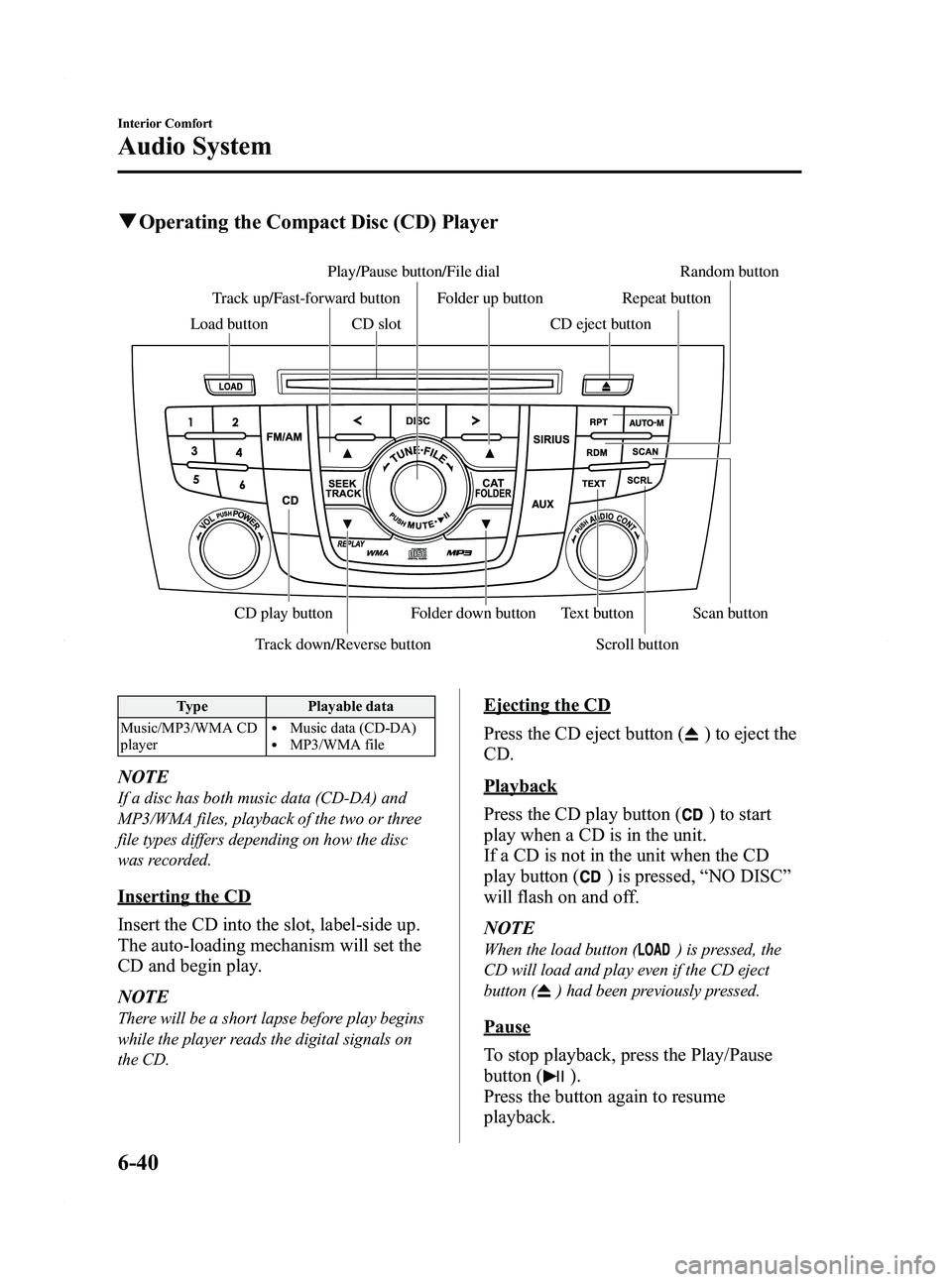
qOperating the Compact Disc (CD) Player
Track down/Reverse button Scroll button
Play/Pause button/File dial Random button
CD slot
CD play button Folder down button Text button Scan button
Folder up button Repeat button
Track up/Fast-forward button
Load button CD eject button
Type Playable data
Music/MP3/WMA CD
player
lMusic data (CD-DA)lMP3/WMA file
NOTE
If a disc has both music data (CD-DA) and
MP3/WMA files, playback of the two or three
file types differs depending on how the disc
was recorded.
Inserting the CD
Insert the CD into the slot, label-side up.
The auto-loading mechanism will set the
CD and begin play.
NOTE
There will be a short lapse before play begins
while the player reads the digital signals on
the CD.
Ejecting the CD
Press the CD eject button (
) to eject the
CD.
Playback
Press the CD play button (
) to start
play when a CD is in the unit.
If a CD is not in the unit when the CD
play button (
) is pressed, “NO DISC ”
will flash on and off.
NOTE
When the load button () is pressed, the
CD will load and play even if the CD eject
button (
) had been previously pressed.
Pause
To stop playback, press the Play/Pause
button (
).
Press the button again to resume
playback.
6-40
Interior Comfort
Audio System
Mazda5_8BR9-EA-10J_Edition3 Page226
Monday, February 21 2011 1:45 PM
Form No.8BR9-EA-10J
Page 232 of 440
Black plate (232,1)
Pause
To stop playback, press the Play/Pause
button (
).
Press the button again to resume
playback.
Fast-forward/Reverse
Press and hold the fast-forward button
(
) to advance through a track at high
speed.
Press and hold the reverse button (
)to
reverse through a track at high speed.
Track search
Press the track up button (
) or turn the
file dial clockwise once to skip forward to
the beginning of the next track.
Press the track down button (
) or turn
the file dial counterclockwise once to skip
back to the beginning of the current track.
Disc search
To change the disc, press the DISC button
(
or) during playback.
Folder search (during MP3/WMA CD
playback)
To change to the previous folder, press the
folder down button (
), or press the
folder up button (
) to advance to the
next folder.
Music scan
During music CD playback
This function scans the titles on a CD and
plays 10 seconds of each song to aid you
in finding a song you want to listen to.
During MP3/WMA CD playback
This function scans the titles in a folder
currently being played and plays 10
seconds of each song to aid you in finding
a song you want to listen to. Press the scan button (
) during
playback to start the scan play operation
(the track number will flash).
Press the scan button (
) again to
cancel scan playback.
NOTE
If the unit is left in scan, normal playback will
resume where scan was selected.
Repeat playback
During music CD playback
1. Press the repeat button (
) during
playback to play the current track
repeatedly. “RPT ”is displayed.
2. Press the button again to cancel the repeat playback.
During MP3/WMA CD playback
(Track repeat)
1. Press the repeat button (
) during
playback to play the current track
repeatedly. “TRACK RPT ”is
displayed.
2. To cancel the repeat playback, press the button again after 3 seconds.
(Folder repeat)
1. Press the repeat button (
) during
playback, and then press the button
again within 3 seconds to play the
tracks in the current folder repeatedly.
“ FOLDER RPT ”is displayed.
2. Press the button again to cancel the repeat playback.
Random playback
Tracks are randomly selected and played.
6-46
Interior Comfort
Audio System
Mazda5_8BR9-EA-10J_Edition3 Page232
Monday, February 21 2011 1:45 PM
Form No.8BR9-EA-10J
Page 239 of 440

Black plate (239,1)
AUX Mode (Auxiliary input)
You can connect portable audio units,
such as an MP3 player or similar products
on the market, to the auxiliary jack to
listen to music or audio over the vehicle's
speakers.
To use the auxiliary jack, pull up its cover.
WARNING
Do not adjust the portable audio unit
or a similar product while driving the
vehicle:Adjusting the portable audio unit or
a similar product while driving the
vehicle is dangerous as it could
distract your attention from the
vehicle operation which could lead to
a serious accident. Always adjust the
portable audio unit or a similar
product while the vehicle is stopped.
Do not allow the connection plug cord
to get tangled with the parking brake
or the shift lever: Allowing the plug cord to become
tangled with the parking brake or
the shift lever is dangerous as it
could interfere with driving, resulting
in an accident.
CAUTION
ØClose the cover when the auxiliary
jack is not in use to prevent
foreign objects and liquids from
penetrating the auxiliary jack.
Ø Do not place objects or apply force
to the auxiliary jack with the plug
connected.
Ø Depending on the portable audio
device, noise may occur when
using the device with it connected
to the accessory socket equipped
on the vehicle. (If noise occurs, do
not use the accessory socket.)
NOTE
lBefore using the auxiliary jack, read the
manufacturer's instructions for the product
being connected.
lUse a commercially-available, non-
impedance (3.5
) stereo mini plug for
connecting the portable audio unit to the
auxiliary jack. Before using the auxiliary
jack, read the manufacturer's instructions
for connecting a portable audio unit to the
auxiliary jack.
lTo prevent discharging of the battery, do
not use the auxiliary input for long periods
with the engine off or idling.
lNoise may occur depending on the product
connected to the auxiliary jack.
lWith regard to connecting a portable audio
or similar device to a power source, use the
battery for the device, not the accessory
socket.
lInsert the plug to the auxiliary jack
securely.
lInsert or remove the plug with the plug
perpendicular to the auxiliary jack hole.
lInsert or remove the plug by holding its
base.
Interior Comfort
Audio System
6-53
Mazda5_8BR9-EA-10J_Edition3 Page239
Monday, February 21 2011 1:45 PM
Form No.8BR9-EA-10J