2012 INFINITI G-COUPE ECO mode
[x] Cancel search: ECO modePage 232 of 490

Requirement for Supporting Video Playback:
MediaCD, CD-R, CD-RW, DVD, DVD±R, DVD±RW, DVD±RW DL, USB 2.0 Memory
File Systems CD, CD-R,
CD-RW,
DVD,
DVD±R,
DVD±RW,
DVD±RW DL ISO9660 LEVEL1, ISO9660 LEVEL2, Romeo, Joliet, UDF Bridge (UDF1.02
+ISO9660), UDF1.5, UDF2.0
- ISO9660 Level 3 (packet writing) is not supported.
- Files saved using the Live File System component (on a Windows Vista-
based computer) are not supported.
- VDF1.5/VDF2.0 (packet writing) is not supported.
USB Memory FAT16, FAT32
File Types .divx, .avi Video Codecs DivX3, DivX4, DivX5, DivX6
Audio Codecs MP3, MPEG2.5 Audio Layer3, AC3, LPCM
.asf Video Codec ISO-MPEG4
Audio Codec G.726
Bit Rates .divx, .avi Maximum Average 4Mbps
Maximum Peak 8Mbps
Resolution .divx, .avi Minimum 32632
Maximum 7206480
.asf Minimum 32632
Maximum 720
6576
Bluetooth®Audio player (models
with navigation system)
. Some Bluetooth®audio devices may
not be recognized by the in-vehicle
audio system.
. It is necessary to set up the wireless
connection between a compatible Blue-
tooth
®audio device and the in-vehicle Bluetooth
®module before using the
Bluetooth®audio player.
. Operating procedure of the Bluetooth®
audio player will vary depending on the
device. Make sure it is understood how
to operate an audio device before using
it with this system. .
The Bluetooth
®audio player may be
stopped under the following condi-
tions:
— Receiving a hands-free call.
— Checking the connection to the
hands-free phone.
. Do not place a Bluetooth
®audio device
in an area surrounded by metal or far
away from the in-vehicle Bluetooth
®
module to prevent tone quality degra-
dation and wireless connection disrup-
tion.
. While an audio device is connected
through a Bluetooth
®wireless connec-
tion, the battery power of the device
may discharge quicker than usual.
. This system supports the Bluetooth
®
Audio Distribution Profile (A2DP,
AVRCP).
. Wireless LAN (Wi-Fi) and the Bluetooth
®
functions share the same frequency
band (2.4 GHz). Using the Bluetooth®
and the wireless LAN functions at the
same time may slow down or discon-
nect the communication and cause
undesired noise. It is recommended
that you turn off the wireless LAN (Wi-
Fi) when using the Bluetooth
®func-
tions.
Monitor, climate, audio, phone and voice recognition systems4-53
Page 236 of 490

SAA1533
Models with navigation system
1. Radio band select button
2. DISC·AUX button
SAA2922
Models without navigation system
1. AUX/Satellite band select button
2. Radio band select button
3. DISC button
FM-AM-SAT RADIO WITH COMPACT
DISC (CD) PLAYER
For all operation precautions, see “Audio
operation precautions” (P.4-41).
The satellite radio mode requires an active
XM Satellite Radio subscription. The satel-
lite radio is not available in Alaska, Hawaii
and Guam.
It may take some time to receive the
activation signal after subscribing the XM Satellite Radio. After receiving the activa-
tion signal, an available channel list will be
automatically updated in the radio. For XM,
push the ignition switch from LOCK to ACC
to update the channel list.
Audio main operation
Head unit:
The auto loudness circuit enhances the low
and high frequency ranges automatically in
both radio reception and CD playback.
ON·OFF/Volume control:
Push the ignition switch to the ACC or ON
position, and then push the ON·OFF button
while the system is off to turn on the last
audio source, which was playing immedi-
ately before the system was turned off.
While the system is on, pushing the
ON·OFF button turns the system off.
Turn the VOL control knob to adjust the
volume.
Adjusting tone quality and speaker bal-
ance:
To adjust Bass, Treble, Balance and Fade,
push the Audio control knob. When the
display shows the setting you want to
change (Bass, Treble, Balance and Fade),
rotate the Audio control knob to set the
Monitor, climate, audio, phone and voice recognition systems4-57
Page 237 of 490

4-58Monitor, climate, audio, phone and voice recognition systems
desired setting. For the other setting
methods, see“How to use SETTING button”
(P.4-14).
This vehicle has some sound effect func-
tions as follows:
. Speed Sensitive Vol.
. Precision Phased Audio (if so equipped)
. Driver’s Audio Stage (if so equipped)
For more details, see “How to use SETTING
button” (P.4-14).
Switching the display (Type A):
. Models with navigation system
Pushing the DISC·AUX button will switch
the displays as follows:
iPod
®/USB ?CD/DVD ?Music Box®?
Bluetooth®Audio ?iPod®/USB
. Models without navigation system
Pushing the DISC button will switch the
display as follows:
CD ?Music Box
®?CD
Pushing the AUX button will switch the
display as follows:
USB/iPod ?XM1 ?XM2 ?XM3 ?USB/
iPod
FM-AM-SAT radio operation
When the radio band select button is
pushed while the ignition switch is in the
ACC or ON position, the radio will come on
at the channel last played.
The last channel played will also come on
when the ON·OFF button is pushed to ON.
The satellite radio is not available in
Alaska, Hawaii and Guam.
If another audio source is playing when the
radio or satellite band select button is
turned to ON, the audio source will
automatically be turned off and the last
radio channel played will come on.
When the stereo broadcast signal is weak,
the radio will automatically change from
stereo to monaural reception.
orradio (FM/AM/SAT) band
select (Type A):
Pushing the RADIO AM·FM or FM·AM radio
band select button will change the band as
follows:
. Models with navigation system
AM ?FM1 ?FM2 ?XM1 ?XM2 ?XM3
? AM .
Models without navigation system
AM ?FM1 ?FM2 ?AM
radio (SAT) band select (Type A):
Push the satellite band select button to
select the satellite radio mode XM1, XM2
or XM3.
radio (FM/AM/SAT) band select
(Type B):
Pushing the radio band select button will
change the band as follows:
AM ?FM ?XM ?AM
When the radio band select button is
pushed while the ignition switch is in the
ACC or ON position, the radio will come on
at the station last played.
TUNE (Tuning):
. For AM and FM radio
Turn the radio TUNE knob for manual
tuning.
. For XM Satellite Radio
Turn the radio TUNE knob to seek
channels from all of the categories
when any category is not selected.
Page 239 of 490

4-60Monitor, climate, audio, phone and voice recognition systems
4. The stations indicator will then come onand the sound will resume. Memorizing
is now complete.
5. Other buttons can be set in the same manner.
If the battery cable is disconnected, or if
the fuse opens, the radio memory will be
erased. In that case, reset the desired
stations/channels.
List (AM and FM radio) (models with
navigation system):
When the “List”key on the display is
selected while the FM or AM radio is being
played, the preset station list will be
displayed.
If 1 of the 6 preset stations listed is
touched and held, the current station will
be stored as the new preset.
Menu (XM Satellite Radio) (models with
navigation system):
When the “Menu”key on the display is
selected while the XM Satellite Radio is
being played, the menu list will be
displayed.
The following items are available.
. Preset List
Displays the preset channel list. If 1 of the 6 preset stations listed is touched
and held, the current station will be
stored as the new preset.
. Customize Channel List
Selects specific channels to skip while
using the TUNE, SEEK/CATEGORY or
Menu-Categories feature.
. Favorite Artists & Songs
Stores the current artist or song that is
being played. Touch the “Alert”key to
be reminded when the stored artist or
song is playing on a station while
listening to XM.
. Categories
Selecting a category will go to the first
channel in that category as defined by
XM Radio.
. Direct Tune
Inputs the channel number by using a
keypad.
Text (models without navigation system):
When the “Text”key is selected with the
INFINITI controller on the display and then
the ENTER button is pushed while the
satellite radio is being played, the text
information listed below will be displayed
on the screen. .
CH Name
. Category
. Name
. Title
. Other
Compact Disc (CD) player operation
Push the ignition switch to the ACC or ON
position and insert the Compact Disc (CD)
into the slot with the label side facing up.
The CD will be guided automatically into
the slot and start playing.
After loading the CD, the number of tracks
on the CD and the play time will appear on
the display.
If the radio is already operating, it will
automatically turn off and the CD will play.
If the system has been turned off while the
CD was playing, pushing the ON·OFF
button will start the CD.
Do not use 3.1 in (8 cm) discs.
orPLAY:
When the DISC·AUX or DISC (CD play)
button is pushed with the system off and
the CD loaded, the system will turn on and
the CD will start to play.
Page 240 of 490

When the DISC·AUX or DISC button is
pushed with the CD loaded and the radio
playing, the radio will automatically be
turned off and the CD will start to play.
Menu (models with navigation system):
When the“Menu”key on the display is
selected while the CD is being played, the
menu screen will be displayed. The follow-
ing menu options are available.
. Folder List (for CD with compressed
audio files)
Displays the folder list.
. Track List
Displays the track list.
. Play Mode
Select a play mode from the following
items.
— Normal
— 1 Folder Repeat (for CD with com-
pressed audio files)
— 1 Track Repeat
— 1 Disc Random
— 1 Folder Random (for CD with
compressed audio files)
. Record to Music Box
®(for CD)
Select to choose specific songs on the
CD to record to the Music Box
®. .
Title Text Priority (for CD)
Set the priority to CDDB (Compact Disc
Data Base) to acquire track information
from the Gracenote Database, or set
the priority to CD-TEXT to acquire the
information from CDs.
. Automatic Recording (for CD)
When this item is turned to ON, the
Music Box
®hard drive/flash memory
automatically starts recording when a
CD is inserted.
. Recording Quality (for CD)
The larger number (132) will increase
the recorded sound quality while taking
up more space on the Music Box
®
leaving less room for more songs.
For the details of Music Box®, see “Music
Box®” (P.4-77).
Text (models without navigation system):
When the “Text”key is selected in the
screen using the INFINITI controller and
then the ENTER button is pushed while the
CD is being played, the music information
below will be displayed on the screen.
CD:
. Disc title
. Track title CD with compressed audio files:
.
Folder title
. File title
. Song title
. Album title
. Artist
Next/Previous Track and Fast
Forward/Rewind:
When the
orbutton is pushed for
more than 1.5 seconds while the CD is
being played, the CD will play while fast
forwarding or rewinding. When the button
is released, the CD will return to normal
play speed.
When the
orbutton is pushed for
less than 1.5 seconds while the CD is being
played, the next track or the beginning of
the current track on the CD will be played.
When the REW button is pushed for less
than 1.5 seconds within 3 seconds after
the current track started playing, the
previous track will be played.
When the REW button is pushed for less
than 1.5 seconds after 3 seconds from
when the current track started playing, the
beginning of the current track will be
played.
Monitor, climate, audio, phone and voice recognition systems4-61
Page 241 of 490

4-62Monitor, climate, audio, phone and voice recognition systems
REPEAT (RPT), RANDOM (RDM) (Type
A):
When the RPT button is pushed while the
CD is played, the play pattern can be
changed as follows:
(CD)
(CD with compressed audio files)
REPEAT (RPT) (Type B):
When the SCAN·RPT button is pushed while
the CD is played, the play pattern can be
changed as follows:
(CD)
(CD with MP3 or WMA)
CD EJECT:
When the CD EJECT button is pushed with
the CD loaded, the CD will be ejected.
When this button is pushed while the CD is
being played, the CD will be ejected.
If the CD comes out and is not removed, it
will be pulled back into the slot to protect
it.
DVD (Digital Versatile Disc) PLAYER
OPERATION (models with naviga-
tion system)
Precautions
Start the engine when using the DVD
entertainment system.
Movies will not be shown on the front
display while the vehicle is in any drive
position to reduce driver distraction. Audio
is available when a movie is played. To
view movies in the front display, stop the
vehicle in a safe location, move the
selector lever to the P (Park) position
(Automatic Transmission models) or apply
the parking brake (Manual Transmission
models).
WARNING
. The driver must not attempt to operate
the DVD system or wear the headphones
while the vehicle is in motion so that full
attention may be given to vehicle opera-
tion.
. Do not attempt to modify the system to
display a movie on the front screen while
the vehicle is being driven. Doing so may
distract the driver and may cause a
collision and serious personal injury or
death.
CAUTION
.Only operate the DVD while the vehicle
engine is running. Operating the DVD for
extended periods of time with the
engine OFF can discharge the vehicle
battery.
. Do not allow the system to get wet.
Excessive moisture such as spilled
liquids may cause the system to mal-
function.
. While playing VIDEO-CD media, this DVD
Page 242 of 490
player does not guarantee complete
functionality of all VIDEO-CD formats.
Display settings
To adjust the front display mode, push the
SETTING button while the DVD is being
played, select the“Others”key and then
select the “Display”key.
To adjust the display ON/OFF, brightness,
tint, color and contrast, select the “Display
Adjustment” key and then select each key.
Then you can adjust each item using the
INFINITI controller. After changes have
been made push the BACK button to save
the setting.
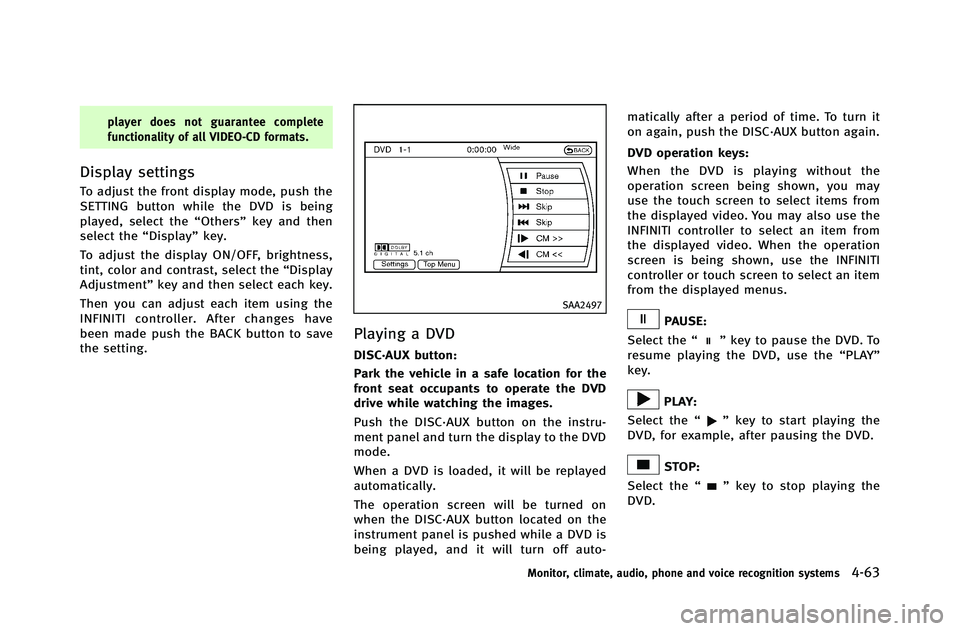
SAA2497
Playing a DVD
DISC·AUX button:
Park the vehicle in a safe location for the
front seat occupants to operate the DVD
drive while watching the images.
Push the DISC·AUX button on the instru-
ment panel and turn the display to the DVD
mode.
When a DVD is loaded, it will be replayed
automatically.
The operation screen will be turned on
when the DISC·AUX button located on the
instrument panel is pushed while a DVD is
being played, and it will turn off auto- matically after a period of time. To turn it
on again, push the DISC·AUX button again.
DVD operation keys:
When the DVD is playing without the
operation screen being shown, you may
use the touch screen to select items from
the displayed video. You may also use the
INFINITI controller to select an item from
the displayed video. When the operation
screen is being shown, use the INFINITI
controller or touch screen to select an item
from the displayed menus.
PAUSE:
Select the “
”key to pause the DVD. To
resume playing the DVD, use the “PLAY”
key.
PLAY:
Select the “
”key to start playing the
DVD, for example, after pausing the DVD.
STOP:
Select the “
”key to stop playing the
DVD.
Monitor, climate, audio, phone and voice recognition systems4-63
Page 244 of 490

Angle (DVD-VIDEO):
If the DVD contains different angles (such
as moving images), the current image
angle can be switched to another one.
Select the“Angle” key. The angle will
change each time the “+”side or “−”side
is selected.
Angle Mark (DVD-VIDEO):
When this item is turned on, an angle mark
will be shown on the bottom of the screen
if the scene can be seen from a different
angle.
Menu Skip (DVD-VIDEO):
DVD menus are automatically configured
and the contents will be played directly
when the “Menu Skip” key is turned on.
Note that some discs may not be played
directly even if this item is turned on.
CM Skip (DVD-VIDEO):
Select the “CM Skip” key. Choose the
setting time from 15, 30 or 60 seconds by
selecting the “+”side or “−”side.
DRC (DVD-VIDEO, DVD-VR):
DRC (Dynamic Range Compression) auto-
matically adjusts the soundtrack volume
level to maintain a more even sound to the
speakers. DVD Language (DVD-VIDEO, VIDEO-CD):
Select the
“DVD Language” key to open the
number entry screen. Input the number
corresponding to the preferred language
and select the “OK”key. The DVD top menu
language will be changed to the one
specified.
Display:
To adjust the image quality of the screen,
select the preferred adjustment items.
Audio:
Select the preferred language for audio.
Subtitle (DVD-VIDEO, DVD-VR):
Select the preferred language for subtitles.
Display Mode (DVD-VIDEO, VIDEO-CD, DVD-
VR):
Select from the “Full”,“Wide”, “Normal” or
“Cinema” modes.
Title List (DVD-VR):
Select the preferred title from the list.
Play Mode:
Select the preferred play mode.
PG/PL Mode (DVD-VR):
Select the “PG”or“PL” mode.
SAA2973
Automatic transmission models
SAA2610
Manual transmission models
Monitor, climate, audio, phone and voice recognition systems4-65