Page 260 of 681

Thechartontherightexplainsthe
error messages you may see in the
display while playing a disc.
If you see an error message in the
display while playing a disc, press
the eject button. After ejecting the
disc, check it for damage or
deformation. If there is no damage,
insert the disc again.
For additional information on
damaged discs, see page .
Theaudiosystemwilltrytoplaythe
disc. If there is still a problem, the
error message will reappear. Press
the eject button, and pull out the disc.
Insert a dif f erent disc. If the new
disc plays, there is a problem with
the f irst disc. If the error message
cycle repeats and you cannot clear it,
take your vehicle to a dealer.Cause
Error Message Solution
333
Track/File format not
supported
Mechanical Error
Servo Error
Disc Error Current track will be skipped. The next
supported track or file plays automatically.
Press the EJECT button and pull out the disc.
Check the disc f or serious damage, signs of
def ormation, excessive scratches, and/or dirt
(see page 333). Insert the disc again. If the code
does not disappear, or the disc cannot be
removed, consult your dealer. Do not try to
f orce the disc out of the player.
Check the disc f or serious damage, signs of
def ormation, excessive scratches, and/or dirt
(see page 333).
Disc Player Error Messages (EX, EX-L , and Canadian L X models without navigation sys
tem)
Features
253
UNSUPPORTED
PUSH EJECT
CHECK DISC
Main MenuTable of Contents
Page 263 of 681

�µ �µ �µ�µ �µ �µ�µ�µ �µ
If equipped
The CD Library Audio f unction can
record tracks from music CDs to the
f lash memory. Each music CD is
stored on an albumlist. This audio
system can store up to 18 albums.Digital music f iles, such as MP3,
WMA, AAC etc., from CD-R,
DVD-R and USB f lash memory
devices cannot be copied to the
CD Library. Likewise, digital
musicfilesrecordedintheCD
Library cannot be copied to CD-R,
DVD-R and USB devices. Music data recorded in the CD
Library can only be used f or
personal use.
Title inf ormation will be displayed
when the inf ormation is f ound in
the Gracenote
Album Inf o
(Gracenote
Media Database) in
the built-in f lash memory. See
page . If the CD Library is ever replaced,
all data will be lost and stored
music will not be recovered.
Only recordings f rom a standard
CD-DA (44.1 kHz, 16 bit stereo
PCM digital sound data) to CD
Library are supported.
Although data is recorded using
ultra-ef f icient compression
technology, sound quality may
vary slightly f rom the original.Recording f unction f rom f ollowing
media is not supported.
CD-DA which prohibits the
copying by SCMS
CD-DA with copy control
SACD (Super Audio CD)
DTS-CD
DVD-A
CD-R/RW
DVD-R/RW
Copy controlled CDs (Playback
cannot be guaranteed)
DTS-CDs (Only enabled f or
playback)
360
Playing CD L ibrary Audio (EX, EX-L , and Canadian L X models without navigation syst em)
256
NOTE:
Main MenuTable of Contents
Page 264 of 681
If you play a music CD that has
not been recorded in the CD
Library, the recording CD prompt
will appear on the display. Select
‘‘YES
Page 267 of 681

�´ �µ
�µ
�´
To fast forward, press and hold the
side of the SKIP bar. To
rewind, press and hold the side
of the SKIP bar.
To play tracks in the CD Library,
push the CD-L button until the CD
Library Audio display appears.
Playback will start automatically with
the track previously selected.
You can also select an album or track
from the list by using the selector
knob. Push the selector knob while
in the CD Library mode, the display
will switch to the albumlist. Turn the
selector knob to select an album.
Press the selector knob to change
the display to the track list, then turn
the selector knob to select a track.
Press the selector knob to start
playing the track you wish to play.
Turning the selector knob to the
right or lef t also changes a f ile.
Skip Bar
FolderBarorCategoryBar
The next album in the list is
selected. If you press while the
last album in the list is selected,
the first album in the list is
selected.
The previous album in the list is
selected. If you press while the
first album is selected, the last
album in the list is selected.
Returns to the beginning of the
current track. Press again and hold
to return to the beginning of the
previous track. If you press this
bar while the first track is playing,
the last track is selected.
Skips to the beginning of the next
track. If you press this bar while
the last track is playing, the first
track is selected.
Fast Forwarding and Rewinding
Playing Tracks in CD Library
T rack Selection
Changing a Track/Albumlist
Playing CD L ibrary Audio (EX, EX-L , and Canadian L X models without navigation syst
em)
260
Main MenuTable of Contents
Page 268 of 681
�µ�µ �µ
�µ
You can select any type of repeat,
random and scan modes by using the
SETUP button and the selector knob.
Push the SETUP button to display
themenuitems,thenturnthe
selector knob to select ‘‘PLAY
MODE.
Page 270 of 681
On the CD Library Audio display,
press the SETUP button. You can update the Gracenote
Album Inf o. (GracenoteMedia
Database).
Consult your dealer, or visit (in U.S.), or
(in Canada), to acquire
updated f iles.
Inserttheupdatediscintothedisc
slot.
Select the title inf ormation f or the
albumlist, then press the selector
knob. You will be returned to the
normal display.
Turn the selector knob to ‘‘GET
ALBUM INFO.,
Page 275 of 681
�µEach time you press and
releasethe sideof theSKIPbar,
the system skips forward to the
beginning of the next track. Press
and release the side of the bar
to skip backward to the beginning of
the current track. Press it again to
skip to the beginning of the previous
track.
Use the SKIP bar while an iPod is
playing to select passages and
change f iles.
To move rapidly within playing track,
press and hold either side ( or
) of the SKIP bar.
If the iPod indicator does not appear
in the audio display, check the
connections, and try to reconnect the
iPod a f ew times.
If the audio system still does not
recognize the iPod, the iPod may
need to be reset. Follow the
instructions that came with your
iPod, or you can f ind reset
instructions online at
Turning the selector knob to the
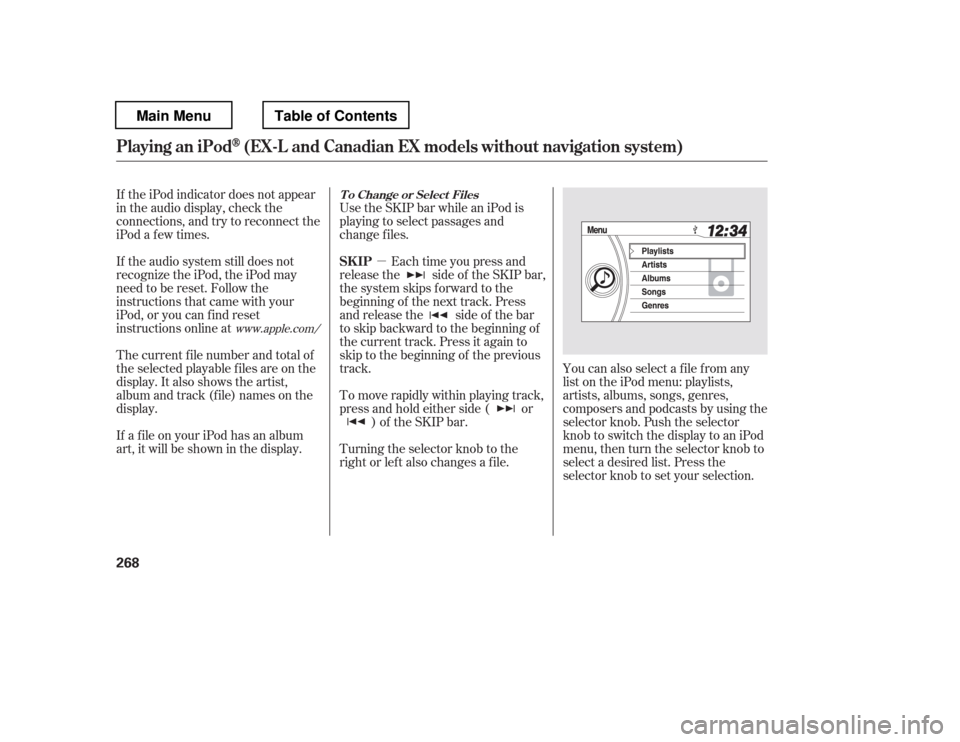
right or lef t also changes a f ile.You can also select a file from any
list on the iPod menu: playlists,
artists, albums, songs, genres,
composers and podcasts by using the
selector knob. Push the selector
knob to switch the display to an iPod
menu, then turn the selector knob to
select a desired list. Press the
selector knob to set your selection.
The current f ile number and total of
the selected playable f iles are on the
display. It also shows the artist,
album and track (file) names on the
display.
If a f ile on your iPod has an album
art, it will be shown in the display.
www.apple.com/ T o Change or Select Files
SK IP
Playing an iPod(EX-L and Canadian EX models without navigation system)
268
Main MenuTable of Contents
Page 277 of 681
�µ
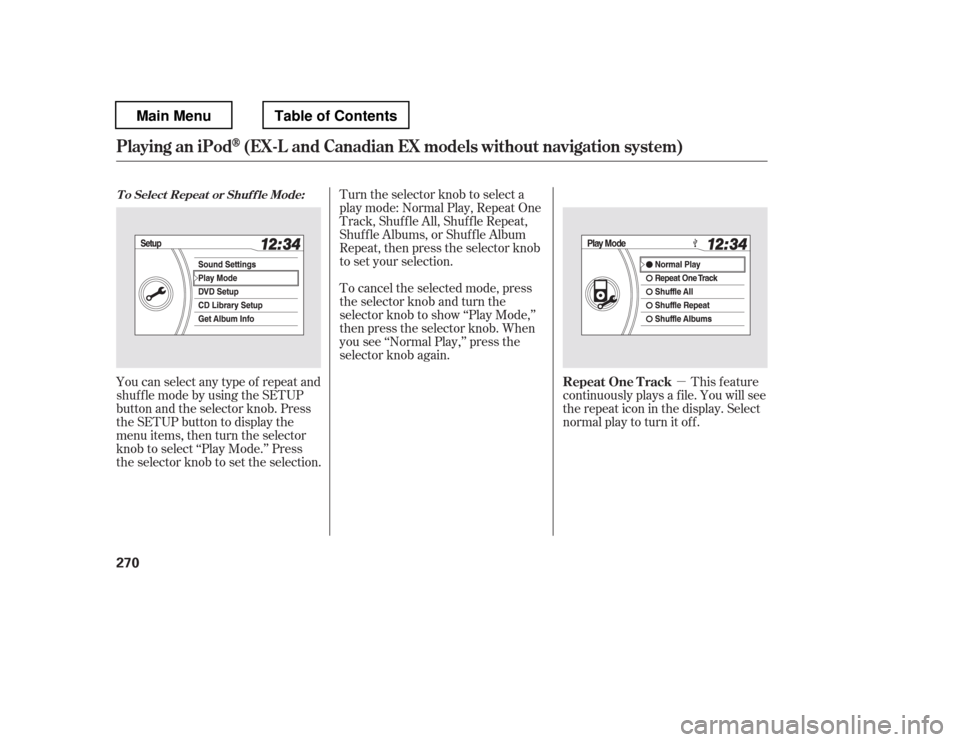
You can select any type of repeat and
shufflemodebyusingtheSETUP
button and the selector knob. Press
the SETUP button to display the
menu items, then turn the selector
knob to select ‘‘Play Mode.