Page 188 of 441

187
Continued
Controls
Climate Control System
*
Using Automatic Climate ControlThe automatic climate control system maintains the interior temperature you select.
The system also selects the proper mix of heated or cooled air that will as quickly as
possible, raise or lower the interior temperature to your preference.
Use the system when the engine is running.
1.Press the AUTO button.
2.Adjust the interior temperature using the temperature control dial.
3.Press the button to cancel.■
Switching between the recirculation and fresh air modes
Press the button and switch the mode depending on environmental conditions.
Recirculation Mode (indicator on): Recirculates air from the vehicle’s interior through
the system.
Fresh Air Mode (indicator off): Maintains outside ventilation. Keep the system in
fresh air mode in normal situations.
1Using Automatic Climate Control
If any buttons are pressed while using the climate
control system in AUTO, the function of the button
that was pressed will take priority.
The AUTO indicator will go off, but functions
unrelated to the button that was pressed will be
controlled automatically.
The compressor may turn on to prevent window
fogging, even if the display reads A/C OFF.
To prevent cold air from blowing in from outside, the
fan may not start immediately when the AUTO
button is pressed.
Once you have set the desired temperature, do not
use the temperature control dials more than
necessary.
Doing so may delay the time it takes to reach the set
temperature.
If the interior is very warm, you can cool it down
more rapidly by partially opening the windows,
turning the system on AUTO, and setting the
temperature to low. Change the fresh air mode to
recirculation mode until the temperature cools down.
When you set the temperature to the lower or upper
limit, Lo or Hi is displayed.
Pressing the button switches the climate
control system between on and off. When turned on,
the system returns to your last selection.
Dashboard
vents Dashboard
and floor
vents Floor vents Floor and
defroster
vents
AUTO Button
Driver’s Side
Temperature
Control Dial
A/C (Air Conditioning) Button
/ (Fan Control) Buttons
(Recirculation)
Button
(On/Off) Button
SYNC (Synchronized)
Button
Passenger’s Side
Temperature
Control Dial (Windshield
Defroster) Button
Mode Button
* Not available on all models
Page 208 of 441

Continued
207
uuAudio System Basic OperationuPlaying the AM/FM Radio
Features
Use the auto select feature to scan both bands and store the strongest station in
each preset.
1.Press the SETUP button.
2.Rotate to select Auto Select, then press
.
3.Select PUSH TO START or ON, then press
.
To turn off auto select, press again. This
restores the presets you originally set.■
Auto Select
1Playing the AM/FM Radio
The ST indicator appears on the display indicating
stereo FM broadcasts.
Stereo reproduction in AM is not available.
Switching the Audio Mode
Press the MODE button on the steering wheel.
2Audio Remote Controls P. 203
You can store six AM stations and twelve FM stations
into the preset button memory. FM1 and FM2 let you
store six stations each.
Auto Select function scans and stores up to six AM
stations and twelve FM stations with a strong signal
into the preset button memory.
If you do not like the stations auto select has stored,
you can manually store your preferred frequencies.
Page 219 of 441
uuAudio System Basic OperationuPlaying CD Library
218Features
■
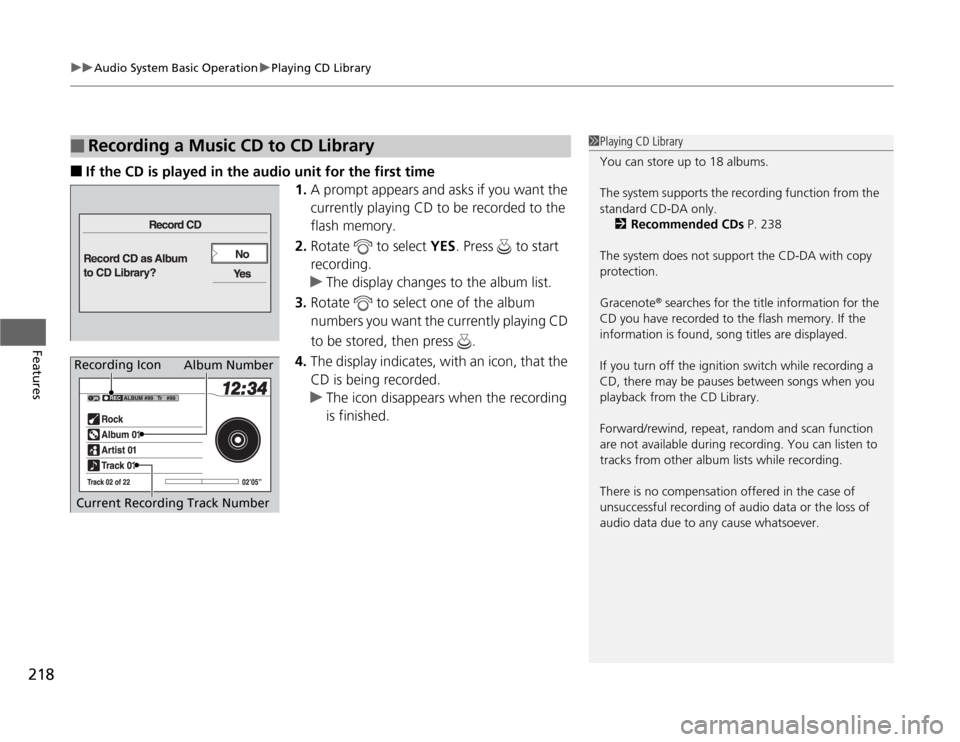
If the CD is played in the audio unit for the first time
1.A prompt appears and asks if you want the
currently playing CD to be recorded to the
flash memory.
2.Rotate to select YES. Press to start
recording.
uThe display changes to the album list.
3.Rotate to select one of the album
numbers you want the currently playing CD
to be stored, then press .
4.The display indicates, with an icon, that the
CD is being recorded.
uThe icon disappears when the recording
is finished.
■
Recording a Music CD to CD Library
1Playing CD Library
You can store up to 18 albums.
The system supports the recording function from the
standard CD-DA only.
2Recommended CDs P. 238
The system does not support the CD-DA with copy
protection.
Gracenote
® searches for the title information for the
CD you have recorded to the flash memory. If the
information is found, song titles are displayed.
If you turn off the ignition switch while recording a
CD, there may be pauses between songs when you
playback from the CD Library.
Forward/rewind, repeat, random and scan function
are not available during recording. You can listen to
tracks from other album lists while recording.
There is no compensation offered in the case of
unsuccessful recording of audio data or the loss of
audio data due to any cause whatsoever.
Album Number
Current Recording Track Number
Recording Icon
Page 222 of 441
221
uuAudio System Basic OperationuPlaying CD Library
Features
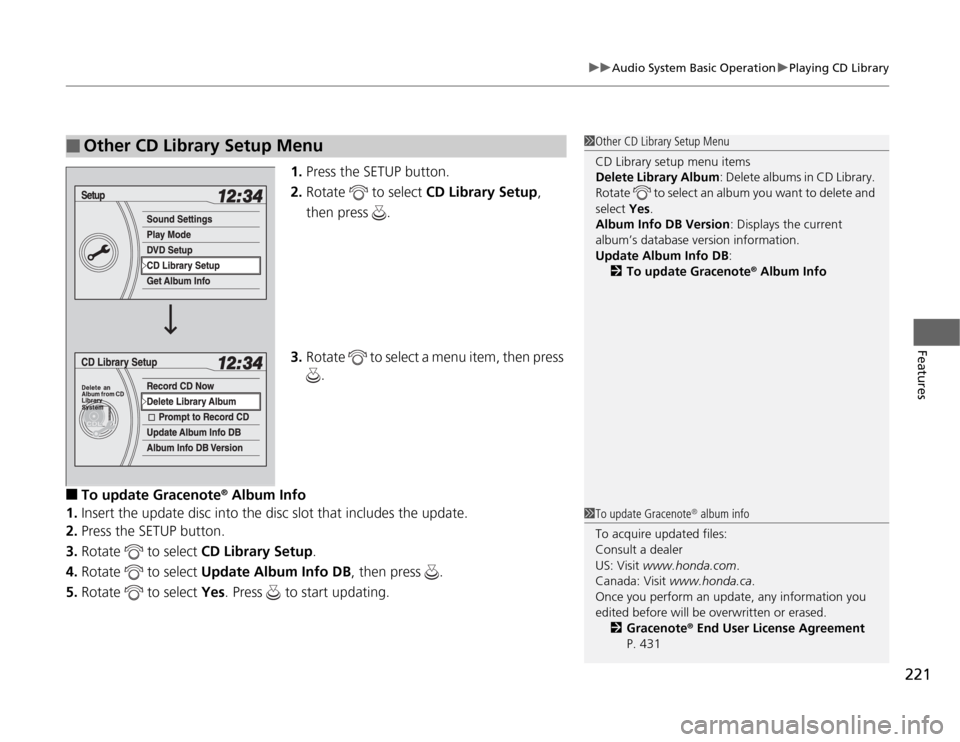
1.Press the SETUP button.
2.Rotate to select CD Library Setup,
then press .
3.Rotate to select a menu item, then press
.
■
To update Gracenote
® Album Info
1.Insert the update disc into the disc slot that includes the update.
2.Press the SETUP button.
3.Rotate to select CD Library Setup.
4.Rotate to select Update Album Info DB, then press .
5.Rotate to select Yes. Press to start updating.
■
Other CD Library Setup Menu
1Other CD Library Setup Menu
CD Library setup menu items
Delete Library Album: Delete albums in CD Library.
Rotate to select an album you want to delete and
select Yes.
Album Info DB Version: Displays the current
album’s database version information.
Update Album Info DB:
2To update Gracenote
® Album Info
1To update Gracenote
® album info
To acquire updated files:
Consult a dealer
US: Visit www.honda.com.
Canada: Visit www.honda.ca.
Once you perform an update, any information you
edited before will be overwritten or erased.
2Gracenote® End User License Agreement
P. 431
Page 245 of 441
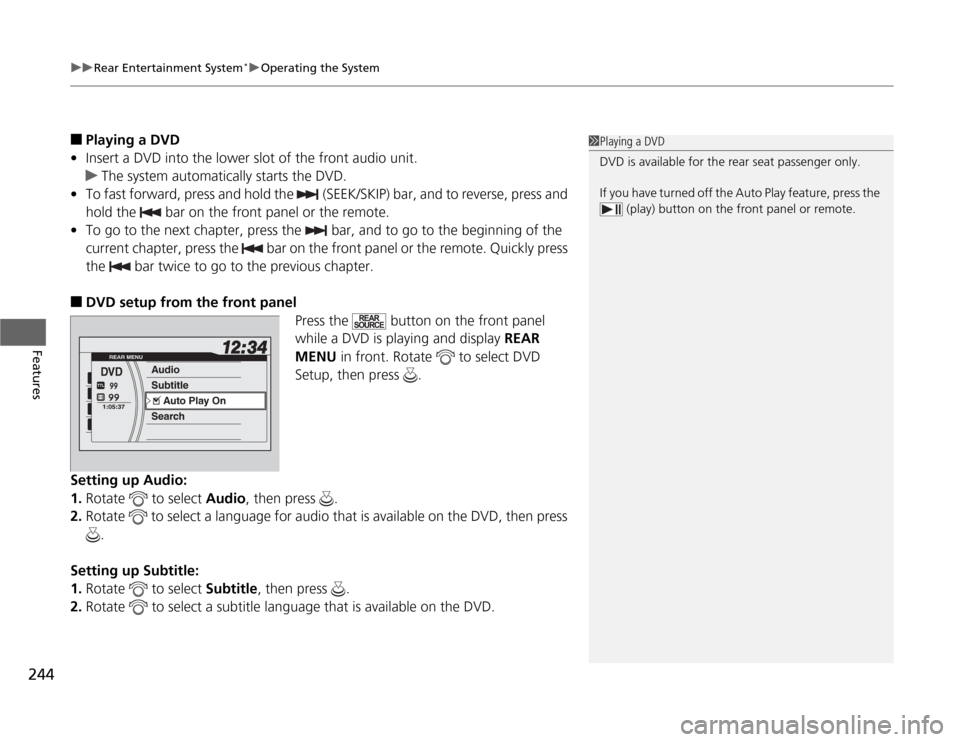
uuRear Entertainment System
*uOperating the System
244Features
■
Playing a DVD
•Insert a DVD into the lower slot of the front audio unit.
uThe system automatically starts the DVD.
•To fast forward, press and hold the (SEEK/SKIP) bar, and to reverse, press and
hold the bar on the front panel or the remote.
•To go to the next chapter, press the bar, and to go to the beginning of the
current chapter, press the bar on the front panel or the remote. Quickly press
the bar twice to go to the previous chapter.
■
DVD setup from the front panel
Press the button on the front panel
while a DVD is playing and display REAR
MENU in front. Rotate to select DVD
Setup, then press .
Setting up Audio:
1.Rotate to select Audio, then press .
2.Rotate to select a language for audio that is available on the DVD, then press
.
Setting up Subtitle:
1.Rotate to select Subtitle, then press .
2.Rotate to select a subtitle language that is available on the DVD.
1Playing a DVD
DVD is available for the rear seat passenger only.
If you have turned off the Auto Play feature, press the
(play) button on the front panel or remote.
Page 246 of 441
Continued
245
uuRear Entertainment System
*uOperating the System
Features
Auto Play On:
1.Rotate to select Auto Play On, then press .
2.The check mark disappears, and the auto play feature turns off.
uWith this feature off, the DVD does not automatically start playing when the
disc is inserted. Press button to play.
Title/Chapter Search:
1.Rotate to select Title Search or Chapter Search, then press .
2.Rotate to select a title or chapter number, then press .■
TITLE/SCROLL button on the remote
Press the TITLE/SCROLL button while the DVD is playing to see the current status of
title, chapter, elapsed time, angle, subtitle, audio, and sound characteristics.
■
MENU button on the remote
Press the MENU button while the DVD is
playing to see the available options.
Use the 3, 4, , and buttons to highlight
the option and then press the ENTER button.
1TITLE/SCROLL button on the remote
Press the TITLE/SCROLL button again to return.
Page 249 of 441
248
uuRear Entertainment System
*uOperating the System
Features
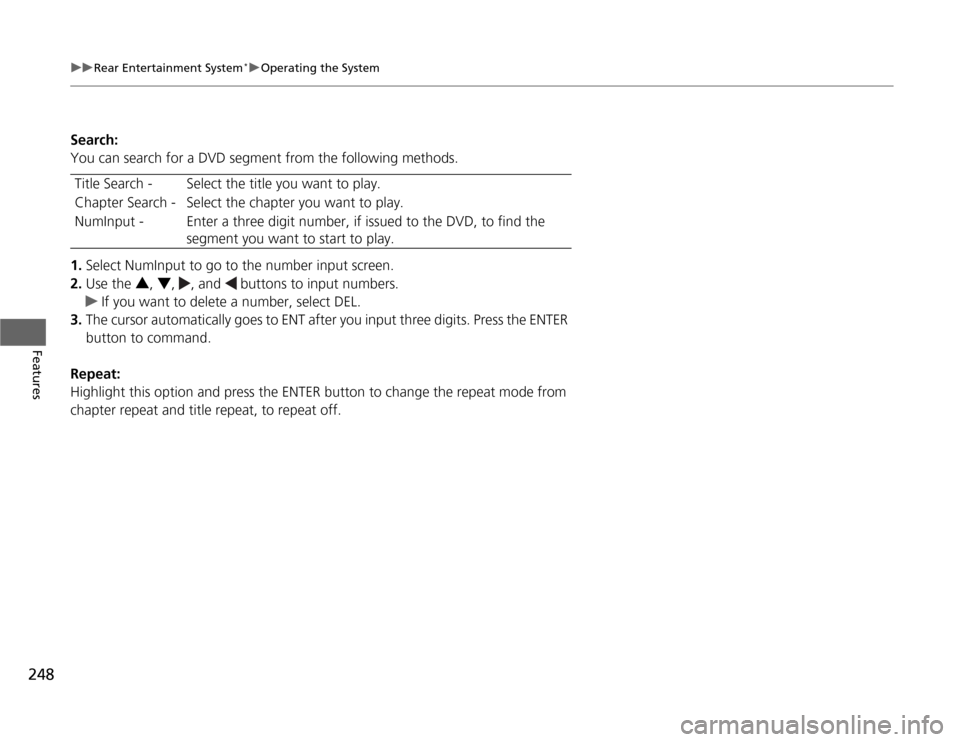
Search:
You can search for a DVD segment from the following methods.
1.Select NumInput to go to the number input screen.
2.Use the 3, 4, , and buttons to input numbers.
uIf you want to delete a number, select DEL.
3.The cursor automatically goes to ENT after you input three digits. Press the ENTER
button to command.
Repeat:
Highlight this option and press the ENTER button to change the repeat mode from
chapter repeat and title repeat, to repeat off.Title Search - Select the title you want to play.
Chapter Search - Select the chapter you want to play.
NumInput - Enter a three digit number, if issued to the DVD, to find the
segment you want to start to play.
Page 278 of 441
277
uuBluetooth
® HandsFreeLink
®*uHFL Menus
Continued
Features
■
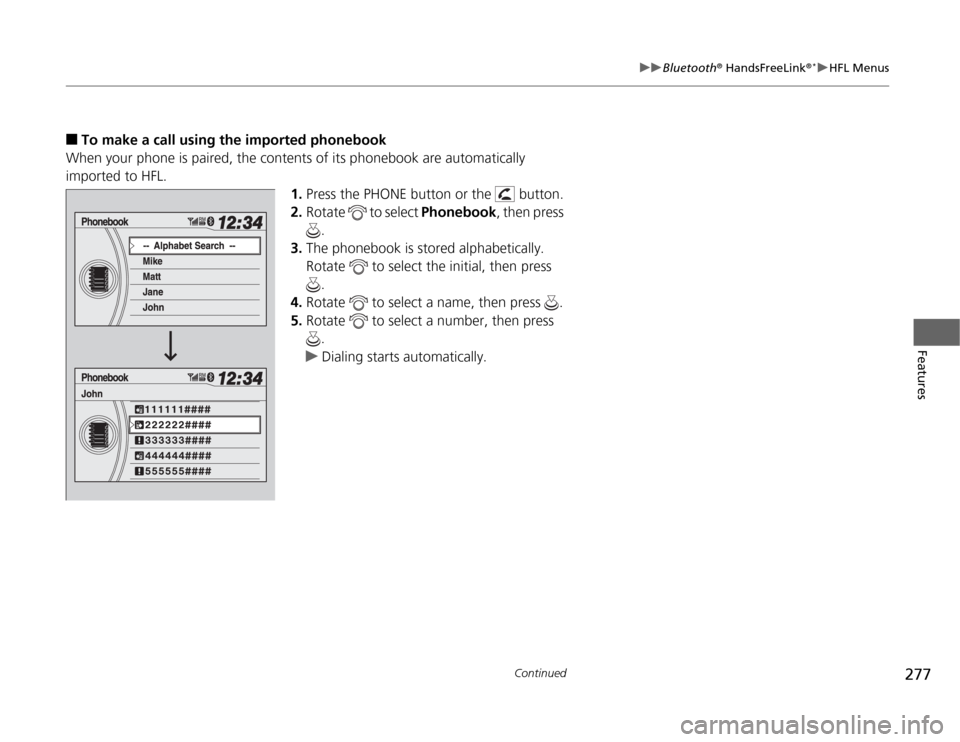
To make a call using the imported phonebook
When your phone is paired, the contents of its phonebook are automatically
imported to HFL.
1.Press the PHONE button or the button.
2.Rotate to select Phonebook, then press
.
3.The phonebook is stored alphabetically.
Rotate to select the initial, then press
.
4.Rotate to select a name, then press .
5.Rotate to select a number, then press
.
uDialing starts automatically.