Page 191 of 441
190
uuClimate Control System
*uRear Climate Control System
Controls
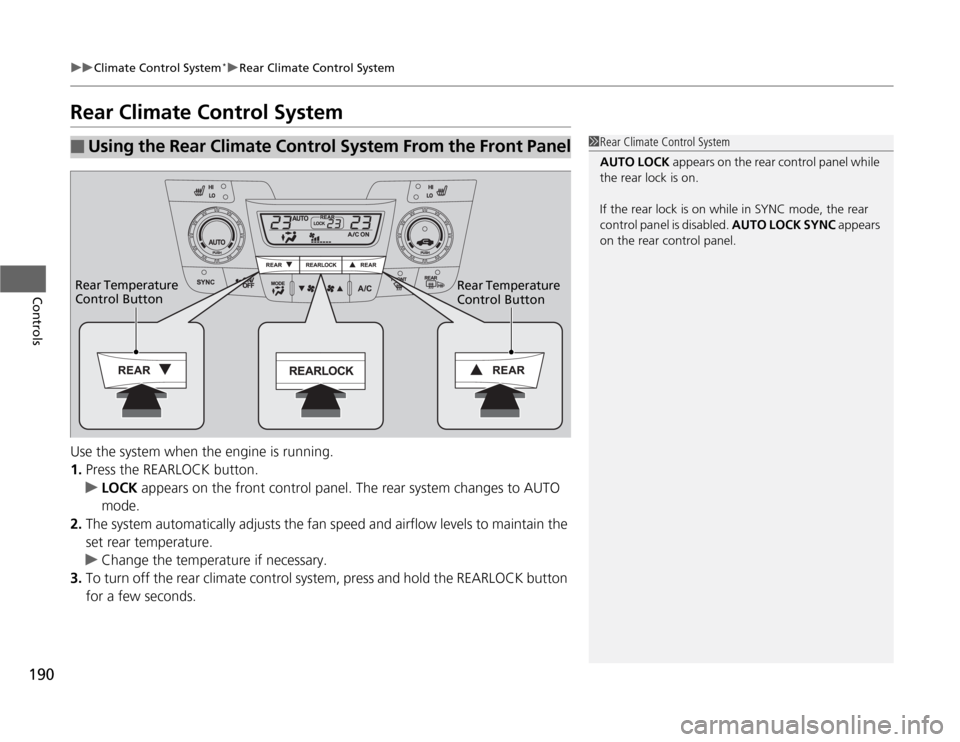
Rear Climate Control SystemUse the system when the engine is running.
1.Press the REARLOCK button.
uLOCK appears on the front control panel. The rear system changes to AUTO
mode.
2.The system automatically adjusts the fan speed and airflow levels to maintain the
set rear temperature.
uChange the temperature if necessary.
3.To turn off the rear climate control system, press and hold the REARLOCK button
for a few seconds.■
Using the Rear Climate Control System From the Front Panel
1Rear Climate Control System
AUTO LOCK appears on the rear control panel while
the rear lock is on.
If the rear lock is on while in SYNC mode, the rear
control panel is disabled. AUTO LOCK SYNC appears
on the rear control panel.
Rear Temperature
Control Button Rear Temperature
Control Button
Page 198 of 441
197
Features
Audio System Basic OperationTo use the audio system function, the ignition switch must be in ACCESSORY
(q
or
ON
(w
.
Adjusting the Sound
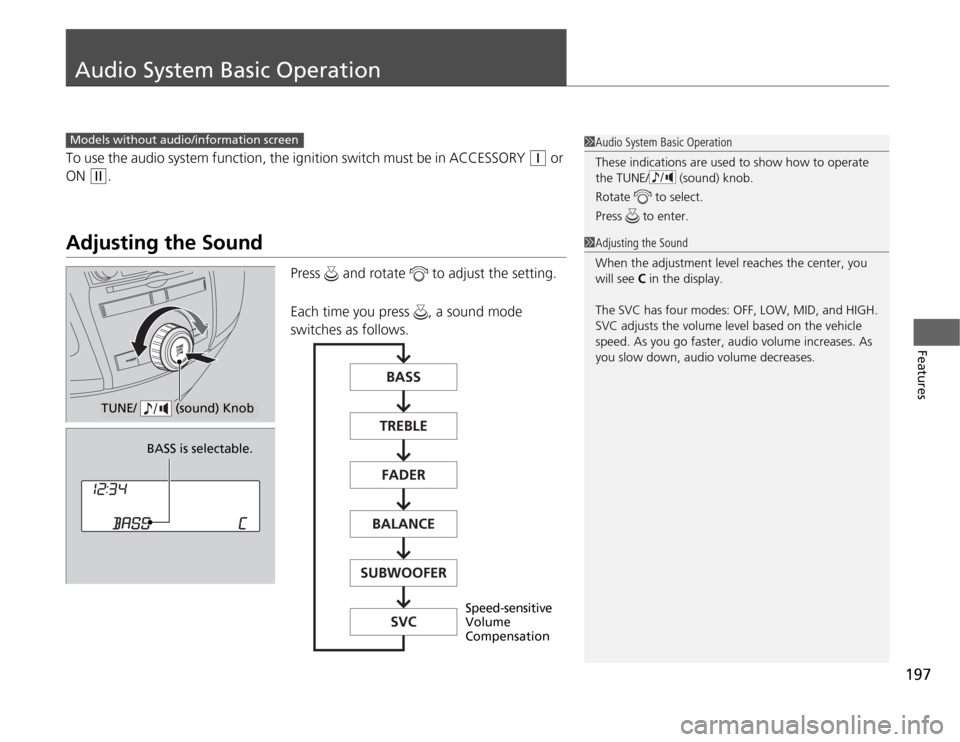
Press and rotate to adjust the setting.
Each time you press , a sound mode
switches as follows.
1Audio System Basic Operation
These indications are used to show how to operate
the TUNE/ (sound) knob.
Rotate to select.
Press to enter.
Models without audio/information screen
1Adjusting the Sound
When the adjustment level reaches the center, you
will see C in the display.
The SVC has four modes: OFF, LOW, MID, and HIGH.
SVC adjusts the volume level based on the vehicle
speed. As you go faster, audio volume increases. As
you slow down, audio volume decreases.
TUNE/ (sound) Knob
BASS is selectable.
Speed-sensitive
Volume
Compensation
Page 205 of 441
204
uuAudio System Basic OperationuAdjusting the Sound
Features
Adjusting the Sound
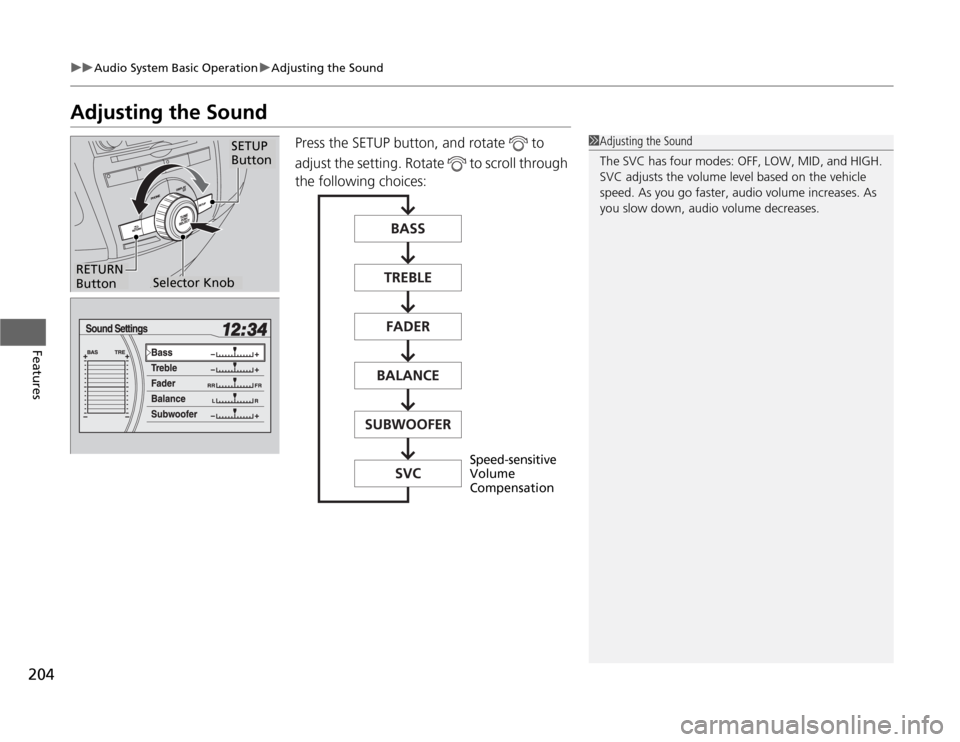
Press the SETUP button, and rotate to
adjust the setting. Rotate to scroll through
the following choices:
1Adjusting the Sound
The SVC has four modes: OFF, LOW, MID, and HIGH.
SVC adjusts the volume level based on the vehicle
speed. As you go faster, audio volume increases. As
you slow down, audio volume decreases.
Selector Knob
SETUP
Button
RETURN
Button
Speed-sensitive
Volume
Compensation
Page 238 of 441
237
Features
General Information on the Audio SystemXM
® Radio Service
*
1.You need your radio ID ready before registering for subscription.
To see the ID on the display: Turn the selector knob until 0 appears.
2.Have your radio ID and credit card number ready, and either call or visit the XM
®
website to subscribe.
Press the (XM
®) button and stay in this mode for about 30 minutes until the
service is activated. Make sure your vehicle is in an open area with good reception.
LOADING: XM
® is loading the audio or program information.
OFF AIR: The channel is not currently broadcasting.
UNAUTHORIZED: The encryption code is being updated. Channels 0 and 1 still
work normally.
NO SIGNAL: The signal is too weak in the current location.
UNAVAILABLE: No such channel exists, the channel is not part of your subscription,
or the artist or title information is unavailable.
CHECK ANTENNA: There is a problem with the XM
® antenna. Contact a dealer.
■
Subscribing to XM
® Radio
■
Receiving XM
® Radio
■
XM
® Radio Display Messages
1Subscribing to XM
® Radio
Contact Information for XM
® Radio:
US: XM
® Radio at www.siriusxm.com or (800) 852-
9696
Canada: XM
® Canada at www.xmradio.ca, or (877)
209-0079
1Receiving XM
® Radio
The XM
® satellites are in orbit over the equator,
therefore, objects south of the vehicle may cause
satellite reception interruptions. Satellite signals are
more likely to be blocked by tall buildings and
mountains the farther north you travel from the
equator.
You may experience reception problems under the
following circumstances:•In a location with an obstruction to the south of
your vehicle.•In tunnels•On the lower level of a multi-tiered road•Large items carried on the roof rack
* Not available on all models
Page 244 of 441

243
uuRear Entertainment System
*uOperating the System
Continued
Features
■
System Controls and Menus for DVD (Power) Button
Press to turn on the system.DVD Button
Press to watch a DVD.
(Light) Button
Press to illuminate
the buttons and
bars for a few
seconds.
SKIP Bar
Press or to
change chapters.
(Play/Pause) Button
Press to pause or play a DVD.
TITLE/SCROLL Button
Press to display the status of the
DVD that is currently playing.MENU Button
The following options appear when you
play a DVD and press the MENU button:
Top Menu
Menu
Play Mode Audio
Subtitle
Angle
Search/NumInput Title
Chapter
NumInput Repeat
Pause/Play
Stop
Return
SETUP Button
The following options appear when you
play a DVD and press the SETUP button:
Disp Adjust
( P.249)Brightness
Contrast
Black Level
Color CANCEL Button
Press to go back to
the previous display
or operation.3, 4, , and ENTER Buttons
Use 3, 4, , or to highlight
a menu item, and press the
ENTER Button to make a
selection.
Tint
Normal
Wide
Zoom
Full Aspect Ratio
( P.249)
PERSONAL SURROUND ( P.249)
Language ( P.250)
Page 248 of 441
Continued
247
uuRear Entertainment System
*uOperating the System
Features
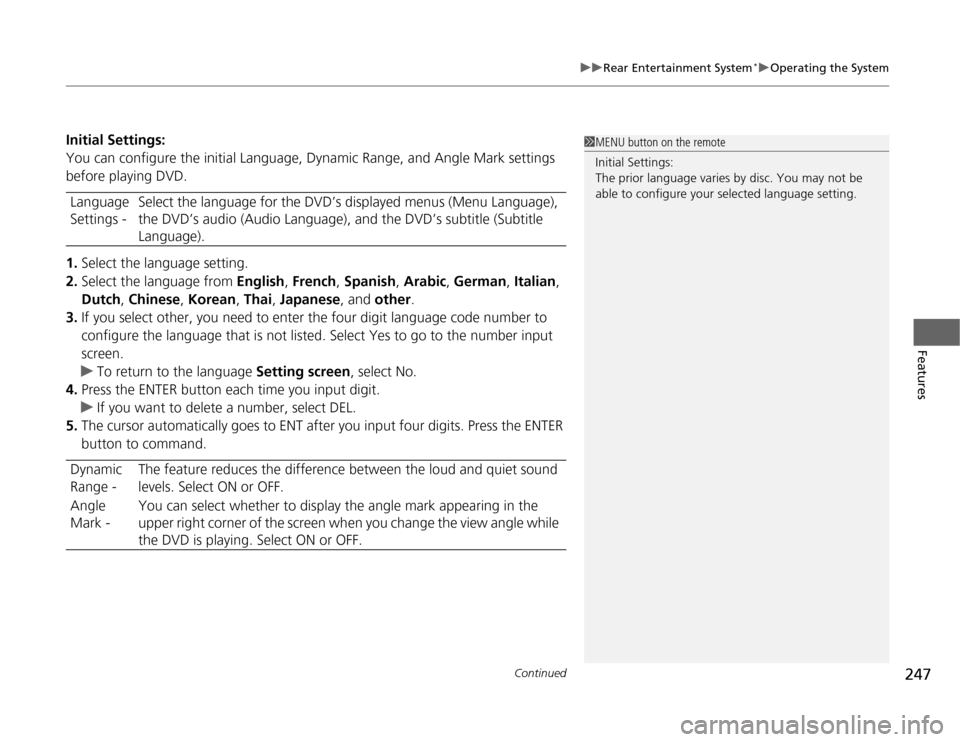
Initial Settings:
You can configure the initial Language, Dynamic Range, and Angle Mark settings
before playing DVD.
1.Select the language setting.
2.Select the language from English, French, Spanish, Arabic, German, Italian,
Dutch, Chinese, Korean, Thai, Japanese, and other.
3.If you select other, you need to enter the four digit language code number to
configure the language that is not listed. Select Yes to go to the number input
screen.
uTo return to the language Setting screen, select No.
4.Press the ENTER button each time you input digit.
uIf you want to delete a number, select DEL.
5.The cursor automatically goes to ENT after you input four digits. Press the ENTER
button to command. Language
Settings -Select the language for the DVD’s displayed menus (Menu Language),
the DVD’s audio (Audio Language), and the DVD’s subtitle (Subtitle
Language).
Dynamic
Range -The feature reduces the difference between the loud and quiet sound
levels. Select ON or OFF.
Angle
Mark -You can select whether to display the angle mark appearing in the
upper right corner of the screen when you change the view angle while
the DVD is playing. Select ON or OFF.
1MENU button on the remote
Initial Settings:
The prior language varies by disc. You may not be
able to configure your selected language setting.
Page 250 of 441
249
uuRear Entertainment System
*uOperating the System
Continued
Features
■
SETUP button on the remote
Press the SETUP button while the DVD is
playing to see the available options.
Use the 3, 4, , and buttons to highlight
the option and then press the ENTER button.
Disp Adjust:
You can adjust the overhead screen’s brightness, contrast, black level, color, and
tint. To return to the default display setting, select Reset.
After you make all the adjustments, the screen goes back to the top SETUP screen,
or press the CANCEL button to return.
Aspect Ratio:
You can select the screen mode with a different aspect ratio from Normal, Wide,
Zoom and Full. After you select the mode, it takes about one second to return to the
play mode with the selected ratio.
Personal Surround:
You can select the sound effect mode that fits the DVD’s audio source from Music,
Cinema, and Voice. Select Off to turn this feature off.
Page 260 of 441
259
Continued
Features
Bluetooth
® HandsFreeLink
®*
For models with the navigation system, see Navigation System Manual for how to
operate the Bluetooth
® HandsFreeLink
®.
Bluetooth
® HandsFreeLink
® (HFL) allows you to place and receive phone calls using
your vehicle's audio system, without handling your cell phone.
Using HFL
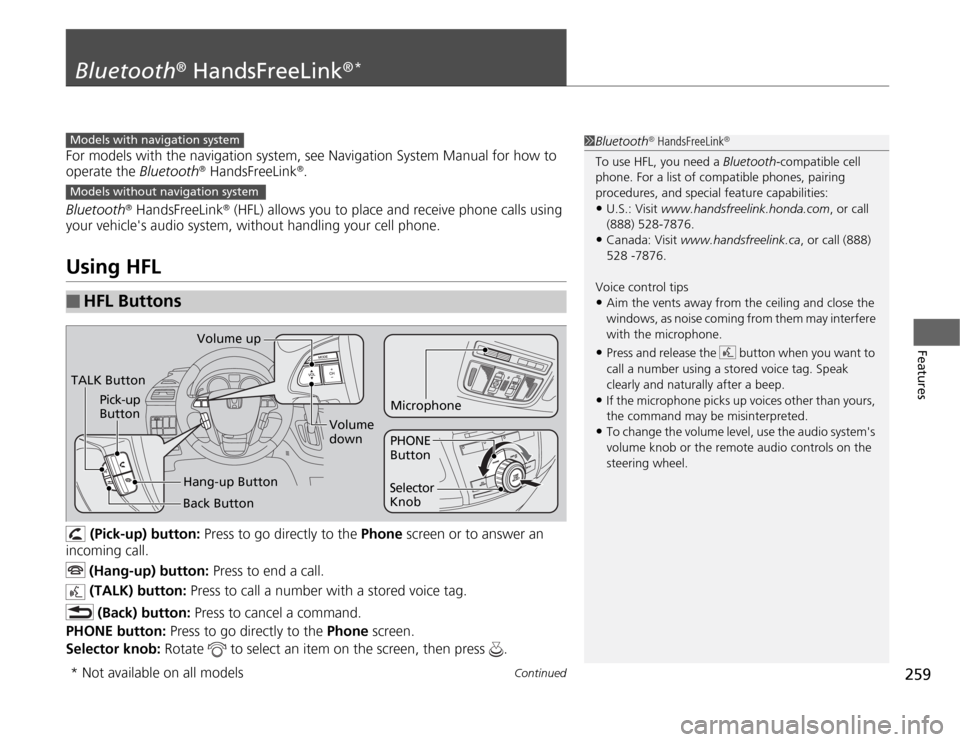
(Pick-up) button: Press to go directly to the Phone screen or to answer an
incoming call.
(Hang-up) button: Press to end a call.
(TALK) button: Press to call a number with a stored voice tag.
(Back) button: Press to cancel a command.
PHONE button: Press to go directly to the Phone screen.
Selector knob: Rotate to select an item on the screen, then press .
■
HFL Buttons
1Bluetooth
® HandsFreeLink
®
To use HFL, you need a Bluetooth-compatible cell
phone. For a list of compatible phones, pairing
procedures, and special feature capabilities:•U.S.: Visit www.handsfreelink.honda.com, or call
(888) 528-7876.•Canada: Visit www.handsfreelink.ca, or call (888)
528 -7876.
Voice control tips•Aim the vents away from the ceiling and close the
windows, as noise coming from them may interfere
with the microphone.•Press and release the button when you want to
call a number using a stored voice tag. Speak
clearly and naturally after a beep.•If the microphone picks up voices other than yours,
the command may be misinterpreted.•To change the volume level, use the audio system's
volume knob or the remote audio controls on the
steering wheel.
Models with navigation systemModels without navigation systemTALK ButtonVolume up
Microphone
Hang-up Button Pick-up
Button
Volume
down
Selector
KnobPHONE
Button
Back Button
* Not available on all models