2012 HONDA CIVIC lim
[x] Cancel search: limPage 53 of 345

52
uuChild SafetyuSafety of Infants and Small Children
Safe Driving
Safety of Infants and Small Children
An infant must be properly restrained in a rear-facing, reclining child seat until the
infant reaches the seat maker's weight or height limit for the seat, and the infant is at least one year old.■Positioning a rear-facing child seat
Child seats must be placed and secured in a
rear seating position.
When properly installed, a rear-facing child seat may prevent the driver or a front
passenger from moving their seat all the way back, or from locking their seat-back
in the desired position.
It can also interfere with proper operation of the passenger's advanced front airbag system. 2 Airbags P. 35
If this occurs, we recommend that you install the child seat directly behind the front
passenger's seat, move the seat as far forward as needed, and leave it unoccupied.
Or, you may wish to get a smaller rear-facing child seat.
■Protecting Infants1Protecting Infants
Rear-facing child seats should never be installed in a
forward facing position.
Always refer to the child seat manufacturer’s
instructions before installation.
3WARNING
Placing a rear-facing child seat in the front
seat can result in serious injury or death
during a crash.
Always place a rear-facing child seat in the
rear seat, not the front.
Page 94 of 345

Continued93
uuGauges and DisplaysuMulti-Information Display*
Instrument Panel
■
Example for customizing wallpapers
You can customize the display from clock to wallpaper.
Importing Wallpapers from USB
You can import up to three images, one at a time for wallpaper from a USB flash drive.Select Import Wallpaper from Customize Settings and properly connect a USB
flash drive to store an image.
1.Connect the USB flash drive to the adapter
cable.
2 USB Adapter Cable P. 145
2. Press the Menu button.
3. Select Customize Settings with the /
button, then press the SOURCE button.
4. Select Display Setup with the /
button, then press the SOURCE button.1Customize Features • When importing wallpaper files, the image must be
in the USB flash drive’s root directory. Images in a
folder cannot be imported.
• The file format of the image that can be imported
is BMP (bmp) or JPEG (jpg).
• The individual file size limit is 2 MB.
• The maximum image size is 1,920 x 936 pixels. If
the image size was less than 480 x 234 pixels, the
image is displayed in the middle of the screen with
the extra area appearing in black.
• The number of files that can be selected is up to 255.
• Up to 64 characters can be displayed in the file name.
+
–
+–
Page 140 of 345

139
uuInterior Lights/Interior Convenience ItemsuInterior Convenience Items
Controls
The ignition switch must be in ON (w to use
the seat heaters. The HI setting heats the seats faster than the LO setting.
There is no heater in the passenger's seat-
back due to the side airbag cutoff system.
While in HI, the heater cycles on and off.
uThe appropriate indicator will be on
while the seat heater is on. Briefly press
the switch on the opposite side to turn
the heater off. The indicator will be off.
When a comfortable temperature is
reached, select LO to keep the seat warm.
■Seat Heaters *1Seat Heaters
Do not use the seat heaters even in LO when the
engine is off. Under such conditions, the battery may
be weakened, making the engine difficult to start.
In the LO setting, the heater runs continuously and
does not automatically turn off.
3WARNING
Heat induced burns are possible when
using seat heaters.
Persons with a diminish
ed ability to sense
temperature (e.g., persons with diabetes,
lower-limb nerve damage, or paralysis) or
with sensitive skin should not use seat
heaters.
* Not available on all models
Page 143 of 345
uuHeating and Cooling*uUsing Vents, Heating and A/C
*
142
Controls
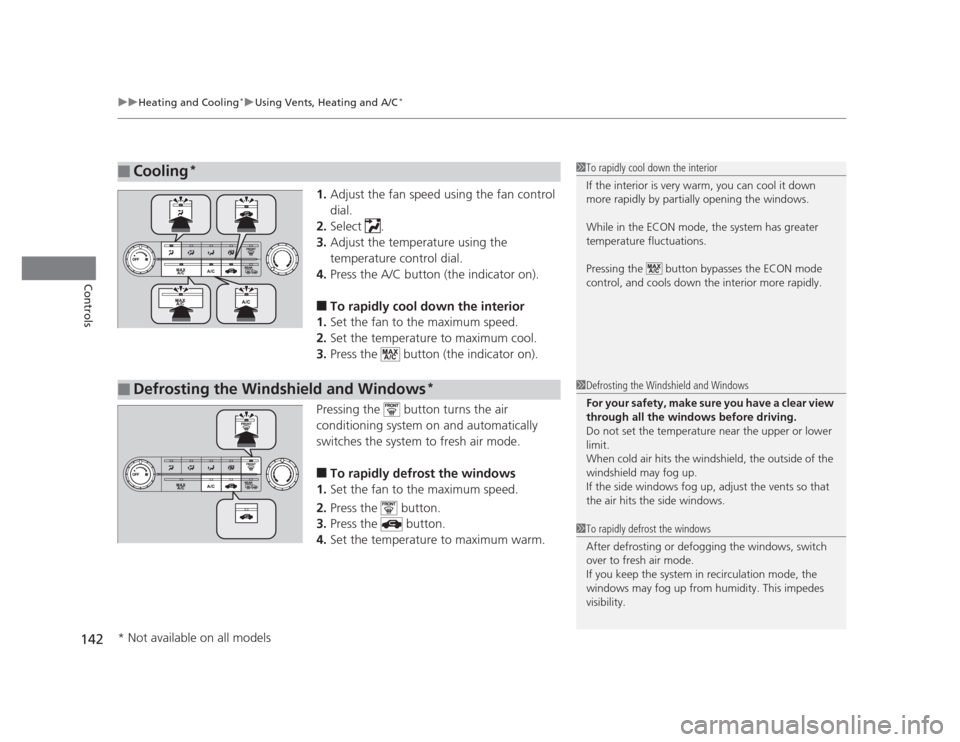
1. Adjust the fan speed using the fan control dial.
2. Select .
3. Adjust the temperature using the
temperature control dial.
4. Press the A/C button (the indicator on).
■ To rapidly cool down the interior
1. Set the fan to the maximum speed.
2. Set the temperature to maximum cool.
3. Press the button (the indicator on).
Pressing the button turns the air
conditioning system on and automatically
switches the system to fresh air mode. ■ To rapidly defrost the windows
1. Set the fan to the maximum speed.
2. Press the button.
3. Press the button.
4. Set the temperature to maximum warm.
■Cooling *1To rapidly cool down the interior
If the interior is very warm, you can cool it down
more rapidly by partially opening the windows.
While in the ECON mode, the system has greater
temperature fluctuations.
Pressing the button bypasses the ECON mode
control, and cools down the interior more rapidly.
■Defrosting the Windshield and Windows *1Defrosting the Windshield and Windows
For your safety, make sure you have a clear view
through all the windows before driving.
Do not set the temperature near the upper or lower
limit.
When cold air hits the windshield, the outside of the windshield may fog up.
If the side windows fog up, adjust the vents so that
the air hits the side windows.
1To rapidly defrost the windows
After defrosting or defogging the windows, switch
over to fresh air mode.
If you keep the system in recirculation mode, the
windows may fog up from humidity. This impedes
visibility.
* Not available on all models
Page 146 of 345

145
uuAudio System*uUSB Adapter Cable
*
Features
USB Adapter Cable *
1.Unclip the USB connector and loosen the
adapter cable.
2. Install the iPod ®
dock connector or the USB
flash drive to the USB connector.
Auxiliary Input Jack
Use the jack to connect standard audio devices. 1.Open the AUX cover.
2. Connect a standard audio device to the
input jack using a 1/8 inch (3.5 mm) stereo
miniplug.
uThe audio system automatically switches
to the AUX mode.
1USB Adapter Cable •Do not leave the iPod ®
or USB flash drive in the
vehicle. Direct sunlight and high temperatures may damage it.
• Do not use an extension cable with the USB
adapter cable.
• Do not connect the iPod ®
or USB flash drive using a
hub.
• Do not use a device such as a card reader or hard
disk drive, as the device or your files may be damaged.
• We recommend backing up your data before using
the device in your vehicle.
• Displayed messages may vary depending on the
device model and software version.
If the audio system does not recognize the iPod ®
, try
reconnecting it a few times or reboot the device. To
reboot, follow the manufacturer's instructions provided with the iPod ®
or visit www.apple.com/
ipod .
1Auxiliary Input Jack
To switch the mode, press any of the audio mode
buttons. You can return to the AUX mode by
pressing the AUX button.
You cannot use the auxiliary input jack if you replace
the audio system.
State or local laws may limit the circumstances in
which you can launch or control your attached audio device.
* Not available on all models
Page 179 of 345

uuBluetooth®
HandsFreeLink ®*uUsing HFL
178
Features
The multi-information display notifies you
when there is an incoming call.
■HFL Status Display1Bluetooth ®
HandsFreeLink ®
Bluetooth ®
Wireless Technology
Bluetooth ®
name and logos are registered
trademarks owned by Bluetooth SIG, Inc., and any
use of such marks by Honda Motors Co., Ltd., is
under license. Other trademarks and trade names are
those of their respective owners.
HFL Limitations
An incoming call on HFL will interrupt the audio
system when it is playing. It will resume when the call is ended.
John
Signal Strength
HFL Mode Battery Level Status Roam Status
Call Name
Bluetooth IndicatorComes on when your
phone is connected to HFL.
1HFL Status Display
The information that appears on the multi-
information display varies between phone models.
You can change the system language to English,
French, or Spanish. 2 Customized Features P. 86
Page 180 of 345
179
uuBluetooth®
HandsFreeLink ®*uHFL Menus
Continued
Features
HFL Menus
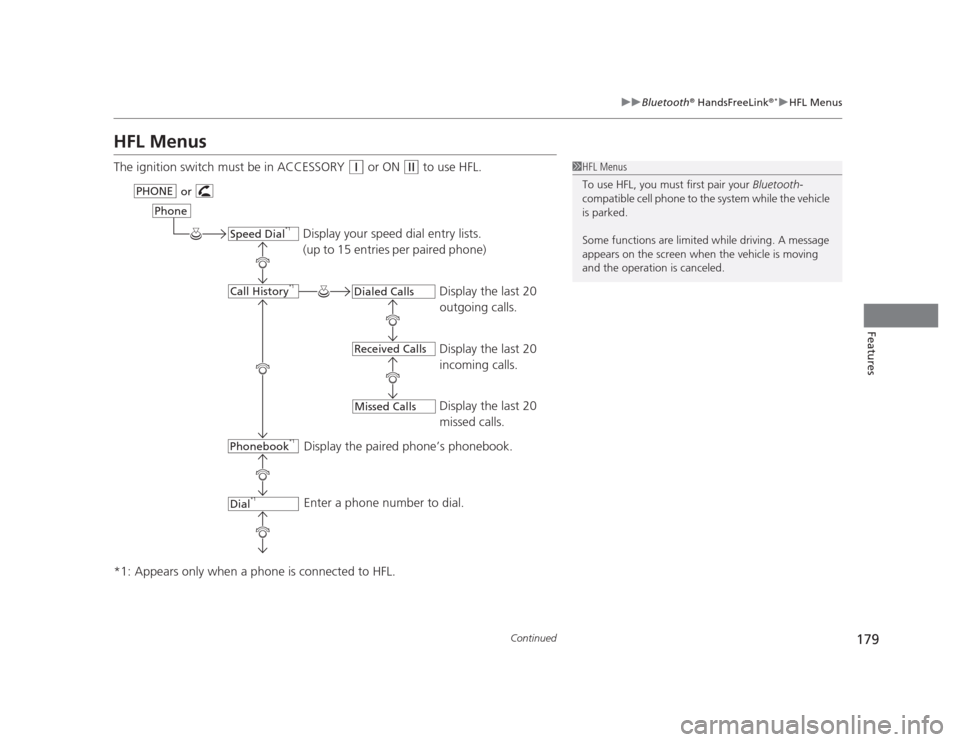
The ignition switch must be in ACCESSORY
(q
or ON (w to use HFL.
*1: Appears only when a phone is connected to HFL.1HFL Menus
To use HFL, you must first pair your Bluetooth-
compatible cell phone to the system while the vehicle is parked.
Some functions are limited while driving. A message
appears on the screen when the vehicle is moving
and the operation is canceled.
Display your speed dial entry lists.
(up to 15 entries per paired phone)
Display the last 20
outgoing calls.
Display the last 20
incoming calls.
Display the last 20
missed calls.
Display the paired phone’s phonebook.
Enter a phone number to dial.
or
PHONE
Phone
Speed Dial
*1
Call History *1
Phonebook *1
Dial*1
Dialed Calls
Received Calls
Missed Calls
Page 202 of 345

201
Driving
This chapter discusses driving, refueling, and information on items such as accessories.
Before Driving Driving Preparation .......................... 202
Maximum Load Limit........................ 205
Towing a Trailer
Towing Preparation .......................... 207
Driving Safely with a Trailer .............. 209
Towing Your Vehicle ........................ 210
When Driving Starting the Engine .......................... 211
Precautions While Driving................. 213
Automatic Transmission ................... 214 Shifting .......................................... 215
Shifting .......................................... 217
Cruise Control *
............................... 220
VSA® (Vehicle Stability Assist), aka ESC
(Electronic Stability Control), System ...... 223
TPMS (Tire Pressure Monitoring System) ... 225
Tire Pressure Monitoring System (TPMS) - Required Federal Explanation ......... 226
Braking
Brake System ................................... 229
ABS (Anti-lock Brake System) ........... 231
Automatic transmission models
Manual transmission models
Brake Assist System ......................... 232
Parking Your Vehicle
When Stopped ................................ 233
Parking ............................................ 233
Refueling Fuel Information .............................. 234
How to Refuel ................................. 235
Fuel Economy .................................... 237
Improving Fuel Economy .................. 237
Accessories and Modifications
Accessories ...................................... 238
Modifications................................... 238
* Not available on all models