Page 161 of 345
160
uuAudio System Basic Operation*uPlaying the AM/FM Radio
Features
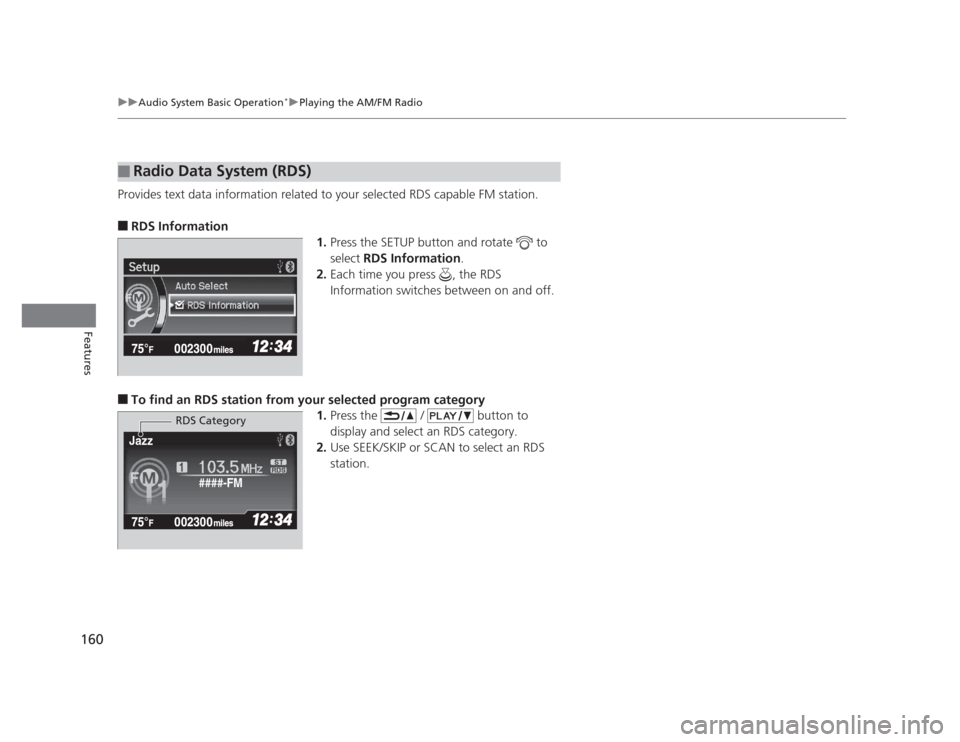
Provides text data information related to your selected RDS capable FM station. ■
RDS Information
1.Press the SETUP button and rotate to
select RDS Information .
2. Each time you press , the RDS
Information switches between on and off.
■ To find an RDS station from your selected program category
1.Press the / button to
display and select an RDS category.
2. Use SEEK/SKIP or SCAN to select an RDS
station.
■Radio Data System (RDS)
####-FM
Jazz
RDS Category
Page 163 of 345
uuAudio System Basic Operation*uPlaying a CD
162
Features
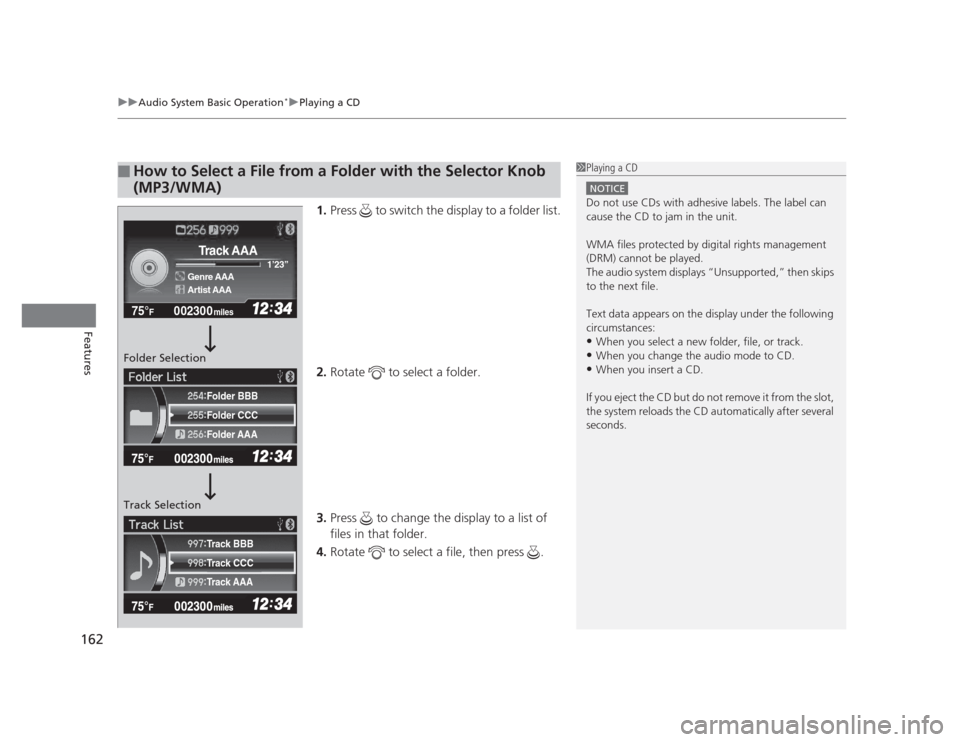
1. Press to switch the display to a folder list.
2. Rotate to select a folder.
3. Press to change the display to a list of files in that folder.
4. Rotate to select a file, then press .
■How to Select a File from a Folder with the Selector Knob
(MP3/WMA)1Playing a CD
NOTICE
Do not use CDs with adhesive labels. The label can
cause the CD to jam in the unit.
WMA files protected by digital rights management
(DRM) cannot be played.
The audio system displays “Unsupported,” then skips to the next file.
Text data appears on the display under the following
circumstances: •When you select a new folder, file, or track.
• When you change the audio mode to CD.
• When you insert a CD.
If you eject the CD but do not remove it from the slot,
the system reloads the CD automatically after several
seconds.
002300
75°F miles
Genre AAA 1
Page 164 of 345
163
uuAudio System Basic Operation*uPlaying a CD
Features
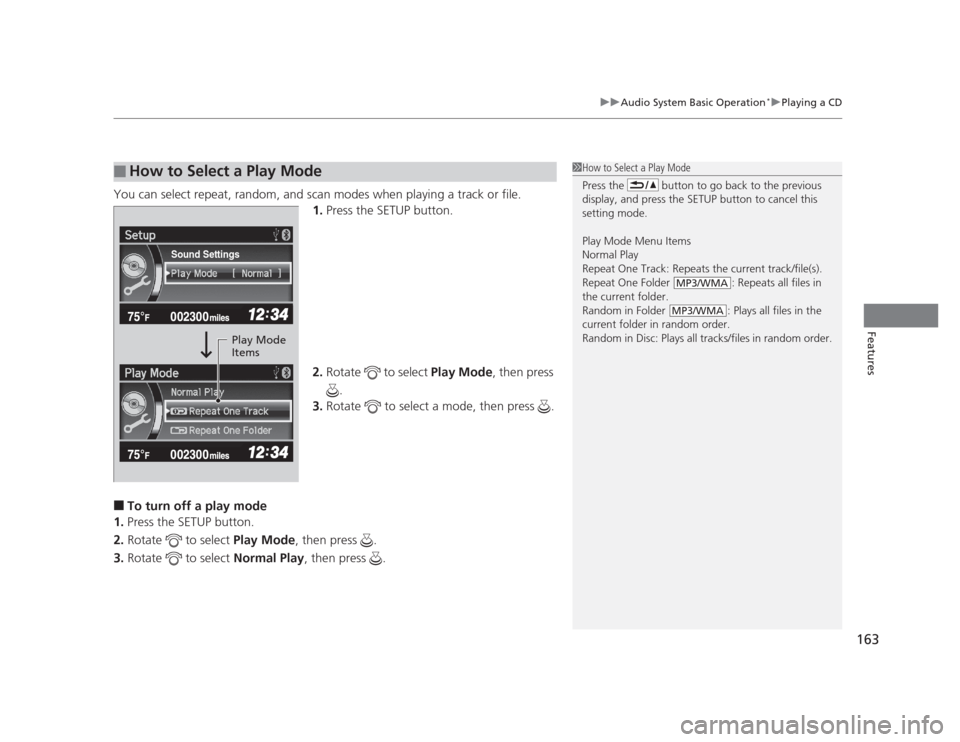
You can select repeat, random, and scan modes when playing a track or file.
1.Press the SETUP button.
2. Rotate to select Play Mode, then press
.
3. Rotate to select a mode, then press .
■ To turn off a play mode
1. Press the SETUP button.
2. Rotate to select Play Mode, then press .
3. Rotate to select Normal Play, then press .
■How to Select a Play Mode1How to Select a Play Mode
Press the button to go back to the previous
display, and press the SETUP button to cancel this
setting mode. Play Mode Menu Items
Normal Play
Repeat One Track: Repeats the current track/file(s).
Repeat One Folder : Repeats all files in
the current folder.
Random in Folder : Plays all files in the
current folder in random order.
Random in Disc: Plays all tracks/files in random order.
MP3/WMA
MP3/WMA
Sound Settings
Play Mode
Items
Page 165 of 345
164
uuAudio System Basic Operation*uPlaying an iPod®
Features
Playing an iPod ®
Connect the iPod ®
using your dock connector to the USB adapter cable, then press
the AUX button. 2 USB Adapter Cable P. 145
123456
Genre AAA
Song AAA
Artist AAA
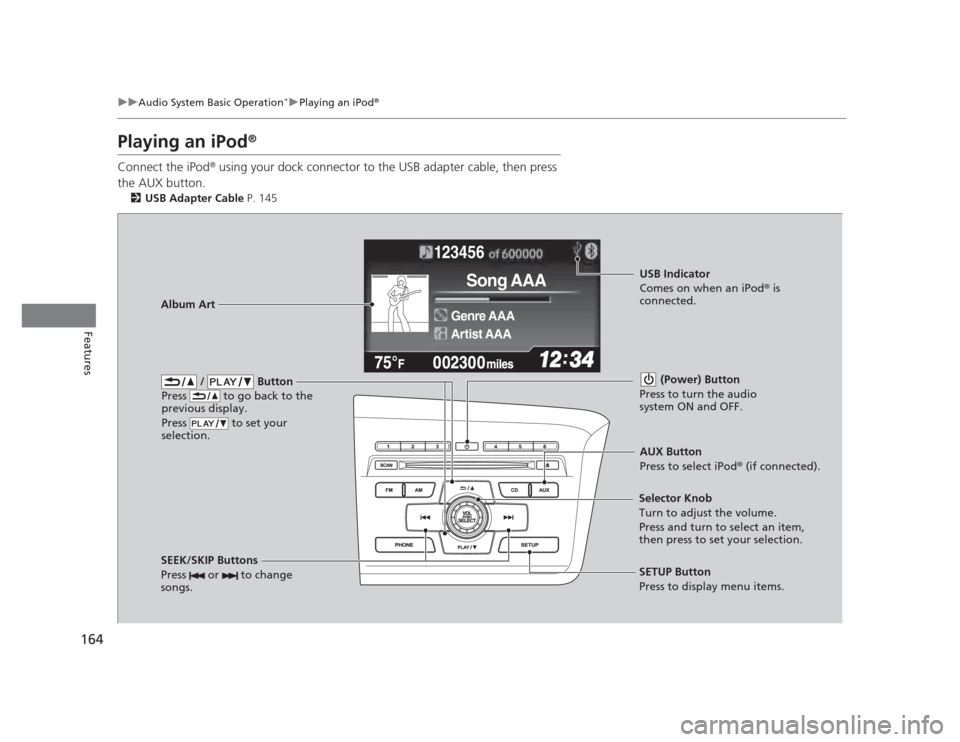
/ Button
Press to go back to the
previous display.
Press to set your
selection. (Power) Button
Press to turn the audio
system ON and OFF.
SEEK/SKIP Buttons
Press or to change
songs.SETUP Button
Press to display menu items.
Selector Knob
Turn to adjust the volume.
Press and turn to select an item,
then press to set your selection.
AUX Button
Press to select iPod
®
(if connected).
Album Art
USB Indicator
Comes on when an iPod ®
is
connected.
Page 166 of 345
Continued165
uuAudio System Basic Operation*uPlaying an iPod®
Features
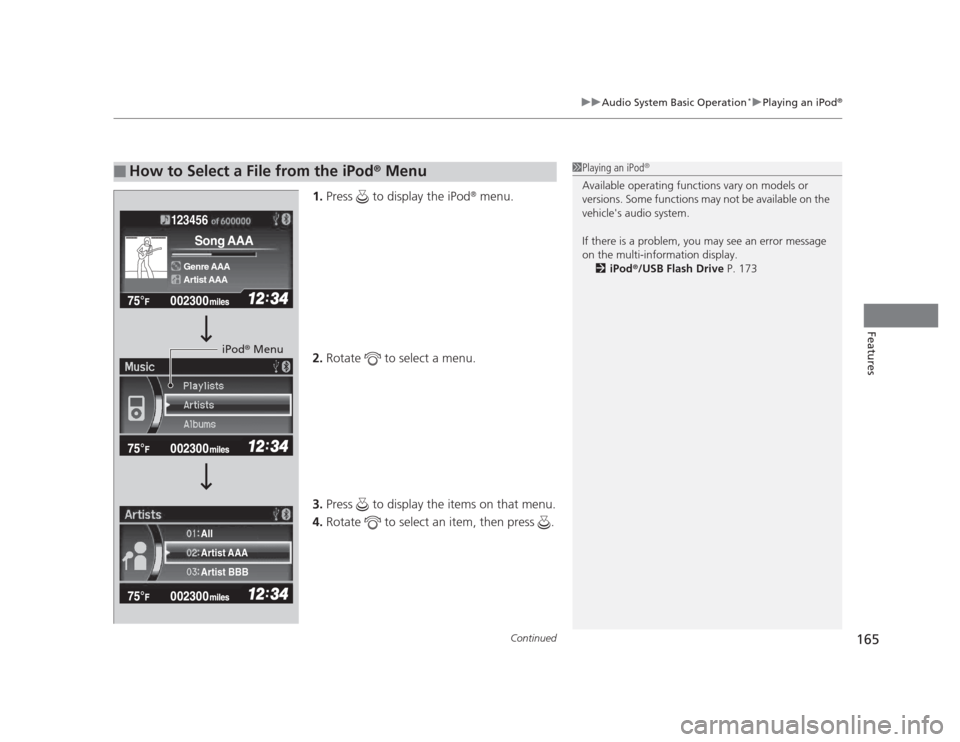
1.
Press to display the iPod ®
menu.
2. Rotate to select a menu.
3. Press to display the items on that menu.
4. Rotate to select an item, then press .
■How to Select a File from the iPod ®
Menu1Playing an iPod ®
Available operating functions vary on models or
versions. Some functions may not be available on the
vehicle's audio system.
If there is a problem, you may see an error message
on the multi-information display. 2 iPod ®
/USB Flash Drive P. 173
123456
Genre AAA
Song AAA
Artist AAA
Artist AAA
Artist BBB
All
iPod
®
Menu
Page 169 of 345
uuAudio System Basic Operation*uPlaying a USB Flash Drive
168
Features
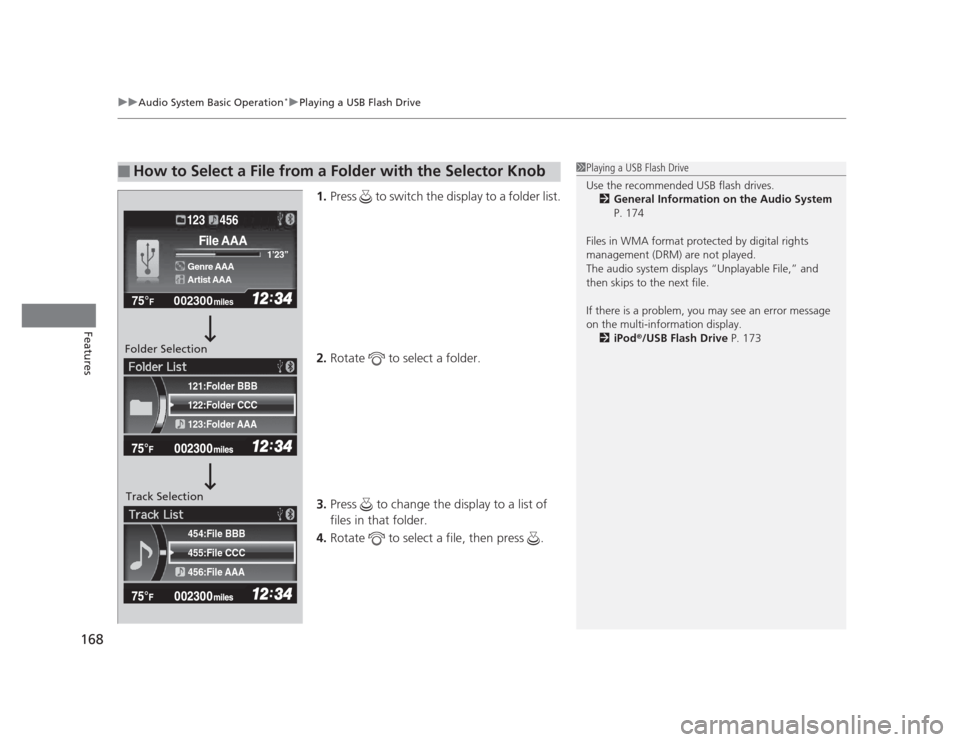
1. Press to switch the display to a folder list.
2. Rotate to select a folder.
3. Press to change the display to a list of files in that folder.
4. Rotate to select a file, then press .
■How to Select a File from a Folder with the Selector Knob1Playing a USB Flash Drive
Use the recommended USB flash drives.
2 General Information on the Audio System
P. 174
Files in WMA format protected by digital rights
management (DRM) are not played.
The audio system displays “Unplayable File,” and
then skips to the next file.
If there is a problem, you may see an error message
on the multi-information display. 2 iPod ®
/USB Flash Drive P. 173
455:File CCC
456:File AAA
454:File BBB
122:Folder CCC
123:Folder AAA
121:Folder BBB
002300
75°F miles
Genre AAA 1
Page 171 of 345

170
uuAudio System Basic Operation*uPlaying
Bluetooth ®
Audio
Features
Playing Bluetooth ®
Audio
Your audio system allows you to listen to music from your Bluetooth®
-compatible
phone.
This function is available when the phone is paired and linked to the vehicle's
Bluetooth ®
HandsFreeLink ®
(HFL) system.
2 Phone Setup P. 183
Models with Bluetooth®
HandsFreeLink ®
1Playing
Bluetooth ®
Audio
Not all Bluetooth -enabled phones with streaming
audio capabilities are compatible with the system.
You can find an approved phone by visiting
www.handsfreelink.honda.com , or by calling the
HandsFreeLink ®
consumer support at (888) 528 -
7876. In Canada, visit www.handsfreelink.ca, or call
(888) 528 -7876.
In some states, it may be illegal to perform some data
device functions while driving.
If more than one phone is paired to the HFL system,
there will be a delay before the system begins to play.
123456
Genre AAA
File AAA
Artist AAA
(Power) Button
Press to turn the
audio system ON and OFF.
SETUP Button
Press to display
menu items. Selector Knob
Turn to adjust the
volume.
Press to display the
device’s name.
AUX Button
Press to select
Bluetooth ®
Audio.
SEEK/SKIP Buttons
Press or to
change files.
Bluetooth Indicator
Comes on when
your phone is
connected to HFL.
Page 174 of 345
173
uuAudio Error Messages*uiPod®
/USB Flash Drive
Features
iPod ®
/USB Flash Drive
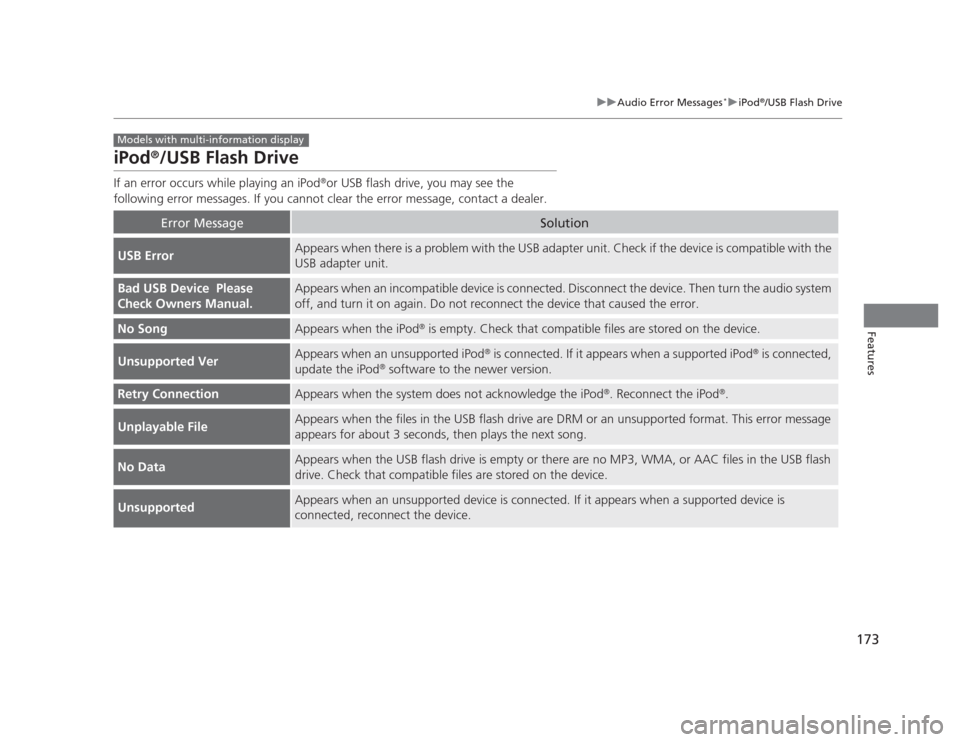
If an error occurs while playing an iPod ®
or USB flash drive, you may see the
following error messages. If you cannot clear the error message, contact a dealer.
Error MessageSolution
USB ErrorAppears when there is a problem with the USB adapter unit. Check if the device is compatible with the USB adapter unit.
Bad USB Device Please
Check Owners Manual.Appears when an incompatible device is connected. Disconnect the device. Then turn the audio system
off, and turn it on again. Do not reconnect the device that caused the error.
No SongAppears when the iPod ®
is empty. Check that compatible files are stored on the device.
Unsupported VerAppears when an unsupported iPod ®
is connected. If it appears when a supported iPod ®
is connected,
update the iPod ®
software to the newer version.
Retry ConnectionAppears when the system does not acknowledge the iPod ®
. Reconnect the iPod ®
.
Unplayable FileAppears when the files in the USB flash drive are DRM or an unsupported format. This error message
appears for about 3 seconds, then plays the next song.
No DataAppears when the USB flash drive is empty or there are no MP3, WMA, or AAC files in the USB flash
drive. Check that compatible files are stored on the device.
UnsupportedAppears when an unsupported device is connected. If it appears when a supported device is
connected, reconnect the device.
Models with multi-information display