Page 88 of 345
87
uuGauges and DisplaysuMulti-Information Display*
Continued
Instrument Panel
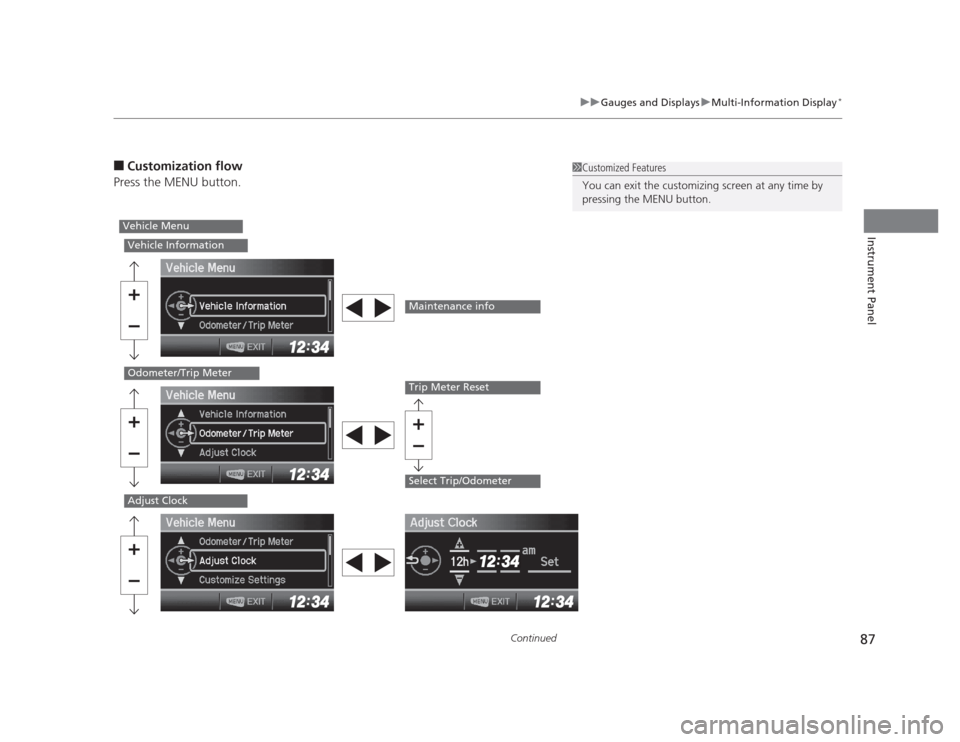
■
Customization flow
Press the MENU button.1Customized Features
You can exit the customizing screen at any time by
pressing the MENU button.
Vehicle Menu
Vehicle Information
Odometer/Trip Meter
Adjust Clock
Maintenance info
Trip Meter Reset
Select Trip/Odometer
Page 89 of 345
88
uuGauges and DisplaysuMulti-Information Display*
Instrument Panel
Customize Settings
Display Setup
Trip Computer Setup
Lighting Setup
Door Setup
Default All
Select Wallpaper
Language Selection
Adjust Outside Temp. Display
Fuel Efficiency Backlight*
Interior Light Dimming Time
Auto Light Sensitivity
*
Auto Door Lock
Security Relock Timer
Import Wallpaper
Delete Wallpaper
Trip Meter Item to Display
Welcome Screen
Color Theme
Turn by Turn Display*
Trip A Reset with Refuel
Display km/miles
Headlight Auto Off Timer
Door Lock Mode
Auto Door Unock
Keyless Lock Acknowledgment
* Not available on all models
Page 90 of 345
89
uuGauges and DisplaysuMulti-Information Display*
Continued
Instrument Panel
■
List of customizable options
*1: Default Setting Setup Group Customizable Features Description Selectable settings
Vehicle
InformationMaintenance infoReset the Maintenance Minder
TM
.No/Yes
Odometer/ Trip Meter Trip Meter Reset Reset the trip meter. Trip A/Trip B
Select Trip/Odometer
Switch between odometer, trip meter A, and trip
meter B. ODO
*1
/Trip A/Trip B
Adjust ClockSets time display 12 hour or 24 hour and adjust the time.12 h *1
/24 h
Page 91 of 345

90
uuGauges and DisplaysuMulti-Information Display*
Instrument Panel
*1: Not available on all models
*2: Default Setting
*3: Default Setting for 1.8 ℓ engine models
*4: Default Setting for 2.4 ℓ engine models
*5: Refer to the navigation system manual for complete details.Setup Group Customizable Features Description Selectable settings
Customize Settings Display SetupSelect
Wallpaper
Select the full-size analogue clock or the wallpaper. Clock
*2
/Image 1/Image 2/
Image 3
Import
Wallpaper Import an image file for a new wallpaper. Three images can be stored.
2Importing Wallpapers
from USB P. 93
Delete
Wallpaper Delete an image file for a wallpaper. Image 1/Image 2/Image 3
Trip Meter
Item to
Display Select an item to be displayed along with average
fuel economy.
Range
*2
/Elapsed time/
Average speed
Select an item to be displayed along with the instant
fuel economy. Average Fuel
*2
/Range/
Elapsed time/Average speed
Welcome Screen Select whether the welcome screen comes on or not
when you turn the ignition switch to ON
(w
. On
*2
/Off
Color Theme Changes the color of the screen. Blue *3
/Red *4
/Amber/Gray
Turn by Turn Display *1, *5 Select whether the turn-by-turn display comes on or
not during the route guidance.
On
*2
/Off
Language
Selection Changes the displayed language. English
*2
/French/Spanish
1.8 � engine models
2.4 � engine models
Page 93 of 345

92
uuGauges and DisplaysuMulti-Information Display*
Instrument Panel
*1:Default Setting
*2:Default Setting for automatic transmission
*3:Default Setting for manual transmissionSetup Group Customizable Features Description Selectable settings
Customize Settings Door SetupAuto Door
Lock
Changes the setting for the automatic locking feature. Off/With Vehicle Speed
*1
/
Shift from
(P
Door Lock
Mode Sets up either the driver’s door or all doors to unlock
on the first operation of the remote or ignition key.
Driver Door
*1
/All Doors
Auto Door
Unlock Changes the setting for when the doors unlock
automatically. Off/
Driver Door with Shift to
(P
*2
/
All Doors with Shift to
(P /
Driver Door with IGN Off *3
/
All Doors with IGN Off
Keyless Lock
AcknowledgmentLOCK/UNLOCK- The exterior lights flash.
LOCK (2nd push)- The beeper sounds. On
*1
/Off
Security
Relock Timer Changes the time it takes for the doors to relock and
the security system to set after you unlock the
vehicle without opening any door.
90sec/60sec/30sec
*1
Default All Cancels/Resets all the customized settings as default. Cancel Reset All Defaults
Page 94 of 345

Continued93
uuGauges and DisplaysuMulti-Information Display*
Instrument Panel
■
Example for customizing wallpapers
You can customize the display from clock to wallpaper.
Importing Wallpapers from USB
You can import up to three images, one at a time for wallpaper from a USB flash drive.Select Import Wallpaper from Customize Settings and properly connect a USB
flash drive to store an image.
1.Connect the USB flash drive to the adapter
cable.
2 USB Adapter Cable P. 145
2. Press the Menu button.
3. Select Customize Settings with the /
button, then press the SOURCE button.
4. Select Display Setup with the /
button, then press the SOURCE button.1Customize Features • When importing wallpaper files, the image must be
in the USB flash drive’s root directory. Images in a
folder cannot be imported.
• The file format of the image that can be imported
is BMP (bmp) or JPEG (jpg).
• The individual file size limit is 2 MB.
• The maximum image size is 1,920 x 936 pixels. If
the image size was less than 480 x 234 pixels, the
image is displayed in the middle of the screen with
the extra area appearing in black.
• The number of files that can be selected is up to 255.
• Up to 64 characters can be displayed in the file name.
+
–
+–
Page 98 of 345

97
Controls
This chapter explains how to operate the various controls necessary for driving.
Setting the Clock ................................ 98
Locking and Unlocking the Doors
Key Types and Functions ... ................. 99
Locking/Unlocking the Doors from the Outside .......................................... 101
Locking/Unlocking the Doors from the
Inside ............................................. 103
Childproof Door Locks ..................... 104
Auto Door Locking/Unlocking *
........ 105
Opening and Closing the Trunk ....... 109
Security System ................................ 112
Immobilizer System .......................... 112
Security System Alarm *
.................... 112
Opening and Closing the Windows ..... 114Opening and Closing the Moonroof*...... 116Operating the Switches Around the
Steering WheelIgnition Switch ................................. 117
Turn Signals ..................................... 118
Light Switches.................................. 118Fog Lights *
...................................... 120
Daytime Running Lights ................... 120
Wipers and Washers ........................ 121
Brightness Control ........................... 122 Rear Defogger/Heated Door Mirror *
Button ........................................... 123
ECON Button *
................................. 123
Adjusting the Steering Wheel........... 124 Adjusting the Mirrors
....................... 125
Interior Rearview Mirror ................... 125
Power Door Mirrors *
....................... 125
Adjusting the Seats .......................... 126
Adjusting the Seat Positions ............. 126
Interior Lights/Interior Convenience Items ................................................ 134
Interior Lights .................................. 134
Interior Convenience Items .............. 135
Heating and Cooling *
....................... 140
Using Vents, Heating and A/C *
........ 140
* Not available on all models
Page 99 of 345
98
Controls
Setting the Clock
Clock
You can adjust the time in the clock display, using the CLOCK knob with the ignition
switch in ON
(w.
1.Press the CLOCK knob to access the clock
adjustment mode screen.
2. Turn the CLOCK knob to adjust the hours.
3. Press the CLOCK knob. The display switches
to minute adjustment.
4. Turn the CLOCK knob to adjust the
minutes.
5. Press the CLOCK knob to complete clock
adjustment.
1Clock
The clock is automatically updated through the
navigation system, so the time does not need to be
adjusted.
You can customize the clock display to show the 12
hour clock or 24 hour clock.
2 Customized Features P. 86
You cannot adjust the time while the vehicle is
moving.
Models with navigation system
Models with multi-information display
Models with information display
Models without navigation system
CLOCK Knob
On multi-information display
On information display