Page 395 of 468

Black plate (83,1)GMC Acadia/Acadia Denali Owner Manual - 2012
Vehicle Care 10-83
Dinghy Towing
If the vehicle is front-wheel‐drive, it
can be dinghy towed from the front.
These vehicles may also be towed
by putting the front wheels on a
dolly. See“Dolly Towing” later in this
section. If the vehicle is all‐wheel‐drive, it
can be dinghy towed from the front.
These vehicles can also be towed
by placing them on a platform trailer
with all four wheels off of the
ground. These vehicles cannot be
towed using a dolly.
For vehicles being dinghy towed,
the vehicle should be run at the
beginning of each day and at each
RV fuel stop for about five minutes.
This will ensure proper lubrication of
transmission components. Reinstall
the fuse to start the vehicle.
To tow the vehicle from the front
with all four wheels on the ground:
1. Position the vehicle to be
towed, shift the transmission to
P (Park), and turn the ignition
to LOCK/OFF.
2. Secure the vehicle to the towing vehicle.
3. Set the parking brake.
4. Turn the ignition to ACC/ACCESSORY.
5. Shift the transmission to N (Neutral).
Page 397 of 468
Black plate (85,1)GMC Acadia/Acadia Denali Owner Manual - 2012
Vehicle Care 10-85
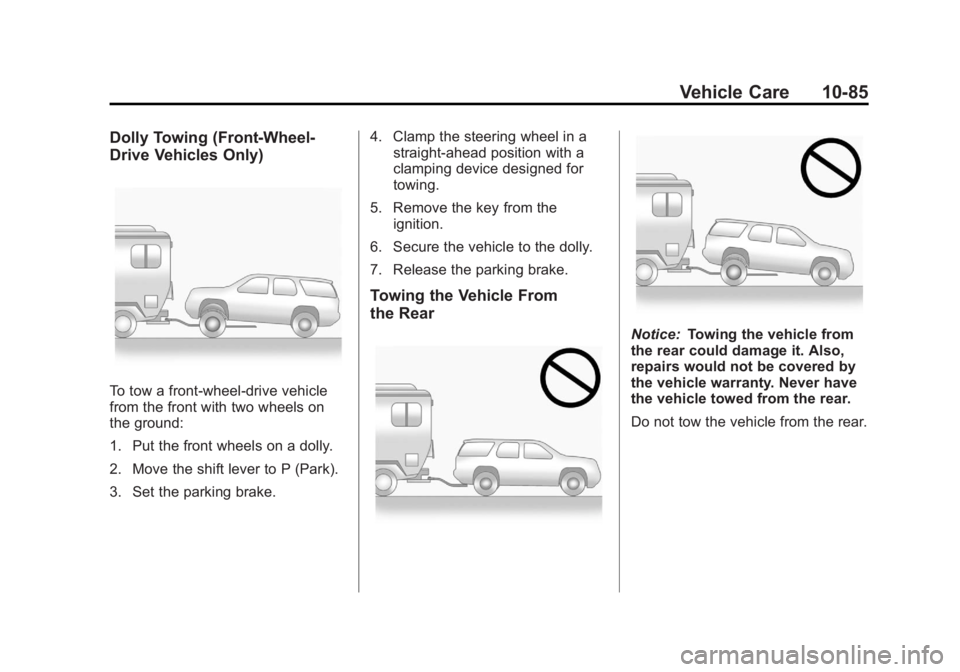
Dolly Towing (Front-Wheel‐
Drive Vehicles Only)
To tow a front-wheel‐drive vehicle
from the front with two wheels on
the ground:
1. Put the front wheels on a dolly.
2. Move the shift lever to P (Park).
3. Set the parking brake.4. Clamp the steering wheel in a
straight-ahead position with a
clamping device designed for
towing.
5. Remove the key from the ignition.
6. Secure the vehicle to the dolly.
7. Release the parking brake.
Towing the Vehicle From
the Rear
Notice: Towing the vehicle from
the rear could damage it. Also,
repairs would not be covered by
the vehicle warranty. Never have
the vehicle towed from the rear.
Do not tow the vehicle from the rear.
Page 404 of 468
Black plate (92,1)GMC Acadia/Acadia Denali Owner Manual - 2012
10-92 Vehicle Care
Floor Mats
{WARNING
If a floor mat is the wrong size
or is not properly installed,
it can interfere with the pedals.
Interference with the pedals can
cause unintended acceleration
and/or increased stopping
distance which can cause a crash
and injury. Make sure the floor
mat does not interfere with the
pedals.Use the following guidelines for
proper floor mat usage.
.The original equipment floor
mats were designed for your
vehicle. If the floor mats need
replacing, it is recommended
that GM certified floor mats be
purchased. Non-GM floor mats
may not fit properly and may
interfere with the accelerator or
brake pedal. Always check that
the floor mats do not interfere
with the pedals.
.Use the floor mat with the
correct side up. Do not turn
it over.
.Do not place anything on top of
the driver side floor mat.
.Use only a single floor mat on
the driver side.
.Do not place one floor mat on
top of another.
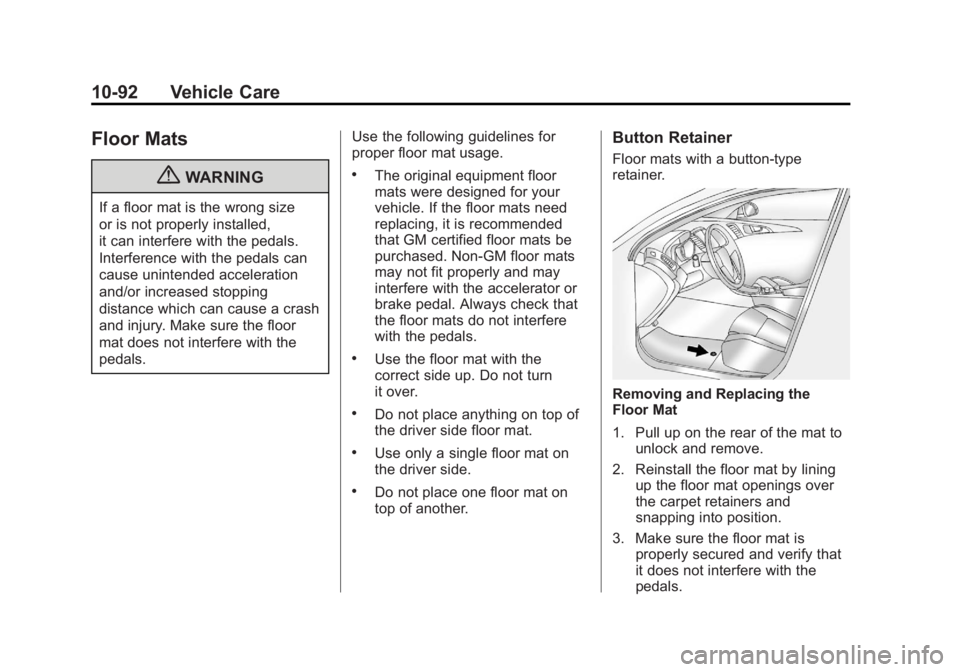
Button Retainer
Floor mats with a button-type
retainer.
Removing and Replacing the
Floor Mat
1. Pull up on the rear of the mat to
unlock and remove.
2. Reinstall the floor mat by lining up the floor mat openings over
the carpet retainers and
snapping into position.
3. Make sure the floor mat is properly secured and verify that
it does not interfere with the
pedals.
Page 405 of 468
Black plate (93,1)GMC Acadia/Acadia Denali Owner Manual - 2012
Vehicle Care 10-93
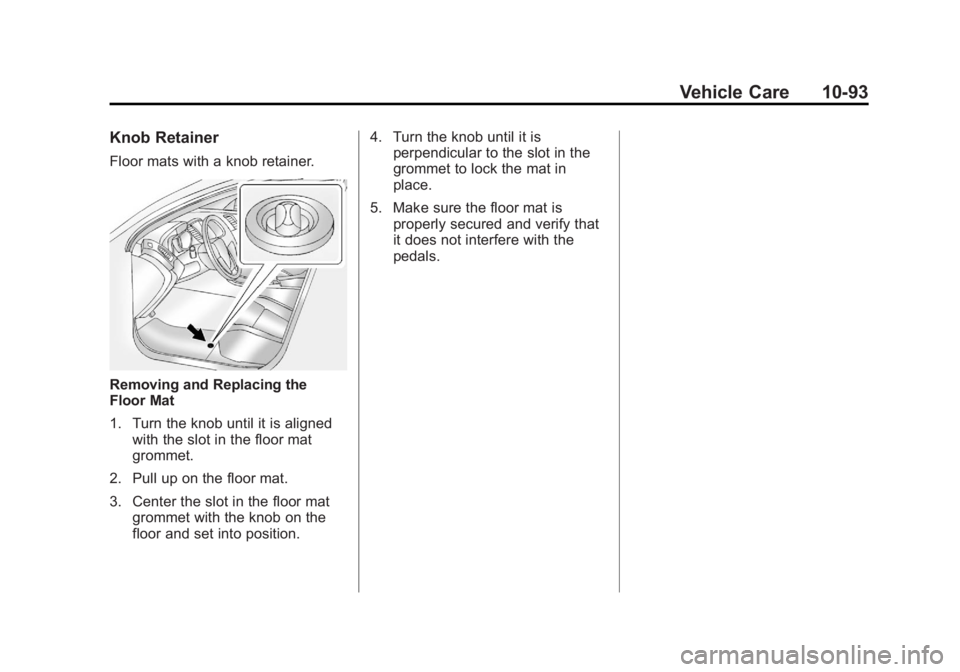
Knob Retainer
Floor mats with a knob retainer.
Removing and Replacing the
Floor Mat
1. Turn the knob until it is alignedwith the slot in the floor mat
grommet.
2. Pull up on the floor mat.
3. Center the slot in the floor mat grommet with the knob on the
floor and set into position. 4. Turn the knob until it is
perpendicular to the slot in the
grommet to lock the mat in
place.
5. Make sure the floor mat is properly secured and verify that
it does not interfere with the
pedals.
Page 435 of 468

Black plate (9,1)GMC Acadia/Acadia Denali Owner Manual - 2012
Customer Information 13-9
GMC and General Motors of
Canada Limited reserve the right to
limit services or payment to an
owner or driver if they decide the
claims are made too often, or the
same type of claim is made many
times.
Services Provided
.Emergency Fuel Delivery:
Delivery of enough fuel for the
vehicle to get to the nearest
service station.
.Lock‐Out Service:Service to
unlock the vehicle if you are
locked out. A remote unlock
may be available if you have
OnStar
®. For security reasons,
the driver must present
identification before this
service is given.
.Emergency Tow From a Public
Road or Highway: Tow to the
nearest GMC dealer for warranty
service, or if the vehicle was in
a crash and cannot be driven.
Assistance is also given when
the vehicle is stuck in the sand,
mud, or snow.
.Flat Tire Change: Service to
change a flat tire with the spare
tire. The spare tire, if equipped,
must be in good condition and
properly inflated. It is the owner's
responsibility for the repair or
replacement of the tire if it is not
covered by the warranty.
.Battery Jump Start: Service to
jump start a dead battery.
.Trip Routing Service: Detailed
maps of North America when
requested either with the
most direct route or the most
scenic route. Additional travel
information is also available.
Allow three weeks for delivery.
.Trip Interruption Benefits and
Assistance: If your trip is
interrupted due to a warranty
failure, incidental expenses
may be reimbursed during the
5 years/(160 000 km) 100,000 mi
Powertrain warranty period.
Items considered are hotel,
meals, and rental car.
Services Not Included in
Roadside Assistance
.Impound towing caused by
violation of any laws.
.Legal fines.
.Mounting, dismounting,
or changing of snow tires,
chains, or other traction devices.
.Towing or services for vehicles
driven on a non-public road or
highway.
Page 448 of 468

Black plate (22,1)GMC Acadia/Acadia Denali Owner Manual - 2012
13-22 Customer Information
OnStar®
If the vehicle is equipped with an
active OnStar system, that system
may also record data in crash
or near crash-like situations.
The OnStar Terms and Conditions
provides information on data
collection and use and is available
at www.onstar.com (U.S.) or
www.onstar.ca (Canada), or by
pressing the
Qbutton and
speaking to an advisor. See OnStar
Overview on page 14‑1.
Navigation System
If the vehicle has a navigation
system, use of the system may
result in the storage of destinations,
addresses, telephone numbers,
and other trip information.
Refer to the navigation manual
for information on stored data and
for deletion instructions.
Radio Frequency
Identification (RFID)
RFID technology is used in some
vehicles for functions such as tire
pressure monitoring and ignition
system security, as well as in
connection with conveniences
such as key fobs for remote door
locking/unlocking and starting, and
in-vehicle transmitters for garage
door openers. RFID technology in
GM vehicles does not use or record
personal information or link with
any other GM system containing
personal information.
Radio Frequency
Statement
This vehicle has systems that
operate on a radio frequency that
comply with Part 15 of the Federal
Communications Commission (FCC)
rules and with Industry Canada
Standards RSS‐GEN/210/220/310.
Operation is subject to the following
two conditions:
1. The device may not cause harmful interference.
2. The device must accept any interference received, including
interference that may cause
undesired operation of the
device.
Changes or modifications to any of
these systems by other than an
authorized service facility could void
authorization to use this equipment.
Page 449 of 468
Black plate (1,1)GMC Acadia/Acadia Denali Owner Manual - 2012
OnStar 14-1
OnStar
OnStar Overview
OnStar Overview . . . . . . . . . . . . 14-1
OnStar Services
Emergency . . . . . . . . . . . . . . . . . . 14-2
Security . . . . . . . . . . . . . . . . . . . . . . 14-2
Navigation . . . . . . . . . . . . . . . . . . . 14-2
Connections . . . . . . . . . . . . . . . . . 14-4
Diagnostics . . . . . . . . . . . . . . . . . . 14-5
OnStar Additional Information
OnStar AdditionalInformation . . . . . . . . . . . . . . . . . 14-5
OnStar Overview
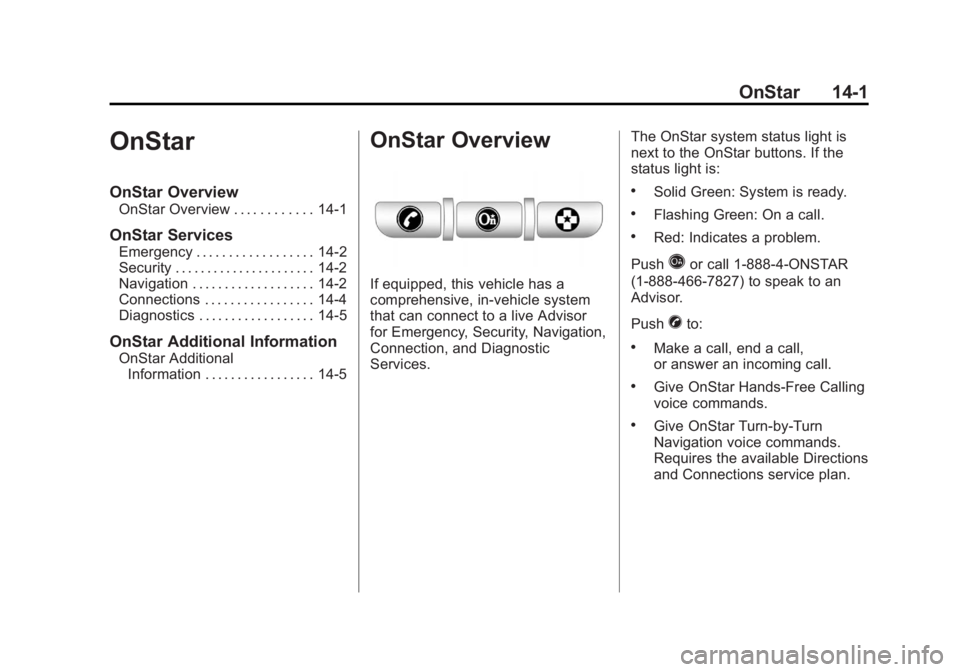
If equipped, this vehicle has a
comprehensive, in-vehicle system
that can connect to a live Advisor
for Emergency, Security, Navigation,
Connection, and Diagnostic
Services. The OnStar system status light is
next to the OnStar buttons. If the
status light is:
.Solid Green: System is ready.
.Flashing Green: On a call.
.Red: Indicates a problem.
Push
Qor call 1‐888‐4‐ONSTAR
(1‐888‐466‐7827) to speak to an
Advisor.
Push
Xto:
.Make a call, end a call,
or answer an incoming call.
.Give OnStar Hands-Free Calling
voice commands.
.Give OnStar Turn-by-Turn
Navigation voice commands.
Requires the available Directions
and Connections service plan.
Page 450 of 468

Black plate (2,1)GMC Acadia/Acadia Denali Owner Manual - 2012
14-2 OnStar
PushQto connect to a live
Advisor to:
.Verify account information or
update contact information.
.Get driving directions. Requires
the available Directions and
Connections service plan.
.Receive On-Demand
Diagnostics for a check on the
vehicle’s key operating systems.
.Receive Roadside Assistance.
Push
]to get a priority connection
to an Emergency Advisor available
24/7 to:
.Get help for an emergency.
.Be a Good Samaritan or
respond to an AMBER Alert.
.Get crisis assistance and
evacuation routes.
OnStar Services
Emergency
With Automatic Crash Response,
the built-in system can automatically
connect to help in a crash even if
you cannot ask for it.
Push
]to connect to an
Emergency Advisor. GPS
technology is used to identify the
vehicle location and can provide
critical information to emergency
personnel. The Advisor is also
trained to offer critical assistance
in emergency situations.
Security
OnStar provides services like Stolen
Vehicle Assistance, Remote Ignition
Block, and Roadside Assistance,
if the vehicle is equipped with these
services. OnStar can unlock the
vehicle doors remotely, if it is
equipped with automatic door locks,
and can help police locate the
vehicle if it is stolen.
Navigation
OnStar navigation requires the
Directions and Connections
service plan.
Push
Qto receive directions or
have them sent to the vehicle
navigation screen. Destinations
can also be forwarded to the
vehicle from Google Maps™ or
MapQuest.com. The OnStar
mapping database is continuously
updated. Visit www.onstar.com for
coverage maps.
Turn-by-Turn Navigation
1. PushQto connect to a live
Advisor.
2. Request directions.
3. Directions are downloaded to the vehicle.
4. Follow the voice-guided commands.