Page 175 of 603
NOTE:
1. Only available with Navigation equipped vehicles.
2. You can replace “Player” with “Radio”, “Navigation”,
“Phone”, “Climate”, “More” or “Settings”.3. Navigation commands only work if equipped with
Navigation.
4. Available Voice Commands are shown in bold face
and shaded grey.
3
UNDERSTANDING THE FEATURES OF YOUR VEHICLE 173
Page 210 of 603
Interior Light Defeat (OFF)
Rotate the dimmer control to the extreme bottom off
position. The interior lights will remain off when the
doors are open.
Parade Mode (Daytime Brightness Feature)
Rotate the dimmer control upward to the first detent.
This feature brightens all text displays such as the
odometer, EVIC (if equipped), and radio when the park-
ing lights or headlights are on.
Map/Reading Lights
These lights are mounted between the sun visors on the
overhead console. Refer to “Overhead Console” in “Un-
derstanding The Features Of Your Vehicle” for further
information.
WINDSHIELD WIPERS AND WASHERS
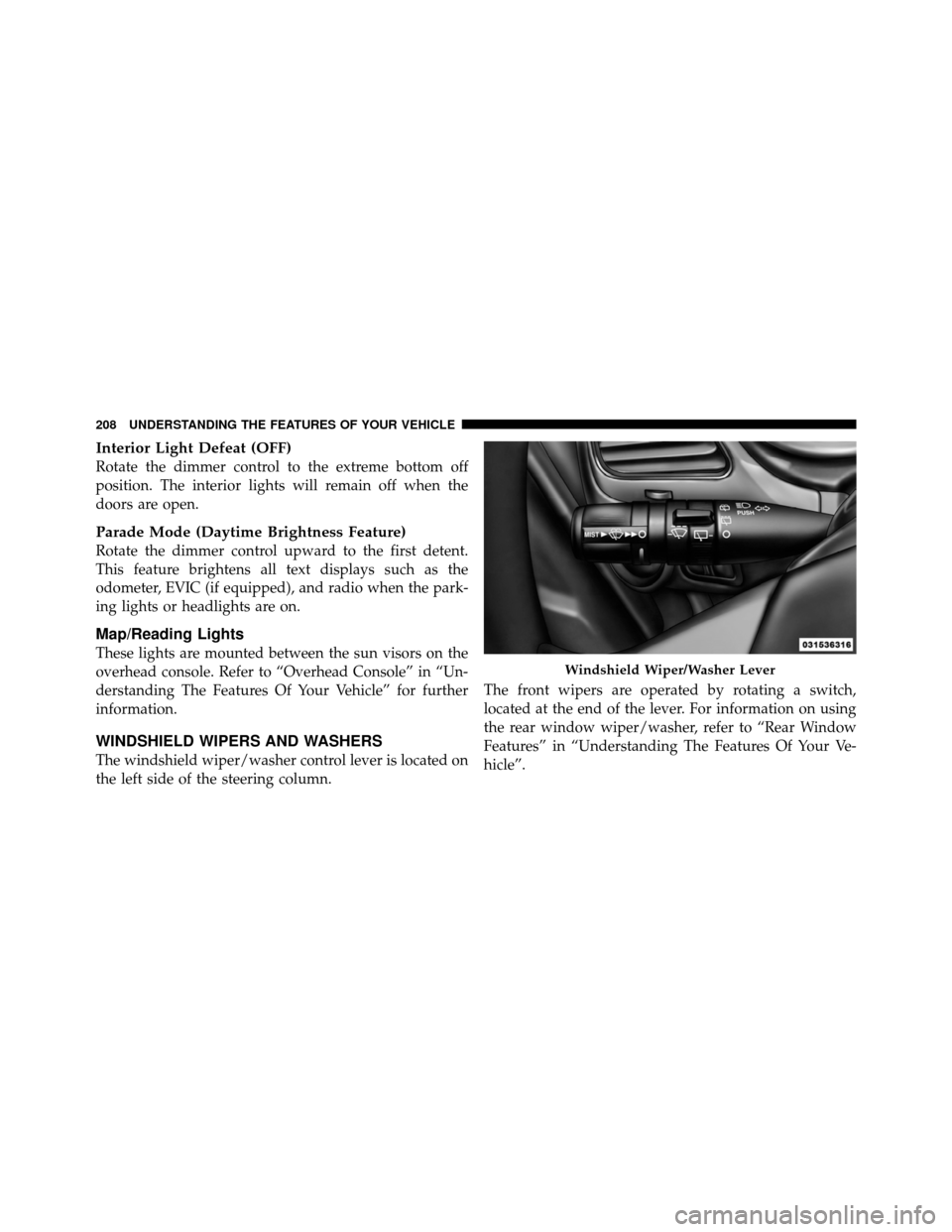
The windshield wiper/washer control lever is located on
the left side of the steering column.The front wipers are operated by rotating a switch,
located at the end of the lever. For information on using
the rear window wiper/washer, refer to “Rear Window
Features” in “Understanding The Features Of Your Ve-
hicle”.
Windshield Wiper/Washer Lever
208 UNDERSTANDING THE FEATURES OF YOUR VEHICLE
Page 227 of 603
PARKVIEW�REAR BACK UP CAMERA — IF
EQUIPPED
Your vehicle may be equipped with the ParkView� Rear
Back Up Camera that allows you to see an on-screen
image of the rear surroundings of your vehicle whenever
the shift lever is put into REVERSE. The image will be
displayed on the radio touchscreen display along with a
caution note to “check entire surroundings” across the
top of the screen. After five seconds this note will
disappear. The ParkView� camera is located on the rear
of the vehicle above the rear License plate. When the vehicle is shifted out of REVERSE, the rear
camera mode is exited and the navigation or audio screen
appears again.
When displayed, static grid lines will illustrate the width
of the vehicle while a dashed center-line will indicate the
center of the vehicle to assist with parking or aligning to
a hitch/receiver. The static grid lines will show separate
zones that will help indicate the distance to the rear of the
vehicle. The following table shows the approximate
distances for each zone:
Zone
Distance to the rear of the vehicle
Red 0-1ft(0-30cm)
Yellow 1 ft-3ft(30cm-1m)
Green 3 ft or greater (1 m or greater)
3
UNDERSTANDING THE FEATURES OF YOUR VEHICLE 225
Page 229 of 603
Turning ParkView�On Or Off — With Touch
Screen Radio
1. Turn the Radio on.
2. Press the “More” soft-key.
3. Press the “Settings” soft-key.
4. Press the “Safety & Driving Assistance” soft-key.
5. Press the check box soft key next to “Parkview�
Backup Camera” to enable/disable.
OVERHEAD CONSOLE
The overhead console contains courtesy/reading lights,
storage for sunglasses, an interior observation mirror and
an optional power sunroof switch.Courtesy/Reading Lights
The overhead console has two courtesy lights. The lights
turn on when a front door, a sliding door or the liftgate is
opened. If your vehicle is equipped with Remote Keyless
Entry (RKE) the lights will also turn on when the
UNLOCK button on the RKE transmitter is pressed. The
Overhead Console
3
UNDERSTANDING THE FEATURES OF YOUR VEHICLE 227
Page 233 of 603
NOTE:HomeLink� is disabled when the Vehicle Secu-
rity Alarm is active.
Before You Begin Programming HomeLink�
Be sure that your vehicle is parked outside of the garage
before you begin programming.
For more efficient programming and accurate transmis-
sion of the radio-frequency signal it is recommended that
a new battery be placed in the hand-held transmitter of
the device that is being programmed to the HomeLink�
system.
Erase all channels before you begin programming. To
erase the channels place the ignition in the ON/RUN
position and press and hold the two outside HomeLink�
buttons (I and III) for up 20 seconds or until the red
indicator flashes.
NOTE:
•Erasing all channels should only be performed when
programming HomeLink� for the first time. Do not
erase channels when programming additional buttons.
HomeLink� Buttons/Sunvisor/Headliner
3
UNDERSTANDING THE FEATURES OF YOUR VEHICLE 231
Page 237 of 603

Reprogramming A Single HomeLink�Button
To reprogram a channel that has been previously trained,
follow these steps:
1. Turn the ignition switch to the ON/RUN position.
2. Press and hold the desired HomeLink� button until
the indicator light begins to flash after 20 seconds. Do not
release the button.
3. Without releasing the button proceed with “Program-
ming A Non-Rolling Code” Step 2 and follow all remain-
ing steps.
Canadian/Gate Operator Programming
For programming transmitters in Canada/United States
that require the transmitter signals to “time-out” after
several seconds of transmission.
Canadian radio frequency laws require transmitter sig-
nals to time-out (or quit) after several seconds of trans-
mission – which may not be long enough for HomeLink� to pick up the signal during programming. Similar to this
Canadian law, some U.S. gate operators are designed to
time-out in the same manner.
It may be helpful to unplug the device during the cycling
process to prevent possible overheating of the garage
door or gate motor.
1. Turn the ignition switch to the ON/RUN position.
2. Place the hand-held transmitter 1 to 3 in (3 to 8 cm)
away from the HomeLink�
button you wish to program
while keeping the HomeLink� indicator light in view.
3. Continue to press and hold the HomeLink� button,
while you press and release (“cycle”), your hand-held
transmitter every two seconds until HomeLink� has
successfully accepted the frequency signal. The indicator
light will flash slowly and then rapidly when fully
trained.
3
UNDERSTANDING THE FEATURES OF YOUR VEHICLE 235
Page 244 of 603

Sunroof Maintenance
Use only a nonabrasive cleaner and a soft cloth to clean
the glass panel.
Ignition Off Operation
For vehicles not equipped with the Electronic Vehicle
Information Center (EVIC), the power sunroof switch
will remain active for 45 seconds after the ignition switch
is turned to the LOCK position. Opening either front
door will cancel this feature.
For vehicles equipped with the EVIC, the power sunroof
switch will remain active for up to 10 minutes after the
ignition switch is turned to the LOCK position. Opening
either front door will cancel this feature.
NOTE:The delay time if programmable using the
Uconnect Touch™ system. Refer to “Uconnect Touch™
System” in “Understanding Your Instrument Panel” for
further information.
Sunroof Fully Closed
Press the switch forward and release to ensure that the
sunroof is fully closed.
ELECTRICAL POWER OUTLETS
A 12 Volt (13 Amp) power outlet located in the center
console below the radio. The power outlet has power
available when the ignition switch in the ON/RUN or
ACC position.
242 UNDERSTANDING THE FEATURES OF YOUR VEHICLE
Page 272 of 603

�Uconnect Touch™ Settings ............... 295
▫ Hard-Keys ......................... 295
▫ Soft-Keys .......................... 296
▫ Customer Programmable Features —
Uconnect Touch™ 4.3 Settings ........... 296
▫ Customer Programmable Features —
Uconnect Touch™ System 8.4 Settings ...... 306
� Uconnect™ Multimedia Video Entertainment
System (VES)™ — If Equipped ............ 319
▫ Getting Started ...................... 319
▫ Single Video Screen ................... 320
▫ Play Video Games .................... 321
▫ Listen To An Audio Source On Channel 2
While A Video Is Playing On Channel 1 .... 322▫
Important Notes For Single Video Screen
System ............................ 323
▫ Play A DVD Using The
Touch-Screen Radio ................... 323
▫ Remote Control ..................... 325
▫ Remote Control Storage ................ 327
▫ Locking The Remote Control ............ 328
▫ Replacing The Remote Control Batteries .... 328
▫ Headphones Operation ................ 328
▫ Replacing The Headphone Batteries ....... 329
▫ Controls ........................... 329
▫ Unwired� Stereo Headphone Lifetime
Limited Warranty .................... 330
▫ System Information ................... 332
270 UNDERSTANDING YOUR INSTRUMENT PANEL


