Page 4 of 643
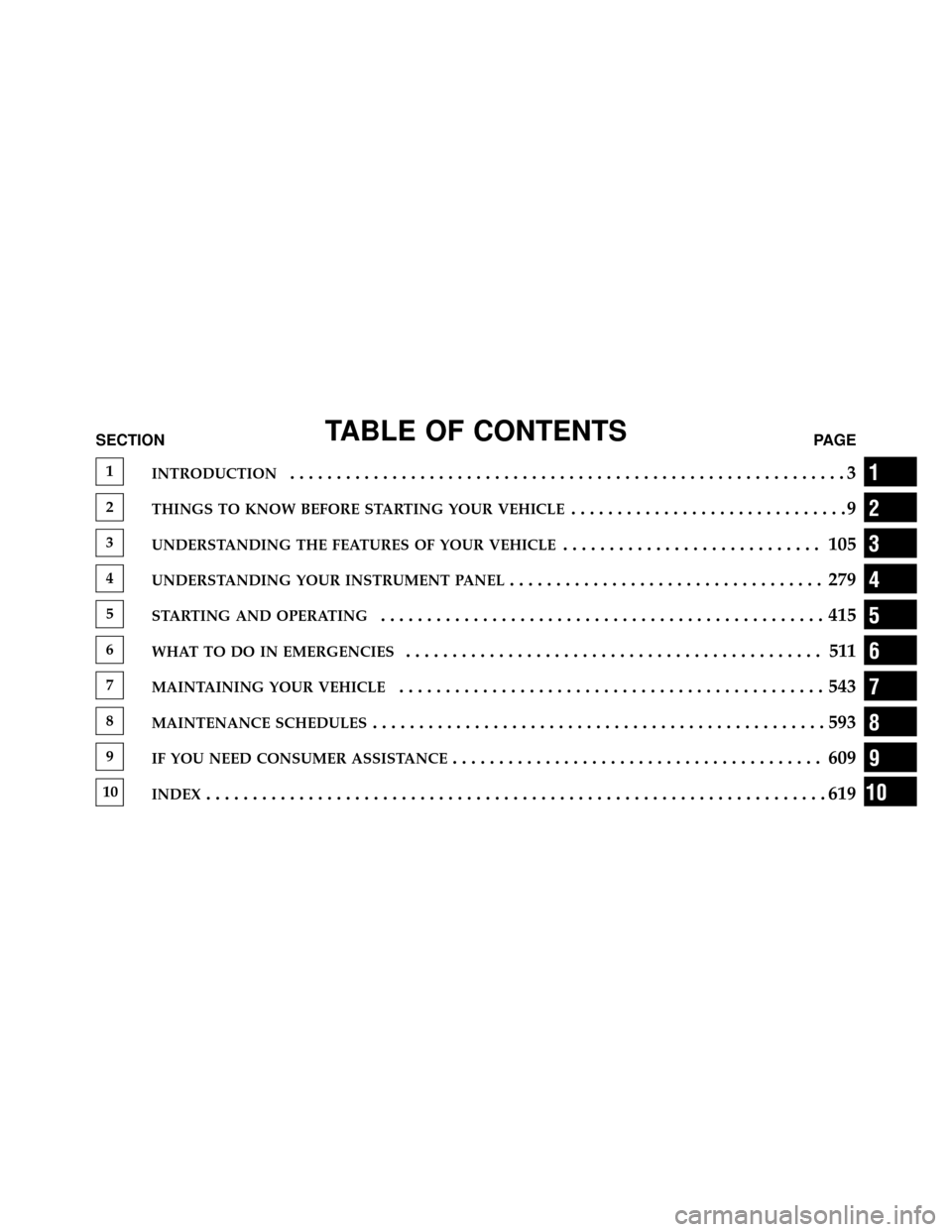
TABLE OF CONTENTSSECTIONPAGE
1INTRODUCTION............................................................3
2THINGS TO KNOW BEFORE STARTING YOUR VEHICLE..............................9
3UNDERSTANDING THE FEATURES OF YOUR VEHICLE............................ 105
4UNDERSTANDING YOUR INSTRUMENT PANEL.................................. 279
5STARTING AND OPERATING................................................415
6WHAT TO DO IN EMERGENCIES............................................. 511
7MAINTAINING YOUR VEHICLE..............................................543
8MAINTENANCE SCHEDULES.................................................593
9IF YOU NEED CONSUMER ASSISTANCE........................................ 609
10INDEX...................................................................619
1
2
3
4
5
6
7
8
9
10
Page 6 of 643
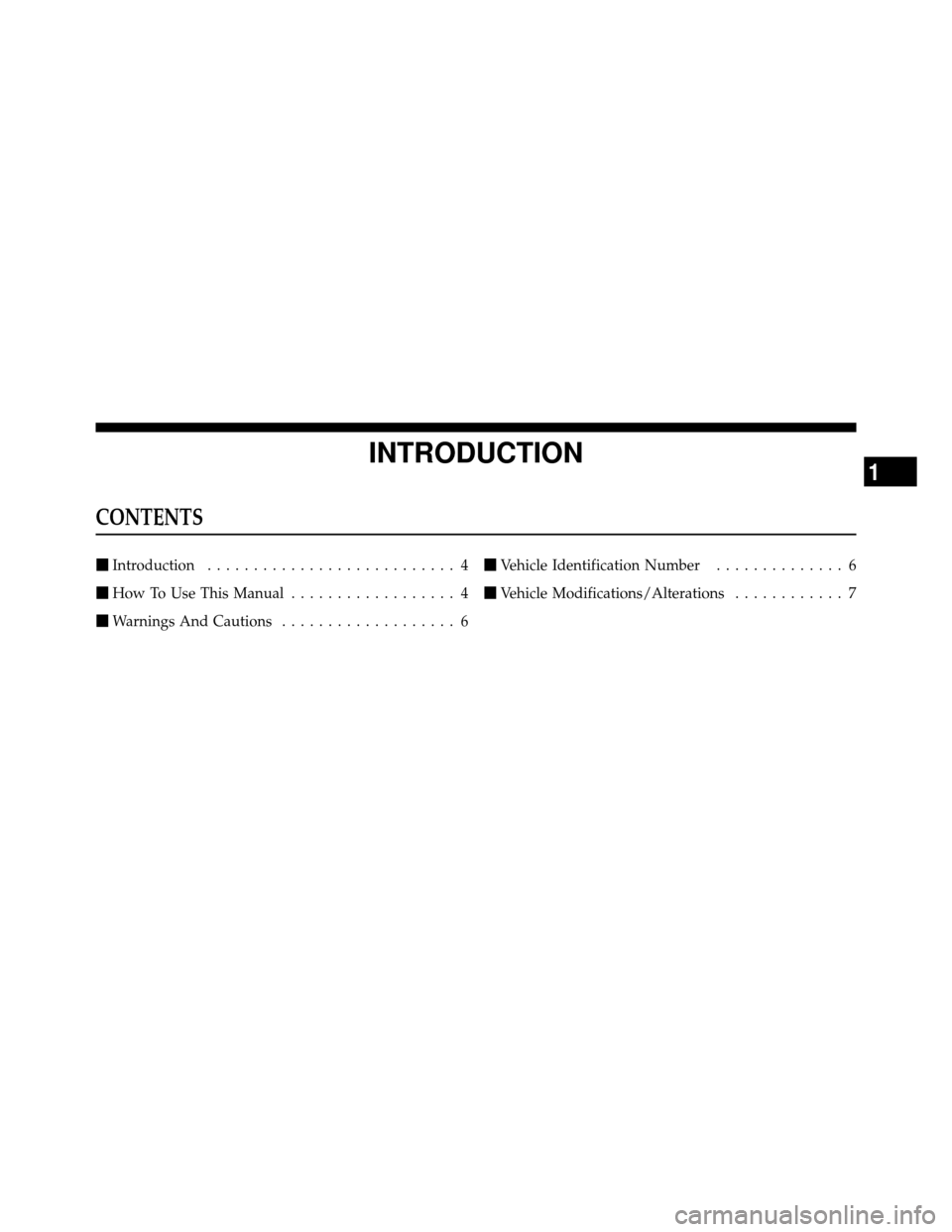
INTRODUCTION
CONTENTS
�Introduction ........................... 4
� How To Use This Manual .................. 4
� Warnings And Cautions ................... 6 �
Vehicle Identification Number .............. 6
� Vehicle Modifications/Alterations ............ 7
1
Page 7 of 643
INTRODUCTION
Congratulations on selecting your new Chrysler Group
LLC vehicle. Be assured that it represents precision
workmanship, distinctive styling, and high quality - all
essentials that are traditional to our vehicles.
This Owner’s Manual has been prepared with the assis-
tance of service and engineering specialists to acquaint
you with the operation and maintenance of your vehicle.
It is supplemented by Warranty Information, and various
customer-oriented documents. Please take the time to
read these publications carefully. Following the instruc-
tions and recommendations in this manual will help
assure safe and enjoyable operation of your vehicle.
NOTE: After reviewing the owner information, it
should be stored in the vehicle for convenient referenc-
ing and remain with the vehicle when sold.When it comes to service, remember that your authorized
dealer knows your vehicle best, has factory-trained tech-
nicians and genuine MOPAR�
parts, and cares about
your satisfaction.
HOW TO USE THIS MANUAL
Consult the Table of Contents to determine which section
contains the information you desire.
Since the specification of your vehicle depends on the
items of equipment ordered, certain descriptions and
illustrations may differ from your vehicle’s equipment.
The detailed index at the back of this Owner’s Manual
contains a complete listing of all subjects.
Consult the following table for a description of the
symbols that may be used on your vehicle or throughout
this Owner’s Manual:
4 INTRODUCTION
Page 12 of 643
THINGS TO KNOW BEFORE STARTING YOUR VEHICLE
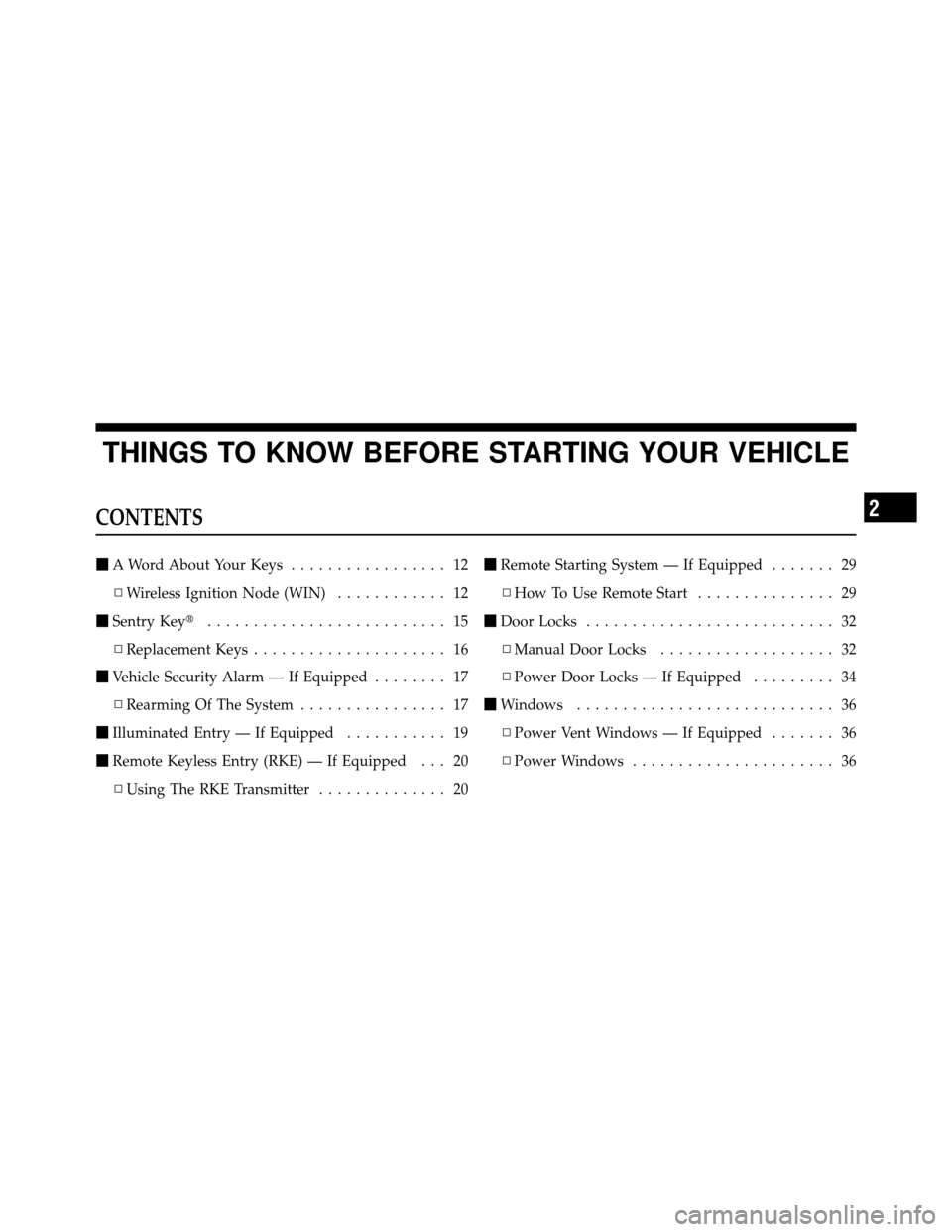
CONTENTS
�A Word About Your Keys ................. 12
▫ Wireless Ignition Node (WIN) ............ 12
� Sentry Key� .......................... 15
▫ Replacement Keys ..................... 16
� Vehicle Security Alarm — If Equipped ........ 17
▫ Rearming Of The System ................ 17
� Illuminated Entry — If Equipped ........... 19
� Remote Keyless Entry (RKE) — If Equipped . . . 20
▫ Using The RKE Transmitter .............. 20�
Remote Starting System — If Equipped ....... 29
▫ How To Use Remote Start ............... 29
� Door Locks ........................... 32
▫ Manual Door Locks ................... 32
▫ Power Door Locks — If Equipped ......... 34
� Windows ............................ 36
▫ Power Vent Windows — If Equipped ....... 36
▫ Power Windows ...................... 36
2
Page 108 of 643
UNDERSTANDING THE FEATURES OF YOUR VEHICLE
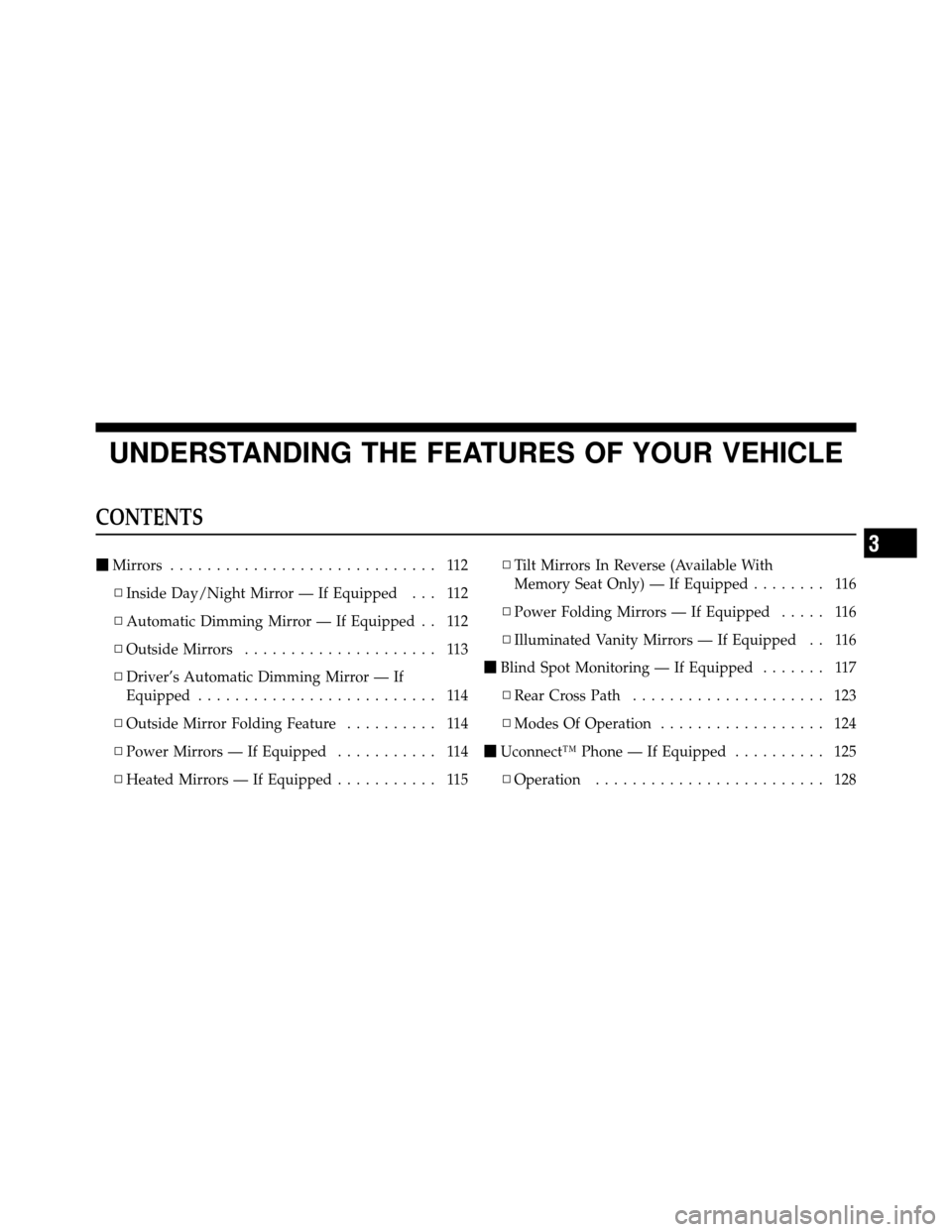
CONTENTS
�Mirrors ............................. 112
▫ Inside Day/Night Mirror — If Equipped . . . 112
▫ Automatic Dimming Mirror — If Equipped . . 112
▫ Outside Mirrors ..................... 113
▫ Driver’s Automatic Dimming Mirror — If
Equipped .......................... 114
▫ Outside Mirror Folding Feature .......... 114
▫ Power Mirrors — If Equipped ........... 114
▫ Heated Mirrors — If Equipped ........... 115▫
Tilt Mirrors In Reverse (Available With
Memory Seat Only) — If Equipped ........ 116
▫ Power Folding Mirrors — If Equipped ..... 116
▫ Illuminated Vanity Mirrors — If Equipped . . 116
� Blind Spot Monitoring — If Equipped ....... 117
▫ Rear Cross Path ..................... 123
▫ Modes Of Operation .................. 124
� Uconnect™ Phone — If Equipped .......... 125
▫ Operation ......................... 128
3
Page 282 of 643
UNDERSTANDING YOUR INSTRUMENT PANEL
CONTENTS
�Instrument Panel Features ............... 283
� Instrument Cluster — Base ............... 284
� Instrument Cluster — Premium ........... 285
� Instrument Cluster Descriptions ........... 286
� Electronic Vehicle Information Center
(EVIC) — If Equipped ................... 300
▫ Electronic Vehicle Information Center
(EVIC) Displays ..................... 302
▫ EVIC White Telltale Lights .............. 305
▫ EVIC Amber Telltale Lights ............. 306▫
EVIC Red Telltale Lights ............... 306
▫ Oil Change Required .................. 309
▫ Fuel Economy ...................... 310
▫ Vehicle Speed ....................... 311
▫ Trip Info .......................... 311
▫ TirePSI ........................... 312
▫ Units ............................. 312
▫ Vehicle Info
(Customer Information Features) ......... 312
4
Page 351 of 643
NOTE:The glove compartment will have a position
where the iPod� or consumer electronic audio device
cable can be routed through without damaging the cable
when closing the lid. This allows routing of the cable
without damaging it while closing the lid. If a cut out is
not available in the glove compartment, route the cable
away from the lid latch and in a place that will allow the
lid to close without damaging the cable.
Once the audio device is connected and synchronized to
the vehicle’s iPod�/USB/MP3 control system (iPod� or
external USB device may take a few minutes to connect),
the audio device starts charging and is ready for use by
pressing radio switches, as described below.
NOTE: If the audio device battery is completely dis-
charged, it may not communicate with the iPod�/USB/
MP3 control system until a minimum charge is attained.
Leaving the audio device connected to the iPod�/USB/
MP3 control system may charge it to the required level.Using This Feature
By using iPod cable or external USB device to connect to
USB port:
•The audio device can be played on the vehicle’s sound
system, providing metadata (artist, track title, album,
etc.) information on the radio display.
•The audio device can be controlled using the radio
buttons to Play, Browse, and List the iPod� contents.
•The audio device battery charges when plugged into
the USB/AUX connector (if supported by the specific
audio device)
Controlling The iPod�Or External USB Device
Using Radio Buttons
To get into the iPod�/USB/MP3 control mode and access
a connected audio device, either press the “AUX” button
on the radio faceplate or press the VR button and say
�USB� or�Switch to USB�. Once in the iPod�/USB/MP3
348 UNDERSTANDING YOUR INSTRUMENT PANEL
Page 373 of 643
disc in a radio with a multiple-disc changer, PROG Up
selects the next disc and PROG Down selects the previ-
ous disc.
11. MUTE – Press to mute the headphone audio output
for the selected channel.
12. SLOW – Press to slow playback of a DVD disc. Press
play (�) to resume normal play.
13. STATUS – Press to display the current status.
14. MODE – Press to change the mode of the selected
channel. See the Mode Selection section of this manual
for details on changing modes.
15. SETUP – When in a video mode, press the SETUP
button to access the display settings (see the display
settings section) to access the DVD setup menu, select the
menu button on the radio. When a disc is loaded in the
DVD player (if equipped) and the VES™ mode is selectedand the disc is stopped, press the SETUP button to access
the DVD Setup menu. (see the DVD Setup Menu of this
manual.)
16. BACK – When navigating in menu mode, press to
return to the previous screen. When navigating a DVDs
disc menu, the operation depends on the disc’s contents.
17.
�� – In radio modes, press to seek to the previous
tunable station. In disc modes, press and hold to fast
rewind through the current audio track or video chapter.
In menu modes use to navigate in the menu.
18. ENTER – Press to select the highlighted option in a
menu.
19. �/ NEXT – In radio modes, press to select to the
next station. In disc modes, press to advance to the next
audio track or video chapter. In menu modes, use to
navigate in the menu.
370 UNDERSTANDING YOUR INSTRUMENT PANEL