Page 157 of 594
•Performance, such as audio clarity, echo, and loudness
to a large degree rely on the phone and network, and
not the Uconnect™ Phone.
•Echo at the far end can sometimes be reduced by
lowering the in-vehicle audio volume.
•In a convertible vehicle, system performance may be
compromised with the convertible top down.
SMS
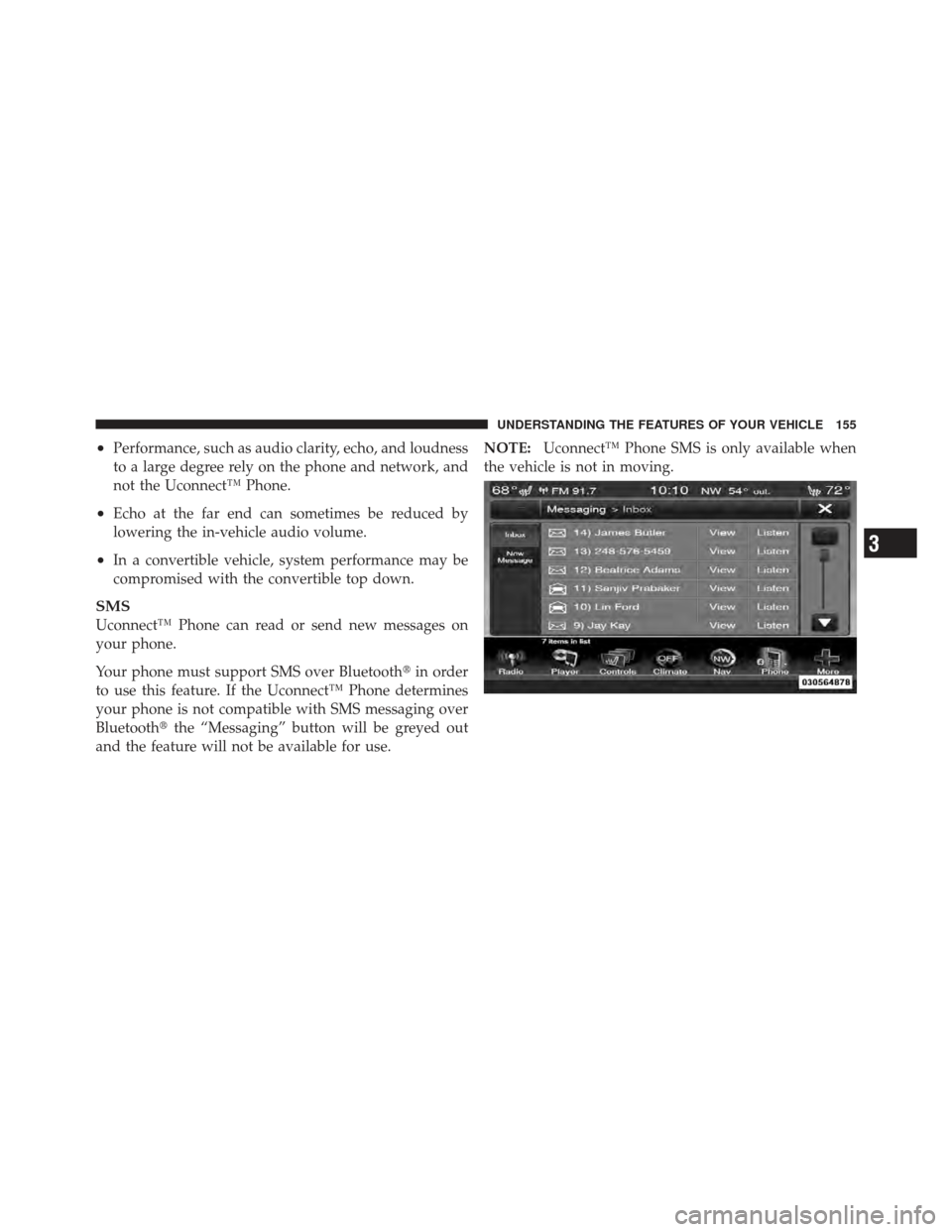
Uconnect™ Phone can read or send new messages on
your phone.
Your phone must support SMS over Bluetooth�in order
to use this feature. If the Uconnect™ Phone determines
your phone is not compatible with SMS messaging over
Bluetooth� the “Messaging” button will be greyed out
and the feature will not be available for use. NOTE:
Uconnect™ Phone SMS is only available when
the vehicle is not in moving.
3
UNDERSTANDING THE FEATURES OF YOUR VEHICLE 155
Page 161 of 594
10. I will be minutes late.
11. See you in minutes.
12. Stuck in traffic.
13. Start without me.
14. Where are you?
15. Are you there yet?
16. I need directions.
17. I’m lost.
18. See you later.Bluetooth�Communication Link
Mobile phones have been found to lose connection to the
Uconnect™ Phone. When this happens, the connection
can generally be reestablished by switching the phone
OFF/ON. Your mobile phone is recommended to remain
in Bluetooth� ON mode.
Power-Up
After switching the ignition key from OFF to either the
ON or ACC position, or after a language change, you
must wait at least 15 seconds prior to using the system.
3
UNDERSTANDING THE FEATURES OF YOUR VEHICLE 159
Page 163 of 594
NOTE:
•You can replace “John Smith” with any name in your
mobile or favorite phone book. You can also say “Send
a message to John Smith” and the system will ask you
which phone number you want to send a message to
for John Smith.
•You can replace “Mobile” with “Home”, “Work” or
“Other”.
•You can replace “Incoming Calls” with “Outgoing
Calls” or “Missed Calls”.
•Messaging commands only work if the Uconnect
system is equipped with this feature and the mobile
phone supports messaging over Bluetooth.
•You can replace “248 555 1212” with any phone
number supported by your Mobile phone.
•You can replace “4” with any message number shown
on the screen.
•If your phone does not support phonebook download
or call log download over Bluetooth than these com-
mands will return a response that the contact does not
exist in the phonebook.
•Available Voice Commands are shown in bold face and
underlined in the gray shaded boxes.
3
UNDERSTANDING THE FEATURES OF YOUR VEHICLE 161
Page 165 of 594
NOTE:
•You can replace “John Smith” with any name in your
mobile or favorite phone book. You can also say “Send
a message to John Smith” and the system will ask you
which phone number you want to send a message to
for John Smith.
•You can replace “Mobile” with “Home”, “Work” or
“Other”.
•You can replace “Incoming Calls” with “Outgoing
Calls” or “Missed Calls”.
•Messaging commands only work if the Uconnect
system is equipped with this feature and the mobile
phone supports messaging over Bluetooth.
•You can replace “248 555 1212” with any phone
number supported by your Mobile phone.
•You can replace “4” with any message number shown
on the screen.
•If your phone does not support phonebook download
or call log download over Bluetooth than these com-
mands will return a response that the contact does not
exist in the phonebook.
•Available Voice Commands are shown in bold face and
underlined in the gray shaded boxes.
General Information
This device complies with Part 15 of the FCC rules and
RSS 210 of Industry Canada. Operation is subject to the
following conditions:
•Changes or modifications not expressly approved by
the party responsible for compliance could void the
user’s authority to operate the equipment.
•This device may not cause harmful interference.
•This device must accept any interference received,
including interference that may cause undesired
operation.
3
UNDERSTANDING THE FEATURES OF YOUR VEHICLE 163
Page 316 of 594
Soft-Keys
Soft-Keys are accessible on the Uconnect Touch™ screen.
Customer Programmable Features — Uconnect
Touch™ 4.3 Settings
In this mode the Uconnect Touch™ system allows you to
access programmable features that may be equipped
such as Display, Clock, Safety/Assistance, Lights, Doors
& Locks, Heated Seats, Engine Off Operation, Compass
Settings, Audio, Phone/Bluetooth and SIRIUS Setup
through hard-keys and soft-keys.
NOTE:Only one touchscreen area may be selected at a
time.
Press the �Settings� hard-key to access the Settings screen,
use the Page Up/Down soft-keys to scroll through the
following settings. Touch the desired setting soft key to
change the setting using the description shown on the
following pages for each setting
1 — Uconnect Touch™ 4.3 Settings Hard-Key
314 UNDERSTANDING YOUR INSTRUMENT PANEL
Page 328 of 594
•Surround Sound
Touch the Surround Sound soft-key to change this dis-
play. This feature provides simulated surround sound
mode. To make your selection, press the Surround Sound
soft-key and select ON or OFF. Then touch the arrow
back soft-key.
Phone / Bluetooth
•
Paired Devices
This feature shows which phones are paired to the
Phone/Bluetooth system. For further information, refer
to the Uconnect Touch™ Supplement.
SIRIUS Setup
•
Channel Skip
SIRIUS can be programmed to designate a group of
channels that are the most desirable to listen to or to
exclude undesirable channels while scanning. To make your selection, touch the Channel Skip soft-key, select the
channels you would like to skip. Then touch the arrow
back soft-key.
•Subscription Info
New vehicle purchasers or lessees will receive a free
limited time subscription to SIRIUS Satellite Radio with
your radio. Following the expiration of the free services,
it will be necessary to access the information on the
Subscription Information screen in order to re-subscribe.
Touch the Subscription Info soft-key to access the Sub-
scription Information screen.
Write down the SIRIUS ID numbers for your receiver. To
reactivate your service, either call the number listed on
the screen or visit the provider online.
NOTE: SIRIUS Travel Link is a separate subscription.
326 UNDERSTANDING YOUR INSTRUMENT PANEL
Page 329 of 594
Customer Programmable Features — Uconnect
Touch™ System 8.4 Settings
Press the More soft-key, then press the Settings soft-key
to display the menu setting screen. In this mode the
Uconnect Touch™ system allows you to access program-
mable features that may be equipped such as Display,
Clock, Safety/Assistance, Lights, Doors & Locks,
Auto-On Comfort & Remote Start, Engine Off Operation,
Compass Settings, Audio, Phone/Bluetooth and SIRIUS
Setup.
NOTE:Only one touchscreen area may be selected at a
time.
When making a selection, press the soft-key to enter the
desired mode. Once in the desired mode press and
release the preferred setting until a check-mark appears
next to the setting, showing that setting has been se-
lected.
Uconnect Touch™ 8.4 Soft-Keys
4
UNDERSTANDING YOUR INSTRUMENT PANEL 327
Page 342 of 594

•Equalizer
When in this display you may adjust the Bass, Mid and
Treble settings. Adjust the settings with the + and –
setting soft-keys or by selecting any point on the scale
between the + and – soft-keys. Then touch the arrow back
soft-key.
NOTE: Bass/Mid/Treble allow you to simply slide your
finger up or down to change the setting as well as touch
directly on the desired setting.
•Speed Adjusted Volume
This feature increases or decreases volume relative to
vehicle speed. To change the Speed Adjusted Volume
touch the Off, 1, 2 or 3 soft-key. Then touch the arrow
back soft-key.
•Music Info Cleanup
This feature helps organize music files for optimized
music navigation. To make your selection, touch the
Music Info Cleanup soft-key, select On or Off followed by
pressing the arrow back soft-key.
•Surround Sound
This feature provides simulated surround sound mode.
To make your selection, touch the Surround Sound
soft-key, select On or Off followed by pressing the arrow
back soft-key.
Phone/Bluetooth
After pressing the Phone/Bluetooth soft-key the follow-
ing settings will be available.
•Paired Devices
This feature shows which phones are paired to the
Phone/Bluetooth system. For further information, refer
to the Uconnect Touch™ Supplement.
340 UNDERSTANDING YOUR INSTRUMENT PANEL