Page 92 of 594
▫Front Map/Reading Lights ............. 205
▫ Ambient Light ...................... 206
▫ Interior Lights ...................... 207
� Windshield Wipers And Washers .......... 209
▫ Intermittent Wiper System .............. 210
▫ Wiper Operation ..................... 210
▫ Windshield Washers .................. 210
▫ Mist Feature ........................ 211
▫ Headlights On With Wipers (Available With
Automatic Headlights Only) ............ 211
▫ Rain Sensing Wipers — If Equipped ....... 211
� Tilt/Telescoping Steering Column .......... 213
� Power Tilt/Telescoping Steering Column — If
Equipped ............................ 214 �
Heated Steering Wheel — If Equipped ...... 215
� Adjustable Pedals — If Equipped .......... 217
� Electronic Speed Control — If Equipped ..... 218
▫ To Activate ......................... 219
▫ To Set A Desired Speed ................ 220
▫ To Deactivate ....................... 220
▫ To Resume Speed .................... 220
▫ To Vary The Speed Setting .............. 220
▫ To Accelerate For Passing .............. 221
� Adaptive Cruise Control
(ACC) — If Equipped ................... 222
▫ Adaptive Cruise Control (ACC) Operation . . 224
▫ Activating Adaptive Cruise Control (ACC) . . 225
90 UNDERSTANDING THE FEATURES OF YOUR VEHICLE
Page 112 of 594
long as your phone is turned on and has been paired to
the vehicle’s Uconnect™ Phone. The Uconnect™ Phone
allows up to ten mobile phones or audio devices to be
linked to the system. Only one linked (or paired) mobile
phone and one audio device can be used with the system
at a time. The system is available in English, Spanish, or
French languages.
Uconnect™ Phone ButtonThe Uconnect™ Phone
Button is used to
get into the phone mode and make calls, show
recent, incoming, outgoing calls, view phone-
book etc., When you press the button you will
hear a BEEP. The beep is your signal to give a command.
Uconnect™ Voice Command Button The Uconnect™ Voice Command
Button
is only used for “barge in” and when you are
already in a call and you want to send Tones or
make another call. The Uconnect™ Phone is fully integrated with the vehi-
cle’s audio system. The volume of the Uconnect™ Phone
can be adjusted either from the radio volume control
knob or from the steering wheel radio control (right
switch), if so equipped.
Operation
Voice commands can be used to operate the Uconnect™
Phone and to navigate through the Uconnect™ Phone
menu structure. Voice commands are required after most
Uconnect™ Phone prompts. There are two general meth-
ods for how Voice Command works:
1. Say compound commands like “Call John Smith mo-
bile”.
2. Say the individual commands and allow the system to
guide you to complete the task.
You will be prompted for a specific command and then
guided through the available options.
110 UNDERSTANDING THE FEATURES OF YOUR VEHICLE
Page 121 of 594
These can be accessed by touching the recent calls
soft-key on the Phone main screen.
You can also press the
button and say “Show my
incoming calls” from any screen and the Incoming calls
will be displayed.
NOTE: Incoming can also be replaced with “Outgoing”,
“Recent” or “Missed”.
Answer Or Reject An Incoming Call — No Call
Currently In Progress
When you receive a call on your mobile phone, the
Uconnect™ Phone will interrupt the vehicle audio sys-
tem, if on, and will display a pop-up showing Answer or
Ignore. Press the Answer soft-key or the
button on
the steering wheel to accept the call.
Answer Or Reject An Incoming Call — Call
Currently In Progress
If a call is currently in progress and you have another
incoming call, you will hear the same network tones for
call waiting that you normally hear when using your
mobile phone. Uconnect™ Phone will then interrupt the
vehicle audio system, if on, and will display a pop-up
showing Answer, Ignore or Transfer. Press the
button
to place the current call on hold and answer the incoming
call.
NOTE: The Uconnect™ Phone compatible phones in the
market today do not support rejecting an incoming call
when another call is in progress. Therefore, the user can
only answer an incoming call or ignore it.
3
UNDERSTANDING THE FEATURES OF YOUR VEHICLE 119
Page 134 of 594

Uconnect™ Phone works no matter where you stow your
mobile phone (be it your purse, pocket, or briefcase), as
long as your phone is turned on and has been paired to
the vehicle’s Uconnect™ Phone. The Uconnect™ Phone
allows up to ten mobile phones or audio devices to be
linked to the system. Only one linked (or paired) mobile
phone and one audio device can be used with the system
at a time. The system is available in English, Spanish, or
French languages.
Uconnect™ Phone ButtonThe Uconnect™ Phone
Button is used to
get into the phone mode and make calls, show
recent, incoming, outgoing calls, view phone-
book etc., When you press the button you will
hear a BEEP. The beep is your signal to give a command. Uconnect™ Voice Command Button
The Uconnect™ Voice Command
Button
is only used for “barge in” and when you are
already in a call and you want to send Tones or
make another call.
The
button is also used to access the Voice
Commands for the Uconnect™ Voice Command features
if your vehicle is equipped. Please see the Uconnect™
Voice Command section for direction on how to use the
button.
The Uconnect™ Phone is fully integrated with the vehi-
cle’s audio system. The volume of the Uconnect™ Phone
can be adjusted either from the radio volume control
knob or from the steering wheel radio control (right
switch), if so equipped.
132 UNDERSTANDING THE FEATURES OF YOUR VEHICLE
Page 196 of 594
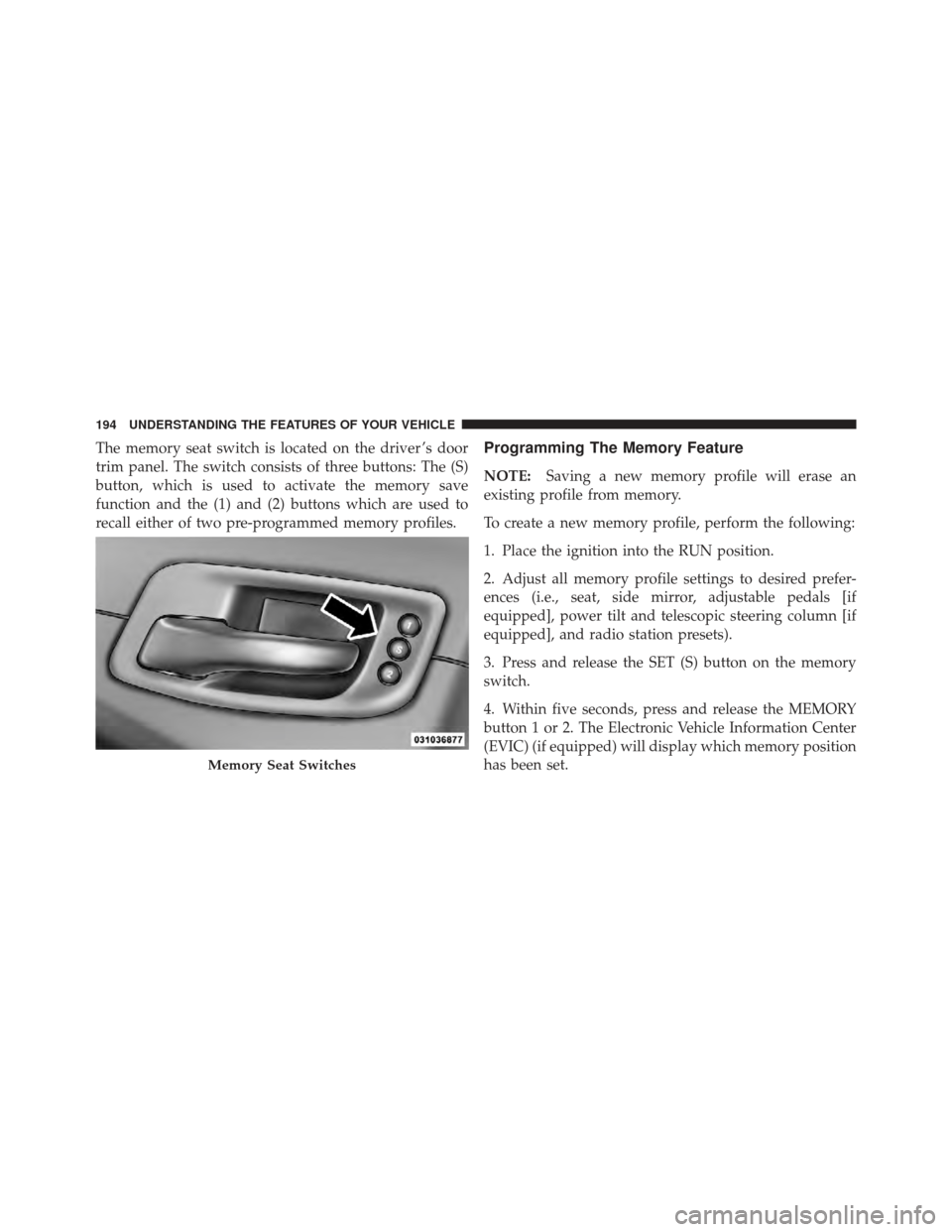
The memory seat switch is located on the driver ’s door
trim panel. The switch consists of three buttons: The (S)
button, which is used to activate the memory save
function and the (1) and (2) buttons which are used to
recall either of two pre-programmed memory profiles.Programming The Memory Feature
NOTE:Saving a new memory profile will erase an
existing profile from memory.
To create a new memory profile, perform the following:
1. Place the ignition into the RUN position.
2. Adjust all memory profile settings to desired prefer-
ences (i.e., seat, side mirror, adjustable pedals [if
equipped], power tilt and telescopic steering column [if
equipped], and radio station presets).
3. Press and release the SET (S) button on the memory
switch.
4. Within five seconds, press and release the MEMORY
button 1 or 2. The Electronic Vehicle Information Center
(EVIC) (if equipped) will display which memory position
has been set.
Memory Seat Switches
194 UNDERSTANDING THE FEATURES OF YOUR VEHICLE
Page 198 of 594
NOTE:Your RKE transmitters can be unlinked to your
memory settings by pressing the SET (S) button followed
by the UNLOCK button on the RKE transmitter in Step 4
above.
Memory Position Recall
NOTE: The vehicle must be in PARK to recall memory
positions. If a recall is attempted when the vehicle is not
in PARK, a message will display in the EVIC (if
equipped).
To recall the memory settings for driver 1, press
MEMORY button number 1 on the driver’s door or the
UNLOCK button on the RKE transmitter linked to
memory position 1.
To recall the memory setting for driver 2, press MEMORY
button number 2 on the driver’s door or the UNLOCK
button on the RKE transmitter linked to memory position
2. A recall can be cancelled by pressing any of the
MEMORY buttons (S, 1, or 2) on the driver’s door during
a recall. When a recall is cancelled, the driver’s seat, side
mirror, adjustable pedals (if equipped), and power tilt
and telescopic steering column (if equipped) stop mov-
ing. A delay of one second will occur before another recall
can be selected.
Easy Entry/Exit Seat
(Available With Memory Seat Only)
This feature provides automatic driver seat positioning to
enhance driver mobility when entering and exiting the
vehicle.
The distance the driver’s seat moves depends on where
you have the driver’s seat positioned when you remove
the Key Fob from the ignition (or change the ignition to
OFF, for vehicles equipped with Keyless Enter-N-Go).
196 UNDERSTANDING THE FEATURES OF YOUR VEHICLE
Page 206 of 594
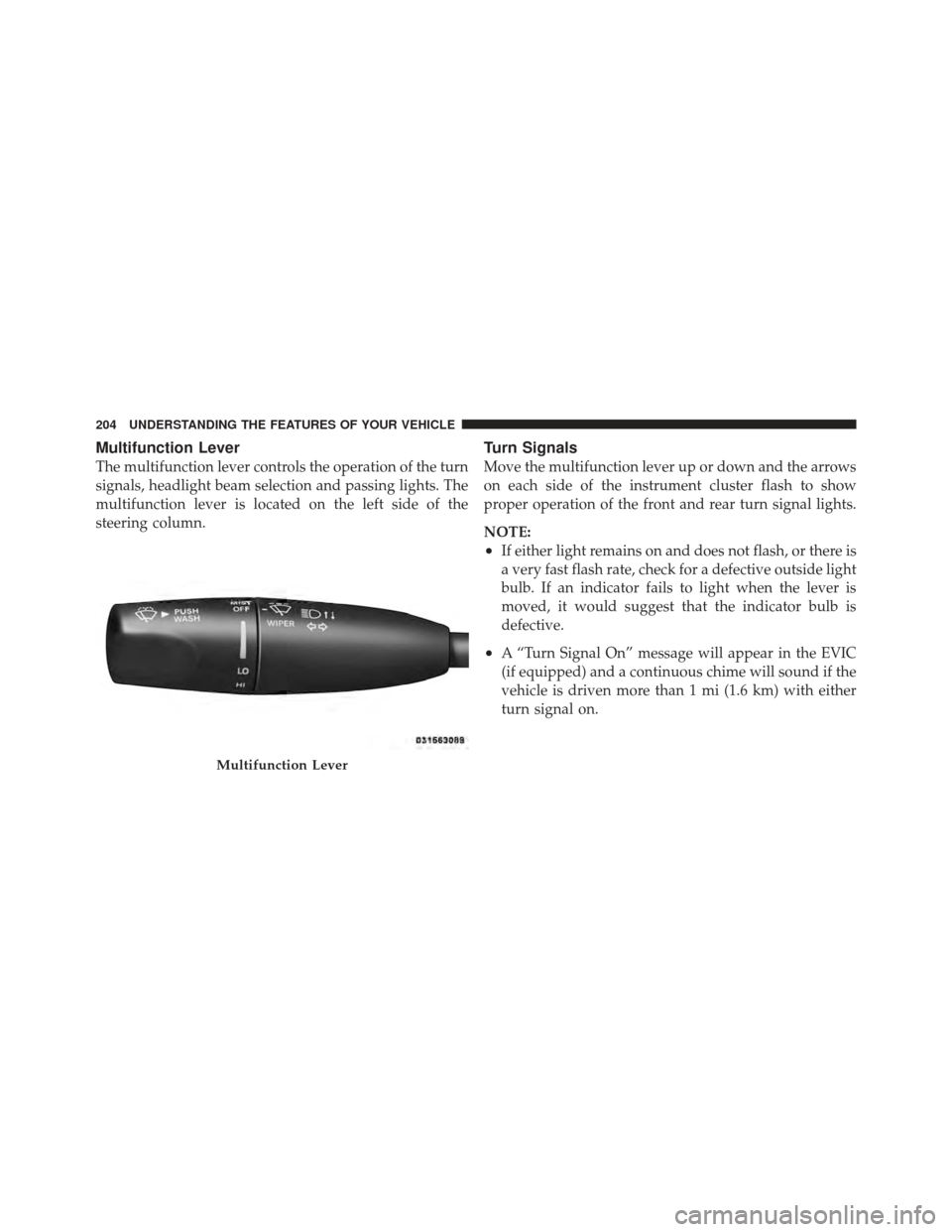
Multifunction Lever
The multifunction lever controls the operation of the turn
signals, headlight beam selection and passing lights. The
multifunction lever is located on the left side of the
steering column.
Turn Signals
Move the multifunction lever up or down and the arrows
on each side of the instrument cluster flash to show
proper operation of the front and rear turn signal lights.
NOTE:
•If either light remains on and does not flash, or there is
a very fast flash rate, check for a defective outside light
bulb. If an indicator fails to light when the lever is
moved, it would suggest that the indicator bulb is
defective.
•A “Turn Signal On” message will appear in the EVIC
(if equipped) and a continuous chime will sound if the
vehicle is driven more than 1 mi (1.6 km) with either
turn signal on.
Multifunction Lever
204 UNDERSTANDING THE FEATURES OF YOUR VEHICLE
Page 211 of 594
Dome Light Position
Rotate the dimmer control completely upward to the
second detent to turn on the interior lights. The interior
lights will remain on when the dimmer control is in this
position.
Interior Light Defeat (OFF)
Rotate the dimmer control to the extreme bottom OFF
position. The interior lights will remain off when the
doors are open.
Parade Mode (Daytime Brightness Feature)
Rotate the dimmer control upward to the first detent.
This feature brightens all text displays such as the
odometer, EVIC (if equipped), and radio when the park-
ing lights or headlights are on.
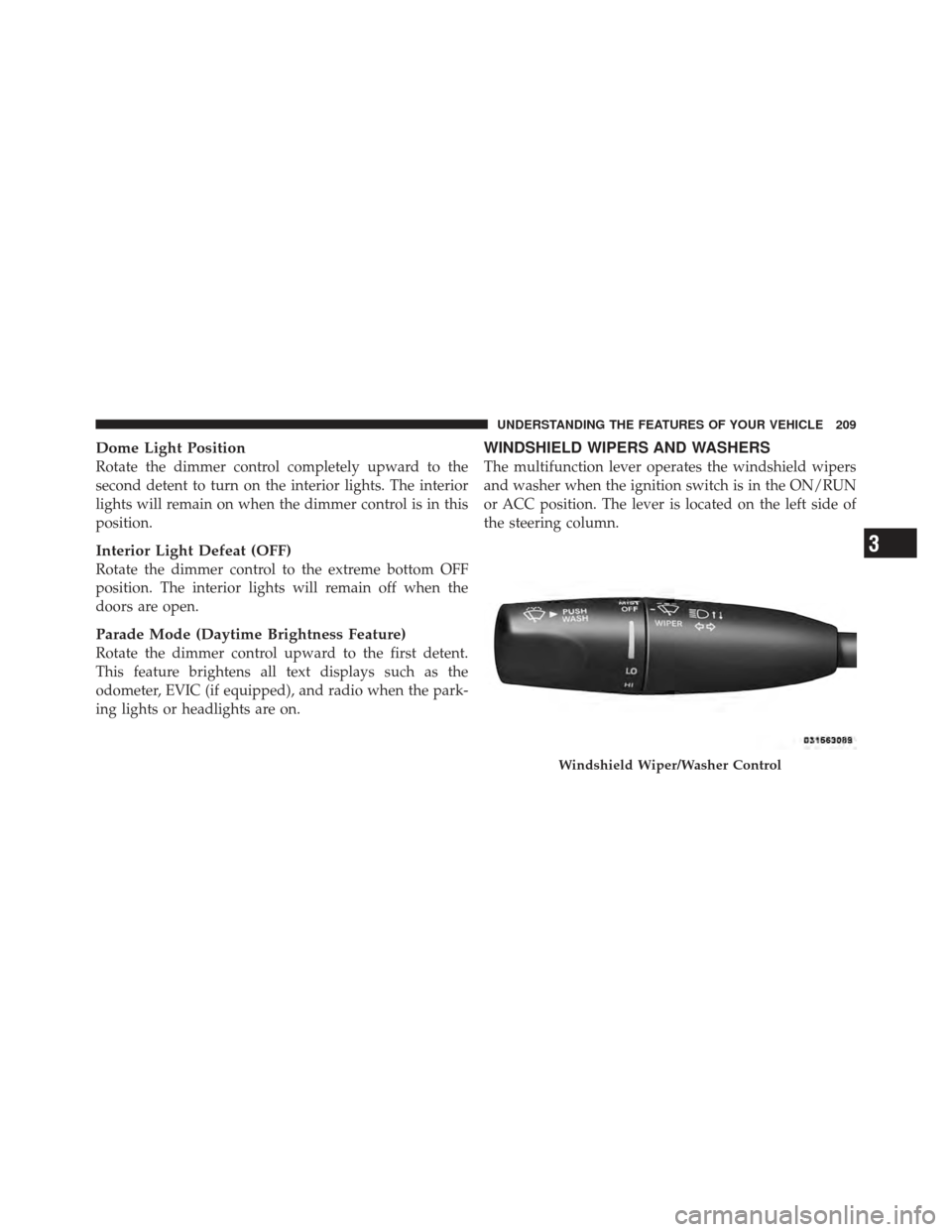
WINDSHIELD WIPERS AND WASHERS
The multifunction lever operates the windshield wipers
and washer when the ignition switch is in the ON/RUN
or ACC position. The lever is located on the left side of
the steering column.
Windshield Wiper/Washer Control
3
UNDERSTANDING THE FEATURES OF YOUR VEHICLE 209