Page 302 of 594
ELECTRONIC VEHICLE INFORMATION CENTER
(EVIC)
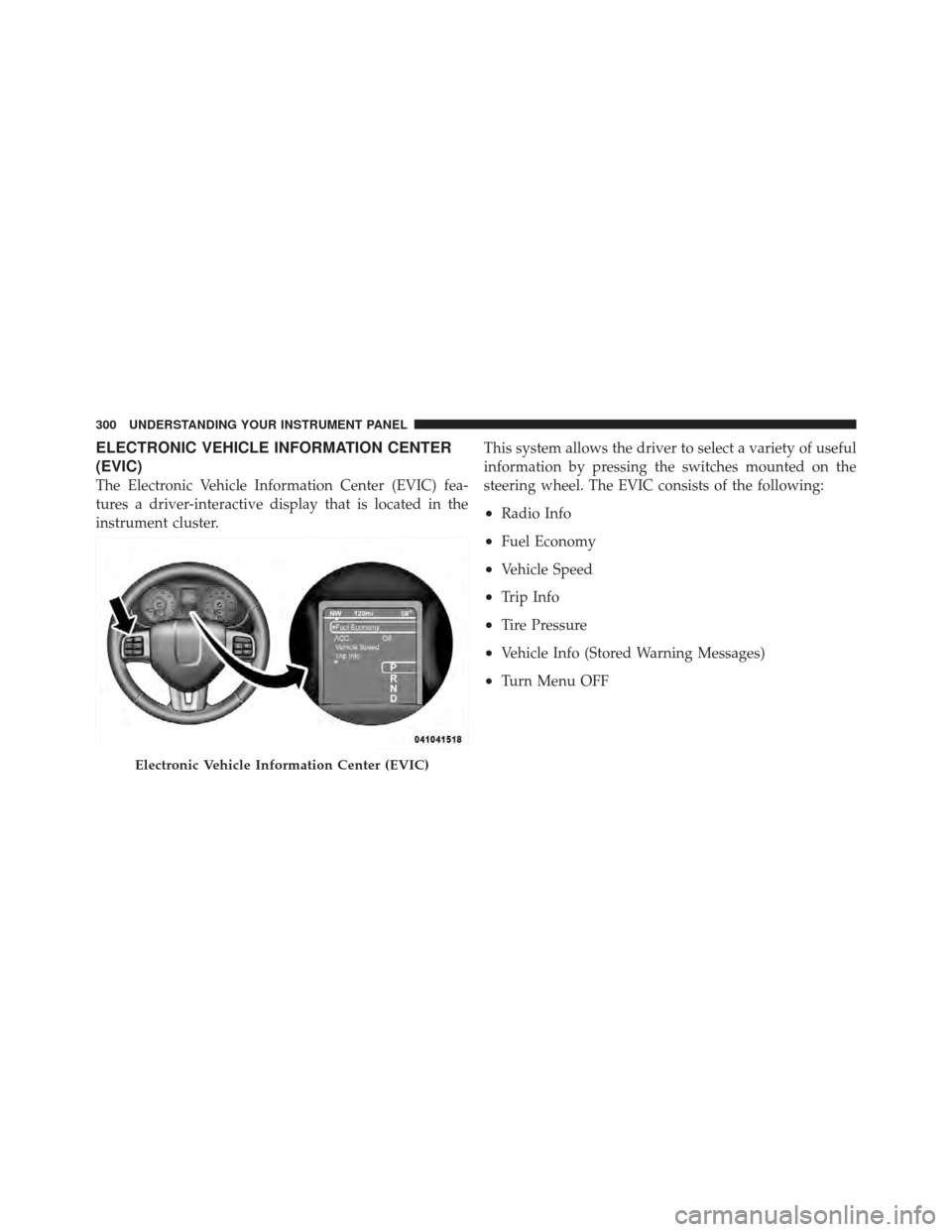
The Electronic Vehicle Information Center (EVIC) fea-
tures a driver-interactive display that is located in the
instrument cluster.This system allows the driver to select a variety of useful
information by pressing the switches mounted on the
steering wheel. The EVIC consists of the following:
•Radio Info
•Fuel Economy
•Vehicle Speed
•Trip Info
•Tire Pressure
•Vehicle Info (Stored Warning Messages)
•Turn Menu OFF
Electronic Vehicle Information Center (EVIC)
300 UNDERSTANDING YOUR INSTRUMENT PANEL
Page 303 of 594
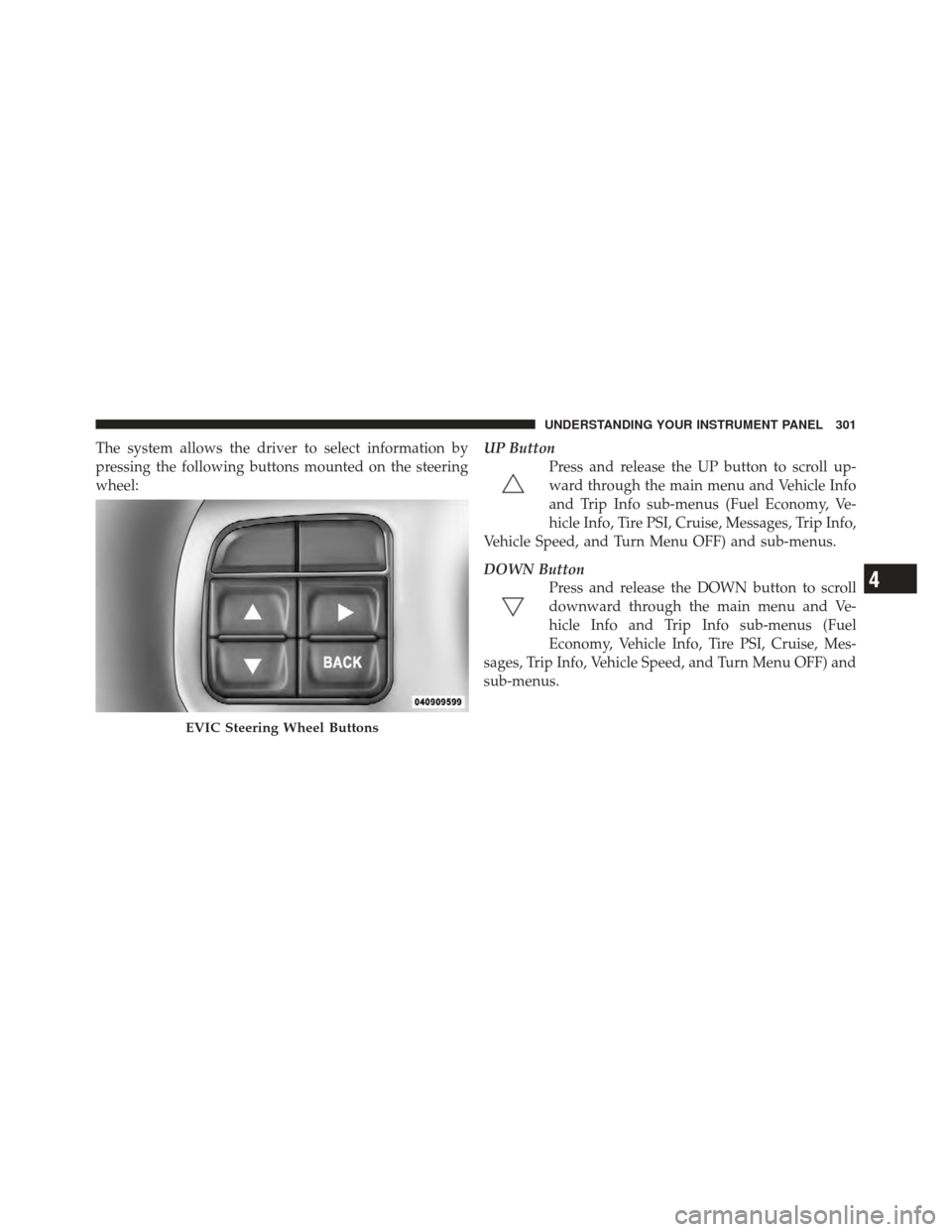
The system allows the driver to select information by
pressing the following buttons mounted on the steering
wheel:UP Button
Press and release the UP button to scroll up-
ward through the main menu and Vehicle Info
and Trip Info sub-menus (Fuel Economy, Ve-
hicle Info, Tire PSI, Cruise, Messages, Trip Info,
Vehicle Speed, and Turn Menu OFF) and sub-menus.
DOWN Button Press and release the DOWN button to scroll
downward through the main menu and Ve-
hicle Info and Trip Info sub-menus (Fuel
Economy, Vehicle Info, Tire PSI, Cruise, Mes-
sages, Trip Info, Vehicle Speed, and Turn Menu OFF) and
sub-menus.
EVIC Steering Wheel Buttons
4
UNDERSTANDING YOUR INSTRUMENT PANEL 301
Page 306 of 594
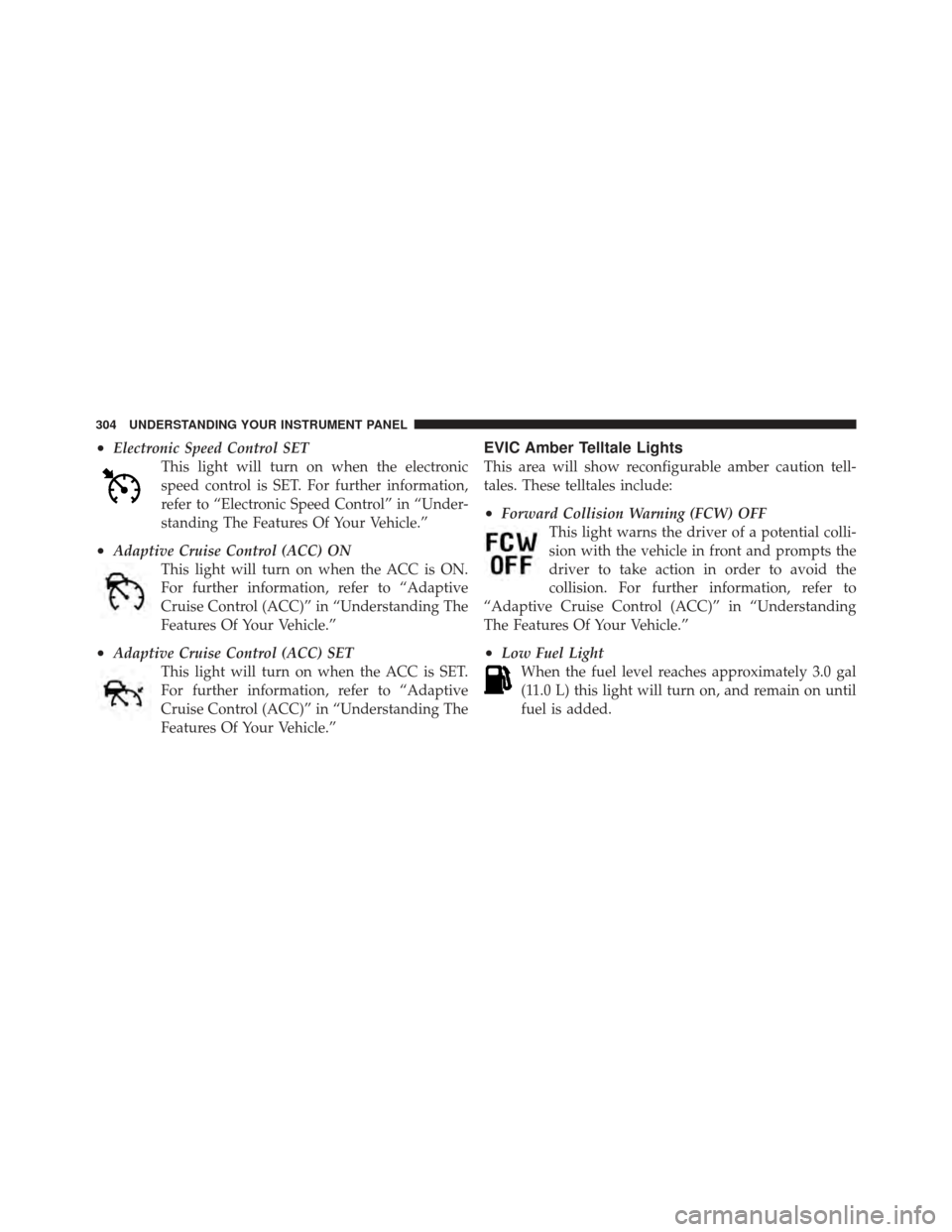
•Electronic Speed Control SETThis light will turn on when the electronic
speed control is SET. For further information,
refer to “Electronic Speed Control” in “Under-
standing The Features Of Your Vehicle.”
•Adaptive Cruise Control (ACC) ONThis light will turn on when the ACC is ON.
For further information, refer to “Adaptive
Cruise Control (ACC)” in “Understanding The
Features Of Your Vehicle.”
•Adaptive Cruise Control (ACC) SETThis light will turn on when the ACC is SET.
For further information, refer to “Adaptive
Cruise Control (ACC)” in “Understanding The
Features Of Your Vehicle.”
EVIC Amber Telltale Lights
This area will show reconfigurable amber caution tell-
tales. These telltales include:
•Forward Collision Warning (FCW) OFFThis light warns the driver of a potential colli-
sion with the vehicle in front and prompts the
driver to take action in order to avoid the
collision. For further information, refer to
“Adaptive Cruise Control (ACC)” in “Understanding
The Features Of Your Vehicle.”
•Low Fuel Light When the fuel level reaches approximately 3.0 gal
(11.0 L) this light will turn on, and remain on until
fuel is added.
304 UNDERSTANDING YOUR INSTRUMENT PANEL
Page 311 of 594
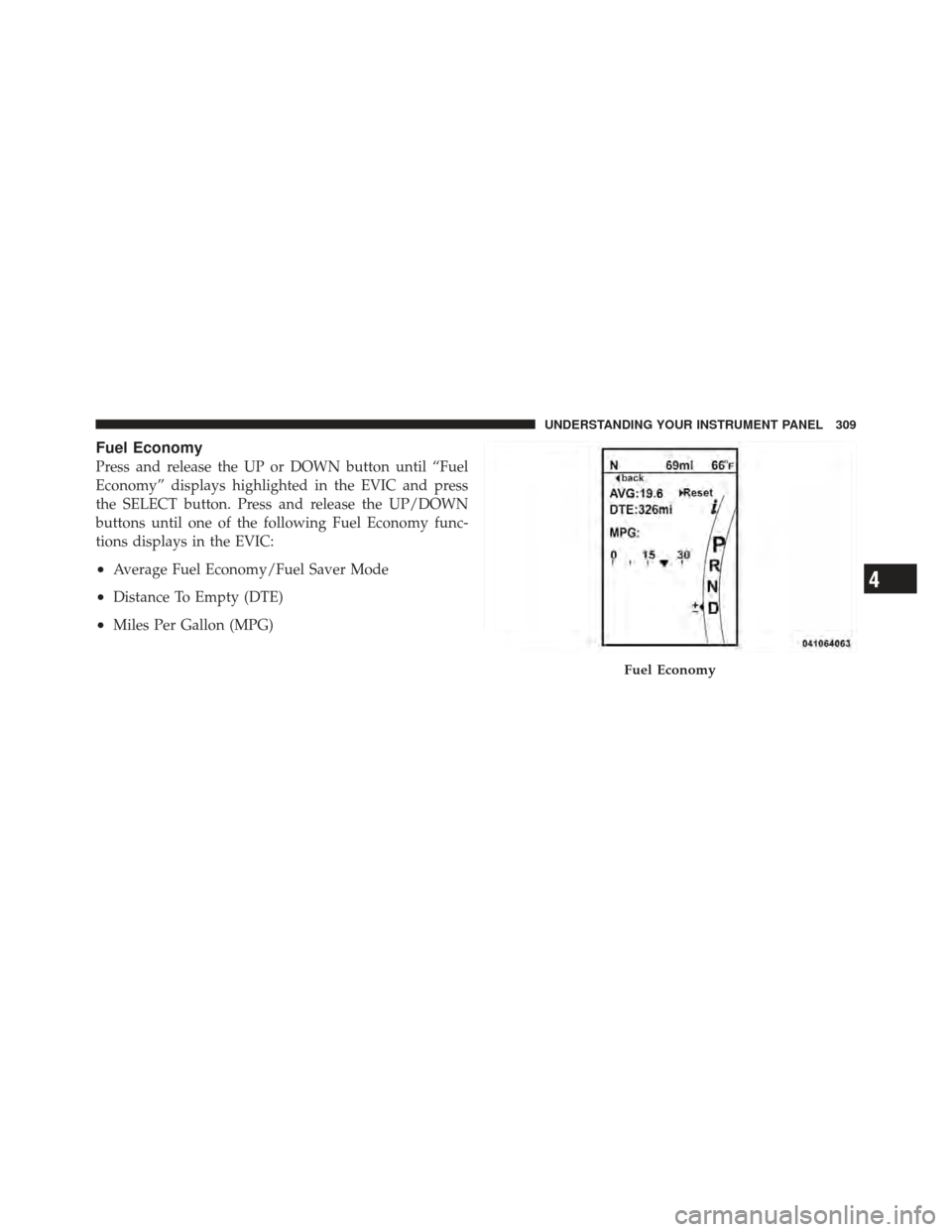
Fuel Economy
Press and release the UP or DOWN button until “Fuel
Economy” displays highlighted in the EVIC and press
the SELECT button. Press and release the UP/DOWN
buttons until one of the following Fuel Economy func-
tions displays in the EVIC:
•Average Fuel Economy/Fuel Saver Mode
•Distance To Empty (DTE)
•Miles Per Gallon (MPG)
Fuel Economy
4
UNDERSTANDING YOUR INSTRUMENT PANEL 309
Page 312 of 594
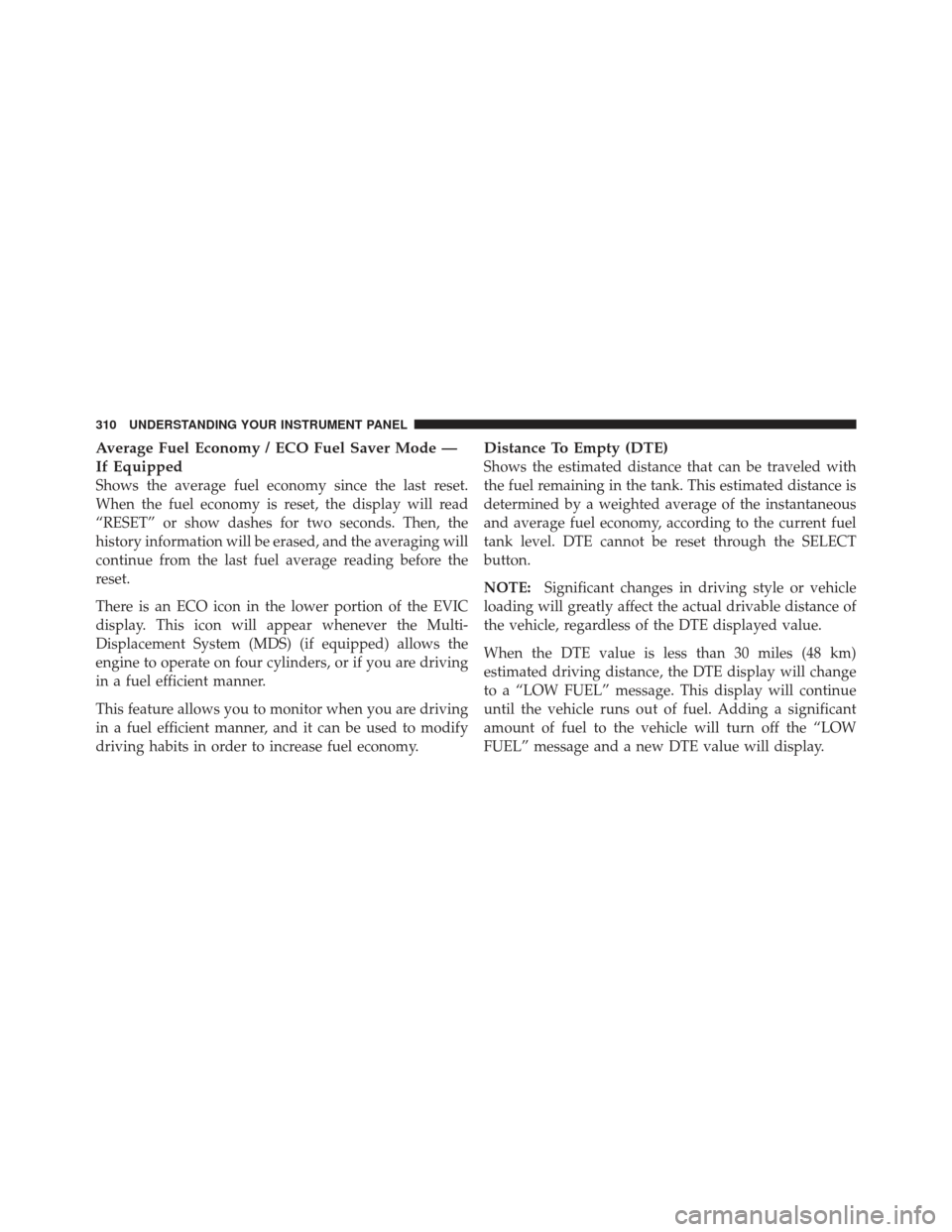
Average Fuel Economy / ECO Fuel Saver Mode —
If Equipped
Shows the average fuel economy since the last reset.
When the fuel economy is reset, the display will read
“RESET” or show dashes for two seconds. Then, the
history information will be erased, and the averaging will
continue from the last fuel average reading before the
reset.
There is an ECO icon in the lower portion of the EVIC
display. This icon will appear whenever the Multi-
Displacement System (MDS) (if equipped) allows the
engine to operate on four cylinders, or if you are driving
in a fuel efficient manner.
This feature allows you to monitor when you are driving
in a fuel efficient manner, and it can be used to modify
driving habits in order to increase fuel economy.
Distance To Empty (DTE)
Shows the estimated distance that can be traveled with
the fuel remaining in the tank. This estimated distance is
determined by a weighted average of the instantaneous
and average fuel economy, according to the current fuel
tank level. DTE cannot be reset through the SELECT
button.
NOTE:Significant changes in driving style or vehicle
loading will greatly affect the actual drivable distance of
the vehicle, regardless of the DTE displayed value.
When the DTE value is less than 30 miles (48 km)
estimated driving distance, the DTE display will change
to a “LOW FUEL” message. This display will continue
until the vehicle runs out of fuel. Adding a significant
amount of fuel to the vehicle will turn off the “LOW
FUEL” message and a new DTE value will display.
310 UNDERSTANDING YOUR INSTRUMENT PANEL
Page 313 of 594
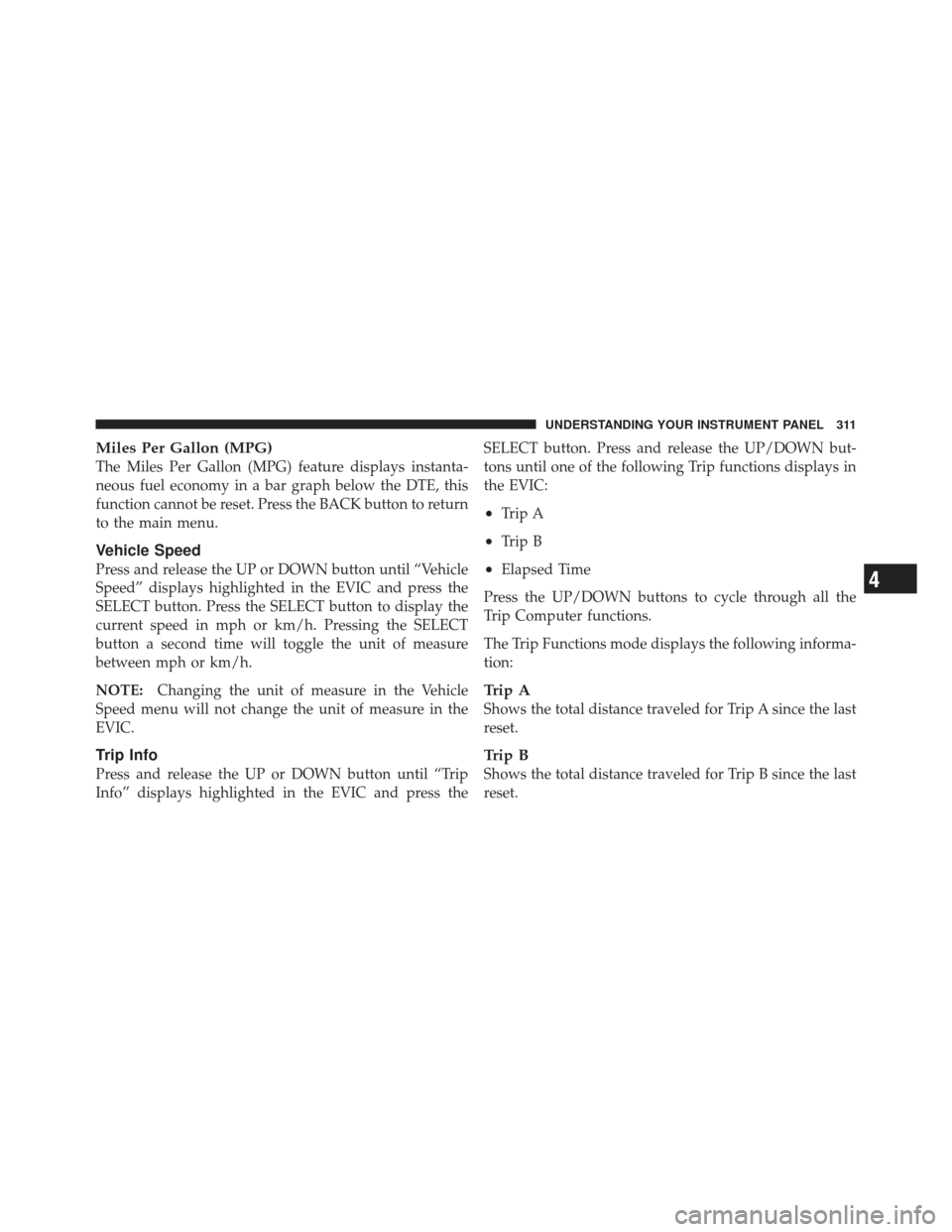
Miles Per Gallon (MPG)
The Miles Per Gallon (MPG) feature displays instanta-
neous fuel economy in a bar graph below the DTE, this
function cannot be reset. Press the BACK button to return
to the main menu.
Vehicle Speed
Press and release the UP or DOWN button until “Vehicle
Speed” displays highlighted in the EVIC and press the
SELECT button. Press the SELECT button to display the
current speed in mph or km/h. Pressing the SELECT
button a second time will toggle the unit of measure
between mph or km/h.
NOTE:Changing the unit of measure in the Vehicle
Speed menu will not change the unit of measure in the
EVIC.
Trip Info
Press and release the UP or DOWN button until “Trip
Info” displays highlighted in the EVIC and press the SELECT button. Press and release the UP/DOWN but-
tons until one of the following Trip functions displays in
the EVIC:
•Trip A
•Trip B
•Elapsed Time
Press the UP/DOWN buttons to cycle through all the
Trip Computer functions.
The Trip Functions mode displays the following informa-
tion:
Trip A
Shows the total distance traveled for Trip A since the last
reset.
Trip B
Shows the total distance traveled for Trip B since the last
reset.
4
UNDERSTANDING YOUR INSTRUMENT PANEL 311
Page 318 of 594

•Units
Touch the Units soft-key to change this display. When in
this display, you may switch the EVIC, odometer, and
navigation system (if equipped) between US and Metric
units of measure. Touch US or Metric then touch the
arrow back soft-key. As you continue, the information
will display in the selected units of measure.
•Voice Response
Touch the Voice Response soft-key to change the Voice
Response Length settings. To change the Voice Response
Length, press and release the Brief or Long soft-key. Then
touch the arrow back soft-key.
•Touch Screen Beep
Touch the Touch Screen Beep soft-key to turn on or shut
off the sound heard when a touch screen button (soft-
key) is pressed. To change the Touch Screen Beep setting
press and release the ON or OFF soft-key, then touch the
arrow back soft-key.
•Fuel Saver Display
Touch the Fuel Saver Display soft-key to turn the “ECO”
message (located in the instrument cluster display) on or
off. To make your selection, touch the Fuel Saver Display
soft-key and select ON or OFF. Then touch the arrow
back soft-key.
Clock
•
Set Time
Touch the Set Time soft-key to change this display. When
in this display, you may select the time display settings.
To make your selection, touch the Set Time soft-key,
adjust the hours and minutes using the up and down
soft-keys, select AM or PM, select 12 hr or 24 hr. Then
touch the arrow back soft-key when all selections are
complete.
•Show Time Status
Touch the Show Time Status soft-key to change this
display. When in this display, you may turn on or shut off
316 UNDERSTANDING YOUR INSTRUMENT PANEL
Page 331 of 594

•Units
When in this display, you may select to have the EVIC,
odometer, and navigation system (if equipped) changed
between US and Metric units of measure. Touch US or
Metric until a check-mark appears next to the setting,
showing that setting has been selected. Touch the back
arrow soft-key to return to the previous menu.
•Voice Response Length
When in this display, you may change the Voice Re-
sponse Length settings. To change the Voice Response
Length, touch the Brief or Detailed soft-key until a
check-mark appears next to the setting, showing that
setting has been selected. Touch the back arrow soft-key
to return to the previous menu.
•Touchscreen Beep
When in this display, you may turn on or shut off the
sound heard when a touch screen button (soft-key) is
pressed. Touch the Touchscreen Beep soft-key until a check-mark appears next to the setting, showing that
setting has been selected. Touch the back arrow soft-key
to return to the previous menu.
•Navigation Turn-By-Turn In Cluster
When this feature is selected, the turn-by-turn directions
will appear in the display as the vehicle approaches a
designated turn within a programmed route. To make
your selection, touch the Navigation Turn-By-Turn In
Cluster soft-key, until a check-mark appears next to the
setting, showing that setting has been selected. Touch the
back arrow soft-key to return to the previous menu.
•Fuel Saver Display In Cluster
The “ECO” message is located in the instrument cluster
display, this message can be turned on or off. To make
your selection, touch the Fuel Saver Display soft-key,
until a check-mark appears next to the setting, showing
that setting has been selected. Touch the back arrow
soft-key to return to the previous menu.
4
UNDERSTANDING YOUR INSTRUMENT PANEL 329