Page 216 of 514
•Right Rear Turn Signal Lamp Out (with a single
chime)
•RKE (Remote Keyless Entry) Battery Low (with a
single chime)
•Personal Settings Not Avail – Vehicle Not In PARK
•Personal Settings Not Avail – Vehicle in Motion
•Door Ajar (with vehicle graphic showing which door
is open. A single chime sounds if the vehicle is in
motion).
•Doors Ajar (with vehicle graphic showing which doors
are open. A single chime sounds if the vehicle is in
motion).
•Trunk Open (with vehicle graphic showing an open
trunk and A single chime )
•Lights On
•Key In Ignition
•Remote start aborted — Door ajar
•Remote start aborted — Hood ajar
•Remote start aborted — Trunk ajar
•Remote start aborted — Fuel low
•Remote start disabled — System fault
•Oil Change Required (with a single chime)
•Low Tire (with a graphic of the car showing which
tire(s) is/are low - with a single chime). Refer to�Ti re
Pressure Monitoring System� in�Starting and Operat-
ing�.
•Check TPM System (with a single chime) Refer to �Ti re
Pressure Monitoring System� in�Starting and
Operating�.
214 UNDERSTANDING YOUR INSTRUMENT PANEL
Page 224 of 514

Driver Door 1st Press is selected, you must press the RKE
transmitter UNLOCK button twice to unlock the passen-
ger’s doors. When “All Doors 1st Press” is selected, all of
the doors will unlock on the first press of the RKE
transmitter UNLOCK button. To make your selection,
press and release the SELECT button until “Driver Door
1st Press” or “All Doors 1st Press” appears.
Sound Horn with Lock
When ON is selected, a short horn sound will occur when
the RKE transmitter LOCK button is pressed. This feature
may be selected with or without the Flash Lamp with
Lock feature. To make your selection, press and release
the SELECT button until ON or OFF appears.
Flash Lamp with Lock
When ON is selected, the front and rear turn signals will
flash when the doors are locked or unlocked with the
RKE transmitter. This feature may be selected with orwithout the Sound Horn on lock feature selected. To
make your selection, press and release the SELECT
button until ON or OFF appears.
Headlamp Off Delay
When this feature is selected, the driver can choose to
have the headlights remain on for 0, 30, 60, or 90 seconds
when exiting the vehicle. To make your selection, press
the SELECT button until 0, 30, 60, or 90 seconds appears.
Headlamps With Wipers (Available with Auto
Headlights Only)
When ON is selected, and the headlight switch is in the
AUTO position, the headlights will turn on approxi-
mately 10 seconds after the wipers are turned on. The
headlights will also turn off when the wipers are turned
off if they were turned on by this feature. To make your
selection, press the SELECT button until ON or OFF
appears.
222 UNDERSTANDING YOUR INSTRUMENT PANEL
Page 225 of 514
NOTE:Turning the headlights on during the daytime
causes the instrument panel lights to dim. To increase the
brightness, refer to “Lights” in “Understanding The
Features Of Your Vehicle.”
Key-Off Power Delay
When this feature is selected, the power window
switches, radio, Uconnect™ phone (if equipped), and
power outlets will remain active for up to 10 minutes
after the ignition switch is turned to the LOCK position.
Opening either front vehicle door will cancel this feature.
To make your selection, press the SELECT button until
Off, 45 sec., 5 min., or 10 min. appears.
Illumin. Approach
When this feature is selected, the headlights will activate
and remain on for up to 90 seconds when the doors are
unlocked with the remote keyless entry transmitter. To
make your selection, press the SELECT button until
“OFF,” “30 sec,” “60 sec,” or “90 sec” appears.
Display Units In
The EVIC and odometer can be changed between English
and Metric units of measure. To make your selection,
press and release the SELECT button until “U.S.” or
“METRIC” appears.
Compass Variance
Refer to “Compass Display” for more information.
Calibrate Compass
Refer to “Compass Display” for more information.
4
UNDERSTANDING YOUR INSTRUMENT PANEL 223
Page 231 of 514
SETUP Button
Pressing the SETUP button allows you to select between
the following items:
NOTE:Turn the TUNE/SCROLL control knob to scroll
through the entries. Push the AUDIO/SELECT button to
select an entry and make changes.
•DVD Enter - When the disc is in DVD Menu mode,
selecting DVD Enter will allow you to play the current
highlighted selection. Use the remote control to scroll
up and down the menu (if equipped).
•DISC Play/Pause - You can toggle between
playing the DVD and pausing the DVD by
pushing the SELECT button (if equipped).
•DVD Play Options - Selecting the DVD Play Options
will display the following:
•Subtitle – Repeatedly pressing SELECT will switch
subtitles to different subtitle languages that are
available on the disc (if equipped).
•Audio Stream – Repeatedly pressing SELECT will
switch to different audio languages (if supported on
the disc) (if equipped).
•Angle – Repeatedly pressing SELECT will change
the viewing angle if supported by the DVD disc (if
equipped).
NOTE:
•The available selections for each of the above entries
varies depending upon the disc.
•These selections can only be made while playing a
DVD.
4
UNDERSTANDING YOUR INSTRUMENT PANEL 229
Page 275 of 514
List Or Browse Mode
During Play mode, pressing any of the buttons described
below, will bring up List mode. List mode enables
scrolling through the list of menus and tracks on the
audio device.
•TUNEcontrol knob: The TUNEcontrol knob functions
in a similar manner as the scroll wheel on the audio
device or external USB device.
•Turning it clockwise (forward) and counterclock-
wise (backward) scrolls through the lists, displaying
the track detail on the radio display. Once the track
to be played is highlighted on the radio display,
press the TUNEcontrol knob to select and start
playing the track. Turning the TUNEcontrol knob
fast will scroll through the list faster. During fast
scroll, a slight delay in updating the information on
the radio display may be noticeable.
•During all List modes, the iPod� displays all lists in
“wrap-around” mode. So if the track is at the
bottom of the list, just turn the wheel backward
(counterclockwise) to get to the track faster.
•In List mode, the radio PRESETbuttons are used as
shortcuts to the following lists on the iPod� or
external USB device.
•Preset 1 – Playlists
•Preset 2 – Artists
•Preset 3 – Albums
•Preset 4 – Genres
•Preset 5 – Audiobooks
•Preset 6 – Podcasts
4
UNDERSTANDING YOUR INSTRUMENT PANEL 273
Page 280 of 514
CD/DVD DISC MAINTENANCE
To keep a CD/DVD in good condition, take the following
precautions:
1. Handle the disc by its edge; avoid touching the
surface.
2. If the disc is stained, clean the surface with a soft cloth,
wiping from center to edge.
3. Do not apply paper or tape to the disc; avoid scratch-
ing the disc.
4. Do not use solvents such as benzene, thinner, cleaners,
or anti-static sprays.
5. Store the disc in its case after playing.
6. Do not expose the disc to direct sunlight.
7. Do not store the disc where temperatures may become
too high.NOTE:
If you experience difficulty in playing a particu-
lar disc, it may be damaged (i.e., scratched, reflective
coating removed, a hair, moisture or dew on the disc)
oversized, or have protection encoding. Try a known
good disc before considering disc player service.
RADIO OPERATION AND MOBILE PHONES
Under certain conditions, the mobile phone being on in
your vehicle can cause erratic or noisy performance from
your radio. This condition may be lessened or eliminated
by relocating the mobile phone antenna. This condition is
not harmful to the radio. If your radio performance does
not satisfactorily “clear” by the repositioning of the
antenna, it is recommended that the radio volume be
turned down or off during mobile phone operation when
not using Uconnect™ (if equipped).
278 UNDERSTANDING YOUR INSTRUMENT PANEL
Page 284 of 514
the LED in the control button to illuminate. After ten
minutes, the system will return to normal mode function
and the LED will turn off.
NOTE:
•Continuous use of the Recirculation mode may make
the inside air stuffy and window fogging may occur.
Extended use of this mode is not recommended.
•The use of the Recirculation mode in cold or damp
weather will cause windows to fog on the inside,
because of moisture buildup inside the vehicle. Select
the outside air position for maximum defogging.
•The A/C will engage automatically to prevent fogging
when the recirculation button is pressed and the mode
control is set to panel or Bi-Level.
•Recirculated air is not allowed in Floor, Mix or Defrost
modes. If the Recirculation button is depressed while
in any of these modes, the LED indicator will flashseveral times then go out. Recirculation will be dis-
abled automatically is these modes are selected.
•The A/C can be deselected manually without disturb-
ing the mode control selection.
•When the ignition switch is turned to the LOCK
position, the recirculation feature will be cancelled.
Air Conditioning Control
Press this button to engage the Air
Conditioning. A light will illuminate
when the Air Conditioning system is
engaged. Rotating the dial left into the
blue area of the scale indicates cooler
temperatures, while rotating right into
the red area indicates warmer tem-
peratures.
NOTE: The air conditioning compressor will not engage
until the engine has been running for about 10 seconds.
282 UNDERSTANDING YOUR INSTRUMENT PANEL
Page 285 of 514
•MAX A/C
For maximum cooling use the A/C and recirculation
buttons at the same time.
•ECONOMY MODE
If economy mode is desired, press the A/C button to turn
OFF the indicator light and the A/C compressor. Then,
move the temperature control to the desired temperature.
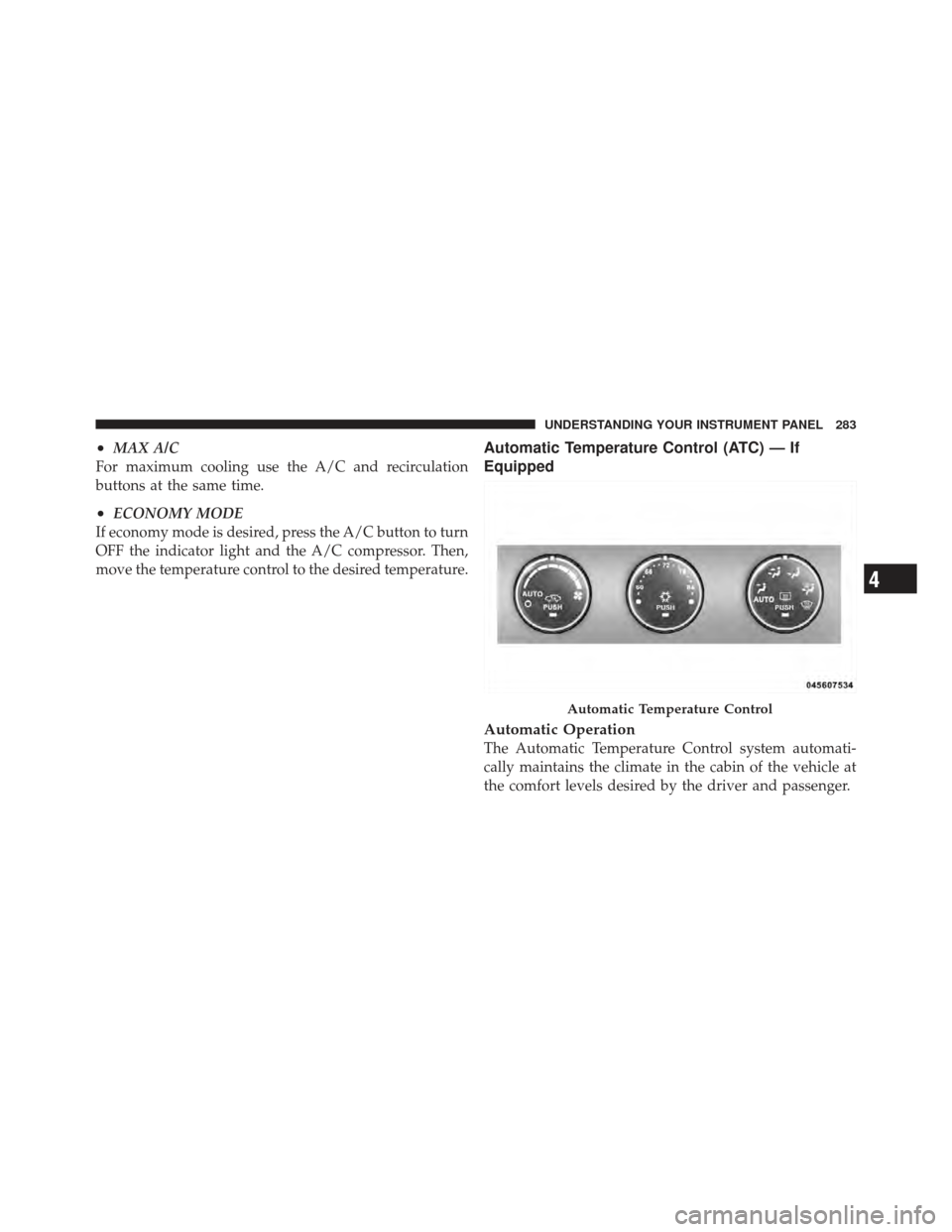
Automatic Temperature Control (ATC) — If
Equipped
Automatic Operation
The Automatic Temperature Control system automati-
cally maintains the climate in the cabin of the vehicle at
the comfort levels desired by the driver and passenger.
Automatic Temperature Control
4
UNDERSTANDING YOUR INSTRUMENT PANEL 283