Page 299 of 396
297
The system is protected in such a way that it will onlyoperate in your vehicle.
eMyWay
01 First steps - Control panel
For safety reasons, the driver must carry out operations
which require prolonged attention while the vehicle is stationary.
When the en
gine is switched off and to prevent
discharging of the battery, the system switches off following the activation of the energy economy mode.
CONTENTS
02 Steering mounted controls
03 General operation
04 Navigation - Guidance
05 Traffic information
06 Using the telephone
07 Radio
08 Music media players
09 Audio settings
10 Configuration
11 Screen menu map
Frequently asked questions p.
p.
p.
p.
p.
p.
p.
p.
p.
p.
p.
p.
298
300
30
1
303
316
319
329
332
338
339
340
3
43
SATELLITE NAVIGATION SYSTEM
MULTIMEDIA BLUETOOTH
TELEPHONE AUDIO SYSTEM
Page 320 of 396
05
2 1
1
2
3
TRAFFIC INFORMATION
PRINCIPAL TMC SYMBOLS
Red and yellow triangle: traffi c information, for example:
Black and blue trian
gle: general information, for example:
RECEIVING TA MESSAGES
The TA (Traffi c Announcement) function gives priority to TA alert messages. To operate, this function needs good reception of a radio station transmitting this type of message. When a traffi c report is
transmitted, the current audio source (Radio, CD, USB, ...) is interrupted
automatically to play the TA message. Normal playback of the audiosource resumes at the end of the transmission of the message.
Press RADIO
to display the "FM/AMband " menu.
Select " Guidance options
" then confi rm.
Select " Activate/Deactivate TA
" then confi rm.
The volume settin
g for TA mesages can be adjusted only during the
transmission of this type of alert.
Page 322 of 396
1
2
5
63
4
06
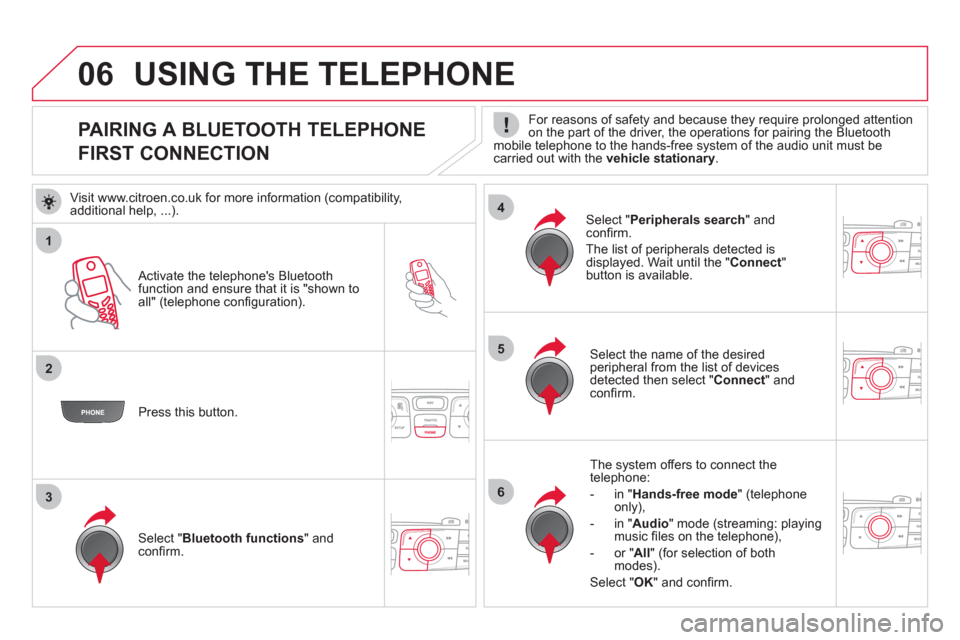
PAIRING A BLUETOOTH TELEPHONE
FIRST CONNECTION
For reasons of safety and because they require prolonged attention
on the part of the driver, the operations for pairing the Bluetooth mobile telephone to the hands-free system of the audio unit must be carried out with the vehicle stationary .
Activate the telephone's Bluetoothfunction and ensure that it is "shown to all" (telephone confi guration).
Pr
ess this button.
Select the name of the desired
peripheral from the list of devices detected then select "Connect
" and confi rm.
The s
ystem offers to connect the
telephone:
-
in"Hands-free mode" (telephoneonly),
-
in "Audio" mode (streaming: playingmusic fi les on the telephone),
-
or "All
" (for selection of both
modes).
Select " OK
" and confi rm.
Select " Bluetooth functions " and confi rm.
Select "Peripherals search" andconfi rm.
The list of peripherals detected is
displayed. Wait until the " Connect"button is available.
USING THE TELEPHONE
Visit www.citroen.co.uk for more information (compatibility,
additional help, ...).
Page 323 of 396
321
8
7
06
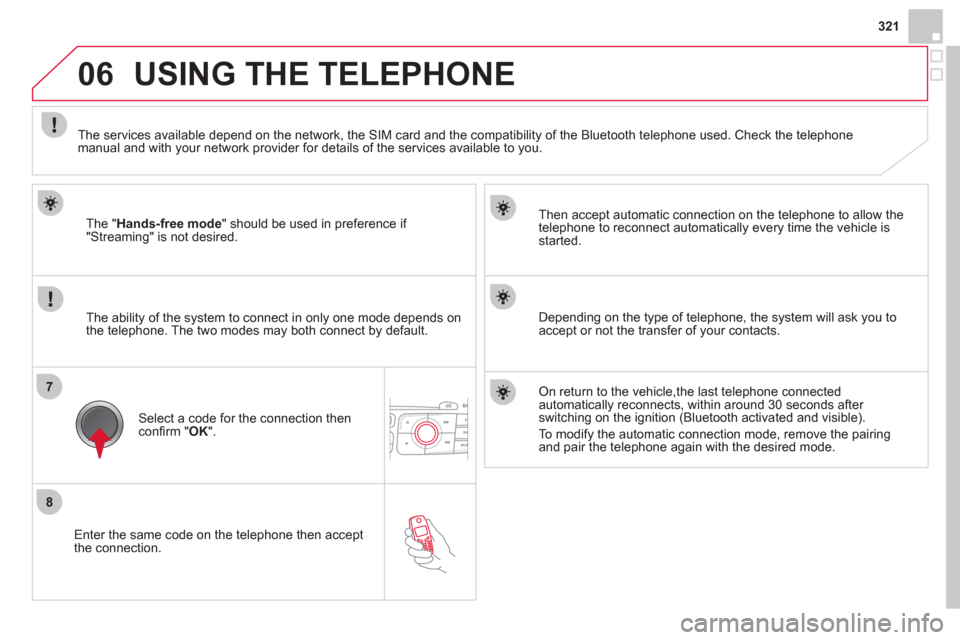
Enter the same code on the telephone then accept
the connection.
Then accept automatic connection on the telephone to allow the
te
lephone to reconnect automatically every time the vehicle is started.
The abilit
y of the system to connect in only one mode depends on
the telephone. The two modes may both connect by default.
USING THE TELEPHONE
The "Hands-free mode
" should be used in preference if "Streaming" is not desired.
The services available depend on the network, the
SIM card and the compatibility of the Bluetooth telephone used. Check the telephone manual and with your network provider for details of the services available to you.
Select a code for the connection thenconfi rm "OK".
Depending on the type of telephone, the system will ask you to
accept or not the transfer of your contacts.
On return to the vehicle,the last telephone connected
automatically reconnects, within around 30 seconds after switching on the ignition (Bluetooth activated and visible).
To modi
fy the automatic connection mode, remove the pairingand pair the telephone again with the desired mode.
Page 325 of 396
323
06
1
2
3
4
5
6
7
MANAGING CONTACTS
Press PHONEthen select "Directory of contacts" and confi rm.
Select the desired contact and confi rm.
Select " Import" to copy one contact to
the system.
Select " Call" to start the call.
Select " Open
" to view an external contact
or modify a contact saved in the system.
Select OK
or ESC
to exit this menu.
Select " Delete" to delete a contact savedin the system.
It is necessar
y to import an external contact to modify the record.
It will be saved in the system. It is not possible to modify or delete contacts in the telephone or the SIM card via the Bluetoothconnection.
USING THE TELEPHONE
Page 330 of 396
1
2
3
1
2
3
4
5
06
Press PHONE twice.
Select " List of the paired peripherals"and confi rm.
It is possible to:
-
"Connect" or " Disconnect " theselected telephone,
- delete the pairin
g of the selected
telephone.
It is also possible to select all pairin
gs.
USING THE TELEPHONE
MANAGING PAIRED TELEPHONES
CHANGING THE RING TONE
Press PHONEtwice.
Select " Phone functions
" and confi rm.
Select " Ring options" and confi rm.
You can ad
just the volume and the type
of ring tone.
Select " Bluetooth functions".
Select " OK
" and confi rm to save thechanges.
Page 338 of 396
08
1
2
1
2
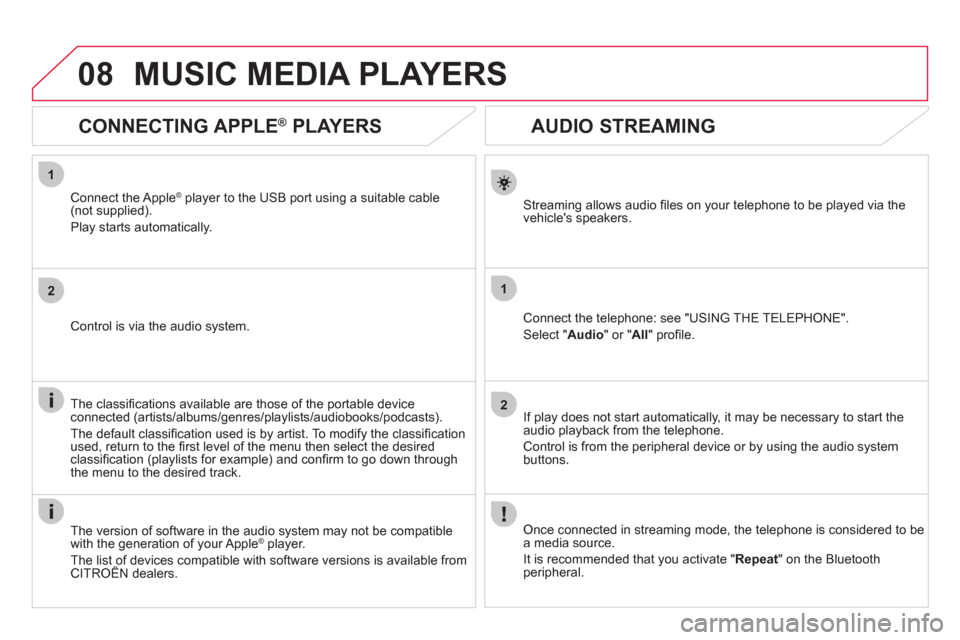
AUDIO STREAMING
Streaming allows audio fi les on your telephone to be played via the
vehicle's speakers.
Connect the telephone: see "USING THE TELEPHONE".
Select " Audio" or " All" profi le.
I
f play does not start automatically, it may be necessary to start the audio playback from the telephone.
Control is from the peripheral device or b
y using the audio system buttons.
Once connected in streaming mode, the telephone is considered to bea media source.
It is recommended that
you activate " Repeat" on the Bluetooth
peripheral.
MUSIC MEDIA PLAYERS
CONNECTING APPLE ®
PLAYERS
Connect the Apple ®player to the USB port using a suitable cable(not supplied).
Play starts automatically.
Control is via the audio system.
The classi
fi cations available are those of the portable deviceconnected (artists/albums/genres/playlists/audiobooks/podcasts).
The default classifi cation used is b
y artist. To modify the classifi cationused, return to the fi rst level of the menu then select the desired classifi cation (playlists for example) and confi rm to go down through
the menu to the desired track.
The version of software in the audio s
ystem may not be compatible
with the generation of your Apple ®player.
The list of devices compatible with software versions is available from CITROËN dealers.
Page 343 of 396
341
11 SCREEN MENU MAP
Dial
Directory of contacts
Call
Open
Import
Phone MENU
1
2
2
2
1
2
2
2
2
1
2
3
3
3
2
2
2
1
1
1
3
3
3
2
3
2
2
31
2
2
1
1
3
3
3
3
3
3
2
List of the paired peripherals
Connec
t
Disconnect
Delete
Delete all
Contact mem. status
Phone functions
Ring options
Delete calls lo
g
Bluetooth functions
Equalizer
"RADIO" MENU
Following waveband
Guidance options
Activate/Deactivate TA
Activate/Deactivate RDS
Audio settings
Peripherals search
Rename radiotele
phone
Hang up
Display all phone contacts
Delete
Contacts management
New contact
Delete all contacts
Im
port all the entries
S
ynchronizing contacts
Display telephone contacts No s
ynchronization
Display SIM card contactsNon
e
Classical
Jaz
z
Rock
Techno
Vocal


