Page 225 of 557
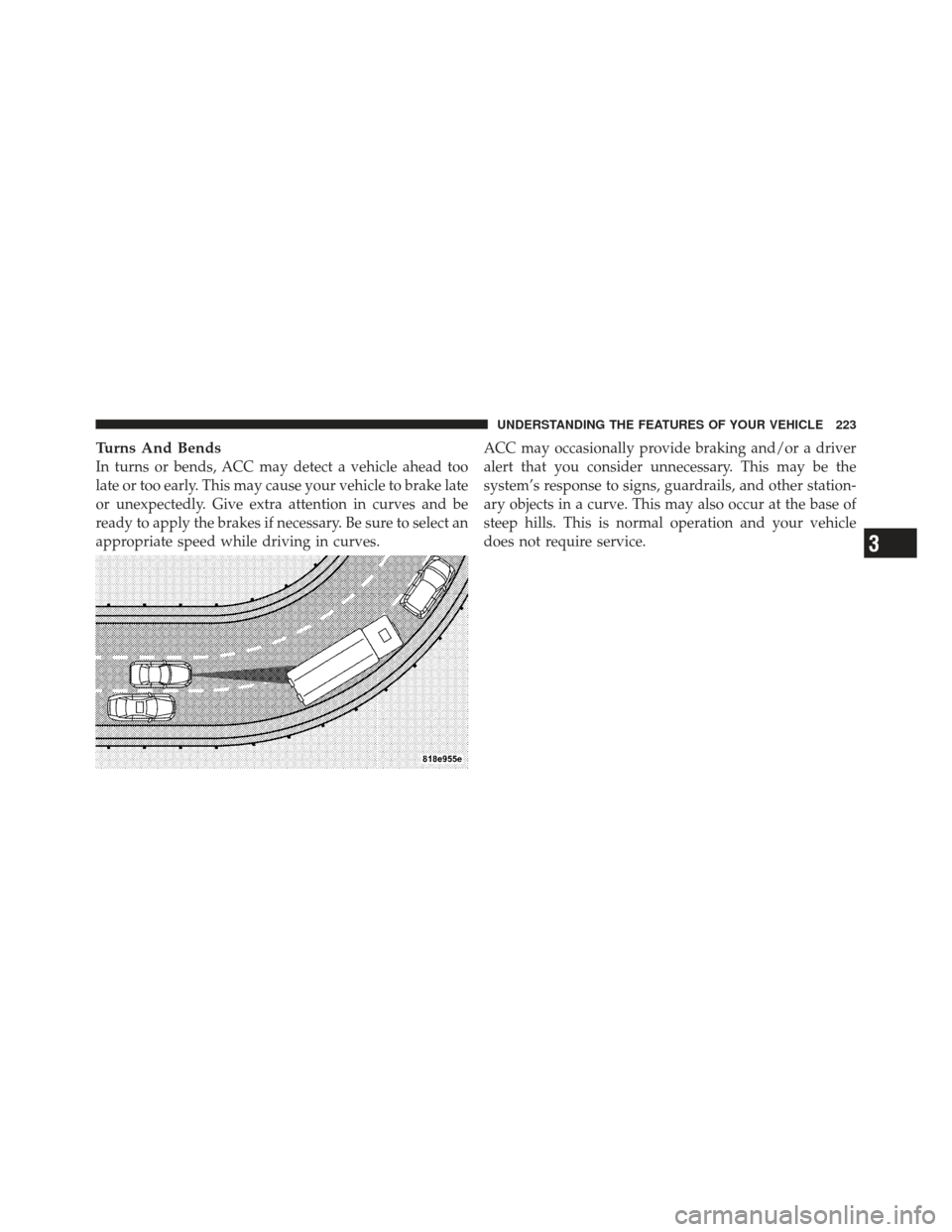
Turns And Bends
In turns or bends, ACC may detect a vehicle ahead too
late or too early. This may cause your vehicle to brake late
or unexpectedly. Give extra attention in curves and be
ready to apply the brakes if necessary. Be sure to select an
appropriate speed while driving in curves.ACC may occasionally provide braking and/or a driver
alert that you consider unnecessary. This may be the
system’s response to signs, guardrails, and other station-
ary objects in a curve. This may also occur at the base of
steep hills. This is normal operation and your vehicle
does not require service.
3
UNDERSTANDING THE FEATURES OF YOUR VEHICLE 223
Page 229 of 557
To change modes, press the MODE button when the
system is in either the OFF, READY, or SET position.
“Cruise Ready” will be displayed if the system was in
ACC READY or ACC SET position. “Cruise Off” will be
displayed if the system was in the ACC OFF position. To
switch back to Adaptive Cruise Control mode, press the
MODE button a second time.
WARNING!
In the normal Cruise Control mode, the system will
not react to vehicles ahead. In addition, the proximity
warning does not activate and no alarm will sound
even if you are too close to the vehicle ahead since
neither the presence of the vehicle ahead nor the
vehicle-to vehicle distance is detected. Be sure to
maintain a safe distance between your vehicle and
the vehicle ahead. Always be aware which mode is
selected.
To Set A Desired Speed
When the vehicle reaches the speed desired, press the
SET-button and release. The EVIC will display the set
speed.
NOTE: You must observe the display when setting or
changing speed, not the speedometer.
To Vary The Speed Setting
There are two ways to change the set speed:
•Use the accelerator pedal to adjust the vehicle to the
desired speed and press the SET -button.
•Tap the RES +or SET -button to increase or decrease
the set speed in 1 mph (1.6 km/h) increments respec-
tively. Hold the RES +or SET -button for 5 mph
(8 km/h) increments.
3
UNDERSTANDING THE FEATURES OF YOUR VEHICLE 227
Page 231 of 557
NOTE:The minimum speed for FCW activation is
10 mph (16 km/h).
WARNING!
Forward Collision Warning (FCW) is not intended to
avoid a collision on its own. The driver has the
responsibility to avoid a collision by controlling the
vehicle via braking and steering. Failure to follow
this warning could lead to serious injury or death.
Changing FCW Status
The FCW feature can be set to far, set to near or turned off
using the Uconnect Touch™ System, refer to “Uconnect
Touch™ Settings” in “Understanding Your Instrument
Panel” for further information. The FCW Status Off, Near
or Far will be displayed in the Uconnect Touch™ display. The default status of FCW is the “Far” setting, this allows
the system to warn you of a possible collision with the
vehicle in front of you when you are farther away. This
gives you the most reaction time.
Changing the FCW status to the “Near” setting, allows
the system to warn you of a possible collision with the
vehicle in front of you when you are much closer. This
setting provides less reaction time than the “Far” setting,
which allows for a more dynamic driving experience.
Changing the FCW status to “Off” prevents the system
from warning you of a possible collision with the vehicle
in front of you.
NOTE:
•In the “Off” setting FCW OFF will be displayed on the
Uconnect Touch™ display.
•The system will retain the last setting selected by the
driver after ignition shut down.
3
UNDERSTANDING THE FEATURES OF YOUR VEHICLE 229
Page 242 of 557

WARNING!
•Drivers must be careful when backing up even
when using the ParkSense�Park Assist System.
Always check carefully behind your vehicle, look
behind you, and be sure to check for pedestrians,
animals, other vehicles, obstructions, and blind
spots before backing up. You are responsible for
safety and must continue to pay attention to your
surroundings. Failure to do so can result in serious
injury or death.
(Continued)
WARNING! (Continued)
•Before using the ParkSense�Park Assist System, it
is strongly recommended that the ball mount and
hitch ball assembly is disconnected from the ve-
hicle when the vehicle is not used for towing.
Failure to do so can result in injury or damage to
vehicles or obstacles because the hitch ball will be
much closer to the obstacle than the rear fascia
when the warning display turns on the single
flashing arc and sounds the continuous tone. Also,
the sensors could detect the ball mount and hitch
ball assembly, depending on its size and shape,
giving a false indication that an obstacle is behind
the vehicle.
240 UNDERSTANDING THE FEATURES OF YOUR VEHICLE
Page 244 of 557
WARNING!
Drivers must be careful when backing up even when
using the ParkView�Rear Back Up Camera. Always
check carefully behind your vehicle, and be sure to
check for pedestrians, animals, other vehicles, ob-
structions, or blind spots before backing up. You are
responsible for the safety of your surroundings and
must continue to pay attention while backing up.
Failure to do so can result in serious injury or death.
CAUTION!
•To avoid vehicle damage, ParkView� should only
be used as a parking aid. The ParkView� camera is
unable to view every obstacle or object in your
drive path.
•To avoid vehicle damage, the vehicle must be
driven slowly when using ParkView� to be able to
stop in time when an obstacle is seen. It is recom-
mended that the driver look frequently over his/
her shoulder when using ParkView�.
NOTE: If snow, ice, mud, or any foreign substance
builds up on the camera lens, clean the lens, rinse with
water, and dry with a soft cloth. Do not cover the lens.
242 UNDERSTANDING THE FEATURES OF YOUR VEHICLE
Page 256 of 557
WARNING!
•Your motorized door or gate will open and close
while you are programming the universal trans-
ceiver. Do not program the transceiver if people,
pets or other objects are in the path of the door or
gate. Only use this transceiver with a garage door
opener that has a “stop and reverse” feature as
required by Federal safety standards. This includes
most garage door opener models manufactured after
1982. Do not use a garage door opener without these
safety features. Call toll-free 1–800–355–3515 or, on
the Internet at www.HomeLink.com for safety infor-
mation or assistance.
•Vehicle exhaust contains carbon monoxide, a dan-
gerous gas. Do not run your vehicle in the garage
while programming the transceiver. Exhaust gas
can cause serious injury or death.
General Information
This device complies with FCC rules Part 15 and Industry
Canada RSS-210. Operation is subject to the following
two conditions:
1. This device may not cause harmful interference.
2. This device must accept any interference that may be
received including interference that may cause undesired
operation.
NOTE:
•The transmitter has been tested and it complies with
FCC and IC rules. Changes or modifications not
expressly approved by the party responsible for com-
pliance could void the user ’s authority to operate the
device.
•The term IC before the certification/registration num-
ber only signifies that Industry Canada technical
specifications were met.
254 UNDERSTANDING THE FEATURES OF YOUR VEHICLE
Page 285 of 557
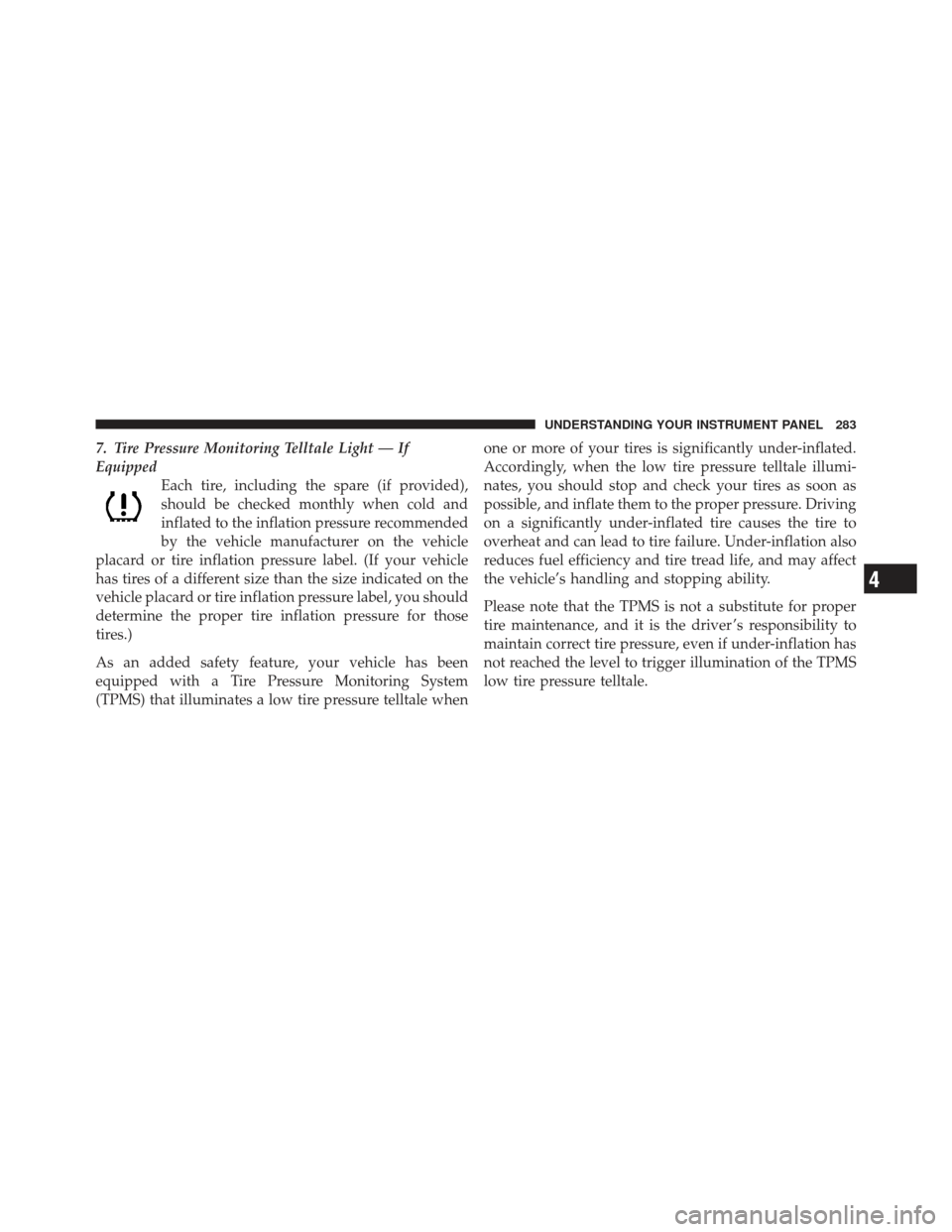
7. Tire Pressure Monitoring Telltale Light — If
EquippedEach tire, including the spare (if provided),
should be checked monthly when cold and
inflated to the inflation pressure recommended
by the vehicle manufacturer on the vehicle
placard or tire inflation pressure label. (If your vehicle
has tires of a different size than the size indicated on the
vehicle placard or tire inflation pressure label, you should
determine the proper tire inflation pressure for those
tires.)
As an added safety feature, your vehicle has been
equipped with a Tire Pressure Monitoring System
(TPMS) that illuminates a low tire pressure telltale when one or more of your tires is significantly under-inflated.
Accordingly, when the low tire pressure telltale illumi-
nates, you should stop and check your tires as soon as
possible, and inflate them to the proper pressure. Driving
on a significantly under-inflated tire causes the tire to
overheat and can lead to tire failure. Under-inflation also
reduces fuel efficiency and tire tread life, and may affect
the vehicle’s handling and stopping ability.
Please note that the TPMS is not a substitute for proper
tire maintenance, and it is the driver ’s responsibility to
maintain correct tire pressure, even if under-inflation has
not reached the level to trigger illumination of the TPMS
low tire pressure telltale.
4
UNDERSTANDING YOUR INSTRUMENT PANEL 283
Page 314 of 557
•Units
When in this display, you may select to have the EVIC,
odometer, and navigation system (if equipped) changed
between US and Metric units of measure. Touch US or
Metric until a check-mark appears next to the setting,
showing that setting has been selected. Touch the back
arrow soft-key to return to the previous menu.
•Voice Response Length
When in this display, you may change the Voice Re-
sponse Length settings. To change the Voice Response
Length, touch the Brief or Detailed soft-key until a
check-mark appears next to the setting, showing that
setting has been selected. Touch the back arrow soft-key
to return to the previous menu.
•Touchscreen Beep
When in this display, you may turn on or shut off the
sound heard when a touch screen button (soft-key) is
pressed. Touch the Touchscreen Beep soft-key until a check-mark appears next to the setting, showing that
setting has been selected. Touch the back arrow soft-key
to return to the previous menu.
•Navigation Turn-By-Turn In Cluster
When this feature is selected, the turn-by-turn directions
will appear in the display as the vehicle approaches a
designated turn within a programmed route. To make
your selection, touch the Navigation Turn-By-Turn In
Cluster soft-key, until a check-mark appears next to the
setting, showing that setting has been selected. Touch the
back arrow soft-key to return to the previous menu.
•Fuel Saver Display In Cluster
The “ECO” message is located in the instrument cluster
display, this message can be turned on or off. To make
your selection, touch the Fuel Saver Display soft-key,
until a check-mark appears next to the setting, showing
that setting has been selected. Touch the back arrow
soft-key to return to the previous menu.
312 UNDERSTANDING YOUR INSTRUMENT PANEL