Page 302 of 576
Customer Programmable Features — Uconnect
Touch™ 4.3 Settings (If Equipped)
In this mode the Uconnect Touch™ system allows you to
access programmable features that may be equipped
such as Display, Clock, Safety/Assistance, Lights, Doors
& Locks, Heated Seats, Engine Off Operation, Compass
Settings, Audio, Phone/Bluetooth and SIRIUS Setup
through hard-keys and soft-keys.
NOTE:Only one touchscreen area may be selected at a
time.
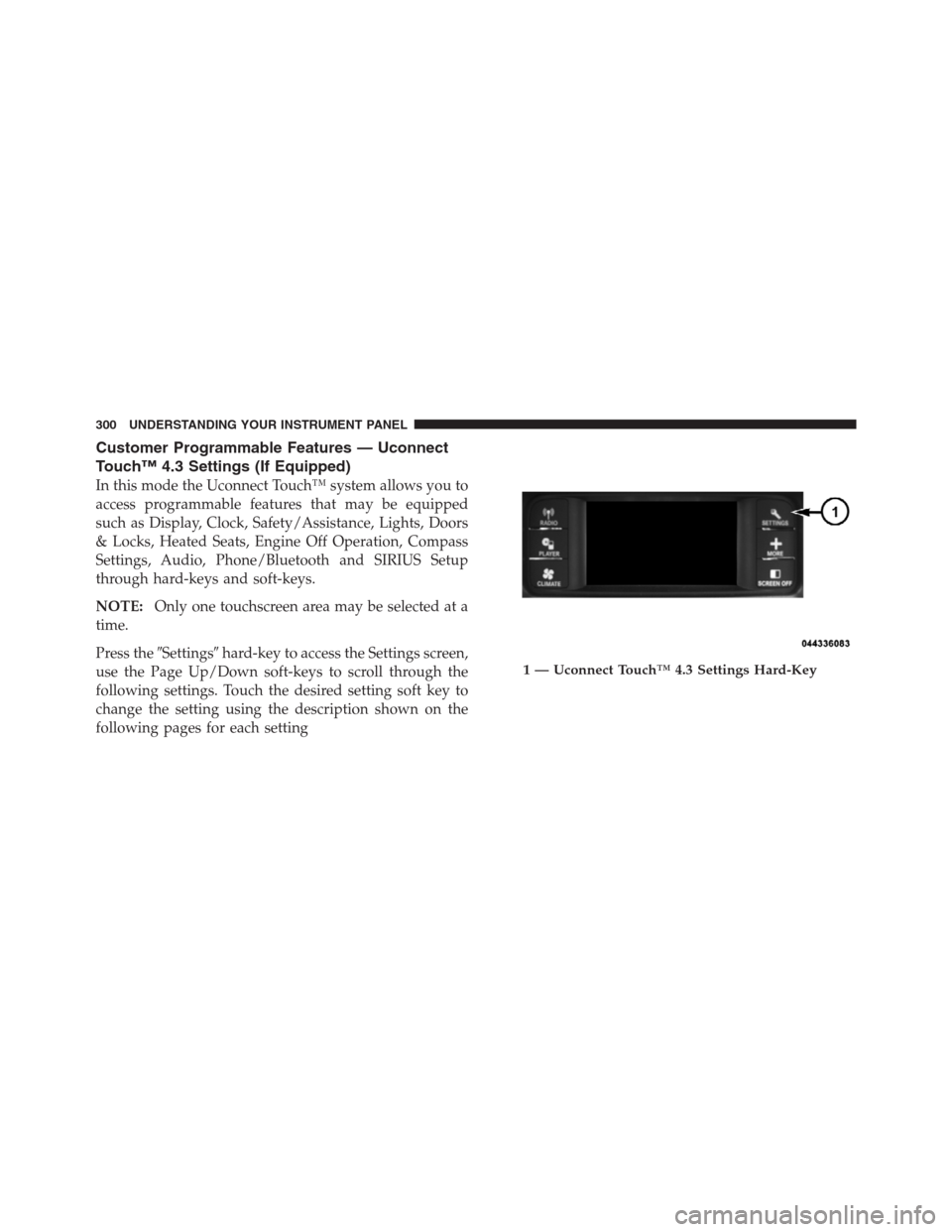
Press the�Settings�hard-key to access the Settings screen,
use the Page Up/Down soft-keys to scroll through the
following settings. Touch the desired setting soft key to
change the setting using the description shown on the
following pages for each setting
1 — Uconnect Touch™ 4.3 Settings Hard-Key
300 UNDERSTANDING YOUR INSTRUMENT PANEL
Page 314 of 576
Audio
•
Equalizer
Touch the Equalizer soft-key to change this display.
When in this display, you may adjust the Bass, Mid and
Treble settings. Adjust the settings with the + and –
setting soft-keys or by selecting any point on the scale
between the + and – soft-keys. Then touch the arrow back
soft-key.
NOTE:Bass/Mid/Treble allow you to simply slide your
finger up or down to change the setting as well as press
directly on the desired setting.
•Balance / Fade
Touch the Balance / Fade soft-key to change this display.
When in this display, you may adjust the Balance and
Fade settings.
•Speed Adjusted Volume
Touch the Speed Adjusted Volume soft-key to change this
display. This feature increases or decreases volume rela-
tive to vehicle speed. To change the Speed Adjusted
Volume, press the OFF, 1, 2 or 3 soft-key. Then touch the
arrow back soft-key.
•Surround Sound
Touch the Surround Sound soft-key to change this dis-
play. This feature provides simulated surround sound
mode. To make your selection, press the Surround Sound
soft-key and select ON or OFF. Then touch the arrow
back soft-key.
Phone / Bluetooth
•
Paired Devices
This feature shows which phones are paired to the
Phone/Bluetooth system. For further information, refer
to the Uconnect Touch™ Supplement.
312 UNDERSTANDING YOUR INSTRUMENT PANEL
Page 315 of 576
SIRIUS Setup
•
Channel Skip
SIRIUS can be programmed to designate a group of
channels that are the most desirable to listen to or to
exclude undesirable channels while scanning. To make
your selection, touch the Channel Skip soft-key, select the
channels you would like to skip. Then touch the arrow
back soft-key.
•Subscription Info
New vehicle purchasers or lessees will receive a free
limited time subscription to SIRIUS Satellite Radio with
your radio. Following the expiration of the free services,
it will be necessary to access the information on the
Subscription Information screen in order to re-subscribe.
Touch the Subscription Info soft-key to access the Sub-
scription Information screen.Write down the SIRIUS ID numbers for your receiver. To
reactivate your service, either call the number listed on
the screen or visit the provider online.
NOTE:SIRIUS Travel Link is a separate subscription.
Customer Programmable Features — Uconnect
Touch™ System 8.4 Settings (If Equipped)
Press the More soft-key, then press the Settings soft-key
to display the menu setting screen. In this mode the
Uconnect Touch™ system allows you to access program-
mable features that may be equipped such as Display,
Clock, Safety/Assistance, Lights, Doors & Locks,
Auto-On Comfort & Remote Start, Engine Off Operation,
Compass Settings, Audio, Phone/Bluetooth and SIRIUS
Setup.4
UNDERSTANDING YOUR INSTRUMENT PANEL 313
Page 329 of 576
Phone/Bluetooth
After pressing the Phone/Bluetooth soft-key the follow-
ing settings will be available.
•Paired Devices
This feature shows which phones are paired to the
Phone/Bluetooth system. For further information, refer
to the Uconnect Touch™ Supplement.
SIRIUS Setup
After pressing the SIRIUS Setup soft-key the following
settings will be available.
•Channel Skip
SIRIUS can be programmed to designate a group of
channels that are the most desirable to listen to or to
exclude undesirable channels while scanning. To make
your selection, touch the Channel Skip soft-key, select the
channels you would like to skip followed by pressing the
arrow back soft-key.
•Subscription Information
New vehicle purchasers or lessees will receive a free
limited time subscription to SIRIUS Satellite Radio with
your radio. Following the expiration of the free services,
it will be necessary to access the information on the
Subscription Information screen in order to re-subscribe.
Touch the Subscription Info soft-key to access the Sub-
scription Information screen.
Write down the SIRIUS ID numbers for your receiver. To
reactivate your service, either call the number listed on
the screen or visit the provider online.
NOTE:SIRIUS Travel Link is a separate subscription.
4
UNDERSTANDING YOUR INSTRUMENT PANEL 327
Page:
< prev 1-8 9-16 17-24