Page 143 of 576
NOTE:
•You can replace “John Smith” with any name in your
mobile or favorite phone book. You can also say “Send
a message to John Smith” and the system will ask you
which phone number you want to send a message to
for John Smith.
•You can replace “Mobile” with “Home”, “Work” or
“Other”.
•You can replace “Incoming Calls” with “Outgoing
Calls” or “Missed Calls”.
•Messaging commands only work if the Uconnect
system is equipped with this feature and the mobile
phone supports messaging over Bluetooth.
•You can replace “248 555 1212” with any phone
number supported by your Mobile phone.
•You can replace “4” with any message number shown
on the screen.
•If your phone does not support phonebook download
or call log download over Bluetooth than these com-
mands will return a response that the contact does not
exist in the phonebook.
•Available Voice Commands are shown in bold face and
underlined in the gray shaded boxes.
General Information
This device complies with Part 15 of the FCC rules and
RSS 210 of Industry Canada. Operation is subject to the
following conditions:
•Changes or modifications not expressly approved by
the party responsible for compliance could void the
user’s authority to operate the equipment.
•This device may not cause harmful interference.
•This device must accept any interference received,
including interference that may cause undesired
operation.
3
UNDERSTANDING THE FEATURES OF YOUR VEHICLE 141
Page 144 of 576
VOICE COMMAND
Uconnect Touch™ 8.4/8.4 Nav
The Uconnect™ Voice Command system al-
lows you to control your AM, FM radio, satel-
lite radio, disc player, SD Card, USB/iPod and
Sirius Travel Link.
NOTE:Take care to speak into the Voice Command
system as calmly and normally as possible. The ability of
the Voice Command system to recognize user voice
commands may be negatively affected by rapid speaking
or a raised voice level.
WARNING!
Any voice commanded system should be used only
in safe driving conditions following local laws. All
attention should be kept on the roadway ahead.
Failure to do so may result in a collision causing
serious injury or death.
When you press the Uconnect™ Voice Command
button, you will hear a beep. The beep is your signal to
give a command.
If no command is spoken the system will say one of two
responses:
•I didn’t understand
•I didn’t get that, etc.,
142 UNDERSTANDING THE FEATURES OF YOUR VEHICLE
Page 145 of 576
If a command is not spoken a second time, the system
will respond with an error and give some direction as
what can be said based on the context you are in. After
three consecutive failures of a spoken command the VR
session with end.
Pressing the Uconnect™ Voice Command
button
while the system is speaking is known as “barging in.”
The system will be interrupted, and after the beep, you
can say a command. This will become helpful once you
start to learn the options.
NOTE:At any time, you can say the words “Cancel” or
“Help”.
These commands are universal and can be used from any
menu. All other commands can be used depending upon
the active application.When using this system, you should speak clearly and at
a normal speaking volume.
The system will best recognize your speech if the win-
dows are closed, and the heater/air conditioning fan is
set to low.
At any point, if the system does not recognize one of your
commands, you will be prompted to repeat it.
To hear available commands, press the Uconnect™ Voice
Command
button and say “Help”. You will hear
available commands for the screen displayed.
3
UNDERSTANDING THE FEATURES OF YOUR VEHICLE 143
Page 146 of 576
Natural Speech
Natural speech allows the user to speak commands in
phrases or complete sentences. The system filters out
certain non-word utterances and sounds such as “ah”
and “eh”. The system handles fill-in words such as “I
would like to”.
The system handles multiple inputs in the same phrase
or sentence such as “make a phone call” and “to Kelly
Smith”. For multiple inputs in the same phrase or sen-
tence, the system identifies the topic or context and
provides the associated follow-up prompt such as “Who
do you want to call?” in the case where a phone call was
requested but the specific name was not recognized.
The system utilizes continuous dialog; when the system
requires more information from the user it will ask a
question to which the user can respond without pressing
the Uconnect™ Voice Command
button.
Uconnect™ Voice Commands
The Uconnect™ Voice Command system understands
two types of commands. Universal commands are avail-
able at all times. Local commands are available if the
supported radio mode is active.
Start a dialogue by pressing the Uconnect™ Voice Com-
mand
button.
Changing the Volume
1. Start a dialogue by pressing the Voice Command
button.
2. Say a command (e.g., “Help”).
3. Use the ON/OFF VOLUME rotary knob to adjust the
volume to a comfortable level while the Voice Command
system is speaking. Please note the volume setting for
Voice Command is different than the audio system.
144 UNDERSTANDING THE FEATURES OF YOUR VEHICLE
Page 151 of 576
NOTE:
1. You can replace the album, artist, song, genre, playlist,
podcast and audio book names with any corresponding
names on the current device that is playing.
2. You can replace “8” with any track on the CD that is
currently playing. Command is only available when CD
is playing.
3. Playlist, Podcast and audio book commands are only
available when the iPod is connected and playing.
4. VR commands, Albums, Artists, and Genre names are
based on the music database provided by Gracenote.
5. Available Voice Commands are shown in bold face
and shaded grey.
3
UNDERSTANDING THE FEATURES OF YOUR VEHICLE 149
Page 162 of 576
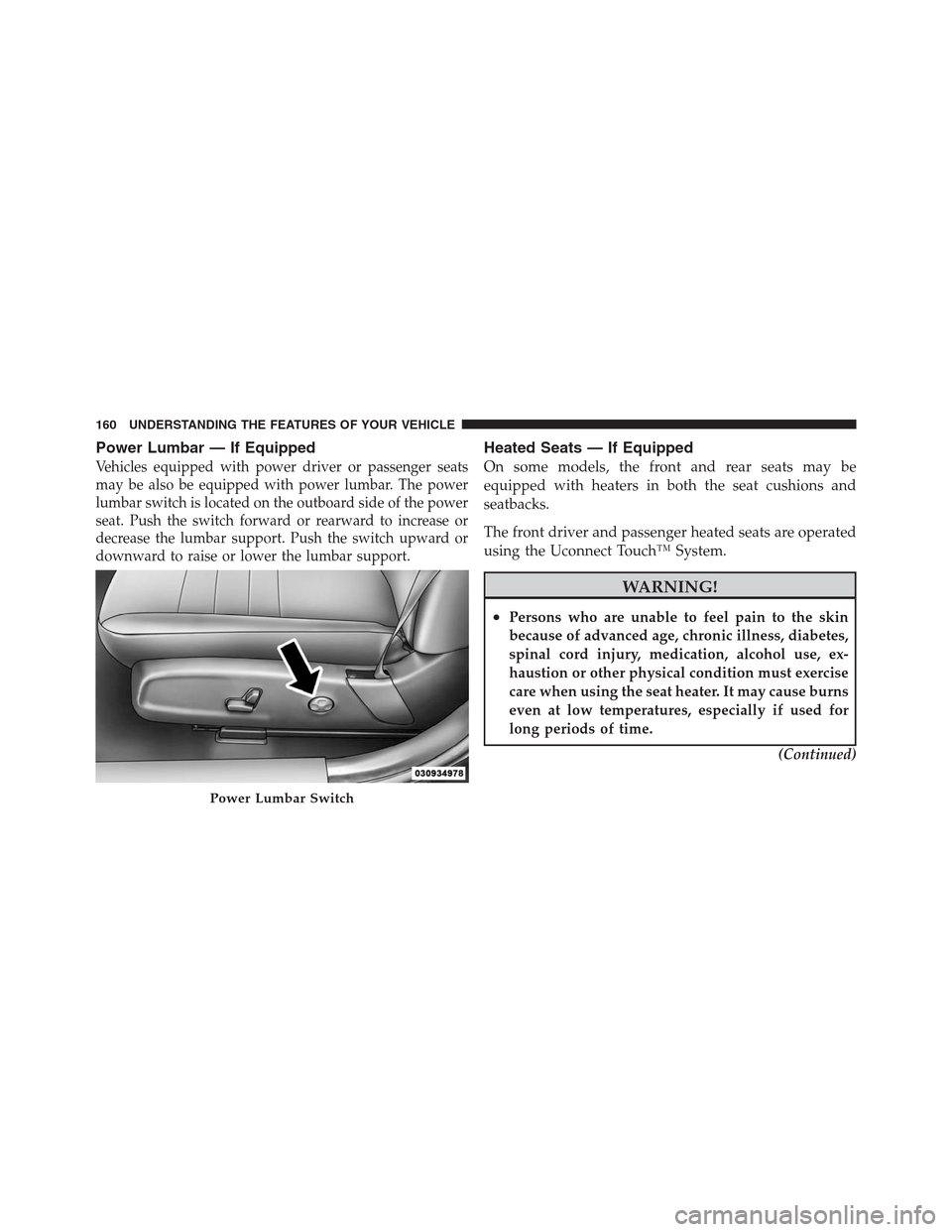
Power Lumbar — If Equipped
Vehicles equipped with power driver or passenger seats
may be also be equipped with power lumbar. The power
lumbar switch is located on the outboard side of the power
seat. Push the switch forward or rearward to increase or
decrease the lumbar support. Push the switch upward or
downward to raise or lower the lumbar support.
Heated Seats — If Equipped
On some models, the front and rear seats may be
equipped with heaters in both the seat cushions and
seatbacks.
The front driver and passenger heated seats are operated
using the Uconnect Touch™ System.
WARNING!
•Persons who are unable to feel pain to the skin
because of advanced age, chronic illness, diabetes,
spinal cord injury, medication, alcohol use, ex-
haustion or other physical condition must exercise
care when using the seat heater. It may cause burns
even at low temperatures, especially if used for
long periods of time.
(Continued)
Power Lumbar Switch
160 UNDERSTANDING THE FEATURES OF YOUR VEHICLE
Page 191 of 576

The Headlights On with Wipers feature can be turned on
and off using the Uconnect Touch™ System, refer to
“Uconnect Touch™ Settings” in “Understanding Your
Instrument Panel” for further information.
Rain Sensing Wipers — If Equipped
This feature senses moisture on the windshield and
automatically activates the wipers for the driver. The
feature is especially useful for road splash or over spray
from the windshield washers of the vehicle ahead. Rotate
the end of the multifunction lever to one of four settings
to activate this feature.
The sensitivity of the system can be adjusted with the
multifunction lever. Wiper delay position 1 is the least
sensitive, and wiper delay position 4 is the most sensi-
tive. Setting 3 should be used for normal rain conditions.
Settings 1 and 2 can be used if the driver desires less
wiper sensitivity. Settings 4 can be used if the driver
desires more sensitivity. The rain sense wipers willautomatically change between an intermittent wipe, slow
wipe and a fast wipe depending on the amount of
moisture that is sensed on the windshield. Place the
wiper switch in the OFF position when not using the
system.
The Rain Sensing feature can be turned on and off using
the Uconnect Touch™ System, refer to “Uconnect
Touch™ Settings” in “Understanding Your Instrument
Panel” for further information.
NOTE:
•The Rain Sensing feature will not operate when the
wiper speed is in the low or high position.
•The Rain Sensing feature may not function properly
when ice or dried salt water is present on the wind-
shield.
•Use of Rain-X�or products containing wax or silicone
may reduce rain sensor performance.
3
UNDERSTANDING THE FEATURES OF YOUR VEHICLE 189
Page 196 of 576
Vehicles Equipped With Remote Start
On models that are equipped with remote start, the
heated steering wheel can be programmed to come on
during a remote start. Refer to “Remote Starting System
— If Equipped” in “Things To Know Before Starting Your
Vehicle” for further information.
WARNING!
•Persons who are unable to feel pain to the skin
because of advanced age, chronic illness, diabetes,
spinal cord injury, medication, alcohol use, ex-
haustion, or other physical conditions must exer-
cise care when using the steering wheel heater. It
may cause burns even at low temperatures, espe-
cially if used for long periods.
(Continued)
WARNING! (Continued)
•Do not place anything on the steering wheel that
insulates against heat, such as a blanket or steering
wheel covers of any type and material.. This may
cause the steering wheel heater to overheat.
ADJUSTABLE PEDALS — IF EQUIPPED
The adjustable pedals system is designed to allow a
greater range of driver comfort for steering wheel tilt and
seat position. This feature allows the brake, accelerator,
and clutch pedals (if equipped) to move toward or away
from the driver to provide improved position with the
steering wheel.
194 UNDERSTANDING THE FEATURES OF YOUR VEHICLE