2012 CHEVROLET VOLT radio controls
[x] Cancel search: radio controlsPage 181 of 454

Black plate (65,1)Chevrolet Volt Owner Manual - 2012
Instruments and Controls 5-65
Return to Factory Settings
This returns all of the vehicle
personalization settings to the
factory settings.
1. Press the VehicleSettings menu.
2. Select Return to Factory Settings.
3. Select Yes or No.
4. Press Back to return to the previous menu.
Universal Remote
System
See Radio Frequency Statement on
page 13‑17 for information
regarding Part 15 of the Federal
Communications Commission (FCC)
rules and Industry Canada
Standards RSS-GEN/210/220/310.
Universal Remote System
Programming
If the vehicle has this feature, you
will see these buttons with one LED
indicator next to them in the
overhead console. This system provides a way to
replace up to three remote control
transmitters used to activate
devices such as garage door
openers, security systems, and
home automation devices.
Do not use the Universal Remote
system with any garage door opener
that does not have the stop and
reverse feature. This includes any
garage door opener model
manufactured before April 1,1982.
Read the instructions completely
before attempting to program the
Universal Remote system. Because
of the steps involved, it may be
helpful to have another person
available to assist with programming
the Universal Remote system.
Page 182 of 454

Black plate (66,1)Chevrolet Volt Owner Manual - 2012
5-66 Instruments and Controls
Keep the original hand-held
transmitter for use in other vehicles
as well as for future Universal
Remote system programming. It is
also recommended that upon the
sale of the vehicle, the programmed
Universal Remote system buttons
be erased for security purposes.
See“Erasing Universal Remote
System Buttons” later in this
section.
When programming a garage door,
park outside of the garage. Park
directly in line with and facing the
garage door opener motor-head or
gate motor-head. Be sure that
people and objects are clear of the
garage door or gate being
programmed.
It is recommended that a new
battery be installed in the hand-held
transmitter for quicker and more
accurate transmission of the
radio-frequency signal.Programming the Universal
Remote System
For questions or help programming
the Universal Remote system, call
1‐800‐355‐3515 or go to
www.homelink.com.
Programming a garage door opener
involves time-sensitive actions, so
read the entire procedure before
starting. Otherwise, the device will
time out and the procedure will have
to be repeated.
To program up to three devices:
1. Hold the end of the hand-held transmitter about 3 to 8 cm
(1 to 3 in) away from the
Universal Remote system
buttons while keeping the
indicator light in view. The
hand-held transmitter was
supplied by the manufacturer of
the garage door opener receiver
(motor-head unit). 2. At the same time, press and
hold both the hand-held
transmitter button and one of the
three Universal Remote system
buttons to be used to operate
the garage door. Do not release
the Universal Remote system
button or the hand-held
transmitter button until the
indicator light changes from a
slowly to a rapidly flashing light.
You now may release both
buttons.
Some entry gates and garage
door openers may require
substitution of Step 2 with the
procedure noted in “Gate
Operator and Canadian
Programming” later in this
section.
Page 184 of 454

Black plate (68,1)Chevrolet Volt Owner Manual - 2012
5-68 Instruments and Controls
Gate Operator and Canadian
Programming
If you have questions or need help
programming the Universal Remote
system, call 1‐800‐355‐3515 or go
to www.homelink.com.
Canadian radio-frequency laws
require transmitter signals to time
out or quit after several seconds of
transmission. This may not be long
enough for the Universal Remote
system to pick up the signal during
programming. Similarly, some U.S.
gate operators are manufactured to
time out in the same manner.If you live in Canada, or you are
having difficulty programming a gate
operator or garage door opener by
using the
“Programming the
Universal Remote System”
procedures, regardless of where
you live, replace Step 2 under
“Programming the Universal Remote
System” with the following:
Continue to press and hold the
Universal Remote system button
while you press and release every
two seconds (cycle) the hand-held
transmitter button until the
frequency signal has been
successfully accepted by the
Universal Remote system. The
Universal Remote system indicator
light will flash slowly at first and then
rapidly. Proceed with Step 3 under
“Programming the Universal Remote
System” to complete.
Universal Remote System
Operation
Using the Universal Remote
System
Press and hold the appropriate
Universal Remote system button for
at least half of a second. The
indicator light will come on while the
signal is being transmitted.
Page 193 of 454

Black plate (1,1)Chevrolet Volt Owner Manual - 2012
Infotainment System 7-1
Infotainment
System
Introduction
Infotainment . . . . . . . . . . . . . . . . . . . 7-1
Theft-Deterrent Feature . . . . . . . 7-2
Overview . . . . . . . . . . . . . . . . . . . . . . 7-2
Radio
AM-FM Radio . . . . . . . . . . . . . . . . . 7-8
Satellite Radio . . . . . . . . . . . . . . . 7-11
Radio Reception . . . . . . . . . . . . . 7-13
Multi-Band Antenna . . . . . . . . . . 7-13
Audio Players
CD Player . . . . . . . . . . . . . . . . . . . 7-14
MP3 . . . . . . . . . . . . . . . . . . . . . . . . . 7-16
Auxiliary Devices . . . . . . . . . . . . 7-18
Phone
Bluetooth (Overview) . . . . . . . . 7-22
Bluetooth (InfotainmentControls) . . . . . . . . . . . . . . . . . . . 7-24
Bluetooth (Voice Recognition) . . . . . . . . . . . . . . . 7-28
Trademarks and License
Agreements
Trademarks and License
Agreements . . . . . . . . . . . . . . . . 7-34
Introduction
Infotainment
Read the following pages to
become familiar with the audio
system's features.
{WARNING
Taking your eyes off the road for
extended periods could cause a
crash resulting in injury or death
to you or others. Do not give
extended attention to
entertainment tasks while driving.
This system provides access to
many audio and non‐audio listings.
Page 194 of 454

Black plate (2,1)Chevrolet Volt Owner Manual - 2012
7-2 Infotainment System
To minimize taking your eyes off the
road while driving, do the following
while the vehicle is parked:
.Become familiar with the
operation and controls of the
audio system.
.Set up the tone, speaker
adjustments, and preset radio
stations.
For more information, see Defensive
Driving on page 9‑5.
The vehicle has Retained
Accessory Power (RAP). With RAP,
the audio system can be played
even after the ignition is turned off.
See Retained Accessory Power
(RAP) on page 9‑21 for more
information.
Navigation/Radio System
For vehicles with a navigation radio
system, see the separate navigation
manual.
Theft-Deterrent Feature
The theft-deterrent feature works by
learning a portion of the Vehicle
Identification Number (VIN) to the
infotainment system. The
infotainment system does not
operate if it is stolen or moved to a
different vehicle.
Overview
For vehicles equipped with the
MyLink®or IntelliLink®infotainment
system, see the separate MyLink/
IntelliLink Features and Functions
Guide for more information.
Keeping your eyes on the road and
your mind on the drive is important
for safe driving. The infotainment
system has built-in features
intended to help with this by
disabling some features when
driving. A grayed-out function is not
available when the vehicle is
moving.
Page 197 of 454
Black plate (5,1)Chevrolet Volt Owner Manual - 2012
Infotainment System 7-5
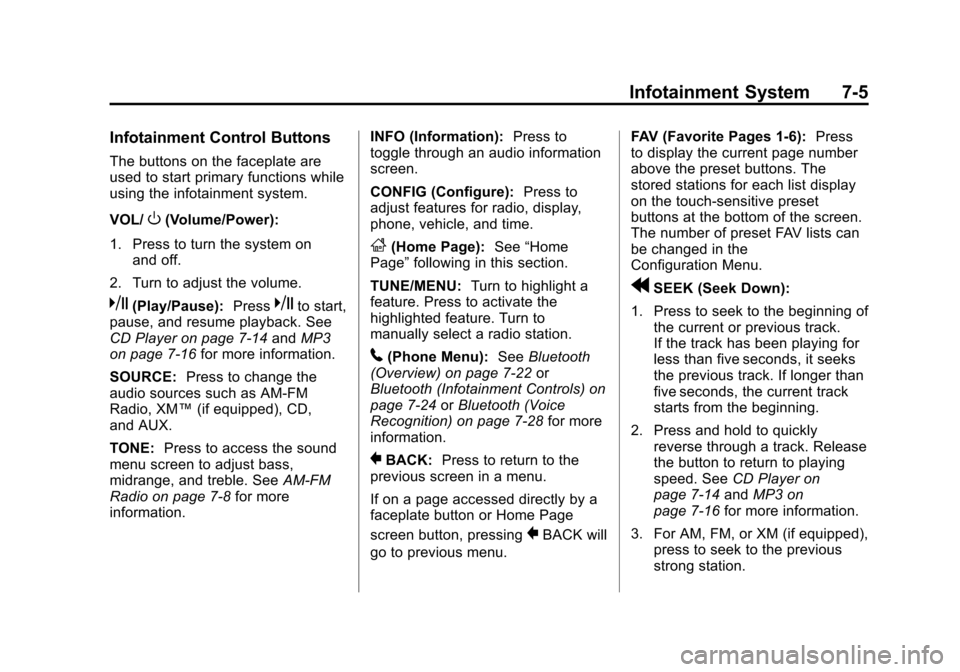
Infotainment Control Buttons
The buttons on the faceplate are
used to start primary functions while
using the infotainment system.
VOL/
O(Volume/Power):
1. Press to turn the system on and off.
2. Turn to adjust the volume.
k(Play/Pause): Presskto start,
pause, and resume playback. See
CD Player on page 7‑14 andMP3
on page 7‑16 for more information.
SOURCE: Press to change the
audio sources such as AM-FM
Radio, XM™ (if equipped), CD,
and AUX.
TONE: Press to access the sound
menu screen to adjust bass,
midrange, and treble. See AM-FM
Radio on page 7‑8 for more
information. INFO (Information):
Press to
toggle through an audio information
screen.
CONFIG (Configure): Press to
adjust features for radio, display,
phone, vehicle, and time.
F(Home Page): See“Home
Page” following in this section.
TUNE/MENU: Turn to highlight a
feature. Press to activate the
highlighted feature. Turn to
manually select a radio station.
5(Phone Menu): SeeBluetooth
(Overview) on page 7‑22 or
Bluetooth (Infotainment Controls) on
page 7‑24 orBluetooth (Voice
Recognition) on page 7‑28 for more
information.
}BACK: Press to return to the
previous screen in a menu.
If on a page accessed directly by a
faceplate button or Home Page
screen button, pressing
}BACK will
go to previous menu. FAV (Favorite Pages 1-6):
Press
to display the current page number
above the preset buttons. The
stored stations for each list display
on the touch-sensitive preset
buttons at the bottom of the screen.
The number of preset FAV lists can
be changed in the
Configuration Menu.
rSEEK (Seek Down):
1. Press to seek to the beginning of the current or previous track.
If the track has been playing for
less than five seconds, it seeks
the previous track. If longer than
five seconds, the current track
starts from the beginning.
2. Press and hold to quickly reverse through a track. Release
the button to return to playing
speed. See CD Player on
page 7‑14 andMP3 on
page 7‑16 for more information.
3. For AM, FM, or XM (if equipped), press to seek to the previous
strong station.
Page 199 of 454

Black plate (7,1)Chevrolet Volt Owner Manual - 2012
Infotainment System 7-7
Press the Phone screen button to
display the Phone main page. See
Bluetooth (Overview) on page 7‑22
orBluetooth (Infotainment Controls)
on page 7‑24 orBluetooth (Voice
Recognition) on page 7‑28
Press the Config screen button to
display the Config main page. From
this display, you can adjust features
such as time and date, radio,
phone, vehicle, and display.
Press the Tone screen button to
display the Tone main page. Adjust
the tone and speakers by pressing
the screen buttons to change the
levels of sound for treble, midrange,
bass, fade, and balance. See
AM-FM Radio on page 7‑8. Press the FM screen button to
display the FM main page and play
the current or last tuned FM station.
See
AM-FM Radio on page 7‑8.
Press the AM screen button to
display the AM main page and play
the current or last tuned AM station.
See AM-FM Radio on page 7‑8.
Press the XM screen button
(if equipped) to display the XM main
page and play the current or last
tuned XM channel. See AM-FM
Radio on page 7‑8 andSatellite
Radio on page 7‑11.
Press the CD screen button to
display the CD main page and play
the current or last CD track
selected. See CD Player on
page 7‑14.
Press the USB screen button to
display the USB main page and play
the current or last track selected.
See Auxiliary Devices on page 7‑18. Press the AUX screen button to
access any connected auxiliary
device. See
Auxiliary Devices on
page 7‑18.
Languages
The vehicle supports English,
French (Canadian), and Spanish.
The default language is English.
To change the display language,
see Vehicle Personalization on
page 5‑56 for more information.
English and Metric Unit
Conversion
To change the display units between
English and metric units, see Driver
Information Center (DIC) on
page 5‑45 for more information.
Page 200 of 454

Black plate (8,1)Chevrolet Volt Owner Manual - 2012
7-8 Infotainment System
Radio
AM-FM Radio
Playing the Radio
For vehicles equipped with the
MyLink or IntelliLink infotainment
system, see the separate MyLink/
IntelliLink Features and Functions
Guide for more information.
Audio Source
VOL/
O(Volume/Power):
1. Press to turn the radio on or off.
2. Turn to increase or decrease the volume of the active source
(i.e., current audio source, active
navigation voice guidance,
or traffic prompts).
The steering wheel controls can
also be used to adjust the volume.
See “Steering Wheel Controls” in
the vehicle owner manual for more
information. To access the radio main page,
press the SOURCE button on the
faceplate, the Now Playing screen
button, or one of the audio screen
buttons on the Home Page.
While on the audio main page,
press the Source button repeatedly
to display and cycle through the
available sources (AM, FM, and XM
(if equipped), CD, USB/iPod,
and AUX).Infotainment System Settings
Tone Settings
To access the tone settings, press
the Home Page Tone button or the
TONE button on the faceplate.
Use the tone settings to adjust the
following features:
.Setting the tone
.Adjusting the speakers
Setting the Tone
To adjust the tone:
.Treble: Press + or
−to change
the level.
.Middle (Midrange): Press +
or −to change the level.
.Bass: Press + or −to change
the level.
Adjusting the Speakers
To adjust the speaker balance:
.Press the left arrow on the
bottom for more sound from the
left speakers or the right arrow
on the bottom for more sound
from the right speakers. The
middle position balances the
sound between the left and right
speakers.