2012 CHEVROLET ORLANDO Start
[x] Cancel search: StartPage 136 of 378

Black plate (32,1)Chevrolet Orlando Owner Manual - 2012
5-32 Instruments and Controls
Vehicle
Personalization
The audio system controls are used
to access the personalization
menus for customizing vehicle
features.
CONFIG (Configuration):Press to
access the Configuration
Settings menu.
MENU: Press the center of this
knob to enter the menus and select
menu items. Turn the knob to scroll
through the menus.
BACK: Press to exit or move
backward in a menu.
Entering the Personalization
Menus
1. Press CONFIG to access the
Configuration Settings menu.
2. Turn the MENU knob to highlight Vehicle Settings. Press the
CONFIG button until Vehicle is
highlighted on vehicles with a
navigation system only. 3. Press the center of the MENU
knob to select the Vehicle
Settings menu. The vehicle must
be in the run position.
The following list of menu items may
be available:
.Climate and Air Quality
.Comfort and Convenience
.Collision/Detection Systems
.Languages
.Lighting
.Power Door Locks
.Remote Locking, Unlocking,
Starting
.Return to Factory Settings
Turn the MENU knob to highlight the
menu. Press the knob to select it.
Each of the menus is detailed in the
following information.
Vehicles with a navigation system
will display a checkmark to indicate
this feature is on.
Climate and Air Quality
If equipped, select the Climate and
Air Quality menu and the following
will be displayed:
.Auto Fan Speed
.Air Quality Sensor
.Remote Start Auto Heat Seats
.Auto Defog
.Auto Rear Defog
Auto Fan Speed
This will allow you to select the
automatic fan speed. This feature
sets the climate control fan speed to
maintain the interior temperature.
Press the MENU knob when Auto
Fan Speed is highlighted to open
the menu. Turn the knob to highlight
High, Medium, or Low. Press the
BACK button to confirm the
selection and move back to the
last menu.
Page 137 of 378

Black plate (33,1)Chevrolet Orlando Owner Manual - 2012
Instruments and Controls 5-33
Air Quality Sensor
This will allow you to select whether
the system will operate at high or
low sensitivity. Only vehicles with
the automatic climate control will
have this option.
Press the MENU knob when Air
Quality Sensor is highlighted to
open the menu. Turn the knob to
highlight High Sensitivity or Low
Sensitivity. Press the BACK button
to confirm the selection and move
back to the last menu.
Remote Start Auto Heat Seats
On vehicles with remote start and
heated seats, the heated seats can
be set to on or off.
Press the MENU knob when
Remote Start Auto Heat Seats is
highlighted to open the menu. Turn
the knob to highlight On or Off.
Press the BACK button to confirm
the selection and move back to the
last menu.Auto Defog
When turned on and high humidity
is detected, the climate control
system may adjust to outside
air supply and turn on the air
conditioner or the heater. The fan
speed may slightly increase to
help prevent fogging. When high
humidity is no longer detected, the
system will return to its prior
operation.
Press the MENU knob when Auto
Defog is highlighted to open the
menu. Turn the knob to highlight On
or Off. Press the BACK button to
confirm the selection and move
back to the last menu.
Auto Rear Defog
When on, this feature turns on the
rear defogger at vehicle start when
the interior temperature is cold and
fog is likely. The Auto Rear Defog
function can be disabled by
pressing
1. When off, the feature
can be turned on by pressing
1. See
“Rear Window Defogger” under
Climate Control Systems on
page 8‑1 for more information.
Press the MENU knob when Auto
Rear Defog is highlighted to open
the menu. Turn the knob to highlight
On or Off. Press the knob to confirm
the selection and move back to the
last menu.
Comfort and Convenience
Select the Comfort and
Convenience menu and Chime
Volume will be displayed.
Chime Volume
This allows selection of the chime
volume level.
Press the MENU knob when Chime
Volume is highlighted. Turn the knob
to select Normal or High. Press the
BACK button to confirm and go
back to the last menu.
Collision/Detection Systems
If equipped, select the Collision/
Detection Systems menu and Park
Assist will be displayed.
Page 139 of 378

Black plate (35,1)Chevrolet Orlando Owner Manual - 2012
Instruments and Controls 5-35
Press either the power lock button
or
Qon the RKE transmitter twice to
override the delayed locking feature
and immediately lock all of the
doors.
Press the MENU knob when
Delayed Door Lock is highlighted to
select On or Off. Press BACK to
return to the last menu.
Unlocked Door Anti Lock Out
When on, all doors will lock. The
driver door will then unlock if door
locking is requested while the driver
door is open and disable the
Delayed Door Lock feature.
If Off is selected, the Delayed Door
Lock feature may be enabled
through an additional menu
selection.
Press the MENU knob when
Unlocked Door Anti Lock Out is
highlighted to select On or Off.
Press BACK to return to the
last menu. Auto Door Lock
This allows selection of which of the
doors will automatically lock when
the vehicle is shifted into P (Park).
Press the MENU knob when Auto
Door Lock is highlighted. Turn the
knob to select On or Off. Press the
knob to confirm and go back to the
last menu.
Remote Locking, Unlocking,
Starting
Select Remote Locking, Unlocking,
Starting and the following will be
displayed (depending on the
system):
.Remote Lock Feedback
.Door Unlock or Remote Door
Unlock
.Remote Unlock Light Feedback
.Remote Start
Remote Lock Feedback
This allows selection of what type of
feedback is given when locking the
vehicle with the RKE transmitter.
Press the MENU knob when
Remote Lock Feedback is
highlighted. Turn the knob to select
Lights and Horn, Lights Only, Horn
Only, or Off. Press the knob to
confirm and go back to the
last menu.
Door Unlock or Remote Door
Unlock
This allows selection of which doors
will unlock when pressing
Kon the
RKE transmitter.
Press the MENU knob when Door
Unlock is highlighted. Turn the knob
to select All Doors or Driver Door
Only. When set to Driver Door Only,
the driver door will unlock the first
time
Kis pressed and all doors will
unlock when the button is pressed a
second time. When set to All Doors,
all of the doors will unlock at the first
Page 140 of 378

Black plate (36,1)Chevrolet Orlando Owner Manual - 2012
5-36 Instruments and Controls
press ofK. Press the knob to
confirm and go back to the
last menu.
Remote Unlock Light Feedback
If equipped, this allows selection of
what type of feedback is given when
unlocking the vehicle with the RKE
transmitter.
Press the MENU knob when
Remote Unlock Light Feedback is
highlighted. Turn the knob to select
On or Off. Press the knob to confirm
and go back to the last menu. Remote Start
If equipped, this allows Remote
Start to be turned on or off.
Press the MENU knob when
Remote Start is highlighted. Turn
the knob to select On or Off. Press
the knob to confirm and go back to
the last menu.
Return to Factory Settings
Select Return to Factory Settings to
return all vehicle personalization to
the default settings. Turn the knob
to select Yes or No. Press the knob
to confirm and go back to the
last menu.
Page 144 of 378
Black plate (4,1)Chevrolet Orlando Owner Manual - 2012
6-4 Lighting
system, to make the front and rear
turn signal lamps flash on and off.
This warns others that you are
having trouble. Press and
momentarily hold again to turn the
flashers off.
Turn and Lane-Change
Signals
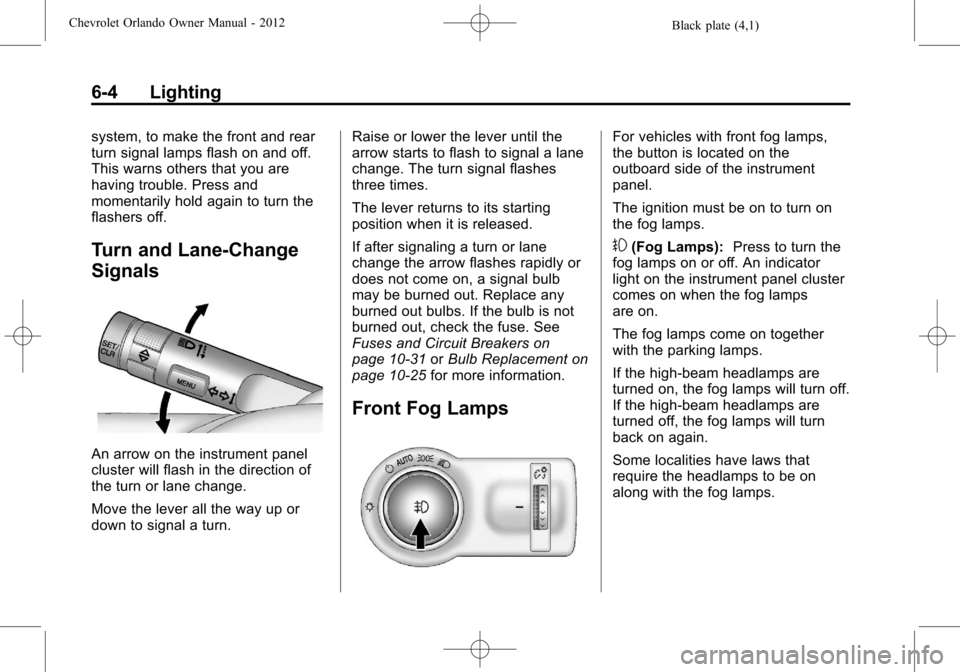
An arrow on the instrument panel
cluster will flash in the direction of
the turn or lane change.
Move the lever all the way up or
down to signal a turn.Raise or lower the lever until the
arrow starts to flash to signal a lane
change. The turn signal flashes
three times.
The lever returns to its starting
position when it is released.
If after signaling a turn or lane
change the arrow flashes rapidly or
does not come on, a signal bulb
may be burned out. Replace any
burned out bulbs. If the bulb is not
burned out, check the fuse. See
Fuses and Circuit Breakers on
page 10‑31
orBulb Replacement on
page 10‑25 for more information.
Front Fog Lamps
For vehicles with front fog lamps,
the button is located on the
outboard side of the instrument
panel.
The ignition must be on to turn on
the fog lamps.
#(Fog Lamps): Press to turn the
fog lamps on or off. An indicator
light on the instrument panel cluster
comes on when the fog lamps
are on.
The fog lamps come on together
with the parking lamps.
If the high‐beam headlamps are
turned on, the fog lamps will turn off.
If the high‐beam headlamps are
turned off, the fog lamps will turn
back on again.
Some localities have laws that
require the headlamps to be on
along with the fog lamps.
Page 156 of 378
Black plate (10,1)Chevrolet Orlando Owner Manual - 2012
7-10 Infotainment System
Maximum Startup Volume
The maximum volume played when
the radio is first turned on can
be set.
1. Press the CONFIG button.
2. Select Radio Settings.
3. Select Maximum StartupVolume.
4. Select the setting.
5. Press the BACK button to go back to the System
Configuration menu.Radio
AM-FM Radio
Control Buttons
The buttons used to control the
radio are:
BAND: Press to turn the radio on
and choose between AM, FM, and
XM™, if equipped.
MENU: Turn to navigate the
available menus and to search for
stations.
INFO: Press to display additional
information that may be available for
the current song.
gorl: Press to search for
stations.
FAV: Press to open the favorites
list and select the favorites page.
1 to 6: Press to select preset
stations.
AS (Autostore): Press to open the
autostore list.
RDS (Radio Data System)
The radio may have RDS. The RDS
feature is available for use only on
FM stations that broadcast RDS
information. This feature only works
when the information from the radio
station is available. In rare cases,
a radio station could broadcast
incorrect information that causes the
radio features to work improperly.
If this happens, contact the radio
station.
While the radio is tuned to an
FM-RDS station, the station name
or call letters display.
Radio Menus
Radio menus are available for AM
and FM.
Turn the MENU knob to open the
main radio menu for that band.
Selecting a Band
Press the BAND button to choose
AM, FM, or XM, if equipped. The
last station that was playing starts
playing again.
Page 166 of 378
Black plate (20,1)Chevrolet Orlando Owner Manual - 2012
7-20 Infotainment System
Off:Starts playback from the
beginning of the current track after
the last track finishes.
Connecting and Controlling a
PlaysForSure Device (PFD)
or Zune™
Connecting a PFD or Zune
Connect the PFD or Zune to the
USB port.
Searching for a Track
Tracks can be searched for by:
.Playlists
.Artists
.Albums
.Song Titles
.Podcasts
.Genres
To search for tracks:
1. Turn the MENU knob.
2. Select Search. 3. Select: Playlists, Artists, Albums,
Song Titles, Podcasts, or
Genres.
4. Select the track.
Shuffle Functionality
Turn the MENU knob and set
Shuffle Songs (Random) to On
or Off.
On: Plays current tracks in random
order.
Off: Plays current tracks in
sequential order.
Repeat Functionality
Turn the MENU knob and set
Repeat to On or Off.
Repeat On: Repeats the current
track.
Repeat Off: Starts playback from
the beginning of the current track
after the last track finishes.
Connecting and Controlling a
USB Drive
The infotainment system can only
play back .mp3 and .wma files from
a USB drive.
Only the first 10,000 songs are
recognized on the device.
When a device is not supported, the
message “No supported data found.
You can safely disconnect the
device” appears.
Connecting a USB Drive
Connect the USB drive to the
USB port.
Searching for a Track
It is normal for the search feature to
take some time to display the
information after reading the device
due to the amount of information
stored.
Files that do not have any meta
data stored in the ID3 tag display as
Unknown.
Page 167 of 378
Black plate (21,1)Chevrolet Orlando Owner Manual - 2012
Infotainment System 7-21
Tracks can be searched for by:
.Playlists*
.Artists
.Albums
.Song Titles
.Genres
.Folder View
*This only displays if a playlist is
found on the device.
To search for tracks:
1. Turn the MENU knob.
2. Select Search.
3. Select: Playlists, Artists, Albums, Song Titles, Genres, or
Folder View.
4. Select the track. Shuffle Functionality
Turn the MENU knob and set
Shuffle Songs (Random) to On
or Off.
On:
Plays current tracks in random
order.
Off: Plays current tracks in
sequential order.
Repeat Functionality
Turn the MENU knob and set
Repeat to On or Off.
Repeat On: Repeats the current
track.
Repeat Off: Starts playback from
the beginning of the current track
after the last track finishes.
Phone
Bluetooth (Overview)
For vehicles equipped with
Bluetooth capability, the system
can interact with many cell phones,
allowing:
.Placement and receipt of calls in
a hands-free mode.
.Sharing of the cell phone’s
address book or contact list with
the vehicle.
To minimize driver distraction,
before driving, and with the vehicle
parked:
.Become familiar with the
features of the cell phone.
Organize the phone book and
contact lists clearly and delete
duplicate or rarely used entries.
If possible, program speed dial
or other shortcuts.
.Review the controls and
operation of the infotainment
system.