2012 CHEVROLET EQUINOX radio
[x] Cancel search: radioPage 169 of 428
Black plate (9,1)Chevrolet Equinox Owner Manual - 2012
Infotainment System 7-9
Press the Phone screen button to
display the Phone main page. See
Bluetooth (Overview) on page 7‑36
orBluetooth (Infotainment Controls)
on page 7‑38 orBluetooth (Voice
Recognition) on page 7‑42.
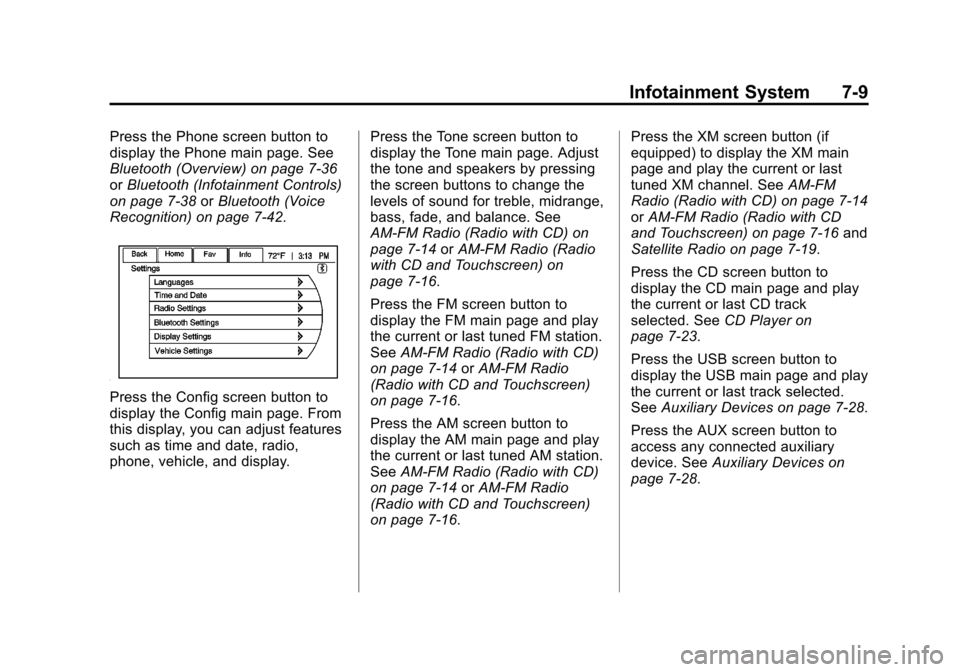
Press the Config screen button to
display the Config main page. From
this display, you can adjust features
such as time and date, radio,
phone, vehicle, and display. Press the Tone screen button to
display the Tone main page. Adjust
the tone and speakers by pressing
the screen buttons to change the
levels of sound for treble, midrange,
bass, fade, and balance. See
AM-FM Radio (Radio with CD) on
page 7‑14
orAM-FM Radio (Radio
with CD and Touchscreen) on
page 7‑16.
Press the FM screen button to
display the FM main page and play
the current or last tuned FM station.
See AM-FM Radio (Radio with CD)
on page 7‑14 orAM-FM Radio
(Radio with CD and Touchscreen)
on page 7‑16.
Press the AM screen button to
display the AM main page and play
the current or last tuned AM station.
See AM-FM Radio (Radio with CD)
on page 7‑14 orAM-FM Radio
(Radio with CD and Touchscreen)
on page 7‑16. Press the XM screen button (if
equipped) to display the XM main
page and play the current or last
tuned XM channel. See
AM-FM
Radio (Radio with CD) on page 7‑14
or AM-FM Radio (Radio with CD
and Touchscreen) on page 7‑16 and
Satellite Radio on page 7‑19.
Press the CD screen button to
display the CD main page and play
the current or last CD track
selected. See CD Player on
page 7‑23.
Press the USB screen button to
display the USB main page and play
the current or last track selected.
See Auxiliary Devices on page 7‑28.
Press the AUX screen button to
access any connected auxiliary
device. See Auxiliary Devices on
page 7‑28.
Page 172 of 428
Black plate (12,1)Chevrolet Equinox Owner Manual - 2012
7-12 Infotainment System
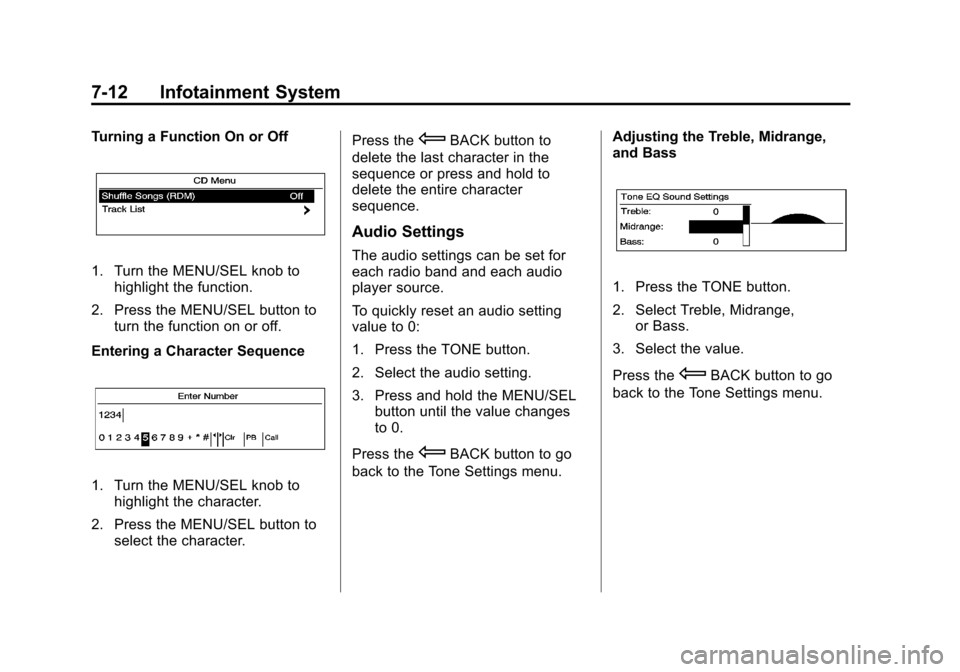
Turning a Function On or Off
1. Turn the MENU/SEL knob tohighlight the function.
2. Press the MENU/SEL button to turn the function on or off.
Entering a Character Sequence
1. Turn the MENU/SEL knob to highlight the character.
2. Press the MENU/SEL button to select the character. Press the
EBACK button to
delete the last character in the
sequence or press and hold to
delete the entire character
sequence.
Audio Settings
The audio settings can be set for
each radio band and each audio
player source.
To quickly reset an audio setting
value to 0:
1. Press the TONE button.
2. Select the audio setting.
3. Press and hold the MENU/SEL button until the value changes
to 0.
Press the
EBACK button to go
back to the Tone Settings menu. Adjusting the Treble, Midrange,
and Bass
1. Press the TONE button.
2. Select Treble, Midrange,
or Bass.
3. Select the value.
Press the
EBACK button to go
back to the Tone Settings menu.
Page 173 of 428
Black plate (13,1)Chevrolet Equinox Owner Manual - 2012
Infotainment System 7-13
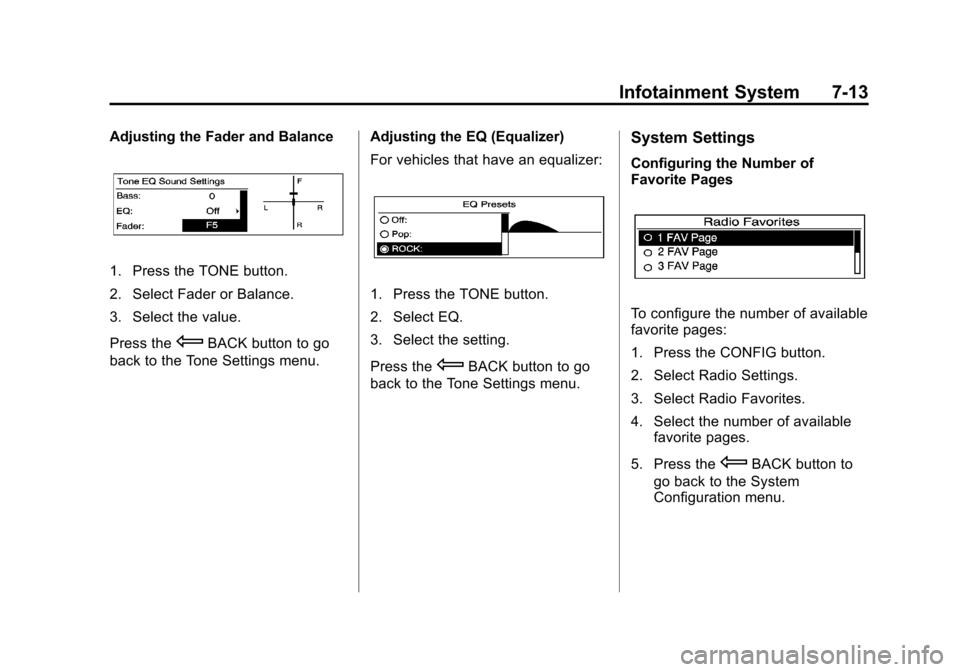
Adjusting the Fader and Balance
1. Press the TONE button.
2. Select Fader or Balance.
3. Select the value.
Press the
EBACK button to go
back to the Tone Settings menu. Adjusting the EQ (Equalizer)
For vehicles that have an equalizer:
1. Press the TONE button.
2. Select EQ.
3. Select the setting.
Press the
EBACK button to go
back to the Tone Settings menu.
System Settings
Configuring the Number of
Favorite Pages
To configure the number of available
favorite pages:
1. Press the CONFIG button.
2. Select Radio Settings.
3. Select Radio Favorites.
4. Select the number of available favorite pages.
5. Press the
EBACK button to
go back to the System
Configuration menu.
Page 174 of 428
Black plate (14,1)Chevrolet Equinox Owner Manual - 2012
7-14 Infotainment System
Auto Volume
The auto volume feature
automatically adjusts the radio
volume to compensate for road and
wind noise as the vehicle speeds up
or slows down, so that the volume
level is consistent.
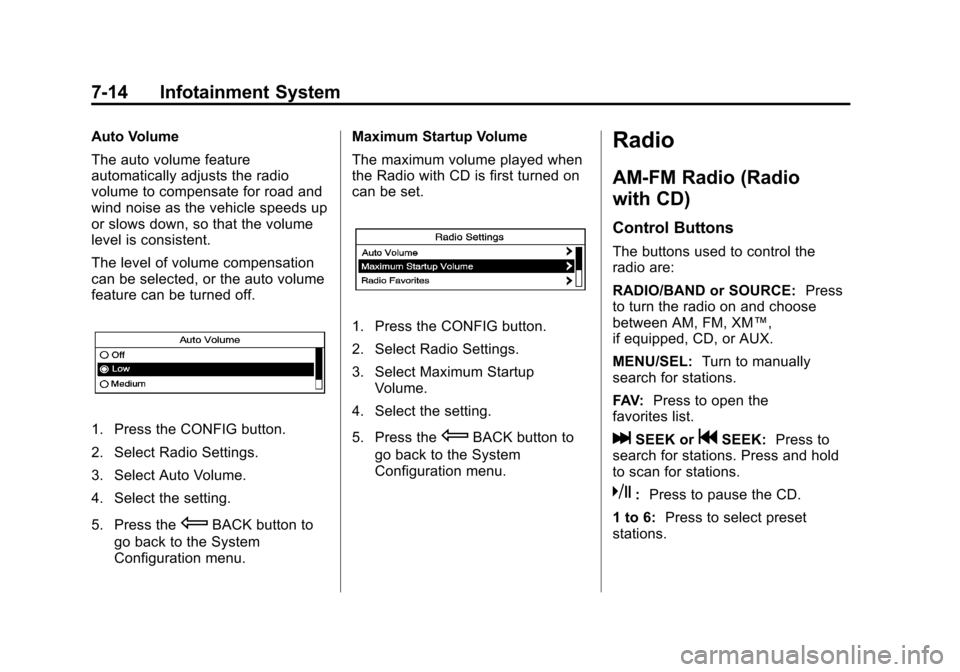
The level of volume compensation
can be selected, or the auto volume
feature can be turned off.
1. Press the CONFIG button.
2. Select Radio Settings.
3. Select Auto Volume.
4. Select the setting.
5. Press the
EBACK button to
go back to the System
Configuration menu. Maximum Startup Volume
The maximum volume played when
the Radio with CD is first turned on
can be set.
1. Press the CONFIG button.
2. Select Radio Settings.
3. Select Maximum Startup
Volume.
4. Select the setting.
5. Press the
EBACK button to
go back to the System
Configuration menu.
Radio
AM-FM Radio (Radio
with CD)
Control Buttons
The buttons used to control the
radio are:
RADIO/BAND or SOURCE: Press
to turn the radio on and choose
between AM, FM, XM™,
if equipped, CD, or AUX.
MENU/SEL: Turn to manually
search for stations.
FAV: Press to open the
favorites list.
lSEEK orgSEEK: Press to
search for stations. Press and hold
to scan for stations.
k: Press to pause the CD.
1 to 6: Press to select preset
stations.
Page 175 of 428
Black plate (15,1)Chevrolet Equinox Owner Manual - 2012
Infotainment System 7-15
RDS (Radio Data System)
The radio may have RDS. The RDS
feature is available for use only on
FM stations that broadcast RDS
information. This feature only works
when the information from the radio
station is available. In rare cases, a
radio station could broadcast
incorrect information that causes the
radio features to work improperly.
If this happens, contact the radio
station.
While the radio is tuned to an
FM-RDS station, the station name
or call letters display.
Radio Menus
Radio menus are available for AM
and FM.
Press the MENU/SEL knob to open
the main radio menu for that band.
Selecting a Band
Press the RADIO/BAND or
SOURCE button to choose AM, FM,
or XM™, if equipped. The last
station that was playing starts
playing again.
Selecting a Station
Seek Tuning
If the radio station is not known:
Briefly press
gSEEK orlSEEK,
to automatically search for the next
available station. If a station is not
found, the radio switches to a more
sensitive search level. If a station
still is not found, the frequency that
was last active begins to play.
If the radio station is known:
Press and hold
gSEEK orl
SEEK until the station on the
display is reached, then release the
button.
Manual Tuning
Turn the MENU/SEL knob to select
the frequency on the display. Favorites List
1. Press the MENU/SEL knob.
2. Select Favorites List.
3. Select the station.
Station Lists
1. Press the MENU/SEL knob.
2. Select AM or FM Station List. All
receivable stations in the current
reception area are displayed. If a
station list has not been created,
an automatic station search
is done.
3. Select the station.
Category Lists
Most stations that broadcast an
RDS program type code specify the
type of programming transmitted.
Some stations change the program
type code depending on the
content. The system stores the RDS
stations sorted by program type in
the FM category list.
Page 176 of 428
Black plate (16,1)Chevrolet Equinox Owner Manual - 2012
7-16 Infotainment System
To search for a programming type
determined by station:
1. Press the MENU/SEL knob.
2. Select FM category list. A list ofall programming types available
displays.
3. Select the programming type. A list of stations that transmit
programming of the selected
type displays.
4. Select the station. The category lists are updated
when the station lists are
updated.
Updating Station & Category Lists
If stations stored in the station list
can no longer be received:
1. Press the MENU/SEL knob.
2. Select Update AM or FM Station List, if the stations stored in the
station list are no longer
received. A station search will be
completed and the first station in
the updated list will play. To cancel the station search, press
the MENU/SEL knob.
Storing a Station as a Favorite
Stations from all bands can be
stored in any order in the favorite
pages.
Up to six stations can be stored in
each favorite page and the number
of available favorite pages can
be set.
Storing a Station as a Favorite
To store the station to a position in
the list, press the corresponding
button 1 to 6 until a beep is heard.
Retrieving Stations
Press the FAV button to open a
favorite page or to switch to another
favorite page. Briefly press one of
the 1 to 6 buttons to retrieve the
station.
AM-FM Radio (Radio with
CD and Touchscreen)
Playing the Radio
For vehicles equipped with the
MyLink or IntelliLink infotainment
system, see the separate MyLink/
IntelliLink Features and Functions
Guide for more information.
Audio Source
VOL/
O(Power/Volume):
1. Press to turn the radio on or off.
2. Turn to increase or decrease the volume of the active source
(i.e., current audio source, active
navigation voice guidance,
or traffic prompts).
The steering wheel controls can
also be used to adjust the volume.
See Steering Wheel Controls on
page 5‑2 for more information.
Page 177 of 428
Black plate (17,1)Chevrolet Equinox Owner Manual - 2012
Infotainment System 7-17
To access the radio main page,
press the SOURCE button on the
faceplate, the Now Playing screen
button, or one of the audio screen
buttons on the Home Page.
While on the audio main page,
press the Source button repeatedly
to display and cycle through the
available sources (AM, FM, and XM
(if equipped), CD, USB/iPod,
and AUX).
Infotainment System Menus
Tone Settings
To access the tone settings, press
the Home Page Tone button or the
TONE button on the faceplate.
Use the tone settings to adjust the
following features:
.Setting the tone
.Adjusting the speakersSetting the Tone
To adjust the tone:
.Treble: Press + or
−to change
the level.
.Middle (Midrange): Press + or −
to change the level.
.Bass: Press + or −to change
the level.
Adjusting the Speakers
To adjust the speaker balance:
.Press the left arrow on the
bottom for more sound from the
left speakers or the right arrow
on the bottom for more sound
from the right speakers. The
middle position balances the
sound between the left and right
speakers. To adjust the speaker fade:
.Press the upper arrow for more
sound from the front speakers
and the lower arrow for more
sound from the rear speakers.
The middle position balances
the sound between the front and
rear speakers.
EQ Settings
The EQ settings are selected
through the tone menu. Press the
left or right arrows to cycle through
the EQ options. The available
choices are Pop, Rock, Jazz,
Classical, and Talk.
Finding a Station
To select the band, see “Audio
Source” earlier in this section.
Turn the MENU/SEL knob to find a
radio station. To select a preset
station, touch the FAV button and
choose a preset station.
Page 178 of 428
Black plate (18,1)Chevrolet Equinox Owner Manual - 2012
7-18 Infotainment System
Seeking a Station
Press
gorlto search for a
station.
AM
1. Press the AM screen button on the Home Page or select AM
from the source pop-up to
display the AM main page.
2. From the AM screen, press the Menu screen button to display
the AM stations.
3. Press to select the desired option. To update the station list,
touch Refresh.
FM
1. Press the FM screen button on the Home Page or select FM
from the source pop-up to
display the FM main page.
2. From the FM screen, press the Menu screen button to display
the FM stations. 3. Press to select the desired
option. To update the station list,
touch Refresh.
XM (If Equipped)
1. Press the XM screen button on the Home Page or select XM
from the source pop-up to
display the XM main page.
2. From the XM screen, press the Menu screen button to display
the XM categories.
3. Touch a desired category and then turn the TUNE/MENU knob
to scroll the station list.
Changing the Sources
To change audio sources from any
of the audio main pages (AM, FM,
XM, CD, USB/iPod, or AUX), press
the SOURCE button on the
faceplate or the Source screen
button to display a pop-up of
available audio sources. Touch-tap
or press the SOURCE button on the
faceplate repeatedly to change the
desired source.
Storing Radio Station Presets
There are a few ways to store
presets.
Up to 36 preset stations can be
stored. AM, FM, and XM,
if equipped, can be mixed.
1. From the AM, FM, or XM main page, press and hold one of the
preset screen buttons located at
the bottom of the screen. After a
few seconds, a beep will be
heard and the new preset
information will display on that
screen button.
2. Touch and hold a preset button to store the currently active
station. After a few seconds, a
beep will be heard and the new
preset information will display on
a small pop-up display at the
bottom of the screen.
3. Repeat the steps for each preset.
To change the number of preset
pages, see “Mixed-Band Presets”
following for more information.