2012 BUICK LACROSSE audio
[x] Cancel search: audioPage 231 of 512
Black plate (51,1)Buick LaCrosse Owner Manual - 2012
Infotainment System 7-51
Audio Output
Audio from the DVD player or
auxiliary inputs can be heard
through the following:
.Wireless Headphones
.Vehicle Speakers
The RSE system transmits the
audio signal to the wireless
headphones if an audio signal is
available. See “Headphones” earlier
in this section for more information.
The front seat passengers are able
to listen to playback from the A/V
jacks through the vehicle speakers
by selecting Rear A/V as the source
on the radio.
Video Screens
The video screens are located in the
back of the driver and front
passenger seats.
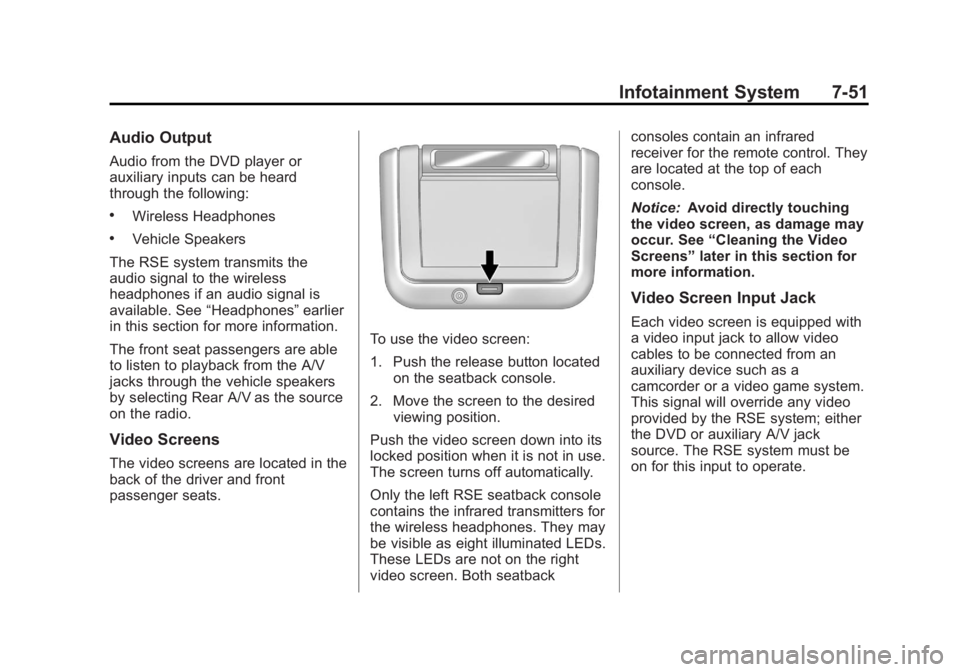
To use the video screen:
1. Push the release button located on the seatback console.
2. Move the screen to the desired viewing position.
Push the video screen down into its
locked position when it is not in use.
The screen turns off automatically.
Only the left RSE seatback console
contains the infrared transmitters for
the wireless headphones. They may
be visible as eight illuminated LEDs.
These LEDs are not on the right
video screen. Both seatback consoles contain an infrared
receiver for the remote control. They
are located at the top of each
console.
Notice:
Avoid directly touching
the video screen, as damage may
occur. See “Cleaning the Video
Screens” later in this section for
more information.
Video Screen Input Jack
Each video screen is equipped with
a video input jack to allow video
cables to be connected from an
auxiliary device such as a
camcorder or a video game system.
This signal will override any video
provided by the RSE system; either
the DVD or auxiliary A/V jack
source. The RSE system must be
on for this input to operate.
Page 233 of 512

Black plate (53,1)Buick LaCrosse Owner Manual - 2012
Infotainment System 7-53
z(Display Menu):Press to adjust
the brightness and screen display
mode, and display the
language menu.
q(Return): Press to exit the
current active menu and return to
the previous menu. This button
operates only when the display
menu or a DVD menu is active.
c(Stop): Press to stop playing,
rewinding, or fast forwarding a DVD.
Press twice to return to the
beginning of the DVD.
s(Play/Pause): Press to start
playing a DVD. Press to pause a
DVD while it is playing. Press again
to continue playing.
Depending on the infotainment
system in the vehicle, DVD
playback may be slowed down by
pressing
sthen[. Reverse slow
play by pressing
sthenr. Press
sagain to cancel slow play.
t(Previous Track/Chapter):
Press to go to the start of the
current track or chapter. Press again
to go to the previous track or
chapter. This button may not work
when the DVD is playing the
copyright information or the
previews.
u(Next Track/Chapter): Press to
go to the beginning of the next
chapter or track. This button might
not work when the DVD is playing
the copyright information or the
previews.
r(Fast Reverse): Press to
quickly reverse the DVD or CD. To
stop fast reversing a DVD video,
press
s. To stop fast reversing a
DVD audio or CD, release
r. This
button might not work when the
DVD is playing the copyright
information or the previews.
[(Fast Forward): Press to fast
forward the DVD or CD. To stop fast
forwarding a DVD video, press
s.
To stop fast forwarding a DVD audio
or CD, release
[. This button might
not work when the DVD is playing
the copyright information or the
previews.
e(Audio): Press to change audio
tracks on DVDs that have this
feature when the DVD is playing.
{(Subtitles): Press to turn ON/
OFF subtitles and to move through
subtitle options when a DVD is
playing.
AUX (Auxiliary): Press to switch
the video display between the DVD
player and an auxiliary source.
Page 236 of 512

Black plate (56,1)Buick LaCrosse Owner Manual - 2012
7-56 Infotainment System
Tips and Troubleshooting Chart (cont'd)
ProblemRecommended Action
Sometimes the wireless headphone audio cuts out or
buzzes. Check for obstructions, low batteries, reception range,
and interference from cellular telephone towers or by
using a cellular telephone in the vehicle.
Check that the headphones are on correctly using the L
(Left) and R (Right) on the headphones.
Check that the headphones are positioned properly with
the headband across the top of the head.
I lost the remote and/or the headphones. See your dealer for assistance.
The DVD is playing, but there is no picture or sound. Check that the RSE video screen is sourced to the DVD player by pressing the AUX button on the remote
control.
DVD Display Error Messages
The DVD display error message
depends on which radio the vehicle
has. The video screen may display
one of the following:
Disc Load/Eject Error or
Mechanical Error:There are disc
load or eject problems. Disc Format Error or Unknown
Format:
The disc is inserted with
the disc label wrong side up, or the
disc is damaged.
Disc Region Error or Disc Error:
The disc is not from a correct
region.
No Disc Inserted: No disc is
present when the
Xor MEM/DVD/
AUX button is pressed on the radio.
DVD Distortion
Video distortion can occur when
operating cellular phones, scanners,
CB radios, Global Position Systems
(GPS)*, two-way radios, mobile fax
machines, or walkie talkies.
It might be necessary to turn off the
DVD player when operating one of
these devices in or near the vehicle.
*Excludes the OnStar System.
Page 239 of 512
Black plate (59,1)Buick LaCrosse Owner Manual - 2012
Infotainment System 7-59
When to Speak:A tone sounds to
indicate that the system is ready for
a voice command. Wait for the tone
and then speak.
How to Speak: Speak clearly in a
calm and natural voice.
Audio System
When using the Bluetooth system,
sound comes through the vehicle's
front audio system speakers and
overrides the audio system. Use the
VOL/
Oknob during a call to
change the volume level. The
adjusted volume level remains in
memory for later calls. The system
maintains a minimum volume level.
Other Information
The Bluetooth®word mark and
logos are owned by the Bluetooth®
SIG, Inc. and any use of such marks
by General Motors is under license.
Other trademarks and trade names
are those of their respective owners. See
Radio Frequency Statement on
page 13‑22 for information
regarding Part 15 of the Federal
Communications Commission (FCC)
rules and Industry Canada
Standards RSS-GEN/210/220/310.
Bluetooth (Infotainment
Controls)
For vehicles equipped with the
MyLink or IntelliLink infotainment
system, see the separate MyLink/
IntelliLink Features and Functions
Guide for more information.
For information about how to
navigate the menu system using the
infotainment controls, see Overview
(Radio with CD) on page 7‑3 or
Overview (Radio with CD/DVD and
MEM) on page 7‑5 orOverview
(Radio with CD and Touchscreen)
on page 7‑7 orAM-FM Radio (Radio
with CD/DVD/MEM) on page 7‑18 or
AM-FM Radio (Radio with CD and
Touchscreen) on page 7‑21.
Pairing
A Bluetooth‐enabled cell phone
must be paired to the Bluetooth
system and then connected to the
vehicle before it can be used. See
your cell phone manufacturer's user
guide for Bluetooth functions before
pairing the cell phone. If a Bluetooth
phone is not connected, calls will be
made using OnStar Hands‐Free
Calling, if available. See OnStar
Overview on page 14‑1 for more
information.
Pairing Information
.A Bluetooth phone with MP3
capability cannot be paired to
the vehicle as a phone and an
MP3 player at the same time.
.Up to five cell phones can be
paired to the Bluetooth system.
.The pairing process is disabled
when the vehicle is moving.
Page 246 of 512
Black plate (66,1)Buick LaCrosse Owner Manual - 2012
7-66 Infotainment System
3. Say each digit, one at a time,that you want to store. After
each digit is entered, the system
repeats back the digit it heard
followed by a tone. After the last
digit has been entered, say
“Store,” and then follow the
directions given by the system to
save a name tag for this number.
Using the “Delete”Command
1. Press
b/g. The system
responds “Ready,”followed by
a tone.
2. Say “Delete.”
3. Say the name tag you want to delete.
Using the “Delete All Name Tags”
Command
This command deletes all stored
name tags in the Hands‐Free
Calling Directory and the
Destinations Directory. To delete all name tags:
1. Press
b/g. The system
responds “Ready,”followed by
a tone.
2. Say “Delete all name tags.”
Listing Stored Numbers
The list command will list all the
stored numbers and name tags.
Using the “List”Command
1. Press
b/g. The system
responds “Ready,”followed by
a tone.
2. Say “Directory.”
3. Say “Hands Free Calling.”
4. Say “List.”
Making a Call
Calls can be made using the
following commands.
Dial or Call: The dial or call
command can be used
interchangeably to dial a phone
number or a stored name tag.
Digit Dial: This command allows a
phone number to be dialed by
entering the digits one at a time.
Re‐dial: This command is used to
dial the last number used on the cell
phone.
Using the “Dial”or“Call”
Command
1. Press
b/g. The system
responds “Ready,”followed by
a tone.
2. Say “Dial”or“Call.”
3. Say the entire number without pausing or say the name tag.
Once connected, the person called
will be heard through the audio
speakers.
Page 247 of 512
Black plate (67,1)Buick LaCrosse Owner Manual - 2012
Infotainment System 7-67
Using the“Digit Dial” Command
The digit dial command allows a
phone number to be dialed by
entering the digits one at a time.
After each digit is entered, the
system repeats back the digit it
heard followed by a tone.
If an unwanted number is
recognized by the system, say
“Clear” at any time to clear the last
number.
To hear all of the numbers
recognized by the system, say
“Verify” at any time.
1. Press
b/g. The system
responds “Ready,”followed by
a tone.
2. Say “Digit Dial.”
3. Say each digit, one at a time, that you want to dial. After each
digit is entered, the system
repeats back the digit it heard
followed by a tone. After the last
digit has been entered,
say “Dial.” Once connected, the person called
will be heard through the audio
speakers.
Using the
“Re‐dial”Command
1. Press
b/g. The system
responds “Ready,”followed by
a tone.
2. After the tone, say “Re‐dial.”The
system dials the last number
called from the connected cell
phone.
Once connected, the person called
will be heard through the audio
speakers.
Receiving a Call
When an incoming call is received,
the audio system mutes and a ring
tone is heard in the vehicle.
.Pressb/gto answer the call.
.Press0/cto ignore a call.
Call Waiting
Call waiting must be supported on
the cell phone and enabled by the
wireless service carrier.
.Pressb/gto answer an
incoming call when another call
is active. The original call is
placed on hold.
.Pressb/gagain to return to
the original call.
.To ignore the incoming call, no
action is required.
.Press0/cto disconnect the
current call and switch to the call
on hold.
Three‐Way Calling
Three‐way calling must be
supported on the cell phone and
enabled by the wireless service
carrier.
1. While on a call, press
b/g.
2. Say “Three‐way call.”
Page 248 of 512
Black plate (68,1)Buick LaCrosse Owner Manual - 2012
7-68 Infotainment System
3. Use the dial or call command todial the number of the third party
to be called.
4. Once the call is connected, press
b/gto link all callers
together.
Ending a Call
Press0/cto end a call.
Muting a Call
During a call, all sounds from inside
the vehicle can be muted so that the
person on the other end of the call
cannot hear them.
To mute a call, press
b/g, and
then say “Mute Call.”
To cancel mute, press
b/g, and
then say “Un‐mute Call.”
Transferring a Call
Audio can be transferred between
the Bluetooth system and the cell
phone. The cell phone must be paired and
connected with the Bluetooth
system before a call can be
transferred. The connection process
can take up to two minutes after the
ignition is turned to ON/RUN.
To Transfer Audio from the
Bluetooth System to a Cell Phone
During a call with the audio in the
vehicle:
1. Press
b/g.
2. Say “Transfer Call.”
To Transfer Audio to the Bluetooth
System from a Cell Phone
During a call with the audio on the
cell phone, press
b/g. The audio
transfers to the vehicle. If the audio
does not transfer to the vehicle, use
the audio transfer feature on the cell
phone. See your cell phone
manufacturer's user guide for more
information.
Voice Pass-Thru
Voice pass‐thru allows access to the
voice recognition commands on the
cell phone. See your cell phone
manufacturer's user guide to see if
the cell phone supports this feature.
To access contacts stored in the cell
phone:
1. Press
b/g. The system
responds “Ready,”followed by
a tone.
2. Say “Bluetooth.” This command
can be skipped.
3. Say “Voice.” The system
responds “OK, accessing
The cell phone's normal prompt
messages will go through their cycle
according to the phone's operating
instructions.
Page 250 of 512
Black plate (70,1)Buick LaCrosse Owner Manual - 2012
7-70 Infotainment System
Steering Wheel Controls
Steering wheel controls can be
used to:
.Answer incoming calls
.Confirm system information
.Start voice recognition
.End a call
.Reject a call
.Cancel an operation
.Make outgoing calls using the
call list
b/g(Push To Talk) :Press to
answer incoming calls, to confirm
system information, and to start
voice control. Press and hold for two
to three seconds to access the
call list.
$/i(End call/Mute) : Press to
end a call, reject a call, or to cancel
an operation. To make outgoing calls using the
call list.
1. Press the
b/gbutton.
2. Highlight the phone number by toggling the SRC switch up
or down.
3. Dial the highlighted number by pressing the
b/gbutton.
Infotainment System Controls
For information about how to
navigate the menu system using the
navigation system controls, see the
separate Navigation System
Manual.
PHONE : Press to enter the Phone
main menu.
Voice Control
The voice control system uses
commands to control the system
and dial phone numbers.
Noise: The system may not
recognize voice commands if there
is too much background noise. When to Speak:
A tone sounds to
indicate that the system is ready for
a voice command. Wait for the tone
and then speak.
How to Speak: Speak clearly in a
calm and natural voice.
Audio System
When using the UHP system, sound
comes through the vehicle's front
audio system speakers and
overrides the audio system. Use the
VOL/
Oknob during a call to
change the volume level. The
adjusted volume level remains in
memory for later calls. The system
maintains a minimum volume level.
Turning Bluetooth On or Off
1. Press the CONFIG button.
2. Select Phone Settings, or touch Phone on a navigation radio.
3. Select Bluetooth.
4. Select Activation.