2012 BUICK LACROSSE audio
[x] Cancel search: audioPage 209 of 512

Black plate (29,1)Buick LaCrosse Owner Manual - 2012
Infotainment System 7-29
Playing an Audio CD
1. Press the CD screen button onthe Home Page or select CD
from the source pop-up to
display the CD main page.
2. From the CD screen, press the Menu screen button to display
the menu options.
3. Press to select the desired option.
On the CD main page a track
number displays at the beginning of
each track. Song, Artist, and Album
information displays when available.
Use the following controls to play
the disc:
w/j(Play/Pause): Use to start,
pause, or resume play.
g(Seek Down):
.Press to seek to the beginning of
the current or previous track.
If the track has been playing for
less than five seconds, it seeks
to the previous track. If longer
than five seconds, the current
track starts from the beginning.
.Press and hold to fast reverse
through a track. Release the
button to return to playing
speed. Elapsed time displays.
l(Seek Up):
.Press to seek to the next track.
.Press and hold to fast forward
through a track. Release the
button to return to playing
speed. Elapsed time displays.
SELECT: Turn to the right or left to
select the next or previous track.
Press this knob to select the menu.
If a track is selected from the list,
the system plays the track and
returns to the CD screen.
Error Messages
If Disc Read Error displays and/or
the disc comes out, it could be for
one of the following reasons:
.The disc has an invalid or
unknown format.
.The disc is not from a correct
region.
.The disc is very hot. Try the disc
again when the temperature
returns to normal.
.The road is very rough. Try the
disc again when the road is
smoother.
.The disc is dirty, scratched, wet,
or upside down.
.The air is very humid. Try the
disc again later.
.There was a problem while
burning the disc.
.The label is caught in the CD
player.
Page 212 of 512

Black plate (32,1)Buick LaCrosse Owner Manual - 2012
7-32 Infotainment System
Selecting an MP3 Track
Using the control buttons:
.Pressgorlto select the
previous or next track.
.Turn the TUNE knob.
Using the CD or DVD Menu:
1. Turn the Menu knob.
2. Select Folder List.
3. Select the folder.
4. Select the track.
Searching for MP3s on a CD
or DVD
It is normal for the search feature to
take some time to display the
information after reading the disc
due to the amount of information
stored on the disc. The infotainment
system automatically switches to
FM while the disc is being read.
Files that do not have any meta
data stored in the ID3 tag display as
Unknown. Tracks can be searched for by:
.Playlists
.Artists
.Albums
.Song Titles
.Genres
The number of objects in each
category is shown in parentheses
after the category.
To search for tracks:
1. Turn the Menu knob.
2. Select Search.
3. Select: Playlists, Artists, Albums, Song Titles, or Genres.
4. Select the track. The search rate increases if the Menu knob is
continuously turned while
searching in a list. Playing MP3 Tracks in Random
Order
Turn the Menu knob and then set
Shuffle Songs to On.
Recording an Audio or MP3
CD to MEM
See
Mass Storage Media (MEM) on
page 7‑36 for more information.
Playing a DVD‐V
SeeRear Seat Entertainment (RSE)
System on page 7‑47 for information
about how to control a Video DVD
using the wireless remote control.
Selecting a Chapter
Using the control buttons:
.Pressgorlto select the
previous or next chapter.
.Turn the TUNE knob.
Using the DVD menu:
1. Turn the Menu knob.
2. Select Chapter List.
3. Select the chapter.
Page 213 of 512
Black plate (33,1)Buick LaCrosse Owner Manual - 2012
Infotainment System 7-33
Selecting a Title
1. Turn the Menu knob.
2. Select Title List.
3. Select the title.
Changing the Audio Stream
1. Turn the Menu knob.
2. Select Audio Stream.
3. Select Change Audio Stream.
4. Press SELECT to change theselection.
Select Cancel to exit the menu.
Pausing a DVD
1. Turn the Menu knob.
2. Select Pause to pause the disc. Select Unpause to start
playback. Navigating the DVD‐V Disc Menu
Use the following actions to
navigate the title menu on a DVD‐
V Disc.
.Select/Enter
.Cursor UP
.Cursor DOWN
.Cursor RIGHT
.Cursor LEFT
.Up Menu
Use the following actions to
navigate the menu on a DVD‐V Disc
while playing chapters.
.Pause (Play)
.Chapter List
.Title List
.DVD/DVD
.DVD/AUX
.AUX/DVD
.AUX/AUX To navigate the menu:
1. Turn the Menu knob.
2. Select the action.
MP3
Playing an MP3, CD, and DVD
For vehicles equipped with the
MyLink or IntelliLink infotainment
system, see the separate MyLink/
IntelliLink Features and Functions
Guide for more information.
MP3 Format
There are guidelines that must be
met, when creating an MP3 disc or
the CD might not play.
The guidelines are:
.Sampling rate: 8 kHz, 16 kHz,
22.05 kHz, 24 kHz, 32 kHz,
44.1 kHz, and 48 kHz.
.Bit rates supported: 8, 16, 24,
32, 40, 48, 56, 64, 80, 96, 112,
128, 144, 160, 192, 224, 256,
and 320 kbps.
Page 214 of 512

Black plate (34,1)Buick LaCrosse Owner Manual - 2012
7-34 Infotainment System
.Maximum number of folders is
255 with a maximum hierarchy
of eight folders.
.Maximum of 1024 files on a disc.
.Recorded on a CD-R or CD-RW
with a maximum capacity of
700 MB.
.The Artist/Album/Song Titles/
Genre information requires a CD
to be fully scanned before the
music navigator works with
these menus. Disc scanning
does not occur when the disc is
being played.
When an MP3 is loaded in the
player, MP3 displays.
If a disc is already loaded, but you
are currently on a map screen or
listening to a different audio source,
press SOURCE to switch to the disc
source. A track number appears on
the display when each track starts
to play. To play a disc:
TUNE/
k(Play/Pause):
Use to
start, pause, or resume play of a
loaded disc.
l(Next/Forward): Press to seek
to the next track. Press again to
continue moving forward through
the disc.
Press and hold to advance quickly
through playback. Release the
button to return to playing speed.
Elapsed time displays.
g(Previous/Reverse): Press to
seek to the beginning of the current
or previous track. If the track has
played for less than five seconds, it
goes to the previous track. If longer
than five seconds, the current track
restarts. Press again to continue
moving back through the disc. Press and hold this button to
reverse quickly through playback.
Release the button to return to
playing speed. Elapsed time
displays.
Menu Knob:
Turn to:
.Enter the menu system.
.Highlight a menu option.
.Select a value.
SELECT:
Press to:
.Select or activate the highlighted
menu option.
.Confirm a set value.
.Turn a system setting on or off.
Page 215 of 512

Black plate (35,1)Buick LaCrosse Owner Manual - 2012
Infotainment System 7-35
Disc Music Menu
Press the SELECT knob to access
the Disc music menu.
Turn the SELECT knob to scroll,
then press it to select any of the
following category buttons on the
MP3 music menu to display the
corresponding category screen:
.Folders/Playlists
Select to view the folders stored
on the disc. Select a folder to
view the list of all the songs in
that folder. There might be a
delay before the list displays.
Select the song from the list and
it begins to play.
.Track List (All Songs)
Select to view a list of all songs
on the disc. There might be a
delay before the list displays.
Select a song from the list and it
begins to play. Songs are
displayed based on the CD
burning application folder and
file structure used.
.Artists
Select to view the list of artists
that have been stored on the
disc. Select an artist name to
view a list of all songs by the
artist. There might be a delay
before the list displays. Select
the desired song from the list
and it begins to play.
.Albums
Select to view the albums on the
disc. Select the album to view a
list of all songs on the album.
There might be a delay before
the list displays. Select a song
from the list and it begins to play.
.Genres
Select to view the genres on the
disc. Select a genre to view a list
of all songs of that genre. There
might be a delay before the list
displays. Select a song from the
list and it begins to play.
.Song Titles
Select to display a list of all
songs on the disc. There might
be a delay before the list
displays. Select a song from the
list and it begins to play. Songs
are displayed in alphabetical
order based on the Song Title
ID3 tag, if available.
Root Directory
The root directory is treated as a
folder. All files contained directly
under the root directory are
accessed prior to any root directory
folders.
Empty Directory or Folder
If a root directory or folder is empty
or contains only folders, the player
advances to the next folder in the
file structure that contains a
compressed audio file. The empty
folder(s) are not displayed or
numbered.
Page 216 of 512

Black plate (36,1)Buick LaCrosse Owner Manual - 2012
7-36 Infotainment System
No Folder
When the CD only contains
compressed audio files without any
folders or playlists, all files are
located under the root folder.
File System and Naming
The displayed song title is taken
from the file's ID3 tag. If a song title
is not present in the ID3 tag, the
radio displays the file name as the
track name.
Mass Storage
Media (MEM)
Infotainment systems with MEM
storage are able to record up to
1.1 GB (gigabyte) of music from
audio CDs, MP3/WMA/AAC discs,
and USB storage devices. The MEM
player can also time shift audio from
AM, FM, and XM radio.
Music or content stored in MEM that
you did not create, or have the right
to distribute, must be deleted before
the sale or end of lease of the
vehicle.
Control Buttons
The buttons used to control the
MEM player are:
MEM/DVD/AUX:Press to select
the MEM player.
gorl: Press to select tracks or
to rewind or fast forward within a
track.
INFO: Press to display additional
information about the MEM track
that may be available.
TUNE/
k: Press to pause the
track currently playing; press again
to resume playback. Turn to select
tracks.
REC
O: Press to record music
from a CD or USB drive.
DEL: Press to delete the current
track from MEM.
FAV (Favorites): Press to display
MEM favorites.
1 to 6: Press to select a track or
playlist stored in that numeric
position.
Recording from Audio CDs
The infotainment system can record
the current song playing or all songs
from an audio CD to MEM. A status
bar appears on the top of the
display when the recording process
starts and disappears when the
process has ended. Copy protected
CDs cannot be recorded to MEM.
Recording to MEM
Press REC
O, then select Record
Current Song or Record All Songs
on Disc. If the track has started
playing, the system will restart the
track and begin recording from the
beginning of the track. When the
song recording is completed, the
message Song Recorded to MEM
displays, and there may be a slight
pause.
Songs recorded to MEM are stored
as the current date, disc, and track
number.
Page 217 of 512

Black plate (37,1)Buick LaCrosse Owner Manual - 2012
Infotainment System 7-37
Re-recording a Previously
Recorded Disc
If the disc or track has already been
recorded to MEM, the message The
Song(s) is Already Recorded
displays.
Stopping the Recording
Press REC
Owhile recording from
an audio CD to display the stop
recording option. Select Stop
Recording Song to MEM.
Renaming Recorded Discs
Discs that have been recorded to
MEM can be renamed.
1. Turn the Menu knob.
2. Select Rename Recorded Discs.
3. Select the disc.
4. Select Album or Artist to rename either one.
5. Use the Menu knob to enter the character sequence. See
Operation on page 7‑13 for more
information.
Recording from MP3/WMA
Discs or USB Storage Devices
USB Host Support
The USB connector uses the USB
standards, 1.1 and 2.0.
USB Supported Devices
.USB Flash Drives
.Portable USB Hard Drives
Recording to MEM
Press REC
O, then select Record
Current Song or Record Current
Folder.
The information stored by MEM is
titled according to the ID3 tag
associated with it. Re-recording a Previously
Recorded Disc
If the disc or track has already been
recorded to MEM, the message The
Song(s) is Already Recorded
displays.
Stopping the Recording
Press REC
Owhile recording from
an MP3/WMA CD or USB storage
device to display the stop recording
option. Select Stop Recording Song
to MEM.
Deleting Tracks from MEM
Individual tracks and all tracks can
be deleted from MEM.
To delete individual tracks, press
and release the DEL button while
the track is playing.
To delete all tracks from MEM,
press and hold the DEL button while
a track is playing.
Page 219 of 512
Black plate (39,1)Buick LaCrosse Owner Manual - 2012
Infotainment System 7-39
Album:Saves the album
associated with the currently playing
track in the indicated favorites
position.
Genre: Saves the genre associated
with the currently playing track in
the indicated favorites position.
Creating Playlists
To create a playlist using tracks
stored in MEM:
1. Select Playlist from the MEM
favorites.
2. Select the track to be stored in the playlist.
3. Press and hold one of the 1 to 6 buttons until the track can be
heard again to store the track.
4. Repeat Steps 1 through 3 to store additional tracks in the
playlist.Auxiliary Devices (Radio
with CD and
Touchscreen)
For vehicles equipped with the
MyLink or IntelliLink infotainment
system, see the separate MyLink/
IntelliLink Features and Functions
Guide for more information.
The optional AUX input allows
portable devices to connect to the
vehicle using the 3.5 mm (1/8 in)
input jack or the USB port.
Portable devices are controlled by
using the menu system described in
Overview (Radio with CD) on
page 7‑3 orOverview (Radio with
CD/DVD and MEM) on page 7‑5 or
Overview (Radio with CD and
Touchscreen) on page 7‑7 and
Operation on page 7‑13.
This jack is not an audio output. Do
not plug headphones into the
auxiliary input jack. Drivers are
encouraged to set up any auxiliary
device while the vehicle is in
P (Park). Possible auxiliary audio sources
include:
.Laptop computer
.MP3 player
.Tape player
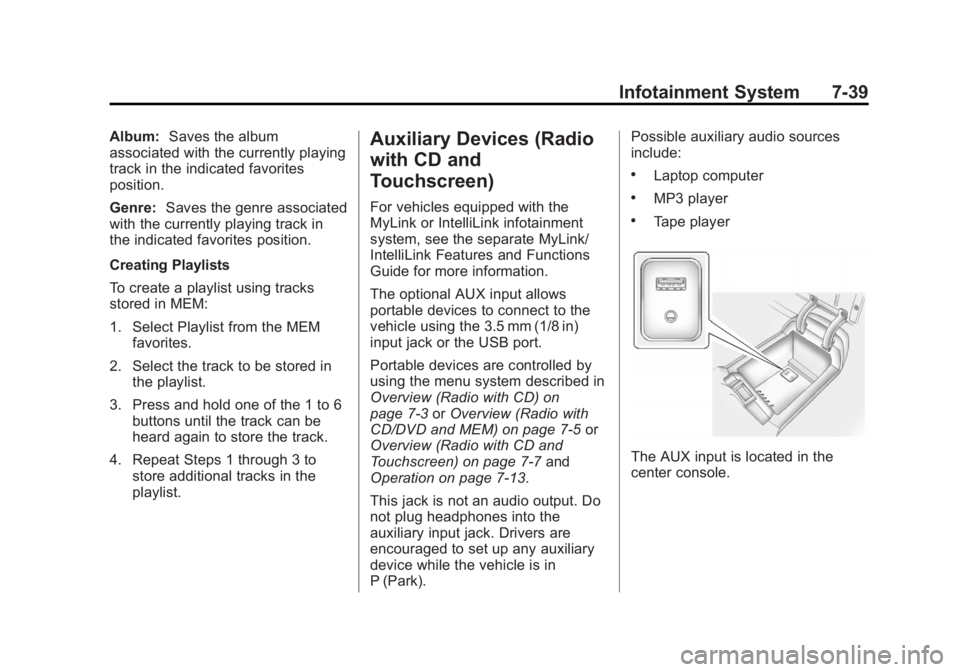
The AUX input is located in the
center console.