2012 BMW X6 Sound
[x] Cancel search: SoundPage 162 of 312

Destination guidance
160
Destination guidance via
voice instructions
Switching voice instructions on/off
Voice instructions can be switched on or off
during destination guidance.
1."Navigation"
2."Map"
3.Select the symbol.
For rapid access, the feature can be stored on a
programmable memory button, refer to
page20.
Repeating a voice instruction
1."Navigation"
2."Map"
3. Highlight the symbol.
4.Press the controller twice.
Adjusting the volume of voice
instructions*
The volume can be adjusted only while a voice
instruction is being issued.
1.Repeat the last voice instruction, if neces-
sary.
2.Turn the knob during the voice instruction
to select the desired volume.
The setting is stored for the remote control cur-
rently in use.
Map display
Displaying map view
You can have your current position displayed on
a map. After starting the destination guidance,
the planned route is shown on the map.
1."Navigation"
2."Map"
The following functions are directly available in
the map display:
Information in the map view
>Time, entertainment source, sound output,
map orientation
>Distance from destination/intermediate
destination, estimated time of arrival, if des-
tination guidance is active.
>Any traffic obstructions are highlighted in
color.
To show/hide information on the map:
Press the controller.
SymbolMeaning
Voice instructions switched on
Voice instructions switched offSymbolFunction
Starting/stopping destina-
tion guidance
Switching voice instructions
on/off
Changing route criteria or
selecting route alternatives
Special destinations
Displaying traffic bulletins
Interactive map
Map view settings
Changing scale
Page 170 of 312

On/off and tone
168
On/off and tone
The following audio and video sources share
the same control elements and adjustments:
>Radio
>CD/DVD player
>CD/DVD changer
*
>Video*
>External devices, e.g. MP3 player
Controls
The audio and video sources can be controlled
using:
>Buttons near the CD/DVD player
>iDrive
>Buttons on the steering wheel, refer to
page10
>Programmable memory buttons, refer to
page20
>Voice activation system
Buttons near the CD/DVD player
1Sound output for entertainment on/off, vol-
ume
>Press: switch on/off
When you switch on the unit, the last set
radio station or track is played.
>Turn: adjusting volume
2 Ejecting CD/DVD
3Drive for CD/DVD
*
4 Station scan/track search
>Change the radio station
>Select a track for the CD/DVD
* player,
CD/DVD changer
* and certain multime-
dia devices
5MODE: change the audio and video
sources
6FM/AM: change the radio station wave-
band
Switching on/off
To switch the Entertainment sound output on
and off:
Press button1 next to the CD/DVD player.
This symbol on the Control Display indicates
that sound output is switched off.
The sound output is available for approx.
20 minutes after the ignition was switched off.
Switch on the sound output again for this pur-
pose.
Adjusting volume
Turn button1 next to the CD/DVD player until
the desired volume is obtained.
You can also adjust the volume with buttons on
the steering wheel, refer to page10.
Tone control
You can alter various tone settings, e.g. treble
and bass or the speed-dependent volume
increase.
The tone settings are set for all audio sources at
once.
The settings are stored for the remote control
currently in use.
Treble, bass, balance, fader
>"Balance": left/right volume distribution
Page 171 of 312

Navigation
Entertainment
Driving tips
169Reference
At a glance
Controls
Communications
Mobility
>"Fader": front/rear volume distribution
Adjustments
1."CD/Multimedia", "Radio" or "Settings".
2."Tone"
3.Select the desired tone setting.
4.To adjust: turn the controller.
5.To store: press the controller.
Equalizer*
You can set individual sound frequency ranges.
1."CD/Multimedia", "Radio" or "Settings".
2."Tone"
3."Equalizer"
4.Select the desired setting.
5.To adjust: turn the controller.6.To store: press the controller.
Multichannel playback, surround*
You can choose between stereo and multichan-
nel playback, surround.
1."CD/Multimedia", "Radio" or "Settings".
2."Tone"
3."Surround"
Multichannel playback, surround, is simulated
when playing back an audio track in stereo.
Surround is automatically activated or deacti-
vated, depending on the audio track selected.
Volume
>"Speed volume": speed-dependent volume
control
>"PDC"
*: volume of the PDC signal tone in
comparison to the entertainment sound
output
>"Gong": volume of the signal tone, e.g. for
the safety belt reminder, in comparison to
the entertainment sound output
Adjustments
1."CD/Multimedia", "Radio" or "Settings".
2."Tone"
3."Volume settings"
Page 173 of 312

Navigation
Entertainment
Driving tips
171Reference
At a glance
Controls
Communications
Mobility
Radio
Your radio is designed for reception of the fol-
lowing stations:
>FM and AM
>HD Radio
*
>Satellite radio*
Selecting a station
Press the button if the sound output is switched
off.
1."Radio"
2."FM" or "AM"
3.Select the desired station.The selected station is stored for the remote
control currently in use.
Changing stations
Turn the controller and press it
or
Press the button for the corresponding
direction
or
Press the buttons on the steering wheel, refer
to page10.
Selecting a station manually
Station selection via the frequency.
1."Radio"
2."FM" or "AM"
3."Manual"
4.Select the frequency: turn the controller.
To store the station: press the controller for an
extended period.
Storing stations
Using iDrive
1."Radio"
2."FM" or "AM"
Page 174 of 312
Radio
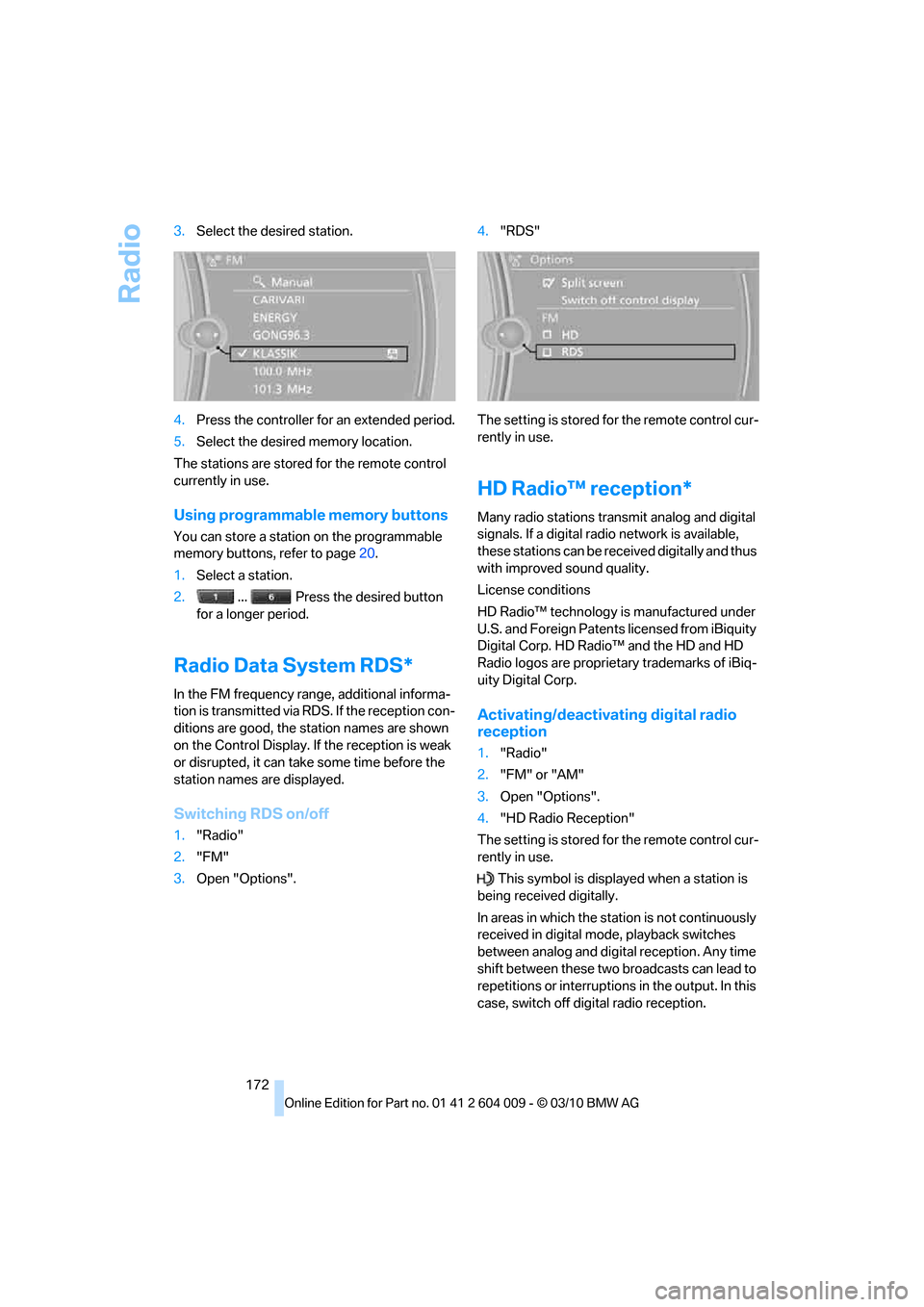
172 3.Select the desired station.
4.Press the controller for an extended period.
5.Select the desired memory location.
The stations are stored for the remote control
currently in use.
Using programmable memory buttons
You can store a station on the programmable
memory buttons, refer to page20.
1.Select a station.
2. ... Press the desired button
for a longer period.
Radio Data System RDS*
In the FM frequency range, additional informa-
tion is transmitted via RDS. If the reception con-
ditions are good, the station names are shown
on the Control Display. If the reception is weak
or disrupted, it can take some time before the
station names are displayed.
Switching RDS on/off
1."Radio"
2."FM"
3.Open "Options".4."RDS"
The setting is stored for the remote control cur-
rently in use.
HD Radio™ reception*
Many radio stations transmit analog and digital
signals. If a digital radio network is available,
these stations can be received digitally and thus
with improved sound quality.
License conditions
HD Radio™ technology is manufactured under
U.S. and Foreign Patents licensed from iBiquity
Digital Corp. HD Radio™ and the HD and HD
Radio logos are proprietary trademarks of iBiq-
uity Digital Corp.
Activating/deactivating digital radio
reception
1."Radio"
2."FM" or "AM"
3.Open "Options".
4."HD Radio Reception"
The setting is stored for the remote control cur-
rently in use.
This symbol is displayed when a station is
being received digitally.
In areas in which the station is not continuously
received in digital mode, playback switches
between analog and digital reception. Any time
shift between these two broadcasts can lead to
repetitions or interruptions in the output. In this
case, switch off digital radio reception.
Page 181 of 312

Navigation
Entertainment
Driving tips
179Reference
At a glance
Controls
Communications
Mobility
CD/DVD player and CD/DVD changer
CD/DVD playback
Inserting CD/DVD
Push the CD/DVD into the drive with the labeled
side facing upward. The CD/DVD is automati-
cally pulled in.
Playback starts automatically if the sound out-
put is on. CDs/DVDs with compressed audio
files can take a few minutes to read, depending
on their directory structure.
Playable formats
CD/DVD player
>DVD: DVD-ROM, DVD-R, DVD+R, DVD-
RW, DVD+RW, DVD-R DL, DVD+R DL,
DVD audio (video part only), DVD video
>CD: CD-ROM, CD-R, CD-RW, CD-DA,
VCD, SVCD
>Compressed audio files: MP3, WMA, AAC
CD changer
*
>CD: CD-ROM, CD-R, CD-RW, CD-DA
DVD changer
*
>DVD: DVD-ROM, DVD-R, DVD+R, DVD-
RW, DVD+RW, DVD-R DL, DVD+R DL,
DVD audio (video part only), DVD video, CD:
CD-ROM, CD-R, CD-RW, CD-DA, VCD,
SVCD
Starting playback
Using iDrive
Fill and insert CD/DVD magazine, refer to
page183.
To start playback if a CD is already located in
the player or changer:
1."CD/Multimedia"
2."CD/DVD"
3.Select the desired CD or DVD:
Ejecting CD/DVD
Press the button next to the CD/DVD player.
The CD/DVD emerges slightly from the drive.
*
SymbolFunction
CD/DVD player
CD/DVD changer
Page 194 of 312

External devices
192
External devices
Overview
AUX-IN connection
You can connect an external audio device, e.g.
an MP3 player, and play the sound via the vehi-
cle speakers. The sound can be adjusted via
iDrive.
Connecting
Open the lid of the center armrest.
Connection for audio playback:
TRS connector 1/8"/3.5 mm
To play audio tracks through the vehicle's
speaker system, connect the headphone or
line-out port of the device with the AUX-IN con-
nection.
Starting audio playback
Connect the audio device, switch it on and
select a track. Operate the system on the audio
device.
Using iDrive
1."CD/Multimedia"
2.If you wish, "External devices"
3. "AUX front"
Adjusting volume
The volume of the sound output depends on
the audio device. If this volume differs markedly
from the volume of the other audio sources, it is
advisable to adjust the volumes.
1."CD/Multimedia"
2.If you wish, "External devices"
3. "AUX front"
4."Volume"
5.Turn the controller until the desired volume
is set and press the controller.
USB audio interface*/
extended connectivity of
music player in mobile
phone*
It is possible to connect external audio devices/
mobile phones. They can be operated using
iDrive. Sound is output on the vehicle loud-
speakers.
Options for connecting external
devices
>Connection via USB audio interface: Apple
iPod/iPhone, USB devices, e.g. MP3 play-
ers, USB memory sticks, or mobile phones
that are supported by the USB audio inter-
face.
>Connection via snap-in adapter
*, refer to
page212, when equipped with expanded
connection of the music player in the mobile
SymbolMeaning
AUX-IN connection
USB audio interface
*/mobile
phone audio interface
*
Page 200 of 312

DVD system in rear
198 >Press the arrow buttons:
To switch between windows.
>Press the button:
To activate the menu item.
The transmission time of the remote control is
limited in accordance with legal guidelines. A
function can be repeated by pressing or turning
the appropriate button or knob.
Changing batteries
1.Press the detent and remove the cover.
2.Change the batteries. The type and installa-
tion position are marked on the bottom of
the battery compartment.
3.Close the cover.
Return old batteries to a recycling center
or to your BMW Sports Activity Vehicle
Center.<
Setting the language of the
DVD system
1.Select a CD/DVD track.
2.Press the button.
3.Select "Tone".
4.Press the button.
5.Switch to the top window.
6.Select "Language".
7.Press the button.
8.Select the desired language.
9.Press the button.
Sound output via speakers
In addition to the headphones, you can also play
the sound via the vehicle speakers.
1."CD/Multimedia"
2."External devices"
3."AUX rear"
Switching DVD system on/off
Press the button on the CD-/DVD player or
under the desired screen.
The DVD system switches on automatically
when a CD or DVD is inserted.
Playing CD/DVD
Use the following menu items to access data
from a CD/DVD:
>Video data via "DVD"
>Audio data via "CD"
>Pictures via "Photo".