2012 BMW ACTIVEHYBRID 5 instrument cluster
[x] Cancel search: instrument clusterPage 109 of 319

Programs
The system offers three different programs.
The programs can be selected via the Driving
Experience Switch, refer to page 109.
SPORT
Consistently sporty control of the shock absorb‐
ers for greater driving agility.
COMFORT
Balanced tuning between the COMFORT+ and
SPORT programs.
COMFORT+
Comfort-oriented tuning of the shock absorbers
for optimal traveling comfort.
Driving Experience Switch
The concept
The Driving Experience Switch can be used to
adjust the driving dynamics of the vehicle. For
this purpose various programs are available for
selection that are activated via the two buttons
of the Driving Experience Switch and the DSC
OFF-button.
Operating the programsPress the buttonProgramDSC OFF
TRACTIONSPORT+
SPORT
COMFORT
COMFORT+
ECO PRO
For Dynamic Damper Control, the lower button
is labeled with COMFORT.
Automatic program change
The system automatically switches to COM‐
FORT in the following situations:▷Failure of Dynamic Damping Control.▷The vehicle has a flat tire.
DSC OFF
When DSC OFF, refer to page 108, is active,
driving stability is limited during acceleration
and when driving in bends.
TRACTION
When TRACTION is active, the vehicle has max‐
imum traction on loose road surfaces. DTC Dy‐
namic Traction Control, refer to page 108, is ac‐
tivated. Driving stability is limited during
acceleration and when driving in bends.
SPORT+
Sporty driving with optimized chassis and sus‐
pension with limited driving stabilization.
Dynamic Traction Control is switched on.
The driver handles several of the stabilization
tasks.
Activating SPORT+ Press the button repeatedly until
SPORT+ appears in the tachometer
and the DSC indicator lamp lights up in the in‐
strument cluster.
Indicator/warning lamps
SPORT+ is displayed in the instrument cluster.
The DSC OFF indicator lamp lights up.
SPORT
Consistently sporty tuning of the suspension for
greater driving agility with maximum driving sta‐
bilization.
Seite 109Driving stability control systemsControls109
Online Edition for Part no. 01 40 2 900 579 - 03 12 490
Page 110 of 319

The program can be configured to individual
specifications.
The configuration is stored for the remote con‐
trol currently in use.
Activating SPORT Press the button repeatedly until
SPORT appears in the tachometer.
Configuring SPORT
If the display on the Control Display, refer to
page 111,is activated, the sport program can be
set to individual specifications.
After the sport program is activated, select
" Configure SPORT" on the displayed panel and
configure the program.
Optionally, the sport program can be configured
before it is activated:1."Settings"2."SPORT mode" or: "Driving mode"3.Configure the program.
This configuration is retrieved when the sport
program is activated.
COMFORT
For a balanced tuning with maximum driving sta‐
bilization.
Activating COMFORT Press the button repeatedly until the
program display in the tachometer
goes out.
In certain situations, the system automatically
changes to the NORMAL program, automatic
program change, refer to page 109.
COMFORT+
Comfort-oriented tuning of the shock absorbers
for optimal traveling comfort with maximum
driving stabilization.
Activating COMFORT+
Press the button repeatedly until COM‐
FORT+ appears in the tachometer.
ECO PRO
ECO PRO, refer to page 162, provides consis‐
tent tuning to minimize fuel consumption for
maximum range with maximum driving stabili‐
zation.
Comfort functions and the engine controller are
adjusted.
Hybrid operation makes it possible to drive with
more electrical power.
The program can be configured to individual
specifications.
Activating ECO PRO Press button repeatedly until ECO PRO
is displayed in the instrument cluster.
Configuring ECO PRO1.Activate ECO PRO.2."Configure ECO PRO"
Make the desired settings.
Displays in the instrument cluster
Selected program The selected program is dis‐
played in the tachometer.
Seite 110ControlsDriving stability control systems110
Online Edition for Part no. 01 40 2 900 579 - 03 12 490
Page 113 of 319

Interrupting the systemWhen active, press the button.
The system is automatically interrupted if:▷The brakes are applied.▷The transmission position D is disengaged.▷DTC Dynamic Traction Control is activated
or DSC is deactivated.▷DSC is actively controlling stability.
Maintaining/storing the current speed
Press the rocker switch while the system is in‐
terrupted.
When the system is switched on, the current
speed is maintained and stored as the desired
speed.
It is displayed in the speedometer and briefly
displayed in the instrument cluster, Displays in
the speedometer, refer to page 113.
When cruise control is maintained or stored,
DSC Dynamic Stability Control is switched on, if
necessary.
Changing/maintaining speed
The rocker switch can be pressed while the sys‐
tem is interrupted in order to maintain and store
the current speed.
Adapting the desired speed
Adapt the desired speed to the road con‐
ditions and be ready to brake at all times; other‐
wise, there is the danger of an accident occur‐
ring.◀
Press the rocker switch up or down repeatedly
until the desired speed is set.
If active, the displayed speed is stored and the
vehicle reaches the stored speed if the road is
clear.
▷Each time the rocker switch is pressed to the
point of resistance, the desired speed in‐
creases or decreases by approx.
1 mph/1 km/h.▷Each time the rocker switch is pressed past
the point of resistance, the desired speed
increases or decreases by a maximum of
5 mph/10 km/h.▷Pressing the rocker switch to the resistance
point and holding it there accelerates or de‐
celerates the vehicle without requiring pres‐
sure on the accelerator. After the rocker
switch is released, the vehicle maintains its
final speed. Pressing the switch beyond the
resistance point causes the vehicle to ac‐
celerate more rapidly.
Resuming the desired speed
Press the button.
The stored speed is reached and maintained.
Displays in the instrument cluster
Indicator lamp Depending on how the vehicle is equip‐
ped, the indicator lamp in the instrument
cluster indicates whether the system is
switched on.
Seite 113Driving comfortControls113
Online Edition for Part no. 01 40 2 900 579 - 03 12 490
Page 162 of 319

The flow of fuel is interrupted while coasting.
Switch off the engine during
longer stops
Switch off the engine during longer stops, e.g.,
at traffic lights, railroad crossings or in traffic
congestion.
Switch off any functions that
are not currently needed
Functions such as seat heating and the rear win‐
dow defroster require a lot of energy and con‐
sume additional fuel, especially in city and stop-
and-go traffic.
Therefore, switch off these functions if they are
not actually needed.
Have maintenance carried out
Have vehicles maintained regularly to achieve
optimal vehicle economy and operating life.
Have the maintenance carried out by your serv‐
ice center.
Please also note the BMW Maintenance Sys‐
tem, refer to page 273.
ECO PRO
The concept
ECO PRO supports a driving style that saves on
fuel consumption. For this purpose, the engine
control and comfort functions, e. g. the climate
control output, are adjusted.
In addition, context-sensitive instructions can
be displayed that assist in driving in a manner
that optimizes fuel consumption.
The extension of the range that is achieved as a
result can be displayed in the instrument cluster.Activating ECO PRO
Press button repeatedly until ECO PRO
is displayed in the instrument cluster.
Display in the instrument cluster
Driving style
ECO PRO appears in the tachometer next to the
gear display. The current efficiency of the driv‐
ing style is displayed:
ECO PRO bonus range An extension of the range can be
achieved by an adjusted driving
style.
This may be displayed as the bo‐
nus range in the instrument clus‐
ter.
Additional symbolsSymbolMeasureFor efficient driving style, back off the
accelerator or delay accelerating to
allow time to assess road conditions.Reduce speed to the selected ECO
PRO speed.Automatic transmission: switch from
S/M to D or avoid manual shift inter‐
ventions.
Configuring ECO PRO
Via the Driving Experience Switch
1."Settings"2."Driving mode"Seite 162Driving tipsSaving fuel162
Online Edition for Part no. 01 40 2 900 579 - 03 12 490
Page 174 of 319

Intermediate destination options1."Map"2. "Guidance"3."Display all trip destinations"4.Select an intermediate destination.▷"Edit destination"▷"Reposition dest. in the trip": move an
intermediate destination to another po‐
sition in the list.▷"Delete dest. in the trip"▷"Go to next dest. in the trip"
Some options are not available for certain trips.
With the Professional navigation
system: deleting a stored trip
1."Stored trips"2.Highlight the desired trip.3.Open "Options".4."Delete all trips" or "Delete trip"
With the Professional navigation
system: calling up the last trip
1."Navigation"2."Stored trips"3."Last trip"4."Start guidance"
Destination guidance
Starting destination guidance
1."Navigation"2.Enter the destination, refer to page 166.3."Accept destination"4."Start guidance"▷The route is shown on the Control Display.▷The distance to the destination/intermedi‐
ate destination and the estimated time of ar‐
rival are displayed in the map view.▷The arrow view is shown in the instrument
cluster, in the Head-up Display, and on the
Control Display where appropriate.
Terminating destination guidance
1."Navigation"2."Map"3. "Guidance"4."Stop guidance"
Continuing destination guidance
If the destination was not reached during the last
trip, destination guidance can be resumed.
"Resume guidance"
Route criteria
General information
▷The route calculated can be influenced by
selecting certain criteria.▷The route criteria can be changed when the
destination is entered and during destina‐
tion guidance.▷Road types are part of the navigation data
and are taken into consideration when plan‐
ning a route, such as when avoiding high‐
ways.▷The recommended route may differ from the
route you would take based on personal ex‐
perience.▷The settings are stored for the remote con‐
trol currently in use.▷Destination guidance with traffic bulletins,
refer to page 180.
Changing the route criteria
1."Navigation"2."Map"3. "Route preference"4.Select the criterion:Seite 174NavigationNavigation system174
Online Edition for Part no. 01 40 2 900 579 - 03 12 490
Page 175 of 319

▷ "Fast route": time-optimized route,
being a combination of the shortest pos‐
sible route and the fastest roads.▷ "ECO PRO route": optimized com‐
bination of the fastest and shortest
route.▷ "Short route": short distance, irre‐
spective of how fast or slow progress will
be.▷"Alternative routes": if available, alter‐
native routes are suggested during ac‐
tive route guidance.
With the Professional navigation sys‐
tem: the individual suggestions are
highlighted in color.5.Specify additional criteria for the route, if
necessary:▷"Avoid highways": highways are
avoided wherever possible.▷" Avoid toll roads": toll roads are avoided
wherever possible.▷"Avoid ferries": ferries are avoided
where possible.
Route
Different views of the route are available during
destination guidance:
▷Arrow view in the instrument cluster and on
the Control Display.▷List of route sections.▷Map view, refer to page 176.▷Arrow view in the Head-up Display, refer to
page 128.Arrow view
The following information is displayed during
destination guidance:▷Large arrow: current direction of travel.▷Street name of the currently traveled street.▷Small arrow: indicates the next change in di‐
rection.▷Intersection view.▷Lane information.▷Traffic bulletins.▷Distance to the next change in direction.▷Street name at the next change in direction.
Lane information
On multi-lane roads, the recommended lanes
are marked in the arrow view by a triangle.
▷Solid triangle: best lane.▷Empty triangle: possible lane. However, an‐
other lane change may be needed shortly.
Displaying list of route sections
When destination guidance is activated, a list of
route sections can be displayed. The driving dis‐
tances and traffic bulletins are displayed for
each route section.
1."Navigation"2."Route information"3.Highlight route section.
With the Professional navigation system:
the route section is displayed on the split
screen.
Bypassing a section of the route
Calculate a new route for a route section.
1."Navigation"2."Route information"Seite 175Navigation systemNavigation175
Online Edition for Part no. 01 40 2 900 579 - 03 12 490
Page 231 of 319
Via the button on the steering wheelPress the button.
Via the instrument cluster
"Accept"
Rejecting a call
Via iDrive
"Reject"
Via the instrument cluster
"Reject"
Ending a call
Via iDrive
"End call"
Via the button on the steering wheel Press the button.
Via the instrument cluster
"End call"
Entering a phone number
Dialing a number
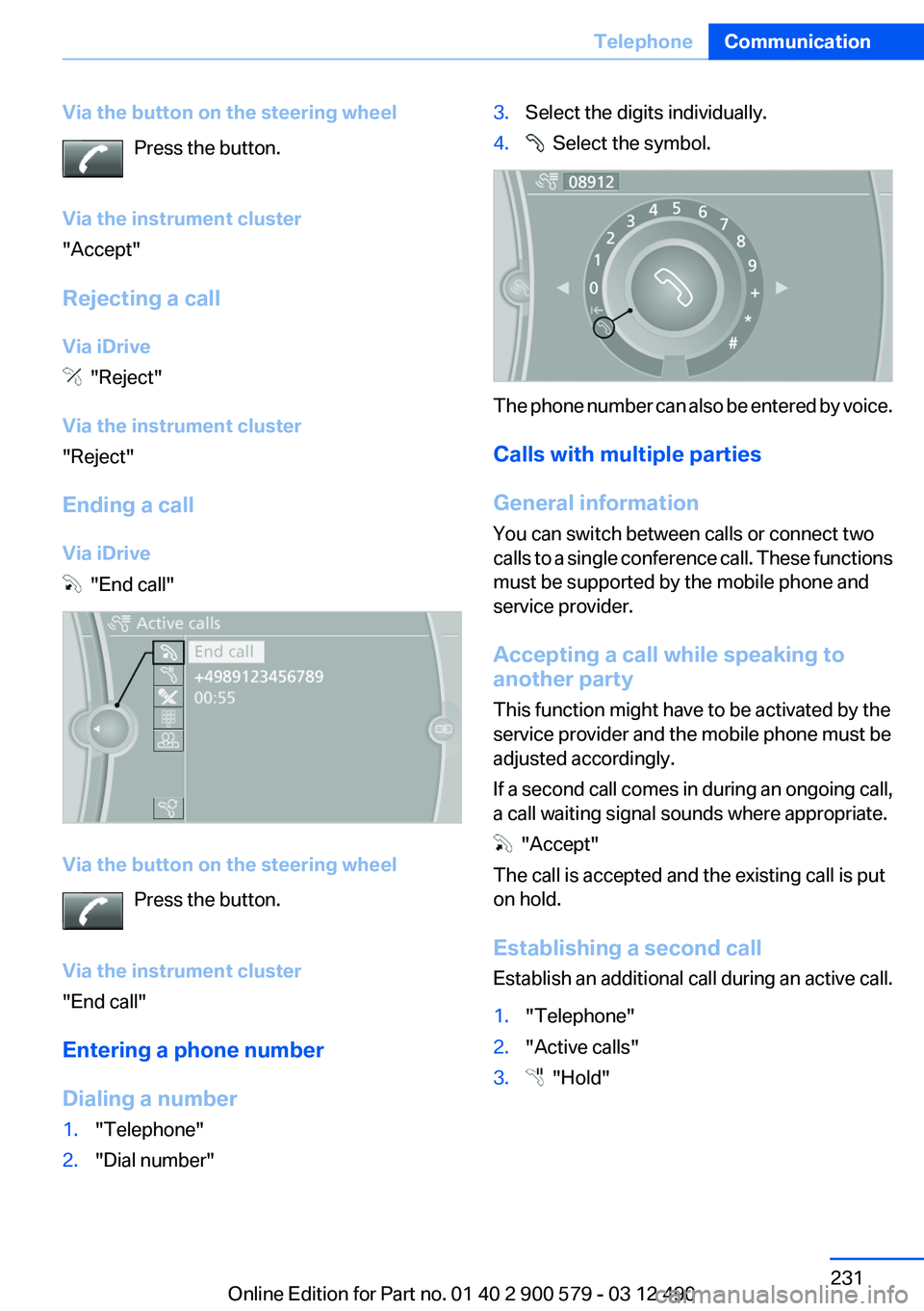
1."Telephone"2."Dial number"3.Select the digits individually.4. Select the symbol.
The phone number can also be entered by voice.
Calls with multiple parties
General information
You can switch between calls or connect two
calls to a single conference call. These functions
must be supported by the mobile phone and
service provider.
Accepting a call while speaking to
another party
This function might have to be activated by the
service provider and the mobile phone must be
adjusted accordingly.
If a second call comes in during an ongoing call,
a call waiting signal sounds where appropriate.
"Accept"
The call is accepted and the existing call is put
on hold.
Establishing a second call
Establish an additional call during an active call.
1."Telephone"2."Active calls"3. "Hold"Seite 231TelephoneCommunication231
Online Edition for Part no. 01 40 2 900 579 - 03 12 490
Page 233 of 319

Calling a contactSymbolMeaning Contact with one stored phone num‐
ber. Contact with more than one stored
phone number. Call not possible; mobile phone with‐
out reception or network, or Service
Request is active.
For contacts with one stored phone number: se‐
lect the required contact. The connection is es‐
tablished.
For contacts with more than one stored phone
number: select the required contact and the
phone number. The connection is established.
Editing a contact
Changing the entries in "Contacts". When a
contact is changed, the changes are not stored
on the mobile phone. A copy of the entry is
stored in the vehicle.
1.Highlight the contact.2.Open "Options".3."Edit entry"
The contact can be edited.
Redialing
General information
The list of dialed numbers in the mobile phone
is transmitted to the vehicle depending on the
mobile phone. The 20 phone numbers dialed
last are displayed. The sorting order of the
phone numbers depends on the particular mo‐
bile phone.
Dialing the number via the instrument
cluster
This is possible when there is no active call.1. Press the button on the steering
wheel.2.Select the desired phone number.
The connection is established.
Dialing a number via iDrive
1."Telephone"2."Redial"3.Select the desired entry and the phone num‐
ber if necessary.
The connection is established.
Deleting a single entry or all entries
The erasure of entries depends on the mobile
phone.
1.Highlight the entry.2.Open "Options".3."Delete entry" or"Delete list"
Saving an entry in the contacts
1.Highlight the entry.2.Open "Options".3."Store as new contact" or "Add to existing
contact"4.Select the contact, if necessary.5.Select the type of number: "Home",
"Business", "Mobile" or "Other"6.Complete the entries if necessary.7."Store contact"
Received calls
Displaying calls
The 20 calls that were last received are dis‐
played.
1."Telephone"Seite 233TelephoneCommunication233
Online Edition for Part no. 01 40 2 900 579 - 03 12 490