Page 157 of 268
Entertainment
Operation of the radio and CD equipment as
well as their tone settings are described in this
chapter.
Entertainment
Page 158 of 268
On/off and settings
156
On/off and settings
The following audio sources have shared con-
trols and setting options:
>Radio
>CD player
>CD changer
*
Controls
The audio sources can be operated using:
>Buttons near the CD player
>iDrive
>Buttons
on the steering wheel, refer to
page11
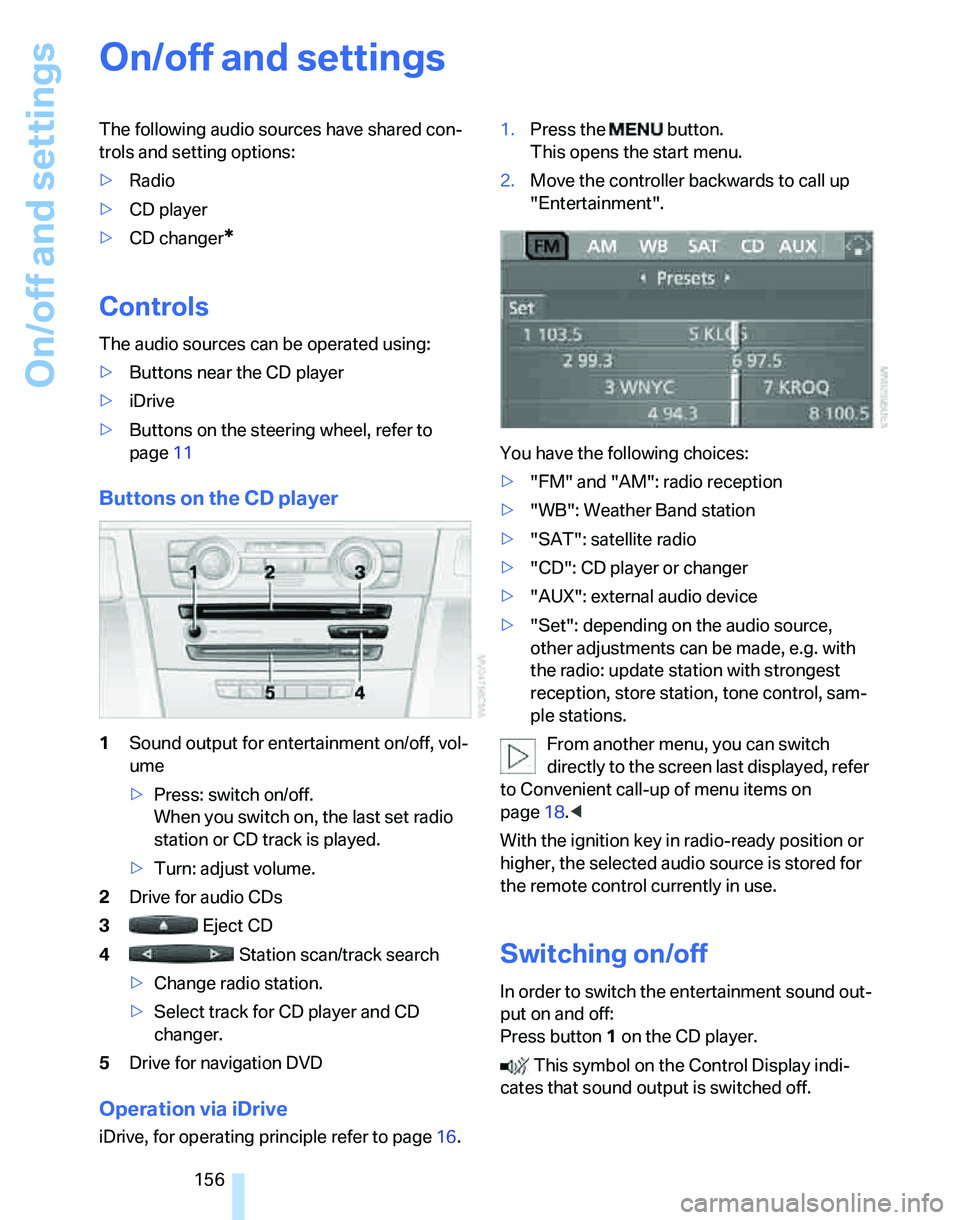
Buttons on the CD player
1Sound output for entertainment on/off, vol-
ume
>Press: switch on/off.
When you switch on, the last set radio
station or CD track is played.
>Turn: adjust volume.
2Drive for audio CDs
3 Eject CD
4 Station scan/track search
>Change radio station.
>Select track for CD player and CD
changer.
5Drive for navigation DVD
Operation via iDrive
iDrive, for operating principle refer to page16.1.Press the button.
This opens the start menu.
2.Move the controller backwards to call up
"Entertainment".
You have the following choices:
>"FM" and "AM": radio reception
>"WB": Weather Band station
>"SAT": satellite radio
>"CD": CD player or changer
>"AUX": external audio device
>"Set": depending on the audio source,
other adjustments can be made, e.g. with
the radio: update station with strongest
reception, store station, tone control, sam-
ple stations.
From another menu, you can switch
directly to the screen last displayed, refer
to Convenient call-up of menu items on
page18.<
With the ignition key in radio-ready position or
higher, the selected audio source is stored for
the remote control currently in use.
Switching on/off
In order to switch the entertainment sound out-
put on and off:
Press button1 on the CD player.
This symbol on the Control Display indi-
cates that sound output is switched off.
Page 159 of 268
Navigation
Entertainment
Driving tips
157Reference
At a glance
Controls
Communications
Mobility
Adjusting volume
Turn knob1 on the CD player until the desired
volume is obtained.
You can also adjust the volume with buttons on
the steering wheel, refer to page11.
With the ignition key in radio-ready position or
higher, the setting is stored for the remote con-
trol currently in use.
Tone control
You can alter various tone settings, e.g. treble
and bass or the speed-dependent volume
increase.
The tone settings are applied to all audio
sources.
With the ignition key in radio-ready position or
higher, the settings are stored for the remote
control currently in use.
Changing tone settings
1.Press the button.
This opens the start menu.
2.Press the controller to open the menu.
3.Turn the controller until "Settings" is
selected and press the controller.
4.Select "Audio" and press the controller.
The tone settings can also be selected if you
have called up "Entertainment" in the start
menu:
Select "Set" and then "Tone", and press the
controller.
Treble and bass
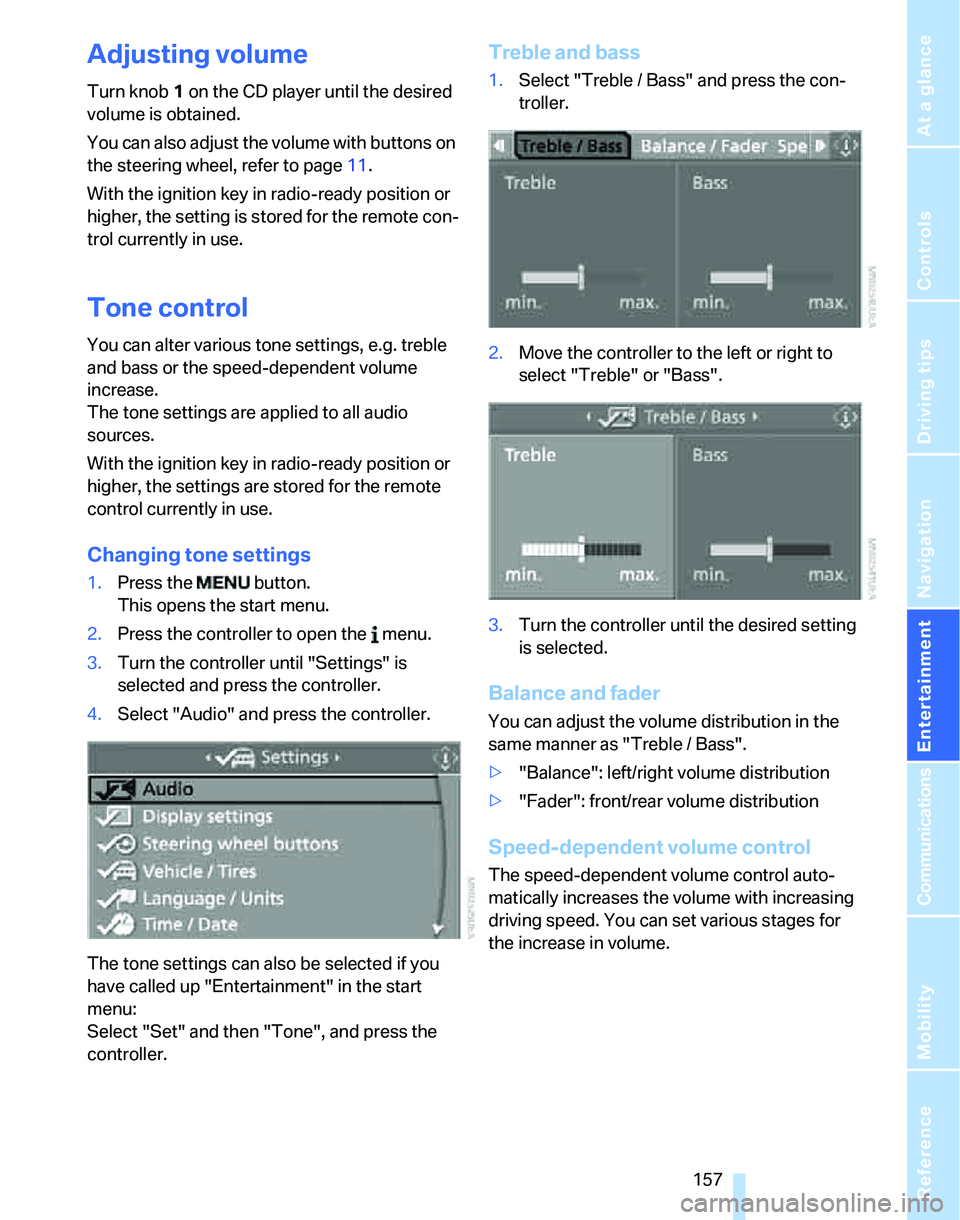
1.Select "Treble / Bass" and press the con-
troller.
2.Move the controller to the left or right to
select "Treble" or "Bass".
3.Turn the controller until the desired setting
is selected.
Balance and fader
You can adjust the volume distribution in the
same manner as "Treble / Bass".
>"Balance": left/right volume distribution
>"Fader": front/rear volume distribution
Speed-dependent volume control
The speed-dependent volume control auto-
matically increases the volume with increasing
driving speed. You can set various stages for
the increase in volume.
Page 160 of 268
On/off and settings
158 1.Select "Speed volume" and press the con-
troller.
2.Turn the controller:
The adjustment is applied; the field can be
changed.
Professional LOGIC7 HiFi System*
You can select a spatial sound effect that
improves the spatial acoustics in all frequency
ranges.
1.Select "Surround Settings" and press the
controller.2.Select "Concert hall" or "Theater".
3.Press the controller.
LOGIC7 spatial sound is switched on.
To switch off the spatial sound effect:
Select "Off" and press the controller.
LOGIC7 and the LOGIC7 logo are registered
trade marks of Lexicon, Inc., a company of the
Harman International Group.
Equalizer
You can set individual sound frequency ranges.
1.Select "Equalizer" and press the controller.
2.Move the controller to the left or right to
select the desired frequency range.
3.Turn the controller until the desired setting
is selected.
Page 161 of 268
Navigation
Entertainment
Driving tips
159Reference
At a glance
Controls
Communications
Mobility
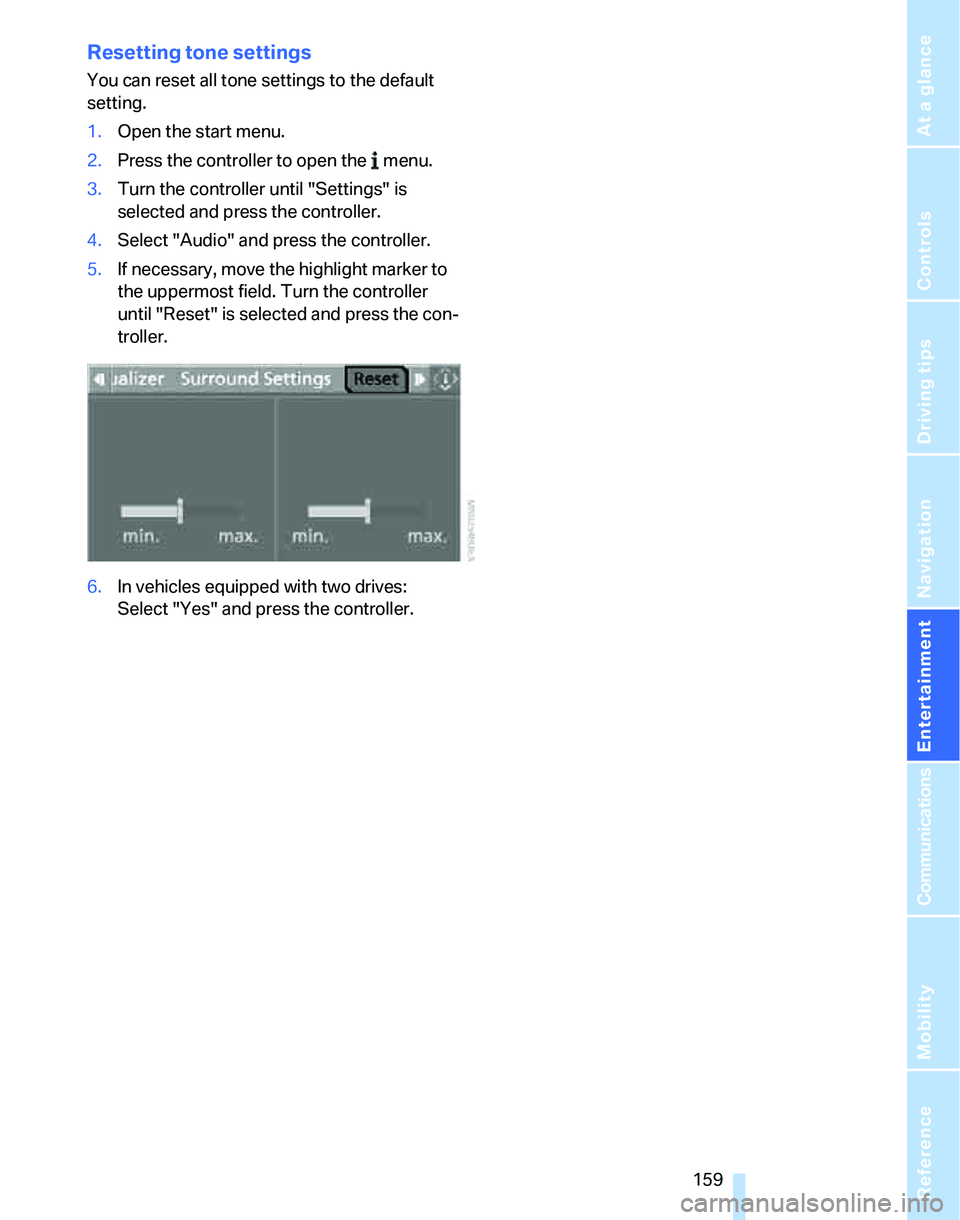
Resetting tone settings
You can reset all tone settings to the default
setting.
1.Open the start menu.
2.Press the controller to open the menu.
3.Turn the controller until "Settings" is
selected and press the controller.
4.Select "Audio" and press the controller.
5.If necessary, move the highlight marker to
the uppermost field. Turn the controller
until "Reset" is selected and press the con-
troller.
6.In vehicles equipped with two drives:
Select "Yes" and press the controller.
Page 179 of 268
177
Entertainment
Reference
At a glance
Controls
Driving tips Communications
Navigation
Mobility
Making phone calls with the
BMW Assist system*: BMW Assist
calls
You can use the BMW Assist System via the
hands-free unit for BMW Assist calls.
When the status information "BMW Assist" or
"BMW Service" is displayed in "Communica-
tion", only BMW Assist calls are possible.
It may not be possible to establish a telephone
connection using the mobile phone while a con-
nection is being established to BMW Assist or
while a call to BMW Assist is already in
progress. If this happens, you must unpair the
mobile phone and the vehicle if you wish to
place a call with the mobile phone.
Start-up
Pairing the mobile phone with the
vehicle
The following prerequisites must be met:
>The mobile phone is ready to operate
>The Bluetooth link in the vehicle, refer to
page180, and in the mobile phone are acti-
vated
>Depending on the mobile phone, some
default settings may be necessary for the
mobile phone: e.g. via the menu item Blue-
tooth switched on or the menu item Con-
nection without confirmation.
>For pairing purposes, define any number as
the Bluetooth passkey, e.g. 1. This Blue-
tooth passkey is no longer required after
pairing has been successful.
>The ignition is switched on.
Pair the mobile phone with the vehicle
only when the car is stationary, to avoid
endangering the car's occupants and other
road users by being distracted.<
Switch on ignition
1.Insert remote control all the way into the
ignition lock.
2.Switch on ignition without operating the
brake or clutch or pressing the start/stop
button.
Preparation via iDrive
iDrive, for operating principle refer to page16.
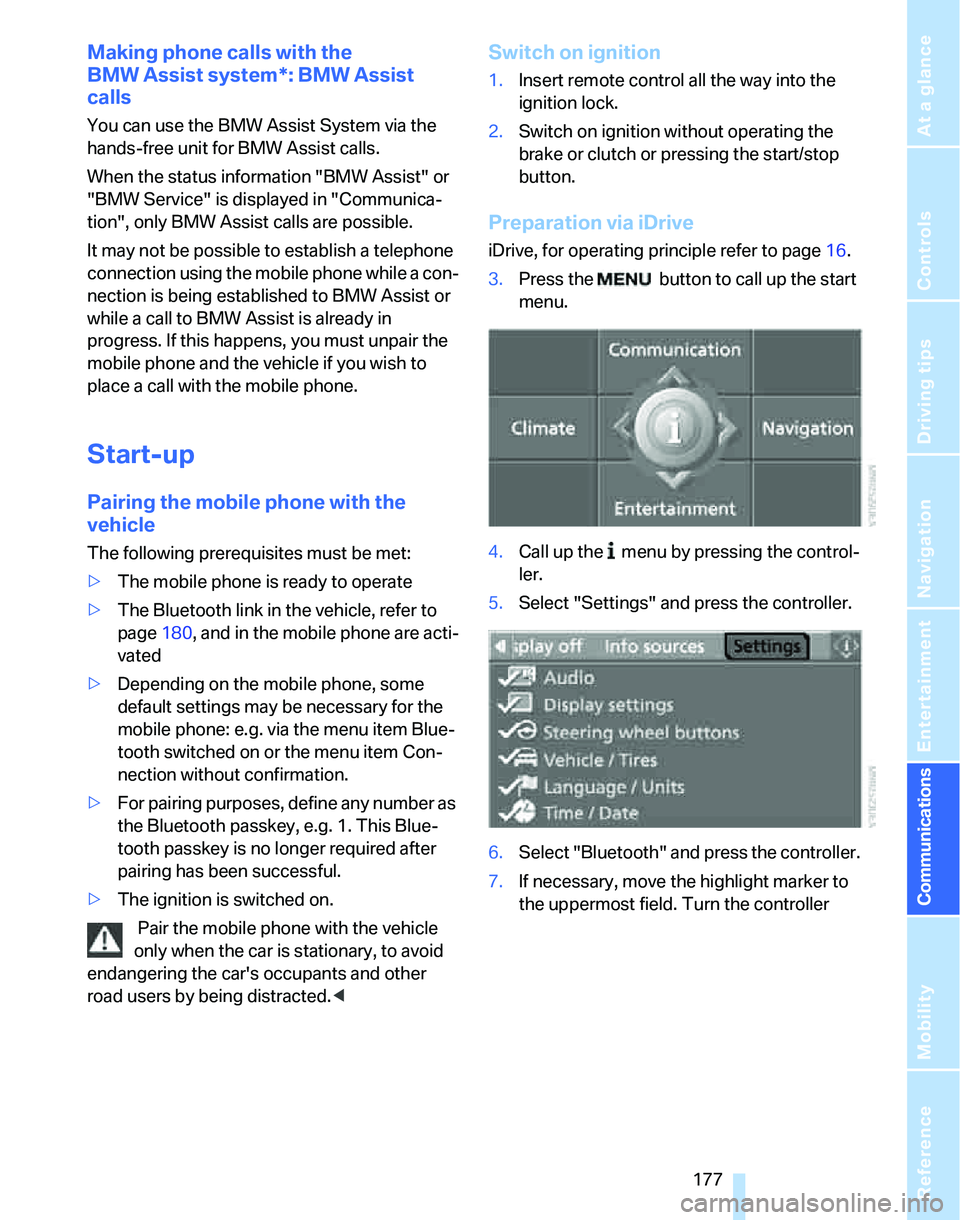
3.Press the button to call up the start
menu.
4.Call up the menu by pressing the control-
ler.
5.Select "Settings" and press the controller.
6.Select "Bluetooth" and press the controller.
7.If necessary, move the highlight marker to
the uppermost field. Turn the controller
Page 181 of 268
179
Entertainment
Reference
At a glance
Controls
Driving tips Communications
Navigation
Mobility
refer to your mobile phone's operating instruc-
tions, if necessary.
Up to four mobile phones can be paired, one
after the other. If a fifth mobile phone is paired,
the pairing data for the last mobile phone on the
list is deleted, refer also to the information
below.
List of paired mobile phones
All mobile phones with pairing data stored by
the vehicle can be displayed. If several mobile
phones are detected by the vehicle at the same
time, the mobile phone at the top of the list can
be operated via the vehicle.
You can change the order of the mobile phones
on the list. As long as a mobile phone from this
list is selected, you cannot operate the mobile
phones via the vehicle.
iDrive, for operating principle refer to page16.
1.Press the
button to call up the start
menu.
2.Call up the menu by pressing the control-
ler.
3.Select "Settings" and press the controller.
4.Select "Bluetooth" and press the controller.
5.If necessary, move the highlight marker to
the uppermost field. Turn the controller
until "Bluetooth" is selected and press the
controller.
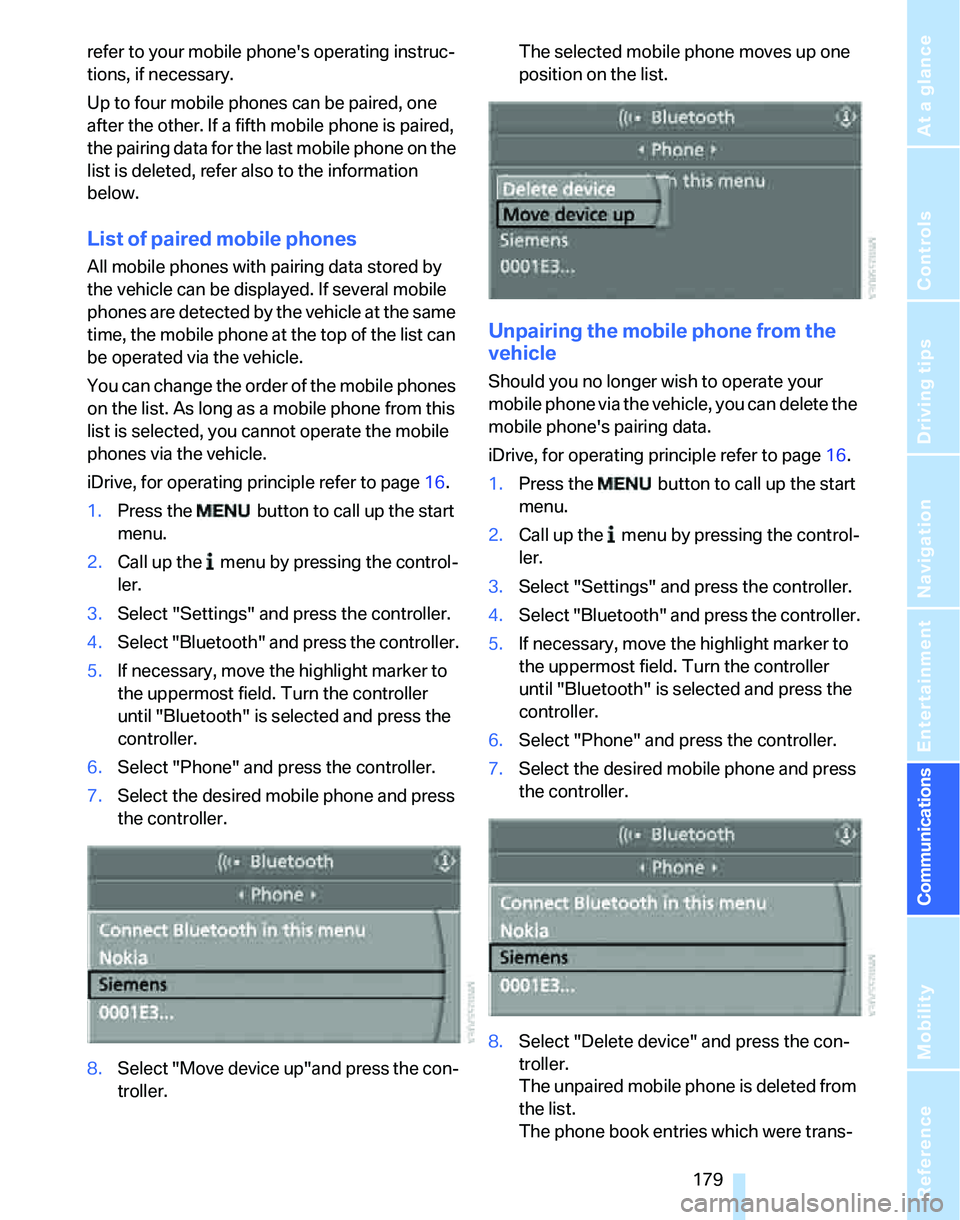
6.Select "Phone" and press the controller.
7.Select the desired mobile phone and press
the controller.
8.Select "Move device up"and press the con-
troller.The selected mobile phone moves up one
position on the list.
Unpairing the mobile phone from the
vehicle
Should you no longer wish to operate your
mobile phone via the vehicle, you can delete the
mobile phone's pairing data.
iDrive, for operating principle refer to page16.
1.Press the button to call up the start
menu.
2.Call up the menu by pressing the control-
ler.
3.Select "Settings" and press the controller.
4.Select "Bluetooth" and press the controller.
5.If necessary, move the highlight marker to
the uppermost field. Turn the controller
until "Bluetooth" is selected and press the
controller.
6.Select "Phone" and press the controller.
7.Select the desired mobile phone and press
the controller.
8.Select "Delete device" and press the con-
troller.
The unpaired mobile phone is deleted from
the list.
The phone book entries which were trans-
Page 182 of 268
Telephoning
180 ferred from your mobile phone to the vehi-
cle are also deleted in the process.
Activating/deactivating the Bluetooth
link
The use of Bluetooth technology is not
permitted in all countries. Observe all
applicable local regulations. You can tempo-
rarily disconnect the Bluetooth link between the
vehicle and the mobile phone, if necessary.<
If the Bluetooth link is deactivated, you can no
longer operate the mobile phone via the vehicle,
and other devices with a Bluetooth interface
can be used in combination with the mobile
phone, e.g. a laptop.
To temporarily deactivate the Bluetooth link
between the vehicle and your mobile phone:
1.Take the mobile phone out of the snap-in
adapter and switch it off.
2.Press the button to call up the start
menu.
3.Select the menu and press the controller.
4.Select "Settings" and press the controller.
5.Select "Bluetooth" and press the controller.
6.If necessary, move the highlight marker to
the uppermost field. Turn the controller until "Bluetooth" is selected and press the
controller.
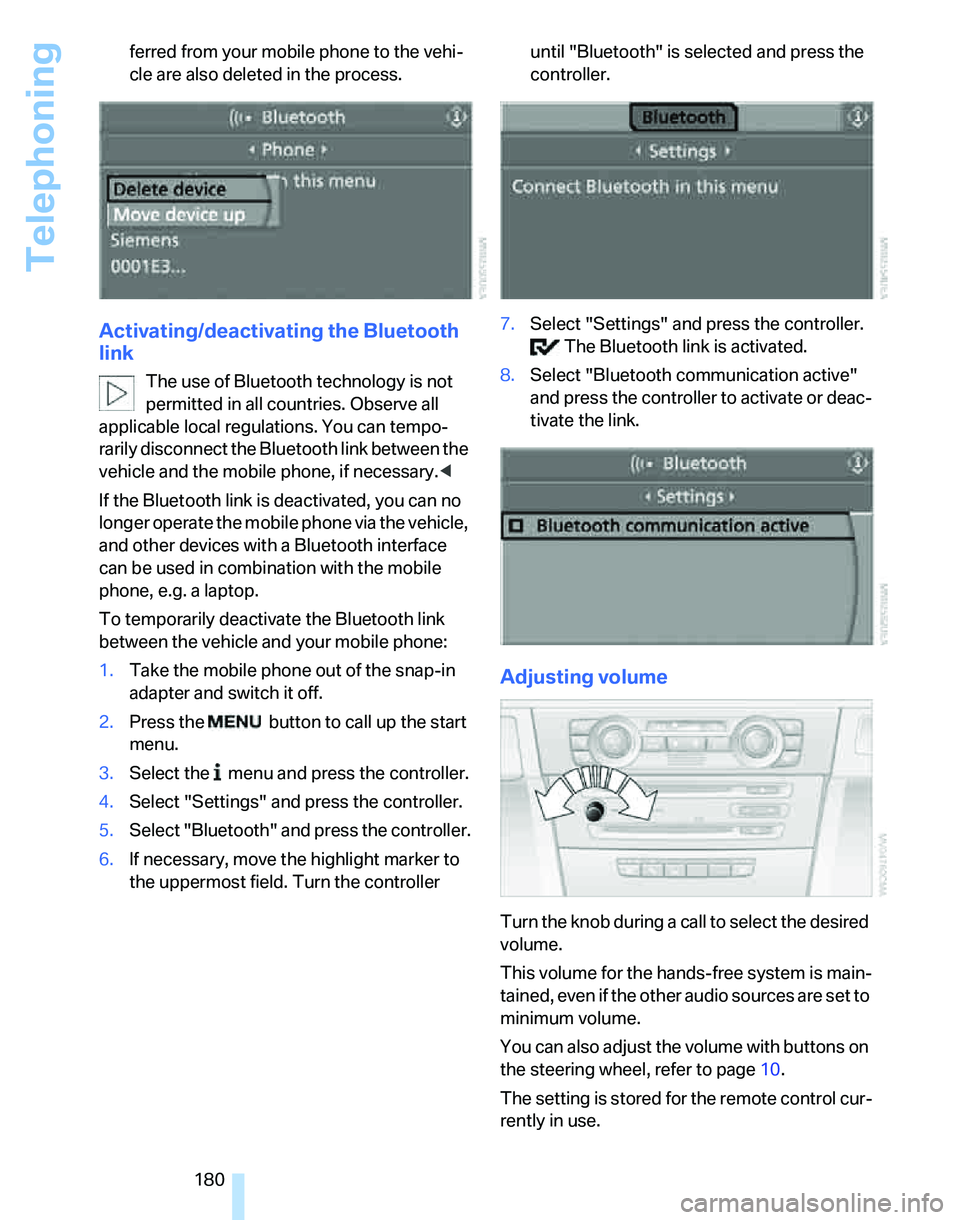
7.Select "Settings" and press the controller.
The Bluetooth link is activated.
8.Select "Bluetooth communication active"
and press the controller to activate or deac-
tivate the link.
Adjusting volume
Turn the knob during a call to select the desired
volume.
This volume for the hands-free system is main-
tained, even if the other audio sources are set to
minimum volume.
You can also adjust the volume with buttons on
the steering wheel, refer to page10.
The setting is stored for the remote control cur-
rently in use.