Page 204 of 518

To Play an iPod
®
This audio system can operate the
audio files on the iPod
®with the
same controls used for the disc
player. To play an iPod, connect it to
the USB adapter cable in the console
compartment by using your dock
connector, then press the CD/AUX
button. The ignition switch must be
in the ACCESSORY (I) or ON (II)
position. The iPod will also be
charged with the ignition switch in
these positions.
The audio system reads and plays
sound files to be playable on the
iPod. The system cannot operate an
iPod as a mass storage device. The
system will only play songs stored on
the iPod with iTunes.
iPod and iTunes are registered
trademarks owned by Apple Inc. iPod models confirmed to be
compatible with your audio system
using the USB adapter cable are:
Model
iPod classic 80/160 G
iPod classic 120 G
iPod classic 160 G (launch in 2009)
iPod (5th generation)
iPod nano
iPod touch
This system may not work with all
software versions of these devices. NOTE:
●Do not connect your iPod using a
hub.●Do not keep the iPod in the
vehicle. Direct sunlight and high
heat will damage it.●Do not use an extension cable
between the USB adapter cable
equipped with your vehicle and
your dock connector.●We recommend backing up your
data before playing it.●Some devices cannot be powered
or charged via the USB adapter, if
this is the case use the accessory
adapter to supply power to your
device.
Playing an iPod
®(Models without navigation system)
19811/06/16 17:42:51 12 ACURA RDX MMC North America Owner's M 50 31STK650 enu
Page 208 of 518
To Stop Playing Your iPod
To play the radio, press the AM/FM,
or
button. Press the CD/AUX
button to switch between disc (if a
disc is loaded),
Bluetooth
®Audio,
and the iPod.
Disconnecting an iPodYou can disconnect the iPod at any
time when you see the ‘‘OK to
disconnect ’’message
ᤳin the iPod
display. Always make sure you see
the ‘‘OK to disconnect ’’message in
the iPod display before you
disconnect it. Make sure to follow
the iPod's instructions on how to
disconnect the dock connector from
the USB adapter cable.
ᤳ : The displayed message may
vary on the model or version.
On some models, there is no
message to disconnect. If you reconnect the same iPod, the
system may begin playing where it
left off, depending on what mode the
iPod is in when it is reconnected.
iPod Error Messages
For information, see page 203.
Playing an iPod
®(Models without navigation system)
20211/06/16 17:42:51 12 ACURA RDX MMC North America Owner's M 50 31STK650 enu
Page 210 of 518
FILE TYPE
POW/VOL KNOB RPT BUTTONUSB INDICATOR
SEEK/SKIP BAR RDM BUTTON
CD/AUX BUTTON
DISP BUTTON
TUNE/FOLDER BAR
SCAN BUTTON
U.S. model is shown.
Playing a USB Flash Memory Device (Models without navigation system)20411/06/16 17:42:51 12 ACURA RDX MMC North America Owner's M 50 31STK650 enu
Page 211 of 518

To Play a USB Flash Memory
Device
This audio system can operate the
audio files on a USB flash memory
device with the same controls used
for the in-dash disc changer. To play
a USB flash memory device, connect
it to the USB adapter cable in the
console compartment, then press the
CD/AUX button. The ignition switch
must be in the ACCESSORY (I) or
ON (II) position.The audio system reads and plays
the audio files on the USB flash
memory device in MP3, WMA or
AAC
ᤳformats. Depending on the
format, the display shows MP3,
WMA or AAC when a USB flash
memory device is playing.
ᤳ : Only AAC format files recorded
with iTunes are playable on this
audio unit. The recommended USB flash
memory devices are 256 MB or
higher, and formatted with the FAT
file system. Some digital audio
players may be compatible as well.
Some USB flash memory devices
(such as devices with security lock-
out features, etc.) will not work in
this audio unit.
CONTINUED
Playing a USB Flash Memory Device (Models without navigation system)
205
Features
11/06/16 17:42:51 12 ACURA RDX MMC North America Owner's M 50 31STK650 enu
Page 216 of 518

Each time you press and release the
SCAN button, the mode changes
from file scan to folder scan, then to
normal play.To Stop Playing a USB Flash
Memory Device
To play the radio, press the FM, AM
or
button. Press the CD/AUX
button to switch between disc (if a
disc is loaded) and
Bluetooth
®Audio.
You can also press the MODE button
on the steering wheel to change
modes.
If you reconnect the same USB flash
memory device, the system will
begin playing where it left off.
Disconnecting a USB Flash Memory DeviceYou can disconnect the USB flash
memory device at any time even if
the USB mode is selected on the
audio system. Always follow the USB
flash memory device's instructions
when you remove it.
When you disconnect the USB flash
memory device while it is playing,
the center display shows ‘‘USB NO
DATA. ’’
If you reconnect the same USB flash
memory device, the system will
begin playing where it left off.
USB Flash Memory Device Error
Messages
For information, see page 211.
Playing a USB Flash Memory Device (Models without navigation system)21011/06/16 17:42:51 12 ACURA RDX MMC North America Owner's M 50 31STK650 enu
Page 218 of 518
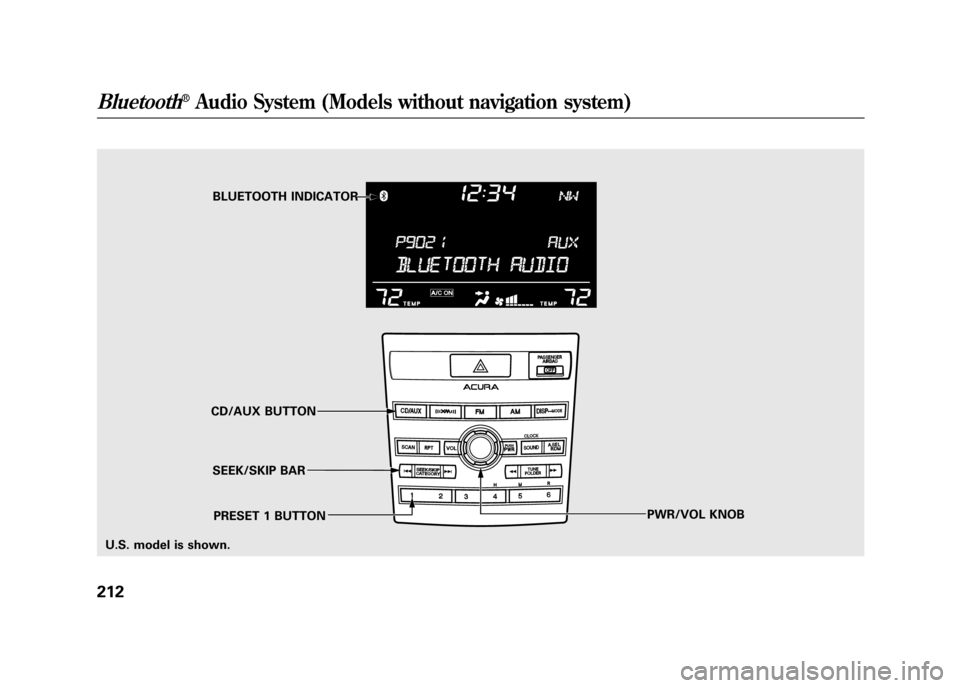
BLUETOOTH INDICATOR
SEEK/SKIP BAR
CD/AUX BUTTON
PWR/VOL KNOB
PRESET 1 BUTTON
U.S. model is shown.
Bluetooth
®Audio System (Models without navigation system)
21211/06/16 17:42:51 12 ACURA RDX MMC North America Owner's M 50 31STK650 enu
Page 219 of 518

Your vehicle is equipped with aBluetooth
®Audio system, which
allows you to listen to streaming
audio from your
Bluetooth
®Audio
compatible phone. This function is
only available on
Bluetooth
®Audio
Compatible phones that are paired
and linked to the vehicle's
Bluetooth
®HandsFreeLink
®(HFL)
system (see page 313).
Not all Bluetooth-enabled phones
with streaming audio capabilities are
compatible with the system. You can
find an approved phone by visiting
www.acura.com/handsfreelink,
or by
calling the HandsFreeLink
®
consumer support at 1-888-528-7876.
In Canada, visit
www.acura.ca,
or call
1-888-9-ACURA-9.
NOTE: In some states, it may be
illegal to perform some data device
functions while driving. To Play
Bluetooth
®Audio Files
Make sure that your phone is paired
and linked to the HFL.
Press the CD/AUX button
ᤳwith the
ignition switch in the ACCESSORY
(I) or ON (II) position. When the
phone is recognized, you will see the
Bluetooth
®Audio message and
indicator on the center display, and
the system begins to play. If more than one phone is paired to
the HFL system, there will be delay
before the system begins to play.
To begin to play the audio files, you
may need to operate your phone. If
so, follow the phone maker's
operating instructions.
ᤳ
: If an iPod, USB flash memory
device, or audio unit connected
to the auxiliary input jack was
selected at the last mode, you
will see iPod, USB, or AUX in
the center display. Push the
CD/AUX button again to play
audio files from your
Bluetooth
®Audio phone.
CONTINUED
Bluetooth
®Audio System (Models without navigation system)
213
Features
11/06/16 17:42:51 12 ACURA RDX MMC North America Owner's M 50 31STK650 enu
Page 221 of 518

To turn off the Bluetooth
®Audio
mode
Select any other audio mode by
pressing a button: FM, AM,
or
CD/AUX (if a disc is loaded), on the
audio control panel or press the
mode button on the steering wheel
repeatedly to select another audio
mode. If iPod or USB flash memory
device is connected to the USB
adapter cable or audio unit is
connected to AUX jack, pressing the
CD/AUX button also changes a
mode.
Switching to another mode pauses
the music playing from your phone.
As required by the FCC:
This device complies with Part 15 of theFCC rules. Operation is subject to the
following two conditions: (1) This devicemay not cause harmful interference, and(2) this device must accept any
interference received, includinginterference that may cause undesiredoperation.
Changes or modifications not expresslyapproved by the party responsible for
compliance could void the user'sauthority to operate the equipment.
This device complies with IndustryCanada Standard RSS-210.
Operation is subject to the following twoconditions: (1) this device may not causeinterference, and (2) this device must
accept any interference that may causeundesired operation of the device.
Bluetooth
®Audio System (Models without navigation system)
215
Features
11/06/16 17:42:51 12 ACURA RDX MMC North America Owner's M 50 31STK650 enu