Page 64 of 345
DESTINATION SEARCH
64
INFORMATION
�If there is no match for the tele-
phone number inputted, a list of
identical numbers with different
area codes will be displayed.
� To set an address book entry as a
destination using the phone num-
ber, the number must already be
registered. (See page 112.)
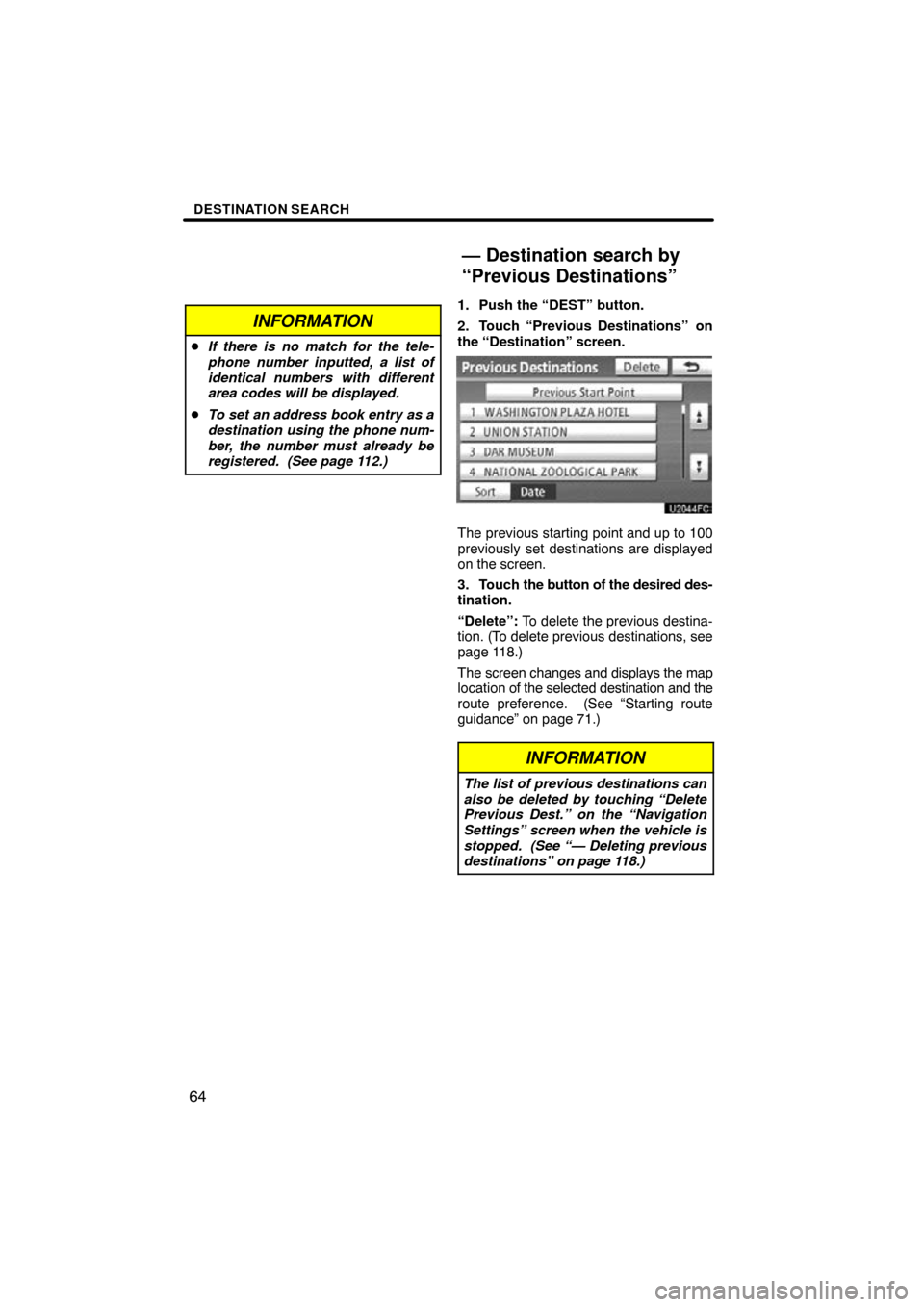
1. Push the “DEST” button.
2. Touch “Previous Destinations”
on
the “Destination” screen.
The previous starting point and up to 100
previously set destinations are displayed
on the screen.
3. Touch the button of the desired des-
tination.
“Delete”: To delete the previous destina-
tion. (To delete previous destinations, see
page 118.)
The screen changes and displays the map
location of the selected destination and the
route preference. (See “Starting route
guidance” on page 71.)
INFORMATION
The list of previous destinations can
also be deleted by touching “Delete
Previous Dest.” on the “Navigation
Settings” screen when the vehicle is
stopped. (See “— Deleting previous
destinations” on page 118.)
— Destination search by
“Previous Destinations”
Page 71 of 345
DESTINATION SEARCH
71
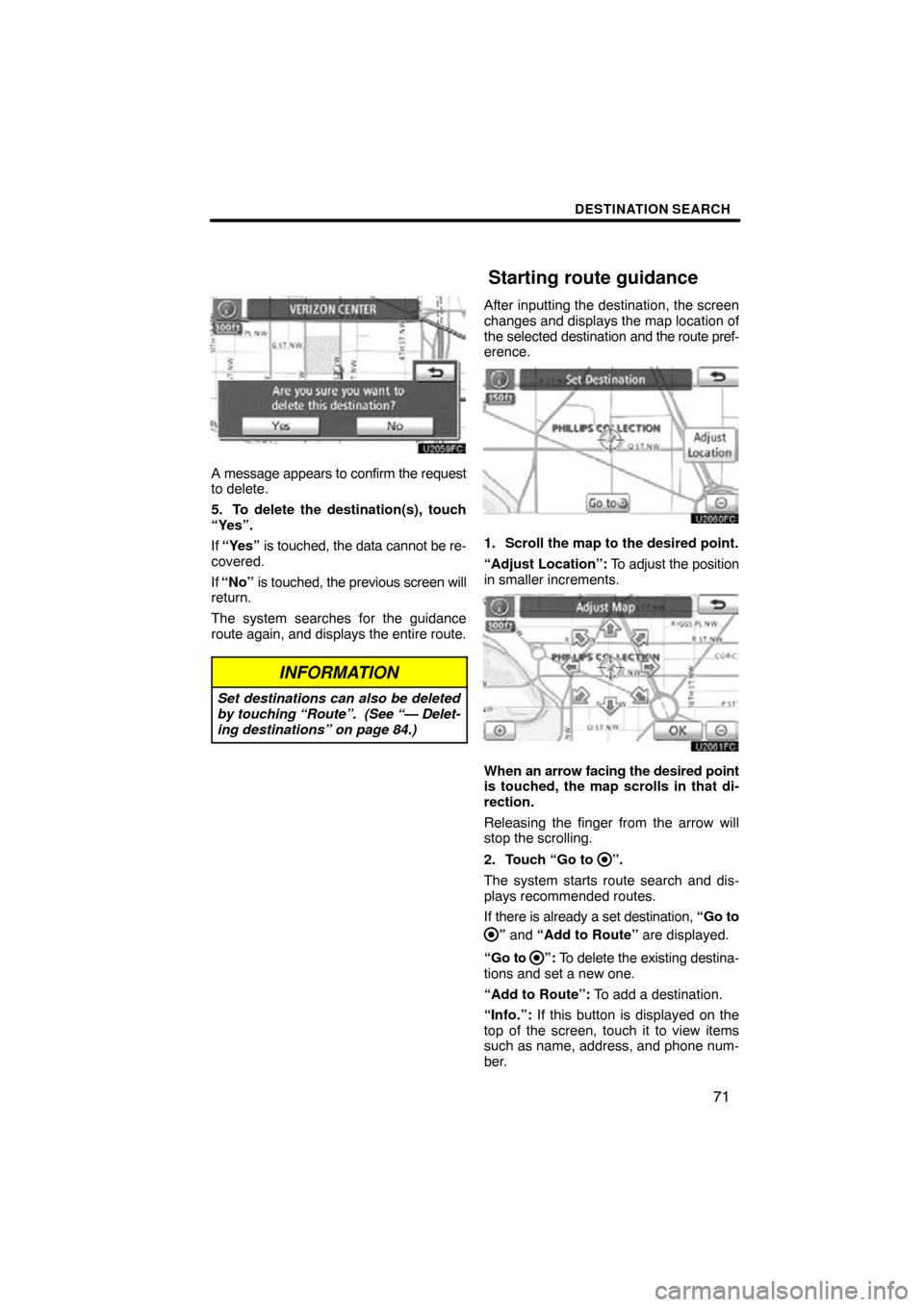
A message appears to confirm the request
to delete.
5. To delete the destination(s), touch
“Yes”.
If “Yes” is touched, the data cannot be re-
covered.
If “No” is touched, the previous screen will
return.
The system searches for the guidance
route again, and displays the entire route.
INFORMATION
Set destinations can also be deleted
by touching “Route”. (See “— Delet-
ing destinations” on page 84.)
After inputting the destination, the screen
changes and displays the map location of
the selected destination and the route pref-
erence.
1. Scroll the map to the desired point.
“Adjust Location”: To adjust the position
in smaller increments.
When an arrow facing the desired point
is touched, the map scrolls in that di-
rection.
Releasing the finger from the arrow will
stop the scrolling.
2. Touch “Go to
”.
The system starts route search and dis-
plays recommended routes.
If there is already a set destination, “Go to
” and “Add to Route” are displayed.
“Go to
”: To delete the existing destina-
tions and set a new one.
“Add to Route”: To add a destination.
“Info.”: If this button is displayed on the
top of the screen, touch it to view items
such as name, address, and phone num-
ber.
Starting route guidance
Page 103 of 345
MY PLACES
103
When registration of home is completed,
the “Edit Home” screen will be displayed.
6. Touch “OK”.
To edit registered information, see “(b)
Editing home” on page 103.(b) Editing home
1. Push the “SETUP” button.
2. Touch “Navi.” on the “Setup”
screen.
3. Touch “Home” on the “Navigation
Settings” screen.
4. Touch “Edit”.
5. Touch “Edit” for the item you want
to change.
“Name”: To edit home name. The names
can be displayed on the map. (See page
111.)
“Location”: To edit location information.
(See page 112.)
“Phone #”: To edit telephone numbers.
(See page 112.)
“Icon”: To select icons to be displayed on
the map. (See page 110.)
6. Touch “OK”.
Page 106 of 345
MY PLACES
106
(b) Editing preset destinations
1. Push the “SETUP” button.
2. Touch “Navi.” on the “Setup”
screen.
3. Touch “Preset Destinations” on the
“Navigation Settings” screen.
4. Touch “Edit”.
5. Touch the button of the desired pre-
set destination.
6. Touch “Edit” for the item you want
to change.
“Name”: To edit preset destination names.
The names can be displayed on the map.
(See page 111.)
“Location”: To edit location information.
(See page 112.)
“Phone #”: To edit telephone numbers.
(See page 112.)
“Icon”: To select icons to be displayed on
the map. (See page 110.)
7. Touch “OK”.
Page 109 of 345
MY PLACES
109
(b) Editing address book entries
The icon, name, location and/or telephone
number of a registered address book entry
can be edited.
1. Push the “SETUP” button.
2. Touch “Navi.” on the “Setup”
screen.
3. Touch “Address Book” on the “Nav-
igation Settings” screen.
4. Touch “Edit”.
5. Touch the button of the desired ad-
dress book entry.
6. Touch “Edit” for the item you want
to change.
“Name”: To edit address book entry
names. The names can be displayed on
the map. (See page 111.)
“Location”: To edit location information.
(See page 112.)
“Phone #”: To edit telephone numbers.
(See page 112.)
“Icon”: To select icons to be displayed on
the map. (See page 110.)
7. Touch “OK”.
Page 112 of 345
MY PLACES
11 2
�
To change “Location”
1. Touch “Edit” of “Location”.
2. Touch
one of the 8 directional touch
screen buttons to move the cursor
to the desired point on the map.
3. Touch “OK”.
The previous screen will be displayed.
�To change “Phone #” (telephone
number)
1. Touch “Edit” of “Phone #”.
2. Enter the number using number
keys.
3. Touch “OK”.
The previous screen will be displayed.
Page 120 of 345
SECTION 5
TELEPHONE AND INFORMATION
120
TELEPHONE AND INFORMATION
�Telephone (Handsfree system for cellular phone) 121
. . . . .
Enter a Bluetooth � phone 126
. . . . . . . . . . . . . . . . . . . . . . . . . . . .
Call on the Bluetooth � phone 130
. . . . . . . . . . . . . . . . . . . . . . . . .
Receive on the Bluetooth � phone 137
. . . . . . . . . . . . . . . . . . . . .
Talk on the Bluetooth� phone 138
. . . . . . . . . . . . . . . . . . . . . . . . .
� Calendar 141
. . . . . . . . . . . . . . . . . . . . . . . . . . . . . . . . . . . . \
. . . . . . . . .
Page 121 of 345

TELEPHONE AND INFORMATION
121
Handsfree system allows you to make
or receive a call without taking your
hands off the steering wheel by con-
necting your cellular phone.
This system supports Bluetooth �.
Bluetooth � is a wireless data system by
which you can call without your cellular
phone being connected with a cable or
placed on a cradle.
If your cellular phone does not support
Bluetooth �, this system can not function.
The operating procedure of the phone is
explained here.
For registering and setting of the phone,
see “Telephone settings” on page 271.
CAUTION
While driving, do not use a cellular
phone or connect the Bluetooth �
phone.
NOTICE
Do not leave your cellular phone in
the car. The temperature inside may
be high and damage the phone.
INFORMATION
�In the following conditions, the
system may not function.
� The cellular phone is turned off.
� The current position is outside
the communication area.
� The cellular phone is not connec-
ted.
� The cellular phone has a low bat-
tery.
�Even if your cellular phone sup-
ports both handsfree and audio
Bluetooth � connections, it may not
be able to connect to the hands
free connection at the same time.
�When using Bluetooth � audio and
handsfree at the same time, the
following problems may occur.
� The Bluetooth� connection may
be cut.
� Noise may be heard on the
Bluetooth � audio playback.
Bluetooth is a registered trademark of
Bluetooth SIG, Inc.
Telephone
(Handsfree system for
cellular phone)


