2011 SUBARU FORESTER reset
[x] Cancel search: resetPage 180 of 446

Antenna system.................................................. 5-3
Roof antenna ...................................................... 5-3
FM reception ....................................................... 5-3
Installation of accessories .................................. 5-4
Audio set ............................................................. 5-4
Type A audio set (if equipped) ............................. 5-5
Type B audio set (if equipped) ............................. 5-6
Type C audio set (if equipped) ............................. 5-7
Type D audio set (if equipped) ............................. 5-8
Power and audio controls .................................. 5-9
Power switch and volume control ........................ 5-9
Sound controls and audio settings ...................... 5-9
FM/AM radio operation ...................................... 5-13
FM/AM selection ................................................. 5-13
Tuning ............................................................... 5-13
HD Radio
TMTechnology (Digital AM and FM
Radio) (type D audio) ........................................ 5-15
Displaying radio PS (Program Service Name) and RT (Radio Text) ................................................ 5-16
Station preset .................................................... 5-17
Satellite radio operation (if equipped) .............. 5-18
XM
TMsatellite radio (U.S.A. only) ........................ 5-18
Sirius satellite radio ........................................... 5-18
Satellite radio reception ...................................... 5-18
Displaying satellite radio ID of tuner ................... 5-19
Band selection ................................................... 5-20
Channel and category selection .......................... 5-20
Channel preset ................................................... 5-21
Display selection (type A, B and C audio) ........... 5-22
CD player operation ........................................... 5-22
Play file. ............................................................. 5-23 How to insert a CD (type A, C and D)
................. 5-23
How to insert a CD(s) (type B) .. .......................... 5-23
How to play back a CD ...................................... 5-24
To select a track from its beginning. ................... 5-25
Fast-forwarding and fast-reversing ..................... 5-25
Repeating .......................................................... 5-26
Random playback .............................................. 5-26
Scan (type A, B and C audio) ... .......................... 5-27
Display selection (type A, B and C audio) ........... 5-28
Folder selection ................................................. 5-28
How to eject a CD from the player (type A, C and D audio) .............................................................. 5-29
How to eject CDs from the player (type B) ..... ..... 5-29
When the following messages are displayed. . ..... 5-29
Auxiliary input jack (if equipped). ..................... 5-30
Precautions to observe when handling a compact disc ................................................... 5-31
USB storage device / iPod
®operations
(type C and D audio) ...................................... 5-33
Play file ............................................................. 5-33
Connectable USB storage device ....................... 5-33
Connectable iPod
®models ................................. 5-33
Connecting USB storage device / iPod®............. 5-34
How to play back ............................................... 5-35
To select a track/index from its beginning ..... ..... 5-35
To select a chapter from its beginning when connecting iPod
®............................................. 5-35
Fast-forwarding and fast-reversing ..................... 5-35
Repeating .......................................................... 5-36
Random playback .............................................. 5-36 Audio
5
Page 196 of 446

&Station preset
! How to preset stations
1. Press the “FM/AM ”button to select
FM1, FM2, FM3 (type A, B and C audio)/
FM-AS (type D audio), AM or AM-AS (type
D audio) reception.
2. Select the preferred station.
3. Press one of the preset buttons (from
to) for more than 1.5 seconds
to store the frequency. If the button is
pressed for less than 1.5 seconds, the
preceding selection will remain in memory. NOTE . Up to six FM1, FM2, FM3 (type A, B
and C audio)/FM-AS (type D audio), AM
and AM-AS (type D audio) stations
each may be preset.. If the connection between the radio
and battery is broken for any reason
such as vehicle maintenance or radio
removal, all stations stored in the
preset buttons are cleared. If this
occurs, it is necessary to reset the
preset buttons.. If a cell phone is placed near the
radio, it may cause the radio to emit
noise when it receives calls. This noise
does not indicate a radio malfunction. !
Selecting preset stations
1. Press the “FM/AM ”button to select
FM1, FM2, FM3 (type A, B and C audio)/
FM-AS (type D audio), AM or AM-AS (type
D audio) reception.
2. Press the preferred preset button (from
to) briefly.
! Auto-store (type D audio)
Using the Auto-store function, you can
automatically store 6 stations on the
current waveband (FM-AS or AM-AS) by
pressing the
button for 1.5 seconds
or longer. Use Auto-store to quickly find
the strongest stations, for example when
traveling through different reception areas. NOTE . When the HD Radio function is
turned on, Auto-store cannot be used
while receiving the broadcasting sta-
tion with SPS (Supplemental ProgramService).. When you use Auto-store, the new
stations replace any stations pre-
viously stored.. Interrupting Auto-store: If you acci-
dentally press the
(Auto-store)
button, you can cancel the Auto-store
function before it has been completed
as follows.
–switching to the other source mode –
pressing the
button
– switching to the other band
– turning the “TUNE/TRACK/CH ”
dial – pressing the “SCAN ”button
! Displaying and selecting preset
stations (type D audio)
1. Press the
button for 1.5 seconds
or longer during AM/FM reception to
display the radio screen.
2. Operate the “TUNE/TRACK/CH ”dial
to select the stations. Audio
5-17
Page 200 of 446

When in the category search mode, press
the following button to change the cate-
gory up or down.
Type A and B audio:Category up by one step
Category down by
one step
Type C audio:
Category up by one step
Category down by
one step
When a category is selected, turning the “ TUNE/TRACK/CH ”dial selects channels
only within the selected category.
The control function returns to the normal
mode after approximately 10 seconds. ! Type D audio
When in the SAT mode, press the
button to change the category search mode. When in the category search mode, press
the following button to change the cate-
gory up or down.
Category up by one step
Category down by
one step
When a category is selected, turning the “ TUNE/TRACK/CH ”dial selects channels
only within the selected category. The
control function returns to the normal
mode after approximately 10 seconds. ! Channel scan
Type A and B audio
Type C audio
Type D audio
Press the “SCAN ”button briefly (type A, B
and C audio)/for more than 1.5 seconds
(type D audio) to change the radio to the
SCAN mode. In this mode, under the
selected category, the radio scans through
the channel until a station is found. The radio will stop at the station for 5 seconds
while displaying the channel number, after
which scanning will continue until the
entire channel has been scanned from
the low end to the high end.
Press the
“SCAN ”button briefly (type A, B
and C audio)/for more than 1.5 seconds
(type D audio) again to cancel the SCAN
mode and to stop on any displayedchannel. & Channel preset
! How to preset channels
1. Press the “SAT ”button to select SAT1,
SAT2 or SAT3 reception.
2. Select the desired channel.
3. Press one of the preset buttons (from
to) for more than 1.5 seconds
to store the channel. If the button is
pressed for less than 1.5 seconds, the
preceding selection will remain in memory. NOTE . Up to six SAT1, SAT2 and SAT3
channels each may be preset. . If the connection between the radio
and battery is broken for any reason
such as vehicle maintenance or radio
removal, all channels stored in the
preset buttons are cleared. If this Audio
5-21
– CONTINUED –
Page 201 of 446

5-22Audio
occurs, it is necessary to reset the
preset buttons. !Selecting preset channels
1. Press the “SAT ”button to select SAT1,
SAT2 or SAT3 reception.
2. Press the preferred preset button
briefly. ! Displaying and selecting preset
stations (type D audio)
1. Press the
button for 1.5 seconds
or longer during satellite radio reception to
display the radio screen.
2. Operate the “TUNE/TRACK/CH ”dial
to select the stations.
& Display selection (type A, B
and C audio)
Type A and B audio
Type C audio
Press the “TEXT ”button while receiving
the satellite radio to change the display as follows.
CD player operation NOTE . Make sure to always insert a disc
with the label side up. If a disc is
inserted with the label side down, the
player displays “CHECK DISC ”. Refer
to “When the following messages are
displayed ”F 5-29.
. If a disc is inserted during a radio
broadcast, the disc will interrupt thebroadcast.. After the last song finishes, the disc
will automatically return to track 1 (the
first track on the disc) and will auto-
matically play back. . The player is designed to be able to
play music CD-Rs and music CD-RWs,
but it may not be able to play certainones.. CDs (i.e., 8 cm/3 inch CDs) are not
supported, and if inserted, they will be
immediately ejected.. CDs that can be played back are
accompanied by the following restric-tions.
–Maximum number of folders: 255
– Maximum number of files in a
folder: 255
Page 213 of 446

5-34Audio
Type D audio:
Model Firmware version
iPod
®
5G 1.3
classic 2.0.4
nano 1.3.1
nano 2G 1.1.3
nano 3G 1.1.3
nano 4G 1.0.4
touch 3.1.3
touch 2G 3.1.3
iPhone
®1G 3.1.3
3G 3.1.3
3G S 3.1.3
CAUTION
Do not connect an iPod
®other than
the previously stated models. Doing
so may result in a malfunction or,
depending on conditions, cause afire.
NOTE . iPod
®is a registered trademark of
Apple Inc. . You are only permitted to personally
copy and play copyright-free material or material that is legally permitted to
be copied and played by using aniPod
®and iTunes. Copyright infringe-
ment is prohibited by law.. To check the firmware version of an
iPod
®, connect it to a computer and
check the device manager. For further
information, see the User ’s Guide that
comes with the iPod
®
. To update the firmware version of an
iPod®, visit the Apple Inc. website.
. Depending on the model and firm-
ware version of an iPod
®, it may not
work properly or not operate at all. & Connecting USB storage de-
vice / iPod
®
WARNING
Do not operate an iPod
®while
driving; it may distract your atten-
tion from driving and can lead to anaccident.
CAUTION
. If the data stored in an iPod
®is
deleted while it is connected to
the in-vehicle system, the data
cannot be recovered. .
Do not store an iPod
®in the
vehicle. If an iPod®is left in the
vehicle for a long period of time,
it may be deformed, discolored
or damaged by high temperature.
NOTE . Even if a USB storage device or
iPod
®is connected, it cannot be played
unless thebutton is pressed.
. A movie cannot be played while an
iPod
®is connected.
. While an iPod®is connected, the
iPod®cannot be operated using the
click wheel on the iPod®(except some
models). . When using an iPod
®by connecting
it to in-vehicle equipment, the order of
the list items displayed on the in-
vehicle equipment may be different
from that on the iPod
®. However, this
does not indicate a malfunction.. An iPod
®battery that is connected
to in-vehicle equipment will be charged
when the ignition switch is in the “ON ”
or “Acc ”position. However, activation
of the iPod
®may be delayed if the
battery charge of the iPod®is low.
. If an iPod®does not activate after
operation, disconnect the connection
cable from the iPod
®and reset it. For
the resetting procedure, see the User ’s
Page 219 of 446
5-40Audio
! With radio mode selected
Press the “
”button or “”button briefly.
The radio will seek the next preset station
and stop on it.
Press the “
”button or “”button
continuously. The radio will seek the next
receivable station and stop on it.
That station ’s frequency will be shown on
the audio display. ! With CD mode selected
Press the “
”button to skip forward in the
track/file order. Press the “”button to
skip backward in the track/file order. The
track/file number will be shown on the
audio display.
When the MP3/WMA/AAC format track is
playing, press the “
”button continuously
to select the next folder. Press the “”
button continuously to go back to the
previous folder. ! With USB/iPod
®mode selected
Press the “
”button to skip forward in the
track/file order. Press the “”button to
skip backward in the track/file order. The
track/file number will be shown on the
audio display. ! With SAT mode selected
Press the “
”button to skip forward in the
channel order. Press the “”button to skip backward in the channel order.
The channel will be shown on the audio
display.
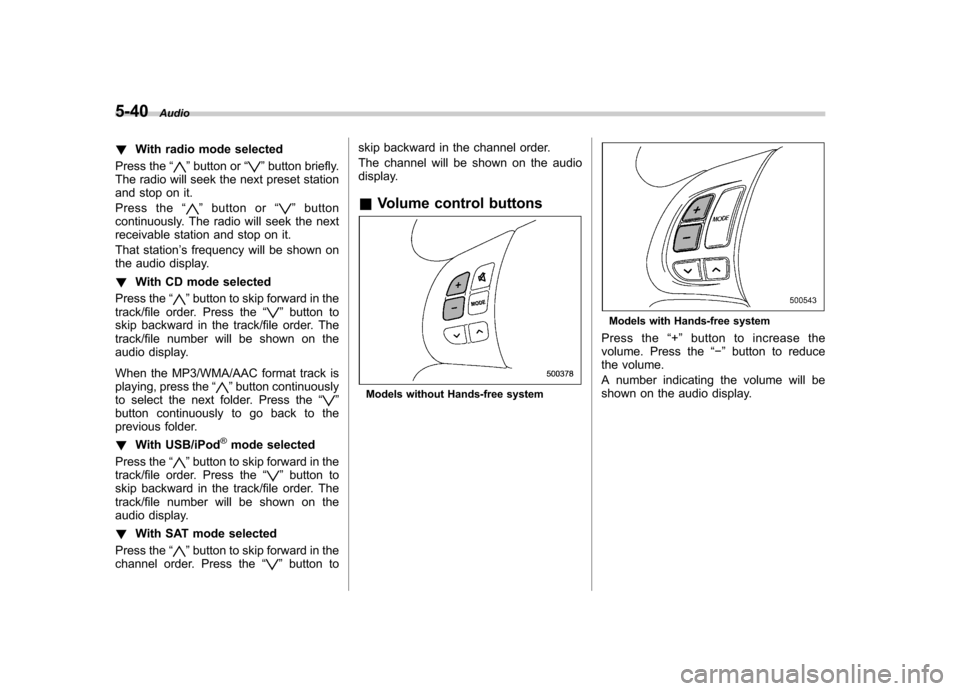
& Volume control buttons
Models without Hands-free system
Models with Hands-free system
Press the “+ ” button to increase the
volume. Press the “ ” button to reduce
the volume.
A number indicating the volume will be
shown on the audio display.
Page 230 of 446

“GO BACK ”(type C audio)/ “BS ”(type
D audio) is chosen using the “TUNE/
TRACK/CH ”dial, the character that was
input last is deleted. ! Registering from call history
1. Select the “CALL HISTORY ”menu.
2. Select “OUTGOING ”or “INCOMING ”
by operating the “TUNE/TRACK/CH ”dial.
3. Select the phone number by operating the “TUNE/TRACK/CH ”dial.
4. Select the “RECORD NAME ”menu by
operating the “TUNE/TRACK/CH ”dial or
press the talk switch
.
5. Say the name (voice tag) to be registered.
6. Select the “CONFIRM ”menu. Then
“ STORED ”is displayed and the mode
changes to the registering speed dial
mode. Refer to “Registering speed dial ”
F 5-51.
! Registering from redial
1. Select the “REDIAL ”menu.
2. Select the phone number by operatingthe “TUNE/TRACK/CH ”dial.
3. Select the “STORE ”menu.
4. Select the “CONFIRM ”menu.
5. Select the “RECORD NAME ”menu by
operating the “TUNE/TRACK/CH ”dial or
press the talk switch
. 6. Say the name (voice tag) to be registered.
7. Select the
“CONFIRM ”menu. Then
“ STORED ”is displayed and the mode
changes to the registering speed dial
mode. Refer to “Registering speed dial ”
F 5-51.
! Registering from call back
1. Select the “CALL BACK ”menu.
2. Select the phone number by operatingthe “TUNE/TRACK/CH ”dial.
3. Select the “STORE ”menu.
4. Select the “CONFIRM ”menu.
5. Select the “RECORD NAME ”menu by
operating the “TUNE/TRACK/CH ”dial or
press the talk switch
.
6. Say the name (voice tag) to be registered.
7. Select the “CONFIRM ”menu. Then
“ STORED ”is displayed and the mode
changes to the registering speed dial
mode. Refer to “Registering speed dial ”
F 5-51.
! Registering speed dial
1. After registering phonebook data, se-
lect the “SPEED DIAL ”menu.
2. Press the preset button (from
to) in which you want to register the phone number.
NOTE
If the number to be used is already
registered in speed dial, “OVER-
WRITE? ”will be displayed.
! List names function
The voice tags registered in the phone-
book are spoken by using the list names
function. To use the list names function,
perform the following procedure.
1. Select the “LIST NAMES ”menu.
2. Choose the registered data by press-
ing the talk switch
or by operating the
“ TUNE/TRACK/CH ”dial. Then “SE-
LECTED ”is displayed. You can choose
the following menus. . “DIAL ”to make a phone call
. “CHANGE NAME ”to change the name
(voice tag) . “SET SPD DIAL ”/“ SET SPEED DIAL ”
to set the speed dial. “DELETE ENTRY ”to delete the name
(voice tag) from the phonebook. “GO BACK ”to go back to the menu
mode
NOTE . After “LIST NAMES ”is selected, ifAudio
5-51
– CONTINUED –
Page 231 of 446

5-52Audio
the OFF hook switch
is pushed, the
selected number is called. . After “LIST NAMES ”is selected, if
no operation is performed, the mem-
ories are displayed and voice tags are
spoken. After all memories/voice tags
are displayed/spoken, “END OF LIST ”
is displayed and the mode changes tothe “PHONE BOOK ”menu mode.
! Changing voice tag
1. Select the “CHANGE NAME ”menu.
2. Select the phone number by operating the “TUNE/TRACK/CH ”dial/by pressing
the talk switch
and saying the voice
tag.
3. Select the “CONFIRM ”menu (only
after saying the voice tag). Then the
selected phone number/name is dis-played.
4. Press the talk switch
.
5. Say the new voice tag.
6. Select the “CONFIRM ”menu. Then
“ CHANGED ”is displayed.
! Set speed dial
1. Select the “SET SPD DIAL ”/“ SET
SPEED DIAL ”menu.
2. Select the phone number by operating the “TUNE/TRACK/CH ”dial/by pressing
the talk switch
and saying the voice tag.
3. Select the
“CONFIRM ”menu (only
after saying the voice tag).
4. Press the preset button (from
to) in which you want to register the
phone number. ! Deleting the phonebook data
1. Select the “DELETE ENTRY ”menu.
2. Select the phone number by perform-
ing either of the following procedures. –Operate the “TUNE/TRACK/CH ”
dial – Press the talk switch
and say
the voice tag
3. Select the “CONFIRM ”menu. Then
“ DELETED ”is displayed and the selected
phonebook data is deleted. ! Deleting the speed dial
1. Select the “DEL SPD DIAL ”/“ DELETE
SPEED DIAL ”menu.
2. Press the preset button (from
to) in which you want to delete the
speed dial.
3. Select the “CONFIRM ”menu. Then
“ DELETED ”is displayed and the selected
speed dial is deleted. !
Deleting the redial data
1. Select the “REDIAL ”menu.
2. Select the phone number by operating the “TUNE/TRACK/CH ”dial.
3. Select the “DELETE ”menu.
4. Select the “CONFIRM ”menu. Then
“ DELETED ”is displayed and the selected
redial data is deleted. ! Deleting the callback data
1. Select the “CALLBACK ”menu.
2. Select the phone number by operating the “TUNE/TRACK/CH ”dial.
3. Select the “DELETE ”menu.
4. Select the “CONFIRM ”menu. Then
“ DELETED ”is displayed and the selected
callback data is deleted. ! Making a phone call
! Making a phone call by saying name
1. Select the top menu (phone menu).
2. Press the talk switch.
3. Say “DIAL BY NAME ”.
4. Press the talk switch
again.
5. Say the desired name (voice tag) to be called.
6. Select the “DIAL ”menu.