Page 303 of 328
301
3
4
05
2
1
LISTREFRESH
LISTREFRESH
USING THE PEUGEOT CONNECT USB
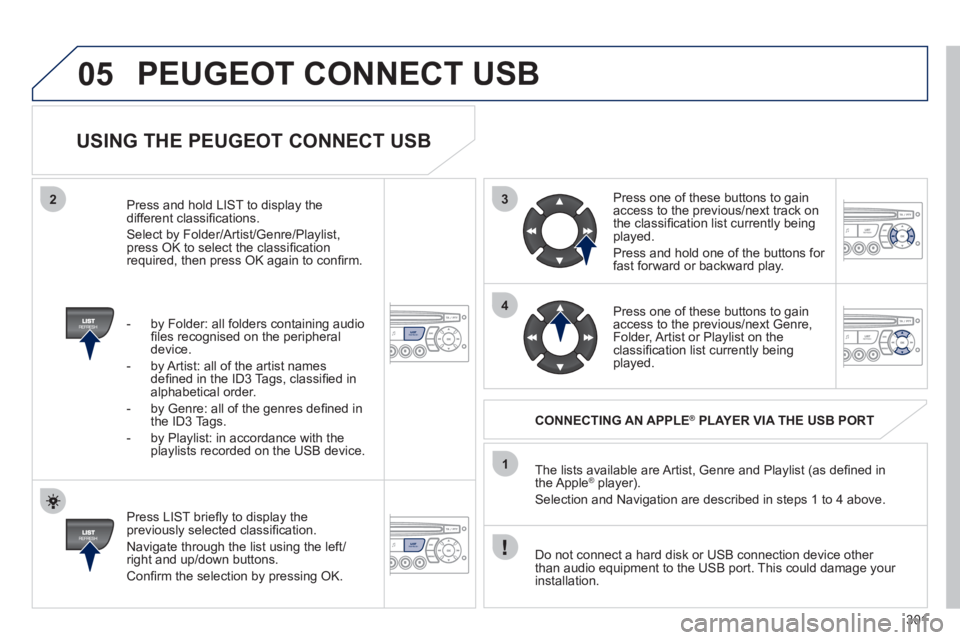
Press LIST briefl y to display the
previously selected classifi cation.
Navigate through the list using the left/
right and up/down buttons.
Confi rm the selection by pressing OK. The lists available are Artist, Genre and Playlist (as defi ned in
the Apple
® player).
Selection and Navigation are described in steps 1 to 4 above.
Do not connect a hard disk or USB connection device other
than audio equipment to the USB port. This could damage your
installation.
CONNECTING AN APPLE
®
PLAYER VIA THE USB PORT
Press one of these buttons to gain
access to the previous/next track on
the classifi cation list currently being
played.
Press and hold one of the buttons for
fast forward or backward play.
Press one of these buttons to gain
access to the previous/next Genre,
Folder, Artist or Playlist on the
classifi cation list currently being
played.
Press and hold LIST to display the
different classifi cations.
Select by Folder/Artist/Genre/Playlist,
press OK to select the classifi cation
required, then press OK again to confi rm.
- by Folder: all folders containing audio
fi les recognised on the peripheral
device.
- by Artist: all of the artist names
defi ned in the ID3 Tags, classifi ed in
alphabetical order.
- by Genre: all of the genres defi ned in
the ID3 Tags.
- by Playlist: in accordance with the
playlists recorded on the USB device.
PEUGEOT CONNECT USB
Page 304 of 328
302
05
1
21
2
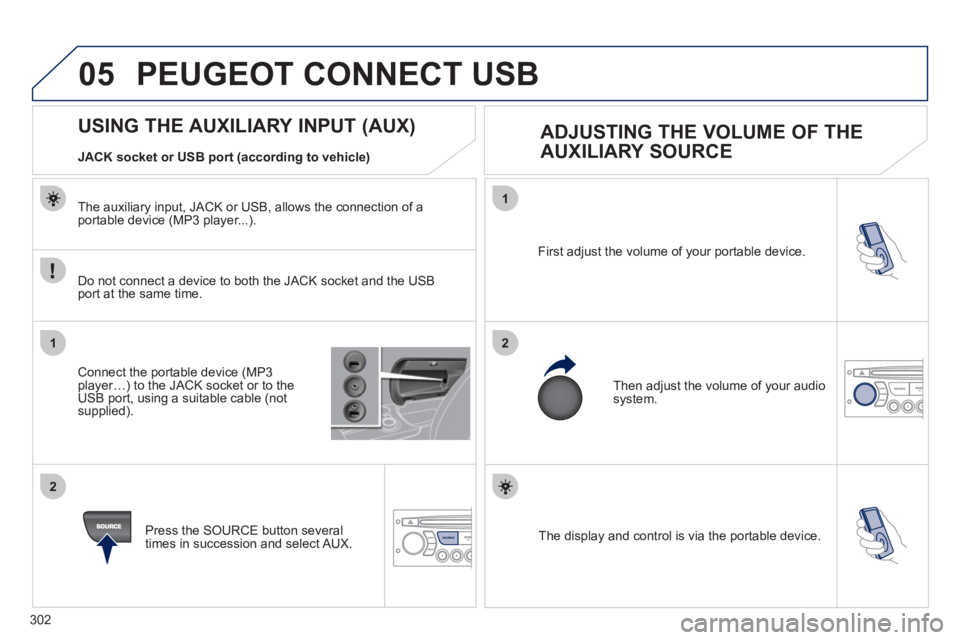
SOURCE The display and control is via the portable device. First adjust the volume of your portable device.
Then adjust the volume of your audio
system.
USING THE AUXILIARY INPUT (AUX)
ADJUSTING THE VOLUME OF THE
AUXILIARY SOURCE
JACK socket or USB port (according to vehicle)
Do not connect a device to both the JACK socket and the USB
port at the same time.
Connect the portable device (MP3
player…) to the JACK socket or to the
USB port, using a suitable cable (not
supplied).
Press the SOURCE button several
times in succession and select AUX.
The auxiliary input, JACK or USB, allows the connection of a
portable device (MP3 player...).
PEUGEOT CONNECT USB
Page 305 of 328
303
06
1
2
3
4
5
6
7
8
9
MENU
OK
BLUETOOTH
For safety reasons and because they require prolonged attention
on the part of the driver, the operations for pairing of the Bluetooth
mobile telephone with the Bluetooth hands-free system of your
audio equipment must be carried out with the vehicle stationary
and the ignition on.
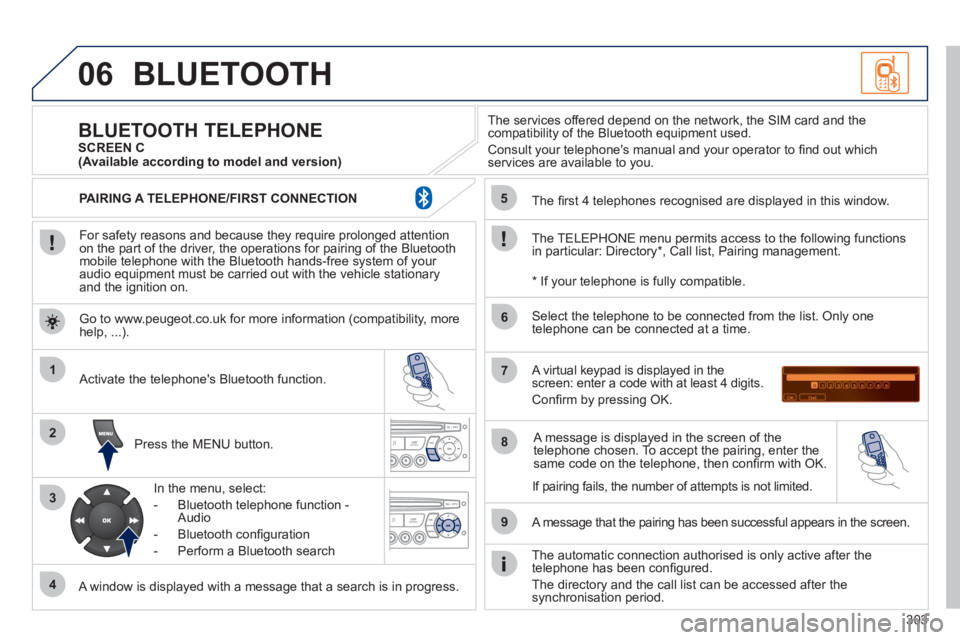
Press the MENU button.
A window is displayed with a message that a search is in progress.
Activate the telephone's Bluetooth function.
In the menu, select:
- Bluetooth telephone function -
Audio
- Bluetooth confi guration
- Perform a Bluetooth search
The services offered depend on the network, the SIM card and the
compatibility of the Bluetooth equipment used.
Consult your telephone's manual and your operator to fi nd out which
services are available to you.
BLUETOOTH TELEPHONE
SCREEN C
The TELEPHONE menu permits access to the following functions
in particular: Directory * , Call list, Pairing management.
The fi rst 4 telephones recognised are displayed in this window.
A virtual keypad is displayed in the
screen: enter a code with at least 4 digits.
Confi rm by pressing OK.
A message that the pairing has been successful appears in the screen.
Select the telephone to be connected from the list. Only one
telephone can be connected at a time.
A message is displayed in the screen of the
telephone chosen. To accept the pairing, enter the
same code on the telephone, then confi rm with OK.
The automatic connection authorised is only active after the
telephone has been confi gured.
The directory and the call list can be accessed after the
synchronisation period.
(Available according to model and version)
*
If your telephone is fully compatible.
If pairing fails, the number of attempts is not limited. Go to www.peugeot.co.uk for more information (compatibility, more
help, ...).
PAIRING A TELEPHONE/FIRST CONNECTION
Page 306 of 328
304
06
1
2
1
2
1
OK
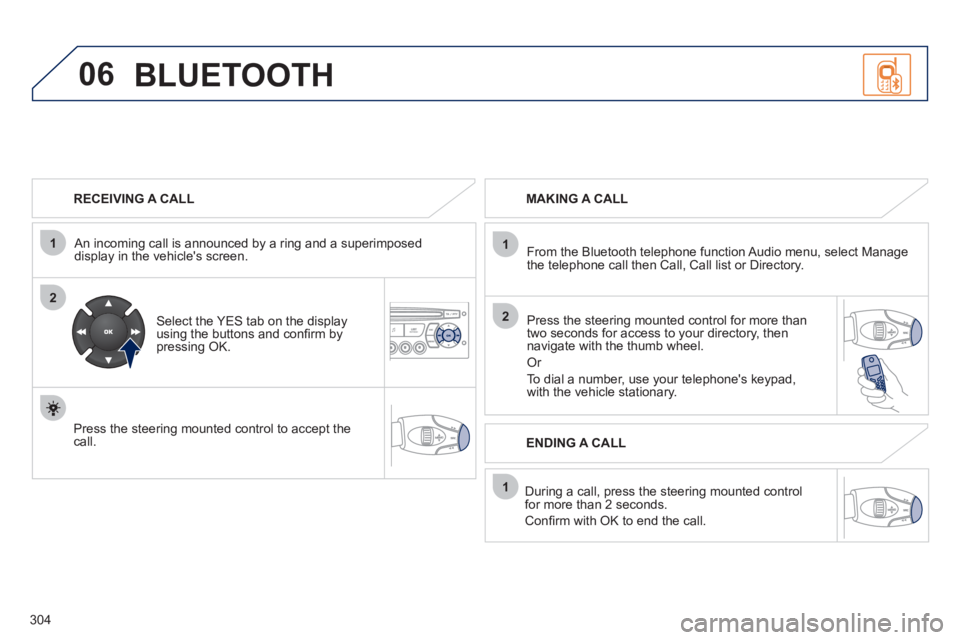
RECEIVING A CALL
An incoming call is announced by a ring and a superimposed
display in the vehicle's screen.
Select the YES tab on the display
using the buttons and confi rm by
pressing OK.
Press the steering mounted control to accept the
call.
MAKING A CALL
From the Bluetooth telephone function Audio menu, select Manage
the telephone call then Call, Call list or Directory.
Press the steering mounted control for more than
two seconds for access to your directory, then
navigate with the thumb wheel.
Or
To dial a number, use your telephone's keypad,
with the vehicle stationary.
During a call, press the steering mounted control
for more than 2 seconds.
Confi rm with OK to end the call.
ENDING A CALL
BLUETOOTH
Page 307 of 328
305
1
2
3
SOURCE
06
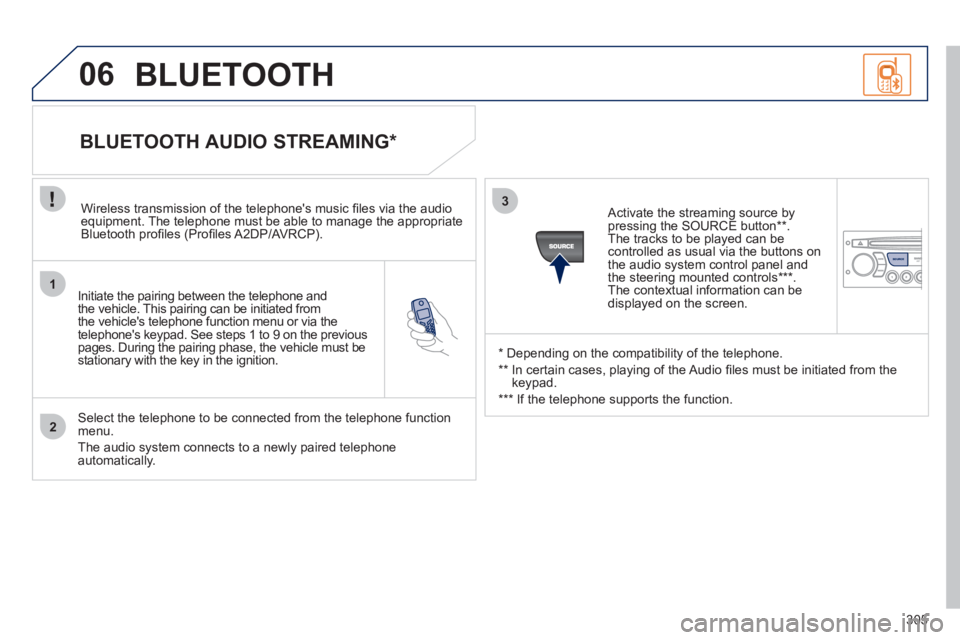
Initiate the pairing between the telephone and
the vehicle. This pairing can be initiated from
the vehicle's telephone function menu or via the
telephone's keypad. See steps 1 to 9 on the previous
pages. During the pairing phase, the vehicle must be
stationary with the key in the ignition.
Select the telephone to be connected from the telephone function
menu.
The audio system connects to a newly paired telephone
automatically.
BLUETOOTH AUDIO STREAMING *
Wireless transmission of the telephone's music fi les via the audio
equipment. The telephone must be able to manage the appropriate
Bluetooth profi les (Profi les A2DP/AVRCP).
*
Depending on the compatibility of the telephone.
**
In certain cases, playing of the Audio fi les must be initiated from the
keypad.
***
If the telephone supports the function.
Activate the streaming source by
pressing the SOURCE button ** .
The tracks to be played can be
controlled as usual via the buttons on
the audio system control panel and
the steering mounted controls *** .
The contextual information can be
displayed on the screen.
BLUETOOTH
Page 313 of 328
311
08
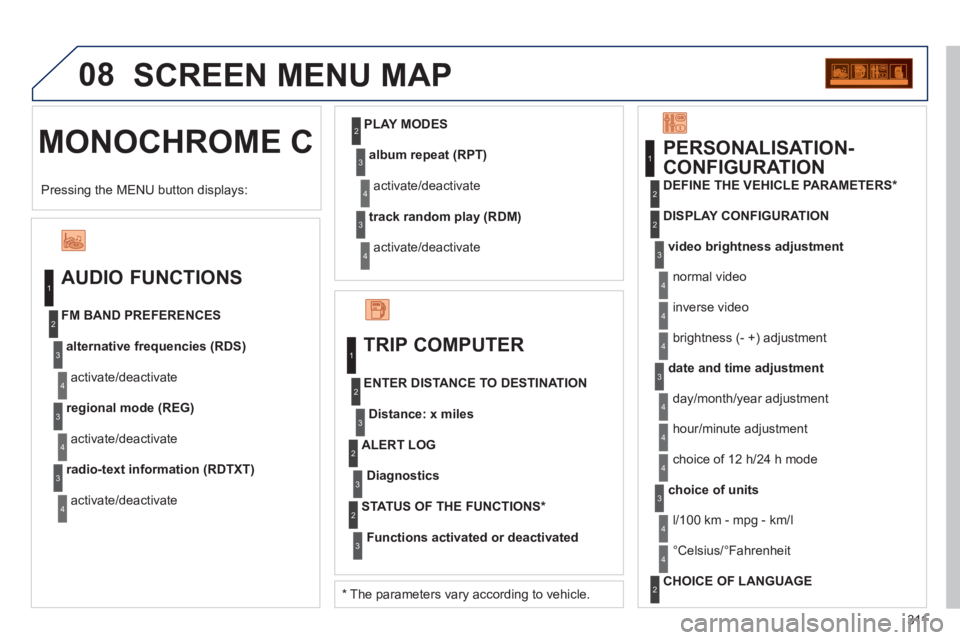
MONOCHROME C SCREEN MENU MAP
AUDIO FUNCTIONS
alternative frequencies (RDS)
activate/deactivate
FM BAND PREFERENCES
regional mode (REG)
activate/deactivate
radio-text information (RDTXT)
activate/deactivate
1
2
3
4
3
4
3
4
PLAY MODES
album repeat (RPT)
activate/deactivate
track random play (RDM)
activate/deactivate
2
3
4
3
4
TRIP COMPUTER
Distance: x miles
ENTER DISTANCE TO DESTINATION
Diagnostic
s
ALERT LOG
Functions activated or deactivated
STATUS OF THE FUNCTIONS *
1
2
3
3
2
3
2
video brightness adjustment
DISPLAY CONFIGURATION
DEFINE THE VEHICLE PARAMETERS *
PERSONALISATION-
CONFIGURATION
normal video
inverse video
brightness (- +) adjustment
date and time adjustment
day/month/year adjustment
hour/minute adjustment
choice of 12 h/24 h mode
choice of units
l/100 km - mpg - km/l
°Celsius/°Fahrenheit
CHOICE OF LANGUAGE
1
2
4
3
2
4
4
3
4
4
2
3
4
4
Pressing the MENU button displays:
*
The parameters vary according to vehicle.
4
Page 314 of 328
312
08 SCREEN MENU MAP
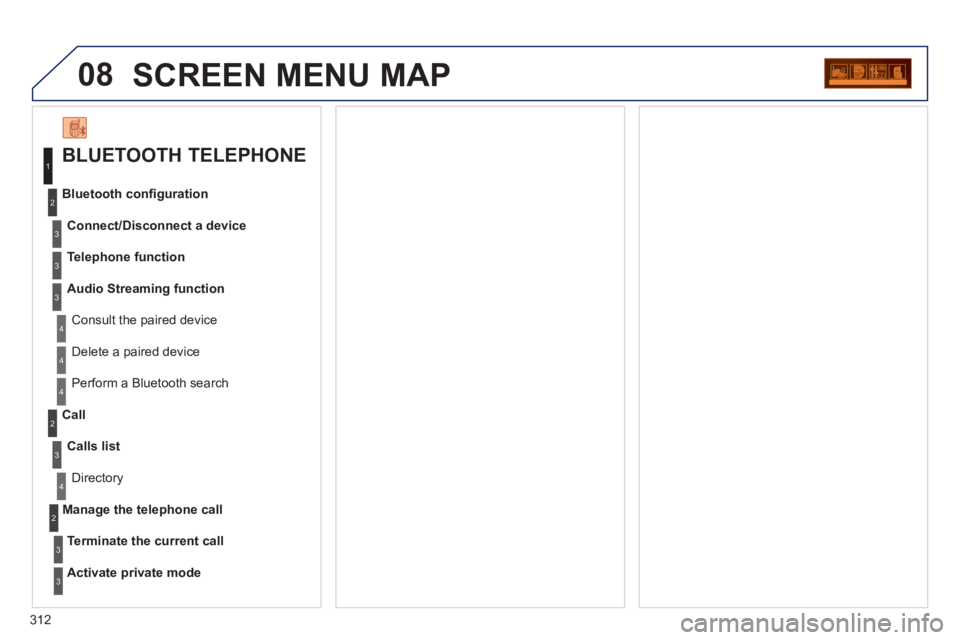
BLUETOOTH TELEPHONE
Connect/Disconnect a device
Consult the paired device
Bluetooth confi guration
Telephone function
Audio Streaming function
Delete a paired device
Perform a Bluetooth search
Calls list
Call
Directory
Terminate the current call
Manage the telephone call
Activate private mode
1
2
3
3
3
4
4
4
2
3
4
2
3
3
Page 315 of 328
313
FREQUENTLY ASKED QUESTIONS
QUESTION
ANSWER
SOLUTION
There is a difference in
sound quality between
the different audio
sources (radio, CD...). For optimum sound quality, the audio settings (Volume, Bass,
Treble, Ambience, Loudness) can be adapted to the different sound
sources, which may result in audible differences when changing source
(radio, CD...). Check that the audio settings (Volume, Bass,
Treble, Ambience, Loudness) are adapted to
the sources listened to. It is advisable to set
the AUDIO functions (Bass, Treble, Front-Rear
Balance, Left-Right Balance) to the middle
position, select the musical ambience "None" and
set the loudness correction to the "Active" position
in CD mode or to the "Inactive" position in radio
mode.
The CD is ejected
automatically or is not
played by the player. The CD is inserted upside down, is unplayable, does not contain any
audio data or contains an audio format which the player cannot play.
The CD is protected by an anti-pirating protection system which is not
recognised by the audio equipment.
- Check that the CD is inserted in the player the
right way up.
- Check the condition of the CD: the CD cannot
be played if it is too damaged.
- Check the content in the case of a recorded
CD: consult the advice in the "Audio" section.
- The audio equipment's CD player does not
play DVDs.
- Due to their quality level, certain writeable
CDs will not be played by the audio system.
The message "USB
peripheral error" is
displayed on the screen.
The Bluetooth connection
is cut. The battery of the peripheral may not be suffi ciently charged. Recharge the battery of the peripheral device.
The USB memory stick is not recognised.
The memory stick may be corrupt. Reformat the memory stick.
The CD player sound is
poor. The CD used is scratched or of poor quality. Insert good quality CDs and store them in suitable
conditions.
The audio equipment settings (bass, treble, ambiences) are unsuitable. Set the treble or bass level to 0, without selecting
an ambience.