Page 229 of 280
227
07
2ABC3DEF5JKL4GHI6MNO8TUV7PQRS9WXYZ0*#
1RADIO MEDIANAV ESC TRAFFIC
SETUPADDR
BOOK
1
4
5
6
2ABC3DEF5JKL4GHI6MNO8TUV7PQRS9WXYZ0*#
1RADIO MEDIANAV ESC TRAFFIC
SETUPADDR
BOOK
2ABC3DEF5JKL4GHI6MNO8TUV7PQRS9WXYZ0*#
1RADIO MEDIANAV ESC TRAFFIC
SETUPADDR
BOOK
32ABC3DEF5JKL4GHI6MNO8TUV7PQRS9WXYZ0*#
1RADIO MEDIANAV ESC TRAFFIC
SETUPADDR
BOOK
RADIONAV ESC TRAFFICMEDIAMEDIA
2ABC3DEF5JKL4GHI6MNO8TUV7PQRS9WXYZ0*#
1RADIO MEDIANAV ESC TRAFFIC
SETUPADDR
BOOK
2ABC3DEF5JKL4GHI6MNO8TUV7PQRS9WXYZ0*#
1RADIO MEDIANAV ESC TRAFFIC
SETUPADDR
BOOK
2
7
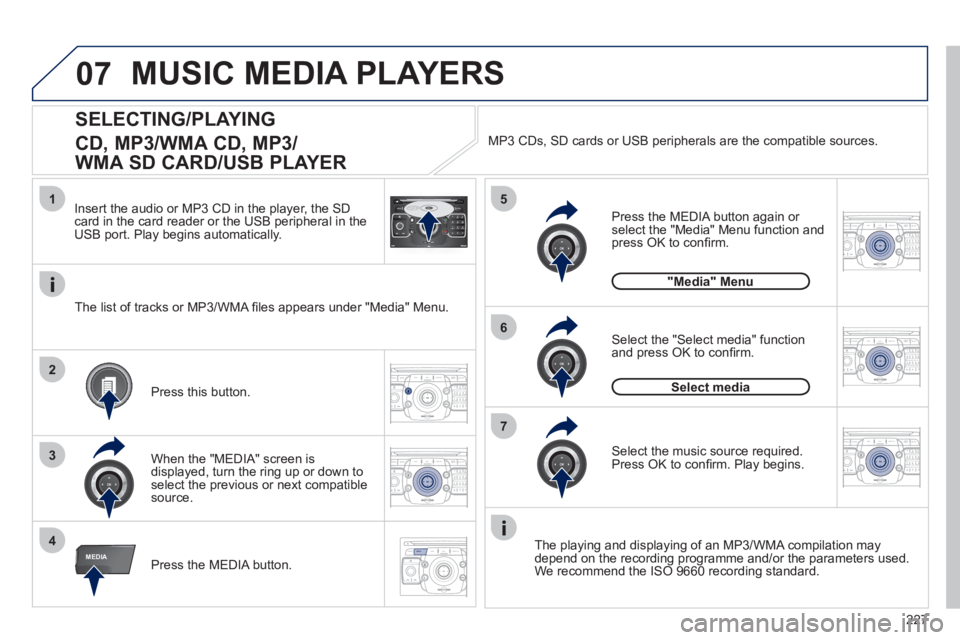
SELECTING/PLAYING
CD, MP3/WMA CD, MP3/
WMA SD CARD/USB PLAYER
The playing and displaying of an MP3/WMA compilation may
depend on the recording programme and/or the parameters used.
We recommend the ISO 9660 recording standard. Press the MEDIA button.
Select the "Select media" function
and press OK to confi rm.
Pr
ess this button.
Select the music source required. Press OK to confi rm. Play begins.
Select media
Press the MEDIA button again or select the "Media" Menu function and press OK to confi rm.
When the "MEDIA" screen isdisplayed, turn the ring up or down to select the previous or next compatible source.
"Media" Menu
The list o
f tracks or MP3/WMA fi les appears under "Media" Menu. Insert the audio or MP3
CD in the player, the SDcard in the card reader or the USB peripheral in theUSB port. Play begins automatically. MP3 CDs, SD cards or USB
peripherals are the compatible sources.
MUSIC MEDIA PLAYERS
Page 230 of 280
228
07
3
42ABC3DEF5JKL4GHI6MNO8TUV7PQRS9WXYZ0*#
1RADIO MEDIANAV ESC TRAFFIC
SETUPADDR
BOOK
2ABC3DEF5JKL4GHI6MNO8TUV7PQRS9WXYZ0*#
1RADIO MEDIANAV ESC TRAFFIC
SETUPADDR
BOOK
2ABC3DEF5JKL4GHI6MNO8TUV7PQRS9WXYZ0*#
1RADIO MEDIANAV ESC TRAFFIC
SETUPADDR
BOOK
2ABC3DEF5JKL4GHI6MNO8TUV7PQRS9WXYZ0*#
1RADIO MEDIANAV ESC TRAFFIC
SETUPADDR
BOOK2
2ABC3DEF5JKL4GHI6MNO8TUV7PQRS9WXYZ0*#
1RADIO MEDIANAV ESC TRAFFIC
SETUPADDR
BOOK
5
7
8
6
9
RADIONAV ESC TRAFFICMEDIAMEDIA
2ABC3DEF5JKL4GHI6MNO8TUV7PQRS9WXYZ0*#
1RADIO MEDIANAV ESC TRAFFIC
SETUPADDR
BOOKRADIONAV ESC TRAFFICMEDIA
2ABC3DEF5JKL4GHI6MNO8TUV7PQRS9WXYZ0*#
1RADIO MEDIANAV ESC TRAFFIC
SETUPADDR
BOOK
2ABC3DEF5JKL4GHI6MNO8TUV7PQRS9WXYZ0*#
1RADIO MEDIANAV ESC TRAFFIC
SETUPADDR
BOOK
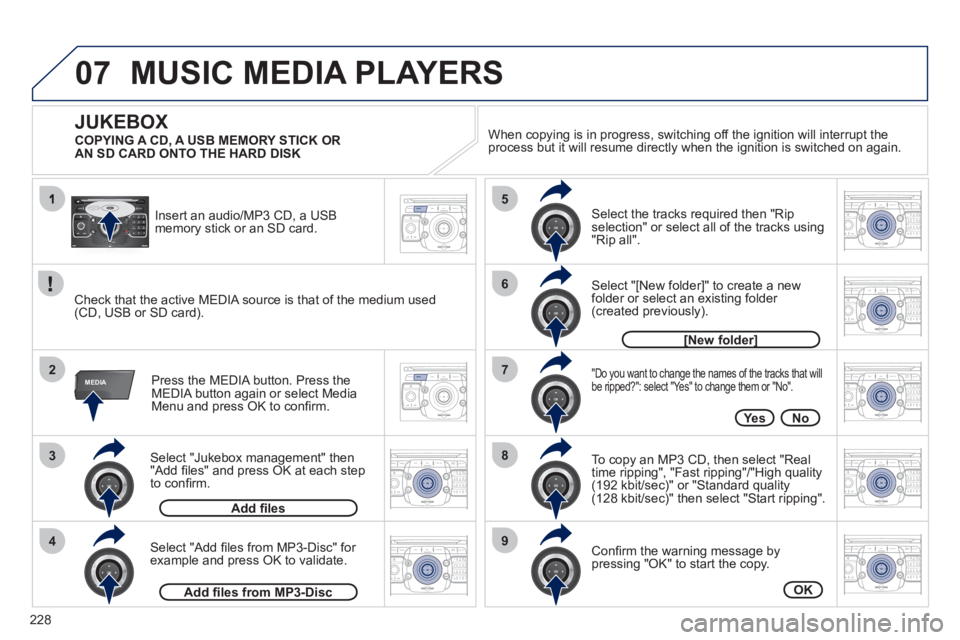
Select "Jukebox management" then"Add fi les" and press OK at each step
to confi rm. Pr
ess the MEDIA button. Press theMEDIA button again or select MediaMenu and press OK to confi rm. Insert an audio
/MP3 CD, a USB
memory stick or an SD card.
JUKEBOX
Add fi les
Check that the active MEDIA source is that of the medium used(CD, USB or SD card).
Select "Add fi les from MP3-Disc" for example and press OK to validate.
Select the tracks required then "Rip
selection" or select all of the tracks using "Rip all".
Select "[New folder]" to create a new
folder or select an existin
g folder (created previously).
Add fi les from MP3-Disc
[New folder][]
"Do you want to change the names of the tracks that will
be ripped?": select "Yes" to change them or "No".
To copy an MP3 CD, then select "Real
time ripping", "Fast ripping"/"High quality(192 kbit/sec)" or "Standard quality (128 kbit/sec)" then select "Start ripping".
Confi rm the warning message bypressing "OK" to start the copy.
OK
Yes No When cop
ying is in progress, switching off the ignition will interrupt the
process but it will resume directly when the ignition is switched on again.
MUSIC MEDIA PLAYERS
COPYING A CD, A USB MEMORY STICK OR AN SD CARD ONTO THE HARD DISK
Page 238 of 280
236
10
MEDIA
TRAFFIC
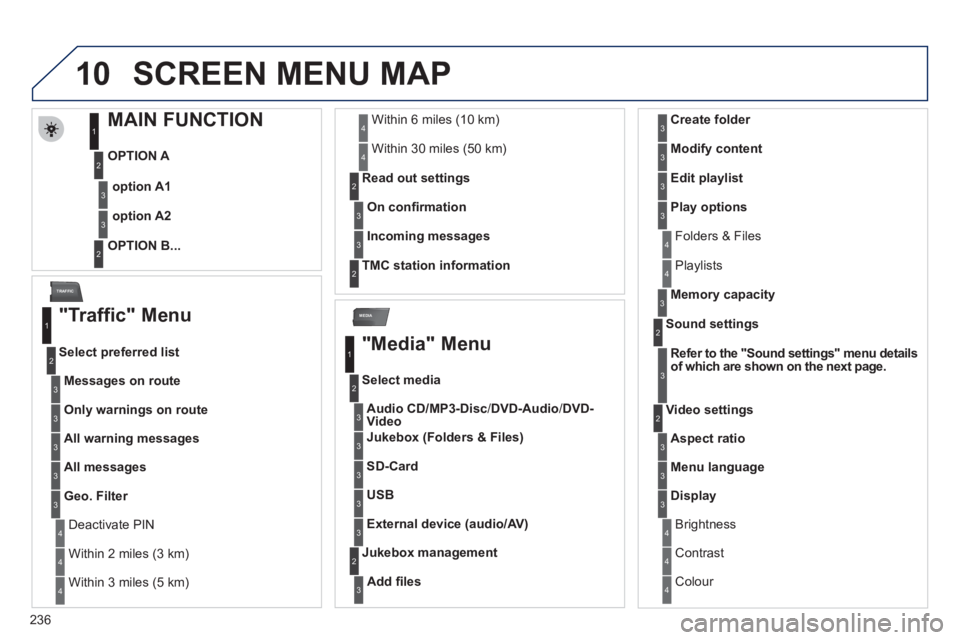
SCREEN MENU MAP
MAIN FUNCTION
OPTION A
OPTION B...
option A1
option A2
1
2
3
2
3
"Traffic" Menu
Messages on route
Select preferred list
1
2
3
Deactivate PIN 4
Only warnings on route3
All warning messages3
All messages3
Geo. Filter3
Within 2 miles (3 km) 4
Within 3 miles (5 km) 4
Within 6 miles (10 km) 4
Within 30 miles (50 km)4
On confi rmation Read out settin
gs2
3
Incoming messages3
TMC station information2
"Media" Menu
Audio CD/MP3-Disc / DVD-Audio/ DVD-Video
Select media
1
2
3
Jukebox (Folders & Files)3
SD-Card3
USB3
External device (audio/AV)3
Add fi les
Jukebox management2
3
Folders & Files 4
Create folder3
Modify content3
Edit playlist3
Play options3
Playlists4
Memory capacity3
Refer to the "Sound settings" menu details of which are shown on the next page.
Sound settings 2
3
Aspect ratio
Video settings2
3
Menu language3
Display3
Brightness 4
Contrast4
Colour 4
Page 247 of 280
245
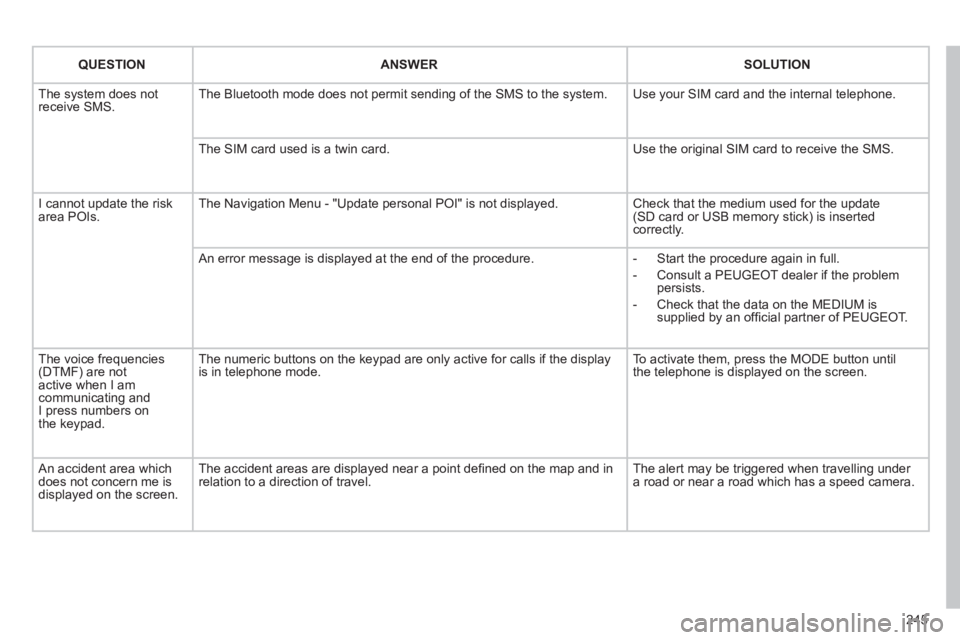
QUESTIONANSWERSOLUTION
The system does notreceive SMS. The Bluetooth mode does not permit sending of the SMS to the system.
Use your SIM card and the internal telephone.
The SIM card used is a twin card.
Use the original SIM card to receive the SMS.
I cannot update the risk area POIs. The Navigation Menu - "Update personal POI" is not displayed. Check that the medium used for the update(SD card or USB memory stick) is inserted correctly.
An error message is displayed at the end of the procedure.
- Start the procedure again in full.
- Consult a PEUGEOT dealer if the problempersists.
- Check that the data on the MEDIUM issupplied by an offi cial partner of PEUGEOT.
The voice frequencies(DTMF) are not active when I am communicating andI press numbers on the keypad.
The numeric buttons on the keypad are only active for calls if the display is in telephone mode.
To activate them, press the MODE button untilthe telephone is displayed on the screen.
An accident area which does not concern me isdisplayed on the screen.
The accident areas are displayed near a point defi ned on the map and inrelation to a direction of travel.
The alert may be triggered when travelling under a road or near a road which has a speed camera.
Page 249 of 280
247
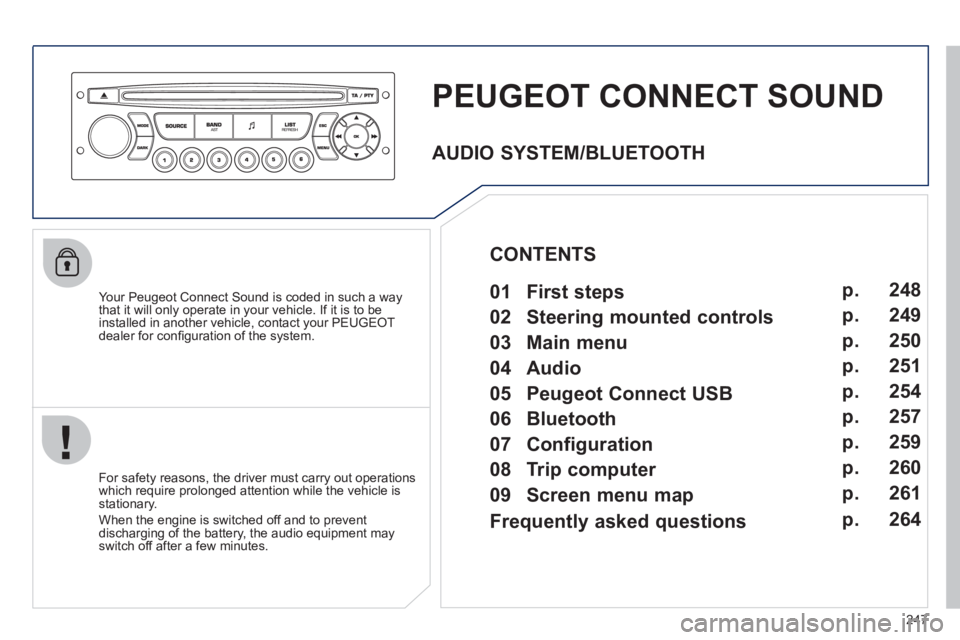
PEUGEOT CONNECT SOUND
Your Peugeot Connect Sound is coded in such a way
that it will only operate in your vehicle. If it is to be
installed in another vehicle, contact your PEUGEOT
dealer for confi guration of the system.
For safet
y reasons, the driver must carry out operations
which require prolonged attention while the vehicle is stationary.
When the en
gine is switched off and to prevent
discharging of the battery, the audio equipment mayswitch off after a few minutes.
AUDIO SYSTEM/BLUETOOTH
01 First steps
02 Steering mounted controls
03 Main menu
04 Audio
05 Peugeot Connect USB
06 Bluetooth
07 Configuration
08 Trip computer
09 Screen menu map p.
p.
p.
p.
p.
p.
p.
p.
p. 248
249
250
251
254
257
259
260
261
CONTENTS
Frequently asked questions p. 264
Page 250 of 280
248
01
1
22
10101111
133144155
33445566778899
122
FIRST STEPS
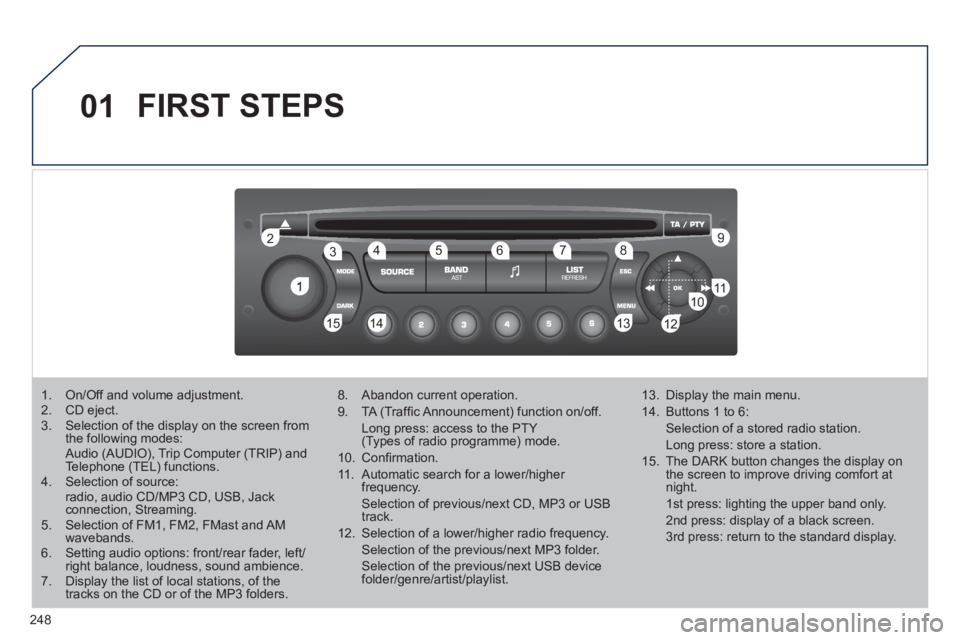
1. On/Off and volume adjustment. 2. CD eject. 3. Selection of the display on the screen from the following modes: Audio (AUDIO), Trip Computer (TRIP) and Telephone (TEL) functions. 4. Selection of source: radio, audio CD/MP3 CD, USB, Jackconnection, Streaming. 5. Selection of FM1, FM2, FMast and AMwavebands.6. Setting audio options: front/rear fader, left/right balance, loudness, sound ambience.7. Display the list of local stations, of thetracks on the CD or of the MP3 folders.
8. Abandon current operation.
9. TA (Traffi c Announcement) function on/off.
Long press: access to the PTY (Types of radio programme) mode.
10. Confi rmation.
11. Automatic search for a lower/higher frequency.
Selection of previous/next CD, MP3 or USB track.
12. Selection of a lower/higher radio frequency.
Selection of the previous/next MP3 folder.
Selection of the previous/next USB devicefolder/genre/artist/playlist.
13. Display the main menu.
14. Buttons 1 to 6:
Selection of a stored radio station.
Long press: store a station.
15. The DARK button changes the display on the screen to improve driving comfort at night.
1st press: lighting the upper band only.
2nd press: display of a black screen.
3rd press: return to the standard display.
Page 251 of 280
249
02STEERING MOUNTED CONTROLS
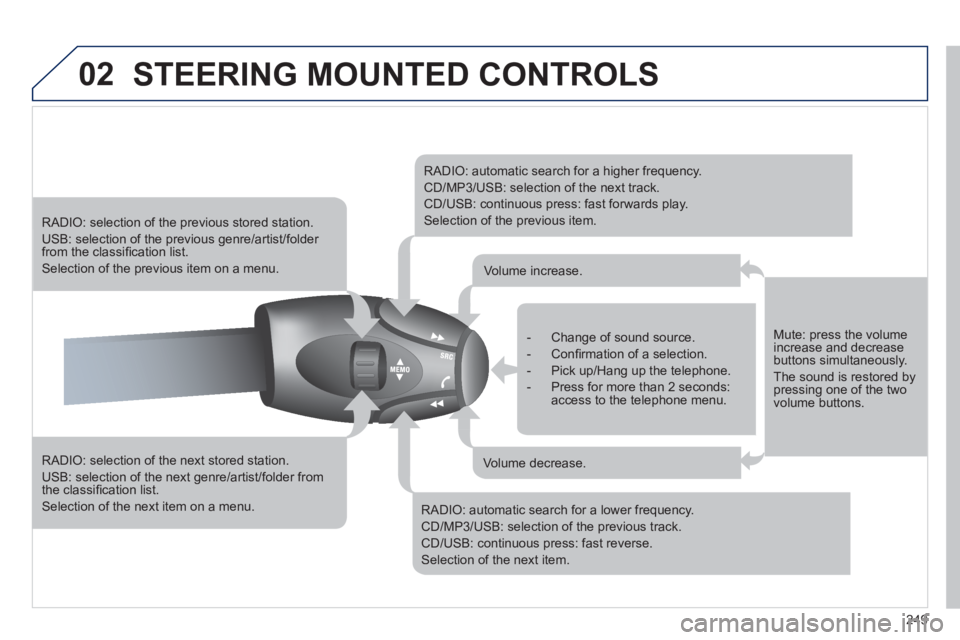
RADIO: selection of the next stored station.
USB: selection of the next genre/artist/folder from the classifi cation list.
Selection of the next item on a menu.
RADIO: selection of the previous stored station.
USB: selection of the previous genre/artist/folder from the classifi cation list.
Selection of the previous item on a menu.
RADIO: automatic search for a higher frequency.
CD/MP3/USB: selection of the next track.
CD/USB: continuous press: fast forwards play.
Selection of the previous item.
RADIO: automatic search for a lower frequency.
CD/MP3/USB: selection of the previous track.
CD/USB: continuous press: fast reverse.
Selection of the next item.
- Change of sound source.
- Confi rmation of a selection.
- Pick up/Hang up the telephone.
- Press for more than 2 seconds:access to the telephone menu.
Volume increase.
Volume decrease.
Mute: press the volumeincrease and decreasebuttons simultaneously.
The sound is restored by pressing one of the two volume buttons.
Page 252 of 280
250
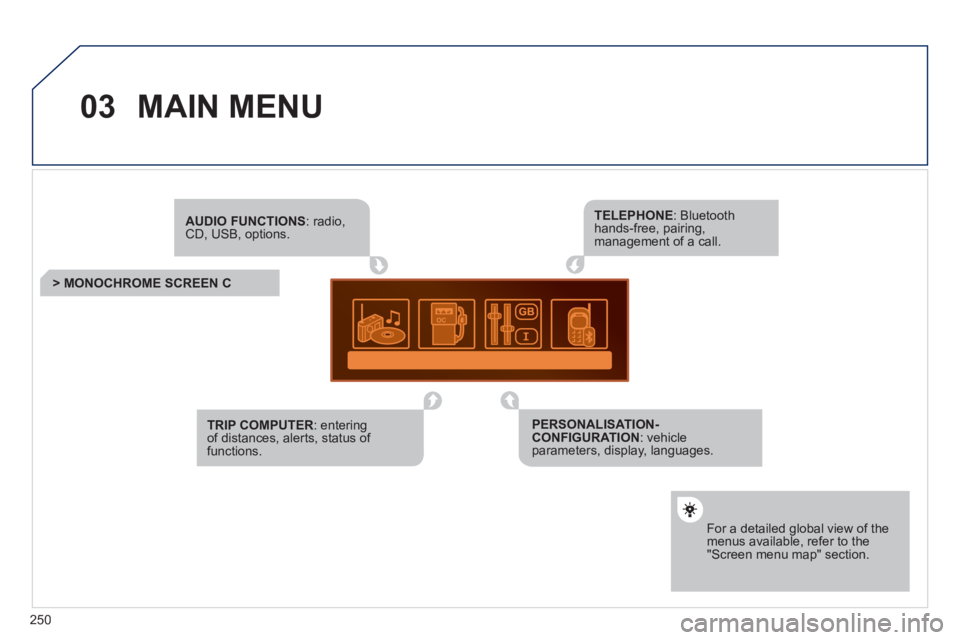
03MAIN MENU
AUDIO FUNCTIONS: radio,CD, USB, options.
> MONOCHROME SCREEN C
For a detailed global view of the menus available, refer to the"Screen menu map" section.
TELEPHONE: Bluetooth hands-free, pairing, management of a call.
PERSONALISATION-CONFIGURATION: vehicleparameters, display, languages.
TRIP COMPUTER: entering of distances, alerts, status of functions.