2011 MERCEDES-BENZ S-Class Media interface
[x] Cancel search: Media interfacePage 223 of 524

Selecting CD/audio DVD/MP3 discs
Selecting via the media list
XIn CD/audio DVD and MP3 mode: select
Media by sliding VÆ or turning cVd the
COMAND controller and press W to
confirm.
The media list appears. The # dot
indicates the currently selected medium.
Media list
The media list shows the discs currently
available.
Media list (when equipped with a DVD
changer)
Magazine trays, positions 1 to 6: readable
data media are audio CDs, MP3 CDs or MP3
DVDs, audio DVDs and video DVDs.
Memory card, position 7MUSIC REGISTER, position 8Media Interface, position 9USB, position 10
iIf a disc cannot be read, an entry appears
after the display in the magazine tray.
Equipped with a single DVD driveDVD drive, position 1: readable data media
are audio CDs, MP3 CDs or MP3 DVDs,
audio DVDs and video DVDs.
Memory card, position 2MUSIC REGISTER, position 3Media Interface, position 4USB, position 5XSelect the data medium by turning cVd
the COMAND controller and press W to
confirm.
iIf you select a video DVD, the system
switches to video DVD mode
(Y page 236).
Selecting a track using the number
keypad
XPress a number button, e.g. n, when the
display/selection window is active.
The medium at the corresponding position
in the media list is loaded and then played.
Selecting a track
Selecting by skipping to a track
XTo skip forwards or back to a track: slide
XVY or turn cVd the COMAND controller
when the display/selection window is
active.
The skip forward function skips to the next
track.
Skipping backwards restarts the current
track (if it has been playing for more than
eight seconds) or starts the previous track
(if the current track has only been playing
for a shorter time).
If you activate the Medium mix or Random
tracks playback option (MP3 mode only),
the track order is random.
XOn the multifunction steering wheel:
switch COMAND to audio CD, audio DVD or
MP3 mode (Y page 218).
XUse = or ; to select the Audio
menu.
XPress the 9 or : button on the
multifunction steering wheel.
Audio221COMANDZ
Page 231 of 524

Playback options
The following options are available:
R Normal track sequence
The tracks are played in the normal order
(e.g. track 1, 2, 3, etc.).
R Medium mix
All the tracks on the medium are played in
random order.
R Random tracks (MP3 mode only)
The tracks in the currently active folder are
played in a random order.
XTo select options: switch on the MUSIC
REGISTER ( Y page 226).XSelect Music Register by sliding VÆ and
turning cVd the COMAND controller and
press W to confirm.
The options list appears. The # dot
indicates the option selected.XSelect an option and press W to confirm.
The option is switched on. All options
except Normal track sequence will be
indicated by a corresponding icon in the
display/selection window.
i The Normal track sequence option is
automatically selected when you change
the disc you are currently listening to or
when you select a different medium. If an
option is selected, it remains selected after
COMAND is switched on or off.
Media Interface mode
Connection options
Overview
You will find the connection sockets in the
glove box.
Device-specific adapter cables, included in
the Media Interface scope of delivery, are
required to connect external devices to the
Media Interface.
i Store individual parts in a safe place.
Use only genuine Mercedes-Benz
connecting cables.
You can connect the following data carriers
to COMAND via the Media Interface:
R iPod ®
R USB devices (USB sticks, USB hard drives)
i iPod ®
is a registered trademark of Apple
Inc., Cupertino, California, USA.
Supported iPod ®
variants
The following are examples of supported
iPod ®
variants:
R iPod ®
mini
R iPod ®
nano
R iPod ®
classic
R iPod ®
touch
Supported USB devices
The following USB devices are supported:
R USB sticks (flash memory)
R USB hard drives requiring a startup/
permanent current of a maximum of
800 mA (it may be necessary to connect a
separate power supply)
R certain MP3 players
i The Media Interface supports USB
storage media of "USB Device Subclass 6".
Information concerning USB Device
Subclass 6 is available from the equipment
manufacturer.
For more details and a list of supported
devices please visit http://www.mbusa-
mobile.com or call the Mercedes-Benz
Customer Assistance Center at
1-800-FOR-MERCedes (1-800-367-6372)
(US) or Customer Relations at
1-800-387-0100 (Canada).
Connecting an external device
i Do not store external devices in your
vehicle. Extreme temperatures can effect
functionality. (see the operating
instructions for the respective device).
Audio229COMANDZ
Page 232 of 524

Mercedes-Benz USA, LLC does not take
responsibility for any damage to external
devices.
Never connect more than one device at a
time. You will otherwise not be able to play
back from the external device.
:Four-pin socket for ⅛ inch stereo jack,
e.g. for MP3 players (audio and video)
;iPod® plug, to connect an iPod®=USB socket, to connect USB devices?Example of device, iPod®XConnect the external device with suitable
socket :, ; or =.
COMAND activates the device.
If you remove a device, the No device
connected message appears.
iA connected iPod® or MP3 player should
not be simultaneously operated via the
Media Interface and the remote control
(e.g. Bluetooth® remote control), as this
may produce unpredictable results.
iConnecting a fully discharged iPod® or
MP3 player can result in an extended
initialization period.
Error messages appear while the device is
being activated if:
RCOMAND does not support the device
connected.
Rtwo devices are connected.
Rthe connected device consumes too much
power.
Rthe Media Interface connection is faulty.
iWhere necessary, consult an authorized
Mercedes-Benz Center.
Switching on Media Interface mode
General notes
In extreme cases, starting up individual
functions can take up to several minutes –
this depends on the external device and its
content (e.g. video podcasts).
Only use the original programs to populate an
iPod or MP3 player. Otherwise, some or all
functions may not be available.
Option 1
XConnect an external device (Y page 229).
COMAND activates the device. The basic
display then appears if there are playable
files stored on the medium.
or
XSelect Audio in the main function bar by
sliding ZV and turning cVd the COMAND
controller and press W to confirm.
If you had previously selected Media
Interface mode, this will now be activated.
If another audio source is switched on, you
can now switch to Media Interface in the
audio menu.
230AudioCOMAND
Page 233 of 524

XSelect Audio by sliding ZV and turning
cVd the COMAND controller and press
W to confirm.
The audio menu appears.
XSelect Media Interface and press W to
confirm.
Option 2
XSelect Audio by sliding ZV and turning
cVd the COMAND controller and press
W to confirm.
The audio menu appears.
XSelect Media Interface and press W to
confirm.
Option 3
XIn the media list, (Y page 221) turn cVd
the COMAND controller to select the entry
under the corresponding position and
press W to confirm.
COMAND activates the connected device.
You will see a message to this effect. The
basic display then appears.
If no device is connected, you will see the
Media Interface entry instead of a
device name.
Example display: iPod mode
:Date medium type;Track number=Track name?Graphic time displayATrack timeBVisual track displayCCurrent playback settings (no symbol for
"Normal track sequence")
DSound settingsEMedia listFAlbum name (if available)GCategories, playlists and/or foldersHArtist (if available)IPlayback options
Type of device : connected is indicated by
the corresponding icon for iPod®, MP3 player
or USB mass storage device.
iIf the device connected does not contain
any playable tracks, a message appears to
this effect.
Selecting music files
Notes
COMAND displays the data stored on the
iPod®, MP3 player or USB mass storage
device according to the filing structure used
in the respective medium.
Selecting by skipping to a track
XTo skip forwards or back to a track: turn
the COMAND controller cVd when the
display/selection window is active.
The skip forward function skips to the next
track. The skip back function skips to the
beginning of the current track if the track
has been playing for more than eight
seconds. If the track has been playing for
less than eight seconds, it skips to the start
of the previous track. If you have selected
a playback option other than Normal
track sequence, the track sequence is
random.
Audio231COMANDZ
Page 234 of 524

XOn the multifunction steering wheel:
switch on Media Interface mode in
COMAND ( Y page 230).XOn the multifunction steering wheel, press
the = or ; button to select the
Audio menu.XOn the multifunction steering wheel, press
9 or : to select a track.
Selecting using the number keypad
XTo make an entry: press the Ä button.
The input menu appears. The number of
characters available for input depends on
the number of stored tracks.XTo enter a track number: press a number
key, e.g. q.
The digit is entered in the first position in
the input line.
i COMAND will ignore and not display an
invalid digit.
XEnter more numbers if desired.
The selected track is played.
Fast forward/rewind
XWhile the display/selection window is
active, slide XVY and hold the COMAND
controller until the desired position has
been reached.
i On an iPod ®
, fast rewind only functions
within the current track.
Selecting a category/playlist/folder
iPod ®
and certain MP3 players
For an iPod ®
or MP3 player, you can select
tracks using categories or folders.
Depending on the device connected, the
following categories may be available, for
example:
R Current Track List
R Playlists (e.g. All)
R Artists
R Albums
R
Track
R Podcasts
R Genres
R Composers
R Audiobooks
i Some playback categories contain the
entry All. If this entry has been selected,
the entire content of the category selected
will be played.
USB devices
For USB mass storage devices, you can select
both folders as well as any existing playlists.
COMAND can also display the album name
and artist (metadata) during playback, if this
information has been entered into the
system.
Playlists are indicated in the display by a
special icon. When you open the playlist, the
corresponding tracks are opened and
playback begins. You can now select
Category mix instead of Random folder as
a playback option.
For USB mass storage devices, you can
choose to display the metadata contained in
the tags of the encoded music data, or to
display the file and directory names during
playback.XTo display the album and artist name:
select Media Interface in the basic
display by sliding VÆ and turning cVd the
COMAND controller and press W to
confirm.XSelect Display Metadata and press W to
confirm.
Selecting a category and opening a folder
XPress W the COMAND controller when the
display/selection window is active.XSelect Folder by sliding VÆ and turning
cVd the COMAND controller and press
W to confirm.
The available categories or the folder
contents (e.g. further folders) are232AudioCOMAND
Page 236 of 524

Selecting an active partition (USB mass
storage devices only)
You can select this function for USB mass
storage devices when the storage device is
partitioned. Up to four partitions (primary or
logical; FAT format) are supported.
i The Windows formatting program
supports FAT partitions of up to 32 GB as
standard.
XSelect Media Interface in the basic
display by sliding VÆ and turning cVd the
COMAND controller and press W to
confirm.XSelect Select active partition and
press W to confirm.
Playback options
The following options are available:
R Normal track sequence
Normal track sequence: You hear the
tracks in their normal order (numerical or
alphabetical).
R Random tracks:
All the tracks on the medium are played in
random order.
R Category mix or Random folder (for USB
devices if Folder has been selected)
The tracks in the currently active category
or folder, including any subfolders, are
played in random order.
i For USB devices, the random playlists
offer a maximum of 300 tracks chosen at
random.
XTo select a playback option: select
Media Interface in the basic display by
sliding VÆ and turning cVd the COMAND
controller and press W to confirm.
The options list appears. The # dot
indicates the option selected.XSelect an option and press W to confirm.Separate USB connection
In addition to the USB connection on the
Media Interface, there is another USB
connection in the glove box. This connection
can also be used to play audio files.
Electrical consumption at this connection
must not exceed a continuous current of
500 mA. If the electrical consumption is
higher, use a separate source to provide
power for the USB device (e.g.
12 V power supply).
Notes on USB devices
Data formats
The following data formats are supported:
R MP3: CBR, VBR (up to 320 kbit/s)
R wma: CBR, VBR (up to 320 kbit/s)
Notes on USB devices
R In order to keep the initialization time to a
minimum, store only music data on a USB
device.
R Approximately 10,000 tracks are
supported. Multiple folders should be used
for larger numbers of tracks.
R Do not use USB extension leads or
adapters. They can impair functionality.
R A background search of the USB device is
performed and any playlists found are
shown in a separate category in addition to
the folders. Initialization of larger USB mass
storage devices containing a high number
of files may take several minutes.
i DRM (Digital Rights Management)
protected files are not supported by the
Media Interface.
Audio AUX mode
Notes on audio AUX mode
You can connect an external audio source
(AUX) to COMAND. The socket for this is
located in the glove box.
234AudioCOMAND
Page 237 of 524
If COMAND is equipped with a Media
Interface, external audio sources are
connected using the associated cable set.
The audio cable set then replaces the audio
AUX socket.
iYou can find more information on the
Internet at http://www.mercedes-
benz.com/connect and in the "Media
Interface mode" section (Y page 229).
Activating audio AUX mode
When you connect an external audio source,
audio AUX is not selected automatically.
XSelect Audio in the main function bar by
sliding ZV and turning cVd the COMAND
controller and press W to confirm.
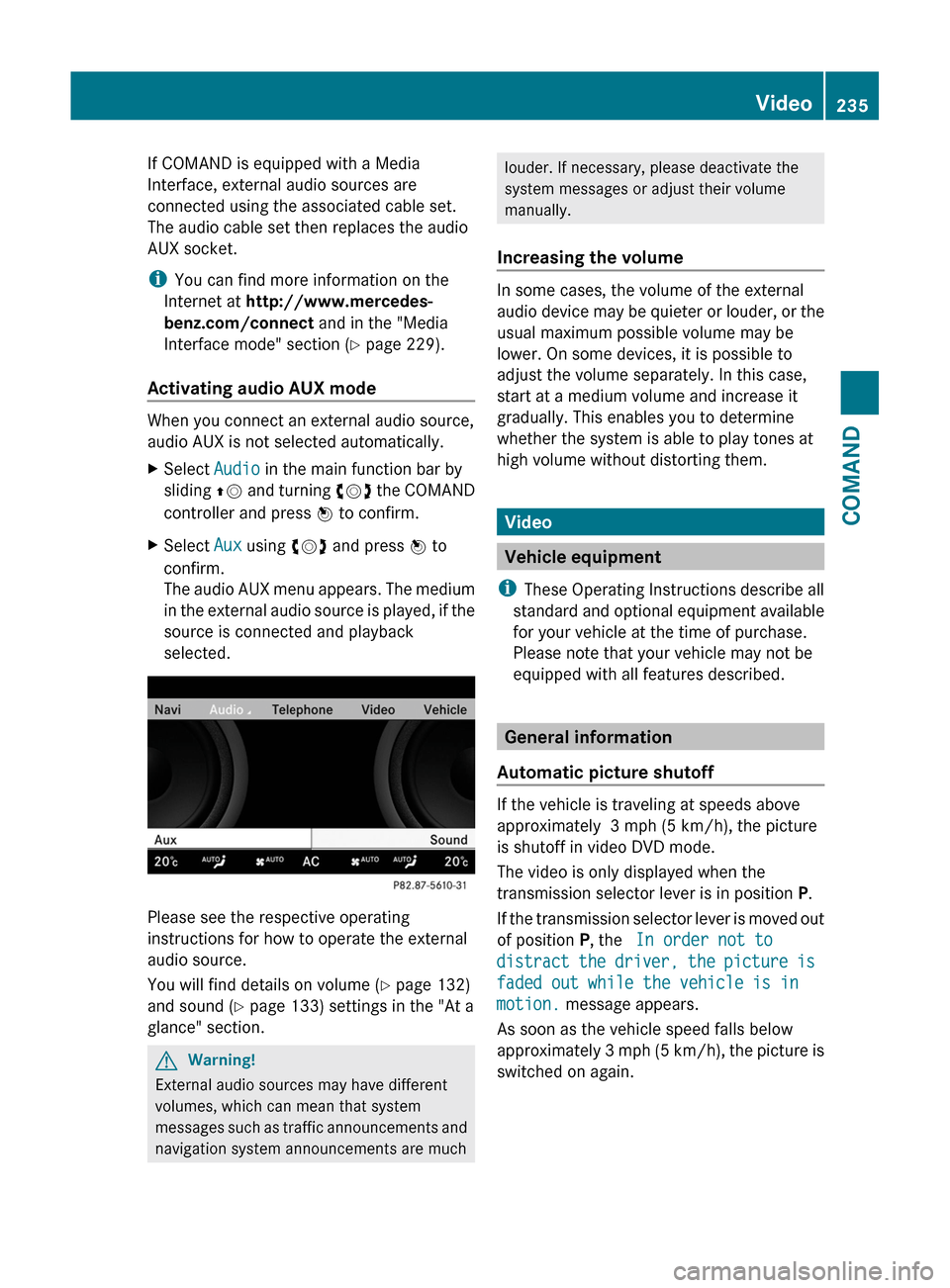
XSelect Aux using cVd and press W to
confirm.
The audio AUX menu appears. The medium
in the external audio source is played, if the
source is connected and playback
selected.
Please see the respective operating
instructions for how to operate the external
audio source.
You will find details on volume (Y page 132)
and sound (Y page 133) settings in the "At a
glance" section.
GWarning!
External audio sources may have different
volumes, which can mean that system
messages such as traffic announcements and
navigation system announcements are much
louder. If necessary, please deactivate the
system messages or adjust their volume
manually.
Increasing the volume
In some cases, the volume of the external
audio device may be quieter or louder, or the
usual maximum possible volume may be
lower. On some devices, it is possible to
adjust the volume separately. In this case,
start at a medium volume and increase it
gradually. This enables you to determine
whether the system is able to play tones at
high volume without distorting them.
Video
Vehicle equipment
iThese Operating Instructions describe all
standard and optional equipment available
for your vehicle at the time of purchase.
Please note that your vehicle may not be
equipped with all features described.
General information
Automatic picture shutoff
If the vehicle is traveling at speeds above
approximately 3 mph (5 km/h), the picture
is shutoff in video DVD mode.
The video is only displayed when the
transmission selector lever is in position P.
If the transmission selector lever is moved out
of position P, the In order not to
distract the driver, the picture is
faded out while the vehicle is in
motion. message appears.
As soon as the vehicle speed falls below
approximately 3 mph (5 km/h), the picture is
switched on again.
Video235COMANDZ
Page 243 of 524
XSelect the Back (to the movie) menu
item in the menu and press W to confirm.
Setting the language and audio format
This function is not available on all DVDs. If it
is available, you can set the DVD menu
language, the audio language or the audio
format. The number of settings is determined
by the DVD content. It is possible that the
settings may also be accessed in the DVD
menu ( Y page 240).
XPress W the COMAND controller to show
the menu.XSelect DVD-V in the menu by turning cVd
the COMAND controller and press W to
confirm.XSelect DVD functions and press W to
confirm.XSelect Audio language and press W to
confirm.
In both cases, a menu appears after a few
seconds. The # dot in front of an entry
indicates the currently selected language.XSelect a setting by turning cVd the
COMAND controller and press W to
confirm.XTo exit the menu: slide XVY the COMAND
controller.
Subtitles and camera angle
These functions are not available on all DVDs.
The number of subtitle languages and camera
angles available depends on the content of
the DVD. It is possible that the settings may
also be accessed in the DVD menu
( Y page 240).
XPress W the COMAND controller to show
the menu.XSelect DVD-V in the menu by turning cVd
the COMAND controller and press W to
confirm.XSelect DVD functions and press W to
confirm.XSelect Subtitles or Camera angle and
press W to confirm.
In both cases, a menu appears. The # dot
in front of an entry indicates the current
setting.XSelect a setting by turning cVd the
COMAND controller and press W to
confirm.XTo exit the menu: slide XVY the COMAND
controller.
Interactive content
DVDs can contain interactive content (e.g. a
video game). In a video game, for example,
you may be able to influence events by
selecting and triggering actions. The type and
number of actions depend on the DVD.
XSelect an action by sliding ZVÆ or XVY the
COMAND controller and press W to
execute it.
A menu appears and the first entry,
Select , is highlighted.XPress the W COMAND controller.
Video AUX operation
AUX jacks
You can connect an external video source
(video AUX) to COMAND via the Media
Interface (Y page 229) using the AUX jacks in
the glove compartment.
i In vehicles equipped with a rear view
camera, the video AUX jack cannot be used
to connect external video sources.
Video241COMANDZ