2011 MERCEDES-BENZ GL-Class ILS
[x] Cancel search: ILSPage 2 of 214

Publ
ication details Inte
rnet
Fur ther inform ation on Merc edes-B enz
vehi cles andDaimle rAGc anbe found onthe
Int ernet atthe following websites:
http:/ /www.merc edes-benz. com
http:/ /www.daimler.com Editorial
office
You arewelcome toforward anyqueries or
sugge stions youmay have about the
Operator's Manualtothe techn ical
documentat ionteam atthe following
address :
Daimler AG,HPC: R822,D-70546 Stuttgart,
Germany
Not tobe reprinte d,translat edoroth erwis e
reprod uced,inwho leor inpart, without
written permissionfrom Daimle rAG.
Symbols
$ Warning
% Environment alnote
! Possibledamage tothe vehicle
+ Tip
X Inst
ruction
YY Continuation
symbol
(Y page) Page
referenc e
Di spla y Displays
inthe multifunc tion
display/COMAN D
Asat19 .07. 20 10
Page 6 of 214

A
Acti vepartiti on (USB devices only)
Se lec ting ...... ...... .................. .......... 148
Add ressbook
Br owsin g.<0023002300230023002300230023002300230023002300230023002300230023
0023002300230023002300230023002300230023002300230023002300230023
0023002300230023002300230023> 110
Ca lling up ....... ............................ ....110
Cha nging anentry .......................... 112
Connecting acall<0023002300230023002300230023002300230023002300230023002300230023
00230023002300230023002300230023002300230023> 112
Cre ating anentry <0023002300230023002300230023002300230023002300230023002300230023
00230023002300230023002300230023002300230023> 110
Deleti nganentry <0023002300230023002300230023002300230023002300230023002300230023
00230023002300230023002300230023002300230023> 111
Detail sabout anent ry<0023002300230023002300230023002300230023002300230023002300230023
002300230023> 111
Importi ngcontacts <0023002300230023002300230023002300230023002300230023002300230023
00230023002300230023002300230023> 114
Searchi ngfor anentry <0023002300230023002300230023002300230023002300230023002300230023
002300230023> 110
Starting routeguidance <0023002300230023002300230023002300230023002300230023002300230023
0023> 113
voice control with .......... 193,204,208
Voice tag<0023002300230023002300230023002300230023002300230023002300230023
0023002300230023002300230023002300230023002300230023002300230023
0023002300230023002300230023> 113
Address bookentry
Adopt ingasahome address ............ 77
Showing thedetails <0023002300230023002300230023002300230023002300230023002300230023
0023002300230023002300230023> 112
Address entrymenu ............................ 49
Address ofdestin ation(Seealso
Destinat ions)
ent erin gwith voicecom mands ......187
Al ternative route<0023002300230023002300230023002300230023002300230023002300230023
0023002300230023002300230023002300230023002300230023002300230023
0023> 70
Area Avoidi ng<0023002300230023002300230023002300230023002300230023002300230023
0023002300230023002300230023002300230023002300230023002300230023
00230023002300230023002300230023002300230023> 85
Audio
voice control <0023002300230023002300230023002300230023002300230023002300230023
0023002300230023002300230023002300230023002300230023002300230023
00230023> 180
Audio Aux(auxi liary)
voice command sfor <0023002300230023002300230023002300230023002300230023002300230023
002300230023002300230023> 201
Audio AUXjack<0023002300230023002300230023002300230023002300230023002300230023
0023002300230023002300230023002300230023002300230023002300230023
00230023> 149
Audio CD/DVD orMP3 mode
Switchi ngto<0023002300230023002300230023002300230023002300230023002300230023
0023002300230023002300230023002300230023002300230023002300230023
002300230023> 131
Audio DVD
Pau sefunction <0023002300230023002300230023002300230023002300230023002300230023
002300230023002300230023002300230023002300230023002300230023> 170
Stop function <0023002300230023002300230023002300230023002300230023002300230023
0023002300230023002300230023002300230023002300230023002300230023
0023> 133
Audio format
Setting (audi oDVD mode )............. 137
Autos tore<0023002300230023002300230023002300230023002300230023002300230023
0023002300230023002300230023002300230023002300230023002300230023
00230023002300230023002300230023002300230023> 120
Auxi liary (Aux) operatio n
voice command sfor <0023002300230023002300230023002300230023002300230023002300230023
002300230023002300230023> 201
voice control with <0023002300230023002300230023002300230023002300230023002300230023
0023002300230023002300230023002300230023> 206B
Back button <0023002300230023002300230023002300230023002300230023002300230023
0023002300230023002300230023002300230023002300230023002300230023
002300230023002300230023002300230023> 16
Bird's-ey evie w<0023002300230023002300230023002300230023002300230023002300230023
0023002300230023002300230023002300230023002300230023002300230023
0023002300230023> 83Blueto
oth®
Activating/d eactivating <0023002300230023002300230023002300230023002300230023002300230023
002300230023> 40
Authori zingadevi ce....... .............. ....41
Devices <0023002300230023002300230023002300230023002300230023002300230023
0023002300230023002300230023002300230023002300230023002300230023
002300230023002300230023002300230023002300230023> 41
External authoriza tion................ 42,97
Gene ralinforma tion<0023002300230023002300230023002300230023002300230023002300230023
002300230023002300230023002300230023> 40
Interface <0023002300230023002300230023002300230023002300230023002300230023
0023002300230023002300230023002300230023002300230023002300230023
0023002300230023002300230023002300230023> 95
Settings <0023002300230023002300230023002300230023002300230023002300230023
0023002300230023002300230023002300230023002300230023002300230023
00230023002300230023002300230023002300230023> 40
Tel epho ny<0023002300230023002300230023002300230023002300230023002300230023
0023002300230023002300230023002300230023002300230023002300230023
00230023> 94,95
Blueto oth®
inte rface
Tel epho ny<0023002300230023002300230023002300230023002300230023002300230023
0023002300230023002300230023002300230023002300230023002300230023
00230023002300230023002300230023> 94
Blueto oth®
inte rface telephony
Cond itions <0023002300230023002300230023002300230023002300230023002300230023
0023002300230023002300230023002300230023002300230023002300230023
0023002300230023002300230023> 95
Blueto oth®
tele phone list<0023002300230023002300230023002300230023002300230023002300230023
002300230023> 96 C
Call Accepting <0023002300230023002300230023002300230023002300230023002300230023
00230023002300230023002300230023002300230023002300230023> 100,115
Connecting <0023002300230023002300230023002300230023002300230023002300230023
0023002300230023002300230023002300230023002300230023002300230023
0023002300230023> 100
Ending .............. ..................... .........115
Reje cting <0023002300230023002300230023002300230023002300230023002300230023
002300230023002300230023002300230023002300230023002300230023> 100,115
Call ing(Seealso Telephone )
voice control with <0023002300230023002300230023002300230023002300230023002300230023
00230023> 183,195
Call list
Openi ngand selecting anentry .....107
Saving anentry inthe address
book <0023002300230023002300230023002300230023002300230023002300230023
0023002300230023002300230023002300230023002300230023002300230023
00230023002300230023002300230023002300230023002300230023> 108
Call lists <0023002300230023002300230023002300230023002300230023002300230023
0023002300230023002300230023002300230023002300230023002300230023
0023002300230023002300230023002300230023002300230023> 107
Displ aying deta ils....... .............. ...... 107
Storing anentry whichhas notyet
bee nstore d.<0023002300230023002300230023002300230023002300230023002300230023
0023002300230023002300230023002300230023002300230023002300230023
00230023> 108
Categ ories
satel literadio<0023002300230023002300230023002300230023002300230023002300230023
0023002300230023002300230023002300230023002300230023002300230023
0023> 197
Categ ory
Satell iterad io<0023002300230023002300230023002300230023002300230023002300230023
0023002300230023002300230023002300230023002300230023002300230023> 125
CD
Cop yprotection <0023002300230023002300230023002300230023002300230023002300230023
0023002300230023002300230023002300230023002300230023> 139
Data medium<0023002300230023002300230023002300230023002300230023002300230023
0023002300230023002300230023002300230023002300230023002300230023
0023> 139
Gene ralinforma tion<0023002300230023002300230023002300230023002300230023002300230023
0023002300230023002300230023> 139
Mul tisess ion<0023002300230023002300230023002300230023002300230023002300230023
0023002300230023002300230023002300230023002300230023002300230023
00230023> 138
Pla yback optio ns<0023002300230023002300230023002300230023002300230023002300230023
00230023002300230023002300230023002300230023> 137
Sele cting amedium <0023002300230023002300230023002300230023002300230023002300230023
0023002300230023002300230023> 134
Sele cting atrack <0023002300230023002300230023002300230023002300230023002300230023
002300230023002300230023002300230023002300230023> 1344
In
dex
Page 44 of 214

i
Ifyou want tore-authori zeadevice
follo wing de-au thorization (Ypage 42),
you can select adifferent passcode.
X To enter thepassco deinCOMA ND:
press thenumber keys,suchasl, one
after theother.
¬ ishighl ighted afterthefirst number
has been entered.
or
X Select thedigitsusing the=;
buttons andpress the9button toconfirm.
Then, select ¬.
X To con firm anentry inCOMA ND:press
the 9button.
X Ent erthe same passcod einto the
Bluetooth ®
device (seetheopera ting
instructions forthe respective device).
The device isauthori zed. External
authorization
If COMAND doesnotdetect your
Bluetooth ®
device, thismay bedue to
particul arsecurity settings onyou r
Bluetooth ®
device. Inthis case, check
whether yourBluetoo th®
devic ecan locat e
the COMA NDsyst em. TheBluet ooth®
devic e
name ofCOMA NDis"MB Bluet ooth".
X Selec tAuth orize in
the Bluet ooth®
devic e
list using the9: buttons.
X Selec tOpti ons using
the; buttonand
press the9butt ontocon firm .
X Selec tExte rnal Authorization and
press the9butt ontocon firm .
X Start the Bluet ooth®
scan processonthe
Bluet ooth®
devic e(see operat ing
inst ruct ions ofthe respe ctive devic e).
X Selec tCOMAND ("MBBluetooth").
X When prompted, enterthepasscode onthe
Bluetooth ®
device andthen onCOMAND. Displaying
thedetails ofa
Bluetooth ®
device
X Select thedesired deviceinthe
Bluetooth ®
device listusing the
9: buttons.
X Select Options using
the; button and
press the9button toconfirm.
X Select Details and
press the9button to
confirm.
The detailed displayfor this device
appea rs.
X To clos ethe detailed display:pressthe
= or; button. De-authorizing
(de-registering) a
Bluetooth ®
device
Mercedes-Benz recommendsthatyoude-
authorize devices,e.g.mobile phones, both
in COMAND andonthe respective
Bluetooth ®
device itself.Subseque nt
authorization mayotherwise fail.
X Select anauthorized deviceinthe
Bluetooth ®
device listusing the
9: buttons.
X Select Options using
the; button and
press the9button toconfirm.
X Select De-Authorize and
press the9
button toconfirm.
Ap rompt appears asking whethe ryou
really wishtorevoke authorization forthis
device.
X Select Yes or
No .
If you select Yes ,
the authorization forthe
device willberevoked.
If you select No ,
the process willbe
canceled.
i IfaBluetooth ®
device hasbeen de-
authorized andisno longer inrange, itwill
no longer beshown inthe Bluetooth ®
device listafter thenext search. 42
Bluetooth ®
settingsSystem settings
Page 65 of 214

Dep
endingonthe point ofinte rest
se lected ,CO MAND uses diffe rent
ref ere nce points inde term ining the linea r
di sta nce tothe destinati on:
R vicini tyof cur rent positio n:the linea r
di sta nce isthe dista nce ofthe point of
inte restfro mthe current vehicle
po sitio n.
R vicini tyof de stinati on:the linea rdistanc e
is the distanceof the point ofinterest
fro mt hedestination entered.
Long names ofpoints ofinterest are
abbreviated. Aninformation iconisshown
after theentr y.
X To call upthe complete display:press
the ; button.
Selec tingapoint ofint eres t X
Sele ctapoin tof interes tusin gth e
9: buttonsand pres sth e9 butt on
to con firm.
The fulladdre ssofthepoin tofintere st
sel ecte dap pe ars. :
Pointofinte restwith address
; Tostart rout ecalc ulation
= Tostore anaddress inthe dest ination
memo ry
? Todisplay details
A Tomak eacall (when available)
B Tocan celselec tion
C Toshow anaddress onthe map X
To sta rtrou tecalcula tion:selectStar t and
press the9butt ontocon firm .
X To stor ean address inthedest ination
mem ory:selec tSave and
press the9
butt ontocon firm .You cannow selec t
st orage options (Ypage 79).
X To show thedet ailed view: select
Deta ils and
press the9butt onto
con firm .
X To connect acall: select Call and
press
the 9button toconfirm (avai lable ifthe
poi ntofinterest entrycontains aphone
numbe r).
X To callup the map: select Map and
press
the 9button toconfirm.
X You canscroll themap andselect a
desti nation (Ypag e56).
ZAGA T®
rating service Entries
featuringtheZicon contai naddition al
ZAGAT information .ZAGAT rates restau rants,
for instance ,in reg ardto the quality ofthe
foo d,furnis hing, service,and provides an
av era gepricing level aswellas age nera l
de scri ption. After
selecti nganentry with aZ ico n,yo uc an
call uptheZAGA Trat ing inthesubse quent
sc ree n. Ent
ering apoint ofint eres t
63Navi gatio nsy ste m Z
Page 66 of 214

1
ZAGA Trat ings
2 Todisplay details
X To disp laythedescr iption: selec t
Deta ils .
Ex
ample ofaZAGA Tdesc ription
Point ofinter estlist with characterbar If
you have selected"Sear chingfor apoin tof
int erest byname "(Y page 60)or"Searc hing
for apoint ofint erest byphon enumb er",the
list ofall point sof interest contain edon the
map appears.
Proc eedasdesc ribed inthe "Searc hingfora
phon ebook entry" sect ion(Ypage 104).
i IfCOMA NDcan unambig uouslyassign
the char acters entered toone entry,the
address entryappears automatically.
X To sta rtrou tecalcula tion:selectStar t and
press the9butt ontocon firm . Enter
ingapoint ofint eres tusing the
map
X To switch onnavigat ionmode: pressthe
Ø function button .
X To show themenu: pressthe9button .
X Select Guide in
the navigation menubar
using the:=; buttonsand
press the9button tocon firm.
If points ofinter estare available:
Depen dingonthe map scale selected,
point ofinter esticons appear onthe map.
The scale atwhich theicons aredisplayed
on the map varies accordin gto the icon.
You canselect theicons thatCOMAND will
display (Ypage 83).
If there arepoints ofinter est,youwillsee
a message tothis effec t.
i You also seethis message ifyou have
selected themenu itemNo Symbols under
"Map display" (Ypage 83).
X Press the9button andconfirm the
message. Point
ofinter estonthe map
: Information aboutthehighlighted pointof
inter est
; Highlighted pointofinter est
X To select apoint ofint erest :selec t
Nex t or
Pre vious and
pres sth e9 butt on
to con firm.
X To show details fortheselecti on:selec t
Det ails and
pres sth e9 butt onto
con firm. 64
Enter
ingapoint ofint eres tNavi gatio nsy ste m
Page 73 of 214

X
To select the next or prev ious
alte rnati veroute :sel ect Next or
Pre vious and
pressthe 9button to
confi rm.
Pos sibl eal terna tiveroutes aresho wninthe
fol lowi ng ord er:Per sonalRoute ,
Fas t Rou
te ,
Eco nomicRoute ,
Sho rtRoute and
AlternativeRoute .
X To select the original route :sel ect Back a
corr espond ingnum bero ftimes andpress
the 9butt ontocon firm .
X To sta rtrou teguid ance using the
selected alterna tiveroute:selec tStar t and
press the9butt ontocon firm . Displa
yingdestinationinfor mation
You have entered adest ination(Y page 49)
or apoint ofint erest (Ypage 60)and possibly
an interme diate stop (Ypage 57).
X To switch onnaviga tionmod e:press the
Ø function button.
X To show themenu :press the9butt on.
X Selec tRout e in
the navig ation menubar
using the:=; buttons and
press the9butt ontocon firm .
X Selec tDest inationInformation and
press the9butt ontocon firm .
Des tination inform ation isdisplayed. Ex
ample display: destinationinform ation
: Dist ance,est imat edtim eof arriv aland
est imat edremain ingdrivin gtim eto
int erme diate stop
; Inter mediat est op P
= Des tination O
? Dist ance,est imat edtim eof arriv aland
est imat eddrivin gtim eto dest ination
i Ifaphon enumb erisavailable fora
dest inationoran interme diate stop and you
have connected amobile phone,you can
now callthis numb er.
X To dia lth eph one num ber: selec tthe
phone usingthe9 or: button and
press the9button toconfirm .
This initiates dialing.
X To close thedestination information:
press the=, ;orthe k back
button. Route
browser
The route browser showsanoverview ofthe
route. Youcanusetheroute browser tomove
along theroute section bysection andview
information anddetails abouteachsection of
the route.
You have entered adestination (Ypage 48)
or apoint ofinterest (Ypage 60)and possibly
an intermediate stop(Ypage 57).
X To switch onnavigation mode:pressthe
Ø functionbutton.
X To show themenu: pressthe9button. Route
guidance
71Navigationsystem Z
Page 75 of 214
The
route ishighlighted bluefrom thenearest
road known tothe system.
As soon asthe vehicle isback onaroad
kn own tothe system, routeguidance
cont inues inthe usual way.
Route guidance fromanoff-m ap
location toad esti nation If
th eveh icle posit ionisouts idethearea
cov ered bythedigit almap, then theveh icle
is in an off-map locat ion.COMAND isalso
able toguide youtoadestination evenfrom
an off-map location.
At the start ofthe route guidance,youwillsee
the Off Mapped Road message,
anarrow
and thedistance tothe destination. Thearrow
shows thecompass headingtothe road left
last.
The route ishighli ghted bluestarting atthe
nearest roadknown tothe system.
As soon asthe vehicle isback onaroad
known tothe system, routeguidance
cont inues inthe usua lway .
Off-road duringrouteguidance Due
toroad const ruction work,forexample,
there maybedifferences betweenthedata
on the digital mapandtheactual course of
the road.
In such cases, thesystem willtemporarily be
unable tolocate thevehicle position onthe
digital mapandthus considers thevehicle to
be inan off-road position.
In the displa y,you willsee theOff Mapped Road message,
anarrow andthedistance to
the destination. Thearrow shows the
compass headingtothe actual destination.
As soon asthe system canassign thevehicle
position tothe map again,route guidance
cont inues inthe usua lway . Tra
ffic report s Condition
s
i The satellite radioreception described
below requires optionally available satellite
radio equipment aswell asasubscription
to SIRIUS XMSatellite RadioTraffic
Message Service.Furtherdetailson
satellite radioareavail able inthe "Satellite
radio" chapter (Ypage 123).
COMAND canreceive trafficreports via
satellite radioandincorporate theminthe
navigation system.Trafficreports andmap
icons canthen beshown inthe COMAND
displa y. Real-time
traffic report son the map
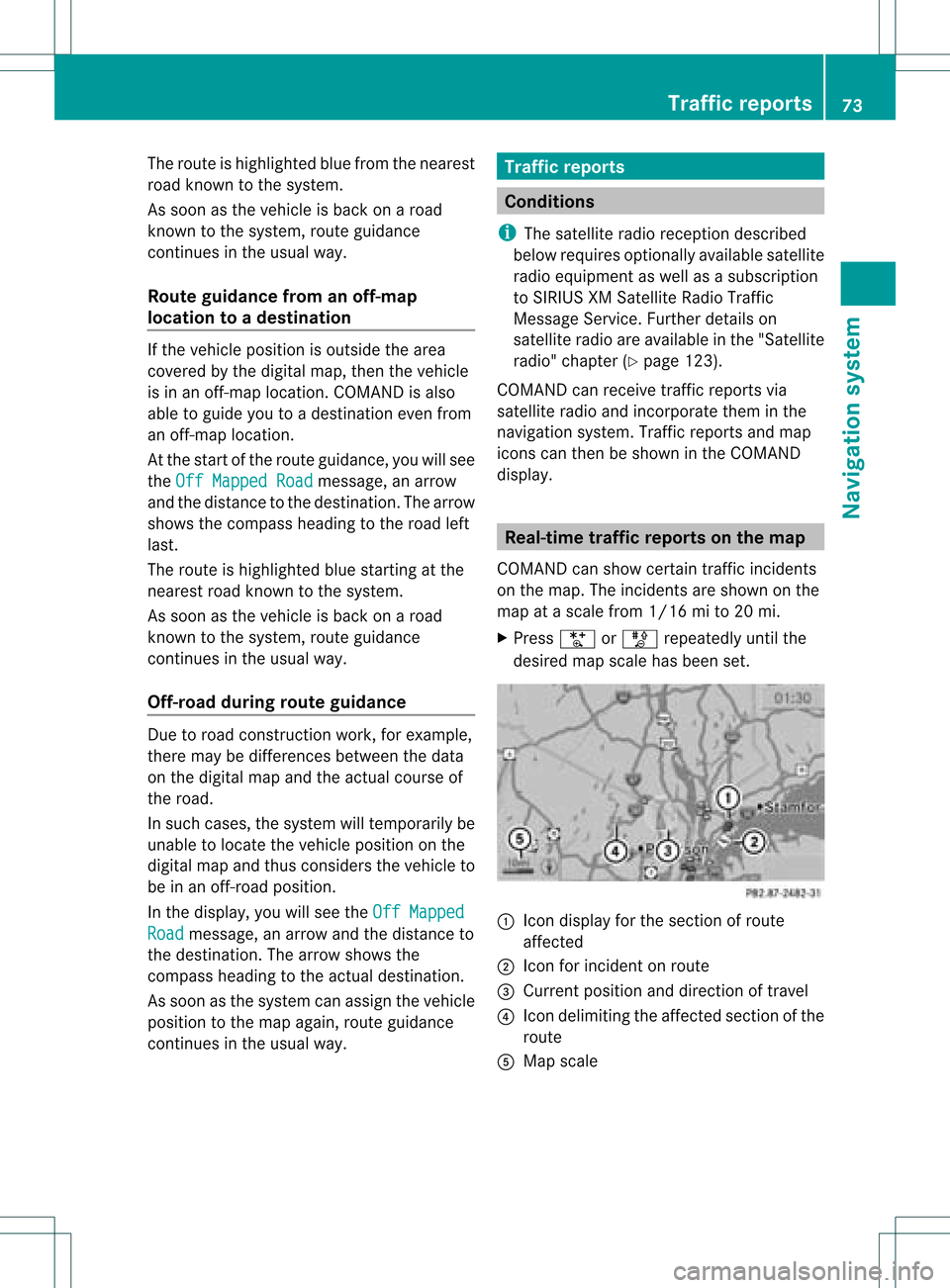
COMAND canshow certain trafficincidents
on the map. Theincidents areshown onthe
map atascale from1/16 mito20 mi.
X Press UorT repeatedly untilthe
desired mapscale hasbeen set. 1
Icon displa yfor the section ofroute
affected
2 Icon forincident onroute
3 Current position anddirection oftravel
4 Icon delimi tingtheaffected sectionofthe
route
5 Map scale Tr
affic report s
73Navigat ionsystem Z
Page 100 of 214

X
Sel ect Bluetooth Phones and
pressthe
9 button toconfi rm.
X Sel ect Update and
pressthe 9button to
confi rm.
X Sel ect Opt ions us
ing the ; button and
pre ssthe 9button toconfi rm.
X Sel ect ExternalAuthorization and
pre ssthe 9button toconfi rm.
X Start theBluetoo th®
sea rch onthe mob ile
pho ne(seethe mob ile pho neope rating
instr uctions) .
X Sel ect COMAND (MB Bluetooth )
on the
mob ile pho ne.
X Enter thepassco deon the mob ile pho ne
wh en req uested toand then inputitin
CO MAND. Auto
matic reconnecti on
CO MAND alwa yssea rche sfor the last
connecte dmob ile pho ne.
If no connecti oncan bemad eto the mos t
rece ntlyconnecte dmob ilep hone, thesystem
searches forthe mobile phonewhichwas
conn ected before thatone. Conne
ctinganother mobilephone
If you have authorized severalmobilephones,
you can switch between theindividua l
phones.
i You canonly switch toanother authorized
mobile phoneifno phone callisactive.
X Select themobile phoneinthe Bluetooth ®
telephone listusing the9: buttons
and press the9button toconfirm .
The selected mobilephoneissearched for
and conn ected ifit is within Bluetooth ®
range andifBluetooth ®
is activated.
Only onemobile phonecanbeconn ected
at any one time. Thecurrent lyconn ected mobile
phoneisindicated bythe #dot in
the Bluetooth ®
telephone list(Ypage 96). To
display details
X Press the% functionbutton on
COMAND.
X Select thedesired mobilephoneinthe
Bluetooth ®
telephone listusing the
9: buttons.
X Select Options using
the; button and
press the9button toconfirm .
X Select Details and
press the9button to
confirm .
The following information concerning the
selected mobilephoneisshown:
R Bluetooth ®
name
R Bluetooth ®
address
R availa bility
R authorization status
X To close thedetailed display:pressthe
= or; button. Deregis
tering(de-aut horizing) a
mobile phone
Mercedes-Ben zrecomm endsde-
authoriz ationinCOMAND andonthe mobile
phone. Subsequent authorizationmay
other wisefail.
X Select thedesired mobilephoneinthe
Bluetoot h®
telephon elist using the
9: buttons. 98
Telephony viatheBluet ooth®
interf aceTelephone