2011 MERCEDES-BENZ CL-Class Window
[x] Cancel search: WindowPage 218 of 480

Playback options
The following options are available:
R Normal track sequence
The tracks are played in the normal order
(e.g. track 1, 2, 3, etc.).
R Medium mix
All the tracks on the medium are played in
random order.
R Random tracks (MP3 mode only)
The tracks in the currently active folder are
played in a random order.
XTo select options: switch on the MUSIC
REGISTER ( Y page 213).XSelect Music Register by sliding VÆ and
turning cVd the COMAND controller and
press W to confirm.
The options list appears. The # dot
indicates the option selected.XSelect an option and press W to confirm.
The option is switched on. All options
except Normal track sequence will be
indicated by a corresponding icon in the
display/selection window.
i The Normal track sequence option is
automatically selected when you change
the disc you are currently listening to or
when you select a different medium. If an
option is selected, it remains selected after
COMAND is switched on or off.
Media Interface mode
Connection options
Overview
You will find the connection sockets in the
glove box.
Device-specific adapter cables, included in
the Media Interface scope of delivery, are
required to connect external devices to the
Media Interface.
i Store individual parts in a safe place.
Use only genuine Mercedes-Benz
connecting cables.
You can connect the following data carriers
to COMAND via the Media Interface:
R iPod ®
R USB devices (USB sticks, USB hard drives)
i iPod ®
is a registered trademark of Apple
Inc., Cupertino, California, USA.
Supported iPod ®
variants
The following are examples of supported
iPod ®
variants:
R iPod ®
mini
R iPod ®
nano
R iPod ®
classic
R iPod ®
touch
Supported USB devices
The following USB devices are supported:
R USB sticks (flash memory)
R USB hard drives requiring a startup/
permanent current of a maximum of
800 mA (it may be necessary to connect a
separate power supply)
R certain MP3 players
i The Media Interface supports USB
storage media of "USB Device Subclass 6".
Information concerning USB Device
Subclass 6 is available from the equipment
manufacturer.
For more details and a list of supported
devices please visit http://www.mbusa-
mobile.com or call the Mercedes-Benz
Customer Assistance Center at
1-800-FOR-MERCedes (1-800-367-6372)
(US) or Customer Relations at
1-800-387-0100 (Canada).
Connecting an external device
i Do not store external devices in your
vehicle. Extreme temperatures can effect
functionality. (see the operating
instructions for the respective device).
216AudioCOMAND
Page 220 of 480

XSelect Audio by sliding ZV and turning
cVd the COMAND controller and press
W to confirm.
The audio menu appears.
XSelect Media Interface and press W to
confirm.
Option 2
XSelect Audio by sliding ZV and turning
cVd the COMAND controller and press
W to confirm.
The audio menu appears.
XSelect Media Interface and press W to
confirm.
Option 3
XIn the media list, (Y page 208) turn cVd
the COMAND controller to select the entry
under the corresponding position and
press W to confirm.
COMAND activates the connected device.
You will see a message to this effect. The
basic display then appears.
If no device is connected, you will see the
Media Interface entry instead of a
device name.
Example display: iPod mode
:Date medium type;Track number=Track name?Graphic time displayATrack timeBVisual track displayCCurrent playback settings (no symbol for
"Normal track sequence")
DSound settingsEMedia listFAlbum name (if available)GCategories, playlists and/or foldersHArtist (if available)IPlayback options
Type of device : connected is indicated by
the corresponding icon for iPod®, MP3 player
or USB mass storage device.
iIf the device connected does not contain
any playable tracks, a message appears to
this effect.
Selecting music files
Notes
COMAND displays the data stored on the
iPod®, MP3 player or USB mass storage
device according to the filing structure used
in the respective medium.
Selecting by skipping to a track
XTo skip forwards or back to a track: turn
the COMAND controller cVd when the
display/selection window is active.
The skip forward function skips to the next
track. The skip back function skips to the
beginning of the current track if the track
has been playing for more than eight
seconds. If the track has been playing for
less than eight seconds, it skips to the start
of the previous track. If you have selected
a playback option other than Normal
track sequence, the track sequence is
random.
218AudioCOMAND
Page 221 of 480

XOn the multifunction steering wheel:
switch on Media Interface mode in
COMAND ( Y page 217).XOn the multifunction steering wheel, press
the = or ; button to select the
Audio menu.XOn the multifunction steering wheel, press
9 or : to select a track.
Selecting using the number keypad
XTo make an entry: press the Ä button.
The input menu appears. The number of
characters available for input depends on
the number of stored tracks.XTo enter a track number: press a number
key, e.g. q.
The digit is entered in the first position in
the input line.
i COMAND will ignore and not display an
invalid digit.
XEnter more numbers if desired.
The selected track is played.
Fast forward/rewind
XWhile the display/selection window is
active, slide XVY and hold the COMAND
controller until the desired position has
been reached.
i On an iPod ®
, fast rewind only functions
within the current track.
Selecting a category/playlist/folder
iPod ®
and certain MP3 players
For an iPod ®
or MP3 player, you can select
tracks using categories or folders.
Depending on the device connected, the
following categories may be available, for
example:
R Current Track List
R Playlists (e.g. All)
R Artists
R Albums
R
Track
R Podcasts
R Genres
R Composers
R Audiobooks
i Some playback categories contain the
entry All. If this entry has been selected,
the entire content of the category selected
will be played.
USB devices
For USB mass storage devices, you can select
both folders as well as any existing playlists.
COMAND can also display the album name
and artist (metadata) during playback, if this
information has been entered into the
system.
Playlists are indicated in the display by a
special icon. When you open the playlist, the
corresponding tracks are opened and
playback begins. You can now select
Category mix instead of Random folder as
a playback option.
For USB mass storage devices, you can
choose to display the metadata contained in
the tags of the encoded music data, or to
display the file and directory names during
playback.XTo display the album and artist name:
select Media Interface in the basic
display by sliding VÆ and turning cVd the
COMAND controller and press W to
confirm.XSelect Display Metadata and press W to
confirm.
Selecting a category and opening a folder
XPress W the COMAND controller when the
display/selection window is active.XSelect Folder by sliding VÆ and turning
cVd the COMAND controller and press
W to confirm.
The available categories or the folder
contents (e.g. further folders) areAudio219COMANDZ
Page 223 of 480

Selecting an active partition (USB mass
storage devices only)
You can select this function for USB mass
storage devices when the storage device is
partitioned. Up to four partitions (primary or
logical; FAT format) are supported.
i The Windows formatting program
supports FAT partitions of up to 32 GB as
standard.
XSelect Media Interface in the basic
display by sliding VÆ and turning cVd the
COMAND controller and press W to
confirm.XSelect Select active partition and
press W to confirm.
Playback options
The following options are available:
R Normal track sequence
Normal track sequence: You hear the
tracks in their normal order (numerical or
alphabetical).
R Random tracks:
All the tracks on the medium are played in
random order.
R Category mix or Random folder (for USB
devices if Folder has been selected)
The tracks in the currently active category
or folder, including any subfolders, are
played in random order.
i For USB devices, the random playlists
offer a maximum of 300 tracks chosen at
random.
XTo select a playback option: select
Media Interface in the basic display by
sliding VÆ and turning cVd the COMAND
controller and press W to confirm.
The options list appears. The # dot
indicates the option selected.XSelect an option and press W to confirm.Separate USB connection
In addition to the USB connection on the
Media Interface, there is another USB
connection in the glove box. This connection
can also be used to play audio files.
Electrical consumption at this connection
must not exceed a continuous current of
500 mA. If the electrical consumption is
higher, use a separate source to provide
power for the USB device (e.g.
12 V power supply).
Notes on USB devices
Data formats
The following data formats are supported:
R MP3: CBR, VBR (up to 320 kbit/s)
R wma: CBR, VBR (up to 320 kbit/s)
Notes on USB devices
R In order to keep the initialization time to a
minimum, store only music data on a USB
device.
R Approximately 10,000 tracks are
supported. Multiple folders should be used
for larger numbers of tracks.
R Do not use USB extension leads or
adapters. They can impair functionality.
R A background search of the USB device is
performed and any playlists found are
shown in a separate category in addition to
the folders. Initialization of larger USB mass
storage devices containing a high number
of files may take several minutes.
i DRM (Digital Rights Management)
protected files are not supported by the
Media Interface.
Audio AUX mode
Notes on audio AUX mode
You can connect an external audio source
(AUX) to COMAND. The socket for this is
located in the glove box.
Audio221COMANDZ
Page 231 of 480

Switching on video AUX modeXSelect Video in the main function bar by
sliding ZV and turning cVd the COMAND
controller and press W to confirm.
If video AUX mode was the last mode
selected, it will now be active.
If another video source is switched on, you
can now switch to video AUX mode in the
video menu.
XSelect Video and press W to confirm.XSelect Aux and press W to confirm.
The video AUX menu appears. You will hear
and see the content of the external video
source if it is connected and switched to
playback.
For details on how to operate the external
video source, see the respective device's
operating instructions.
Showing/hiding the menu
XTo show: press W the COMAND
controller.
XTo hide: slide ZV the COMAND controller
and confirm Full screen by pressing W.
Volume and sound settings
You will find details on volume (Y page 124)
and sound (Y page 125) settings in the "At a
glance" section.
GWarning!
External video sources may have different
volumes, which can mean that system
messages such as traffic announcements and
navigation system announcements are much
louder. If necessary, please deactivate the
system messages or adjust their volume
manually.
iIt may be the case that a device which is
connected as an external video source
seems quieter or louder in the vehicle, or
that the usual maximum volume cannot be
reached. On some devices, it is possible to
adjust the volume separately. In this case,
start at a medium volume and increase it
gradually. This enables you to determine
whether the system is able to play the
music at high volume without distorting it.
Vehicle
Vehicle
General notes
In this menu, you can set the following vehicle
functions:
RECO
RMulticontour seat settings
RRear window blind
REASY-ENTRY/EXIT feature
RExterior lighting delayed switch-off time
RInterior lighting delayed switch-off
RAmbient lighting
RAutomatic folding mirror
RLocator lighting
RAutomatic locking feature
RTrunk lid opening height restriction
You can open the "Vehicle" menu in one of
two ways.
Opening the "Vehicle" menu from the
main area in the center of the display
:"Vehicle" menu item;Main areaXSelect Vehicle in the main function bar by
sliding XVY and turning cVd the
Vehicle229COMANDZ
Page 232 of 480
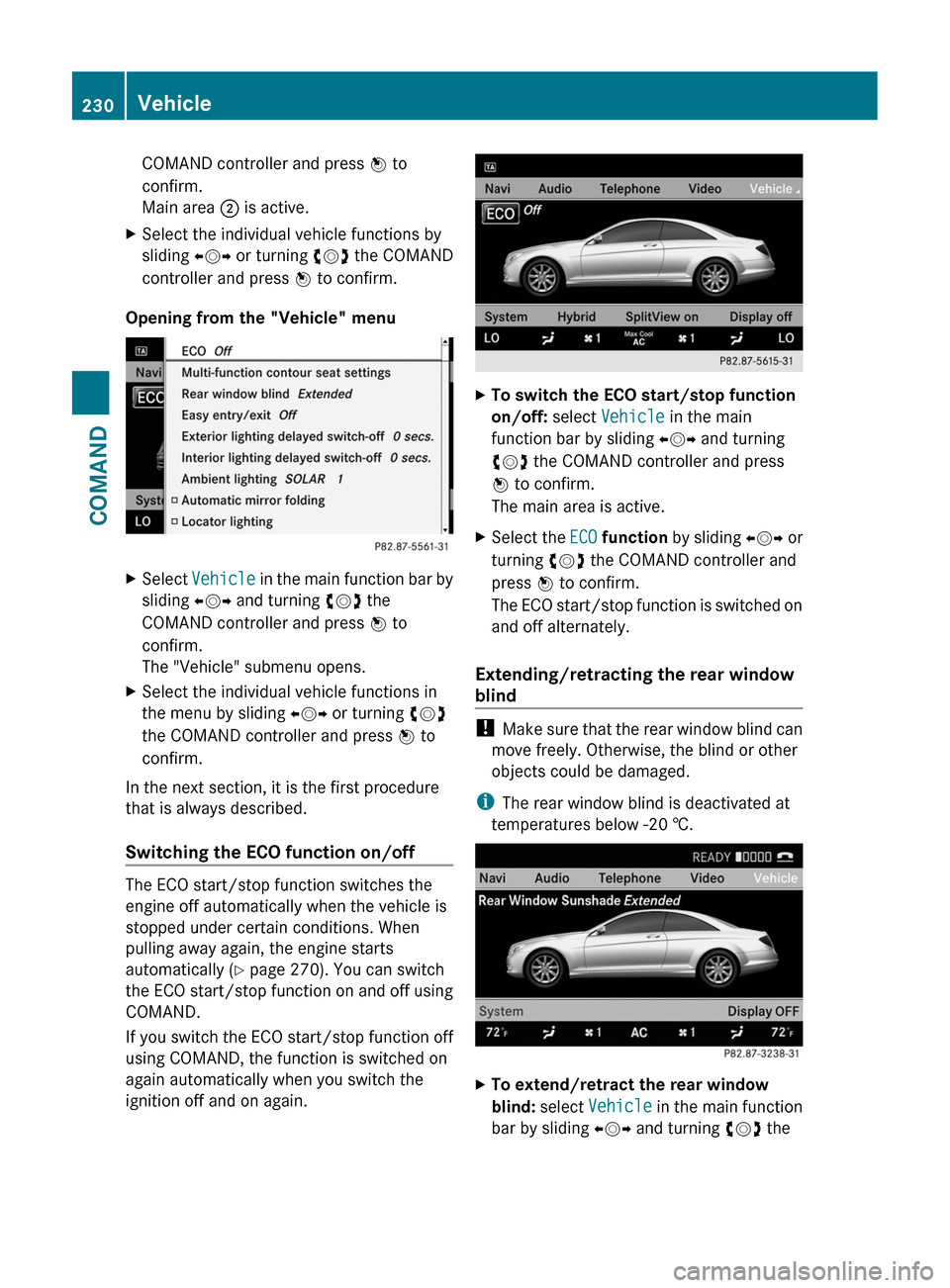
COMAND controller and press W to
confirm.
Main area ; is active.
XSelect the individual vehicle functions by
sliding XVY or turning cVd the COMAND
controller and press W to confirm.
Opening from the "Vehicle" menu
XSelect Vehicle in the main function bar by
sliding XVY and turning cVd the
COMAND controller and press W to
confirm.
The "Vehicle" submenu opens.
XSelect the individual vehicle functions in
the menu by sliding XVY or turning cVd
the COMAND controller and press W to
confirm.
In the next section, it is the first procedure
that is always described.
Switching the ECO function on/off
The ECO start/stop function switches the
engine off automatically when the vehicle is
stopped under certain conditions. When
pulling away again, the engine starts
automatically (Y page 270). You can switch
the ECO start/stop function on and off using
COMAND.
If you switch the ECO start/stop function off
using COMAND, the function is switched on
again automatically when you switch the
ignition off and on again.
XTo switch the ECO start/stop function
on/off: select Vehicle in the main
function bar by sliding XVY and turning
cVd the COMAND controller and press
W to confirm.
The main area is active.
XSelect the ECO function by sliding XVY or
turning cVd the COMAND controller and
press W to confirm.
The ECO start/stop function is switched on
and off alternately.
Extending/retracting the rear window
blind
! Make sure that the rear window blind can
move freely. Otherwise, the blind or other
objects could be damaged.
iThe rear window blind is deactivated at
temperatures below -20 †.
XTo extend/retract the rear window
blind: select Vehicle in the main function
bar by sliding XVY and turning cVd the
230VehicleCOMAND
Page 233 of 480

COMAND controller and press W to
confirm.
The main area is active.
XSelect the Rear window blind function
by sliding XVY or turning cVd the
COMAND controller and press W to
confirm.
Activating/deactivating the automatic
folding mirror
In the Automatic mirror folding menu,
you can set the exterior mirror so that it
automatically folds in when the vehicle is
locked.
XTo activate/deactivate automatic
mirror folding: select Vehicle in the main
function bar by sliding XVY and turning
cVd the COMAND controller and press
W to confirm.
The main area is active.
XSelect the Automatic mirror folding
function by sliding XVY or turning cVd
the COMAND controller and press W to
confirm.
Setting the EASY-ENTRY/EXIT feature
GRisk of injury
Make sure that nobody can become trapped
when you activate the EASY-ENTRY/EXIT
feature.
If there is a risk of entrapment by the steering
column, move the steering wheel adjustment
lever or press the memory button.
If there is a risk of entrapment by the seat, you
can also cancel the adjustment procedure by
moving the seat adjustment switch. The
steering column and driver’s seat* stop
moving immediately.
Never leave children unsupervised in the
vehicle. They could open the driver’s door and
thereby unintentionally activate the EASY-
ENTRY feature and become trapped as a
result.
You can make a setting in COMAND so that
the steering wheel swings upwards and/or
the driver's seat moves backwards before you
get into the vehicle. You can make the
following settings:
ROff: the function is switched off.
RSteering column: the steering wheel
swings upwards.
RSteering column and seat: the steering
wheel swings upwards and the driver’s seat
moves backwards.
XTo set the EASY-ENTRY/EXIT feature:
select Vehicle in the main function bar by
sliding XVY and turning cVd the
Vehicle231COMANDZ
Page 238 of 480

Climate control main menu
You can:
Rswitch cooling with dehumidification on/
off (Æ)
Rcontrol climate control centrally (Mono)
Radjust the Footwell temperature
Rset the Airflow for the air vents
Rset the Auxiliary heating,
departure time
Switching cooling with air
dehumidification on/off
Cooling is operational when the engine is
running and cools according to the selected
interior temperature for the vehicle. Cooling
also dehumidifies the air inside the vehicle
and, thereby, prevents the windows from
misting up.
GRisk of accident
If you switch off cooling with
dehumidification, the vehicle will not be
cooled and the air not dehumidified in warm
weather conditions. The windows can mist up
faster. This could result in your no longer
being able to observe the traffic conditions
properly and you may cause an accident.
iCondensation may collect on the
underside of the vehicle when the cooler is
operating.
XSelect the climate control main menu in the
air-conditioning function bar by turning
cVd the COMAND controller and press
W to confirm.
The climate control menu opens.
XTo switch on: select Æ and press W.XTo switch off: select Æ and press W.
A tick appears.
Controlling climate control centrally
You can use the Mono function to set all the
air-conditioning zones in the vehicle to the
same settings. If the Mono function is
switched on and you adjust climate control
on the driver’s side, these changes will also
be made in all the air-conditioning zones.
XSelect the climate control main menu in the
air-conditioning function bar by turning
cVd the COMAND controller and press
W to confirm.
The climate control menu opens.
XSelect Mono and press W.
A tick appears when the function is
selected.
The Mono function is automatically switched
off if you:
Rchange settings for automatic climate
control on the front-passenger side using
COMAND
Rpress one of the rocker switches to operate
automatic climate control on the front-
passenger side
236VehicleCOMAND