Page 209 of 563

Interior features3
207
ES350_U
3-3. Using the Bluetooth®
audio system
Bluetooth
® audio system .... 262
Using the Bluetooth
®
audio system ......................... 265
Operating a Bluetooth
®
enabled portable player .... 270
Setting up a Bluetooth
®
enabled portable player .... 273
Bluetooth
® audio system
setup ....................................... 280
3-4. Using the hands-free system (for mobile phone)
Hands-free system for mobile phones ....................... 281
Using the hands-free system
(for mobile phone).............. 285
Making a phone call .............. 293
Setting a mobile phone........ 298
Security and system setup ....................................... 303
Using the phone book........... 307
3-5. Using the interior lights Interior lights list ...................... 314
• Interior lights ......................... 316
• Personal lights ....................... 316 3-6. Using the storage
features
List of storage features.......... 317
• Glove box ............................... 318
• Console box .......................... 319
• Overhead console.............. 320
• Cup holders ........................... 321
• Auxiliary box ........................ 323
3-7. Other interior features Sun visors ................................. 324
Vanity mirror ........................... 325
Clock ......................................... 326
Ashtray ..................................... 327
Cigarette lighter .................... 328
Power outlet ............................ 329
Seat heaters ............................ 330
Seat heaters and ventilators ............................. 332
Armrest .................................... 334
Rear sunshade ........................ 335
Extended trunk....................... 337
Coat hooks .............................. 338
Floor mat .................................. 339
Trunk features .......................... 341
Garage door opener ............ 343
Compass .................................. 349
Safety Connect ...................... 353
Page 218 of 563
216
ES350_U
3-2. Using the audio system
Audio system type
With navigation system
Owners of models equipped with a navigation system should refer to
the “Navigation System Owner's Manual”.
Without navigation system (type A)
CD player with changer and AM/FM radio
Without navigation system (type B)
CD player with changer and AM/FM radio
Page 219 of 563
217
3-2. Using the audio system
3
Interior features
ES350_U
■Using mobile phones
Interference may be heard through the audio system’s speakers if a mobile phone is
being used inside or close to the vehicle while the audio system is operating.
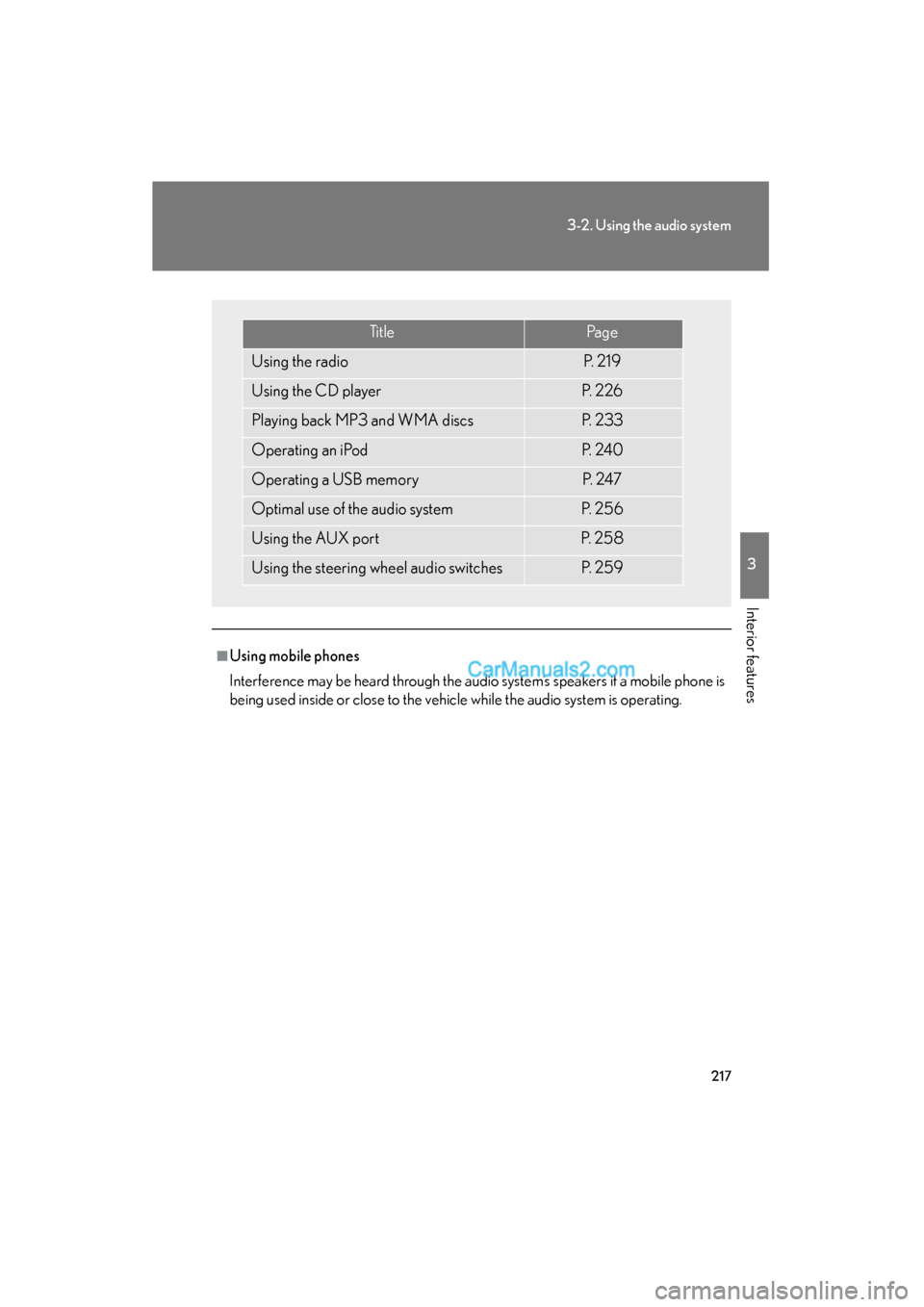
Ti t l ePa g e
Using the radioP. 2 1 9
Using the CD playerP. 2 2 6
Playing back MP3 and WMA discsP. 2 3 3
Operating an iPodP. 2 4 0
Operating a USB memoryP. 2 4 7
Optimal use of the audio systemP. 2 5 6
Using the AUX portP. 2 5 8
Using the steering wheel audio switchesP. 2 5 9
Page 220 of 563
218
3-2. Using the audio system
ES350_U
CAUTION
■For vehicles sold in USA and Canada
●Part 15 of the FCC Rules
FCC Warning:
Any unauthorized changes or modifications to this equipment will void the user’s
authority to operate this device.
●Laser products
• Do not take this unit apart or attempt to make any changes yourself. This is an intricate unit that uses a laser pickup to retrieve information from the
surface of compact discs. The laser is carefully shielded so that its rays remain
inside the cabinet. Therefore, never try to disassemble the player or alter any
of its parts since you may be exposed to laser rays and dangerous voltages.
• This product utilizes a laser. Use of controls or adjustments or performance of procedures other than
those specified herein may result in hazardous radiation exposure.
NOTICE
■To prevent battery discharge
Do not leave the audio system on longer than necessary with the engine off.
■To avoid damaging the audio system
Take care not to spill drinks or other fluids over the audio system.
Page 221 of 563
219
3-2. Using the audio system
3
Interior features
ES350_U
Using the radio
Setting station presets (excluding XM® Satellite Radio)
Search for desired stations by turning or pressing “∧” or
“ ∨ ” on
.
Press and hold the button (from
to ) the station is to
be set to until you hear a beep.
Scanning radio stations (excluding XM® Satellite Radio)
■ Scanning the preset radio stations
Press and hold
until you hear a beep.
Preset stations will be played for 5 seconds each.
When the desired station is reached, press the button once again.
∗: If equipped
Power Volume
AM
⋅FM
mode buttons
Preset station buttons
Channel category button
“PWR⋅VO L” k n o b
Scan button
Seek button
Radio text message button
Traffic information button
Frequency
adjustment
(AM/FM mode)
and channel
∗
(SAT mode) knob
SAT button∗
STEP1
STEP2
STEP1
STEP2
Page 222 of 563

220
3-2. Using the audio system
ES350_U■
Scanning all radio stations within range
Press
.
All stations with reception will be played for 5 seconds each.
When the desired station is reached, press the button once again.
RDS (Radio Data System)
This feature allows your radio to receive station identification information
and program information (classical, jazz, etc.) from radio stations which
broadcast this information.
■ Receiving RDS broadcasts
Press “ ∧” or “ ∨” on during FM reception.
The type of program changes each time the button is pressed.
●“ROCK”
● “EASY LIS” (Easy listening)
● “CLS/JAZZ” (Classical music and Jazz)
● “R & B” (Rhythm and Blues)
● “INFORM” (Information)
● “RELIGION”
● “MISC” (Miscellaneous)
● “ALERT” (Emergency messages)
If the system receives no RDS stations, “NO PTY” appears on the dis-
play.
Press , or “ ∧” or “ ∨” on .
The radio seeks or scans the station by the relevant program type.
■Displaying radio station names
Press .
STEP1
STEP2
STEP1
STEP2
Page 223 of 563
221
3-2. Using the audio system
3
Interior features
ES350_U■
Displaying radio text messages
Press twice.
A text message is displayed when “MSG” is shown on the screen.
If the text continues past the end of the display, “ ” is displayed. Press and
hold until you hear a beep.
XM® Satellite Radio (If equipped)
■ Receiving XM
® Satellite Radio
Press .
The display changes as follows each time the button is pressed:
“SAT1” → “ S AT 2 ” → “ S AT 3 ”
Turn to select the desired channel in the all categories or
press “ ∧” or “ ∨” on to select the desired channel in
the current category.
■ Setting XM
® Satellite Radio channel presets
Select the desired channel. Press and hold the button (from
to
) the channel is to be set to until you hear a beep.
■ Changing the channel category
Press “ ∧” or “ ∨” on .
■ Scanning XM
® Satellite Radio channels
● Scanning the channels in the current category
Press .
When the desired channel is reached, press the button
again.
STEP1
STEP2
STEP1
STEP2
Page 224 of 563
222
3-2. Using the audio system
ES350_U●
Scanning the preset channels
Press and hold until you hear a beep.
When the desired channel is reached, press the button
again.
■ Displaying text information
Press .
The display will show up to 10 characters.
The display changes as follows each time the button is pressed.
● “CH NAME”
● “TITLE” (SONG/PROGRAM TITLE)
● “NAME” (ARTIST NAME/FEATURE)
● “CH NUMBER”
STEP1
STEP2