2011 KIA Borrego lock
[x] Cancel search: lockPage 220 of 464

Features of your vehicle
140
4
10. Track (File) Search Knob and
ENTER Button
Turn this knob clockwise to display the
Track NO (File name) after the current
song.
Turn this button counterclockwise to display the Track NO (File Name)
before the current song.
To select the displayed song, press the button.
11. FOLDER Search Button
Folder name/File name (the first songin the folder) is moved up or down from
the currently playing folder.
To select the displayed folder, press ENTER (NO.10) button.
12. INFORMATION Button
Displays the information of the current CD
TRACK (FILE) as below when the button
is pressed each time.
CDDA : DISC TITLE
➟DISC ARTIST➟
TRACK TITLE➟TRACK ARTIST➟TOTAL
TRACK...
MP3/WMA : FILE NAME
➟TITLE➟
ARTIST➟ALBUM➟FOLDER NAME➟
TOTAL FILE...
13. DISC UP/DOWN Button (CDC ONLY)
Disc is moved up or down from the cur-
rently playing disc.
14. CD Loading Button (CDC ONLY)
How to load a CD
Press [LOAD] for less than 0.8 second.
An empty slot is selected and the CD
number indicator(a) blinks on the LCD.
After "WAIT" is displayed for a moment, "INSERT DISC(1~6)" is diplayed and
the CD slot indicator(b) blinks.
Insert a CD while the slot indicator blinks.
How to load CDs (ALL Load)
Press [LOAD] for more than 0.8 sec- ond.
An empty slot is selected and the CD number indicator (a) blinks on the LCD.
After "WAIT" is displayed for a moment, "INSERT DISC(1~6)" is
diplayed and the CD slot indicator (b)
blinks.
Insert a CD while the slot indicator blinks. After the CD is inserted, the rest of the
empty CD slots' number blink.
Repeat step 2 and 3 until all of the slots are loaded.CAUTION
Insert a CD only while "Insert Disc (1~6)" is displayed and theslot indicator blinks.
Don't insert two CDs for one oper- ation.
Page 226 of 464

Features of your vehicle
146
4
How to activate USB MEMORY
1. RANDOM Play Button
Press this button for less than 0.8 second
to activate 'RDM' mode and more than
0.8 second to activate 'ALL RDM' mode.
RDM : Only files in a folder are played
back in random sequence.
ALL RDM : All files in a USB memory are played back in random sequence.
2. Automatic Track Selection Button
Press [TRACK ] to return to thebeginning of the current file.
Press again within 1 seconds to return
the previous file.
Press and hold [TRACK ] to initiate rewind search.
Press [SEEK ] for less than 0.8 sec- ond to advance the next file.
Press and hold [SEEK ] to initiate fast forward search.
3. REPEAT Play Button
Press this button for less than 0.8 second
to activate 'RPT' mode and more than
0.8 second to activate 'FLD RPT' mode.
RPT : Only a file is played repeatedly.
FLD RPT : Only files in a folder areplayed repeatedly.
4. SCROLL Play Button
File names are scrolled for 5 seconds on
the display.
5. USB/AUX Selection Button
If auxiliary device/USB/ is connected, itturns to USB/AUX mode and toggles
as below when the button is pressed
each time.
AUX/USB : AUX
➟USB➟AUX.......
If no auxiliary device and USB is con- nected, it displays "No Media" for 5
seconds and returns to the previous
mode.
6. INFORMATION Button
Displays the information of the current
CD TRACK(FILE) as below when the
button is pressed each time.
FILE NAME
➟TITLE➟ARTIST➟ALBUM
➟FOLDER NAME➟TOTAL FILE...
7. File Search Knob and ENTER Button
Turn this knob clockwise to display File
name after the current song.
Turn this knob counterclockwise to dis- play File Name before the current
song.
To select the displayed song, press the button.
8. FOLDER Search Button
Folder name/File name(the first songin the folder) is moved up or down from
currently playing folder.
To select the displayed folder, press ENTER (NO.6) button.
9. SCAN Play Button
Plays back the first 10 seconds of each
song in the USB memory.
Page 229 of 464
4149
Features of your vehicle
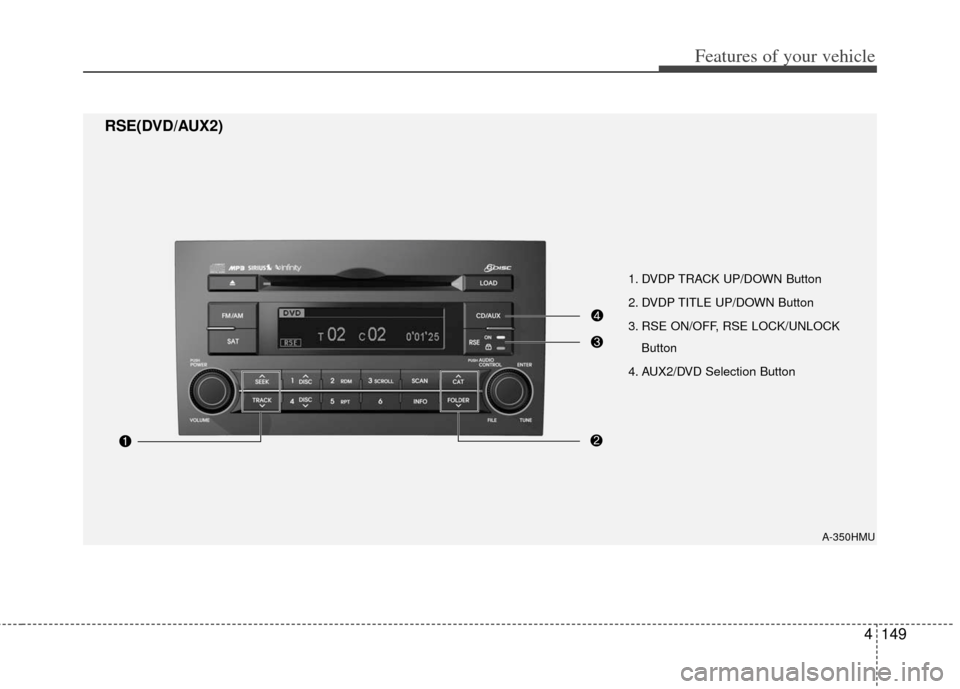
1. DVDP TRACK UP/DOWN Button
2. DVDP TITLE UP/DOWN Button
3. RSE ON/OFF, RSE LOCK/UNLOCKButton
4. AUX2/DVD Selection Button
A-350HMU
RSE(DVD/AUX2)
Page 230 of 464
![KIA Borrego 2011 1.G Owners Manual Features of your vehicle
150
4
Using the Rear Seat
Entertainment (RSE)
1. DVD Chapter Selection Button
Press [TRACK ] button to play from
the beginning of current track.
Press [TRACK ] button again](/manual-img/2/2922/w960_2922-229.png "KIA Borrego 2011 1.G Owners Manual Features of your vehicle
150
4
Using the Rear Seat
Entertainment (RSE)
1. DVD Chapter Selection Button
Press [TRACK ] button to play from
the beginning of current track.
Press [TRACK ] button again")
Features of your vehicle
150
4
Using the Rear Seat
Entertainment (RSE)
1. DVD Chapter Selection Button
Press [TRACK ] button to play from
the beginning of current track.
Press [TRACK ] button again within 3 seconds to play the previous track.
Press [SEEK ] button for less than 0.8 second to play the next track.
2.DVD Title Selection Button
Press [FOLDER ] b utton to play the
previous track.
Press [CAT ] button to play the next
track.
3. RSE ON/OFF, LOCK/UNLOCK Button
When the RSE ON/OFF, LOCK/UNLOCK
button is pushed for less than 0.8 sec-
ond, the red color LED of the button will
light and RSE unit will be locked. If you
push button for more than 0.8 second,
the green color LED of the button will
light and RSE unit will turn on and [RSE]
will appear on the LCD.
4. DVD/AUX2 Selection Button
In the event there is a DVD inserted and
an auxiliary device is connected to the
RSE system, pressing the DVD/AUX2
button will switch between DVD and
AUX2 modes.
Page 235 of 464
4155
Features of your vehicle
How to Use SIRIUS Satellite
Radio
Your Kia vehicle is equipped with a 3
month complimentary period of SIRIUS
Satellite Radio so you have access to
over 130 channels of music, information,
and entertainment programming.
Activation
In order to extend or reactivate your sub-
scription to SIRIUS Satellite Radio, you
will need to contact SIRIUS Customer
Care at 888-539-7474. Have your 12 digit
SID (Sirius Identification Number)/ESN
(Electronic Serial Number) ready. To
retrieve the SID/ESN, turn on the radio,
press the [SAT] button, and tune to chan-
nel zero. Please note that the vehicle will
need to be turned on, in Sirius mode, and
have an unobstructed view of the sky in
order for the radio to receive the activa-
tion signal.
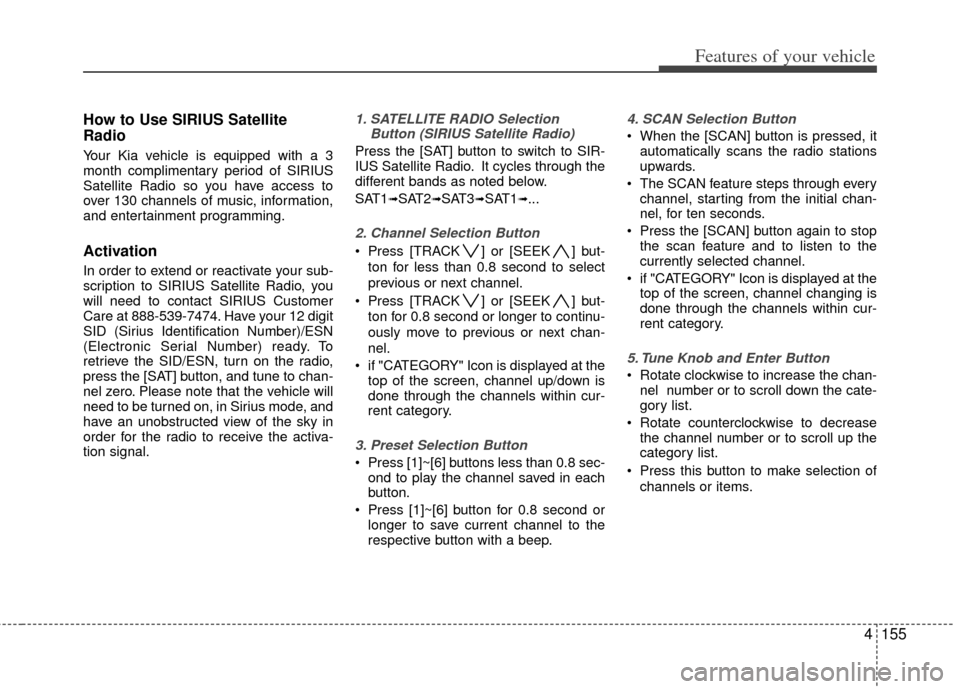
1. SATELLITE RADIO SelectionButton (SIRIUS Satellite Radio)
Press the [SAT] button to switch to SIR-
IUS Satellite Radio. It cycles through the
different bands as noted below.
SAT1
➟SAT2➟SAT3➟SAT1➟...
2. Channel Selection Button
Press [TRACK ] or [SEEK ] but-
ton for less than 0.8 second to select
previous or next channel.
Press [TRACK ] or [SEEK ] but- ton for 0.8 second or longer to continu-
ously move to previous or next chan-
nel.
if "CATEGORY" Icon is displayed at the top of the screen, channel up/down is
done through the channels within cur-
rent category.
3. Preset Selection Button
Press [1]~[6] buttons less than 0.8 sec-ond to play the channel saved in each
button.
Press [1]~[6] button for 0.8 second or longer to save current channel to the
respective button with a beep.
4. SCAN Selection Button
When the [SCAN] button is pressed, itautomatically scans the radio stations
upwards.
The SCAN feature steps through every channel, starting from the initial chan-
nel, for ten seconds.
Press the [SCAN] button again to stop the scan feature and to listen to the
currently selected channel.
if "CATEGORY" Icon is displayed at the top of the screen, channel changing is
done through the channels within cur-
rent category.
5. Tune Knob and Enter Button
Rotate clockwise to increase the chan-nel number or to scroll down the cate-
gory list.
Rotate counterclockwise to decrease the channel number or to scroll up the
category list.
Press this button to make selection of channels or items.
Page 240 of 464

Features of your vehicle
160
4
How to Activate RADIO,
SET UP, VOLUME Control
1. FM/AM Selection Button The FM/AM button toggles between FM
and AM. Listed below are the paths as
the system switches from FM to AM and
back to FM.
FM/AM : FM1
➟FM2➟AM➟FM1...
FM : FM1
➟FM2➟FM1...
2. Power ON/OFF Button & Volume Control Knob
Turns the audio system on/off when
the ignition switch is on ACC or ON.
If the knob is turned clockwise/counter- clockwise, the volume will increase
/decrease.
3. Automatic Channel Selection Button
When the [TRACK ] is pressed, it
will automatically tune to the next lower
station.
When the [SEEK ] is pressed, it will automatically tune to the next higher
station.
4. SCAN Selection Button
When the button is pressed, it auto-matically scans the radio stations
upwards.
The SCAN feature steps through each station, starting from the initial station,
for ten seconds.
Press the [SCAN] button again to stop the scan feature and to listen to the
currently selected channel.
5. Preset Selection Button
Press [1]~[6] buttons less than 0.8 sec-ond to play the station saved in each
button.
Press [1]~[6] b utton more than 0.8 sec-
ond or longer to save the current station
to the respective button with a beep.
6. TUNE/AUDIO Knob
If the knob is turned clockwise/counter-
clockwise, the frequency will increase/
decrease.
(AM 10kHz, FM 200kHz)
■Audio Setup MODE
Press and Rotate [AUDIO] repeatedly to
choose the desired mode.
Each press changes the mode as below :
(Hierarchy 4 (AUTO VOLUME CON-
TROL) mode is only selected in the CDP.)
Hierarchy 1
Hierarchy 2
Page 246 of 464

Features of your vehicle
166
4
9. Track(File) Search Knob and
ENTER Button
Turn this knob clockwise to display the
Track NO(File name) after the current
song.
Turn this button counterclockwise to display the Track NO(File Name)
before the current song.
To select the displayed song, press the button.
10. FOLDER Search Button
Folder name/File name(the first song inthe folder) is moved up or down from
the currently playing folder.
To select the displayed folder, press ENTER(NO.10) button.
11. INFORMATION Button
Displays the information of the current CD
TRACK(FILE) as below when the button
is pressed each time.
CDDA : Disc Title
➟Disc Artist➟Track Title➟
Track Artist➟Total Track... (not displayed if
the information is not available on the DISC)
MP3/WMA : File Name
➟Title➟Artist➟
Album➟Folder Name➟Total File...
12. DISC UP/DOWN Button (CDC ONLY)
Disc is moved up or down from the cur-
rently playing disc.
13. CD Loading Button(CDC ONLY)
How to load a CD
Press [LOAD] for less than 0.8 second.
An empty slot is selected and the CD
number indicator(a) blinks on the LCD.
After "WAIT" is displayed for a moment, "INSERT DISC(1~6)" is diplayed and
the CD slot indicator(b) blinks.
Insert a CD while the slot indicator blinks.
How to load CDs(ALL Load)
Press [LOAD] for more than 0.8 sec- ond.
An empty slot is selected and the CD number indicator(a) blinks on the LCD.
After "WAIT" is displayed for a moment, "INSERT DISC(1~6)" is
diplayed and the CD slot indicator(b)
blinks.
Insert a CD while the slot indicator blinks. After the CD is inserted, the rest of the
empty CD slots' number blink.
Repeat step 2 and 3 until all of the slots are loaded.CAUTION
Insert a CD only while "Insert Disc(1~6)" is displayed and theslot indicator blinks.
Don't insert two CDs for one oper- ation.
Page 252 of 464

Features of your vehicle
172
4
How to Activate USB MEMORY
1. RANDOM Play Button
Press this button for less than 0.8 second
to activate 'RDM' mode and more than
0.8 second to activate 'ALL RDM' mode.
RDM : Only files in a folder are played
back in random sequence.
ALL RDM : All files in a USB memory are played back in random sequence.
2. Automatic Track Selection Button
Press [TRACK ] to return to thebeginning of the current file.
Press again within 1 second to return
the previous file.
Press and hold [TRACK ] to initiate rewind search.
Press [SEEK ] for less than 0.8 sec- ond to advance the next file.
Press and hold [SEEK ] to initiate fast forward search.
3. REPEAT Play Button
Press this button for less than 0.8 second
to activate 'RPT' mode and more than
0.8 second to activate 'FLD RPT' mode.
RPT : Only a file is played repeatedly.
FLD RPT : Only files in a folder areplayed repeatedly.
4. USB/AUX Selection Button
If auxiliary device/USB/ is connected, itturns to USB/AUX mode and toggles
as below when the button is pressed
each time.
AUX/USB : AUX
➟USB➟AUX.......
If no auxiliary device and USB is con- nected, it displays "No Media" for 5
seconds and returns to the previous
mode.
5. INFORMATION Button
Displays the information of the current
CD TRACK(FILE) as below when the
button is pressed each time.
File Name
➟Title➟Artist➟Album
➟Folder Name➟Total File...(not dis-
played if the file has no song)
6. File Search Knob and ENTER Button
Turn this knob clockwise to display File
name after the current song.
Turn this knob counterclockwise to dis- play File Name before the current
song.
To select the displayed song, press the button.
7. FOLDER Search Button
Folder name/File name(the first songin the folder) is moved up or down from
currently playing folder.
To select the displayed folder, press ENTER(NO.6) button.
8. SCAN Play Button
Plays back the first 10 seconds of each
song in the USB memory.