Page 102 of 490
Voice Command ButtonActual button location may vary with the ra-
dio. The individual buttons are described in the
“Operation” section.
The Uconnect™ Phone can be used with any Hands-Free
Profile certified Bluetooth� mobile phone. See the
Uconnect™ website for supported phones. Refer to your
mobile service provider or the phone manufacturer for
details.
The Uconnect™ Phone is fully integrated with the vehi-
cle’s audio system. The volume of the Uconnect™ Phone
can be adjusted either from the radio volume control
knob or from the steering wheel radio control (right
switch), if so equipped.
The radio display will be used for visual prompts from
the Uconnect™ Phone such as “CELL” or caller ID on
certain radios.Operation
Voice commands can be used to operate the Uconnect™
Phone and to navigate through the Uconnect™ Phone
menu structure. Voice commands are required after most
Uconnect™ Phone prompts. You will be prompted for a
specific command and then guided through the available
options.
•Prior to giving a voice command, one must wait for
the beep, which follows the “Ready” prompt or an-
other prompt.
•For certain operations, compound commands can be
used. For example, instead of saying “Setup” and then
“Pair a Device”, the following compound command
can be said: “Pair a Bluetooth� Device”.
•For each feature explanation in this section, only the
compound form of the voice command is given. You
can also break the commands into parts and say each
part of the command when you are asked for it. For
100 UNDERSTANDING THE FEATURES OF YOUR VEHICLE
Page 158 of 490
TILT STEERING COLUMN
This feature allows you to tilt the steering column
upward or downward. The tilt control handle is located
on the left side of the steering column, below the turn
signal lever.
Push down on the lever to unlock the steering column.
With one hand firmly on the steering wheel, move the
steering column up or down, as desired. Push the lever
up to lock the steering column firmly in place.
Tilting Steering Column Control
156 UNDERSTANDING THE FEATURES OF YOUR VEHICLE
Page 159 of 490
WARNING!
Do not adjust the steering column while driving.
Adjusting the steering column while driving or driv-
ing with the steering column unlocked, could cause
the driver to lose control of the vehicle. Be sure the
steering column is locked before driving your ve-
hicle. Failure to follow this warning may result in
serious injury or death.
ELECTRONIC SPEED CONTROL — IF EQUIPPED
When engaged, the Electronic Speed Control takes over
accelerator operations at speeds greater than 25 mph
(40 km/h).
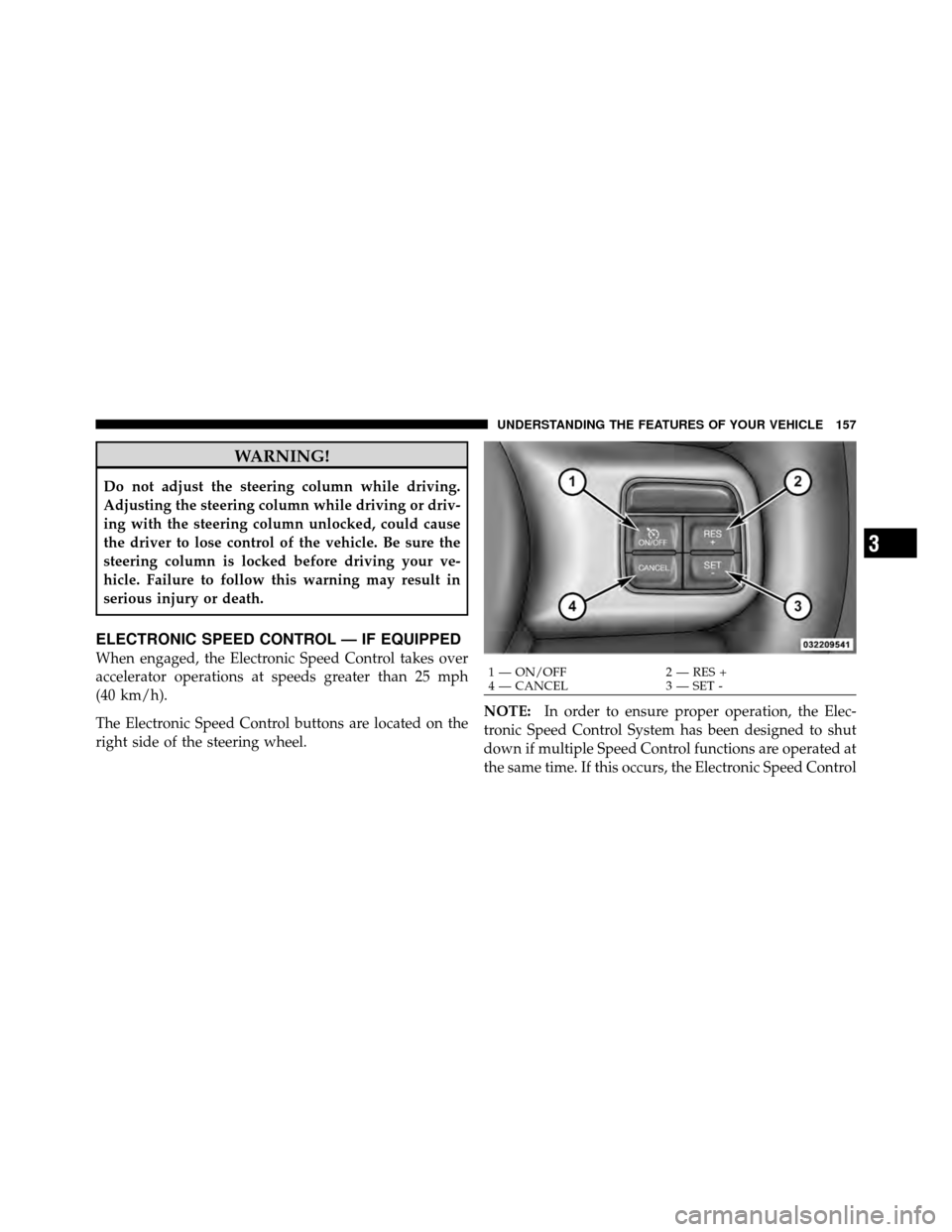
The Electronic Speed Control buttons are located on the
right side of the steering wheel.NOTE:
In order to ensure proper operation, the Elec-
tronic Speed Control System has been designed to shut
down if multiple Speed Control functions are operated at
the same time. If this occurs, the Electronic Speed Control1 — ON/OFF 2 — RES +
4 — CANCEL 3 — SET -
3
UNDERSTANDING THE FEATURES OF YOUR VEHICLE 157
Page 193 of 490
�Media Center 130 With Satellite Radio
(Sales Code RES+RSC) ................... 249
▫ Operating Instructions — Radio Mode ..... 249
▫ Operation Instructions — CD Mode For CD
And MP3 Audio Play ................. 255
▫ Notes On Playing MP3 Files ............ 257
▫ List Button (CD Mode For MP3 Play) ...... 259
▫ Info Button (CD Mode For MP3 Play) ...... 259
▫ Uconnect™ Multimedia (Satellite Radio) —
If Equipped ........................ 260
� iPod�/USB/MP3 Control — If Equipped ..... 264
▫ Connecting The iPod� Or External USB
Device ............................ 265
▫ Using This Feature ................... 266
▫ Controlling The iPod� Or External USB
Device Using Radio Buttons ............. 266▫
Play Mode ......................... 266
▫ List Or Browse Mode ................. 268
▫ Bluetooth Streaming Audio (BTSA) ........ 270
� Steering Wheel Audio Controls ............ 271
▫ Radio Operation ..................... 272
▫ CD Player ......................... 272
� CD/DVD Disc Maintenance .............. 273
� Radio Operation And Mobile Phones ....... 273
� Climate Controls ...................... 273
▫ Manual Heating And Air Conditioning ..... 274
▫ Automatic Temperature Control (ATC) —
If Equipped ........................ 278
▫ Operating Tips ...................... 284
4
UNDERSTANDING YOUR INSTRUMENT PANEL 191
Page 205 of 490
alternate tires or wheels on the vehicle that prevent the
TPMS from functioning properly. Always check the
TPMS malfunction telltale after replacing one or more
tires or wheels on your vehicle, to ensure that the
replacement or alternate tires and wheels allow the TPMS
to continue to function properly.
CAUTION!
The TPMS has been optimized for the original
equipment tires and wheels. TPMS pressures and
warning have been established for the tire size
equipped on your vehicle. Undesirable system opera-
tion or sensor damage may result when using re-
placement equipment that is not of the same size,
type, and/or style. Aftermarket wheels can cause
sensor damage. Do not use tire sealant from a can or
balance beads if your vehicle is equipped with a
TPMS, as damage to the sensors may result.23. Odometer Display/Trip Odometer Display
This display indicates the total distance the vehicle has
been driven.
NOTE:
U.S. Federal regulations require that upon trans-
fer of vehicle ownership, the seller certify to the pur-
chaser the correct mileage that the vehicle has been
driven. If your odometer needs to be repaired or serviced,
the repair technician should leave the odometer reading
the same as it was before the repair or service. If s/he
cannot do so, then the odometer must be set at zero, and
a sticker must be placed in the door jamb stating what the
mileage was before the repair or service. It is a good idea
for you to make a record of the odometer reading before
the repair/service, so that you can be sure that it is
properly reset, or that the door jamb sticker is accurate if
the odometer must be reset at zero.
4
UNDERSTANDING YOUR INSTRUMENT PANEL 203
Page 209 of 490
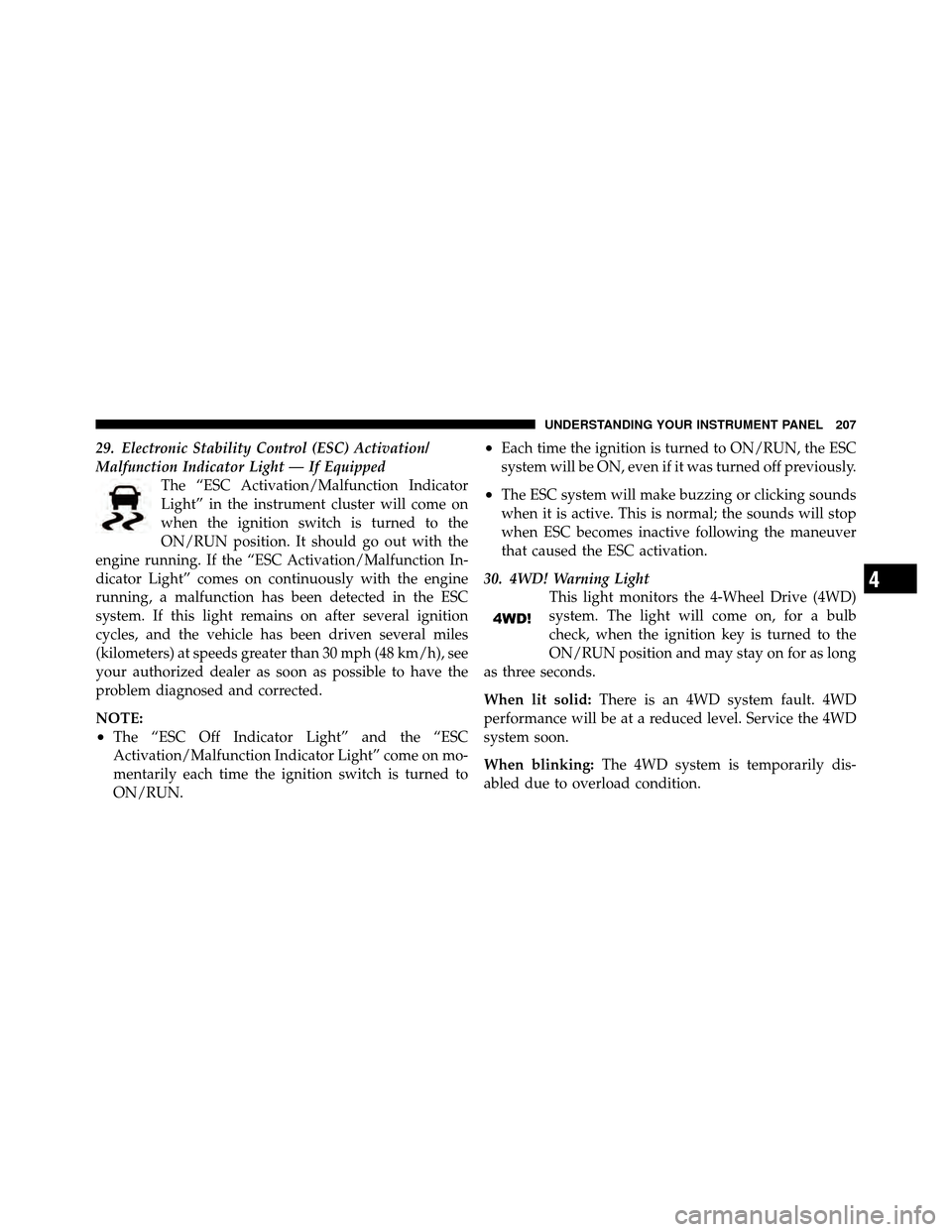
29. Electronic Stability Control (ESC) Activation/
Malfunction Indicator Light — If EquippedThe “ESC Activation/Malfunction Indicator
Light” in the instrument cluster will come on
when the ignition switch is turned to the
ON/RUN position. It should go out with the
engine running. If the “ESC Activation/Malfunction In-
dicator Light” comes on continuously with the engine
running, a malfunction has been detected in the ESC
system. If this light remains on after several ignition
cycles, and the vehicle has been driven several miles
(kilometers) at speeds greater than 30 mph (48 km/h), see
your authorized dealer as soon as possible to have the
problem diagnosed and corrected.
NOTE:
•The “ESC Off Indicator Light” and the “ESC
Activation/Malfunction Indicator Light” come on mo-
mentarily each time the ignition switch is turned to
ON/RUN.
•Each time the ignition is turned to ON/RUN, the ESC
system will be ON, even if it was turned off previously.
•The ESC system will make buzzing or clicking sounds
when it is active. This is normal; the sounds will stop
when ESC becomes inactive following the maneuver
that caused the ESC activation.
30. 4WD! Warning Light This light monitors the 4-Wheel Drive (4WD)
system. The light will come on, for a bulb
check, when the ignition key is turned to the
ON/RUN position and may stay on for as long
as three seconds.
When lit solid: There is an 4WD system fault. 4WD
performance will be at a reduced level. Service the 4WD
system soon.
When blinking: The 4WD system is temporarily dis-
abled due to overload condition.
4
UNDERSTANDING YOUR INSTRUMENT PANEL 207
Page 210 of 490
31. Electronic Vehicle Information Center (EVIC)
Display — If Equipped
When the appropriate conditions exist, this display
shows the Electronic Vehicle Information Center (EVIC)
messages.
For further information, refer to “Electronic Vehicle In-
formation Center (EVIC)”.
MINI-TRIP COMPUTER — IF EQUIPPED
The Mini-Trip Computer is located in the instrument
cluster and features a driver-interactive trip information
and temperature display.
NOTE:The system will display the last known outside
temperature when starting the vehicle and may need to
be driven several minutes before the updated tempera-
ture is displayed. Engine temperature can also affect the
displayed temperature; therefore, temperature readings
are not updated when the vehicle is not moving.
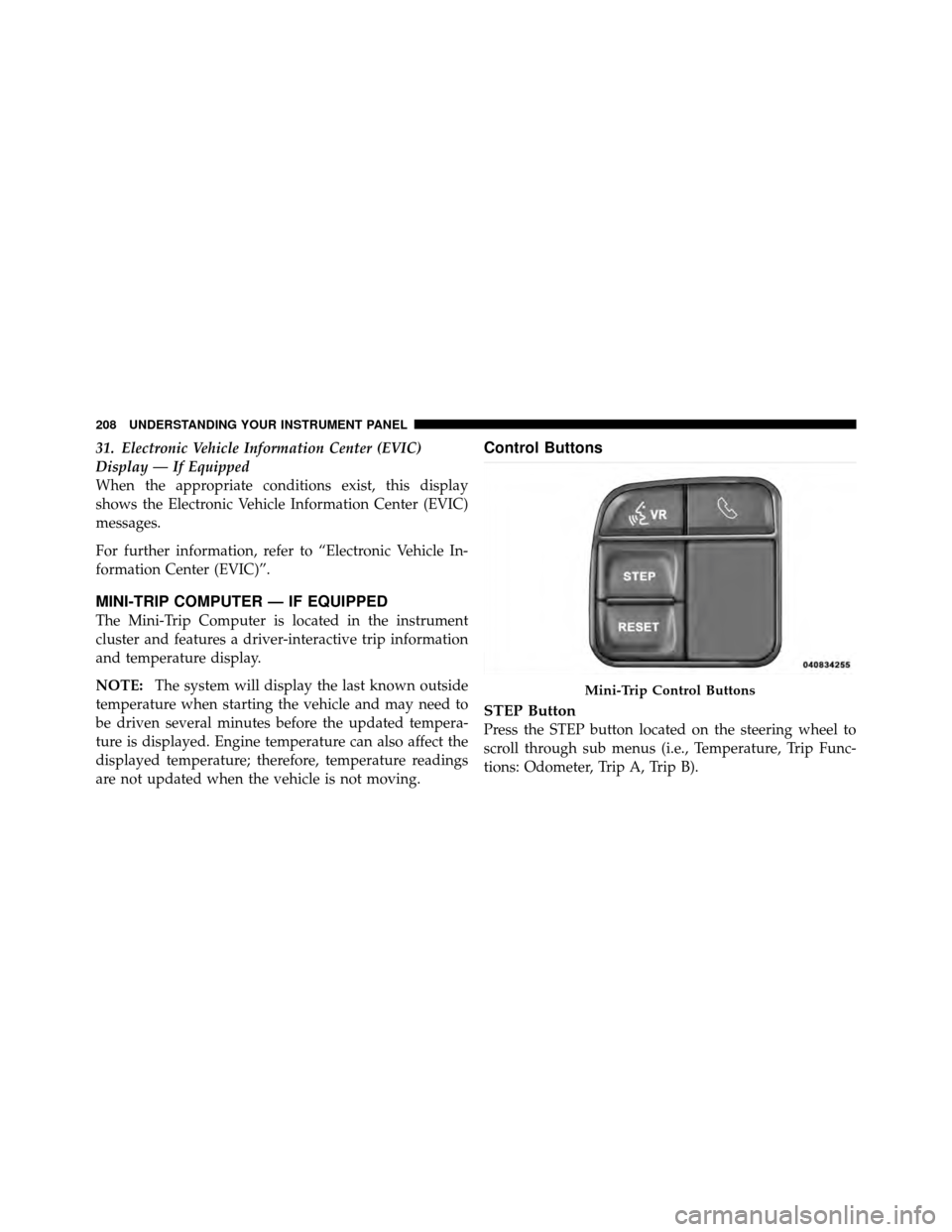
Control Buttons
STEP Button
Press the STEP button located on the steering wheel to
scroll through sub menus (i.e., Temperature, Trip Func-
tions: Odometer, Trip A, Trip B).
Mini-Trip Control Buttons
208 UNDERSTANDING YOUR INSTRUMENT PANEL
Page 211 of 490
RESET Button
To reset the display shown, turn the ignition switch to the
ON position, then press and hold the RESET button
located on the steering wheel.
The following displays can be reset or changed:
•Trip A
•Trip B
Trip Odometer (ODO)
This display shows the distance traveled since the last
reset. Press and release the STEP button on the instru-
ment cluster to switch from odometer, to Trip A or Trip B.
Trip A
Shows the total distance traveled for Trip A since the last
reset.
Trip B
Shows the total distance traveled for Trip B since the last
reset.
ELECTRONIC VEHICLE INFORMATION CENTER
(EVIC) — IF EQUIPPED
The Electronic Vehicle Information Center (EVIC) fea-
tures a driver-interactive display that is located in the
instrument cluster.
Electronic Vehicle Information Center (EVIC)
4
UNDERSTANDING YOUR INSTRUMENT PANEL 209